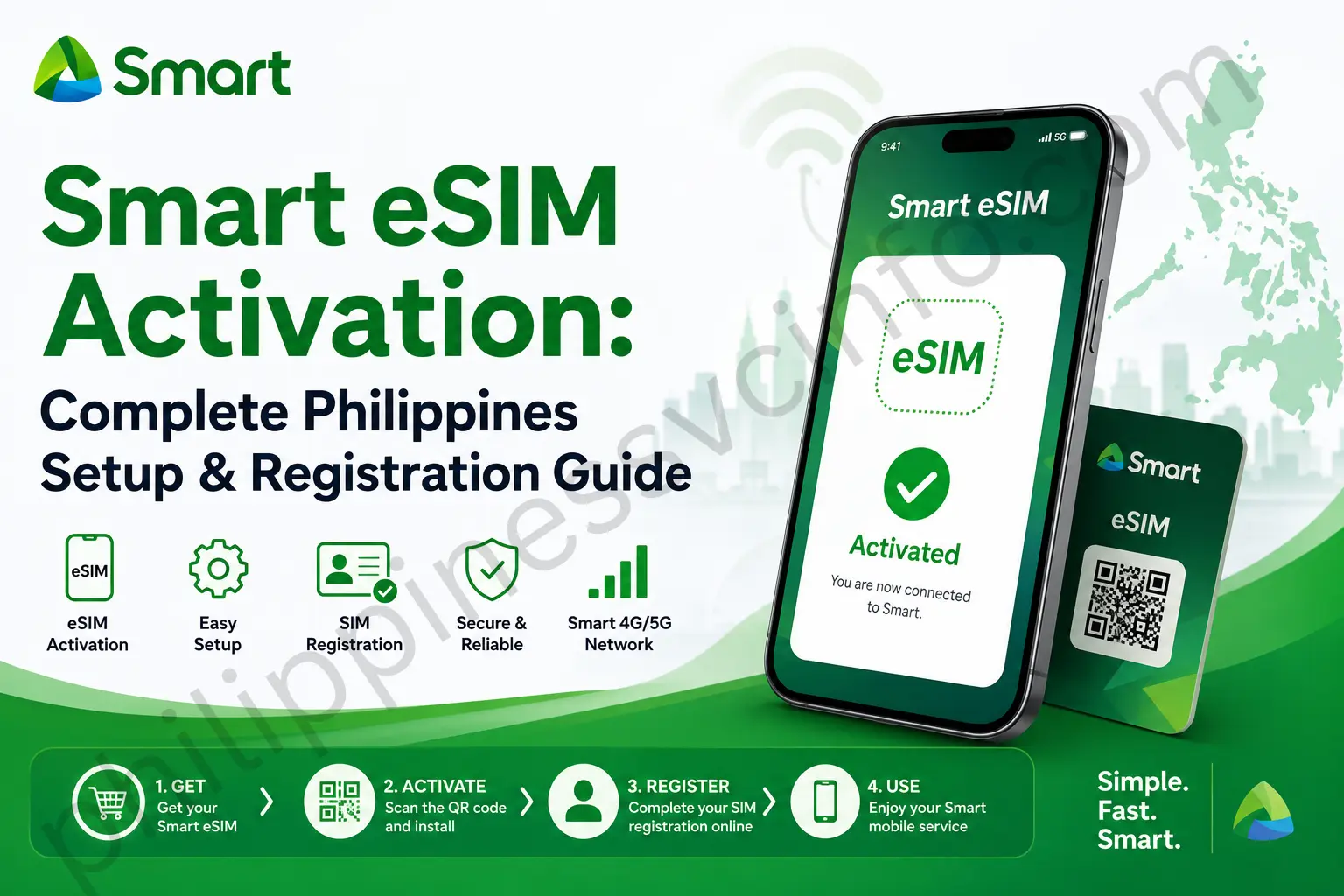
A Smart eSIM is a digital SIM that lets you connect to the Smart network without inserting a physical SIM card into your phone. Instead of handling a removable chip, the eSIM is downloaded and activated directly on a compatible device. Smart eSIM can be useful if you want to keep multiple mobile lines, switch between numbers more conveniently, or avoid carrying a physical SIM card while traveling. However, your phone must support eSIM technology, and the Smart eSIM still needs to be registered according to the Philippines’ SIM Registration Act. In this guide, you’ll learn how to get and register a Smart eSIM, check device compatibility, activate the eSIM, complete SIM registration, and troubleshoot common activation or registration issues.
What Is an eSIM?
An eSIM (embedded SIM) is a digital SIM built into a smartphone, tablet, smartwatch, or other compatible device. Unlike a traditional physical SIM card, an eSIM does not need to be inserted or removed. Instead, your mobile network profile is downloaded and activated electronically on the device.
With an eSIM, you can connect to a mobile network, make calls, send text messages, and use mobile data just like you would with a physical SIM. Many compatible devices also allow you to store multiple eSIM profiles, making it easier to manage personal, work, or travel mobile lines.
To use an eSIM, your device must support eSIM technology and your mobile carrier must offer an eSIM service. Activation is commonly completed by scanning a QR code or entering activation details provided by the carrier.
For Smart eSIM, the same basic technology applies, but you must also follow Smart’s activation and SIM registration requirements before using the service.
What You Need Before Registering a Smart eSIM
Before registering a Smart eSIM, make sure your device is compatible, unlocked, and ready for activation. Checking these requirements first can help prevent problems during the eSIM setup and registration process.
1. Make Sure Your Device Supports eSIM
Your phone or tablet must have built-in eSIM support to use a Smart eSIM. Compatibility varies depending on the exact device model and region.
Common eSIM-compatible devices include:
- Apple: iPhone XS, XS Max, XR, and newer supported iPhone models
- Samsung: Selected Galaxy S20 and newer models, Galaxy Note 20 series, and supported Galaxy Z Fold and Z Flip models
- Google: Selected Pixel 3 and newer models
- Other brands: Certain Huawei, Xiaomi, OPPO, Sony, and Motorola devices
Because the same model may have different versions for different markets, check your exact model number before purchasing or activating an eSIM.
2. Your Phone Should Be Unlocked
A carrier-locked phone may prevent you from using a Smart eSIM. If your device was purchased from another mobile provider, confirm that it is unlocked before starting the setup.
On iPhone:
- Open Settings.
- Tap General > About.
- Find Carrier Lock.
- If it says “No SIM restrictions,” the iPhone is unlocked.
On Android:
The location of the carrier-lock information varies by manufacturer. Check your SIM, Network, or Mobile Network settings, or contact the carrier that originally supplied the device.
Note: eSIM availability can differ by country, region, and device variant. Some models sold in specific markets may not support eSIM even when the same model name supports it elsewhere.
3. Check eSIM Availability in Your Settings
You can usually confirm eSIM compatibility directly from your device.
On Android:
Go to Settings and look under Network & Internet, Connections, SIM Manager, or Mobile Network. If you find an option such as “Add eSIM” or “Add mobile plan,” your device may support eSIM.
On iPhone or iPad:
Go to Settings > General > About and look for an EID. You can also check Settings > Cellular/Mobile Service for an “Add eSIM” option.
If you cannot find these options, check your device manufacturer’s specifications or confirm compatibility with Smart before proceeding.
Related: Smart SIM Registration
How to Get Your Smart eSIM
The process for getting a Smart eSIM depends on whether you are a new Smart customer, an existing Smart subscriber, or transferring your number from another mobile network. Choosing the right option first makes the activation and registration process much easier.
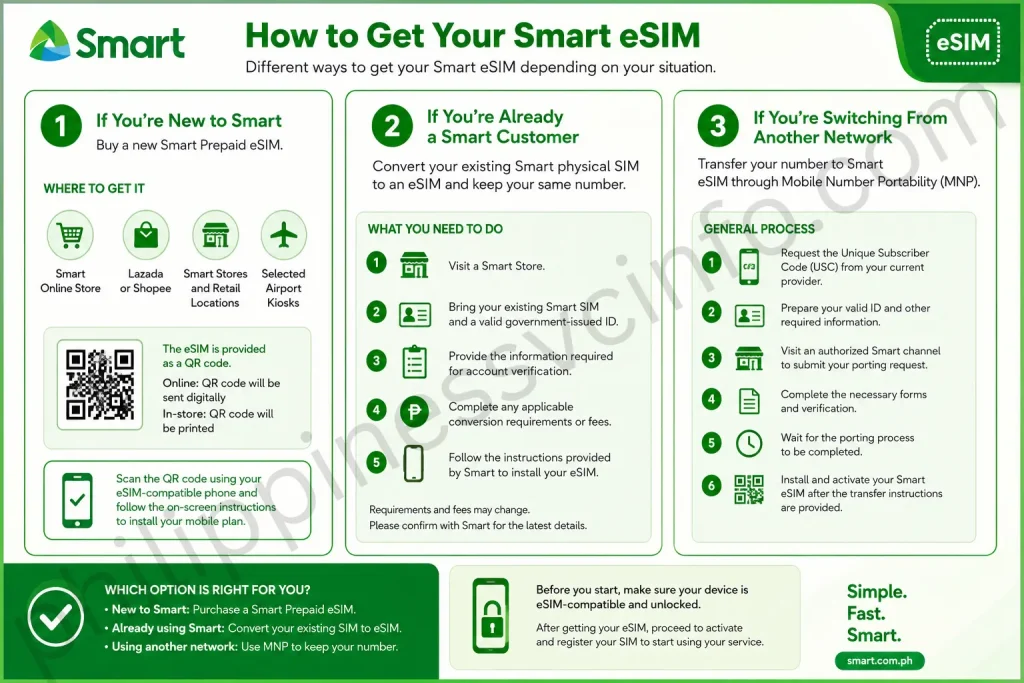
If You’re New to Smart
If you do not have a Smart mobile number yet, you can purchase a Smart Prepaid eSIM through available Smart sales channels.
You may be able to get the eSIM through:
- The official Smart Online Store
- Authorized online marketplaces such as Lazada or Shopee
- Smart Stores and selected retail locations
- Selected airport kiosks
The eSIM is provided through a QR code rather than a physical SIM card. For online purchases, the QR code may be provided digitally, while purchases from physical locations may include a printed QR code.
After purchasing the eSIM, you can scan the QR code using a compatible phone and follow the on-screen instructions to install the mobile plan.
Before activation, make sure your device supports eSIM technology and has a stable internet connection.
If You’re Already a Smart Customer
If you currently use a Smart physical SIM and want to switch to an eSIM while keeping your existing number, you can request a SIM-to-eSIM conversion through Smart’s available service channels.
For a store-based conversion, you may need to:
- Visit a Smart Store.
- Bring your existing Smart SIM and a valid government-issued ID.
- Provide the information required for account verification.
- Complete any applicable conversion requirements or fees.
- Follow the instructions provided by Smart to install the new eSIM.
The exact requirements and applicable charges can change, so confirm the current details with Smart before visiting a store.
Your mobile number generally remains the same when you convert your existing Smart SIM to an eSIM. The main change is the way your mobile service is stored on the device.
If You’re Switching From Another Network
If you currently use another Philippine mobile network and want to move your number to Smart, you can use Mobile Number Portability (MNP) if you meet the applicable requirements.
The general process involves:
- Requesting the required Unique Subscriber Code (USC) from your current provider.
- Preparing your valid ID and other required information.
- Visiting an authorized Smart channel to submit your porting request.
- Completing the necessary forms and verification.
- Waiting for the porting process to be completed.
- Installing and activating your Smart eSIM after the transfer instructions are provided.
The exact documents, eligibility requirements, and process can vary depending on your current provider and the type of service you use. Check Smart’s current MNP requirements before starting the transfer.
Which Smart eSIM Option Should You Choose?
The right option depends on your current mobile service:
- New to Smart: Purchase a Smart Prepaid eSIM.
- Already using Smart: Ask Smart about converting your existing physical SIM to an eSIM.
- Using another network: Apply for Mobile Number Portability if you want to keep your existing mobile number.
Whichever option you choose, make sure your device is eSIM-compatible and unlocked before beginning the setup. After obtaining your eSIM, the next step is to install it on your phone and complete the required Smart SIM registration.
How to Activate Your Smart eSIM
Once you have obtained your Smart eSIM, the next step is to install the eSIM profile on your compatible device and connect it to the Smart network. The process is slightly different on iPhone and Android, but both require the QR code provided by Smart.

Step 1: Prepare Before Activating
Before scanning your Smart eSIM QR code, check the following:
- Stable internet connection: Your phone needs an internet connection to download the eSIM profile.
- Smart eSIM QR code: Keep the QR code available on another device or use a clear printed copy.
- Compatible device: Confirm that your phone supports eSIM and is unlocked if required.
- Updated software: Installing the latest available iOS or Android updates can help avoid compatibility issues.
- Enough battery: Make sure your phone has sufficient battery power so the installation is not interrupted.
Step 2: Activate Smart eSIM on iPhone or iPad
On supported Apple devices, you can usually install an eSIM directly through the Cellular settings.
- Open Settings.
- Tap Cellular or Mobile Data.
- Select Add eSIM.
- Choose Use QR Code.
- Scan the QR code provided by Smart.
- Follow the on-screen instructions to complete the installation.
- Wait for the eSIM to connect to the Smart network.
After installation, you can give the line a label such as Smart Personal or Smart Work if you use multiple SIMs.
You can also choose which line you want to use for mobile data, calls, and messages.
If the QR code does not scan: Depending on the information supplied with your eSIM, you may have the option to enter the activation details manually. Use only the activation information provided by Smart.
Step 3: Activate Smart eSIM on Android
The exact menu names can vary between Samsung, Google Pixel, Xiaomi, and other Android devices. However, the general process is similar.
- Open Settings.
- Go to Connections, Network & Internet, or Mobile Network.
- Open SIM Manager or SIMs.
- Select Add eSIM or a similar option.
- Choose the option to scan or download an eSIM.
- Scan your Smart eSIM QR code.
- Follow the instructions displayed on your screen.
- Turn on the Smart eSIM after installation is complete.
Once activated, check your SIM settings to make sure the Smart eSIM is enabled. If you use two SIMs, you can also select your preferred line for calls, texts, and mobile data.
Step 4: Check That Your Smart eSIM Is Working
After installation, check whether your phone can connect to the Smart network.
You can verify the following:
- The Smart eSIM appears in your SIM or Cellular settings.
- The line is switched on.
- Your phone displays a network signal.
- You can make a call or send a text message, where applicable.
- Mobile data works when Wi-Fi is turned off.
Remember that eSIM installation and SIM registration are separate steps. Installing the eSIM profile does not replace the required SIM registration under Philippine law.
Troubleshooting Smart eSIM Activation Problems
If your Smart eSIM does not activate correctly, try these basic troubleshooting steps.
eSIM stuck on activating:
Check your internet connection, make sure the eSIM line is switched on, and restart your device. If the issue continues, contact Smart support for assistance.
QR code will not scan:
Make sure the QR code is clear and fully visible. Increase the brightness of the screen displaying the code and try scanning it again. If Smart provides manual activation details, you can use those instead.
No mobile data:
Confirm that the Smart eSIM is enabled and selected as the mobile-data line if you are using multiple SIMs. Turn off Wi-Fi temporarily and check whether the device connects to the Smart network.
No network signal:
Restart your phone and check whether you are in an area with Smart network coverage. If the eSIM still does not connect, contact Smart to verify the activation status.
OTP not received:
Make sure the Smart eSIM is active and receiving network service. If you still cannot receive the OTP, wait briefly and request another code. Avoid repeatedly requesting OTPs in quick succession.
What Comes After Activation?
After your Smart eSIM has been installed and connected to the network, complete the required Smart SIM registration if you have not already done so. Keep your registration or reference details in a secure place for future use.
Related: How to Activate Smart SIM
Registering Your Smart eSIM
Activating your Smart eSIM and registering it are two separate steps. After installing the eSIM on your device, you must complete the required SIM registration process under the SIM Registration Act (Republic Act No. 11934).
SIM registration helps verify the identity of mobile subscribers and is required for Smart SIMs and eSIMs covered by the law. If a SIM is not registered within the applicable requirements and deadlines, mobile services may be suspended or deactivated.
Where to Register Your Smart eSIM
Use Smart’s official SIM registration portal to complete your registration:
Be careful when searching for the registration website. Avoid entering personal information through links received from unknown text messages, emails, or social media accounts. Always verify that you are using Smart’s official website before submitting your personal details.
How to Register Your Smart eSIM Online
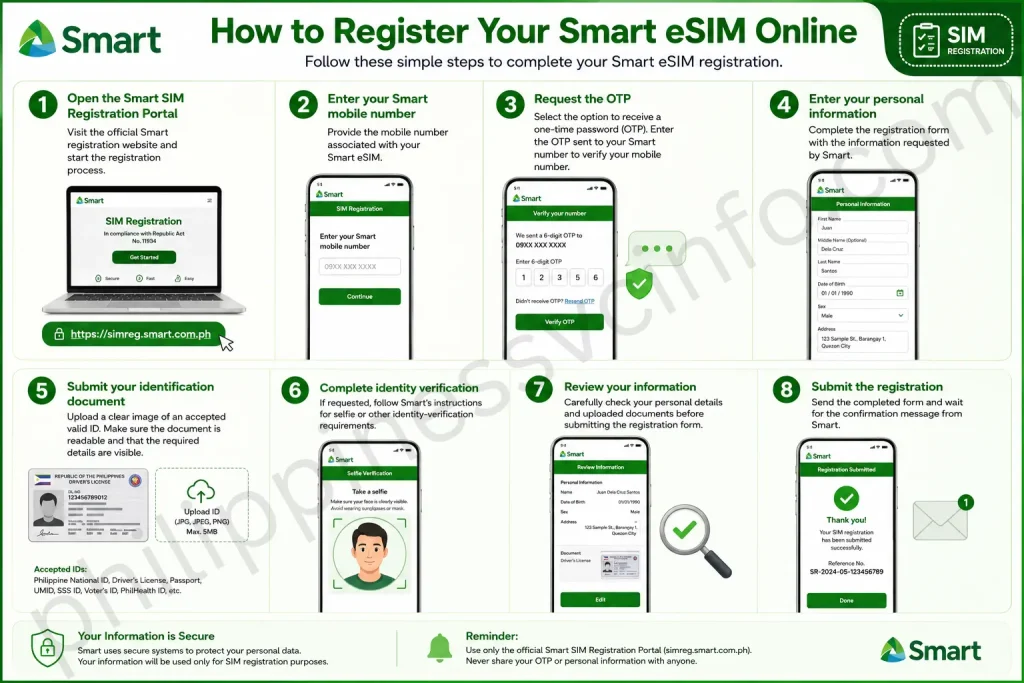
Follow these general steps to complete Smart eSIM registration:
- Open the Smart SIM Registration Portal
Visit the official Smart registration website and start the registration process. - Enter your Smart mobile number
Provide the mobile number associated with your Smart eSIM. - Request the OTP
Select the option to receive a one-time password (OTP). Enter the OTP sent to your Smart number to verify your mobile number. - Enter your personal information
Complete the registration form with the information requested by Smart, such as your name, date of birth, sex, and address. - Submit your identification document
Upload a clear image of an accepted valid ID. Make sure the document is readable and that the required details are visible. - Complete identity verification
If requested, follow Smart’s instructions for selfie or other identity-verification requirements. - Review your information
Carefully check your personal details and uploaded documents before submitting the registration form. - Submit the registration
Send the completed form and wait for the confirmation message from Smart.
Keep Your Registration Details
After successful registration, save any reference number, confirmation message, or registration record provided by Smart. These details may be useful if you later need to verify your registration or resolve an account-related issue.
Common Smart eSIM Registration Problems
Some users may encounter problems such as an OTP not arriving, an invalid ID upload, unsuccessful identity verification, or an error while submitting the registration form.
If you experience an issue, first check that your mobile number and personal information are correct, your ID image is clear, and your eSIM has network connectivity.
Related: Smart eSIM Registration Errors and How to Fix Them
Accepted IDs for Smart eSIM Registration
When registering a Smart eSIM, you may need to provide a valid government-issued identification document. The accepted IDs can depend on Smart’s current registration requirements.
Commonly accepted identification documents may include:
- Philippine National ID (PhilSys ID)
- UMID Card
- Driver’s License
- Passport
- SSS ID
- Voter’s ID
- Senior Citizen ID
- Other valid government-issued IDs containing the required identification details
Make sure your ID is valid, readable, and matches the personal information you enter during registration. If the registration portal provides a specific list of accepted IDs, follow that list because requirements may be updated.
Note: “Nationality” is personal information, not an identification document, so it should not be listed as an accepted ID.
Common Smart eSIM Issues and Quick Fixes
Even after correctly installing and registering a Smart eSIM, you may occasionally experience activation, network, QR code, or registration problems. Most issues can be checked with a few simple troubleshooting steps.
1. My Phone Won’t Connect After Activation
If your Smart eSIM has been installed but your phone does not connect to the network:
- Turn Airplane Mode on for about 10–15 seconds, then turn it off.
- Restart your phone.
- Make sure the Smart eSIM is enabled in your SIM or Cellular settings.
- Check whether your device has network coverage in your current location.
If the eSIM still does not connect, contact Smart support to check whether the eSIM has been activated correctly.
2. The Smart eSIM QR Code Won’t Scan
If your phone cannot read the QR code:
- Increase the brightness of the screen displaying the QR code.
- Make sure the entire QR code is visible.
- Clean your phone’s camera lens.
- Keep the camera at an appropriate distance from the QR code.
- Try using the QR code from another device or a clear printed copy.
If Smart has provided manual activation details, you may be able to enter the required information manually instead of scanning the QR code.
3. iPhone Is Stuck on “Activating”
If your iPhone remains on the activation screen for an extended period:
- Open Settings > Cellular.
- Select the Smart eSIM.
- Make sure Turn On This Line is enabled.
- Restart the iPhone.
- Check that the device has an active internet connection.
If activation continues to fail, contact Smart for assistance.
4. Smart eSIM Has No Mobile Data
If calls or messages work but mobile data does not:
- Make sure Mobile Data is turned on.
- Confirm that the Smart eSIM is selected for mobile data if you use multiple SIMs.
- Turn Wi-Fi off temporarily and test the mobile connection.
- Restart your phone.
- Check your device’s mobile-network and APN settings if necessary.
APN settings can vary by device and network configuration, so use the settings recommended by Smart rather than changing them based only on information from third-party websites.
5. OTP Does Not Arrive During Registration
If you do not receive the OTP while registering your Smart eSIM:
- Check that the eSIM is active and has network signal.
- Confirm that you entered the correct Smart mobile number.
- Wait a few minutes before requesting another OTP.
- Restart your phone if the message still does not arrive.
- Try again when you have a stronger network connection.
Avoid repeatedly requesting OTPs within a short period, as this may interfere with the verification process.
6. Smart Registration Portal Rejects My ID
If the Smart SIM registration portal does not accept your identification document:
- Make sure you are using an ID accepted by the registration portal.
- Check that the ID is valid and the information is clearly visible.
- Take a new photo if the document image is blurry, dark, cropped, or reflective.
- Make sure the personal information on your registration form matches your ID.
- Follow the portal’s current file-size and image-format requirements.
- Complete the selfie or identity-verification step in good lighting if requested.
If the problem continues despite using a valid ID and accurate information, contact Smart through its official support channels.
When to Contact Smart
If you have tried the basic troubleshooting steps and your Smart eSIM still cannot activate, connect to the network, receive OTPs, or complete registration, the issue may require account or eSIM-level assistance from Smart.
When contacting support, keep your mobile number, device information, eSIM details, and any registration or reference number available.
Where to Get Help for Smart eSIM
If you have tried the basic troubleshooting steps and your Smart eSIM still is not working, the best option is to contact Smart Communications through its official support channels.
Smart Customer Support
You can use Smart’s available customer-service options for help with eSIM activation, registration, connectivity, account concerns, and other mobile-service issues.
- Smart mobile users: You can contact Smart customer service through the support number provided by Smart for subscribers.
- Landline users: Smart also provides a landline customer-service option for customers who need assistance.
- Smart App: Use the official Smart app to manage your account, check your balance and services, and access available support features.
- Official Smart website: Visit Smart’s official website for the latest customer-care options and eSIM assistance.
Because customer-service numbers and support options can change, it is best to verify the current contact details directly through Smart’s official website or app before calling.
Frequently Asked Questions About Smart eSIM
Conclusion
A Smart eSIM can be a convenient choice for staying connected in the Philippines without carrying or replacing a physical SIM card. It is particularly useful for compatible phones that support multiple mobile lines, allowing you to manage your Smart number alongside another SIM or eSIM. Before getting started, make sure your device supports eSIM technology and is unlocked if required. Once you obtain your Smart eSIM, install it using the provided activation details, complete the required SIM registration, and check that calls, messages, and mobile data are working correctly. For travelers and local users alike, an eSIM can make mobile connectivity easier to manage. Just remember that availability, pricing, coverage, activation methods, and registration requirements can change, so always check Smart’s official channels for the latest information.
Discover What You Need to Know:
- GlobeOne App: Complete Guide to Registration, Login, Load & Rewards (2026)
- TM SIM Registration Number: How to Check, Verify & Update (2026 Guide)
- TNT SIM Registration 2026: Complete Guide to Online Registration, Requirements & Activation
- TM SIM Registration 2026: Complete Guide to Register, Activate & Update Your SIM
- DITO SIM Registration 2026: Official Registration Link, Requirements & Guide
- Smart SIM Registration Guide 2026: Register, Verify & Activate Your SIM
- Globe SIM Registration 2026: Complete Online Registration Guide