The Polytechnic University of the Philippines (PUP) provides a range of online services that help applicants and students manage important university-related activities. From checking admission information and applying through PUP iApply to accessing the student information system, registration resources, announcements, and downloadable forms, the official PUP website acts as a central starting point for many university processes.
This guide focuses on the practical side of using PUP online services. It explains where to find the PUP student portal, how students can access SIS, how applicants can use PUP iApply, what to prepare before applying, and how to approach enrollment, registration, documents, and common account problems.
Quick Answer: PUP is the Polytechnic University of the Philippines. Its official website provides access to services including PUP iApply, SIS for Students, PUP WebMail, PUP SINTA, admission information, academic programmes, downloads, and university announcements.
What Is PUP?
PUP stands for the Polytechnic University of the Philippines, a public university in the Philippines. The university’s official website brings together information for applicants, students, faculty and employees, researchers or extensionists, alumni, and other members of the PUP community.
Rather than functioning only as an information website, the PUP site connects users with several online systems. The homepage currently lists PUP SINTA, PUP WebMail, PUP iApply, SIS for Students, and SIS for Faculty under its online services. It also provides links to admission information, campuses, academic programmes, downloads, and other resources.
This makes the official PUP website useful whether you are:
- A prospective applicant
- A current PUP student
- Looking for admission requirements
- Preparing an application
- Checking enrollment information
- Looking for student forms
- Accessing the student information system
- Checking current university announcements
Why Use the Official PUP Website?
University procedures can change from one academic year to another. Registration schedules, admission requirements, application periods, payment instructions, and other processes should therefore be checked against current PUP information rather than relying only on older guides.
The PUP homepage currently displays university announcements and advisories, including the A.Y. 2026–2027 First Semester Online Enrollment and Encoding of Grades announcement.
For this reason, the official PUP website should be your first reference whenever a process involves a deadline or current university policy.
PUP Student Portal
The PUP student portal is commonly associated with the university’s SIS for Students, which is linked from the official PUP website. The university’s online-services section currently includes SIS for Students together with PUP iApply, PUP WebMail, PUP SINTA, and SIS for Faculty.
The exact functions visible after signing in can depend on the student’s status, programme, campus, and current university processes. Therefore, students should use the options displayed in their own account rather than assuming every PUP student sees exactly the same menu.
What Can Students Use the PUP Portal For?
Depending on the current academic period and available services, the PUP online systems may support activities connected with:
- Student information
- Online registration
- Enrollment-related activities
- Academic information
- University forms
- Student documents
- Other online student services
PUP also publishes specific registration schedules. For example, its July 2026 announcement states that online registration for the First Semester A.Y. 2026–2027 ran from July 27 to August 13, 2026, with schedules organised by year level, campus, and other categories.
That example shows why students should always check the current announcement before attempting an important PUP registration or enrollment task.
How to Login to the PUP Student Portal
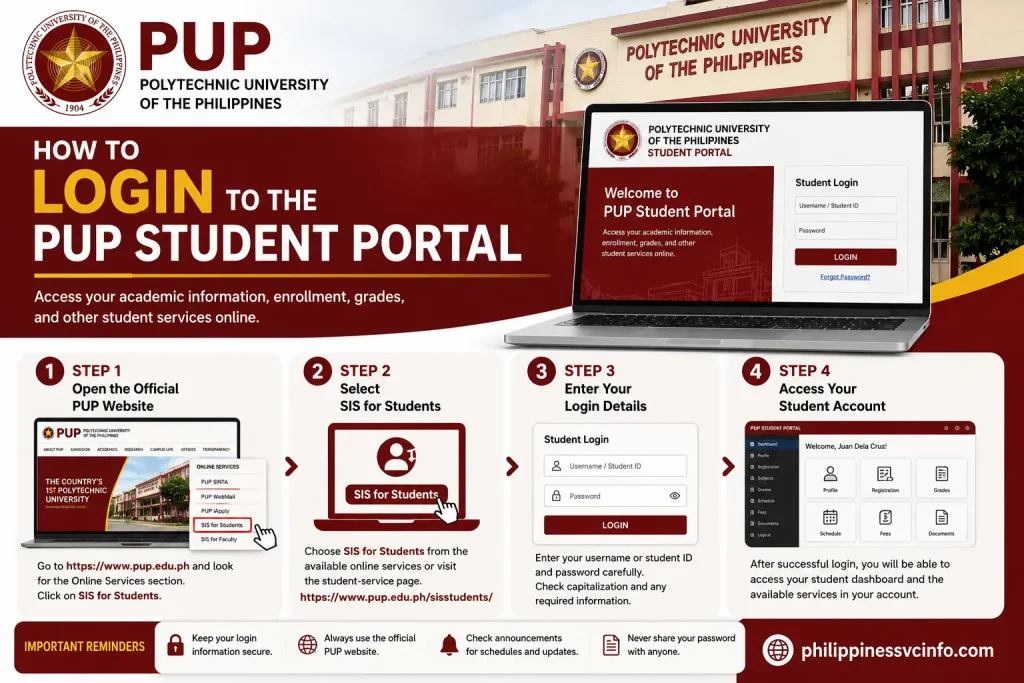
Students who already have the credentials required for the relevant PUP student system can start from the official website.
Step 1: Open the Official PUP Website
Open the official PUP website:
From the homepage, look for Online Services. The official website currently provides a direct SIS for Students option in this area.
Step 2: Select SIS for Students
Choose SIS for Students from the available online services.
You can also access the PUP student SIS through the university’s official student-service page:
Using the official PUP site as your starting point helps reduce the chance of using an unofficial or misleading login page.
Step 3: Enter Your Login Details
Enter the credentials requested by the PUP student information system.
Before submitting the form, check:
- Your username or student identifier
- Your password
- Capitalisation
- Any required account information
Never share your password with another person.
Step 4: Access Your Student Account
After successful authentication, the available student services should be displayed according to your account.
The options available to you may vary. For that reason, follow the instructions shown inside your own PUP account instead of assuming that every student has identical features.
PUP Login Not Working?
If your PUP login does not work, first check the basics:
- Re-enter your credentials carefully.
- Check whether Caps Lock is enabled.
- Make sure you are using the correct PUP service.
- Confirm that your internet connection is stable.
- Refresh the page and try again.
- If necessary, try another browser.
- Check current PUP announcements for service-related information.
PUP operates several different online services, so a common source of confusion is attempting to use the wrong platform. The official site distinguishes between PUP iApply, SIS for Students, PUP WebMail, and other services.
How to Register for a PUP Account
There is not necessarily one registration process that applies to every PUP online service. The process depends on what you are trying to access.

For prospective applicants, PUP iApply is the relevant platform for various admission and entrance-examination applications. The current PUP iApply page describes it as a service that enables applicants to register for university admission evaluations and entrance examinations.
Before Creating a PUP Application Account
Read the instructions for your particular application category first.
The documents and eligibility requirements are not necessarily identical for every PUP application. For example, the current PUPCET instructions require applicants to prepare a clear 2 × 2-inch coloured photograph with a name tag and a Grade 11 report card containing specified information, with the files saved as JPEG/JPG and the stated file-size limit.
Other admission categories may have different requirements.
General PUP Registration Process
The general process is:
- Open the appropriate PUP iApply page.
- Read the instructions for your application category.
- Select the registration or application option provided.
- Enter the requested information.
- Prepare and upload the required documents where applicable.
- Carefully review your information.
- Submit the application when everything is correct.
- Save any confirmation or registration information provided.
Important: Do not create multiple accounts or applications unless PUP’s instructions specifically allow it. Current PUP application instructions for some categories warn that multiple accounts or applications can lead to disqualification.
PUP Admission Process
The PUP admission process depends on the applicant category, programme, campus, and admission evaluation involved.
The official PUP applicant area provides information about how to apply, requirements and eligibility criteria, academic programmes, PUP iApply, and applicant deadlines.
How to Apply to PUP
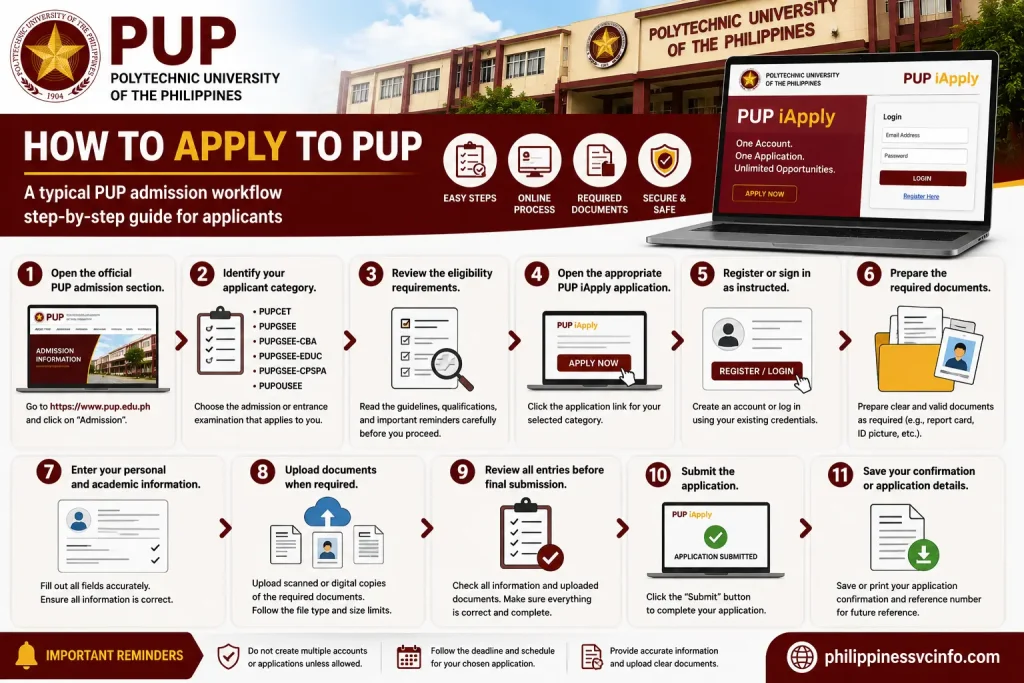
A typical PUP admission workflow looks like this:
- Open the official PUP admission section.
- Identify your applicant category.
- Review the eligibility requirements.
- Open the appropriate PUP iApply application.
- Register or sign in as instructed.
- Prepare the required documents.
- Enter your personal and academic information.
- Upload documents when required.
- Review all entries before final submission.
- Submit the application.
- Save your confirmation or application details.
PUP iApply currently lists several admission and entrance-examination pathways, including PUPCET and other specialised evaluations.
PUP Admission Requirements
There is no single universal requirements list that should be applied to every PUP applicant.
Requirements can differ by application type. For instance, the current PUPCET page identifies specific files applicants must prepare before starting an application, while other PUP admission categories have their own instructions.
The safest approach is to:
- Identify your exact application category.
- Open its official PUP instructions.
- Check eligibility.
- Check document requirements.
- Confirm photo specifications.
- Check file-size requirements.
- Note the application deadline.
- Review the instructions again before final submission.
PUP Application Status
If you have already submitted an application, use the relevant PUP iApply or admission service associated with your application.
Keep your application details secure because you may need them when returning to the system or checking further instructions.
What Happens After Admission?
An admission result is not necessarily the end of the process. Depending on your programme and applicant category, PUP may provide additional instructions concerning confirmation, document submission, enrollment, or other requirements.
Always follow the instructions attached to your particular admission result.
PUP Enrollment Guide
PUP enrollment is handled through university-prescribed online registration and enrollment procedures. The exact schedule can differ according to the academic year, campus, programme, and year level.
PUP publishes official enrollment schedules through its announcements. For the First Semester A.Y. 2026–2027, the university published online registration dates from July 27 to August 13, 2026, together with separate schedules by year level and campus.
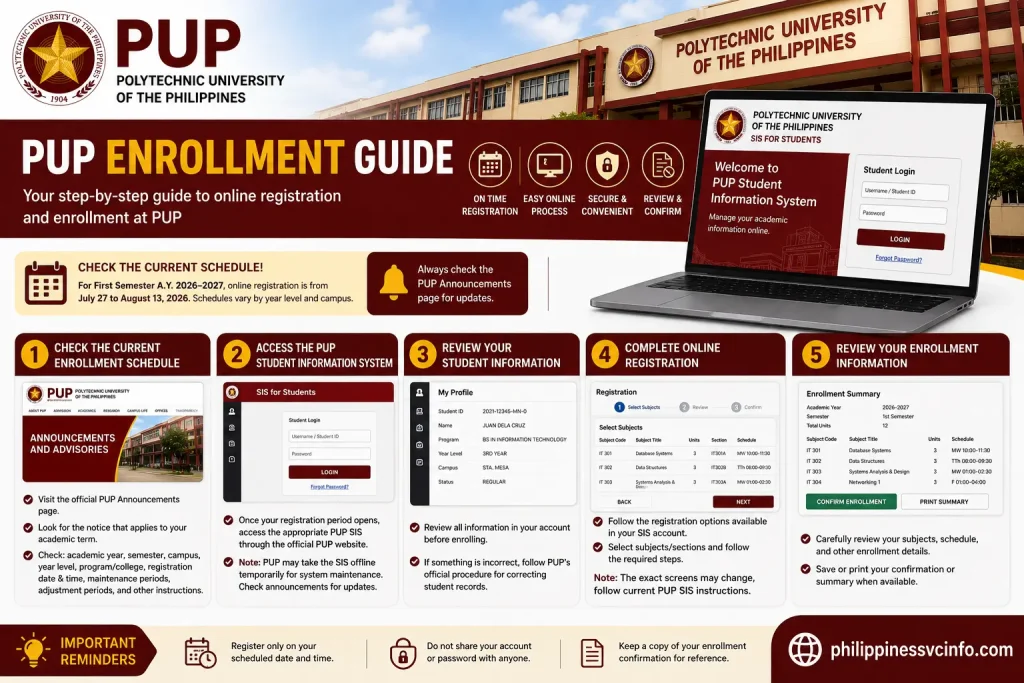
Step 1: Check the Current PUP Enrollment Schedule
Before attempting enrollment, visit the official PUP announcements page and find the notice applicable to your academic term.
Check the announcement for:
- Academic year and semester
- Campus
- Year level
- Programme or college
- Registration date
- Registration time
- System-maintenance periods
- Adjustment periods
- Other instructions
For example, PUP’s current A.Y. 2026–2027 schedule identifies specific registration dates for second-, third-, fourth-, and fifth-year students and separate schedules for Sta. Mesa and other campuses.
Step 2: Access the PUP Student Information System
Once your registration period opens, access the appropriate PUP SIS through the official PUP website.
PUP may also take the SIS offline temporarily for system maintenance. The current enrollment announcement, for example, lists maintenance periods before and during the registration schedule.
Step 3: Review Your Student Information
Before completing registration, review the information displayed in your student account. Check your programme, year level, and other relevant academic information.
If something appears incorrect, follow PUP’s official procedure for resolving student-record issues rather than submitting incorrect information.
Step 4: Complete Online Registration
Follow the registration options available in your SIS account and complete the required steps.
The exact buttons and screens can change, so the current PUP SIS interface and university instructions should take priority over screenshots from older guides.
Step 5: Review Your Enrollment Information
Before finishing, carefully review the subjects, schedule, and other registration information presented by the system.
Save or print confirmation information when the system provides that option.
How to Register for Subjects at PUP
PUP subject registration is part of the broader online registration process. Students should complete it during the schedule assigned to their year level, campus, and programme.

Check Your Registration Schedule
PUP’s published A.Y. 2026–2027 schedule demonstrates that registration is organized according to student year level and campus.
Therefore, do not assume that every student can register at the same time.
Review Available Subjects
After entering the relevant registration area, review the subjects available to you.
Pay attention to:
- Subject or course code
- Subject title
- Schedule
- Section
- Units
- Other information displayed by the system
Check for Schedule Conflicts
Before confirming your subjects, review your timetable carefully. Make sure your selected classes do not create an obvious conflict.
If you encounter a registration issue that cannot be resolved through SIS, use the appropriate PUP student support channel.
Confirm Your Registration
After reviewing your selections, complete the confirmation process shown in SIS.
Keep a copy of your final registration information whenever possible.
PUP Student Number and Account Details
Your PUP student number is an important identifier associated with your student account and university records.
Students should keep their student information secure and use the details exactly as instructed by PUP’s online systems.
If you notice an incorrect name, programme, year level, or other student-record information, do not create a second account to solve the issue. Instead, contact the relevant PUP office or student-support service.
PUP’s student services include PUP SINTA, which the university describes as an online service for student queries and reports concerning areas such as admission, enrollment, library processes, and more.
How to Check PUP Grades and Academic Records
Students may use the PUP Student Portal/SIS for academic information when the relevant functionality is available.
The PUP student page specifically describes the PUP Student Portal as a portal for PUP students to view class lists and grades.
Step-by-Step Process
- Open the official PUP website.
- Go to the student services section.
- Select PUP Student Portal or SIS for Students.
- Sign in with your student credentials.
- Open the appropriate academic section.
- Select the relevant academic period if available.
- Review your grades or class information.
Important Grade Availability Notice
The live PUP SIS password-recovery pages currently display an alert stating that grades are not viewable at this time.
Therefore, if you cannot see grades, this does not necessarily mean there is a problem with your account. The grade-viewing function may currently be unavailable.
For current information, check PUP announcements and your student account rather than relying on an older guide.
PUP Fees and Payment
Payment and assessment procedures can vary depending on the student’s programme, campus, academic period, and applicable PUP instructions.
Students should always check the current PUP assessment and payment instructions before making a payment.
What to Check Before Paying
- Your current assessment
- Amount to be paid
- Payment deadline
- Accepted payment method
- Payment reference or voucher, if applicable
- Confirmation or receipt requirements
PUP’s current website also publishes notices that can affect payment procedures, so students should verify payment instructions against current university announcements.
Keep Your Payment Records
After making a payment, retain:
- Official receipt, where issued
- Payment confirmation
- Reference number
- Assessment information
- Registration-related documents
Do not discard payment evidence until the transaction has been successfully reflected in the relevant university system.
How to Download PUP Documents
The official PUP website has a Downloads section containing downloadable forms and templates for students and university personnel.
The Downloads page currently states that signing in to PUP WebMail is required for access to the downloadable materials.

Step 1: Open PUP Downloads
Go to the official PUP Downloads page.
Step 2: Select “For Students”
Choose the student section if you are looking for student-related forms.
Step 3: Sign In if Required
If the page asks you to authenticate, use your PUP WebMail credentials as instructed.
Step 4: Find the Required Document
Look through the available student forms and templates.
Step 5: Download or Save the File
Open the relevant document and save it to your device if the page provides a download option.
Other Student Documents
PUP’s student services also include Documents Processing, covering services such as transcript of records, certification, clearance, honorable dismissal, and diploma-related processing.
This is separate from simply downloading a general form, so check the appropriate PUP student service when you need an official academic document.
How to Reset Your PUP Password
If you forget your PUP SIS password, use the password-recovery function provided by the relevant PUP system.
A current PUP SIS recovery page provides a Forgot Password option and asks users to enter their email address.
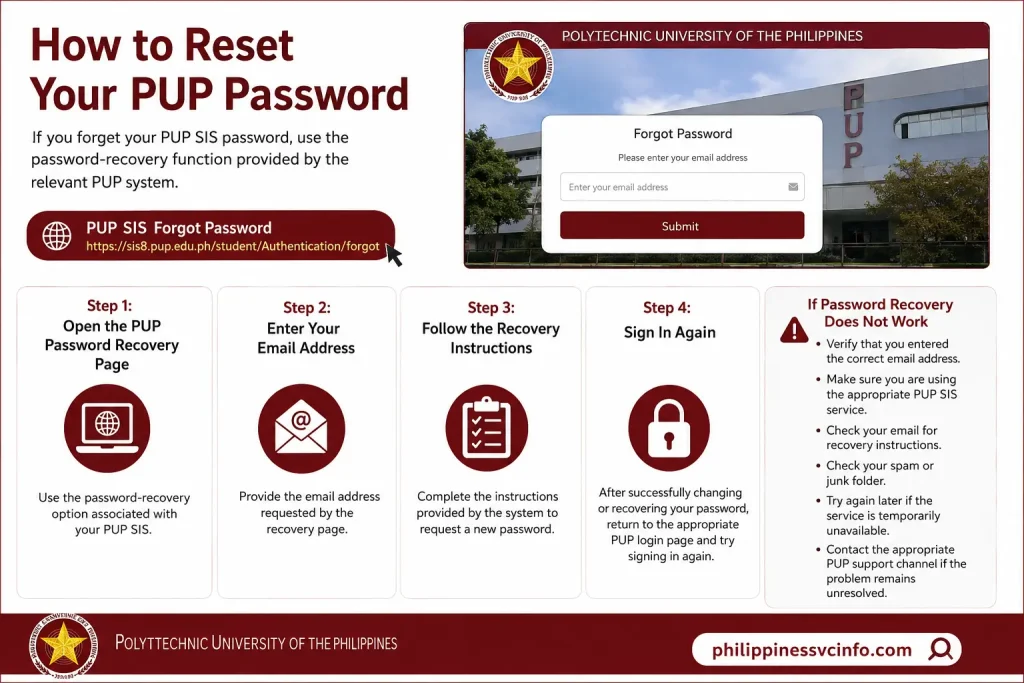
Step 1: Open the PUP Password Recovery Page
Use the password-recovery option associated with your PUP SIS.
Step 2: Enter Your Email Address
Provide the email address requested by the recovery page.
Step 3: Follow the Recovery Instructions
Complete the instructions provided by the system to request a new password.
Step 4: Sign In Again
After successfully changing or recovering your password, return to the appropriate PUP login page and try signing in again.
If Password Recovery Does Not Work
If you cannot recover your account:
- Verify that you entered the correct email address.
- Make sure you are using the appropriate PUP SIS service.
- Check your email for recovery instructions.
- Check your spam or junk folder.
- Try again later if the service is temporarily unavailable.
- Contact the appropriate PUP support channel if the problem remains unresolved.
Do not share your password or recovery information with another person.
PUP Online Document and Student Services
PUP provides more than just a login portal. The official student-services page currently identifies several resources designed for students.
|
PUP Service |
Main Purpose |
|---|---|
|
PUP Student Portal |
Student information, class lists and grades |
|
PUP SINTA |
Student queries and reports |
|
Scholarships |
Scholarship and financial-assistance information |
|
Documents Processing |
Academic and student document requests |
|
Student Organizations |
Information about student organizations |
|
Academic Calendar |
Current academic-year calendar |
|
Online Document Request System |
Online document-request services |
The availability of individual functions can change, so students should use the current PUP website and official announcements for the latest instructions.
PUP Enrollment and Registration Troubleshooting
If you encounter an issue during PUP enrollment or registration, first determine whether it is an account problem, schedule issue, technical problem, or university-process issue.
Registration Page Is Unavailable
Check whether PUP has scheduled system maintenance. Current enrollment announcements explicitly identify periods when PUP SIS will be offline.
You Cannot Register Yet
Check your:
- Year level
- Campus
- Registration date
- Registration time
- Programme
- Current academic term
You may simply be outside your assigned registration period.
Subjects Are Not Available
Check that you are using the correct academic term and registration period. If the expected subjects remain unavailable, contact the appropriate academic or student-support office.
Grades Are Not Showing
The current PUP SIS recovery page carries a notice that grades are not currently viewable.
Check official PUP announcements for updates rather than repeatedly changing your account settings.
Payment Is Not Reflected
Keep your payment receipt or reference information and follow the current PUP payment-support procedure. Avoid making a second payment simply because the first transaction has not immediately appeared in the system.
Common PUP Portal Login Problems
A PUP login problem does not always mean that your account is incorrect. It can also result from using the wrong service, a temporary technical problem, an incorrect password, or scheduled system maintenance.
Incorrect Username or Password
If your credentials are rejected:
- Check the username or student information you entered.
- Re-enter your password carefully.
- Check whether Caps Lock is enabled.
- Make sure there are no accidental spaces.
- Confirm that you are accessing the correct PUP service.
Do not repeatedly guess passwords if you are unsure of your credentials.
Forgot Your PUP Password
Use the password-recovery facility provided by the specific PUP service. For SIS, the current recovery page provides an email-based password recovery option.
PUP Portal Is Not Loading
If the PUP portal does not open correctly:
- Check your internet connection.
- Refresh the page.
- Try another browser.
- Clear temporary browser data if necessary.
- Try again later.
- Check current PUP announcements for maintenance notices.
PUP may temporarily take online systems offline for maintenance, particularly around registration and enrollment periods.
You Are Using the Wrong PUP Service
One of the easiest mistakes is confusing the university’s different platforms.
For example:
- PUP iApply → applicant and admission-related processes
- SIS for Students → student information and student services
- PUP WebMail → university email
- PUP Downloads → forms and downloadable resources
- PUP SINTA → student queries and reports
The official PUP website provides these services from its online-services area.
PUP Online Services for Students
The official PUP website provides a number of online resources that students and applicants may need throughout their university journey.
|
PUP Online Service |
What It Is Used For |
|---|---|
|
PUP iApply |
Admission and application-related processes |
|
SIS for Students |
Student information and academic-related services |
|
PUP WebMail |
University email |
|
PUP SINTA |
Student queries and reports |
|
PUP Downloads |
Forms, templates, and other documents |
|
PUP Student Services |
Student support and related resources |
|
Admission Information |
Admission requirements and procedures |
|
Announcements |
Current university notices and schedules |
|
Academic Programmes |
Information about PUP programmes |
The precise functionality of an individual service can change. For that reason, use the current instructions displayed by PUP rather than relying on old screenshots or third-party tutorials.
How to Use PUP Announcements
The PUP announcements page is particularly important for students because registration, enrollment, system maintenance, and other time-sensitive information can be published there.

Step 1: Open the Announcements Page
Visit the official PUP website and open Announcements.
Step 2: Look for Your Academic Activity
Search for announcements related to:
- Enrollment
- Online registration
- Admission
- Examinations
- Grades
- System maintenance
- Payment
- Student services
Step 3: Check the Date
Make sure the announcement applies to your current academic year and semester.
Step 4: Read the Complete Instructions
Do not rely only on the announcement title. Important details can appear in the body of the notice, including schedules, year levels, campuses, and special instructions.
Step 5: Save Important Information
For important enrollment or admission notices, save the page or keep a copy of the relevant details for reference.
Tips for Using the PUP Portal Safely
Following a few simple practices can prevent many account and registration problems.
Use the Official PUP Website
Start from:
From there, open the required PUP service.
Protect Your Login Credentials
Never send your password to another person through:
- Social media
- Messaging applications
- Public forums
- Unofficial websites
Check Deadlines
PUP admission, registration, and enrollment activities can have specific schedules. Always check the current announcement before taking action.
Keep Copies of Important Documents
Save copies of:
- Application confirmation
- Registration information
- Enrollment confirmation
- Payment records
- Important university forms
- Admission-related documents
Verify Information Before Submitting
Before submitting a PUP application or registration:
- Check your name.
- Check your contact information.
- Check your academic information.
- Check your selected programme.
- Check uploaded documents.
- Check the relevant academic term.
Correcting an error after submission can be more difficult than identifying it beforehand.
PUP Admission, Enrollment and Student Process at a Glance
The following workflow provides a simple overview of how different PUP services can fit together.
For Prospective Students
PUP Website → Admission Information → PUP iApply → Application → Admission Result → Enrollment Instructions
Start with the official admission information:
Then use the appropriate PUP iApply service:
For Current Students
PUP Website → Student Services/SIS → Registration → Enrollment → Academic Information → Documents
Students should check the current PUP announcements before registration or enrollment because schedules may be specific to their year level, campus, and academic programme.
PUP Admission vs PUP Student Portal
It is useful to understand the difference between the main PUP platforms.
|
Feature |
PUP iApply |
|---|---|
|
Intended users |
Applicants |
|
Admission application |
Yes |
|
Student academic information |
Not the primary purpose |
|
Registration/enrollment |
Depends on application process |
|
Application information |
Yes |
|
Grades |
No |
|
Student account information |
Application account |
This distinction can help prevent users from attempting to complete an admission task through the student portal or trying to access student academic information through PUP iApply.
PUP Official Websites and Useful Links
For convenience, here are the main official PUP resources referenced in this guide:
|
Resource |
Official Link |
|---|---|
|
PUP Official Website |
|
|
PUP Admission |
|
|
PUP iApply |
|
|
PUP Student Services |
|
|
PUP Announcements |
|
|
PUP Downloads |
Frequently Asked Questions About PUP
Conclusion
The Polytechnic University of the Philippines (PUP) offers a wide range of online resources for applicants and current students, with the official PUP website serving as the main source for admission information, PUP iApply, the Student Portal/SIS, PUP WebMail, downloads, student services, academic information, and university announcements. Applicants should start with the official PUP Admission section and follow the appropriate PUP iApply process, while current students can use the PUP Student Portal/SIS for available student services and check official announcements before registration or enrollment. Since admission requirements, enrollment schedules, system availability, payment procedures, and other university processes may change, users should always verify the latest information directly through PUP’s official website rather than relying solely on older guides.
Discover What You Need to Know:
- NEO LMS Login & User Guide: Registration, Password Recovery, Profile Settings & Online Learning
- CodeChum Guide 2026: How to Register, Log In, Join Classes & Submit Programming Assignments
- Autodesk Philippines 2026: Account, Student Access, Software & Support Guide
- UC Portal: Login, Registration, Enrollment & Student Guide 2026
- SAP: Complete Guide to Login, Registration, Modules, Features & Services 2026