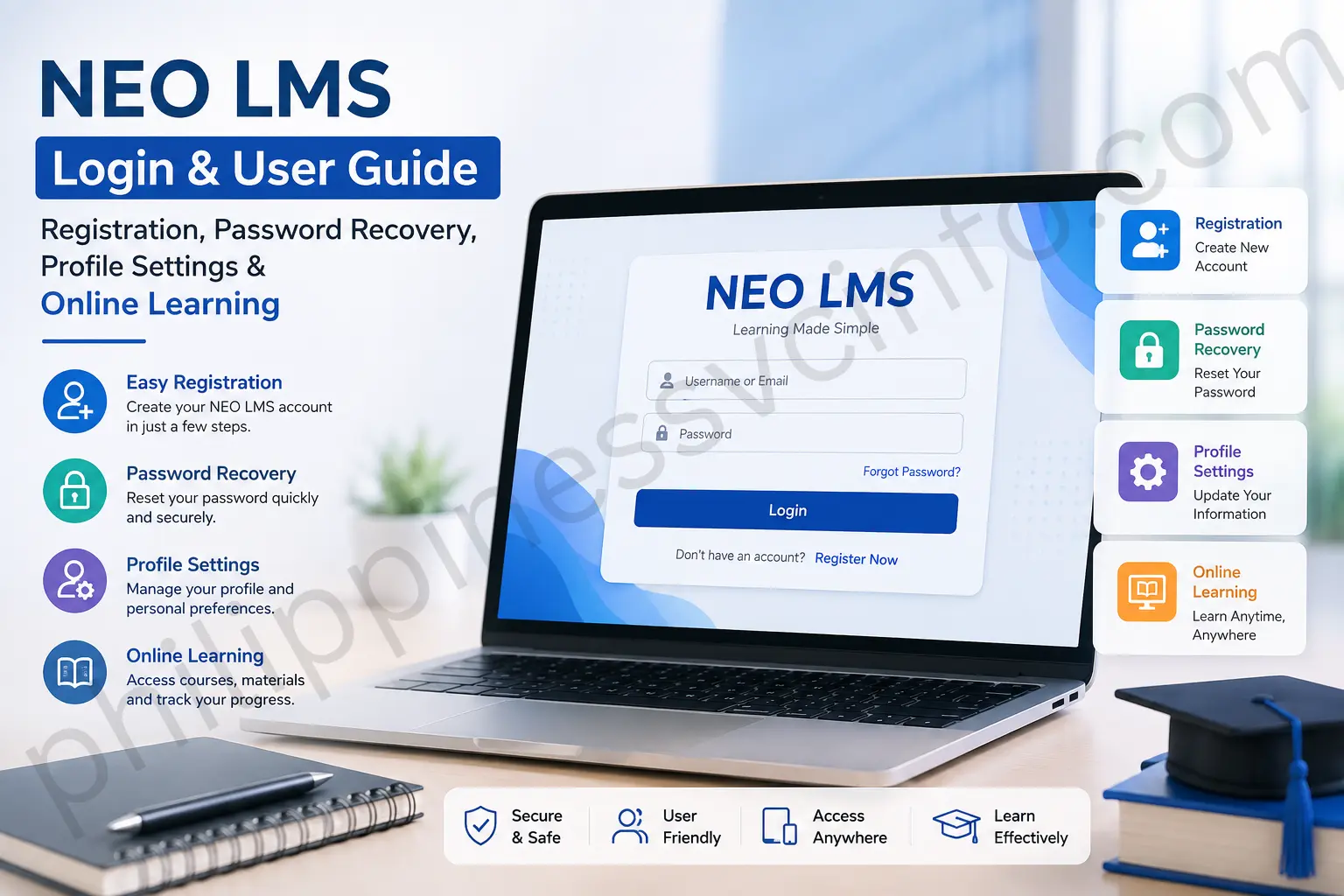
NEO LMS is an online learning management platform used by educational institutions, schools, universities, and organizations to provide digital courses, assignments, assessments, communication, and other learning activities. The platform is powered by CYPHER Learning, while individual institutions may operate their own NEO LMS portal and web address.
This complete NEO LMS user guide explains how to access an institutional portal, create an account when registration is enabled, log in, recover a forgotten password, manage your profile, join classes, complete coursework, check grades, and use other common online learning features.
Important: There is not necessarily one universal student login for every NEO LMS user. Many institutions have their own NEO LMS subdomain. For example, an institution may provide a URL similar to
your-school.neolms.com. Current NEO LMS portals demonstrate that the available login and registration options can differ between organizations. (IPSA)
What Is NEO LMS?
NEO LMS is a cloud-based learning management system designed to organize online education in one digital environment. Students can use their institution’s portal to access courses, learning materials, assignments, quizzes, announcements, grades, and other resources made available by their teachers or administrators.
Instead of visiting separate websites for every learning activity, an institution can use NEO LMS as a central online classroom. Depending on the school’s configuration, students may be able to join classes, submit assignments, communicate with instructors, review grades, and monitor their academic progress.
The exact features available to you depend on your school, university, training provider, or organization. A live NEO LMS portal may provide a traditional User ID and Password login, while another may offer Google sign-in, an access-code registration option, or an institution-managed sign-in process.
NEO LMS Official Website
The main official website for NEO LMS is:
However, students normally need to use the specific NEO LMS portal supplied by their institution rather than simply entering the main corporate website. Your school may send the portal address through email, an admission document, student handbook, orientation material, or another official communication.
NEO LMS System Requirements
Before using the NEO LMS portal, make sure your device and browser are ready.
| Requirement | Recommended Option |
|---|---|
| Desktop browser | Google Chrome, Mozilla Firefox, Microsoft Edge, or Safari |
| Browser version | Use a current supported version |
| Internet | Stable broadband or mobile internet |
| Device | Computer, laptop, tablet, or supported smartphone |
| Account | Institution-provided or registered NEO LMS account |
| Login details | User ID/email and password, where applicable |
Current NEO LMS portals specifically advise users to keep their browser up to date and indicate support for Chrome, Firefox, Safari, and Microsoft Edge.
How to Create a NEO LMS Account
The NEO LMS account creation process depends on how your institution has configured its portal. Some portals allow students to register using an access code, while others create accounts in advance or use institutional single sign-on.

Step 1: Find Your Institution’s NEO LMS Website
First, obtain the correct NEO LMS URL from your school, university, teacher, employer, or training organization.
Do not assume that the main neolms.com website is your student login page. Look for an institution-specific address such as:
The exact address should come from an official source associated with your institution.
Step 2: Open the Registration Area
Open your organization’s NEO LMS portal in a supported browser.
If registration is enabled, you may see an access code field and a Sign Up option. Current NEO LMS portals show this type of registration flow.
Select Sign Up if your institution has provided an enrollment or access code.
Step 3: Enter the Access Code
Enter the access code supplied by your teacher or institution.
Make sure the code is entered exactly as provided. If the code does not work, check for:
- Extra spaces
- Incorrect characters
- Expired enrollment information
- An incorrect institutional portal
- A code intended for another class
If the problem continues, contact your institution’s NEO LMS administrator or teacher.
Step 4: Complete Your Registration Details
Depending on the portal configuration, you may be asked for information such as your name, email address, username, and password.
Use accurate information that matches your institution’s records.
Step 5: Complete the Account Setup
After submitting the registration form, follow any additional instructions displayed by your institution’s NEO LMS portal.
Some organizations may manage accounts centrally rather than allowing independent registration. In that situation, your teacher, school administrator, or IT department may need to create or activate your account.
How to Log In to NEO LMS
Once your account has been created or provided by your institution, you can use the NEO LMS login page to access your courses.
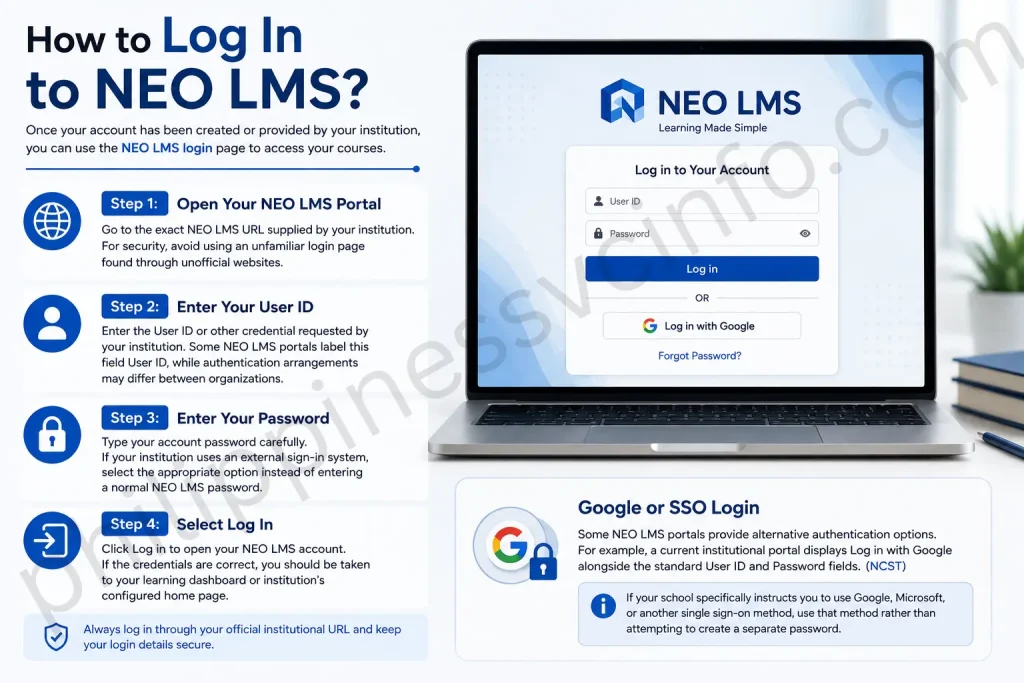
Step 1: Open Your NEO LMS Portal
Go to the exact NEO LMS URL supplied by your institution.
For security, avoid using an unfamiliar login page found through unofficial websites.
Step 2: Enter Your User ID
Enter the User ID or other credential requested by your institution.
Some NEO LMS portals label this field User ID, while authentication arrangements may differ between organizations.
Step 3: Enter Your Password
Type your account password carefully.
If your institution uses an external sign-in system, select the appropriate option instead of entering a normal NEO LMS password.
Step 4: Select Log In
Click Log in to open your NEO LMS account.
If the credentials are correct, you should be taken to your learning dashboard or institution’s configured home page.
Google or SSO Login
Some NEO LMS portals provide alternative authentication options. For example, a current institutional portal displays Log in with Google alongside the standard User ID and Password fields. (NCST)
If your school specifically instructs you to use Google, Microsoft, or another single sign-on method, use that method rather than attempting to create a separate password.
How to Reset a Forgotten NEO LMS Password
If you cannot remember your password, the NEO LMS password recovery option may allow you to request password instructions.
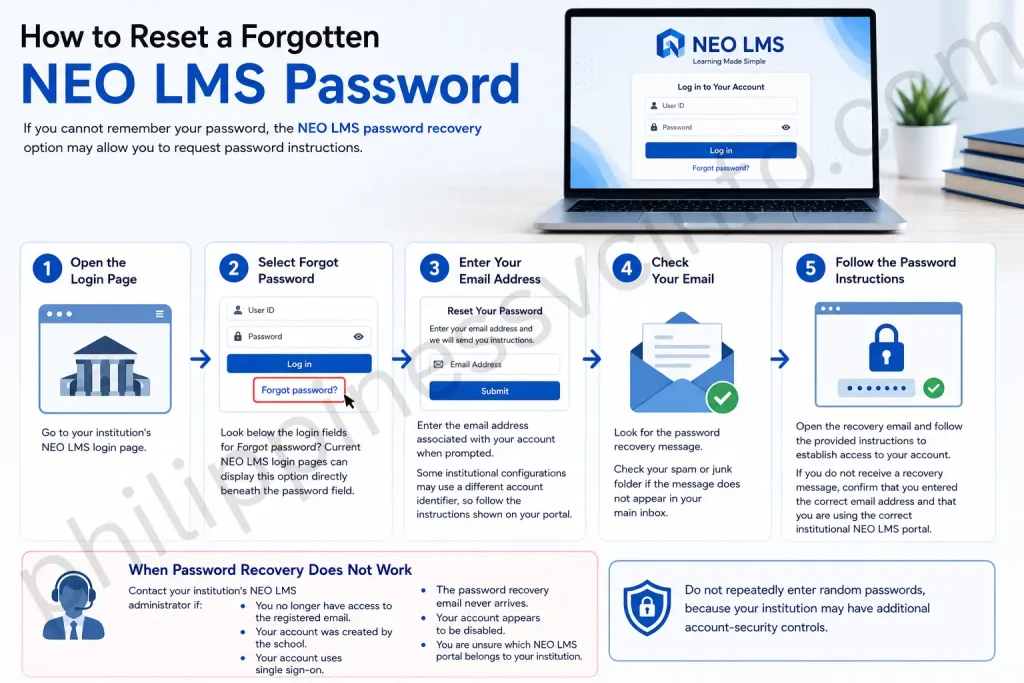
Step 1: Open the Login Page
Go to your institution’s NEO LMS login page.
Step 2: Select Forgot Password
Look below the login fields for Forgot password?
Current NEO LMS login pages can display this option directly beneath the password field. (IPSA)
Step 3: Enter Your Email Address
Enter the email address associated with your account when prompted.
Some institutional configurations may use a different account identifier, so follow the instructions shown on your portal.
Step 4: Check Your Email
Look for the password recovery message.
Check your spam or junk folder if the message does not appear in your main inbox.
Step 5: Follow the Password Instructions
Open the recovery email and follow the provided instructions to establish access to your account.
If you do not receive a recovery message, confirm that you entered the correct email address and that you are using the correct institutional NEO LMS portal.
When Password Recovery Does Not Work
Contact your institution’s NEO LMS administrator if:
- You no longer have access to the registered email.
- Your account was created by the school.
- Your account uses single sign-on.
- The password recovery email never arrives.
- Your account appears to be disabled.
- You are unsure which NEO LMS portal belongs to your institution.
Do not repeatedly enter random passwords, because your institution may have additional account-security controls.
NEO LMS Login Problems and Quick Fixes
If the NEO LMS login page does not work correctly, try these basic troubleshooting steps:
- Confirm that you are using the correct institutional URL.
- Check your User ID and password.
- Make sure Caps Lock is not causing a problem.
- Try the Forgot password? option.
- Open the portal in an updated browser.
- Clear temporary browser data if the page is behaving incorrectly.
- Try another supported browser.
- Check your internet connection.
- If your institution uses SSO, select the correct SSO option.
- Contact your school’s LMS administrator if the problem continues.
Current NEO LMS portals explicitly indicate that older Internet Explorer versions are no longer supported and recommend current versions of major browsers.
How to Manage Your NEO LMS Profile
Your NEO LMS profile contains personal and account information that may be visible to instructors or other authorized users, depending on your institution’s settings.
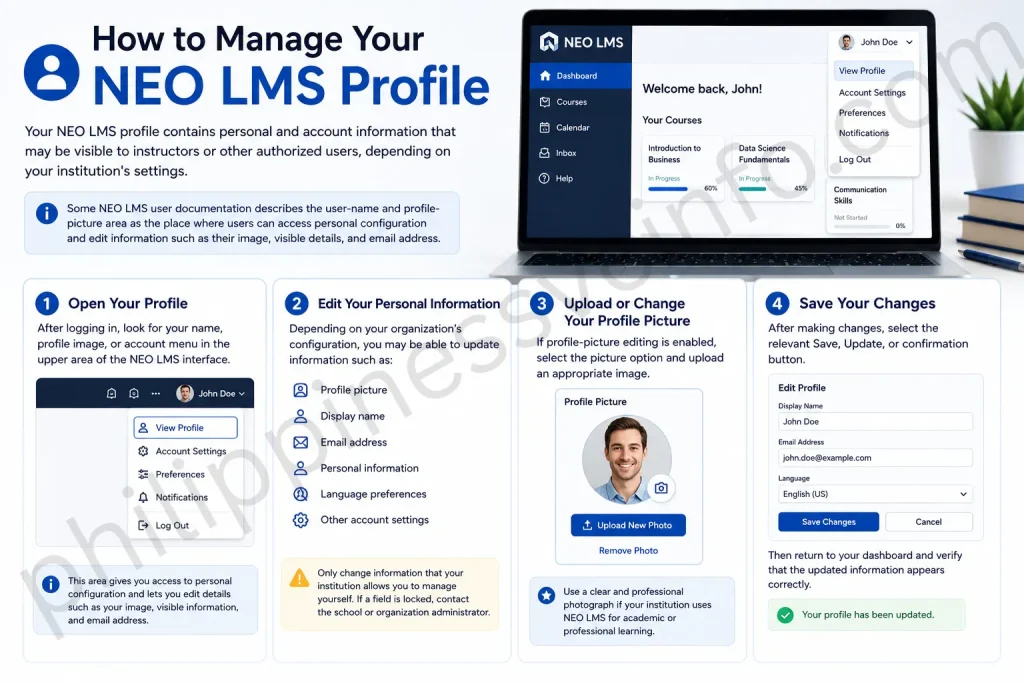
Step 1: Open Your Profile
After logging in, look for your name, profile image, or account menu in the upper area of the NEO LMS interface.
Some NEO LMS user documentation describes the user-name and profile-picture area as the place where users can access personal configuration and edit information such as their image, visible details, and email address.
Step 2: Edit Your Personal Information
Depending on your organization’s configuration, you may be able to update information such as:
- Profile picture
- Display name
- Email address
- Personal information
- Language preferences
- Other account settings
Only change information that your institution allows you to manage yourself. If a field is locked, contact the school or organization administrator.
Step 3: Upload or Change Your Profile Picture
If profile-picture editing is enabled, select the picture option and upload an appropriate image.
Use a clear and professional photograph if your institution uses NEO LMS for academic or professional learning.
Step 4: Save Your Changes
After making changes, select the relevant Save, Update, or confirmation button.
Then return to your dashboard and verify that the updated information appears correctly.
Understanding the NEO LMS Dashboard
The NEO LMS dashboard is your main starting point after signing in. It can provide access to classes, assignments, notifications, calendar information, messages, and other learning resources.
The exact dashboard appearance depends on your institution.
A NEO LMS user guide published through an institutional portal describes the interface as including areas for messages, notifications, calendar, help, search, and personal settings.
Important Dashboard Areas
Classes or Courses
The Classes or Courses area is where you can access subjects or training programs assigned to your account.
Select a course to open its lessons, assignments, assessments, announcements, and other available resources.
Announcements and Notifications
The notification area can alert you when instructors publish new information or create activities.
Check notifications regularly so that you do not miss important course updates.
Calendar
The Calendar can help you monitor important dates.
Depending on your institution’s setup, it may show:
- Assignment deadlines
- Exams
- Quizzes
- Course events
- Other scheduled activities
An institutional NEO LMS guide specifically describes the calendar as an important place for checking deadlines for assignments, exams, quizzes, and other course events.
Messages
The messaging area can be used for communication within the learning environment when enabled by your institution.
Use the official communication method required by your teacher or organization for questions about coursework.
How to Join a Class in NEO LMS
One of the most important NEO LMS online learning functions is joining or accessing classes.
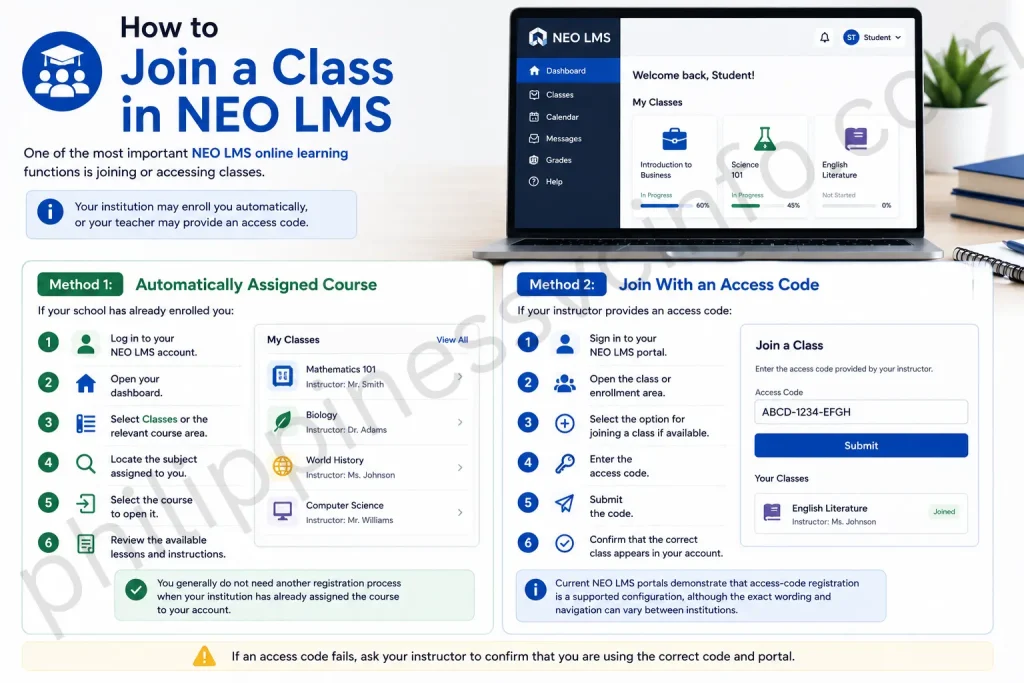
Your institution may enroll you automatically, or your teacher may provide an access code.
Method 1: Automatically Assigned Course
If your school has already enrolled you:
- Log in to your NEO LMS account.
- Open your dashboard.
- Select Classes or the relevant course area.
- Locate the subject assigned to you.
- Select the course to open it.
- Review the available lessons and instructions.
You generally do not need another registration process when your institution has already assigned the course to your account.
Method 2: Join With an Access Code
If your instructor provides an access code:
- Sign in to your NEO LMS portal.
- Open the class or enrollment area.
- Select the option for joining a class if available.
- Enter the access code.
- Submit the code.
- Confirm that the correct class appears in your account.
Current NEO LMS portals demonstrate that access-code registration is a supported configuration, although the exact wording and navigation can vary between institutions.
If an access code fails, ask your instructor to confirm that you are using the correct code and portal.
How to Access a NEO LMS Course
Once a course has been assigned or joined, you can open it from your learning dashboard.
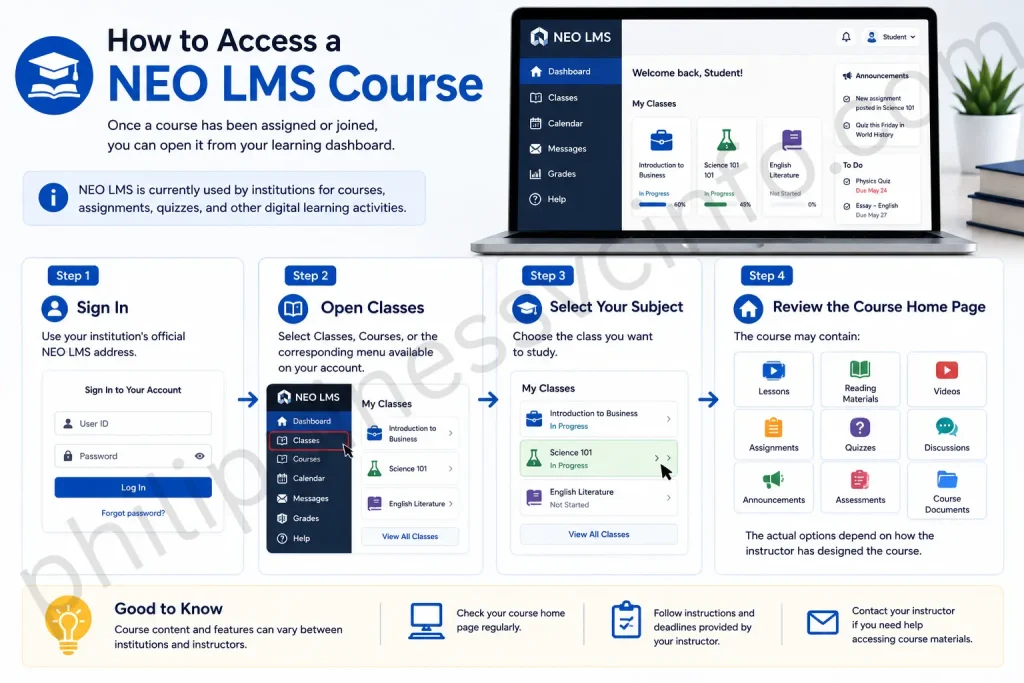
Step 1: Sign In
Use your institution’s official NEO LMS address.
Step 2: Open Classes
Select Classes, Courses, or the corresponding menu available on your account.
Step 3: Select Your Subject
Choose the class you want to study.
Step 4: Review the Course Home Page
The course may contain:
- Lessons
- Reading materials
- Videos
- Assignments
- Quizzes
- Discussions
- Announcements
- Assessments
- Course documents
The actual options depend on how the instructor has designed the course.
NEO LMS is currently used by institutions for courses, assignments, quizzes, and other digital learning activities.
How to Study Lessons in NEO LMS
After opening a course, begin with the lessons or learning materials provided by your instructor.

Step 1: Open the Course
Select the relevant class from your dashboard.
Step 2: Select a Lesson
Open the lesson or module assigned by your instructor.
Step 3: Read or Watch the Material
Complete the available learning content.
This may include text, presentations, videos, documents, interactive material, or other resources.
Step 4: Complete Required Activities
If the lesson contains a quiz, discussion, assignment, or other activity, complete it according to the instructions.
Step 5: Check Your Progress
Return to the course area and review which activities have been completed and which remain outstanding.
Do not assume that opening a lesson automatically means that every required activity has been completed. Follow the completion requirements shown inside your course.
How to Submit an Assignment in NEO LMS
Assignment submission is another important NEO LMS feature. Institutions can use the platform to collect coursework electronically. For example, an institutional course syllabus states that assignments and other requirements may be submitted electronically through its NEO LMS portal.

Step 1: Open Your Course
Log in and select the relevant class.
Step 2: Find Assignments
Open the assignment or activity assigned by your instructor.
Step 3: Read the Instructions
Before uploading anything, check:
- Required file type
- Maximum file size
- Due date
- Required questions
- Submission instructions
- Whether multiple files are allowed
Step 4: Prepare Your Work
Complete the assignment according to your teacher’s instructions.
Make sure your document is readable and contains your name or other required identification.
Step 5: Upload the File
Select the available upload or submission option and choose your completed file.
Step 6: Submit the Assignment
Follow the final submission instructions.
Do not close the page immediately after uploading. Confirm that the system indicates that your work has been submitted successfully.
Step 7: Check Your Submission
Return to the assignment page and verify that the correct file appears.
If your instructor allows resubmissions, check whether you need to replace the previous submission or submit an additional version.
How to Check Grades in NEO LMS
Your institution may use NEO LMS to display grades and instructor feedback.
University NEO LMS portals currently describe the platform as a place where students can access courses, assignments, and grades.
To check your grades:
- Log in to your NEO LMS account.
- Open the relevant course.
- Find the Grades or assessment area.
- Review available marks.
- Open individual assignments or assessments when feedback is available.
- Check instructor comments or rubric information if provided.
Remember that not every course will display grades in the same way. Your teacher or institution controls what information is published.
How complete NEO LMS Quizzes & Assessments
Many NEO LMS courses contain quizzes or other assessments.
Before starting:
- Read the instructions carefully.
- Check the closing or due date.
- Make sure your internet connection is stable.
- Have enough time to finish the assessment.
- Avoid refreshing the page unnecessarily.
- Submit your answers according to the displayed instructions.
Some institutions explicitly use NEO LMS for quizzes and formative assessments, demonstrating how the platform can be integrated into regular course evaluation.
If a quiz disappears, will not open, or produces an error, contact your instructor or LMS administrator rather than repeatedly attempting to access it.
How to Use the NEO LMS Calendar
The calendar can be especially useful for students managing several classes.
Use it to review upcoming:
- Assignments
- Quizzes
- Exams
- Course activities
- Deadlines
- Scheduled events
A good routine is to check the calendar whenever you log in.
You can also create your own personal study schedule outside NEO LMS so that important deadlines are not left until the last day.
NEO LMS Notifications
Notifications can help you stay informed about changes to your online courses.
Depending on your institution’s configuration, notifications may relate to:
- New assignments
- Announcements
- Course activities
- Grades
- Messages
- Upcoming deadlines
An institutional NEO LMS guide describes notification and announcement indicators as part of the platform’s interface.
If you stop receiving expected notifications, check your account settings and email inbox. If the problem remains, ask your administrator whether notifications have been enabled for your account.
NEO LMS Certificates
Some NEO LMS courses can provide completion certificates when the required course conditions are satisfied.
For example, a current NEO LMS course catalog lists a completion certificate as an award available after completing a class.
If your course offers a certificate:
- Complete all required course activities.
- Meet the instructor’s completion requirements.
- Confirm that the course is marked complete.
- Open the certificate or completion area when it becomes available.
- Save the certificate according to your institution’s instructions.
Certificate availability is course-dependent. Not every NEO LMS class automatically provides a certificate.
NEO LMS Mobile and Browser Access
You can use NEO LMS through a supported web browser on an appropriate device. Your institution may also provide additional mobile-learning instructions or apps depending on its configuration.
For the most reliable experience:
- Keep your browser updated.
- Use a stable internet connection.
- Keep your device’s operating system current.
- Allow required browser permissions.
- Avoid using unsupported browsers.
Current NEO LMS portals explicitly advise users to keep supported browsers up to date and state that Internet Explorer is no longer supported.
For official information about NEO LMS, use the main NEO LMS/CYPHER Learning website rather than relying on unofficial download or login pages.
How to Log Out of NEO LMS
Always log out when you finish using NEO LMS, particularly if you are accessing your account from a shared or public computer.
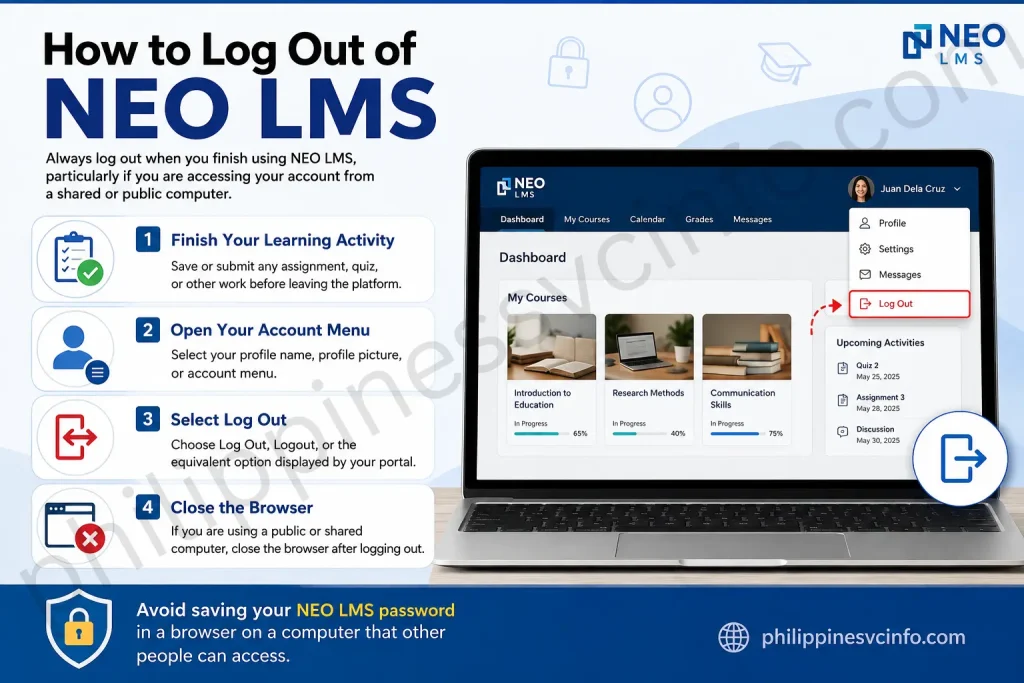
Step 1: Finish Your Learning Activity
Save or submit any assignment, quiz, or other work before leaving the platform.
Step 2: Open Your Account Menu
Select your profile name, profile picture, or account menu.
Step 3: Select Log Out
Choose Log Out, Logout, or the equivalent option displayed by your portal.
Step 4: Close the Browser
If you are using a public or shared computer, close the browser after logging out.
Avoid saving your NEO LMS password in a browser on a computer that other people can access.
NEO LMS Account Security Tips
Your NEO LMS login credentials provide access to your courses and potentially your academic information. Protect them in the same way you protect other important online accounts.
Use a Strong Password
Create a password that is difficult for other people to guess. Avoid obvious combinations such as your name, birthday, school name, or simple number sequences.
A strong password can contain a mixture of letters, numbers, and symbols.
Do Not Share Your Password
Never give your password to another student, stranger, or unofficial support service.
Teachers and administrators should normally use the appropriate institutional procedures rather than asking you to disclose your private password.
Be Careful With Login Links
Use the official NEO LMS address supplied by your school or organization.
Do not enter your credentials into a suspicious website simply because it looks similar to your normal login page.
Use Your Own Account
Do not allow another person to use your NEO LMS account. Your course submissions, grades, messages, and other account activity may be associated with your individual profile.
Common NEO LMS Login Problems
There are several reasons why a NEO LMS login may fail.
Incorrect Username or Password
If your credentials are rejected:
- Check your username or email address.
- Make sure Caps Lock is not enabled.
- Carefully re-enter your password.
- Try the password-recovery option if you cannot remember it.
- Contact your institution if the account remains inaccessible.
Do not repeatedly guess passwords if you suspect that your account has been locked.
Wrong NEO LMS Website
This is a particularly common problem because institutions can have separate NEO LMS portals.
Your school’s portal may use a customized address rather than the main NEO LMS website.
For example:
If you do not know the correct address, check your school’s official website, welcome email, student information, or contact the institution directly.
Forgot Password Link Does Not Work
If password recovery is unavailable or you do not receive an email:
- Confirm that you are using the correct NEO LMS portal.
- Check your spam or junk folder.
- Verify that you entered the correct email address.
- Check whether your school manages passwords centrally.
- Contact the NEO LMS administrator at your institution.
If your account uses an external single sign-on service, you may need to recover the password through that service instead.
NEO LMS Course Is Missing
If you successfully complete the NEO LMS login but cannot find a course, do not immediately create another account.
First, check whether:
- You are using the correct student account.
- The course has officially started.
- Your instructor has enrolled you.
- You have entered the correct access code, if one was required.
- You are looking under the correct Classes or Courses area.
- Your institution has completed the enrollment process.
If the course still does not appear, contact your instructor or LMS administrator.
Creating a second account can make the problem more complicated because the course may already be attached to your original account.
NEO LMS Assignment Is Missing
If an expected assignment does not appear:
Check the Course
Open the correct class and review its assignment or lesson area.
Check the Calendar
The activity may appear in the course calendar if your institution has enabled calendar information.
Check Announcements
Your instructor may have published an announcement explaining when the assignment becomes available.
Check the Due Date
An assignment may no longer be available if its availability period has ended.
Contact Your Instructor
If you believe an assignment should be visible but is not, ask your instructor to confirm its availability.
NEO LMS Assignment Upload Problem
Sometimes students can access an assignment but cannot submit their work.
Try the following:
- Confirm the file format.
- Check the file size.
- Rename the file using a simple filename.
- Make sure the document opens correctly.
- Check your internet connection.
- Try another supported browser.
- Sign out and sign in again.
- Confirm that the submission deadline has not passed.
If the assignment remains unavailable, contact your instructor before the deadline whenever possible.
Keep a copy of your original assignment file so that you can submit it again if required.
NEO LMS Page Not Loading
If an NEO LMS page is blank, slow, or repeatedly fails to load, try basic browser troubleshooting.
Refresh the Page
Reload the page once and wait for it to finish loading.
Check Your Internet
Open another trusted website to determine whether your internet connection is working.
Try Another Browser
Use a current version of Chrome, Firefox, Edge, or Safari.
Clear Temporary Browser Data
If the problem appears only in one browser, clearing cached data may help.
Try Another Device
If possible, open the NEO LMS portal on another computer, tablet, or phone.
If the same problem occurs across multiple devices and browsers, the issue may be related to the institutional portal rather than your device.
NEO LMS and Single Sign-On
Some organizations connect NEO LMS with an external authentication system.
This can mean that you do not use a separate NEO LMS password. Instead, you select the institutional sign-in option and authenticate through the service configured by your organization.
For example, current NEO LMS portals can display Google authentication alongside traditional User ID and Password login.
If your institution uses SSO:
- Open the correct NEO LMS portal.
- Select the designated SSO option.
- Enter your institutional credentials if requested.
- Complete any additional authentication step.
- Wait for NEO LMS to redirect you to your account.
If your institutional Google or Microsoft account is not working, contact the institution’s IT or LMS support team.
How to Keep Your NEO LMS Account Organized
A well-organized account can make online learning easier.
Check NEO LMS Regularly
Do not wait until an assignment is due to open the platform.
Checking your dashboard regularly helps you notice new activities and announcements.
Review the Calendar
Use the calendar to identify upcoming deadlines and assessments.
Organize Downloaded Files
Create folders on your computer for different subjects.
For example:
- Mathematics
- English
- Science
- Computer Studies
- Assignments
- Certificates
Keep Copies of Submitted Work
Save important assignments after submission.
This gives you a personal record of your work and can be useful if you later need to review or resubmit a document.
NEO LMS for Students: Recommended Workflow
A simple routine can help students get more value from the platform.
1. Log in: Open your institution’s official NEO LMS portal.
2. Check notifications: Review new announcements and messages.
3. Review the calendar: Look for upcoming deadlines.
4. Open your classes: Check each active course.
5. Complete lessons: Follow the instructor’s learning sequence.
6. Submit assignments: Upload coursework before the deadline.
7. Complete assessments: Take quizzes or tests according to the instructions.
8. Check grades: Review marks and instructor feedback.
9. Monitor progress: Confirm that required activities are completed.
10. Log out: Secure your account when you finish.
NEO LMS Official Website and Support
The main official website for NEO LMS is provided by CYPHER Learning:
Because individual schools and organizations can operate customized NEO LMS portals, students should normally use the specific portal URL provided by their institution.
If you need help with an account, course enrollment, access code, grades, or a missing assignment, the institution’s teacher, administrator, or IT support team may be the most appropriate contact.
Frequently Asked Questions About NEO LMS
Final Guide to Using NEO LMS
NEO LMS provides a central environment for online learning, but the exact features and navigation depend on the school, university, or organization operating the portal.For most students, the basic workflow is straightforward: obtain the correct institutional NEO LMS URL, create or activate your account if required, complete the NEO LMS login, update your profile, open assigned classes, study lessons, submit assignments, complete assessments, review grades, monitor notifications, and check the calendar for upcoming activities.When problems occur, start with the simplest checks: verify the portal address, confirm your credentials, use password recovery when available, update your browser, check your internet connection, and contact your institution when the issue involves enrollment, SSO, account activation, or course access.Most importantly, always use the official NEO LMS website and the portal address provided directly by your educational institution. This helps ensure that you are using the correct learning environment and protects your login information.
Discover What You Need to Know:
- CodeChum Guide 2026: How to Register, Log In, Join Classes & Submit Programming Assignments
- Autodesk Philippines 2026: Account, Student Access, Software & Support Guide
- UC Portal: Login, Registration, Enrollment & Student Guide 2026
- SAP: Complete Guide to Login, Registration, Modules, Features & Services 2026
- MATATAG Curriculum Guide: Grades, Subjects & Official PDF 2026