What Is TM SIM?
TM SIM, short for Touch Mobile SIM, is a prepaid mobile service offered by Globe Telecom in the Philippines. It is designed to provide affordable communication options, including voice calls, text messaging, and mobile data, making it a popular choice for budget-conscious users.

One of TM SIM’s biggest advantages is its low-cost prepaid plans and flexible promo offers. With a wide selection of TM Promos tailored to different usage needs, customers can easily find options for internet access, unlimited texts, calls, or a combination of services. This makes TM SIM a reliable and cost-effective solution for staying connected without overspending.
If you’d like, I can also make it Make the text more human-like, Make the text more SEO-focused, or Make the text better optimized for AI search engines.
Why TM SIM Registration Is Important
TM is a popular prepaid mobile service under Globe Telecom, known for offering affordable calls, texts, and mobile data. Subscribers can also enjoy a variety of prepaid offers, including EasySurf promos and other budget-friendly packages. To continue using these services without interruption, every TM SIM must be registered.
SIM registration plays a key role in improving mobile security. Under the Philippines’ SIM Registration Act, all prepaid and postpaid SIM cards must be registered to help reduce scams, spam messages, fraud, and other mobile-related crimes. According to Globe, an unregistered TM SIM cannot be activated for calls, texts, or mobile data, and failure to register within the required period may result in automatic SIM deactivation.
Registering your TM SIM as early as possible helps ensure uninterrupted access to your mobile services. It also makes it easier to recover your number, replace a lost SIM, switch devices, and receive customer support whenever needed. Completing the registration process protects your account while allowing you to continue enjoying TM’s prepaid services with confidence.
Who Needs to Register a TM SIM in 2026?
New TM SIM Users
Anyone purchasing a new TM SIM card in 2026 must complete the registration process before using the service. This applies to students, employees, tourists, and anyone getting a new mobile number. Until the SIM is registered, you won’t be able to make calls, send text messages, or access mobile data. Registration can be completed online through the Globe SIM Registration portal or the GlobeOne app, making activation quick and convenient.
Existing TM SIM Users
If you’re already using a TM SIM, you must ensure it has been successfully registered under the SIM Registration Act. An unregistered SIM may eventually be deactivated, preventing you from using calls, texts, mobile data, GCash, and other services linked to your number. Checking your registration status and completing the process helps keep your mobile services active without interruption.
Minors (Under 18 Years Old)
TM SIM cards used by individuals under 18 years of age must be registered by a parent or legal guardian. During registration, the guardian’s valid government-issued ID and the minor’s birth certificate or other supporting document may be required. This ensures young users can safely access mobile services while complying with registration requirements.
Understanding Republic Act No. 11934
Republic Act No. 11934, also known as the SIM Registration Act, was signed into law in 2022 to strengthen mobile security across the Philippines. The law requires all SIM card users to register their SIMs using their real identity. It aims to reduce text scams, online fraud, identity theft, and other crimes committed through anonymous mobile numbers. The National Telecommunications Commission (NTC) oversees the implementation of the law, while mobile network providers, including TM and Globe, are responsible for processing SIM registrations.
The law applies to both newly purchased and existing TM SIM cards. Every subscriber must complete the registration process within the period set by the government. SIM cards that remain unregistered may be automatically deactivated, preventing users from making calls, sending text messages, accessing mobile data, or using services linked to their mobile number.
To encourage compliance, Republic Act No. 11934 also provides penalties for violations. Depending on the offence, fines can range from ₱100,000 to ₱300,000, and certain violations may also result in imprisonment. Registering your TM SIM on time ensures uninterrupted mobile service while helping create a safer and more secure digital environment.
TM SIM Registration Requirements
Before starting your TM SIM registration, make sure you have all the required documents and information ready. Preparing everything in advance helps you complete the registration process faster and reduces the chances of delays or rejection. Whether you register through the Globe SIM Registration Portal, the GlobeOne App, or a Globe Store, the requirements are generally the same.
Helpful Tip:
If you plan to switch from a physical SIM to a digital SIM in the future, you can also explore Globe’s official TM eSIM conversion process after completing your SIM registration.
Basic Requirements for TM SIM Registration
| Requirement | Description | Helpful Tip |
|---|---|---|
| Active TM SIM Card | An active 11-digit TM mobile number that can receive OTP verification messages. | Insert the SIM into your phone before starting the registration. |
| Valid Government-Issued ID | A valid ID accepted by Globe, such as a Passport, Driver’s License, PhilSys ID, UMID, SSS, GSIS, or other approved identification. | Ensure the ID is original, valid, and clearly readable. |
| Live Selfie | A clear selfie is required to verify your identity during registration. | Take the photo in a well-lit area without hats, masks, sunglasses, or filters. |
| Personal Information | Your full name, date of birth, nationality, gender, and residential address. | Make sure all details exactly match the information on your ID. |
| Internet Connection | Required for online registration through the Globe website or GlobeOne App. | Use a stable Wi-Fi or mobile data connection for faster uploads and OTP delivery. |
| Digital Copies of Documents | Clear images of your ID and selfie in supported formats such as JPG or PNG. | If needed, compress large files while keeping the text readable. |
| Email Address (Optional) | May be used for account recovery, notifications, or customer support. | Adding an email address can make future account management easier. |
Important Reminders:
- Use only official Globe SIM Registration channels to register your TM SIM.
- Double-check that your personal information matches your government-issued ID exactly.
- Ensure your uploaded ID and selfie are clear and easy to read.
- Keep your phone nearby so you can receive the One-Time Password (OTP) during verification.
- Save your confirmation message or reference number after successful registration for future reference.
Important:
Incorrect personal information, blurry document images, or unreadable uploads are among the most common reasons for TM SIM registration delays or rejection. Preparing your documents carefully before you begin can help ensure a smooth and successful registration process.
TM SIM Registration Methods Comparison
| TM SIM Registration Method | Internet Required | Best For | ID Verification | Estimated Time | Difficulty |
|---|---|---|---|---|---|
| Official TM/Globe Registration Portal | ✅ Yes | Most users who prefer a web browser | Upload valid ID + Selfie | 5–10 minutes | Easy |
| GlobeOne App | ✅ Yes | Smartphone users | Upload valid ID + Selfie | 5–10 minutes | Easy |
| Globe Store | ❌ No | Users needing in-person assistance | Verified by Globe staff | 10–30 minutes | Very Easy |
| SMS Registration (if available) | ❌ No internet (SMS only) | Basic phone users | May require additional verification | 10–15 minutes | Moderate |
| QR Code Registration | ✅ Yes | Users with a QR-enabled smartphone | Upload valid ID + Selfie | 5–10 minutes | Easy |
Method 1: Register Your TM SIM Through the Official Online Portal
The fastest and most reliable way to register your TM SIM is through the official Globe SIM Registration Portal. The process usually takes 5–10 minutes, provided you have a stable internet connection, your TM SIM, and a valid government-issued ID.

Before You Start
- Use the official Globe SIM Registration website.
- Open the portal in Chrome, Firefox, or another updated browser.
- Ensure the website uses HTTPS for a secure connection.
- Keep your ID ready and save a screenshot of your confirmation page for future reference.
Step 1: Open the Globe SIM Registration Portal
Visit the official Globe SIM Registration portal in your web browser. You’ll see the registration page with a QR code and a Continue button.
Image: TM SIM Registration Portal Homepage
Step 2: Continue to Registration
Read the registration instructions displayed on the screen, then click the Continue button to begin the process.
Image: Continue Registration Screen
Step 3: Enter Your TM Mobile Number
Type your active 11-digit TM mobile number, tick the confirmation checkbox, and click Request PIN. A One-Time Password (OTP) will be sent to your SIM via SMS.
Image: Enter TM Mobile Number
Step 4: Verify the OTP
Enter the OTP exactly as you received it and select Continue to verify your mobile number.
Tip:
If the OTP doesn’t arrive within a few minutes, check your network signal or internet connection before requesting another code.
Image: OTP Verification Screen
Step 5: Choose Your Registration Type
Select the option that matches your status. Most subscribers should choose “I am a Filipino SIM owner.” Then click Continue.
Image: Registration Category Selection
Step 6: Upload a Valid Government ID
Choose your identification document and upload clear images of both the front and back. Follow the on-screen scanning instructions before continuing.
Image: Upload Government ID
Step 7: Complete the Selfie Verification
Read the selfie guidelines, then take a clear live selfie using your device’s camera. Wait until the verification is completed successfully.
Image: Selfie Verification
Step 8: Fill in Your Personal Information
Provide your required personal details, including:
- Full Name
- Date of Birth
- Gender
- Nationality
Then enter your complete residential address before clicking Continue.
Image: Personal Information Form
Step 9: Review Your Details
Carefully review all the information you’ve entered. If everything is correct, proceed to the confirmation page.
Image: Registration Summary
Step 10: Confirm Your Declaration
Tick the confirmation checkbox and select I Confirm This Statement to certify that all the information provided is accurate.
Image: Confirmation Declaration
Step 11: Submit Your Registration
Click Submit and wait while Globe processes your application. Once your registration is successful, you’ll receive a confirmation SMS along with your reference number.
Image: Registration Successful
Important:
Save your confirmation message, reference number, or take a screenshot for your records. If your application is rejected, review your uploaded ID or selfie for clarity and submit the registration again. Always use the official Globe registration portal, as TM SIM registration is completely free.
Method 2: Register Your TM SIM Using the GlobeOne App
The GlobeOne App offers a simple and convenient way to register your TM SIM directly from your smartphone. The app guides you through the registration process and lets you track your registration status in one place. You’ll need an internet connection to upload your documents and complete the verification.

Before You Begin
- Download the latest version of the GlobeOne App from the Google Play Store or Apple App Store.
- Prepare a valid government-issued ID.
- Ensure your TM SIM can receive SMS for OTP verification.
Step 1: Install the GlobeOne App
Download and install the GlobeOne App from your device’s official app store.
Image: Download GlobeOne for Android & iPhone
Step 2: Sign In or Create an Account
Open the app and either log in with your existing Globe or TM account or create a new account if you’re a first-time user.
Image: GlobeOne Login Screen
Step 3: Open the SIM Registration Feature
After signing in, tap Registration from the bottom navigation menu to start your TM SIM registration.
Image: GlobeOne Registration Menu
Step 4: Verify Your TM Mobile Number
Enter your active TM mobile number and tap Verify. An OTP will be sent to your SIM via SMS.
Image: Verify TM Number
Step 5: Enter the OTP
Type the One-Time Password exactly as received and continue to verify your mobile number.
Image: OTP Verification Screen
Step 6: Complete the Registration Form
Fill in the required personal information, including your full name, date of birth, nationality, gender, and complete residential address.
Image: TM SIM Registration Form
Step 7: Upload Your ID and Take a Selfie
Upload a clear photo of your valid government-issued ID, then complete the live selfie verification by following the on-screen instructions.
Image: ID Upload & Selfie Verification
Step 8: Review and Submit Your Application
Double-check all the information you’ve entered to ensure it matches your identification document. Once everything is correct, tap Submit and wait while Globe processes your registration.
Image: Review & Submit Registration
Step 9: Save Your Confirmation Details
After successful registration, the GlobeOne App will display a confirmation message along with your reference number. Save this number or take a screenshot for future reference.
Image: Registration Successful
Important:
If the GlobeOne App freezes or crashes, update it to the latest version or clear the app cache before trying again. For users under 18, a parent or legal guardian must complete the registration on their behalf. You can also check your registration status anytime from the GlobeOne App home screen.
Method 3: Register Your TM SIM at a Globe Store
If you prefer in-person assistance, you can register your TM SIM by visiting any Globe Store or authorised TM service centre. This option is ideal for seniors, persons with disabilities (PWDs), or anyone who needs help completing the registration process. TM SIM registration at Globe Stores is free of charge.

Before You Visit
- Bring your TM SIM card.
- Carry a valid government-issued ID.
- Visit during store hours to avoid delays.
- Keep your mobile phone with you for verification if required.
Step 1: Find the Nearest Globe Store
Locate the closest Globe Store or authorised TM service centre using the official Globe Store Locator.
Image: Globe Store Locator
Step 2: Bring Your Required Documents
Take your active TM SIM card along with a valid government-issued ID, such as a passport, driver’s licence, UMID, PhilSys ID, or any other accepted identification document.
Image: Valid ID for TM SIM Registration
Step 3: Request TM SIM Registration
Inform the customer service representative that you would like to register your TM SIM. A staff member will guide you through each step of the process.
Image: Customer Assistance Counter
Step 4: Provide Your Personal Information
Submit your ID and provide the required registration details, including:
- Full Name
- Date of Birth
- Nationality
- Complete Residential Address
The staff will enter your information into the registration system.
Image: Personal Information Verification
Step 5: Complete Identity Verification
The representative will scan your ID and take a live photo (selfie) for identity verification. Follow the staff’s instructions to complete this step.
Image: ID Scanning & Selfie Verification
Step 6: Review Your Information
Carefully check all the details entered on your behalf. If everything is accurate, confirm the information before proceeding.
Image: Review Registration Details
Step 7: Sign and Submit the Registration
Read the declaration, sign the required consent form if requested, and allow the staff to submit your TM SIM registration. You will receive a reference number after submission.
Image: Registration Confirmation
Step 8: Wait for Confirmation
Once the registration is processed, you’ll receive a confirmation SMS. Test your TM SIM by making a call or sending a text message to ensure it is working correctly.
Image: TM SIM Successfully Registered
Important:
If you own multiple TM SIM cards, you can register each one under your name by completing the registration process for every SIM. Many Globe Stores also provide priority assistance for senior citizens, pregnant women, and persons with disabilities. If the store is crowded, you may find it faster to complete your registration online through the official Globe portal or the GlobeOne App.
Method 4: Register Your TM SIM via SMS
If you don’t have access to the internet, you can register your TM SIM using SMS. This option is suitable for basic mobile phones and only requires an active TM SIM with a stable network signal.

Before You Start
- Ensure your TM SIM is inserted into your phone.
- Make sure you have enough signal to receive SMS replies.
- Prepare your personal information and a valid government-issued ID.
Step 1: Insert Your TM SIM
Place your TM SIM card into your mobile phone and switch it on.
Step 2: Open Your Messaging App
Launch your phone’s SMS application and start a new message.
Step 3: Enter the Required Registration Details
Follow the registration format provided by TM. Include your mobile number, full name, date of birth, complete address, ID type, and ID number before sending the message to the designated registration number.
Image: TM SIM SMS Registration Format
Step 4: Send the Registration SMS
Carefully review the information you’ve entered, then send the registration message to the official TM registration number.
Step 5: Verify Your Registration
You’ll receive an SMS containing either a One-Time Password (OTP) or further instructions. Reply as directed to verify your identity.
Step 6: Receive Your Confirmation
After successful verification, TM will send a confirmation SMS together with your reference number. Save this number as proof of your registration.
Image: TM SIM Registration Confirmation SMS
Important:
If your registration message fails or you receive an error, check your network signal and verify that all information is correct before trying again. If SMS registration isn’t successful, you can complete the process using the official Globe SIM Registration Portal, the GlobeOne App, or by visiting a Globe Store.
Method 5: Register Your TM SIM Using a QR Code
You can also begin your TM SIM registration by scanning the official Globe SIM Registration QR Code. This method simply takes you to the official registration portal, making it a quick and convenient option for smartphone users.

Before You Begin
- Use a smartphone with a working camera.
- Ensure you have an internet connection.
- Keep your valid ID ready for verification.
Step 1: Locate the Official QR Code
Find the Globe SIM Registration QR code on your TM SIM package, promotional materials, or at an authorised Globe Store.
Image: TM SIM Registration QR Code
Step 2: Scan the QR Code
Open your phone’s camera or QR scanner and point it at the code. Tap the notification that appears to open the official Globe SIM Registration website.
Step 3: Verify Your TM Mobile Number
Enter your TM mobile number, request the OTP, and verify your number using the code sent via SMS.
Step 4: Complete the Registration Form
Choose the appropriate registration category, then provide your personal information, including your name, date of birth, gender, nationality, and residential address.
Step 5: Upload Your ID and Selfie
Upload clear photos of your valid government-issued ID and complete the live selfie verification as instructed.
Step 6: Review and Submit
Check all the information you’ve entered, then submit your registration request.
Step 7: Save Your Confirmation
Once your registration is approved, you’ll receive a confirmation SMS with your reference number. Save the message or take a screenshot for future reference.
Image: TM SIM Registration Successful
Important:
If the QR code doesn’t scan properly, access the official Globe SIM Registration Portal directly through your web browser. Avoid using QR codes from unofficial websites or social media posts to protect your personal information.
Which TM SIM Registration Method Should You Choose?
Choose the registration option that best suits your needs:
| Method | Best For |
|---|---|
| Online Portal | Fast registration through any web browser |
| GlobeOne App | Smartphone users who prefer managing everything in one app |
| Globe Store | Users who need in-person assistance |
| SMS Registration | Basic phone users with limited internet access |
| QR Code | Quick access to the official registration portal |
Whichever method you choose, completing your TM SIM registration on time ensures uninterrupted access to calls, texts, mobile data, and other Globe and TM services while complying with the Philippines’ SIM Registration Act.
Tips for a Successful TM SIM Registration
A little preparation can help you complete your TM SIM registration quickly and avoid common problems. Before starting the process, make sure your documents are ready, your internet connection is stable, and all the information you provide matches your valid ID.
Preparation Tips
Follow these simple tips to make the registration process faster and smoother:
- Use clear ID photos: Capture sharp images of your valid government-issued ID with all details clearly visible.
- Keep file sizes small: If required, compress your ID and selfie images to meet the upload limit without reducing readability.
- Take your selfie in good lighting: Natural or well-lit indoor lighting helps the system verify your identity more accurately.
- Use supported image formats: Upload your documents in commonly accepted formats such as JPG or PNG.
- Match your personal details: Ensure your name, date of birth, and address are exactly the same as those shown on your ID.
- Check your TM signal: A stable mobile signal is important for receiving the One-Time Password (OTP).
- Use a reliable internet connection: Wi-Fi or a stable mobile data connection can speed up uploads and reduce interruptions during registration.
Security Tips for TM SIM Users
Protect your personal information by following these security best practices:
- Never share your OTP or registration reference number with anyone.
- Register only through official Globe channels, such as the Globe SIM Registration Portal, GlobeOne App, or authorised Globe Stores.
- Avoid fake websites or social media pages that ask for registration fees or personal information.
- Enable two-factor authentication (2FA) on your GlobeOne account for additional security.
- Report suspicious messages or scam attempts to Globe through its official customer support channels.
- Keep your SIM PIN enabled to help prevent unauthorised access if your phone is lost or stolen.
Helpful Tip:
After completing your TM SIM registration, save your confirmation SMS or reference number in a secure place. It may be useful if you need to verify your registration status or request customer support in the future.
How to Update or Correct Your TM SIM Registration Details
If you notice incorrect information after registering your TM SIM, you can request an update through Globe’s official channels. Keeping your registration details accurate helps ensure uninterrupted service and makes it easier to verify your identity when accessing Globe or TM services.
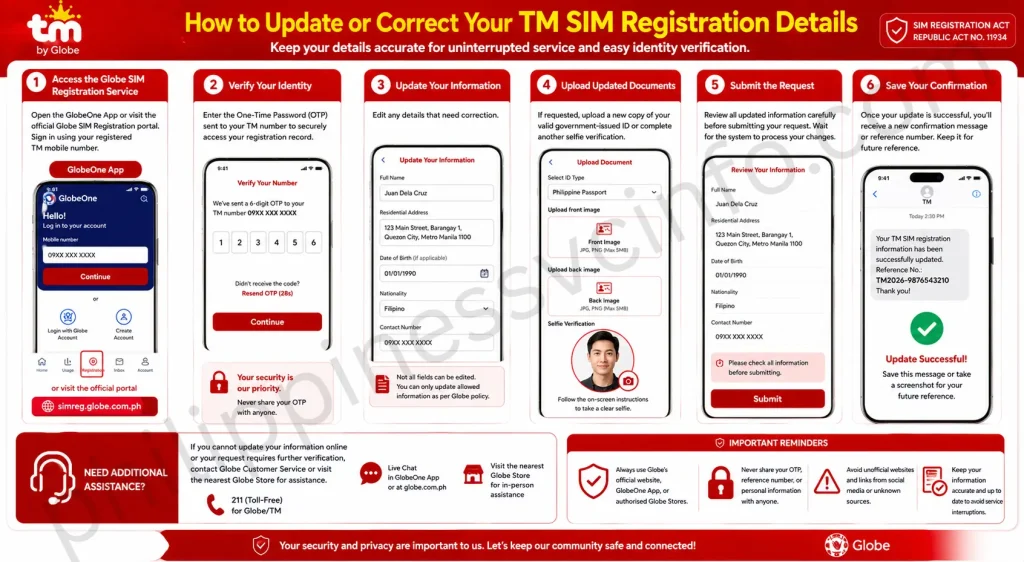
Step 1: Access the Globe SIM Registration Service
Open the GlobeOne App or visit the official Globe SIM Registration portal. Sign in using your registered TM mobile number.
Step 2: Verify Your Identity
Enter the One-Time Password (OTP) sent to your TM number to securely access your registration record.
Step 3: Update Your Information
Edit any details that need correction, such as your:
- Full Name
- Residential Address
- Date of Birth (if applicable)
- Other personal information allowed by the system
Step 4: Upload Updated Documents
If requested, upload a new copy of your valid government-issued ID or complete another selfie verification to support the changes.
Step 5: Submit the Request
Review all updated information carefully before submitting your request. Wait for the system to process your changes.
Step 6: Save Your Confirmation
Once your update is successful, you’ll receive a new confirmation message or reference number. Keep it for future reference.
Need Additional Assistance?
If you cannot update your information online or your request requires further verification, contact Globe Customer Service or visit the nearest Globe Store for assistance.
Important:
Always use Globe’s official website, GlobeOne App, or authorised Globe Stores when updating your TM SIM registration details. Never share your OTP, reference number, or personal information with unofficial websites or unknown individuals.
How to Activate Your TM SIM
After you complete the TM SIM registration process, you do not need to activate your SIM manually. Once your registration has been successfully verified, TM automatically activates your SIM for calls, text messaging (SMS), and mobile data.
In most cases, activation is completed within a few minutes to one hour, although it may take longer during periods of high registration volume. If your SIM is still inactive after several hours, restarting your phone can help refresh your network connection.
How to Check if Your TM SIM Is Active
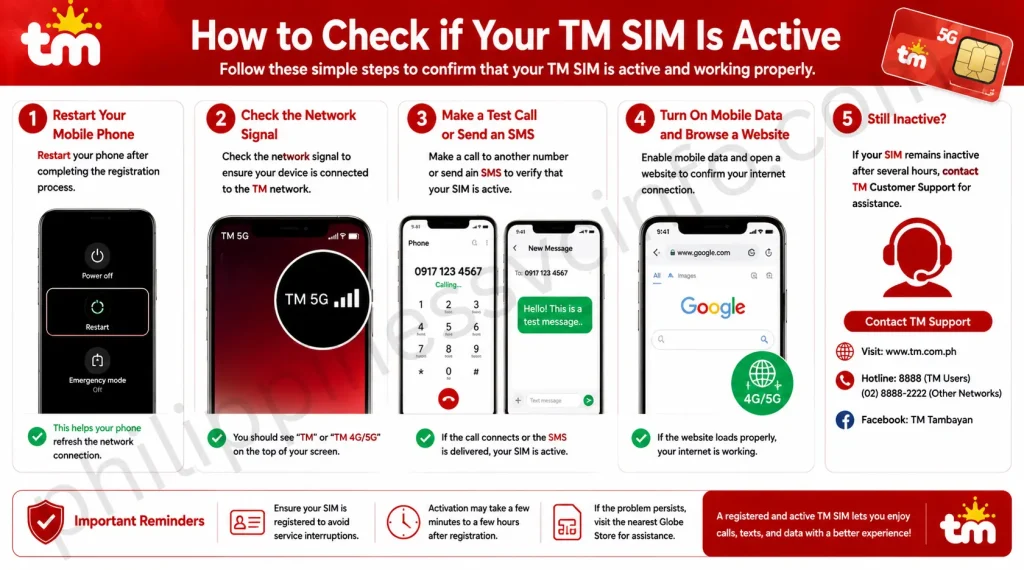
You can confirm that your TM SIM has been activated by following these simple steps:
- Restart your mobile phone after completing the registration.
- Check the network signal to ensure your device is connected to the TM network.
- Make a test call or send an SMS to another number.
- Turn on mobile data and browse a website to verify your internet connection.
- If your SIM remains inactive after several hours, contact TM Customer Support through the official website or hotline for assistance.
Important:
If your TM SIM was not registered before the required deadline, it may be permanently deactivated under the Philippines’ SIM Registration Act. If you experience activation issues after completing registration, verify your registration status or contact TM’s official customer support for further assistance.
How to Reactivate a Deactivated TM SIM Card
If your TM SIM card has been deactivated, the possibility of reactivation depends on the reason for the deactivation. SIMs that have been inactive for a short period may still be recoverable, while permanently deactivated SIMs usually cannot be restored.
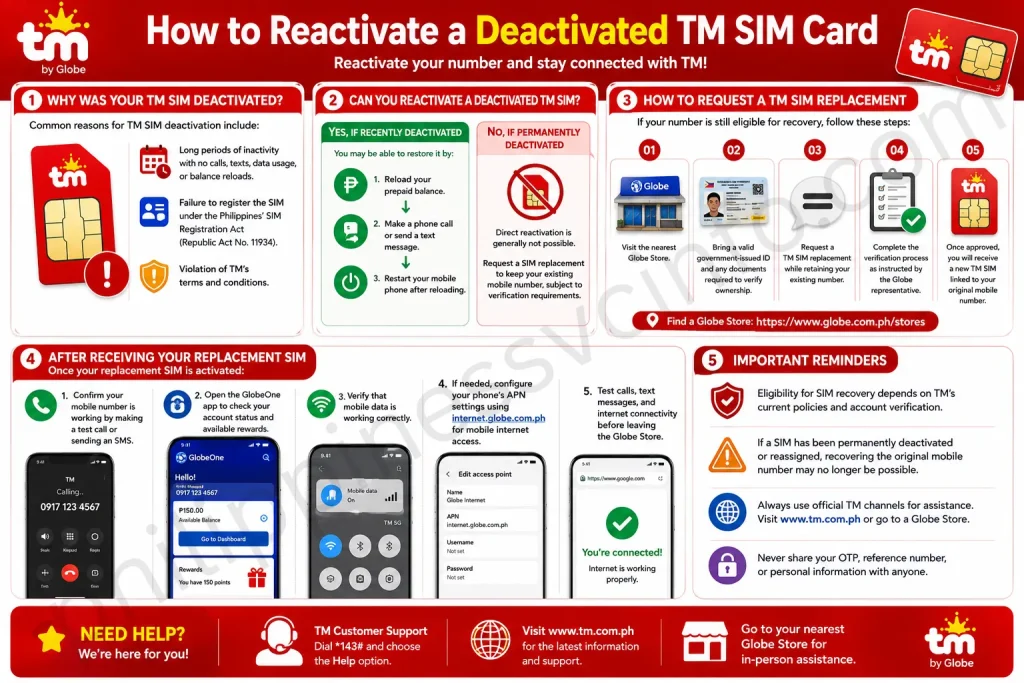
Common reasons for TM SIM deactivation include:
- Long periods of inactivity with no calls, texts, data usage, or balance reloads.
- Failure to register the SIM under the Philippines’ SIM Registration Act (Republic Act No. 11934).
- Violation of TM’s terms and conditions.
Can You Reactivate a Deactivated TM SIM?
If your SIM was recently deactivated due to inactivity, you may be able to restore it by:
- Reloading your prepaid balance.
- Making a phone call or sending a text message.
- Restarting your mobile phone after reloading.
However, if TM has permanently deactivated your SIM, direct reactivation is generally not possible. In this situation, you should request a SIM replacement to keep your existing mobile number, subject to TM’s verification requirements.
How to Request a TM SIM Replacement
If your number is still eligible for recovery, follow these steps:
- Visit the nearest Globe Store.
- Bring a valid government-issued ID and any documents required to verify ownership of the mobile number.
- Request a TM SIM replacement while retaining your existing number.
- Complete the verification process as instructed by the Globe representative.
- Once approved, you will receive a new TM SIM linked to your original mobile number.
After Receiving Your Replacement SIM
Once your replacement SIM is activated:
- Confirm that your mobile number is working by making a test call or sending an SMS.
- Open the GlobeOne app to check your account status and available rewards.
- Verify that mobile data is working correctly.
- If needed, configure your phone’s APN settings using internet.globe.com.ph for mobile internet access.
- Test calls, text messages, and internet connectivity before leaving the Globe Store.
Important:
Eligibility for SIM recovery depends on TM’s current policies and account verification. If a SIM has been permanently deactivated or reassigned, recovering the original mobile number may no longer be possible.
TM SIM Registration Bonus
After successfully completing your TM SIM registration, eligible subscribers may receive promotional rewards and exclusive offers from Globe Telecom. Available bonuses can change over time, so always check the latest offers through TM’s official channels.
5G EasySurf Welcome Bonus
Eligible users may receive a welcome package that includes:
- Unlimited texts to all networks
- 3 GB FunALIW Pack
- 2 GB mobile data
To check your eligibility and activate the offer:
- Open your phone’s Messages app.
- Type SUBMERG.
- Send the message to 8080.
- Wait for the confirmation SMS from TM.
If your number qualifies, the bonus will be activated automatically. The promotional offer is generally valid for 30 days from the activation date, subject to TM’s current terms and conditions.
Other Benefits After TM SIM Registration
Besides promotional bonuses, registered TM subscribers can enjoy several additional advantages, including:
- Access to LTE and 5G networks (where available)
- Improved account security through verified registration
- Eligibility for exclusive TM promos and prepaid offers
- Continued access to calls, SMS, mobile data, and other TM services
- Compliance with the Philippines’ SIM Registration Act to avoid SIM deactivation
Note:
TM promotional offers, eligibility requirements, and bonus inclusions may change at any time.
Troubleshooting TM SIM Registration Errors
If you experience problems while registering your TM SIM, don’t worry. Most registration issues can be resolved by checking your information, improving your internet connection, or retrying the verification process. Below are the most common TM SIM registration errors and their solutions.
OTP Not Received or Delayed
If you don’t receive the One-Time Password (OTP), try the following solutions:
- Make sure your TM SIM has a strong network signal.
- Wait 2–3 minutes before requesting another OTP.
- Tap Resend OTP on the Globe SIM Registration Portal or GlobeOne App.
- Switch to a stable Wi-Fi or mobile data connection.
- Restart your phone and try again.
- If the problem continues, contact Globe Customer Service for assistance.
Image: TM SIM OTP Not Received Error
Invalid ID or Selfie Rejected
Your registration may fail if your ID or selfie cannot be verified.
To fix this issue:
- Upload clear, high-quality photos without blur or shadows.
- Ensure all information on your ID is fully visible.
- Use supported image formats such as JPG or PNG.
- Make sure your selfie is taken in good lighting without hats, masks, or filters.
- Verify that your personal information exactly matches your government-issued ID.
- If your ID is rejected, upload another accepted identification document.
Image: Invalid ID or Selfie Verification
SIM Already Registered Error
If the system reports that your TM SIM is already registered:
- Check your registration status through the official Globe SIM Registration Portal.
- Review your SIM details in the GlobeOne App.
- Contact Globe Customer Service to verify SIM ownership.
- If necessary, submit proof of ownership and any required supporting documents.
- Visit the nearest Globe Store if the issue cannot be resolved online.
Image: TM SIM Already Registered Error
GlobeOne App or Registration Portal Keeps Crashing
If the registration page freezes or closes unexpectedly:
- Clear your browser or app cache.
- Update the GlobeOne App to the latest version.
- Use an updated browser such as Chrome or Firefox.
- Try registering from another device.
- Switch to a faster internet connection.
- Register during non-peak hours if the servers are busy.
Image: GlobeOne App Crash or Timeout
Upload Failed or Invalid Information
If your documents won’t upload or the system reports invalid details:
- Ensure your ID and selfie meet the required file size limit.
- Upload images only in supported formats such as JPG or PNG.
- Double-check that your name, birth date, and address match your ID exactly.
- Refresh the page and upload the files again.
- Try another browser, device, or internet connection if the problem continues.
Image: Upload Failed During TM SIM Registration
SIM Blocked or Registration Rejected
If your TM SIM is blocked or your registration request is rejected:
- Contact Globe Customer Service and provide your registration reference number.
- Visit the nearest Globe Store with your TM SIM and a valid government-issued ID.
- If your SIM was lost or ownership is disputed, submit any required supporting documents.
- Keep your registration confirmation and proof of ownership available during verification.
- Follow Globe’s instructions to reactivate or update your registration.
Image: TM SIM Blocked or Registration Rejected
Helpful Tip:
Most TM SIM registration issues can be resolved by ensuring your personal information matches your government-issued ID, using clear document images, and registering only through Globe’s official website, GlobeOne App, or authorised Globe Stores.
How to Contact TM Support for Assistance
If you need help with your TM SIM, account, or mobile services, TM provides several official customer support channels. Whether you’re experiencing issues with TM SIM registration, mobile data, promos, or account management, you can reach the support team through the official website, hotline, email, or social media.
Contact TM Through the Official Website
The official TM website is the best place to access accurate and up-to-date information about TM services. You can find guides for SIM registration, prepaid offers, troubleshooting, and frequently asked questions.
Reach TM via Customer Hotline
For immediate assistance, TM subscribers can contact customer service using the following numbers:
- TM Hotline (from a TM mobile): 808
- Landline or other networks: (02) 7730-1500
Support representatives can help with SIM registration, network concerns, account issues, and other service-related inquiries. For the latest operating hours, visit the official TM website.
Contact TM by Email
If your inquiry requires detailed information or supporting documents, you can contact TM through its official customer support email.
Email support is suitable for reporting technical issues, requesting account assistance, or following up on unresolved concerns.
Contact TM Through Social Media
TM also provides customer support through its verified social media accounts. You can send a private message for assistance or stay updated with the latest promotions and service announcements.
Tip:
Always use TM’s official website and verified social media accounts when sharing account-related information. Avoid sending personal details to unofficial pages or email addresses.
FAQs About TM SIM Registration and Activation
Conclusion
Registering your TM SIM in 2026 is a straightforward process that helps you stay compliant with the Philippines‘ SIM Registration Act while ensuring uninterrupted access to calls, text messaging, and mobile data. Whether you choose to register through the official TM website, the GlobeOne app, or a Globe Store, the process is free and only takes a few minutes when you have the required documents ready. Once your registration is complete, your TM SIM will be activated automatically, allowing you to enjoy Globe’s reliable network, exclusive TM promos, and added account security. To avoid service interruptions, keep your registration details up to date and use only TM’s official support channels whenever you need assistance. A successfully registered SIM not only protects your mobile identity but also ensures you can continue using TM services without interruption.
Discover What You Need to Know: