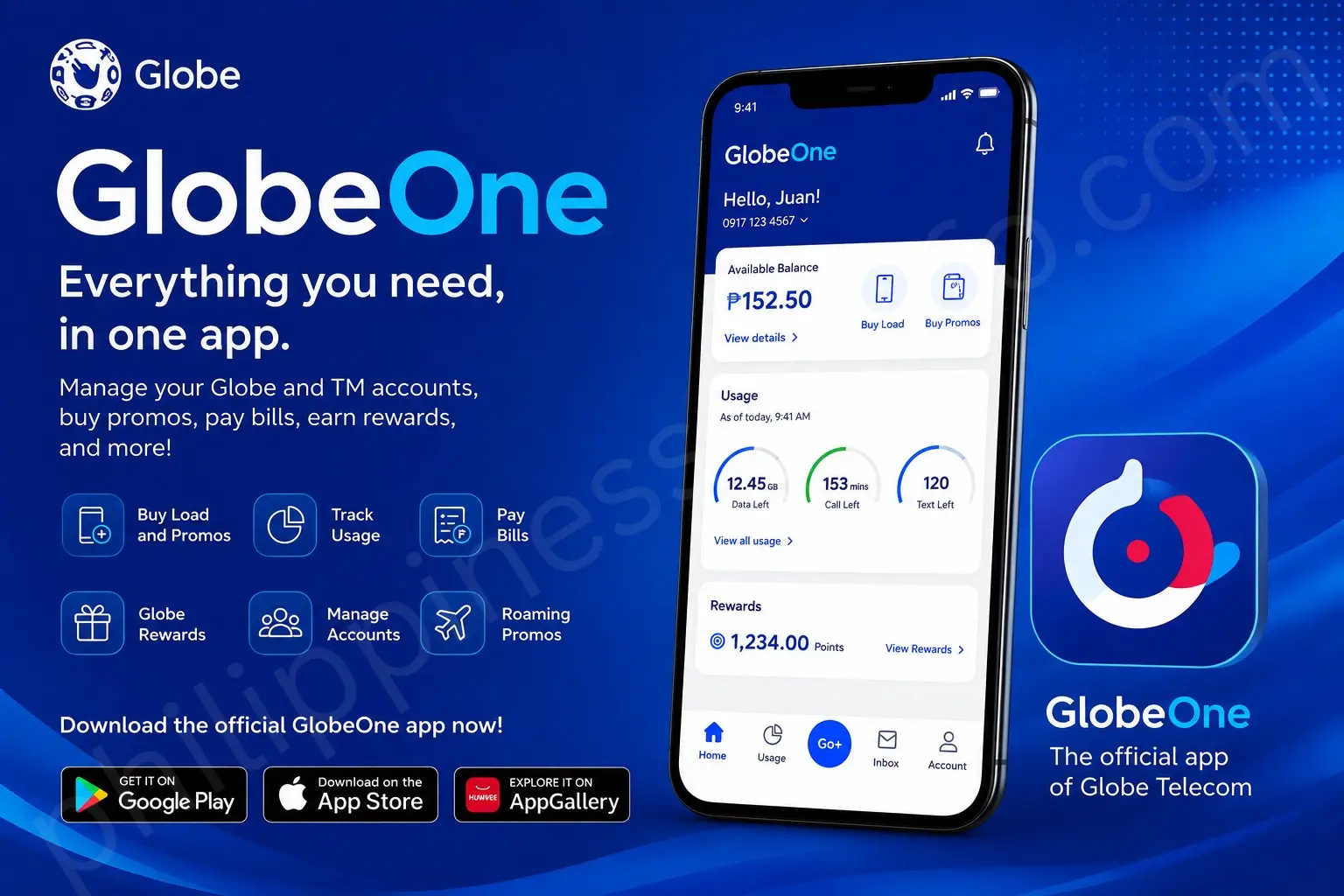
GlobeOne App is the official mobile app from Globe Telecom that helps users manage their Globe accounts in one place. With the app, customers can check their balances, monitor data usage, purchase load and promos, pay bills, manage subscriptions, and access rewards and other Globe services directly from their smartphones.
What Is GlobeOne App?
GlobeOne App is the official mobile application of Globe Telecom, designed to give customers a convenient way to manage their Globe services from one place. Rather than switching between different platforms, users can access key account features directly through the app. Through the GlobeOne App, customers can view their remaining load, data balance, and account details. The app also allows users to purchase load and data promos, pay postpaid bills, manage subscriptions, and keep track of their usage. Depending on the services available to an account, users may also access rewards, special offers, and other Globe features.

For Globe customers, the app provides a convenient way to handle everyday account tasks from a smartphone. It is useful for managing both mobile and broadband services while keeping important account information in one place. Users generally need to sign in with their Globe account to view personalised information and use account-specific features. In short, GlobeOne App functions as a central platform for managing Globe accounts, services, payments, promos, rewards, and other customer activities.
How to Download the GlobeOne App
The GlobeOne app is free to download and is available through three official app stores:

| Platform | Store | App Name to Search |
|---|---|---|
| Android | Google Play Store | GlobeOne |
| iPhone / iPad | Apple App Store | GlobeOne |
| Huawei devices | Huawei AppGallery | GlobeOne |
How to Download the GlobeOne App
- Open the official Google Play Store, Apple App Store, or Huawei AppGallery on your device.
- Search for “GlobeOne” and make sure the app is published by Globe Telecom, Inc.
- Tap Install on Android, Get on iPhone/iPad, or the equivalent download button on Huawei devices.
- Wait for the app to finish downloading and installing.
- Tap Open to launch the GlobeOne App and begin setting up your account.
Important: Download GlobeOne only from an official app store. Avoid third-party APK websites or unofficial download links.
Device Requirements
Step 1: Open GlobeOne and Select “Create an Account”
For smooth performance, the listed requirements are:
- Android 6.0 or iOS 13 and above
- At least 2GB RAM
- A minimum of 300MB free storage
Security tip: Avoid downloading GlobeOne from third-party APK websites. Use only the official Google Play Store, Apple App Store, or Huawei AppGallery to get the legitimate app.
Here’s a polished, SEO-friendly rewrite with clearer steps and more natural wording:
How to Create a GlobeOne App Account
After installing the GlobeOne app, you can set up your account directly from your smartphone. Follow these steps to get started:
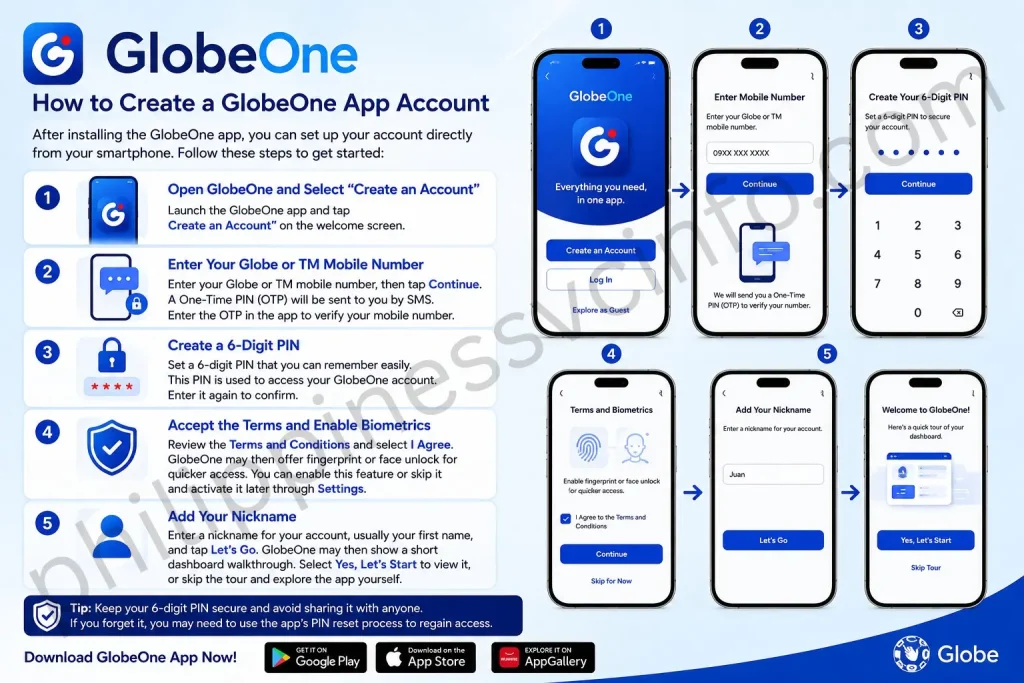
Step 1: Open GlobeOne and Select “Create an Account”
Launch the GlobeOne app and tap Create an Account on the welcome screen.
Step 2: Enter Your Globe or TM Mobile Number
Enter your Globe or TM mobile number, then tap Continue. A One-Time PIN (OTP) will be sent to you by SMS. Enter the OTP in the app to verify your mobile number.
Step 3: Create a 6-Digit PIN
Set a 6-digit PIN that you can remember easily. This PIN is used to access your GlobeOne account. Enter it again to confirm.
Step 4: Accept the Terms and Enable Biometrics
Review the Terms and Conditions and select I Agree. GlobeOne may then offer fingerprint or face unlock for quicker access. You can enable this feature or skip it and activate it later through Settings.
Step 5: Add Your Nickname
Enter a nickname for your account, usually your first name, and tap Let’s Go. GlobeOne may then show a short dashboard walkthrough. Select Yes, Let’s Start to view it, or skip the tour and explore the app yourself.
Tip: Keep your 6-digit PIN secure and avoid sharing it with anyone. If you forget it, you may need to use the app’s PIN reset process to regain access.
Here’s a polished version with clearer organisation, stronger readability, and natural SEO wording while preserving the details you provided:
Here’s the same section converted into clear H3 headings and step-by-step instructions:
How to Log In to GlobeOne
Follow these steps to access your GlobeOne account:

Step 1: Open the GlobeOne App
Launch the GlobeOne App on your smartphone and wait for the login screen to appear.
Step 2: Enter Your Login Details
Enter the mobile number or other login information requested by the app.
Step 3: Enter Your Six-Digit PIN
Type your six-digit PIN to continue. Make sure the PIN is correct before submitting it.
Step 4: Verify Your Account
If prompted, complete the required OTP verification using the code sent to your registered mobile number.
Step 5: Use “Forgot PIN?” if Needed
If you cannot remember your PIN, tap Forgot PIN? and follow the verification instructions to create a new six-digit PIN.
Step 6: Troubleshoot Login Errors
If you cannot log in, update the GlobeOne App, check your internet connection, and make sure your mobile number can receive OTP messages. You can also close and reopen the app before trying again.
GlobeOne App Features: What You Can Do
The GlobeOne app brings several Globe and TM services together, making it easier to manage mobile accounts, payments, promos, and related services from one place.
Buy Load and Promos
You can browse and subscribe to Globe and TM prepaid offers covering data, calls, texts, and combo bundles. Before subscribing, the app shows the promo’s price, inclusions, and validity period, so you can check the details first without entering a promo code.
The app also provides access to Super Xclusive promos, which are app-only offers with different data inclusions. For example, the Go+99 offer available through the app may include more open-access data than the corresponding registration through other channels.
Monitor Data, Calls, and Text Usage
The GlobeOne dashboard lets you check your remaining data, call minutes, and text credits. You can also see the validity or expiry information for active promos, helping you keep track of your usage and decide when to reload or renew.
Pay Bills for Postpaid and Globe At Home
Postpaid and Globe At Home customers can use the app to pay their monthly bills. Depending on the account and available features, users can also access billing information and review previous payments without switching to another account-management platform.
Register Your SIM
The GlobeOne app includes a SIM registration option for eligible users. You can start the registration process from the app, provide the required information, complete OTP verification, and submit the necessary identification details and documents.
Earn and Redeem Globe Rewards
The app also provides access to Globe Rewards, where eligible customers can view and redeem available points. Rewards may be exchanged for selected load, promos, discounts, or participating partner offers, depending on the rewards available to the account.
Manage Multiple Accounts
GlobeOne can be useful for customers who manage more than one Globe or TM number. Linked numbers can be accessed from the account interface, making it easier to switch between multiple lines instead of managing each number separately.
This can be particularly useful for families with several mobile numbers or users who manage multiple lines.
Book Roaming Promos
Customers travelling overseas can use GlobeOne to check available Globe Roaming offers and activate suitable roaming promos. The available options can vary depending on the destination and account.
Checking the app before travelling can help you arrange your roaming service in advance.
SIM and eSIM Management
For compatible devices and supported services, GlobeOne provides options for managing physical SIM and eSIM services. Features can vary by device, account type, and app version, so users should check the options displayed in their own GlobeOne account.
Retailer Account Features
Globe load retailers may have access to a dedicated retailer profile within GlobeOne. Depending on the retailer account, the app can support activities such as selling load to customers, checking wallet information, and purchasing load for retail transactions.
This allows eligible retailers to manage supported retailer activities from the same app rather than relying on a separate application.
Here’s a polished version with a more balanced comparison and natural SEO wording:
GlobeOne App vs Other Methods
Globe customers can manage their accounts through several channels, including the GlobeOne app, SMS or *143#, web services, and physical Globe Stores. The best option depends on the task and the tools available to you.
| Task | GlobeOne App | *SMS / 143# | Web Portal | Globe Store |
|---|---|---|---|---|
| Buy prepaid promos | ✅ Super Xclusive variants available | ✅ Available | ❌ N/A | ✅ Available |
| Track data usage | ✅ Real-time access | ❌ Limited | ❌ N/A | ❌ N/A |
| Pay postpaid bills | ✅ Available | ❌ Not available | ✅ Available | ✅ Available |
| SIM registration | ✅ Supported | ✅ Basic support | ✅ Supported | ✅ Supported |
| Manage multiple SIMs | ✅ Up to 10 | ❌ One at a time | ❌ One at a time | ❌ One at a time |
| Activate roaming | ✅ Available | ✅ Available | ❌ N/A | ✅ Available |
| Retailer wallet | ✅ Built in | ❌ Not available | ❌ Not available | ✅ In person |
Which Option Is Best?
For many everyday account-management tasks, GlobeOne offers the convenience of handling several services from one smartphone app. It can be especially useful when you want to check usage, manage multiple numbers, pay bills, or access available promos without visiting a store.
However, SMS or *143# can still be useful when you don’t have reliable internet access or prefer basic mobile services. Globe Stores remain an option when you need in-person assistance, while supported web services can be useful when you prefer managing your account through a browser.
Here’s a cleaner, more SEO-friendly rewrite with the troubleshooting steps kept practical and easy to scan:
GlobeOne App Not Work: Common Issues & Fixes
Sometimes the GlobeOne app may crash, fail to load, reject a login attempt, or show an error while using certain features. The following troubleshooting steps can help identify and resolve common problems.
App Keeps Crashing
If GlobeOne closes immediately after opening, first uninstall the app completely and restart your phone. Then reinstall GlobeOne from the official Google Play Store or Apple App Store.
If the problem continues, try clearing the app cache:
Settings → Apps → GlobeOne → Storage → Clear Cache
After clearing the cache, open the app again and check whether it works normally.
Cannot Log In
Login problems can have several causes:
- Wrong PIN: Select Forgot PIN on the login screen and follow the OTP-based reset process.
- Inactive SIM: Your mobile number needs to be active if you are required to receive an OTP.
- Outdated app: Check the Google Play Store or Apple App Store for an available GlobeOne update.
- Network problem: Switch between Wi-Fi and mobile data, then try logging in again.
“Something Went Wrong” on the Dashboard
A “Something Went Wrong” message can occur because of a temporary connection problem, an app-session issue, or a service-side problem.
Try clearing the GlobeOne cache, then sign out and sign back in. If the error remains, wait for a while and try again, as temporary service interruptions can sometimes affect account features.
OTP Not Arriving
If you don’t receive the OTP, check that your SIM has an active signal and can receive SMS messages. You can request another OTP after waiting for the required period.
If the problem continues, check your network connection and make sure you’re using the correct mobile number or supported login method.
Security reminder: Never share an OTP with another person, even if they claim to be a Globe representative.
Promo Purchase Failing
If a promo purchase doesn’t go through, check your available load balance or make sure your selected payment method is working. Clear the app cache and retry the transaction.
If a particular payment option is temporarily unavailable, use another supported payment method if one is offered in the app. Always check the transaction status before attempting the purchase again to avoid duplicate charges.
Here’s a polished version based on the content you provided, keeping the original tips and practical details while making the wording more natural and SEO-friendly:
Tips for Getting the Most from the GlobeOne App
Getting familiar with a few useful settings can make the GlobeOne app easier and safer to use. These tips can help you manage promos, multiple SIMs, account security, and app performance more efficiently.
Buy Promos Through the GlobeOne App
When available, check the GlobeOne app before subscribing to a promo through SMS. The app may offer Super Xclusive variants with different data inclusions at the same price.
Always review the promo details, including its data allocation, price, and validity, before confirming your subscription.
Link Multiple SIMs to One Account
If you manage several Globe or TM numbers, linking them to one GlobeOne account can make account management more convenient. You can switch between linked numbers and check the available services for each account without needing to use a different device every time.
Enable Biometric Login
If your phone supports fingerprint or face authentication, consider enabling biometric login for easier access. Look for the biometric or security option under the app’s Settings and follow the instructions shown on your device.
Never Share Your OTP
Treat every One-Time PIN (OTP) as private account information. Never share an OTP with anyone, including someone claiming to represent Globe support.
If someone asks you to provide an OTP through a call, message, or chat, don’t give it to them. An OTP can be used to verify access to your account.
Check Your Rewards Balance
Before completing a payment or using a promo, check the Rewards section in the GlobeOne app to see whether you have available points or offers.
Available rewards and redemption options can vary, so review the options displayed in your account before redeeming your points.
Clear the App Cache When Necessary
If GlobeOne becomes slow, freezes, or develops minor loading problems, clearing its temporary cache may help.
On compatible Android devices, you can usually find the option under:
Settings → Apps → GlobeOne → Storage → Clear Cache
You don’t necessarily need to clear the cache on a fixed monthly schedule. Try it when you’re experiencing performance or loading issues.
Here’s a polished final section that keeps the original message but avoids unsupported performance claims and overly absolute wording:
I’ve reviewed your FAQ content and the uploaded SEO rewriting framework. I’ll keep the same 15-question scope and facts while making the wording more original, natural, searchable, and user-focused.
GlobeOne App FAQs
Final Thoughts
The GlobeOne app provides a convenient way to manage Globe and TM accounts from one place. Customers can use it to check account information, monitor usage, manage promos, pay supported bills, and access available rewards and other services.One feature worth checking is the Super Xclusive promo section, where eligible app-only offers may provide different data inclusions at the same price. Before subscribing, compare the promo details shown in the app with other available registration options.If the app isn’t working properly, start with basic troubleshooting such as checking for updates, verifying your internet connection, and clearing the app cache when appropriate. For issues that cannot be resolved through the app, use Globe’s official customer-support channels for further assistance.
Discover What You Need to Know:
- TM SIM Registration Number: How to Check, Verify & Update (2026 Guide)
- PEOS Certificate: Complete Guide to Online Registration, Download, Requirements & FAQs 2026
- Genyo E-learning: Complete Guide to Features, Login & Benefits 2026
- DTR (Daily Time Record) Philippines: CSC Form 48 Guide, Download, Requirements & FAQs (2026)
- Microsoft Forms: Complete Guide to Creating Online Forms, Surveys, Quizzes & Business Forms (2026)