UM Student Portal 2026: Login, Registration, Grades, Payment & Account Guide
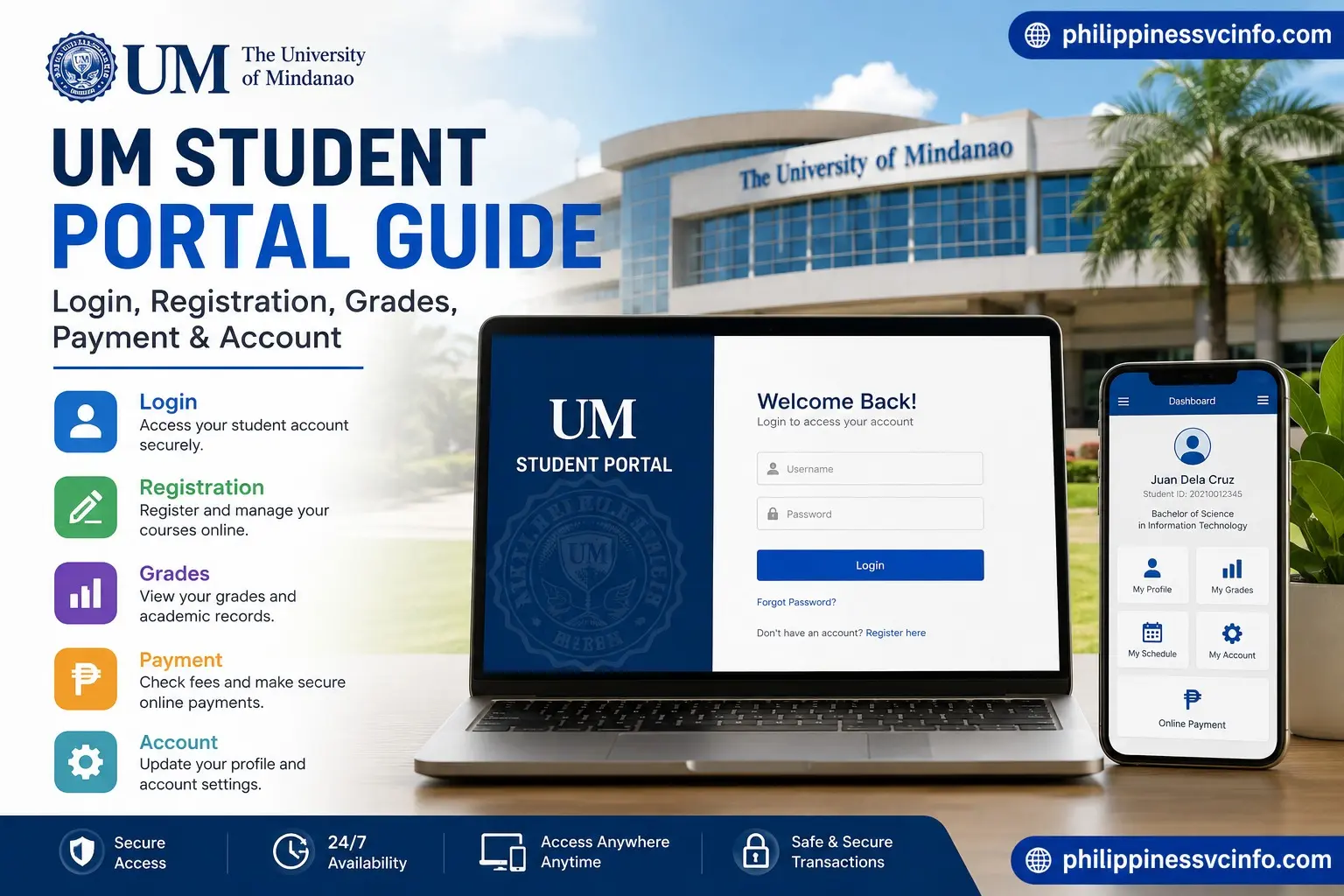
The University of Mindanao Student Portal is the official online platform that helps students access important university services and manage their student-related information online. Whether you are a new student, continuing student, transferee, or international student, the Student Portal can be an important starting point for accessing enrollment services, announcements, account information, and other online facilities.
The official Student Portal for the University of Mindanao (UM) Main Campus is:
The current Student Portal login page identifies the Main Campus and provides a Sign in with Google option for students using their University of Mindanao Google account. The official page also provides an institutional-account recovery option for students who cannot sign in.
Important: Always check that you are using the official
umindanao.edu.phdomain before entering your student or account information.
What Is the University of Mindanao Student Portal?
The Student Portal is an online system provided by the University of Mindanao for student services. Instead of handling every task manually, students can use the Student Portal to access various academic and administrative services through the university’s online system.
Depending on your student status and the services currently available, the Student Portal may be used for activities such as:
- Student registration
- Online enrollment
- Course enrollment
- Checking enrollment information
- Viewing announcements
- Accessing institutional account information
- Document requests
- Online payment
- Semester selection
- Other university-related services
The official portal currently includes sections for Student Registration, Document Request, and online payment, in addition to the main student login.
How to Log In to the Student Portal
Logging in to the Student Portal is straightforward when you already have your University of Mindanao Google account.
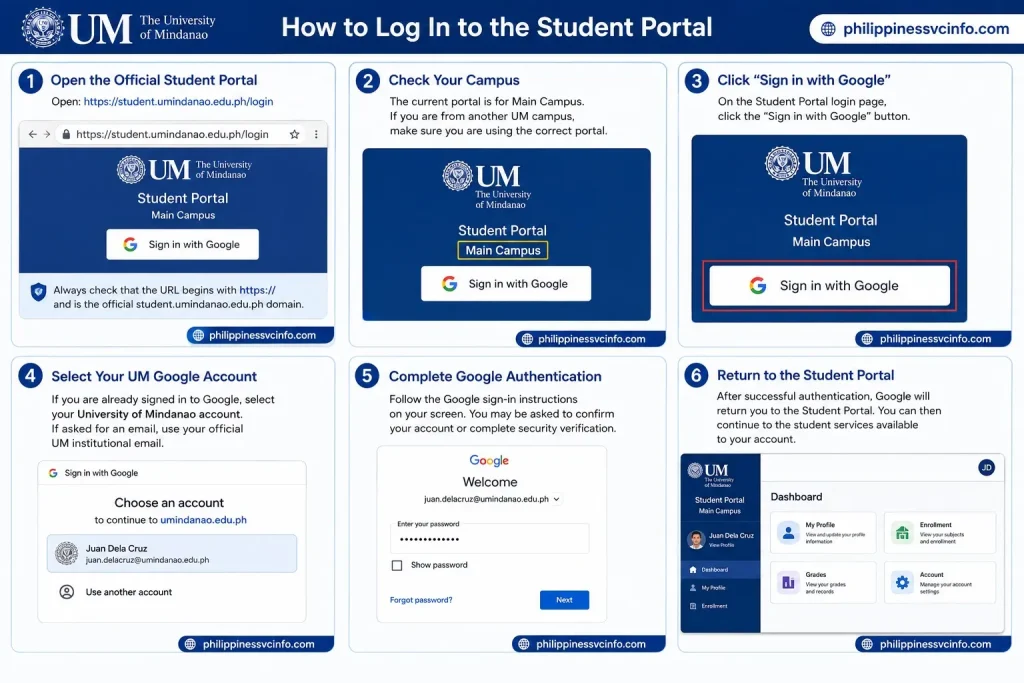
Step 1: Open the Official Student Portal
Open:
Before entering any information, check the browser address bar and confirm that the website uses the official student.umindanao.edu.ph domain.
The university’s FAQ specifically tells students to verify the correct Student Portal URL and to make sure that it begins with https://.
Step 2: Check Your Campus
The current Main Campus login page identifies the portal as Main Campus.
If you are enrolled at another UM campus, make sure you are using the appropriate campus portal. Do not assume that every UM student uses exactly the same campus login page.
Step 3: Click “Sign in with Google”
On the official Student Portal login page, select:
Sign in with Google
The current portal instructs students to use their University of Mindanao Google account, which ends in:
@umindanao.edu.ph
Step 4: Select Your UM Google Account
If you are already signed in to Google, select your University of Mindanao account from the available accounts.
If Google asks you to enter an email address, use your official UM institutional email account.
Step 5: Complete Google Authentication
Follow the Google sign-in instructions shown on your screen.
Depending on your browser and account status, you may be asked to confirm the account or complete additional Google security verification.
Step 6: Return to the Student Portal
After successful authentication, Google should return you to the Student Portal.
You can then continue to the student services available to your account.
What If You Cannot Log In?
If you cannot access the Student Portal, do not repeatedly try random passwords or use unofficial recovery websites.
The current portal provides a “Can’t sign in? Recover your institutional email account” option.
Official Account Recovery
Use the official recovery page:
Recover UM Institutional Account:
The current recovery page explains that the Student Portal no longer has its own separate password. Students sign in using their University of Mindanao Google account instead.
How to Recover Your UM Account
If you have lost access to your institutional account, follow these steps.
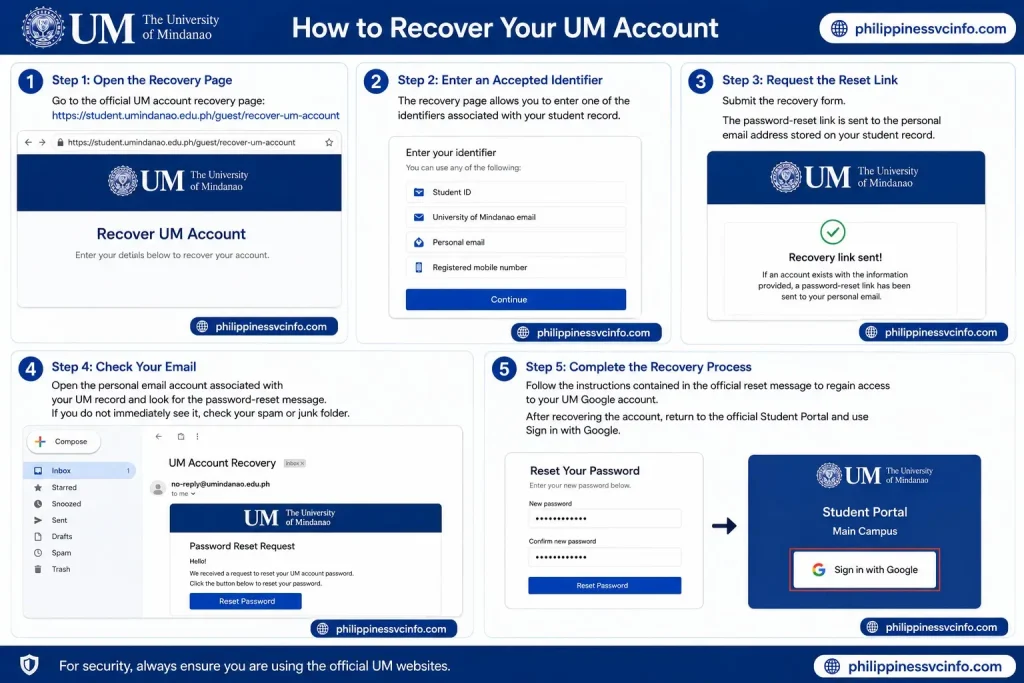
Step 1: Open the Recovery Page
Go to the official UM account recovery page:
Step 2: Enter an Accepted Identifier
The recovery page allows you to enter one of the identifiers associated with your student record, such as:
- Student ID
- University of Mindanao email
- Personal email
- Registered mobile number
Step 3: Request the Reset Link
Submit the recovery form.
According to the current recovery page, the password-reset link is sent to the personal email address stored on your student record.
Step 4: Check Your Email
Open the personal email account associated with your UM record and look for the password-reset message.
If you do not immediately see it, check your spam or junk folder.
Step 5: Complete the Recovery Process
Follow the instructions contained in the official reset message to regain access to your UM Google account.
After recovering the account, return to the official Student Portal and use Sign in with Google.
How to Check Your Latest Semester
One common issue for students is seeing an older semester after logging into the Student Portal. This does not necessarily mean that your account or enrollment is incorrect.
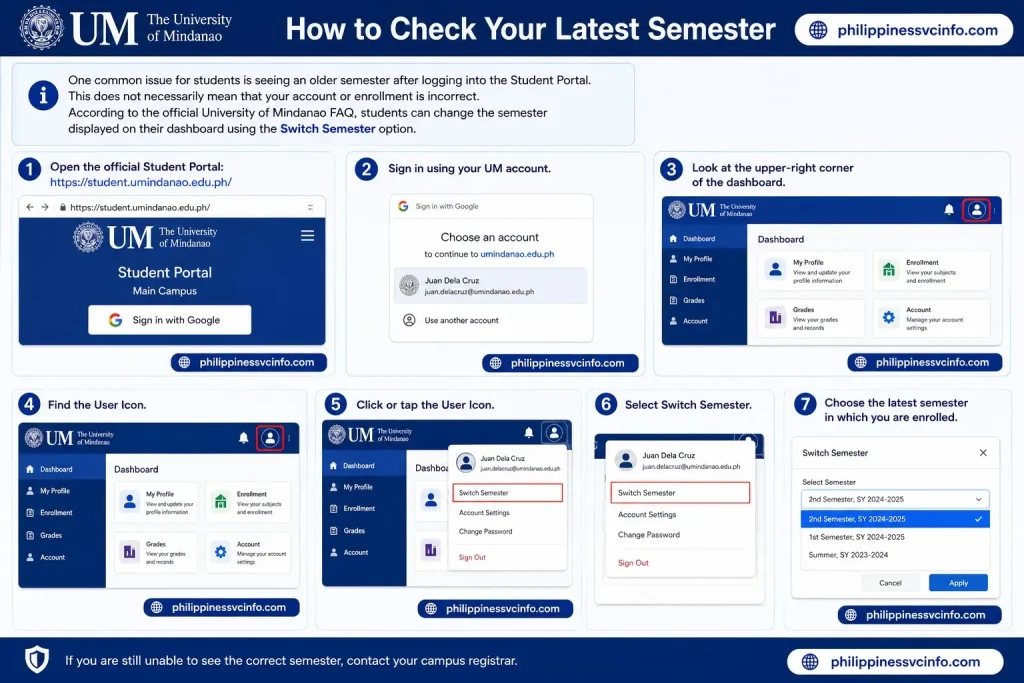
According to the official University of Mindanao FAQ, students can change the semester displayed on their dashboard using the Switch Semester option.
Step-by-Step: Switch Semester
- Open the official Student Portal:
- Sign in using your UM account.
- Look at the upper-right corner of the dashboard.
- Find the User Icon.
- Click or tap the User Icon.
- Select Switch Semester.
- Choose the latest semester in which you are enrolled.
After selecting the correct semester, the dashboard should display information associated with that selected academic period.
Why Is the Semester Important?
Selecting the correct semester can help ensure that you are viewing the appropriate student information. If you are looking for enrollment-related information but an old semester is selected, switching to your latest enrolled semester should be one of the first troubleshooting steps.
The official UM FAQ specifically recommends this procedure when the latest enrolled semester is not showing.
How to Check LMS and UM Google Account Information
The Student Portal can also be used to check announcements related to your LMS and University of Mindanao Google account.
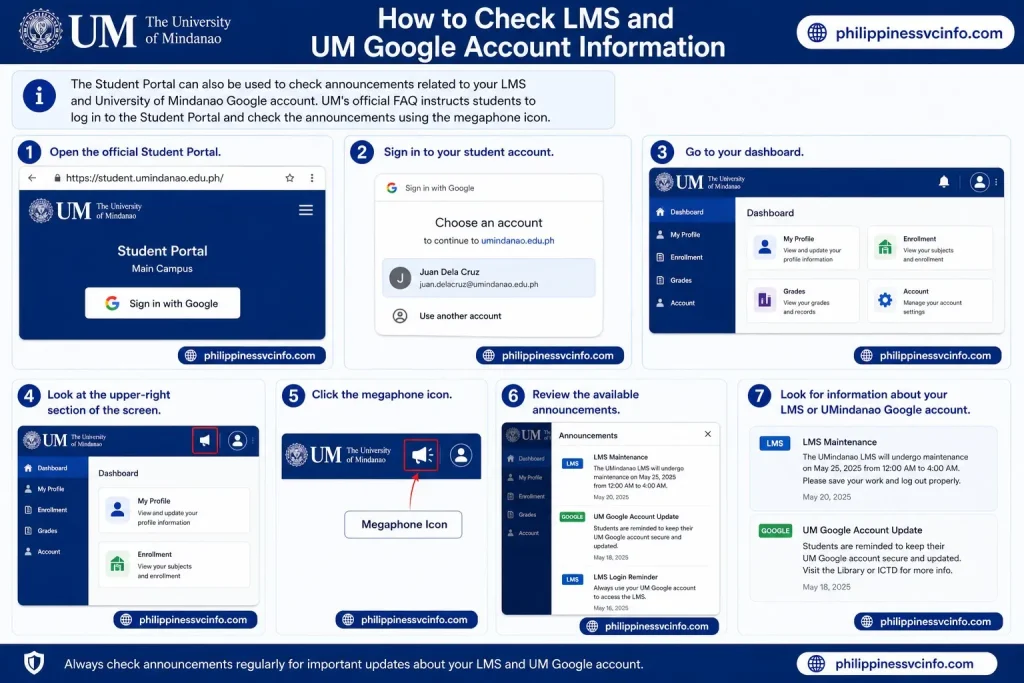
UM’s official FAQ instructs students to log in to the Student Portal and check the announcements using the megaphone icon.
Step-by-Step
- Open the official Student Portal.
- Sign in to your student account.
- Go to your dashboard.
- Look at the upper-right section of the screen.
- Click the megaphone icon.
- Review the available announcements.
- Look for information about your LMS or UMindanao Google account.
This is useful for students who are waiting for information about newly created accounts or other university announcements.
Official Student Portal
Open the portal:
The official UM FAQ confirms that announcements can be accessed through the megaphone icon in the upper-right area of the Student Portal.
Online Enrollment Through the Student Portal
The Student Portal may also be used for online enrollment activities. Students should always follow the enrollment instructions provided by the University of Mindanao for their particular student category and semester.
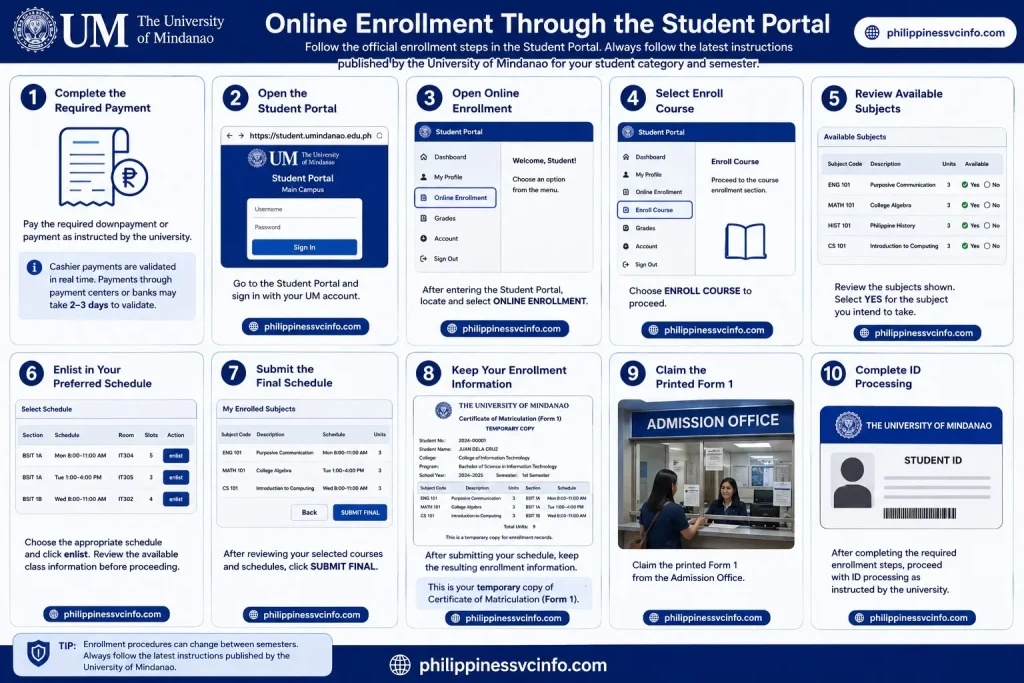
For undergraduate students, the supplied UM enrollment information describes a process that includes payment, logging into the Student Portal, selecting courses, submitting the final class schedule, and completing subsequent university procedures.
Step 1: Complete the Required Payment
Before starting the online enrollment process, complete the required downpayment or payment according to the university’s instructions.
The supplied UM enrollment information states that payment validation depends on the payment method. Cashier payments are described as having real-time validation, while payments through payment centers or banks may take approximately 2–3 days to validate.
Step 2: Open the Student Portal
Go to:
Sign in with your appropriate UM account.
Step 3: Open Online Enrollment
After entering the Student Portal, locate:
ONLINE ENROLMENT
Select the enrollment option to continue.
Step 4: Select Enroll Course
Choose:
ENROLL COURSE
This takes you to the course-enrollment portion of the process.
Step 5: Review Available Subjects
Review the subjects displayed by the system.
Where applicable, select YES for the available subject you intend to take.
Step 6: Enlist in Your Preferred Schedule
Choose the appropriate schedule and click:
enlist
Review the available class information carefully before proceeding.
Step 7: Submit the Final Schedule
After reviewing your selected courses and schedules, use:
SUBMIT FINAL
The supplied UM enrollment instructions identify this as part of the online enrollment process.
Step 8: Keep Your Enrollment Information
After submitting your schedule, retain the resulting enrollment information for your records.
The supplied instructions describe this information as a temporary copy of the Certificate of Matriculation (Form 1).
Step 9: Claim the Printed Form 1
According to the supplied enrollment information, students should claim the printed Form 1 from the Admission Office.
Step 10: Complete ID Processing
After completing the required enrollment steps, proceed with ID processing according to the university’s instructions.
Tip: Enrollment procedures can change between semesters. Always follow the latest instructions published by the University of Mindanao instead of relying exclusively on an older enrollment procedure.
Student Registration
The official Student Portal currently includes a Student Registration section. This section asks the user to provide an email address so that UM can send a link to the student registration page.
How Student Registration Works
- Open the official Student Portal.
- Locate the Student Registration section.
- Enter the requested email address.
- Submit the information.
- Check the email account you provided.
- Open the registration link sent by UM.
- Continue following the instructions on the registration page.
Official Registration Starting Point
UM Student Portal:
The current portal explicitly states that students should provide their email so that UM can send a link to the student registration page.
Do not enter personal information into websites that imitate the UM Student Portal.
Document Request Through the Student Portal
The official Student Portal also provides a Document Request section. The page currently asks users to provide their email so UM can send a link to the document request page.
Step-by-Step Document Request
- Open:
https://student.umindanao.edu.ph/ - Find Document Request.
- Enter your email address.
- Submit the request.
- Check your email inbox.
- Look for the document-request link from UM.
- Open the provided link.
- Follow the instructions displayed on the official request page.
The specific documents available and the processing requirements can vary, so students should carefully review the current instructions provided by UM.
Online Payment
The official Student Portal currently displays an Online Payment option. The portal describes this service as allowing students to pay online and have the payment reflected on their account immediately, rather than waiting two working days.
General Online Payment Process
- Open the official Student Portal.
- Locate the Online Payment option.
- Select the payment service.
- Follow the instructions displayed by UM.
- Review the amount and payment information before submitting.
- Complete the payment using the available method.
- Keep your payment confirmation or transaction information.
Always confirm that you are using the official UM website before entering payment information.
Payment Validation
Payment processing can vary according to the payment method. The supplied UM enrollment information indicates that cashier payments can be validated in real time, while certain payments through payment centers or banks may require approximately 2–3 days for validation.
If a payment does not immediately appear in your account, avoid making a duplicate payment without first checking the transaction status or contacting the appropriate university office.
What to Do When Your Payment Is Not Showing
If you have completed a payment but your Student Portal does not immediately show the expected update, first consider the payment method and its expected validation period.
Recommended checks
- Confirm that the payment was successfully completed.
- Keep your payment receipt or transaction reference.
- Check whether the payment method requires additional processing time.
- Log out and sign in again to the Student Portal.
- Check the relevant semester.
- Review university announcements.
- Contact the appropriate UM office if the payment remains unreflected after the expected processing period.
The supplied UM enrollment information specifically notes that some payment-center and bank transactions can take 2–3 days to validate.
Student Portal Announcements
Announcements are an important part of using the Student Portal because they can contain information about accounts, LMS access, enrollment, maintenance, and other student services.
The official UM FAQ directs students to the megaphone icon in the upper-right area of the portal to view announcements.
Best Practice
Make it a habit to check your announcements whenever you:
- Begin a new semester
- Complete enrollment
- Are waiting for an LMS account
- Are waiting for a UM Google account
- Experience a portal problem
- Need information about university procedures
This can help you avoid missing important instructions.
Student Portal and Different UM Campuses
The University of Mindanao’s official Student Portal page currently provides links to several branches, including Tagum, Panabo, Digos, Bansalan, and Peñaplata.
The Main Campus portal is:
Students should select the portal appropriate to their campus rather than automatically assuming that the Main Campus portal is the correct one.
Important Tips for Using the Student Portal
For a smoother Student Portal experience:
- Bookmark the official UM website.
- Use the official
umindanao.edu.phdomain. - Confirm that the connection uses
https://. - Use your correct institutional Google account.
- Check the selected semester.
- Review announcements regularly.
- Keep payment confirmations.
- Use the official account-recovery page when necessary.
- Avoid entering credentials on unofficial websites.
- Follow the latest UM instructions for enrollment and registration.
The official UM FAQ specifically recommends checking the correct portal URL, internet connection, and possible emergency maintenance when students have trouble accessing the system.
Official Links for Student Portal Users
|
Purpose |
Official Website |
|---|---|
|
Student Portal Login |
|
|
UM Official Website |
|
|
UM Student Portal FAQ |
|
|
Institutional Account Recovery |
The current official Student Portal confirms the Google sign-in method, Student Registration, Document Request, Online Payment, and campus links.
Part 3 will cover international/foreign students, common Student Portal errors, security and privacy, FAQs, troubleshooting, and a final quick-reference checklist.
Student Portal Not Working: What Should You Check?
If the Student Portal is not opening or you cannot access your account, start with the basic checks recommended by the University of Mindanao.
1. Check Your Internet Connection
Make sure your device has a stable internet connection.
Try opening another website to determine whether the problem affects your internet connection or only the Student Portal.
If other websites also fail to load, reconnect to your Wi-Fi or mobile data and try again.
2. Check the Official Student Portal URL
Always confirm that you are visiting:
UM’s official FAQ advises students to check that they are using the correct Student Portal URL and that it begins with https://. (UMindanao)
Avoid entering your student credentials on websites with slightly different spellings or unfamiliar domains.
3. Refresh the Page
If the Student Portal was previously working but suddenly stops loading:
- Refresh the page.
- Close the browser tab.
- Open the official portal again.
- Try signing in again.
You can also try another supported browser or a private/incognito browser window if the page continues to behave unexpectedly.
4. Check for Maintenance
The official UM FAQ explains that the Student Portal may occasionally become unavailable because of emergency maintenance.
UM states that this type of maintenance may take approximately 30–60 minutes and recommends checking official announcements for information about availability. (umindanao.edu.ph)
If the portal is temporarily unavailable, wait and try again rather than repeatedly submitting login attempts.
Common Student Portal Login Problems
The following table summarizes practical solutions for common problems.
|
Problem |
Recommended Solution |
|---|---|
|
Student Portal does not open |
Check your internet connection and official URL |
|
Google sign-in fails |
Make sure you are using your UM institutional Google account |
|
Personal Gmail is selected |
Switch to your |
|
Forgot account password |
Use the official UM account recovery page |
|
Old semester appears |
Use User Icon → Switch Semester |
|
LMS information is missing |
Check announcements using the megaphone icon |
|
Payment is not immediately reflected |
Allow the applicable validation period |
|
Portal is temporarily unavailable |
Check official announcements for maintenance |
|
Unsure which campus portal to use |
Verify your UM campus before signing in |
These troubleshooting procedures are supported by the supplied UM portal and FAQ information.
What If You Forgot Your UM Password?
The current Student Portal uses the University of Mindanao Google account for authentication rather than a separate Student Portal password. (student.umindanao.edu.ph)
If you cannot access your account, use the official recovery page:
The recovery process can use information such as your:
- Student ID
- UM email address
- Personal email address
- Registered mobile number
The current recovery page states that the reset link is sent to the personal email associated with your student record. (student.umindanao.edu.ph)
Do not attempt to obtain another student’s account credentials or use unofficial password-reset services.
What If an Old Semester Appears?
An old semester appearing in your Student Portal does not necessarily mean that your enrollment record is broken.
UM’s official FAQ provides a Switch Semester function.
Follow these steps:
- Log in to the Student Portal.
- Click the User Icon in the upper-right corner.
- Select Switch Semester.
- Choose the latest semester in which you are enrolled.
What If LMS Information Is Missing?
If you are expecting LMS or UM Google account information but cannot find it, check the announcements in the Student Portal.
Steps
- Log in to the Student Portal.
- Locate the megaphone icon.
- Click the icon.
- Review the available announcements.
- Look for information related to your LMS or UM Google account.
What If My Payment Does Not Appear?
If you recently paid a university fee but the transaction is not immediately reflected in your Student Portal, check how the payment was made.
The supplied UM enrollment information states that cashier payments can have real-time validation, while payments made through payment centers or banks may take approximately 2–3 days to validate.
Before making another payment:
- Check your payment receipt.
- Confirm the transaction was successful.
- Note the date and payment method.
- Allow the stated processing period.
- Check your Student Portal again.
- Contact the appropriate UM office if the payment remains unreflected.
Avoid making a duplicate payment simply because the first transaction has not appeared immediately.
Foreign Students and the Student Portal
Foreign students may also need to use the Student Portal, but the University of Mindanao’s official enrollment information describes additional procedures before completing enrollment.
The supplied UM information states that foreign students may need to complete immigration, admission, interview, testing, student-visa, registration, and university procedures.
General Foreign Student Process
According to the supplied UM enrollment information, the process includes:
- Complete the required Bureau of Immigration form.
- Present the required admission documents.
- Proceed to the University Registrar for an interview.
- Take the admission test through the Guidance Services and Testing Center.
- Complete the applicable Bureau of Immigration process for the student visa.
- Complete the Student General Information Sheet (SGIS).
- Pay the required downpayment.
- Access the Student Portal using the information provided by UM for the applicable enrollment stage.
- Proceed to the Foreign Student Coordinator.
- Complete ID processing.
- Check the registered email for UM account information.
The supplied source also lists additional foreign-student documentation, including authenticated scholastic records, police clearance, birth certificate, affidavits, personal history, letter of intent, and English competency certification, depending on the student’s circumstances and program.
Important: Immigration and foreign-student requirements can change. Students should verify the current requirements directly with the University of Mindanao before submitting documents or making arrangements.
Student Portal Security Tips
Because the Student Portal can involve academic, personal, and financial information, account security is important.
Use Only Official UM Websites
Before logging in, verify that the website uses the official UM domain:
umindanao.edu.ph
For the Main Campus Student Portal, the official domain is:
student.umindanao.edu.ph
Protect Your Password
Never share your Google password with another person.
University staff should not require you to publicly disclose your password.
Protect Verification Codes
If Google sends a verification or authentication code, do not share it with another person.
Avoid Suspicious Login Links
Do not automatically trust a link sent through an unknown email, message, or social media account.
Instead, open your browser and manually visit the official Student Portal website.
Be Careful on Shared Computers
If you use a public computer, library computer, school computer, or another person’s device:
- Do not save your password.
- Do not allow the browser to remember your account.
- Sign out when finished.
- Close the browser after logging out.
The supplied UM terms also emphasize the user’s responsibility for protecting login information when accessing password-protected areas.
Student Portal: Frequently Asked Questions
Final Summary
The University of Mindanao Student Portal provides students with a central online platform for accessing important university services, including registration, enrollment, document requests, online payments, announcements, and account-related information. The Main Campus portal uses Google authentication through a University of Mindanao institutional account, while the official recovery page provides assistance when students cannot access their account. Students can also use the Switch Semester option when an old semester appears and check the megaphone icon for LMS, UM Google account, and other important announcements. For security, always verify that you are using an official umindanao.edu.ph website before entering personal or account information. Official Student Portal. For the most accurate and current procedures, students should rely on the official University of Mindanao website and the instructions displayed inside the Student Portal.
Discover What You Need to Know:
- NUIS Portal Philippines 2026: National University Login, Online Application, Student Services & Guide
- Abakada Chart: Complete Guide to the Filipino Alphabet and Abakada.ph 2026
- UM Portal Philippines 2026: Login, Registration, Grades, Fees & Student Services
- CHED Philippine (2026): Complete Guide to Scholarships, Requirements, Application Steps, and Official Resources
- PUP Portal Guide 2026: Login, Admission, Enrollment & Student Services
- NEO LMS Login & User Guide: Registration, Password Recovery, Profile Settings & Online Learning