Globe Pocket WiFi Guide Philippines 2026: Setup, 5G Plans & SIM Registration
Globe Pocket WiFi is a portable internet device in the Philippines that uses Globe’s mobile network to provide wireless internet access to smartphones, laptops, tablets and other compatible devices. Available in selected LTE and 5G models, it offers a flexible alternative to fixed broadband for students, travellers, foreign residents and remote workers, depending on network coverage, device compatibility and data promos.
What Is Globe Pocket WiFi?
Globe Pocket WiFi is a portable internet device that uses a mobile network to provide a WiFi connection to compatible electronics. Instead of relying on a fixed fibre connection, the modem uses a SIM card and the available Globe mobile signal to access the internet.
Depending on the model, a device may have a rechargeable battery, a USB power connection or a dedicated power adapter. Some newer 5G equipment is intended mainly for home use rather than carrying around in a pocket.
Which Globe WiFi device should you choose?
- LTE Pocket WiFi or MyFi: A practical option for basic browsing, messaging, online classes and travel where LTE coverage is available.
- Globe At Home Prepaid 5G WiFi: Worth considering for home internet users in areas with compatible 5G coverage.
- Other Globe prepaid WiFi models: Features, supported network bands, battery life and available promos vary by model.
A 5G label does not guarantee faster internet everywhere. Actual performance depends on signal strength, network congestion, device specifications, your location and the data offer you use.
Where to Buy Globe Pocket WiFi in the Philippines
You can look for Globe Pocket WiFi and prepaid home internet devices through official Globe sales channels and authorised retailers. Availability, device bundles and prices can change, so check the exact model before purchasing.
Official and recognised shopping options include:
For marketplace purchases, confirm that the seller is an official or authorised Globe store rather than relying on the product title alone. You can also visit a Globe Store or an authorised retailer to ask about currently available devices and prepaid offers.
What should you check before paying?
Before buying a Globe prepaid WiFi modem, check these details:
- Network compatibility: Confirm whether the device supports LTE, 5G or both.
- Coverage: Check whether Globe provides suitable service where you intend to use it.
- Included data: Find out whether the package includes a welcome allocation, a promotional bundle or no initial data.
- Power requirements: Check whether the model has a rechargeable battery or needs continuous power.
- SIM restrictions: Verify whether the device is network-locked and which SIM cards it supports.
- Warranty and accessories: Confirm the warranty terms and whether the charger, battery and SIM are included.
Travellers and foreign residents should pay particular attention to SIM registration requirements and accepted identification documents before relying on the device for essential internet access.
How to Set Up Your Globe Pocket WiFi
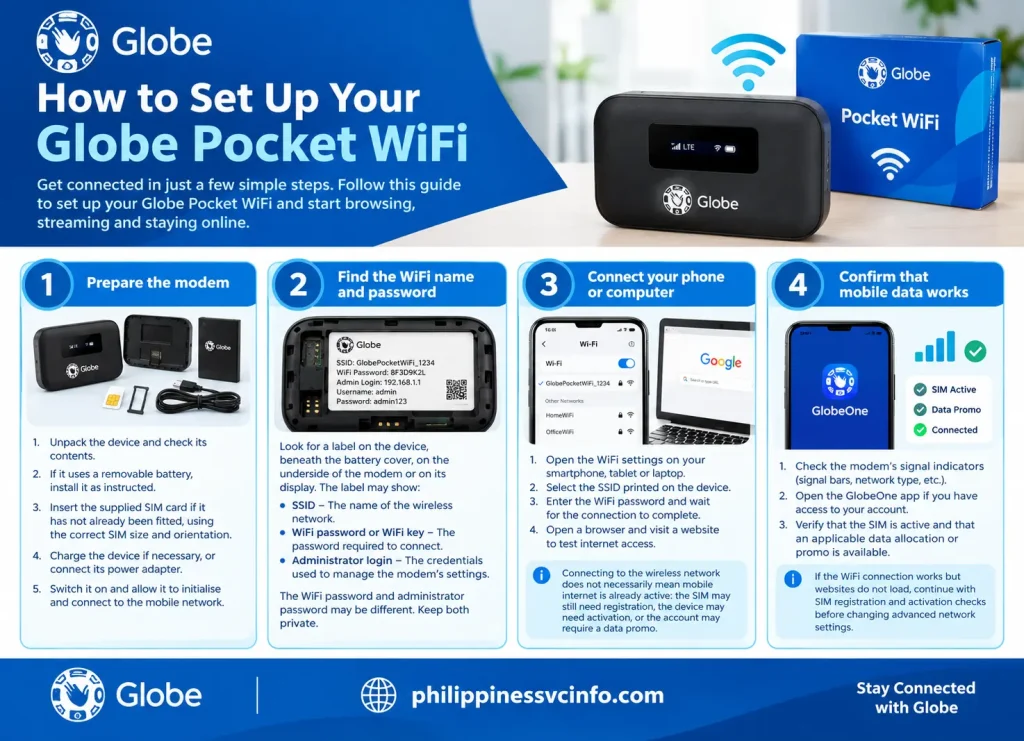
Most devices can be configured without advanced technical knowledge. However, the exact instructions depend on the model, so use the supplied manual whenever its steps differ from the general process below.
Step 1: Prepare the modem
Unpack the device and check its contents. If it uses a removable battery, install it as instructed. Insert the supplied SIM card if it has not already been fitted, taking care to use the correct SIM size and orientation.
Charge the device if necessary, or connect its power adapter. Switch it on and allow it to initialise and connect to the mobile network.
Step 2: Find the WiFi name and password
Look for a label on the device, beneath the battery cover, on the underside of the modem or on its display. Depending on the model, the label may show:
- SSID: The name of the wireless network.
- WiFi password or WiFi key: The password required to connect.
- Administrator login: The credentials used to manage the modem’s settings.
The WiFi password and administrator password may be different. Keep both private.
Step 3: Connect your phone or computer
Open the WiFi settings on your smartphone, tablet or laptop. Select the SSID printed on the device, enter the WiFi password and wait for the connection to complete.
Open a browser and visit a website to test internet access. Connecting to the wireless network does not necessarily mean mobile internet is already active: the SIM may still need registration, the device may need activation, or the account may require a data promo.
Step 4: Confirm that mobile data works
Check the modem’s signal indicators and open the GlobeOne app if you have access to your account. Verify that the SIM is active and that an applicable data allocation or promo is available.
If the WiFi connection works but websites do not load, continue with SIM registration and activation checks before changing advanced network settings.
Globe Pocket WiFi SIM Registration: What Users Must Do
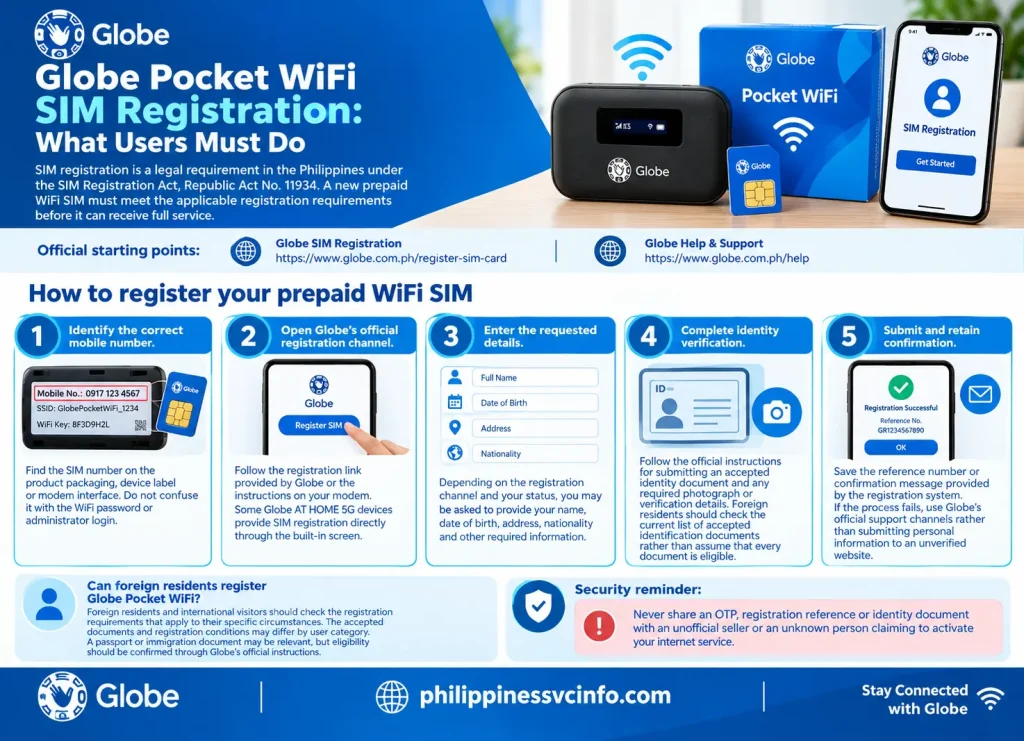
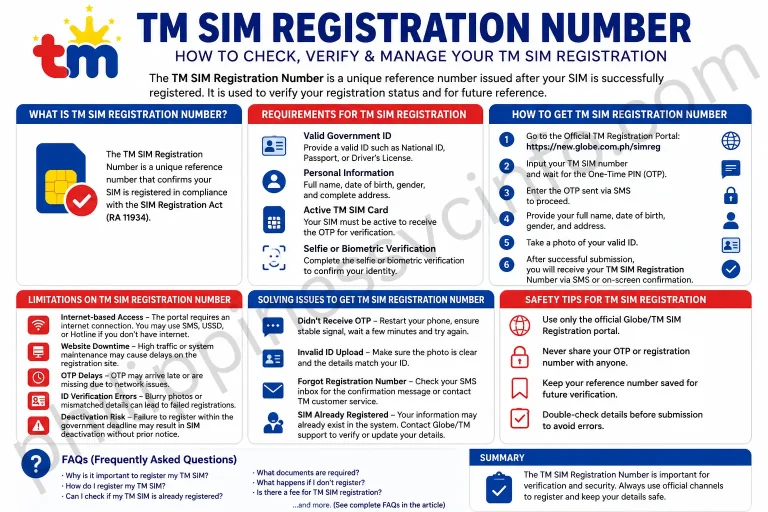
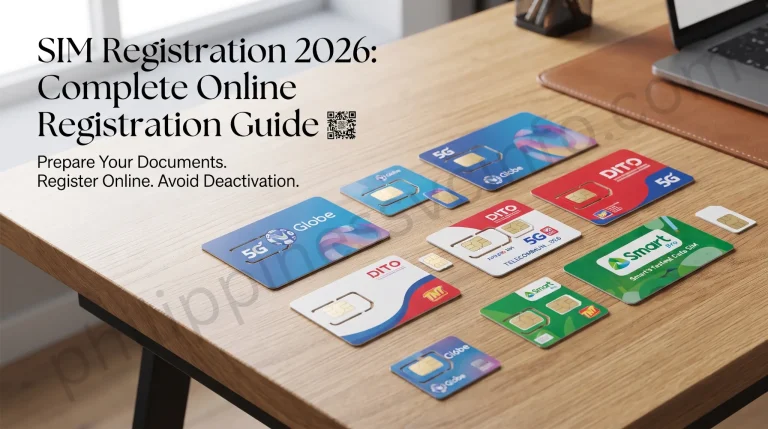
SIM registration is a legal requirement in the Philippines under the SIM Registration Act, Republic Act No. 11934. A new prepaid WiFi SIM must meet the applicable registration requirements before it can receive full service. The registration process can vary according to the device and account type.
Official starting points:
How to register your prepaid WiFi SIM
Step 1: Identify the correct mobile number.
Find the SIM number on the product packaging, device label or modem interface. Do not confuse it with the WiFi password or administrator login.
Step 2: Open Globe’s official registration channel.
Follow the registration link provided by Globe or the instructions on your modem. Some Globe AT HOME 5G devices provide SIM registration directly through the built-in screen.
Step 3: Enter the requested details.
Depending on the registration channel and your status, you may be asked to provide your name, date of birth, address, nationality and other required information.
Step 4: Complete identity verification.
Follow the official instructions for submitting an accepted identity document and any required photograph or verification details. Foreign residents should check the current list of accepted identification documents rather than assume that every document is eligible.
Step 5: Submit and retain confirmation.
Save the reference number or confirmation message provided by the registration system. If the process fails, use Globe’s official support channels rather than submitting personal information to an unverified website.
Can foreign residents register Globe Pocket WiFi?
Foreign residents and international visitors should check the registration requirements that apply to their specific circumstances. The accepted documents and registration conditions may differ by user category. A passport or immigration document may be relevant, but eligibility should be confirmed through Globe’s official instructions.
Security reminder: Never share an OTP, registration reference or identity document with an unofficial seller or an unknown person claiming to activate your internet service.
Activating Globe WiFi and Claiming Welcome Data
Once the SIM is registered, check whether the device needs any further activation. Some newer Globe AT HOME 5G products use a plug-and-play setup, while other models may require additional account steps.
A working WiFi signal alone does not prove that the SIM is registered or that a data promo is active.
Use this checklist:
- Turn on the modem and confirm that it detects the mobile network.
- Complete SIM registration if it is still pending.
- Open the GlobeOne app or the device’s supported management interface.
- Check for a welcome offer or activation benefit, if one is advertised for your model.
- Confirm the promo’s data allowance, validity period and activation status.
Do not assume that every Globe Pocket WiFi purchase includes free data for 30 days. Welcome offers depend on the device variant, purchase bundle and current promotion. Check the terms supplied with your particular unit.
Globe Pocket WiFi Promos: Choosing the Right Data Package
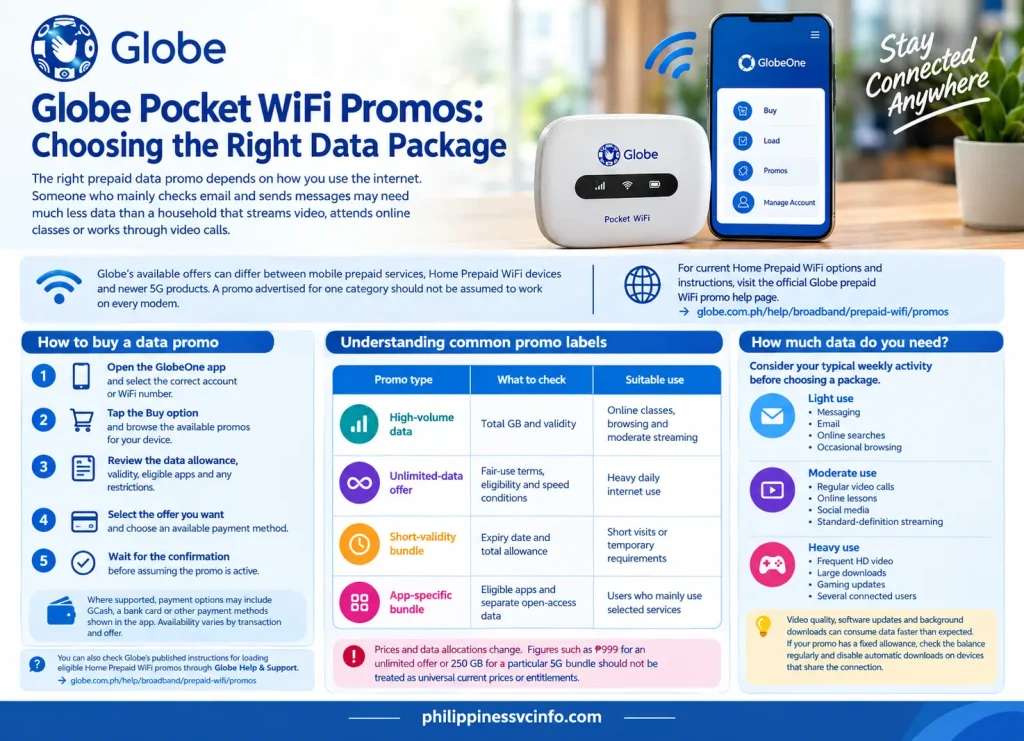
The right prepaid data promo depends on how you use the internet. Someone who mainly checks email and sends messages may need much less data than a household that streams video, attends online classes or works through video calls.
Globe’s available offers can differ between mobile prepaid services, Home Prepaid WiFi devices and newer 5G products. A promo advertised for one category should not be assumed to work on every modem.
For current Home Prepaid WiFi options and instructions, visit the official Globe prepaid WiFi promo help page.
How to buy a data promo
- Open the GlobeOne app and select the correct account or WiFi number.
- Tap the Buy option and browse the available promos for your device.
- Review the data allowance, validity, eligible apps and any restrictions.
- Select the offer you want and choose an available payment method.
- Wait for the confirmation before assuming the promo is active.
Where supported, payment options may include GCash, a bank card or other payment methods shown in the app. Availability varies by transaction and offer.
You can also check Globe’s published instructions for loading eligible Home Prepaid WiFi promos through Globe Help & Support.
Understanding common promo labels
| Promo type | What to check | Suitable use |
|---|---|---|
| High-volume data | Total GB and validity | Online classes, browsing and moderate streaming |
| Unlimited-data offer | Fair-use terms, eligibility and speed conditions | Heavy daily internet use |
| Short-validity bundle | Expiry date and total allowance | Short visits or temporary requirements |
| App-specific bundle | Eligible apps and separate open-access data | Users who mainly use selected services |
Prices and data allocations change. Figures such as ₱999 for an unlimited offer or 250 GB for a particular 5G bundle should not be treated as universal current prices or entitlements.
How much data do you need?
Consider your typical weekly activity before choosing a package.
- Light use: Messaging, email, online searches and occasional browsing.
- Moderate use: Regular video calls, online lessons, social media and standard-definition streaming.
- Heavy use: Frequent HD video, large downloads, gaming updates and several connected users.
Video quality, software updates and background downloads can consume data faster than expected. If your promo has a fixed allowance, check the balance regularly and disable automatic downloads on devices that share the connection.
Checking Your Remaining Data and Promo Expiry
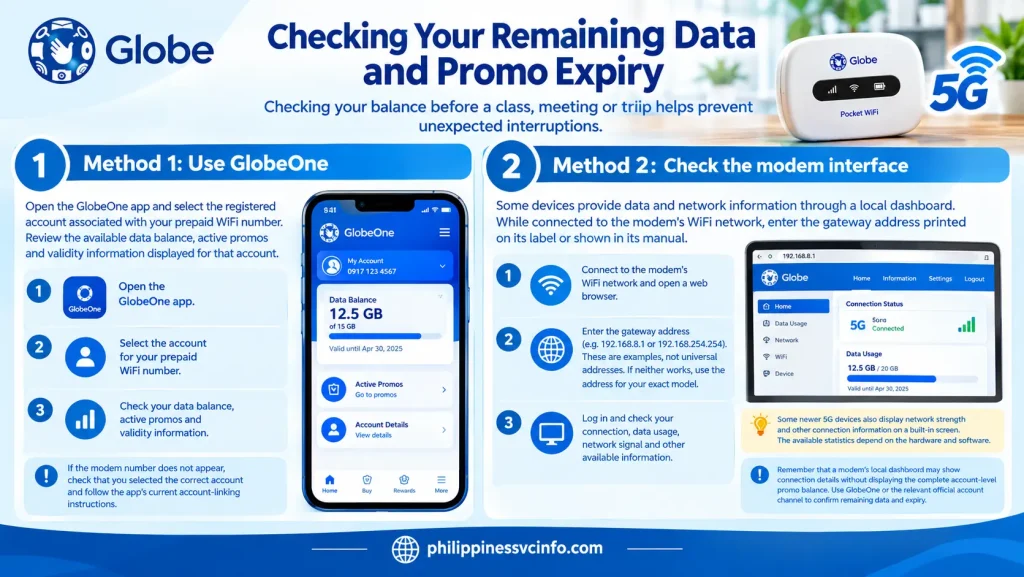
Checking your balance before a class, meeting or trip helps prevent unexpected interruptions.
Method 1: Use GlobeOne
Open the GlobeOne app and select the registered account associated with your prepaid WiFi number. Review the available data balance, active promos and validity information displayed for that account.
If the modem number does not appear, check that you selected the correct account and follow the app’s current account-linking instructions.
Method 2: Check the modem interface
Some devices provide data and network information through a local dashboard. While connected to the modem’s WiFi network, enter the gateway address printed on its label or shown in its manual.
Depending on the device, a local address may resemble 192.168.8.1 or 192.168.254.254. These are examples, not universal addresses. If neither works, use the address documented for your exact model.
Some newer 5G devices also display network strength and other connection information on a built-in screen. The available statistics depend on the hardware and software.
Remember that a modem’s local dashboard may show connection details without displaying the complete account-level promo balance. Use GlobeOne or the relevant official account channel to confirm remaining data and expiry.
How to Change Your Globe Pocket WiFi Name and Password
Changing the default WiFi credentials is a sensible security measure, especially if several people have used the device or the original password is printed on its casing.
Follow these steps:
- Connect your phone or laptop to the modem’s WiFi network.
- Open a browser and enter the gateway address specified in the device manual.
- Sign in using the administrator credentials supplied with the modem.
- Open WiFi Settings, WLAN or the equivalent menu.
- Change the SSID (network name) and wireless password.
- Save the changes and reconnect your devices using the new password.
Menu names differ between models. Choose WPA2 or WPA3 security where supported, and use a strong, unique password. Avoid sharing administrator credentials with people who only need internet access.
If you cannot log in, check the device manual before attempting a factory reset. A reset can erase customised settings.
Troublehooting Slow Globe Pocket WiFi Connection
A weak connection does not always mean that the modem is faulty. Mobile signal strength, indoor obstructions, network congestion and exhausted data allocations can all affect performance.
Try the following checks before replacing the device.
- Weak signal: Move the modem towards a window or an open area. Thick walls, metal surfaces and some building materials can weaken mobile signals.
- Slow internet despite a strong signal: Restart the modem, check your data balance and test the connection again. If possible, compare performance at different times of day to see whether congestion may be affecting the service.
- WiFi disconnects frequently: Check the battery level, power adapter and modem temperature. Keep the device in a ventilated location and away from sources of excessive heat.
- One device cannot connect: Forget the saved network on that phone or laptop, reconnect using the current password and check whether the device is compatible with the WiFi frequency in use.
- No internet access: Verify SIM registration, mobile network status, promo validity and coverage. If the problem continues, contact Globe support.
Should you use 2.4 GHz or 5 GHz WiFi?
If your modem supports both bands, 2.4 GHz generally offers better range through indoor spaces, while 5 GHz can deliver higher local WiFi speeds over shorter distances. These are WiFi frequencies, not the same thing as the mobile network’s 5G technology.
For the best results, place the modem where it receives a good mobile signal and where your devices can connect reliably.
Globe Pocket WiFi vs Postpaid Home Broadband
Choosing between prepaid wireless internet and a fixed broadband plan depends on your budget, living arrangements and expected usage.
| Feature | Prepaid Pocket WiFi | Fixed home broadband |
|---|---|---|
| Payment | Buy eligible data promos as needed | Usually pay a recurring monthly bill |
| Portability | Designed for mobile use, subject to coverage and device restrictions | Usually installed at a designated address |
| Installation | Often requires little setup | May require installation or equipment setup |
| Commitment | No fixed-term contract is typical of prepaid service | Contract terms depend on the plan |
| Best suited to | Travellers, students and temporary accommodation | Households needing a permanent connection |
Globe’s products are not interchangeable. A portable LTE modem, a portable 5G device and a location-restricted home 5G router can have different operating conditions. Check whether the product is geo-locked before planning to use it at multiple addresses.
FAQs About Globe Pocket WiFi
Final Checklist Before Using Your Globe WiFi Device
Before relying on the connection for work, travel or online study, confirm the following:
- The modem is compatible with your intended network and location.
- The SIM has been registered and the service is active.
- Any advertised welcome data has been claimed according to its terms.
- Your selected data promo is compatible with the device.
- You know how to check the data balance and expiry date.
- The default WiFi password has been replaced with a secure one.
- You have the correct support information for your modem.
Globe Pocket WiFi can be a useful alternative to a fixed internet connection when portability and flexible prepaid spending matter. The most suitable choice depends on local coverage, device capabilities and how much data you use. Confirm the current product details and promo conditions through official Globe channels before making a purchase.
Official resources
- Globe Philippines
- Globe Online Shop
- Globe SIM Registration
- Globe Help & Support
- Home Prepaid WiFi Promos
- Globe AT HOME 5G WiFi Announcement
- Globe AT HOME 5G Loop Announcement
Conclusion
Globe Pocket WiFi is a convenient option for people in the Philippines who need portable internet access for work, study, travel, or everyday browsing. By choosing a compatible device, completing SIM registration, activating the service, and selecting a suitable data promo, users can enjoy a more reliable online experience. Remember to monitor your data balance, secure your WiFi name and password, and troubleshoot connection issues when necessary. For the latest device options, promos, setup instructions, and service updates, visit the official Globe website and check the Globe At Home 5G WiFi announcement. Always confirm current offers, network coverage, and device compatibility before purchasing.
Discover What You Need to Know:
- GOMO App Guide Philippines 2026: Download, Login, SIM Setup and Data Management
- Globe Unli Data Philippines 2026: Unlimited 5G & Prepaid Promos Guide
- Unli Data TNT Phillipines 2026: 7 Easy Ways to Register, Check Promos & Data Balance
- Smart App Download Philippines 2026: Official Smart App, Login, Setup & Support Guide
- SSS Registration Philippines 2026: How to Get an SS Number & Create My.SSS