GOMO App Guide Philippines 2026: Download, Login, SIM Setup and Data Management
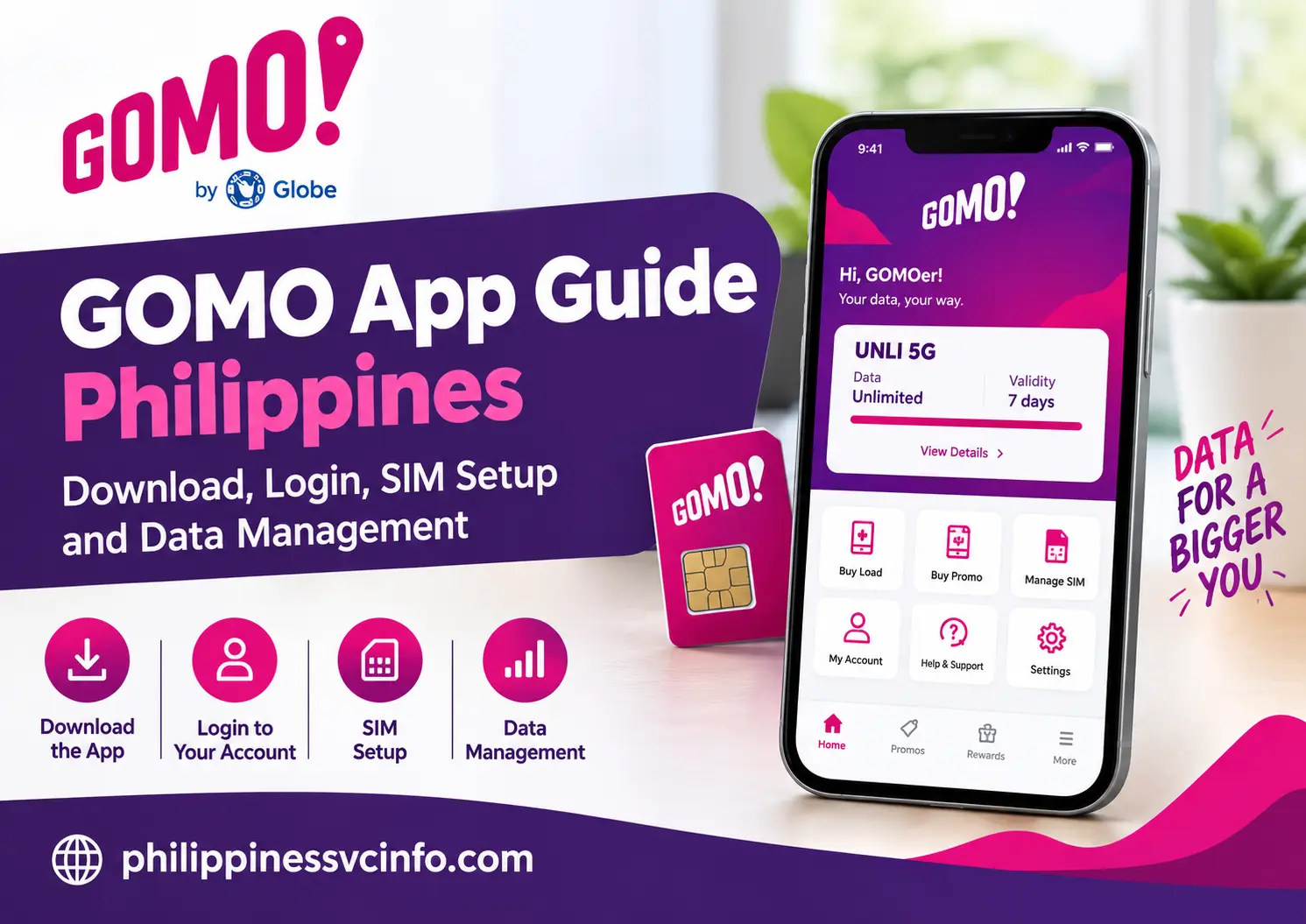
The GOMO app helps mobile users manage their SIM, mobile data, subscription and other available services without relying on a traditional mobile shop. However, the exact features depend on which country’s GOMO service you use.
For users in the Philippines, GOMO is associated with Globe Telecom and is known for its No Expiry Data and ‘Mo Creds features. Singapore’s GOMO service, operated by Singtel, offers a different set of plans and account-management options.
This guide explains how to find the correct GOMO app, set up an account, manage your mobile service, check data usage and troubleshoot common problems. It also covers the precautions international students, foreign residents and travellers should take before purchasing a SIM or roaming package.
What Is the GOMO App?
The GOMO app is a digital account-management tool for customers of participating GOMO mobile services. Depending on the country, it can provide access to mobile plans, data balances, add-ons, SIM setup, payment options and roaming services.
Instead of visiting a physical shop for every routine task, users can handle many activities through their smartphone.
For example, the Philippine GOMO app supports the management of No Expiry Data and ‘Mo Creds offers. The Singapore version provides plan management, data usage tracking, add-ons and roaming options.
Main features of the GOMO app
| Feature | What it helps you do |
|---|---|
| Account management | Access your supported mobile account |
| Data tracking | Check available data and usage |
| SIM services | Complete supported registration or setup tasks |
| Plans and add-ons | Browse eligible packages |
| Roaming | Explore international connectivity options |
| Payments | Manage supported payment methods |
| Customer support | Find help through available digital channels |
Not every feature is available in every country. Therefore, check your regional app before relying on a particular service.
Which GOMO App Should You Download?
Before installing anything, identify your country of service. Searching only for “GOMO app” may display apps from different operators, so check the developer name and official regional website.
Designed for Philippine GOMO customers, including users managing No Expiry Data and ‘Mo Creds.
Offers account and plan management, data boosts, SIM setup and roaming services
Its app listing describes plan management, usage tracking, add-on packages, roaming and payment management.
The links above lead to the relevant websites or app listings. If you use another GOMO service, such as one in Europe, verify its official regional portal before downloading an application. Do not assume that a SIM, account or promotion from one country will work with another country’s GOMO app.
How to Download and Install the GOMO App
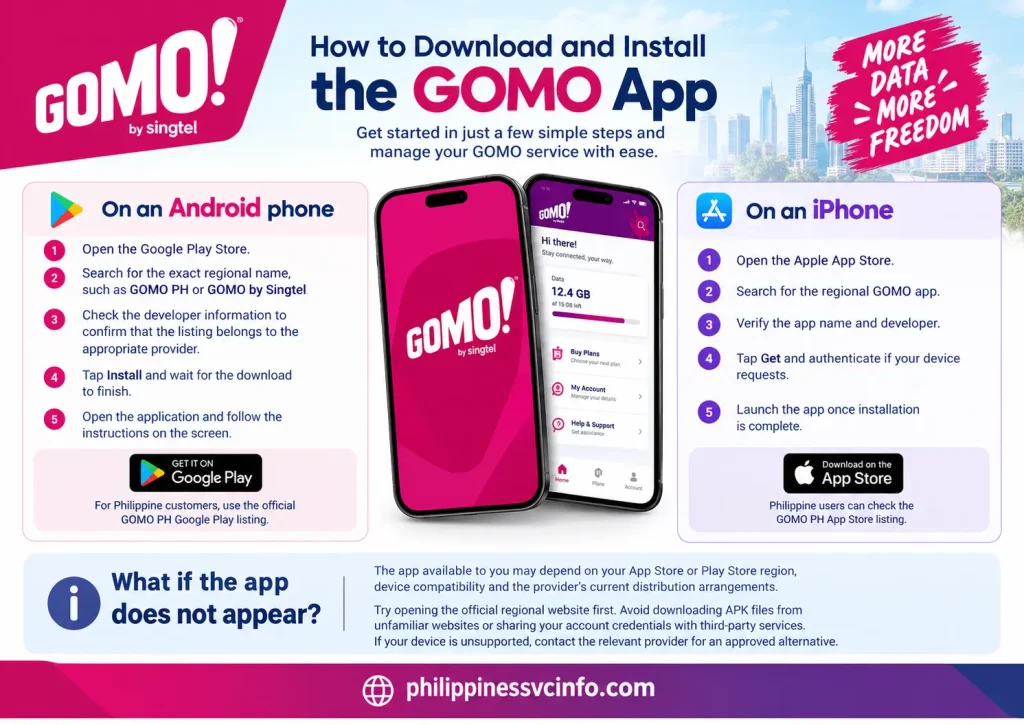
Installing the correct application is the first step towards managing your GOMO service. The process is similar on most supported Android and Apple devices.
On an Android phone
- Open the Google Play Store.
- Search for the exact regional name, such as GOMO PH or GOMO by Singtel.
- Check the developer information to confirm that the listing belongs to the appropriate provider.
- Tap Install and wait for the download to finish.
- Open the application and follow the instructions on the screen.
On an iPhone
- Open the Apple App Store.
- Search for the regional GOMO app.
- Verify the app name and developer.
- Tap Get and authenticate if your device requests it.
- Launch the app once installation is complete.
Philippine users can check the GOMO PH App Store listing.
What if the app does not appear?
The app available to you may depend on your App Store or Play Store region, device compatibility and the provider’s current distribution arrangements.
Try opening the official regional website first. Avoid downloading APK files from unfamiliar websites or sharing your account credentials with third-party services. If your device is unsupported, contact the relevant provider for an approved alternative.
How to Register and Log In to the GOMO App
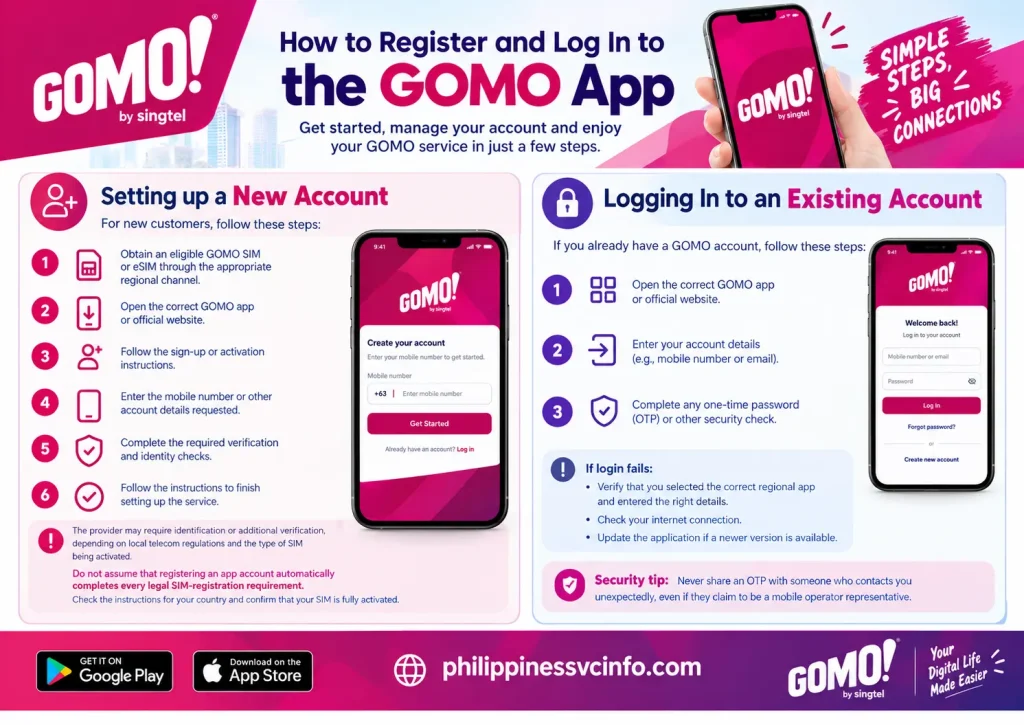
The registration process depends on whether you are purchasing a new SIM, activating an existing one or accessing an account you already use.
Setting up a new account
For a new customer, the usual process is:
- Obtain an eligible GOMO SIM or eSIM through the appropriate regional channel.
- Open the correct GOMO app or official website.
- Follow the sign-up or activation instructions.
- Enter the mobile number or other account details requested.
- Complete the required verification and identity checks.
- Follow the instructions to finish setting up the service.
The provider may require identification or additional verification, depending on local telecom regulations and the type of SIM being activated.
Do not assume that registering an app account automatically completes every legal SIM-registration requirement. Check the instructions for your country and confirm that your SIM is fully activated.
Logging in to an existing account
If you already have a GOMO account, open the correct app and use its login process. Enter the requested account details and complete any one-time password (OTP) or other security check.
If login fails, verify that you selected the correct regional app and entered the right details. Also check your internet connection and update the application if a newer version is available.
Security tip: Never share an OTP with someone who contacts you unexpectedly, even if they claim to be a mobile operator representative.
How to Register Your GOMO SIM
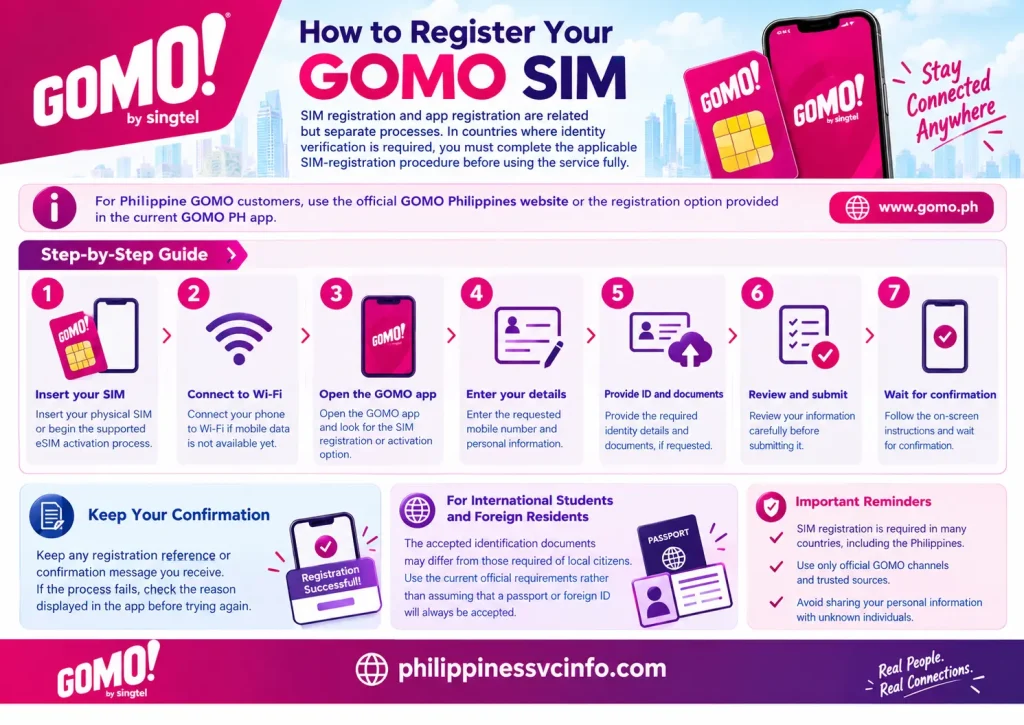
SIM registration and app registration are related but separate processes. In countries where identity verification is required, customers must complete the applicable SIM-registration procedure before using the service fully.
For Philippine GOMO customers, use the official GOMO Philippines website or the registration option provided in the current GOMO PH app.
Follow these steps:
- Insert your physical SIM or begin the supported eSIM activation process.
- Connect your phone to Wi-Fi if mobile data is not available yet.
- Open the GOMO app and look for the SIM registration or activation option.
- Enter the requested mobile number and personal information.
- Provide the required identity details and documents, if requested.
- Review your information carefully before submitting it.
- Follow the on-screen instructions and wait for confirmation.
Keep any registration reference or confirmation message you receive. If the process fails, check the reason displayed in the app before trying again.
For international students and foreign residents, the accepted identification documents may differ from those required of local citizens. Use the current official requirements rather than assuming that a passport or foreign ID will always be accepted.
How to Set Up a GOMO SIM or eSIM
Once your order has been completed, the next step is to get your SIM working on your phone.
Physical SIM setup
- Switch off your phone if recommended by the device manufacturer.
- Insert the SIM into a compatible SIM slot.
- Turn the phone back on.
- Wait for the network name to appear.
- Complete any remaining activation or registration steps.
If the phone displays “No Service”, check that the SIM is inserted correctly and that the device supports the provider’s network.
eSIM installation
An eSIM is a digital SIM profile installed on a compatible device. If your GOMO service supports eSIM, follow the activation instructions provided by the operator.
Typically, you will need to:
- Confirm that your phone supports eSIM.
- Connect to a stable Wi-Fi network.
- Open your phone’s mobile or cellular settings.
- Select the option to add an eSIM.
- Scan the supplied QR code or use the alternative activation method provided.
- Follow the prompts to install and activate the profile.
Do not delete an existing eSIM simply to troubleshoot a connection problem. Reinstallation requirements differ by provider, and deleting a profile may require additional activation steps.
How to Check GOMO Data Balance and Usage
Checking your remaining data regularly helps you avoid unexpected interruptions. The exact dashboard layout depends on your regional app and active plan.
Open the GOMO app and sign in. Look for the home screen, account dashboard, usage section or current-plan details.
For GOMO Philippines, check the available data and any relevant offers displayed in the app. The service’s official ‘Mo Creds page also explains how eligible data can be converted into selected rewards and offers.
When reviewing your balance, pay attention to:
- Available data: The amount remaining for eligible use.
- Plan validity: Whether a particular package has an expiry date.
- Calls and texts: Any separate allowances or active offers.
- Roaming data: Whether a separate allowance or eligible roaming feature applies.
- Transaction history: Purchases and deductions that may explain a balance change.
Does GOMO data expire?
This depends on the product and country. No Expiry Data is a recognised feature of GOMO Philippines, but it should not be assumed that every GOMO plan worldwide follows the same rules.
Also, do not confuse the expiry of data with the validity of a SIM, account or promotional benefit. These may be governed by different terms.
How to Buy GOMO Data and Add-On Packages
When your current allowance is not enough, the app may offer additional data packages or other services.
The general process is:
- Open the regional GOMO app.
- Find the Shop, Plans, Add-ons or equivalent section.
- Review the available packages and their prices.
- Check the data amount, validity period and usage restrictions.
- Select the package that matches your needs.
- Choose an available payment method and confirm the purchase.
- Check the app or transaction history for confirmation.
Package names, prices and availability can change. Always check the current offer displayed in your account before paying.
Understanding ‘Mo Creds in GOMO Philippines
‘Mo Creds allows eligible GOMO Philippines users to exchange available data for selected offers. Depending on what is currently listed, these may include app-related benefits, vouchers or other services.
To explore the options, visit the official ‘Mo Creds page or open the corresponding section of the GOMO PH app.
Before exchanging data, review the number of gigabytes required, the offer’s conditions and any usage limitations. A reward that looks attractive may not be the best choice if you need your data for daily browsing or study.
How to Manage GOMO Roaming While Travelling
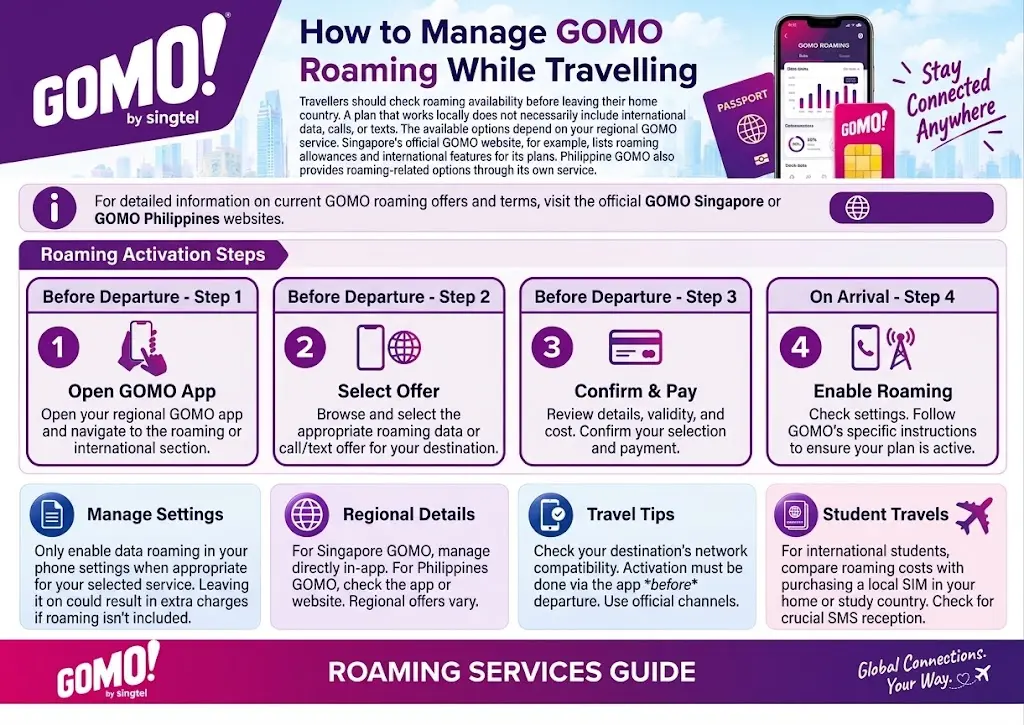
Travellers should check roaming availability before leaving their home country. A plan that works locally does not necessarily include international data, calls or texts.
The available options depend on your regional GOMO service. Singapore’s official GOMO website, for example, lists roaming allowances and international features for its plans. Philippine GOMO also provides roaming-related options through its own service.
Before travelling:
- Open your regional GOMO app.
- Find the roaming section or relevant international offer.
- Confirm that your destination is supported.
- Review the data allowance, validity and price.
- Check whether activation is required before departure.
- Follow the provider’s instructions when you arrive.
Enable data roaming in your phone settings only when appropriate for your selected service and travel arrangements. If roaming is not included, leaving it enabled could result in charges under the applicable plan.
For international students: If you travel between your study country and your home country, compare roaming costs with purchasing a local SIM. Check whether you need to receive SMS messages on your original number while abroad.
GOMO Payment Methods and Account Management
Payment options differ between regions and products. Some subscriptions may support recurring card payments, while prepaid services may offer different purchase and top-up methods.
To manage payments, open your GOMO app and look for the billing, payment or account settings section. Review the methods currently supported by your provider before adding a card or confirming a purchase.
Keep these precautions in mind:
- Use a secure connection when making payments.
- Check the final price before confirming.
- Save transaction receipts for reference.
- Review your payment history if an order does not appear.
- Check whether a purchase is recurring or a one-time transaction.
- Remove or update expired payment details through the official account settings where supported.
If a payment is declined, avoid repeatedly submitting the same transaction without checking its status. A delayed confirmation can make it unclear whether the first attempt succeeded.
Common GOMO App Problems and How to Fix Them
Most app problems can be investigated with a few basic checks. However, if the issue concerns billing, SIM registration or account security, use the provider’s official support channels.
| Problem | What you can try |
|---|---|
| GOMO app will not open | Restart your phone and check for an app update. |
| Unable to log in | Verify your details, internet connection and OTP access. |
| Data is not working | Check your remaining allowance, mobile data settings and network signal. |
| SIM shows no service | Check SIM installation, activation status and network compatibility. |
| Purchase is missing | Review your payment receipt and transaction history before buying again. |
| eSIM activation fails | Check device compatibility and follow the provider’s activation instructions. |
| Roaming does not work | Confirm destination coverage, roaming eligibility and phone settings. |
Fixing GOMO app login errors
If the GOMO app keeps returning you to the login screen, start by closing and reopening the application. Switch between Wi-Fi and mobile data if possible, then try again.
If the problem continues, check whether an update is available in the official app store. On Android, clearing the app cache may help, but avoid clearing app data or reinstalling the application unless you know your login and recovery details.
If you cannot receive your OTP, confirm that the registered phone number or email address is accessible. Contact official support if verification remains unavailable.
Fixing a GOMO data connection problem
First, check whether the problem affects only mobile data or also calls and texts. Then try these checks:
- Confirm that mobile data is enabled.
- Check your remaining data allowance.
- Turn Airplane Mode on briefly, then switch it off.
- Restart your phone.
- Check the network settings and APN instructions supplied by your provider.
- Test the connection in another location if coverage may be weak.
Do not enter random APN settings from unrelated websites. Incorrect network settings can prevent mobile data from working properly.
What to do when a GOMO payment is missing
If your bank or payment service shows a deduction but the package has not appeared, save the transaction reference and check the purchase history in your app.
Wait for any stated processing period, then contact the official support team with the transaction details. Avoid sharing your password, OTP or complete payment-card information in public posts or unofficial messages.
How to Contact GOMO Customer Support
Support channels differ by country, so use the correct provider for your account.
- Philippines: Visit GOMO Philippines and check the available support options.
- Singapore: Visit GOMO Singapore for its current help and contact facilities.
- Thailand: Use the official regional app listing or the support information provided by the relevant service.
Before contacting support, prepare your mobile number, device model, a brief description of the issue and any relevant transaction reference. Provide identity documents only through an approved, secure channel when required.
For faster assistance, explain what you were doing when the error occurred and mention the troubleshooting steps you have already tried.
Is the GOMO App Suitable for International Students and Travellers?
The GOMO app can be useful for people who prefer managing their mobile service online. Still, choosing the right regional service is more important than simply downloading an app.
International students may want to consider:
- Whether the service accepts their identification documents.
- Whether the SIM can be activated before arrival or only in the service country.
- Whether the plan offers enough data for classes, video calls and everyday browsing.
- Whether their phone supports the required network bands and SIM type.
- Whether international roaming is included or costs extra.
- Whether they can receive verification messages when travelling abroad.
Foreign residents should also check local registration rules and payment requirements. A service that is convenient in one country may not provide the same features elsewhere.
If you mainly use mobile data for online learning, messaging and browsing, compare the available data allowance, coverage and validity terms. Do not choose a plan based on a large advertised data figure alone; read its restrictions before purchasing.
Frequently Asked Questions About the GOMO App
Conclusion
The GOMO app provides a convenient way to manage eligible mobile services, monitor data and explore available plans. Its exact features, however, depend on your country and operator.
For the best experience, download the correct regional application, complete the required SIM activation steps, check your data balance regularly and review package conditions before purchasing. If an account, payment or connection issue persists, rely on the provider’s official support channels rather than unverified third-party advice.
Discover What You Need to Know:
- Globe Unli Data Philippines 2026: Unlimited 5G & Prepaid Promos Guide
- Unli Data TNT Phillipines 2026: 7 Easy Ways to Register, Check Promos & Data Balance
- Smart App Download Philippines 2026: Official Smart App, Login, Setup & Support Guide
- SSS Registration Philippines 2026: How to Get an SS Number & Create My.SSS