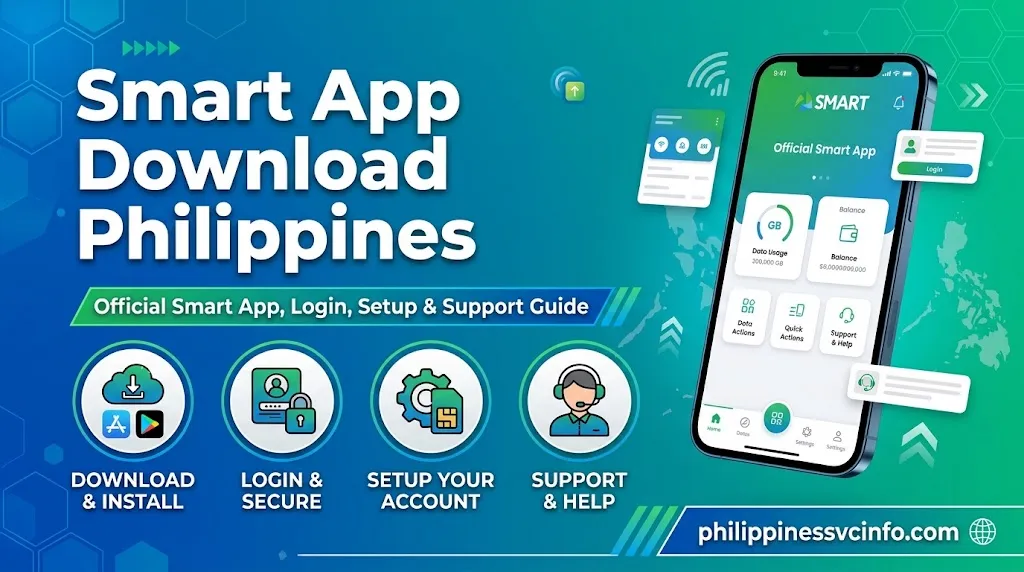
Smart app download is the process of installing Smart Communications’ official mobile app on an Android or iOS device from Google Play or the App Store. After installation, users can register or log in, check their balance and data usage, buy promos, load credit, and manage their Smart mobile account.
What Is the Smart App in the Philippines?
The Smart App is Smart Communications’ mobile application for managing supported Smart and related telecom accounts from a phone. It was previously known as GigaLife, so users searching for GigaLife may now find the current Smart App instead.
The application supports several Smart-related services, including Smart Prepaid, Smart Bro Prepaid, TNT, Smart Postpaid, Smart Bro Postpaid, Smart Signature and PLDT Prepaid Home WiFi. The current Google Play listing identifies the developer as Smart Communications, Inc. and describes the app as the former GigaLife application.
For prepaid users, the Smart App can be used to check account information, monitor usage, view subscriptions and register available promos. It also supports account top-ups through supported payment methods. Postpaid users can use supported features such as viewing billing information and managing payments.
This makes the Smart App useful for foreign residents, students, tourists, Smart subscribers and other users who want to manage their Smart services digitally rather than relying on separate methods for every account task.
Quick answer: If you are looking for a safe Smart App download, use the official Google Play Store, Apple App Store or Huawei AppGallery rather than an unknown APK website.
Smart App Download: Official Sources
The safest way to install the application is through an official app marketplace. The Android listing is published by Smart Communications, Inc., and the current listing identifies the app as Smart and formerly GigaLife.
| Platform | Official download method |
|---|---|
| Android | Google Play Store |
| iPhone / iPad | Apple App Store |
| Huawei | Huawei AppGallery |
| Support | Smart Help Center |
Before installing, check the developer name and application details. This is especially important when several similarly named applications appear in search results.
Smart App Download for Android
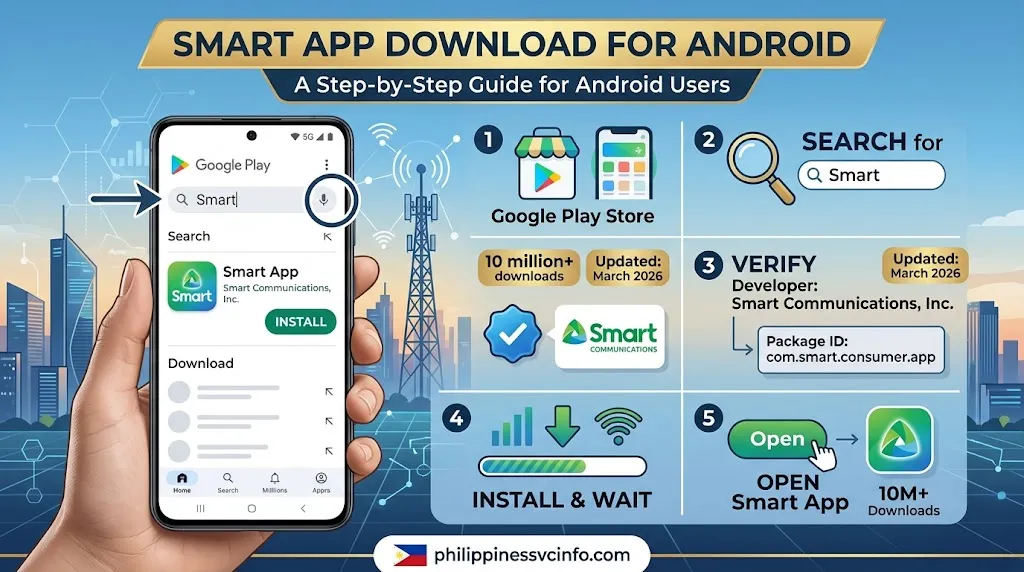
Android users can install the application through Google Play:
- Open the Google Play Store on your Android phone.
- Search for Smart.
- Check that the developer is Smart Communications, Inc.
- Open the official application listing.
- Tap Install.
- Wait for the installation to finish.
- Open the Smart App from the Play Store or your phone’s application menu.
The current Google Play listing uses the package identifier com.smart.consumer.app, and Smart Communications, Inc. is shown as the developer. The listing also indicates that the app had more than 10 million downloads when checked and was updated on 26 March 2026.
If you already have an older GigaLife, TNT or MySmart application installed, check whether the current Smart App is the appropriate replacement before installing another application. Smart’s current Google Play information identifies the Smart App as the former GigaLife application.
Smart App Download for iPhone
For iPhone and compatible Apple devices, open the Apple App Store and search for Smart App PH.
The App Store listing is associated with the Smart App PH name.
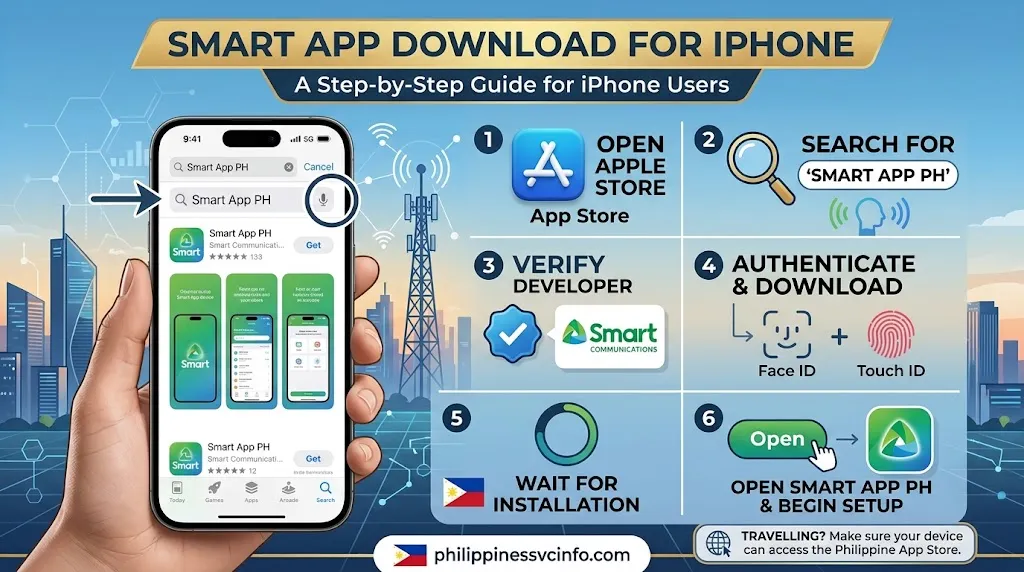
The basic process is:
- Open the App Store.
- Search for Smart App PH.
- Check the application information carefully.
- Tap Get.
- Authenticate the download if Apple requests Face ID, Touch ID or your Apple Account password.
- Wait for the installation.
- Open the application and begin the account setup process.
If you are travelling in the Philippines, make sure your Apple device can access the relevant Philippine App Store listing. App availability can vary by storefront and region.
Smart App for Huawei Phones
Huawei users can look for the Smart App through Huawei AppGallery.
Open AppGallery, search for Smart, review the application details and install the official version if it is available for your device.
The availability of an application through a particular marketplace can depend on the device model, operating system and regional app-store settings. If the application does not appear, use Smart’s official support resources for the latest installation guidance rather than downloading an unknown modified APK.
Is It Safe to Download a Smart App APK?
Users sometimes search for Smart App APK download when the application is unavailable through their normal app marketplace. However, downloading an APK from an unknown website creates an avoidable security risk.
An unofficial APK may be modified, outdated or distributed without Smart’s control. Since a telecom application can involve personal account information and payment-related features, installing an altered application is not a sensible shortcut.
Use these basic precautions:
- Prefer the official Google Play Store on Android.
- Use the official Apple App Store on iPhone.
- Check the developer name before installation.
- Avoid cracked, modified or “premium unlocked” Smart App APK files.
- Do not enter your Smart account password into an unofficial application.
- Do not provide OTPs to websites claiming to activate the app.
- Keep the application updated through the official marketplace.
The Google Play listing also provides data-safety information and states that data is encrypted in transit, while noting that the developer may collect certain categories of information.
What Can You Manage With the Smart App?
The exact features available to you depend on the type of Smart account connected to the application. Current official store information lists support for Smart Prepaid, Smart Bro Prepaid, TNT, Smart Postpaid, Smart Bro Postpaid, Smart Signature and PLDT Prepaid Home WiFi.
For supported prepaid services, the app can help users:
- Check account and usage information
- Review subscriptions and inclusions
- Discover available promos
- Register supported promos
- Top up using supported payment options
- View the app inbox
- Link and manage multiple supported accounts
For supported postpaid services, features include reviewing billing information and, depending on the account and available functionality, making supported bill payments.
This is particularly useful when you have more than one Smart-related number or service and want to keep account information in one place.
Smart App Requirements Before Installation
Before starting the Smart App download, prepare a few basics:
A compatible device: Your phone must support the version of the application currently offered through its official app marketplace.
Internet access: A stable mobile-data or Wi-Fi connection is recommended for downloading, installing and setting up the application.
A supported Smart account: The available features depend on the Smart, TNT, Smart Bro, Smart Signature or PLDT Prepaid Home WiFi service you are connecting.
Access to your mobile number: Account setup may require verification, so keep the relevant Smart or TNT number available.
Enough storage: Make sure your phone has sufficient free space for the application and its updates.
Do not rely on old minimum operating-system numbers unless the current app-store listing confirms them. Mobile applications change their compatibility requirements over time, so the store page for your device is the better reference when installation is refused.
Smart App: What Is GigaLife?
If you searched for GigaLife download, you may be looking for the same service under its previous name.
Smart’s current Google Play listing explicitly describes the application as “Smart App, formerly Gigalife.”
That means users who remember GigaLife should search for the current Smart application instead of automatically installing an old GigaLife APK from a third-party website.
The same principle applies to older Smart-related applications. If you find an outdated app through an old tutorial, first check Smart’s current official application listing and support information.
How to Register and Log In to the Smart App
Installing the application is only the first step. To use account-management features, you need to connect a supported Smart service to the Smart App and complete the required verification.
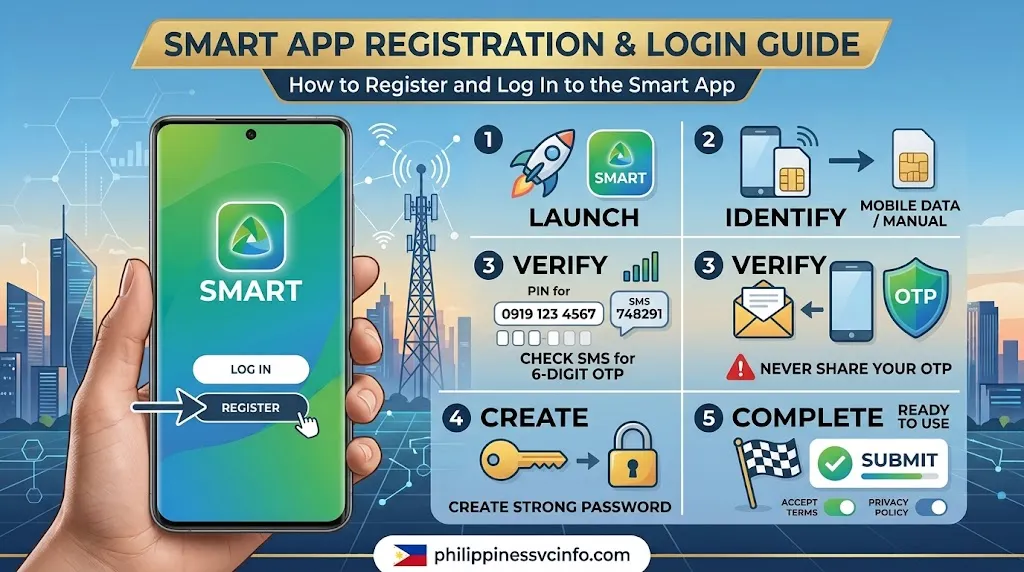
The exact screens can change as Smart updates the application, so the labels on your phone may differ slightly from older GigaLife tutorials.
Step 1: Open the Smart App
Launch the newly installed Smart App from your phone.
If you already have an account, choose the option for signing in. New users should select the registration or sign-up option shown on their current app screen.
Step 2: Provide Your Smart Number
Enter the mobile number or account information requested by the application.
For users connected through Smart mobile data, the application may be able to identify the associated mobile number. If automatic detection does not work, follow the on-screen instructions and enter the required information manually.
A stable internet connection is important during this stage.
Step 3: Complete OTP Verification
The Smart App may require a One-Time PIN (OTP) to verify your account.
Check the SMS inbox of the number being registered and enter the verification code into the application.
Important: Never give your OTP to another person. A verification code is intended for the account-registration or login process you started yourself.
If the OTP does not arrive, wait briefly before requesting another code. Repeatedly requesting OTPs can also cause confusion because an older code may no longer be valid.
Step 4: Create or Confirm Your Account Details
Follow the current Smart App prompts to create the required login credentials.
Use a password that is difficult for another person to guess. Avoid using your mobile number, birthday or a simple sequence that could be easily associated with you.
Step 5: Accept the Required Policies
Review the terms and privacy information presented by the application. If you agree, complete the required confirmation and continue.
Your account should then be ready for the supported Smart services connected to your profile.
How to Log In to the Smart App
Once registration is finished, opening the application normally takes you to the login or account screen.
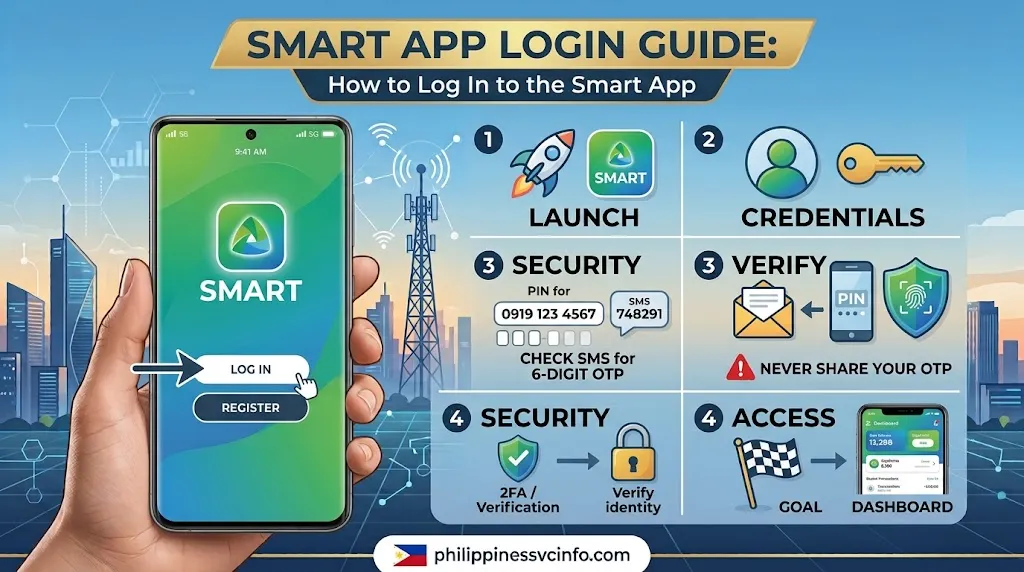
A typical login process involves:
- Open the Smart App.
- Select the login option.
- Enter the requested account credentials.
- Complete any security verification shown.
- Continue to your account dashboard.
If Smart introduces an updated authentication method, follow the current instructions displayed inside the application rather than relying on an older GigaLife screenshot.
The official Smart Help Center remains the appropriate place to check when your login screen does not match an older guide.
Can You Use the Smart App With TNT?
Yes, the Smart App is relevant to TNT users as well. Smart’s current Google Play description lists TNT among the supported services.
This is useful for users who search for TNT app download or TNT load app but find references to older applications.
Instead of downloading an unofficial TNT APK, check the current Smart App listing and Smart’s official support information. The available account-management functions can depend on the service attached to your number.
Using the Smart App With Smart Bro
The Smart App also supports Smart Bro-related services.
Depending on your account, you may be able to use the application for supported Smart Bro account-management functions without handling every task through a browser.
For a Smart Bro or home WiFi service, use the account information associated with that service when the application asks you to connect or link an account.
If the number or account is not recognised, do not repeatedly create new profiles. Check the account details first and then consult Smart’s official support resources if the problem continues.
Smart App for Postpaid Users
Postpaid customers can also use supported Smart App features.
The application can provide access to account and billing information, with available functions depending on the particular Smart postpaid service.
For example, a postpaid customer may use the app to review account information or manage supported bill-payment functions.
If a billing detail appears incorrect, the application should not be treated as a replacement for Smart’s customer-support process. Keep relevant account information and contact Smart through its official support channels when an account-specific issue requires assistance.
How to Update the Smart App?
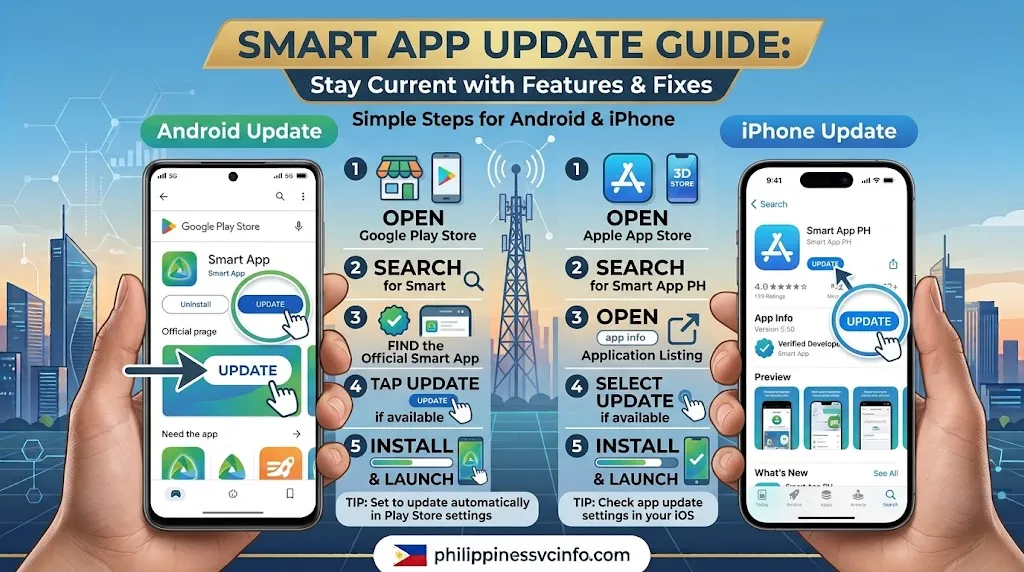
Using the latest available version can help ensure that you receive current application features and fixes.
Android Update
To check for an update:
- Open Google Play Store.
- Search for Smart.
- Open the official Smart App listing.
- If an Update button appears, tap it.
- Wait until the installation finishes.
- Open the updated Smart App.
You can also review your Google Play update settings if you prefer applications to update automatically.
iPhone Update
For an iPhone:
- Open the App Store.
- Search for Smart App PH.
- Open the application listing.
- If an update is available, select Update.
- Allow the installation to finish.
- Launch the Smart App again.
Why Should You Keep the Smart App Updated?
An outdated application can sometimes cause compatibility problems after the operating system or Smart’s backend services change.
An update may also contain:
- Bug fixes
- Security improvements
- Interface changes
- New account features
- Compatibility improvements
Before assuming that an installation problem is caused by your phone, check whether the Smart App has a pending update.
Smart App Troubleshooting Guide
Not every Smart App problem requires reinstalling the application. Start with the simplest checks.
Smart App Is Not Installing
If the Smart App refuses to install, check the following:
Check your internet connection. A weak or interrupted connection can stop an application download.
Check storage. Free some space if your phone is nearly full.
Check operating-system compatibility. The current app-store listing determines whether your device can install the latest version.
Restart the phone. A temporary system or app-store problem can sometimes disappear after restarting.
Try again through the official store. Avoid switching to an unknown APK website simply because the first installation attempt failed.
Smart App Is Not Opening
If the Smart App installs but closes immediately or refuses to start:
- Restart your phone.
- Check for a Smart App update.
- Check for pending phone-system updates.
- Make sure your device has enough free storage.
- Confirm that your internet connection is working.
- If necessary, reinstall the application from its official store.
Before deleting the application, make sure you know the credentials or account information needed to sign in again.
Smart App Is Not Detecting My Number
Automatic number detection may not work in every situation.
First, confirm that you are using the Smart or TNT number you intend to register. If the application cannot identify it automatically, use the manual option provided by the current app interface.
Also check whether you are connected through mobile data, Wi-Fi or another network.
If the number still cannot be associated with your account, check Smart’s official support guidance before creating another account.
Smart App OTP Is Not Arriving
An OTP problem is one of the most common obstacles during account setup.
Try these checks:
- Confirm that the correct mobile number was entered.
- Make sure your phone can receive SMS.
- Check your signal.
- Wait a short time before requesting another OTP.
- Enter the newest OTP you received.
- Avoid repeatedly requesting codes within a short period.
- Restart your phone if SMS delivery appears delayed.
If you still cannot complete verification, use the Smart Help Center for the latest account-specific instructions.
Smart App Login Is Not Working
If your credentials are rejected, first make sure you are using the correct login details.
Check for common mistakes such as:
- Extra spaces
- Incorrect mobile number
- Wrong password
- Incorrect OTP
- An outdated application
- Temporary connectivity problems
Do not repeatedly guess passwords. If the application provides a password-recovery or account-recovery option, use that official process.
For account-security problems that cannot be resolved inside the app, contact Smart through its official support channels.
Smart App Shows an Error Message
An error message does not always mean your account is permanently blocked.
Start by:
- Recording the exact error message.
- Checking your internet connection.
- Closing and reopening the Smart App.
- Checking for an application update.
- Restarting your phone.
- Trying again later if the service appears temporarily unavailable.
If the same message continues, search the official Smart Help Center using the wording of the error or contact Smart support.
Avoid following troubleshooting instructions from random social-media posts if they ask for your password, OTP or payment information.
Where to Get Official Smart App Help
The official Smart Help Center provides support information for Smart customers and is the most appropriate source for current troubleshooting instructions.
Use the official support portal when you need information about:
- Smart App problems
- Account-related concerns
- Prepaid services
- Postpaid services
- Smart Bro
- TNT
- Connectivity and service concerns
- Other Smart products and services
Avoid relying on old screenshots or unofficial tutorials when the instructions inside your Smart App look different. Applications are updated regularly, so older GigaLife instructions may no longer match the current Smart App interface.
Smart App Security: What Users Should Remember
A telecom application can contain account information and may provide access to payment or subscription-related functions. Protecting the account is therefore just as important as downloading the correct application.
Never Share Your OTP
An OTP should only be entered into the official Smart App or the legitimate verification page you intentionally opened.
Do not send an OTP to someone through Facebook Messenger, WhatsApp, SMS or another messaging service because they claim to be a Smart representative.
Avoid Unofficial Smart App Downloads
Searching for Smart App download APK may produce websites offering older or modified files. These should not automatically be treated as legitimate Smart applications.
For most users, the safer approach is to install the application through an official marketplace:
- Google Play Store
- Apple App Store
- Huawei AppGallery
Check the developer and application information before installing.
Do Not Give Away Your Password
Smart will not require you to publicly post your password. Keep your login credentials private and avoid using the same password across multiple important accounts.
If you think your credentials have been exposed, use Smart’s official account-support process rather than trying random recovery services advertised online.
Smart App vs Older GigaLife App
| Detail | Current Smart App | Older GigaLife references |
|---|---|---|
| Application name | Smart | GigaLife |
| Purpose | Smart account and service management | Earlier Smart digital-service application |
| Search term | Smart App / Smart App PH | GigaLife |
| Official source | App marketplaces | Older guides may point to outdated listings |
| Best approach | Check the current official listing | Avoid relying on old APK files |
Smart’s current Google Play listing identifies the Smart App as the application formerly known as GigaLife.
This distinction matters because many older web pages still use the term GigaLife download. If you search for that phrase, verify that the result leads to the current official application rather than an old installation package.
Smart App for Foreign Residents, Students and Tourists
People who are temporarily living in or visiting the Philippines may also need the Smart App to manage a Smart or TNT mobile service.
For these users, the important point is that application access is tied to the supported Smart service and its account requirements. Simply being in the Philippines does not by itself guarantee that every Smart App feature will be available.
Foreign Residents
A foreign resident using a supported Smart service can check the current registration and account requirements through Smart’s official channels.
Keep the mobile number and account details associated with the service available when setting up the Smart App.
International and Local Students
Students who use Smart or TNT can use the application for supported account-management functions. This can be useful for checking available services, managing supported subscriptions and keeping track of account information.
Students should still check the current terms of each promo before purchasing because available offers can change.
Tourists
Tourists using a Smart SIM should first complete any applicable SIM or service requirements before expecting all account functions to work.
Once the supported service is active, the Smart App can provide access to available account-management features.
Smart App Download: Common Mistakes to Avoid
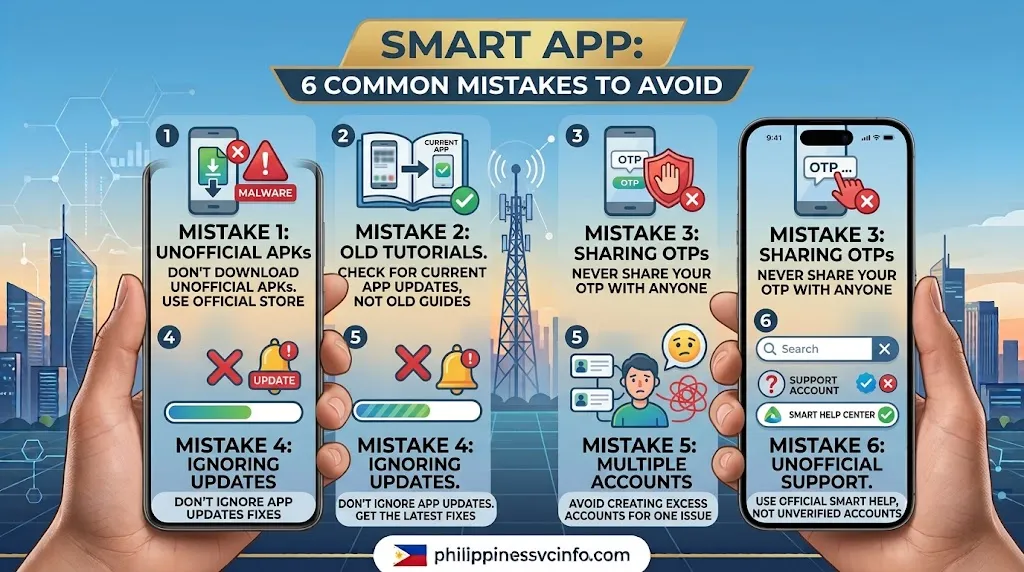
A few mistakes can make a straightforward installation unnecessarily difficult.
1. Downloading the First APK You Find
A search result is not proof that an APK is official. Start with the official app marketplace.
2. Following Old GigaLife Tutorials Without Checking the Current App
Older guides can contain screenshots and menu names that no longer match the current application.
3. Sharing OTP Codes
Never give a verification code to someone claiming that they need it to activate or fix your Smart account.
4. Ignoring App Updates
If the Smart App behaves unexpectedly, check the current store listing before assuming your account is defective.
5. Creating Multiple Accounts for One Problem
If your number is already associated with an account, repeatedly creating new profiles may make troubleshooting more complicated.
6. Using Unofficial Customer-Support Accounts
When you need help, start with the official Smart Help Center rather than an unverified social-media account or website.
Smart App Quick Checklist
Before installing the Smart App, check:
- You have a compatible smartphone.
- Your phone has enough free storage.
- You have a stable internet connection.
- You know the Smart/TNT number or account you want to connect.
- You can receive SMS verification if required.
- You are downloading from an official marketplace.
- The developer information matches the official Smart application.
- You will keep your OTP private.
- You will update the application through the official store.
- You know where to find the official Smart Help Center if something goes wrong.
Frequently Asked Questions About Smart App Download
Final Takeaway
For anyone searching for Smart App download Philippines, the safest starting point is the official application marketplace for the device being used. Android users should check Google Play, iPhone users should check the Apple App Store, and Huawei users can check AppGallery.The application is the current Smart digital-service app formerly associated with the GigaLife name. After installation, users can connect supported Smart, TNT, Smart Bro and other eligible services and use the functions available for their particular account.If installation, registration or login fails, start with basic checks such as internet connectivity, app updates, phone storage and account details. For issues that require account-specific assistance, use the official Smart Help Center rather than unofficial APK websites or unverified support accounts.Keeping the application updated, protecting your password and OTP, and downloading only from trusted sources are the key habits to follow when using the Smart App.
Discover What You Need to Know:
- Smart Magic Data Philippines 2026 : Prices, No-Expiry Promos, Registration & Guide
- Smart Rocket SIM Philippines 2026 : Price, Registration, Activation, Promos & Unlimited Data Guide
- Smart Load Philippines 2026 : How to Buy, Reload & Check Balance Online
- Pasaload Smart Philippines 2026: How to Pasaload Smart Load, Codes, Fees & Complete Guide
- Smart Magic Data Philippines 2026 : Complete Guide to No-Expiry Data, Promos, Prices & Registration