DOH Philippines Guide 2026: Department of Health Services, Online Portal, Registration & Login
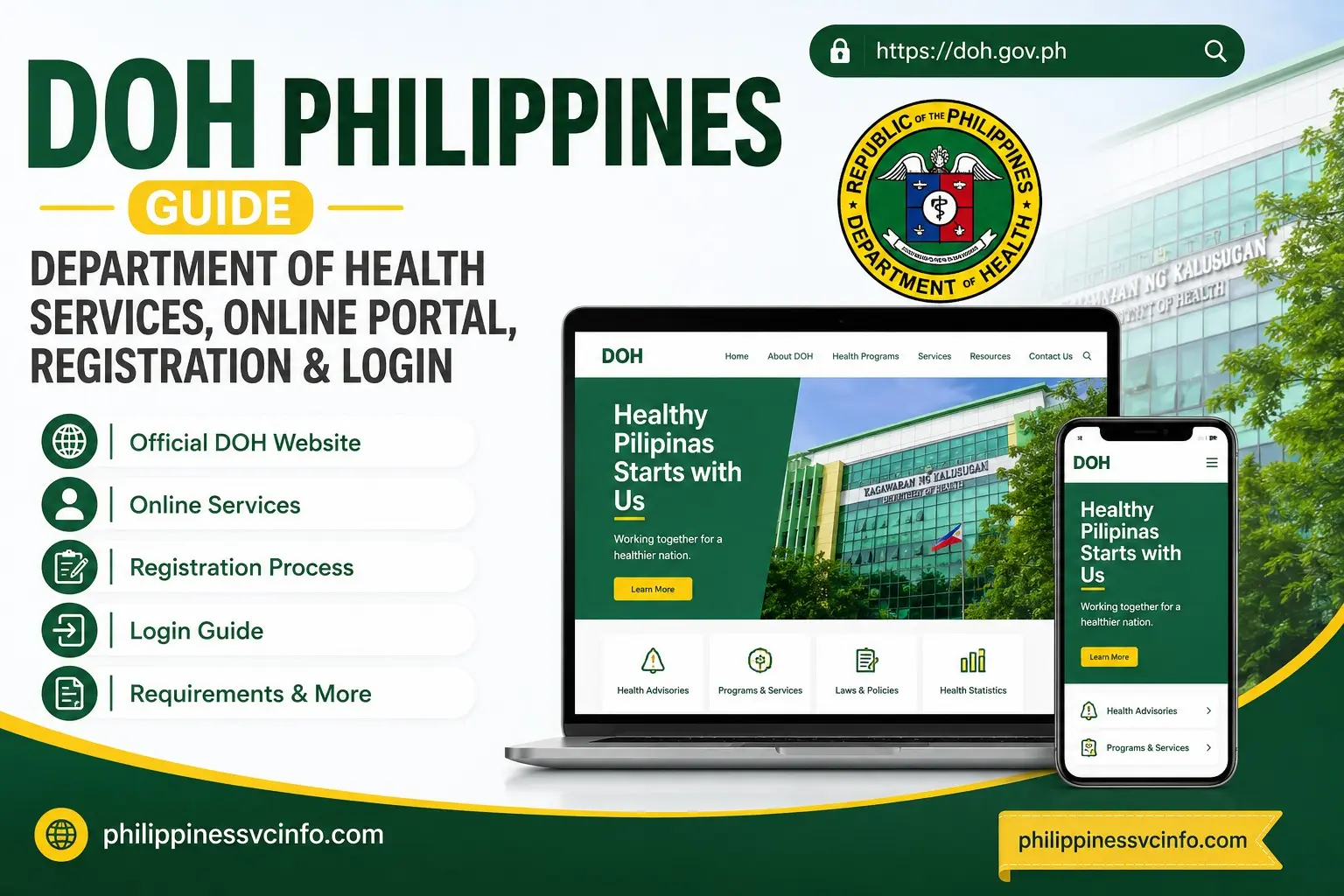
The Department of Health (DOH) Philippines is the national government agency responsible for leading the country’s health sector. Through its official website, doh.gov.ph, users can access health information, public health advisories, government health programs, downloadable resources, and links to specialized DOH services.
This guide explains what the DOH website is, how DOH online services work, how registration and login generally work on affiliated portals, what documents may be required, and how users can manage their online applications.
What Is DOH Philippines?
DOH stands for the Department of Health, the Philippine government agency responsible for health policy, public health programs, standards, regulation, and the delivery or coordination of health-related services.
The official DOH website acts as an important online information hub. It provides access to health-related announcements, advisories, policies, resources, and links to specialized government services.
The DOH’s mandate includes providing national policy direction, developing health plans and technical standards, regulating health services and products, and providing specialized health services and technical assistance.
For users, this means that doh.gov.ph is more than a simple informational website. It can also serve as a starting point for finding the appropriate government health service or specialized portal.
How Does the DOH Online Portal Work?
The DOH online portal should not be understood as one single account-based system for every service. Instead, the main DOH website provides information and connects users with different government health services and specialized portals.
The uploaded source describes the DOH platform in two main ways:
- Information portal — provides health advisories, statistics, policies, guidelines, and other public information.
- Services gateway — directs users to specialized services and affiliated government systems.
Therefore, the exact registration, login, payment, and application process can differ depending on the specific DOH service being used.
Before creating an account, identify the service you actually need. This helps you avoid registering on the wrong portal.
Main DOH Online Services and Features
The DOH website provides access to a wide range of health information and service-related resources.
Health Advisories and Public Health Information
One of the most important uses of DOH is accessing official health information.
Users can look for:
- Public health advisories
- Disease-related information
- Health guidelines
- Government announcements
- Health statistics
- Downloadable documents
- Press releases and updates
Official DOH regional websites also publish current public health advisories and announcements.
Bureau of Quarantine Services
Some users may need services associated with the Bureau of Quarantine (BOQ), particularly for international travel and vaccination-related documentation.
Depending on the service, users may be directed to a dedicated BOQ system rather than completing everything directly on the main DOH homepage.
The source material identifies BOQ-related services such as International Certificate of Vaccination and other vaccination services as examples of specialized services accessible through the DOH ecosystem.
Health Facility and Regulatory Services
DOH regional and national systems also provide information and services related to health facilities, licensing, regulation, and compliance.
For example, official DOH regional websites provide sections for regulations, licensing, downloads, and Citizen’s Charter information.
Medical Assistance
The DOH ecosystem also provides information about government medical assistance programs. Your source specifically identifies the Medical Assistance for Indigent and Financially Incapacitated Patients (MAIFIPP) program as one of the services users may be directed toward.
Because eligibility and application requirements can depend on the specific program and participating facility, users should always check the current official instructions before submitting an application.
How to Register for DOH Online Services
A common misconception is that every visitor needs to create one universal DOH account before using the website.
That is not necessarily the case.
General information and public advisories can normally be accessed without registering. However, specific DOH-affiliated or specialized services may require an account.

The registration process therefore depends on the particular portal you are using. The source material gives the following general process.
Step 1: Open the Official DOH Website
Start by visiting:
Look for the service, program, announcement, or resource you need.
If the service uses a separate government portal, follow the link provided by the official DOH website rather than searching for an unknown third-party website.
Step 2: Select the Required Service
Choose the specific service or system relevant to your request.
For example, the source mentions specialized services such as BOQ online services and regional licensing systems.
The important point is to identify the correct portal before attempting registration.
Step 3: Select Register or Sign Up
On the relevant service portal, look for an option such as:
- Register
- Sign Up
- New User
- Create Account
The wording may differ between DOH-affiliated systems.
Step 4: Enter Your Personal Information
Depending on the service, you may be asked to provide information such as:
- Full name
- Date of birth
- Gender
- Nationality
- Email address
- Mobile number
Only provide information requested by the official service portal.
Step 5: Create Your Password
If the selected portal requires a password, create one that meets the requirements displayed on the registration page.
Your uploaded material describes a password example involving at least eight characters, uppercase and lowercase letters, numbers, and special characters.
Always follow the current requirements shown by the specific portal, because individual systems may use different password rules.
Step 6: Complete Verification
Some DOH-related systems may require CAPTCHA, email verification, SMS verification, or an OTP.
If an OTP is required, check the email address or mobile number you entered during registration.
Your source specifically notes that some systems may send a six-digit OTP or verification link for account activation.
How to Create a DOH Online Account
Creating an account is generally performed on the specific DOH service portal, rather than necessarily on the main DOH homepage.
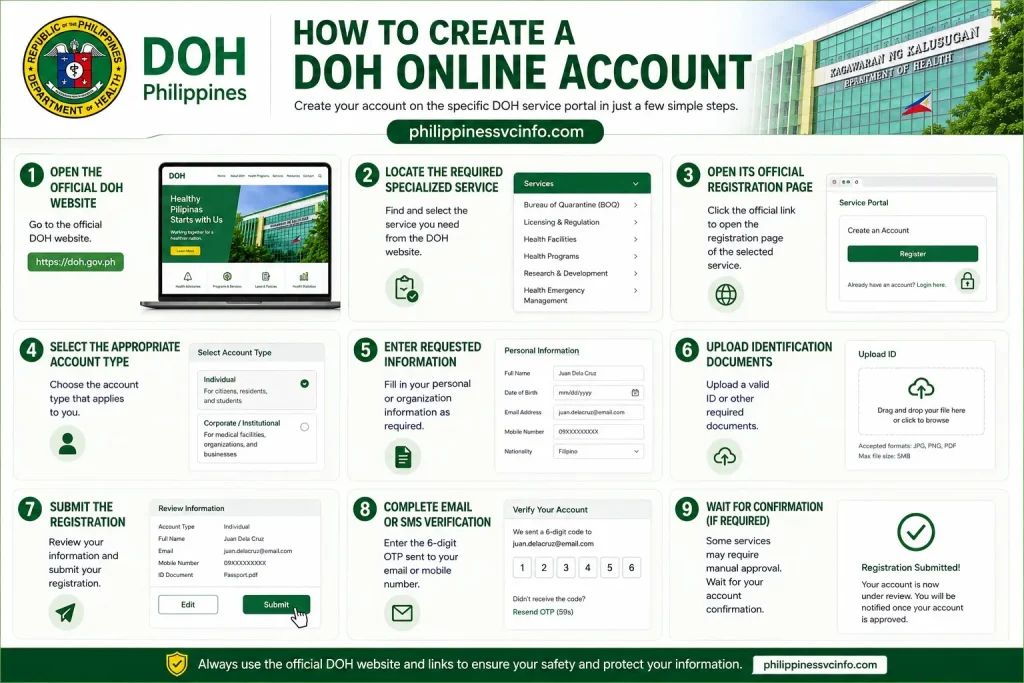
The process can include:
- Open the official DOH website.
- Locate the required specialized service.
- Open its official registration page.
- Select the appropriate account type if offered.
- Enter the requested personal or organization information.
- Upload identification documents when required.
- Submit the registration.
- Complete email or SMS verification.
- Wait for confirmation if the service requires manual approval.
For example, the source describes individual and corporate/institutional account types for certain specialized systems and mentions identification documents such as a passport, UMID, National ID, or ACR I-Card where applicable.
Important: These requirements are not necessarily universal across every DOH service. Always use the requirements displayed by the particular official portal.
How to Log In to DOH Portals
Once your account has been created, the login process usually involves opening the login page of the particular DOH-affiliated service.
DOH Login Steps
- Open the official DOH website or the official service portal.
- Go to the relevant Login page.
- Enter your registered email address or username.
- Enter your password.
- Click Log In or Sign In.
- Complete OTP or two-factor authentication if requested.
The uploaded guide notes that some DOH systems may use email/username and password authentication and may require additional OTP verification.
If you cannot remember your password, look for the Forgot Password option on the relevant login page rather than creating another account.
DOH Online Portal Requirements
Before using a specific DOH online service, prepare the information and documents requested by that service. Requirements can vary depending on whether you are applying for a certification, licensing service, health assistance, appointment, or another government health service.
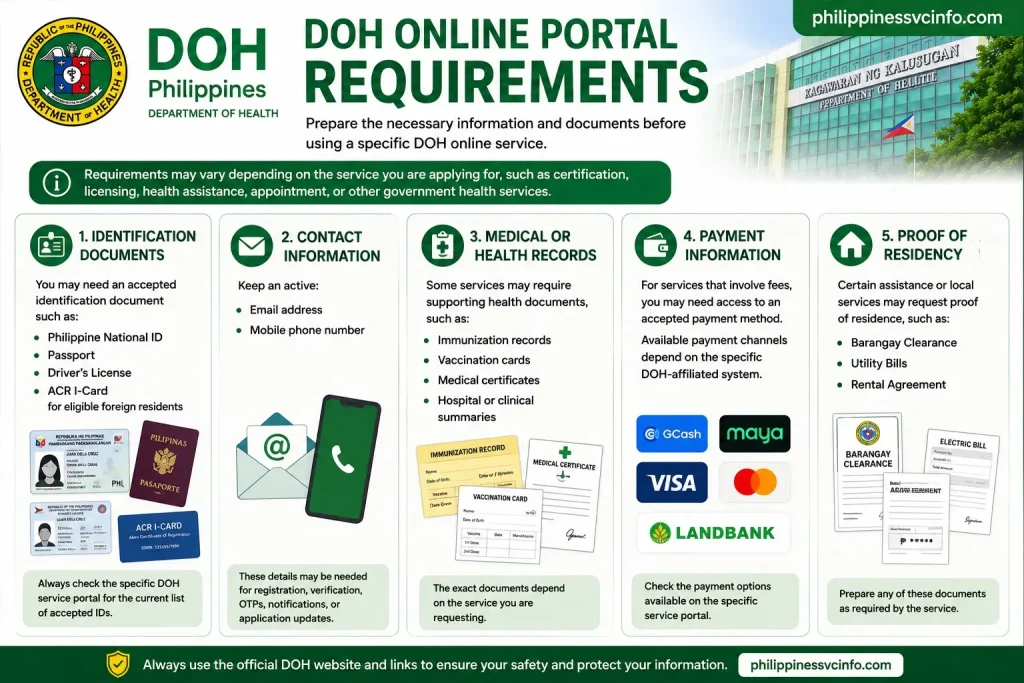
The source material identifies several common requirement categories, including identification, contact details, medical records, payment information, and proof of residency.
Identification Documents
Depending on the service, you may need an accepted identification document such as:
- Philippine National ID
- Passport
- Driver’s License
- ACR I-Card for eligible foreign residents
Always check the specific DOH service portal for its current list of accepted IDs.
Contact Information
Keep an active:
- Email address
- Mobile phone number
These details may be needed for registration, verification, OTPs, notifications, or application updates.
Medical or Health Records
Some services may require supporting health documents, such as:
- Immunization records
- Vaccination cards
- Medical certificates
- Hospital or clinical summaries
The exact documents depend on the service you are requesting.
Payment Information
For services that involve fees, you may need access to an accepted payment method. The available payment channels depend on the particular DOH-affiliated system.
Proof of Residency
Certain assistance or local services may request proof of residence. Examples listed in the source include barangay clearance, utility bills, or rental agreements.
How to Use DOH Digital Services
The main DOH website works as a starting point for finding health information and accessing or locating specialized government services.
Rather than assuming every service uses the same account, identify the exact service first and then follow the instructions provided by its official portal.
Common areas include:
Health Advisories and Bulletins
Users can visit official DOH channels to find public health announcements, advisories, guidelines, and other health-related information.
This is particularly useful when looking for official government information rather than relying on unverified social media posts or third-party websites.
Bureau of Quarantine Services
Some users may need quarantine-related services, particularly international vaccination documentation and other travel-health requirements.
The source identifies BOQ services among the specialized services that may be accessed through the wider DOH online ecosystem.
Regulatory and Licensing Services
Healthcare professionals, facilities, and other organizations may encounter specialized DOH systems for regulatory or licensing-related transactions.
The exact application process, documents, fees, and processing requirements depend on the specific service.
Medical Assistance Services
The DOH ecosystem also provides information about medical assistance programs, including MAIFIPP for eligible indigent and financially incapacitated patients.
Applicants should review the official program instructions before submitting documents.
How to Check Your DOH Application Status
If you submit an application through a DOH-affiliated online service, the status is generally checked through the same service portal where the application was submitted.
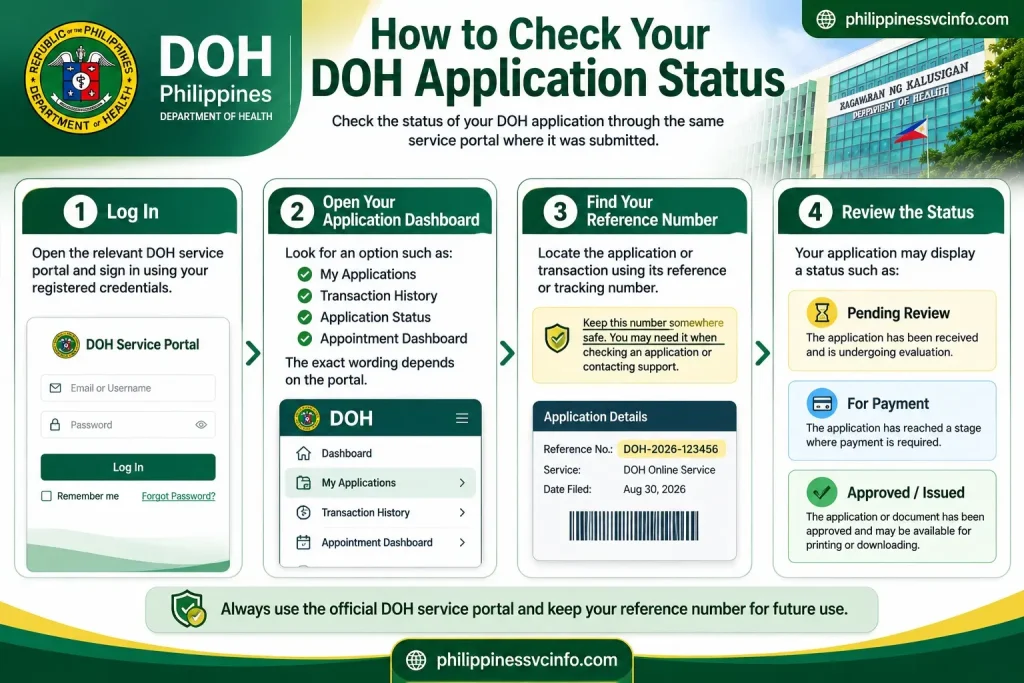
The source provides this general process:
Step 1: Log In
Open the relevant DOH service portal and sign in using your registered credentials.
Step 2: Open Your Application Dashboard
Look for an option such as:
- My Applications
- Transaction History
- Application Status
- Appointment Dashboard
The exact wording depends on the portal.
Step 3: Find Your Reference Number
Locate the application or transaction using its reference or tracking number.
Keep this number somewhere safe because it can be useful when checking an application or contacting support.
Step 4: Review the Status
Your application may display a status such as:
Pending Review — The application has been received and is undergoing evaluation.
For Payment — The application has reached a stage where payment is required.
Approved / Issued — The application or document has been approved and may be available for printing or downloading.
Incomplete / Returned — Additional information or documents may be required. Check the comments or instructions in the application dashboard.
DOH Fees and Payment Options
Not every service on the DOH website requires payment. Public health information, advisories, and many downloadable resources can be accessed without paying a service fee.
However, some specialized administrative, licensing, certification, or other services may involve fees.
Your source lists several possible payment channels, including e-wallets, online banking, cards, and over-the-counter payment facilities.
Because payment methods and fees can change, do not assume that every DOH service accepts every payment method listed below. Check the payment page of the specific official service before paying.
Possible Payment Channels
|
Payment Method |
Examples |
|---|---|
|
E-Wallets |
GCash, Maya, and other available gateways |
|
Online Banking |
Participating Philippine banks |
|
Credit/Debit Cards |
Supported card networks |
|
Over-the-Counter |
Available payment partners |
The exact service fee, convenience fee, payment deadline, and available channels should be confirmed on the relevant DOH-affiliated portal before completing a transaction.
What to Do If a DOH Payment Fails
If your payment appears unsuccessful but money has already been deducted, do not immediately submit another payment.
Instead:
- Keep your payment receipt.
- Record the transaction or reference number.
- Check your email for a payment confirmation.
- Check the application dashboard again after some time.
- Contact the relevant service portal if the payment status does not update.
The source specifically recommends checking the transaction receipt and allowing time for payment status synchronization before attempting another payment.
This can help prevent accidental duplicate payments.
How to Download DOH Documents and Resources
The DOH website provides downloadable health-related resources, while some completed certificates or transaction documents may be available through specialized service portals.
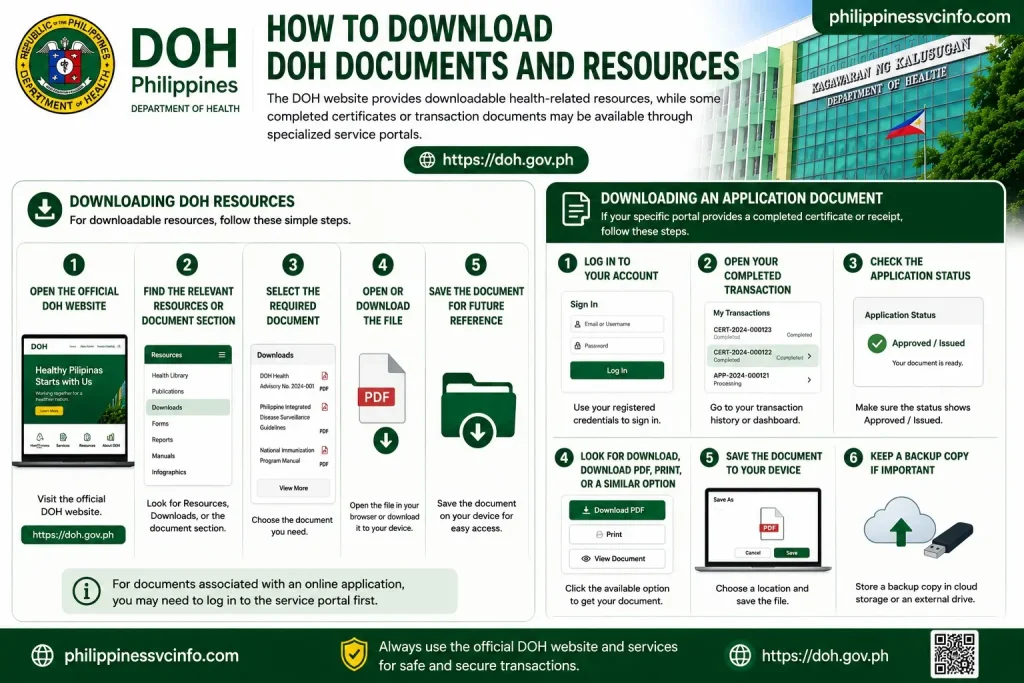
For downloadable resources, the general process is:
- Open the official DOH website.
- Find the relevant Resources, Downloads, or document section.
- Select the required document.
- Open or download the file.
- Save the document for future reference.
For documents associated with an online application, you may need to log in to the service portal first.
Downloading an Application Document
If your specific portal provides a completed certificate or receipt:
- Log in to your account.
- Open your completed transaction.
- Check the application status.
- Look for Download, Download PDF, Print, or a similar option.
- Save the document to your device.
- Keep a backup copy if the document is important.
The exact download option depends on the particular DOH service.
How to Fix Common DOH Website Problems
Although the DOH website is designed to provide access to official health information and online services, users may sometimes experience login, verification, connection, or payment problems. The solution depends on the specific DOH service portal being used.
1. Fixing Connection or Portal Timeout Errors
A slow internet connection, browser issue, or temporary system traffic can cause a DOH service page to time out.
Try these steps:
- Check your internet connection.
- Refresh the page.
- Clear your browser cache and cookies.
- Close unnecessary browser tabs.
- Try another supported browser.
- Try again later if the service is experiencing heavy traffic.
The source specifically recommends clearing browser data or switching browsers when connection and timeout problems occur.
2. DOH OTP Not Received
If you are waiting for an OTP during registration or login, first check that you entered the correct email address or mobile number.
You can also:
- Check your Spam or Junk folder.
- Wait several minutes.
- Select Resend OTP if available.
- Check your internet or mobile connection.
- Make sure your inbox is not full.
The provided source recommends checking the Spam/Junk folder and using the resend option when an OTP does not arrive.
3. Payment Deducted but Application Not Updated
If your payment was deducted but the DOH service still shows an unpaid or pending transaction, avoid immediately paying again.
Instead:
- Save your payment receipt.
- Record the transaction reference number.
- Check your email for confirmation.
- Review your application dashboard.
- Allow time for the payment status to synchronize.
- Contact the relevant service support team if the issue remains unresolved.
Your source specifically advises users not to immediately repeat a payment when money has already been deducted.
4. Fixing DOH Account Login Problems
If you cannot log in because you have forgotten your password, use the Forgot Password option provided by the relevant DOH service portal.
Generally:
- Open the official login page.
- Select Forgot Password.
- Enter your registered email address or username.
- Follow the password-reset instructions.
- Create a new password.
- Return to the login page and try again.
The exact recovery process can differ between DOH-affiliated systems.
Tips for Using DOH Online Portals
Following a few simple practices can make using the DOH online portal easier and safer.
Use an Updated Browser
Keep your browser updated when accessing government websites and downloading documents. The provided source recommends commonly used browsers such as Chrome, Firefox, or Edge.
Keep Your Reference Number
Save every application and transaction reference number. You may need it when checking your status or contacting the relevant support team.
A screenshot or saved copy can be useful for important transactions.
Prepare Documents Before Applying
Before starting an application, check the requirements and prepare your identification and supporting documents. This can reduce delays caused by missing information.
Check Official Websites Carefully
When accessing DOH online services, verify that you are using an official government website or an official link provided through DOH channels.
Do not enter passwords, identification information, or payment details into suspicious websites that imitate government portals.
Follow Current Instructions
DOH services can have different requirements, fees, application processes, and account systems. Always follow the instructions displayed by the specific service you are using rather than assuming that every DOH service follows the same process.
Why Use the Official DOH Website?
The official DOH website is an important source for Philippine government health information. Using the official website helps users find authoritative information about public health programs, advisories, policies, resources, and government health services.
It can also help users locate specialized DOH-related portals without relying entirely on third-party websites.
For important health information, users should verify information against official DOH sources before taking action.
Frequently Asked Questions About DOH
Final Thoughts
The DOH Philippines online ecosystem provides an important connection between the public and government health information and services. The main DOH website at doh.gov.ph provides health information, advisories, resources, and access points to specialized services. Not every DOH service uses the same registration or login system. Some services are publicly accessible, while others require an account, supporting documents, verification, appointments, or payment. For the best experience, start with the official DOH website, identify the exact service you need, review its current requirements, and follow the instructions provided by the corresponding official portal. Keeping your reference numbers, receipts, identification documents, and account information organized can also make applications and status checks easier. Most importantly, always verify that you are using an official government website before entering personal or payment information.
Discover What You Need to Know:
- PAIS 2026: Complete Guide to Tambos, PIAS, Services & Official Website
- QCeServices Guide 2026: Login, Registration, Services & Applications
- VFS Global Visa Application Guide: Appointments, Requirements, Fees & Tracking 2026
- Oxecure Philippines 2026: Official Website, Products, Acne Care & Skincare Guide
- DMW Website Guide philippiness (2026): eRegistration, OFW Pass, OEC, Jobs & Online Services
- CHED Philippine (2026): Complete Guide to Scholarships, Requirements, Application Steps, and Official Resources