BFP Payslip Online 2026: Login, Download, Salary, Deductions & Payroll Guide
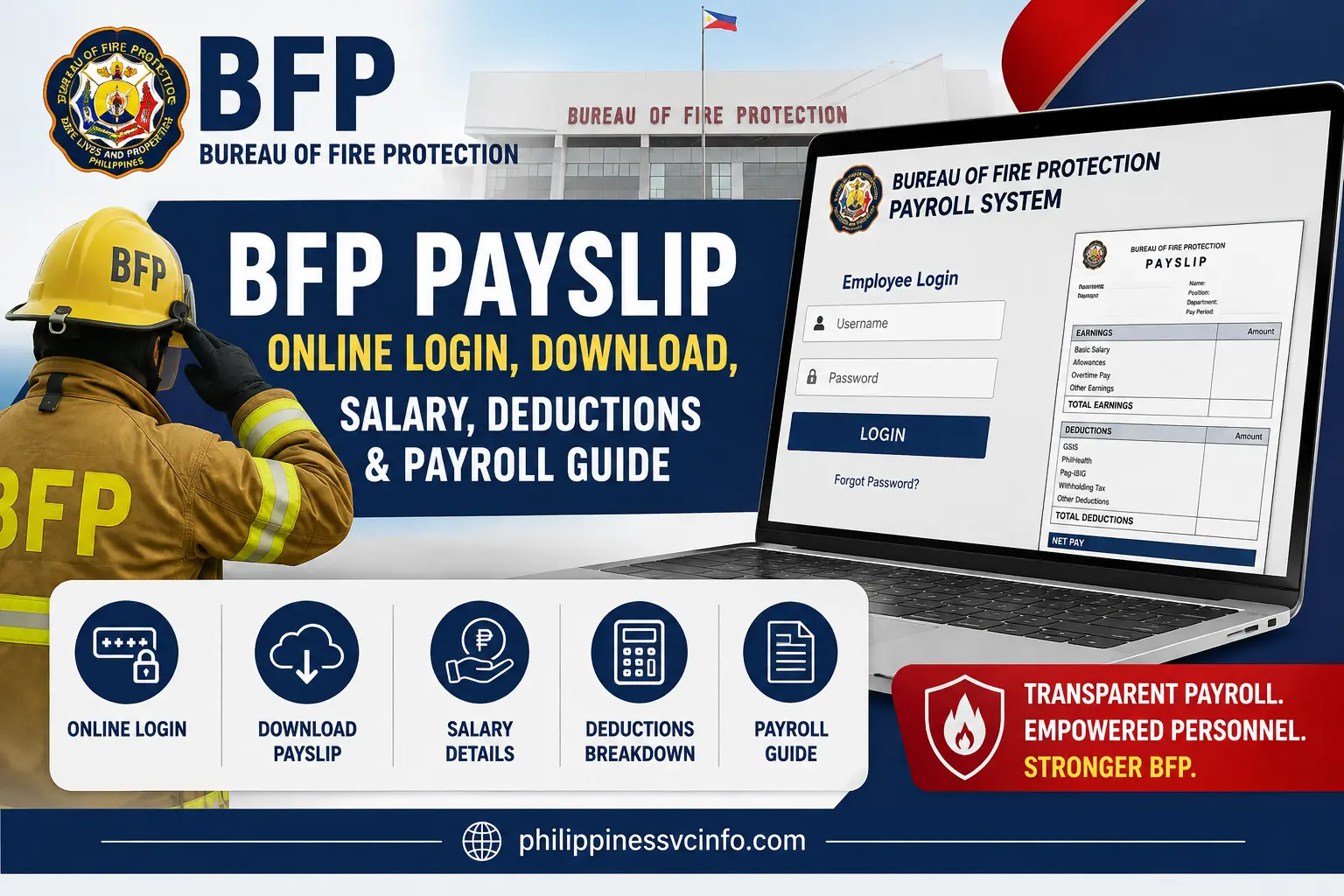
The BFP Payslip is an important payroll document for personnel of the Bureau of Fire Protection (BFP) in the Philippines. It provides employees with information about their salary, earnings, deductions, and net pay for a particular payroll period.
BFP has an online payslip system designed to give personnel convenient access to payroll information. Official BFP documentation describes a BFP Online Payslip System that can provide information such as gross pay, net pay, earnings, deductions, total compensation, and the number of remaining installments for applicable deductions. It also identifies self-service online payslip access as a feature for BFP personnel.
For the official agency website, personnel should start with the Bureau of Fire Protection official website and follow current instructions or portal links issued by BFP.
Important: The exact online payslip login page can change as BFP updates or integrates its information systems. Always verify the portal address through an official BFP source before entering your employee credentials.
What Is a BFP Payslip?
A BFP Payslip is a payroll statement that helps BFP personnel review their compensation for a specific pay period. Depending on the payroll system and the employee’s record, the payslip may show earnings, deductions, gross pay, net pay, and other payroll information.
The official BFP specifications for its payroll management system state that personnel should be able to review pay-period and year-to-date information through the BFP Online Payslip System. The listed information includes:
- Gross pay
- Net pay
- Earnings
- Deductions
- Total compensation package
- Deduction number of remaining installments (NRI)
The same BFP document states that the system should provide self-service online payslip access for BFP personnel.
This means the BFP payslip is more than simply a record of the amount deposited into an employee’s account. It can help personnel understand how their compensation was calculated and what deductions were applied.
Official BFP Website
The primary official website to use for BFP information is:
Personnel should use the official BFP website to verify announcements, systems, instructions, and other agency information before using an online service.
BFP also operates regional websites. For example, BFP Region 3 maintains its own official regional website and publishes agency information and administrative updates.
BFP Payslip Online Requirements
Before attempting to access a BFP Payslip online, personnel should make sure they have the appropriate access information provided by their authorized BFP office.
1. Active BFP Employee Account
You may need an active employee account or identifier assigned through the BFP payroll or personnel system.
The exact username format and account requirements can depend on the current BFP system being used by the agency.
2. Registered Personnel Information
Your personnel information should be correctly recorded in the BFP system. Incorrect or outdated employee information may affect access to payroll records.
3. Login Credentials
If online access has been provided to you, keep your username, password, and other authentication information secure.
Never give your BFP payroll password to another person.
4. Internet Connection
A stable internet connection is recommended when accessing an online BFP payslip system, particularly when generating or downloading a document.
5. Compatible Browser
A current version of a major browser such as Chrome, Firefox, or Microsoft Edge is generally suitable for web-based government systems.
If the portal does not work correctly, try updating your browser or using another supported browser.
BFP Payslip Account Registration
Registration procedures may depend on the specific payroll platform currently authorized by BFP. Therefore, personnel should follow the registration instructions provided by their BFP office rather than relying on an unofficial registration page.
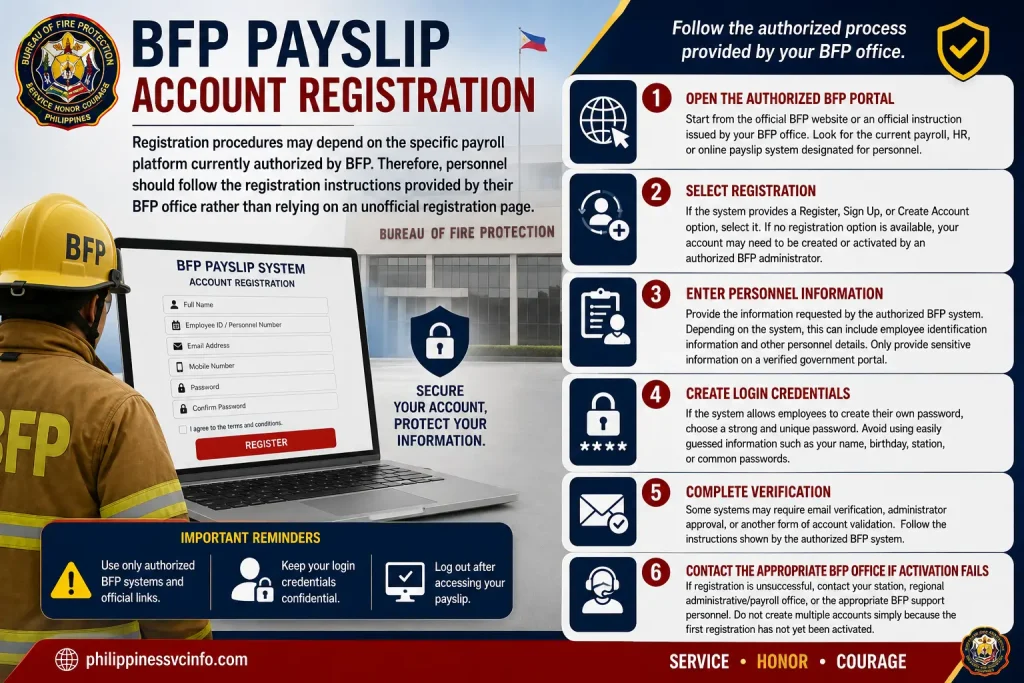
If your BFP office provides an online registration option, the process may generally involve the following steps:
Step 1: Open the Authorized BFP Portal
Start from the official BFP website or an official instruction issued by your BFP office.
Look for the current payroll, HR, or online payslip system designated for personnel.
Step 2: Select Registration
If the system provides a Register, Sign Up, or Create Account option, select it.
If no registration option is available, your account may need to be created or activated by an authorized BFP administrator.
Step 3: Enter Personnel Information
Provide the information requested by the authorized BFP system.
Depending on the system, this can include employee identification information and other personnel details.
Only provide sensitive information on a verified government portal.
Step 4: Create Login Credentials
If the system allows employees to create their own password, choose a strong and unique password.
Avoid using easily guessed information such as your name, birthday, station, or common passwords.
Step 5: Complete Verification
Some systems may require email verification, administrator approval, or another form of account validation.
Follow the instructions shown by the authorized BFP system.
Step 6: Contact the Appropriate BFP Office if Activation Fails
If registration is unsuccessful, contact your station, regional administrative/payroll office, or the appropriate BFP support personnel.
Do not create multiple accounts simply because the first registration has not yet been activated.
Why BFP Personnel Should Use the Official Website
There are many websites and social-media posts discussing BFP payslips, but not every website is an official BFP source.
Using the official BFP website is important because payroll information contains sensitive personal and financial details.
BFP’s official documentation confirms that its information systems include payroll-related functions and that its online payslip system is intended to provide personnel with access to payroll information.
For this reason, employees should verify the source before entering:
- Username
- Password
- Employee number
- Personal information
- Tax-related information
- Other payroll credentials
Avoid entering payroll credentials into unfamiliar websites, shortened links, or pages shared without an official BFP reference.
BFP Payslip Login: What to Do
Once your account has been activated on the authorized BFP payroll system, the general login process is straightforward.
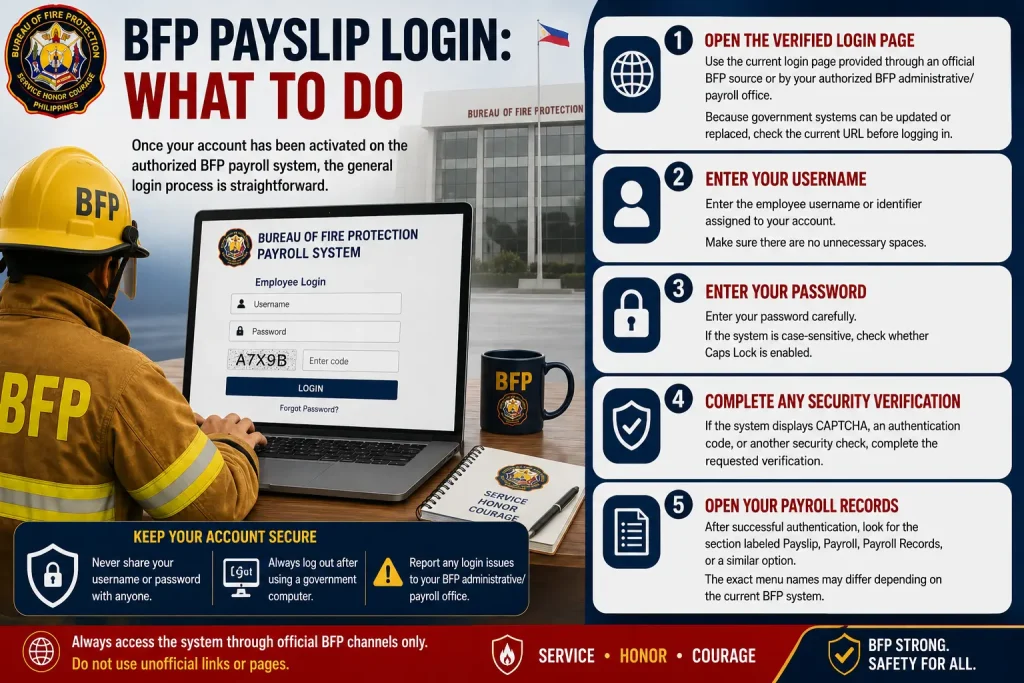
Step 1: Open the Verified Login Page
Use the current login page provided through an official BFP source or by your authorized BFP administrative/payroll office.
Because government systems can be updated or replaced, check the current URL before logging in.
Step 2: Enter Your Username
Enter the employee username or identifier assigned to your account.
Make sure there are no unnecessary spaces.
Step 3: Enter Your Password
Enter your password carefully.
If the system is case-sensitive, check whether Caps Lock is enabled.
Step 4: Complete Any Security Verification
If the system displays CAPTCHA, an authentication code, or another security check, complete the requested verification.
Step 5: Open Your Payroll Records
After successful authentication, look for the section labeled Payslip, Payroll, Payroll Records, or a similar option.
The exact menu names may differ depending on the current BFP system.
What Information Can a BFP Payslip Show?
The official BFP payroll-system specifications provide a useful overview of the information that can be reviewed through the online payslip system.
Gross Pay
Gross pay represents the employee’s compensation before applicable deductions are subtracted.
Earnings
The payroll system can display earnings associated with the employee’s compensation record.
Deductions
The payslip can show deductions applied during the relevant payroll period.
Net Pay
Net pay represents the amount remaining after applicable deductions.
Total Compensation
BFP’s payroll-system specifications also identify total compensation package information as part of the information that the system should be able to provide.
Remaining Installments
For applicable deductions or obligations, the system is also specified to provide the Deduction Number of Remaining Installments (NRI).
How to Check Your BFP Payslip Online
After successfully logging in to the authorized BFP payroll system, personnel can look for the Payslip or Payroll Records section. The available options may vary depending on the version of the system and the employee’s access level.
The BFP’s official payroll-system specifications describe an online payslip system that allows personnel to view pay-period and year-to-date information. The system is intended to provide access to gross pay, net pay, earnings, deductions, total compensation, and applicable remaining installment information.

Step 1: Log In to Your Account
Open the verified BFP payroll portal and enter your authorized login credentials.
Make sure that you are using the correct account associated with your BFP personnel record.
Step 2: Open the Payslip Section
After logging in, look through the dashboard for an option such as:
- Payslip
- Online Payslip
- Payroll
- Payroll Records
- Salary Information
- Compensation
The exact wording may be different depending on the current BFP system.
Step 3: Select the Payroll Period
If the system provides a payroll-period filter, select the month, year, or pay period that you want to review.
For example, you may be able to select a particular month and payroll cycle from the available records.
Step 4: View Your BFP Payslip
Select View, Open, Generate, or a similar button to display the available payroll information.
Review the information carefully before downloading or printing the document.
Understanding Your BFP Payslip
A BFP payslip can contain several categories of payroll information. The exact fields depend on the employee’s record and the current payroll system.
Employee Information
The payslip may identify the employee and relevant personnel information used for payroll processing.
This information helps ensure that the BFP payslip belongs to the correct personnel record.
Pay Period
The pay period identifies the period covered by the payroll information.
When reviewing an older BFP payslip, always check the date or period to make sure you are looking at the intended record.
Gross Pay
Gross pay refers to compensation before applicable deductions are subtracted.
The amount shown on a BFP payslip may include different components of compensation depending on the employee’s position, eligibility, and payroll record.
Earnings
The online payslip system is designed to provide personnel with information about their earnings. BFP’s published payroll-system requirements specifically include earnings among the information that should be available through the system.
Deductions
Deductions are amounts subtracted from compensation according to the employee’s payroll record.
These may include mandatory deductions or other authorized deductions.
Employees should carefully review deductions appearing on their BFP payslip and ask the appropriate payroll or finance office about anything they do not recognize.
Net Pay
Net pay is the amount remaining after applicable deductions.
This is one of the most important figures on a BFP payslip because it helps personnel verify the amount of compensation payable for the relevant period.
Total Compensation
BFP’s payroll-management specifications also identify total compensation package information as a component of the online payroll system.
How to Download a BFP Payslip
If the authorized BFP payroll system provides a download function, personnel can save a digital copy for their records.
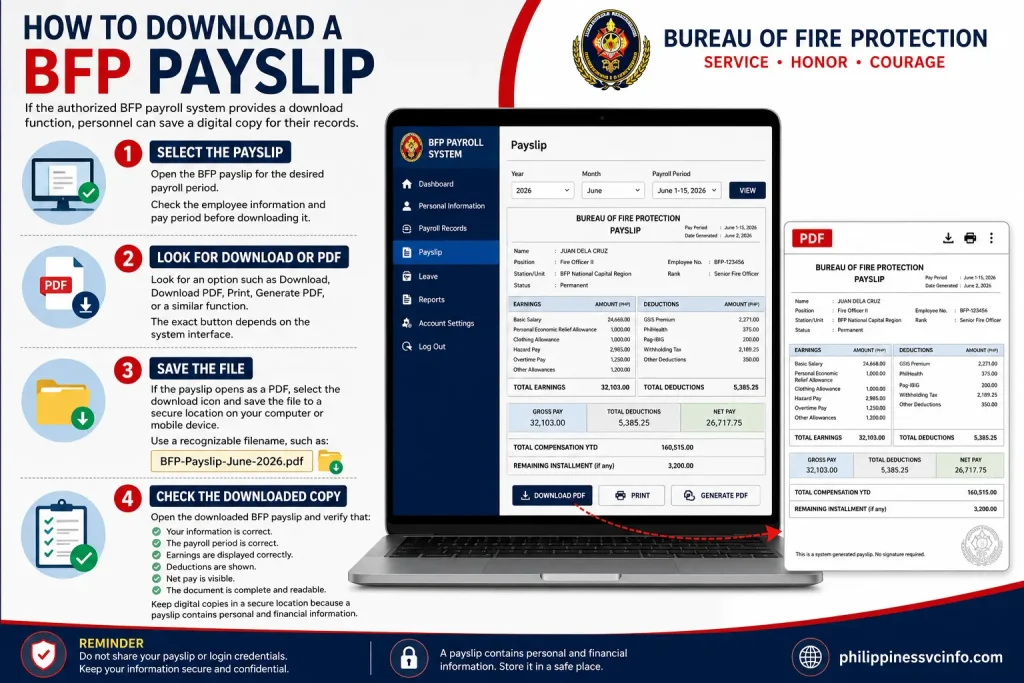
Step 1: Select the Payslip
Open the BFP payslip for the desired payroll period.
Check the employee information and pay period before downloading it.
Step 2: Look for Download or PDF
Look for an option such as Download, Download PDF, Print, Generate PDF, or a similar function.
The exact button depends on the system interface.
Step 3: Save the File
If the payslip opens as a PDF, select the download icon and save the file to a secure location on your computer or mobile device.
Use a recognizable filename, such as:
BFP-Payslip-June-2026.pdf
Step 4: Check the Downloaded Copy
Open the downloaded BFP payslip and verify that:
- Your information is correct.
- The payroll period is correct.
- Earnings are displayed correctly.
- Deductions are shown.
- Net pay is visible.
- The document is complete and readable.
Keep digital copies in a secure location because a payslip contains personal and financial information.
How to Print a BFP Payslip
Personnel who need a physical copy can generally print the downloaded PDF or use the browser’s print function if the system provides one.
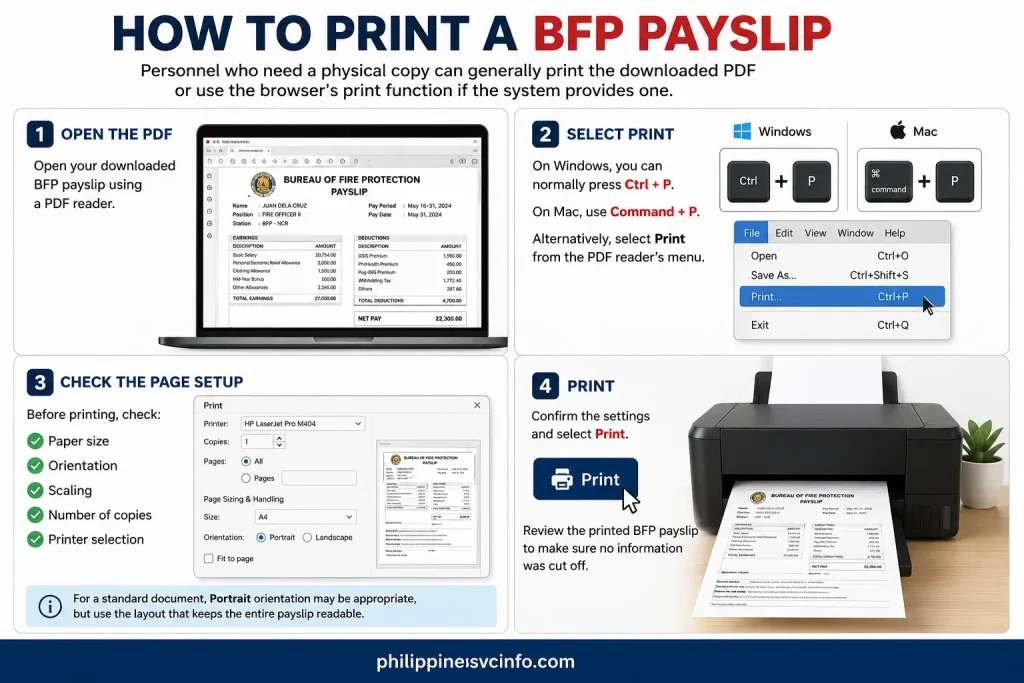
Step 1: Open the PDF
Open your downloaded BFP payslip using a PDF reader.
Step 2: Select Print
On Windows, you can normally press Ctrl + P.
On Mac, use Command + P.
Alternatively, select Print from the PDF reader’s menu.
Step 3: Check the Page Setup
Before printing, check:
- Paper size
- Orientation
- Scaling
- Number of copies
- Printer selection
For a standard document, Portrait orientation may be appropriate, but use the layout that keeps the entire payslip readable.
Step 4: Print
Confirm the settings and select Print.
Review the printed BFP payslip to make sure no information was cut off.
How to Check Previous BFP Payslips
If the BFP payroll portal provides historical records, personnel may be able to select an earlier payroll period from their account.
The official BFP payroll-system requirements indicate that the online payslip system is intended to provide both pay-period and year-to-date information.
However, the available history can depend on the system’s records and the employee’s access.
If an older BFP payslip is unavailable online, do not assume that the record has been deleted. Contact the appropriate BFP payroll, finance, administrative, or personnel office for guidance on obtaining archived records.
BFP Payslip Not Showing
One common problem is that the expected BFP payslip does not appear after logging in.
Several reasons may explain this.
Payroll Record Has Not Been Posted
The requested payroll period may not yet be available in the system.
If you are checking a recent BFP payslip, wait until the applicable payroll information has been posted according to official instructions.
Incorrect Payroll Period
Check the selected month, year, or payroll cycle.
You may simply be viewing a different period from the one you intended to access.
Personnel Record Update
Recently updated personnel information may require synchronization or administrative processing before the corresponding payroll information appears.
Account Access Issue
Your account may have limited access to certain payroll records.
If previous payslips are visible but a particular period is missing, contact the appropriate BFP payroll or finance personnel.
BFP Payslip Login Problem
If you cannot log in, first check that your username and password are correct.
Check Your Username
Make sure that you are entering the correct employee identifier or username.
Avoid adding spaces before or after the username.
Check Your Password
Passwords can be case-sensitive.
Check whether Caps Lock is turned on and carefully re-enter your password.
Use the Password Recovery Option
If the authorized portal provides a Forgot Password or Reset Password option, follow the official recovery procedure.
Do not use third-party websites claiming that they can recover your BFP payroll password.
Contact the Authorized BFP Office
If password recovery does not work, contact your designated BFP administrator, payroll office, or other authorized support channel.
Do not share your password with anyone claiming to provide unofficial technical assistance.
BFP Payslip Portal Not Loading
Sometimes the issue is not your account but the website or internet connection.
Try the following basic steps:
- Refresh the page.
- Check your internet connection.
- Close and reopen the browser.
- Try a current version of another major browser.
- Clear browser cache if necessary.
- Try again later if the system is temporarily unavailable.
- Check official BFP announcements for system maintenance.
Avoid repeatedly submitting login information if the page is behaving unusually.
BFP Payslip PDF Not Downloading
If your payslip displays correctly but the PDF does not download, try these steps:
Check Your Internet Connection
A weak or interrupted connection can prevent a document from being generated or downloaded properly.
Check Browser Permissions
Your browser may block automatic downloads or pop-ups.
Review the browser’s permission settings for the verified BFP website.
Try Another Browser
If the document does not generate correctly, try another current browser.
Check Device Storage
A device with insufficient storage may fail to save a PDF.
Delete unnecessary files or select another storage location and try again.
What to Do About an Incorrect BFP Payslip
If you find an incorrect amount, missing information, or unfamiliar deduction on your BFP payslip, do not attempt to change the payroll document yourself.
Instead:
- Save or print the affected BFP payslip.
- Identify the specific information that appears incorrect.
- Contact your appropriate station, payroll, finance, or administrative office.
- Provide the relevant payroll period and supporting information.
- Follow the official correction or verification procedure.
The payroll office can determine whether the issue is caused by a data-entry problem, an authorized deduction, a personnel-record issue, or another payroll matter.
Protect Your BFP Payslip Information
A BFP payslip can contain sensitive personal and financial information. Treat your digital and printed copies carefully.
Avoid Public Sharing
Do not post your complete BFP payslip on Facebook, public groups, messaging channels, or other websites.
If you need help with a payroll issue online, hide sensitive information before sharing a screenshot.
Use Secure Storage
Store downloaded payslips in a protected folder or secure cloud-storage account.
Do Not Share Login Credentials
Your BFP portal username and password should remain private.
Official agencies generally do not need you to publish your password or send it to an unknown person for assistance.
Verify Website Addresses
Before logging into a BFP payslip system, check that the portal was provided through an official BFP source or authorized BFP communication.
The safest starting point is the official Bureau of Fire Protection website:
BFP Salary Information on Payslip
The BFP payslip can help personnel understand how their compensation is reflected for a particular payroll period. Instead of looking only at the final amount received, employees can review the different components that contribute to their gross pay, deductions, and net pay.
The actual salary and compensation of a BFP employee can vary depending on factors such as rank, position, eligibility, length of service, applicable allowances, and authorized deductions. Therefore, personnel should use their own official payroll record when checking their exact compensation.
A BFP payslip may provide a clearer picture of how the amount payable for a specific period was calculated.
Gross Salary and Earnings
Gross pay generally refers to compensation before deductions are applied. The earnings section may contain different components recorded in the employee’s payroll account.
Personnel should compare the information shown on the BFP online payslip with their expected payroll information. If an amount appears different from what was expected, the employee should ask the appropriate payroll or finance office for clarification.
Net Salary
Net pay is the amount remaining after applicable deductions have been applied.
This is usually the amount that personnel are most interested in when checking their BFP payslip salary. However, net pay should not be confused with gross compensation because deductions and other payroll adjustments can affect the final amount.
Year-to-Date Payroll Information
The BFP payroll-system specifications also identify year-to-date information as part of the online payslip functionality.
Year-to-date information can help personnel review payroll-related figures accumulated during the year rather than looking at only one payroll period.
The availability and exact presentation of these figures depend on the authorized BFP payroll system.
BFP Payslip Deductions Explained
Deductions are an important part of understanding a BFP payslip. A deduction reduces the amount of compensation payable to the employee for the relevant payroll period.
The exact deductions appearing on an individual payslip depend on the employee’s payroll record and applicable obligations.
Common categories may include mandatory deductions, authorized loans, contributions, taxes, or other deductions recorded through the applicable government payroll process.
Personnel should not assume that every employee will have the same deduction amount.
Mandatory Deductions
Some payroll deductions may be required under applicable Philippine laws, regulations, or government payroll rules.
The amount can vary depending on the employee’s compensation and circumstances.
Loan or Other Authorized Deductions
An employee may also have deductions associated with an authorized loan or another payroll obligation.
The BFP payroll-system specifications specifically identify Deduction Number of Remaining Installments (NRI) as information that may be provided through the system.
This can help personnel determine how many installments remain for applicable deductions.
Unrecognized Deduction
If you notice an unfamiliar deduction on your BFP online payslip, do not immediately assume that the payroll system is incorrect.
First, review the payroll period and available deduction details. If the deduction still cannot be identified, contact your authorized BFP payroll, finance, or administrative office.
Avoid sharing your complete payslip publicly when requesting assistance.
BFP Payslip and Total Compensation
A payslip does not necessarily represent every aspect of an employee’s overall employment package in the same way that a complete personnel or compensation record does.
The BFP payroll-system specifications identify total compensation package information as one of the functions associated with the payroll management system.
Personnel should therefore distinguish between:
- Gross pay
- Individual earnings
- Deductions
- Net pay
- Total compensation information
- Remaining installment information
These figures can serve different purposes when reviewing payroll records.
How to Verify Your BFP Payslip
After downloading or viewing a BFP payslip, personnel should verify the information before saving it as an official personal record.
Use the following checklist:
- Check your employee information
Make sure the record belongs to you. - Check the payroll period
Confirm that you selected the correct month, year, or payroll cycle. - Review earnings
Check the earnings shown for the selected period. - Review deductions
Look for deductions and compare them with your expected payroll information. - Check gross pay
Confirm the gross amount shown by the system. - Check net pay
Verify the final amount after applicable deductions. - Review installment information
If applicable, check the remaining installment information displayed by the system. - Save the correct copy
Keep the verified BFP payslip in a secure location.
If something does not match your records, contact the appropriate BFP office instead of attempting to modify the document.
BFP Payslip for Employment or Financial Records
A downloaded BFP payslip may be useful when personnel need to maintain their own financial or employment records.
Depending on the purpose, an employee may need to provide payroll information for an authorized transaction or administrative requirement.
Before submitting a payslip to another organization, check what information is actually required. Do not provide unnecessary personal information if it is not needed.
If a third party requests your payslip, make sure the request is legitimate before sending the document.
How to Keep Old BFP Payslips
Keeping copies of previous BFP payslips can make it easier to review your payroll history.
A practical approach is to organize digital files by year and month. For example:
- BFP Payslip January 2026
- BFP Payslip February 2026
- BFP Payslip March 2026
- BFP Payslip April 2026
- BFP Payslip May 2026
Use a secure folder and avoid storing sensitive payroll documents in publicly accessible locations.
If you need an older payslip that is no longer available through the online system, contact the appropriate BFP payroll or administrative office to ask about archived records.
BFP Payslip on Mobile Phone
If the authorized BFP payroll portal is accessible through a mobile browser, personnel may be able to check their BFP payslip online using a smartphone.
For better security:
- Use your own trusted device.
- Avoid public Wi-Fi when handling sensitive payroll information.
- Keep your browser updated.
- Do not save passwords on shared devices.
- Log out after completing your session.
- Avoid taking unnecessary screenshots of payroll information.
If a PDF is downloaded to your phone, store it in a protected location and delete unnecessary copies when appropriate.
BFP Payslip Security Tips
Because payroll documents contain personal and financial information, security should be a priority.
Use the Official BFP Source
Start with the Bureau of Fire Protection official website when verifying agency information and current online systems.
Avoid Unofficial Login Pages
Do not enter your BFP username or password into a website simply because it appears in a search result or social-media post.
Always verify the source before logging in.
Never Share Your Password
BFP payroll login credentials should remain private. Do not send your password through Facebook Messenger, email, text messages, or other communication channels to unknown individuals.
Be Careful With Screenshots
If you need to ask someone about a payroll problem, remove or hide sensitive information such as employee numbers, account information, addresses, identification details, or other personal data before sharing an image.
When to Contact BFP Payroll or Finance Office
Not every payroll issue can be solved through an online portal.
Personnel should contact the appropriate BFP office when:
- A payslip is missing.
- Salary information appears incorrect.
- An unfamiliar deduction appears.
- Historical payroll records are unavailable.
- Account activation fails.
- Password recovery does not work.
- Personnel information is incorrect.
- A downloaded document is incomplete.
- The online payroll system remains unavailable.
- A payroll adjustment needs official verification.
When contacting the office, provide the relevant payroll period and explain the issue clearly. Avoid sending your password or other unnecessary credentials.
BFP Payslip Frequently Asked Questions
Final Thoughts on BFP Payslip Online
The BFP Payslip Online system is designed to give Bureau of Fire Protection personnel convenient access to important payroll information. Depending on the authorized system and employee record, personnel may be able to review earnings, deductions, gross pay, net pay, total compensation information, and remaining installment details. For the most accurate information, always check your own official payroll record rather than relying on salary figures posted on unofficial websites. Most importantly, verify the current BFP online payslip portal before entering any credentials. Use the official Bureau of Fire Protection website as the starting point for agency information and follow instructions provided by authorized BFP personnel. If your BFP payslip is missing, incorrect, unavailable, or difficult to access, the appropriate BFP payroll, finance, administrative, or personnel office can provide the official assistance needed.
Discover What You Need to Know:
- DITO Unli Data 2026: Complete Guide to 5G Promos, Prices, Registration
- DepEd Monday Uniform 2026 Philippines: Complete Uniform Schedule, Designs, Rules & Official Guidelines
- DOH Philippines Guide 2026: Department of Health Services, Online Portal, Registration & Login
- Studocu Guide 2026: Login, Study Materials, Downloads, Premium & Account Help
- Transcript of Records 2026: Form 137/SF10 Requirements, Request Process & CAV Guide
- Wordwall: Complete Guide to Activities, Templates, Login, Assignments & Learning Games 2026