AIMS ICCT Student Portal Guide 2026: Login, Enrollment, Grades & Registration
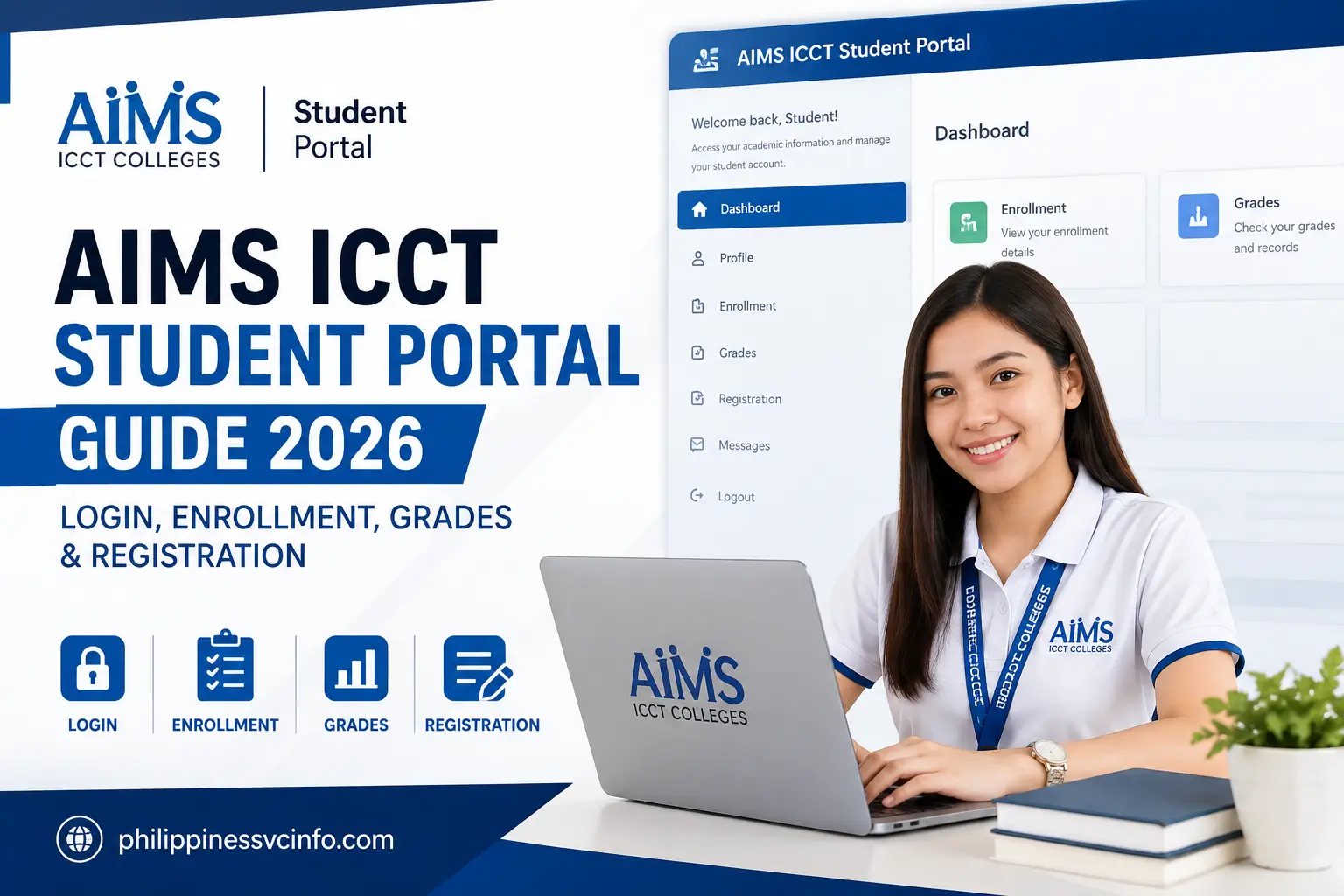
The AIMS ICCT student portal is designed to simplify academic and enrollment-related transactions for students of ICCT Colleges, allowing them to access important academic services, manage enrollment activities, review records, and handle various study-related tasks online instead of relying entirely on in-person campus visits. According to ICCT’s official guidance, the Online Student Portal provides access to services such as registration and application-related activities, grade viewing, contact-information updates, enrollment management, curriculum updates, shifting, dropping or changing subjects, graduation applications, and requests for school credentials or documents. For students searching for AIMS ICCT, it is also important to understand the initial account setup process, particularly the difference between an Application Number and a Student ID Number, as new students should not assume that their application number automatically serves as their permanent student-portal login.
The main ICCT website can be accessed here:
For the student portal, ICCT’s official instructions provide:
What Is AIMS ICCT?
AIMS ICCT generally refers to the academic/student information system used by ICCT Colleges for online student services. The official ICCT website refers to this service as the ICCT Online Student Portal and provides students with access to multiple academic and administrative functions.
Through the system, students may be able to manage tasks such as:
- Student registration
- Enrollment-related activities
- Academic records and grades
- Class and subject information
- Contact-information updates
- Curriculum-related information
- Subject changes
- Dropping or shifting requests
- Graduation applications
- Requests for school credentials and documents
The exact menus and available functions can depend on the student’s status, campus, program, and current academic period. Therefore, students should always follow the instructions displayed inside their account and the latest announcements published by ICCT.
The official ICCT homepage also provides direct access to enrollment and admissions resources, making it a useful starting point when you are unsure which service you need.
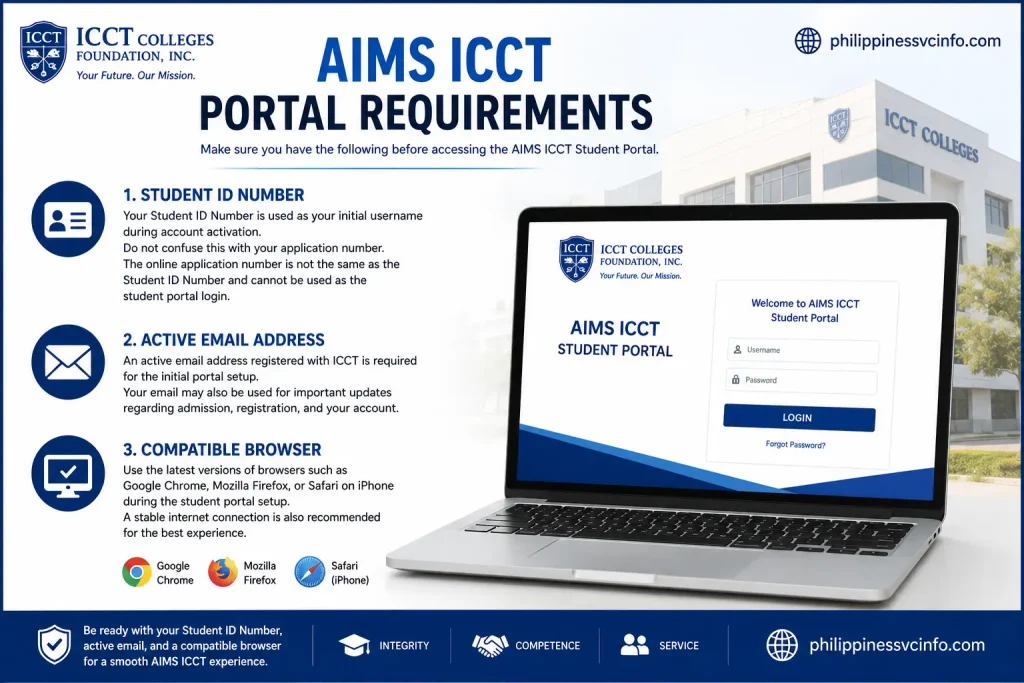
AIMS ICCT Portal Requirements
Before attempting to access the AIMS ICCT portal, make sure you have the information needed for your account setup.
Student ID Number
Your Student ID Number is particularly important. ICCT’s current portal activation instructions state that the Student ID Number is used as the initial username during account activation.
Do not confuse this with your application number. The official ICCT instructions specifically state that the online application number is not the same as the Student ID Number and cannot be used as the student portal login.
Active Email Address
You should also have access to the email address registered with ICCT. The initial portal setup requires an active email address, and your email may also be important for receiving admission, registration, or account-related information.
Compatible Browser
ICCT’s official enrollment guidance recommends using current versions of browsers such as Chrome, Firefox, or Safari on iPhone during the student portal setup.
For the best experience, keep your browser updated and use a stable internet connection.
How to Login to AIMS ICCT
Logging into AIMS ICCT may involve two stages: the initial account activation and subsequent normal logins.

Step 1: Open the Official ICCT Portal
Start by visiting the official ICCT Student Portal:
You can also begin from the main ICCT website:
The official ICCT website links students to its online enrollment services.
Always check that you are using the official ICCT domain before entering your student credentials.
Step 2: Use Your Student ID Number
For the initial portal setup, ICCT’s official instructions state that your Student ID Number is used as your initial username.
For example, ICCT provides an example format similar to:
Student ID: CA202600123
Your actual Student ID will be the number assigned to you by ICCT. Do not copy an example number from an online guide.
Step 3: Enter the Initial Password
According to the current official ICCT Student Portal Activation Guide, the initial password is the student’s last name in uppercase letters.
For example, if the student’s surname were Santos, the initial password format would be:
SANTOS
Use your actual surname exactly according to ICCT’s instructions.
After successfully entering the initial credentials, the system will take you through the account setup process.
Step 4: Create Your New Login Credentials
During the initial AIMS ICCT setup, students are instructed to create new account credentials.
The official ICCT guide indicates that after the first login, students will receive or create a new username and then establish a new password.
This is an important step because your initial Student ID/default credentials are part of the activation process. After setup, you should use the newly established credentials when returning to the portal.
Security tip: Never share your password, security-question answers, or other account credentials with another person.
Step 5: Set Security Questions
The ICCT Student Portal activation process also requires students to set up three security questions.
These questions are intended to help with account recovery and password-related problems.
Choose answers that you can remember later. Avoid using information that is extremely easy for other people to guess.
It is also useful to store your account information securely rather than relying on memory alone.
Step 6: Log In Again
After completing the initial setup and security questions, the portal may automatically log you out. ICCT’s official activation guide instructs students to log in again using their newly established username and password.
Once you successfully sign in, complete the required personal-information fields and save your information as instructed by the system.
At this point, your AIMS ICCT student portal account should be ready for navigation.
AIMS ICCT Enrollment and Registration
One of the most important reasons students use AIMS ICCT is to complete or manage enrollment-related tasks.
ICCT’s official enrollment guidelines show that the process can involve receiving a Tentative Class Schedule (TCS), settling the applicable payment, receiving a Student ID Number, activating the Student Portal, and generating the Official Registration Form (ORF).
The exact process can vary depending on whether you are a new, returning, regular, or irregular student.
New Student Enrollment
For a new student, the process begins with the official application process rather than immediately using the regular student portal.
ICCT provides a separate online application portal:
After completing the relevant admission and enrollment steps, students receive their Tentative Class Schedule and proceed with the applicable payment process.
ICCT states that, after payment is posted, students receive their Student ID Number, which can then be used to activate the Student Portal.
This distinction is important: application first, student-portal activation after receiving the Student ID Number.
Getting Your Student ID Number
For new students, the Student ID Number is essential for AIMS ICCT portal activation.
ICCT’s enrollment guidance explains that after payment is processed, students can receive their Student ID Number through ICCT’s communication channels. The official guidance also notes that processing can take 2 to 3 banking days after payment.
Keep your proof of payment and check the email or other official communication channel provided by ICCT.
Once your Student ID Number is available, proceed to the official Student Portal and complete the initial setup.
Downloading the Official Registration Form
After activating your student account, the Official Registration Form (ORF) is another important document.
According to ICCT’s official enrollment instructions, students can access the registration area from the Student Portal dashboard and select the relevant Tentative Class Schedule & Assessment option. From there, the Official Registration & Assessment option can be used to obtain the ORF.
Your ORF is important because it contains registration information connected with your subjects and class enrollment. ICCT’s guidance also states that Google Classroom class codes may appear below the corresponding subject codes on the ORF.
AIMS ICCT Student Portal Navigation
Once your AIMS ICCT account is activated, the dashboard becomes the main place to access student services. The available options may vary according to your student status and the services currently enabled for your account.
ICCT’s official Student Portal guidance indicates that students can use the portal for several academic and administrative transactions, including enrollment management, grades, curriculum information, subject changes, graduation applications, and requests for school documents.
Academic Records and Grades
One of the most useful functions of AIMS ICCT is accessing academic information.
Depending on the options available in your account, you may use the academic section to review your grades and other academic records. Before relying on a displayed grade, make sure you have selected the correct academic period or subject.
A good practice is to check your records after grades are released and keep copies of important academic documents when needed.
If a grade appears incorrect or is missing, avoid repeatedly refreshing the portal. Instead, check whether grades have officially been released and contact the appropriate ICCT office if the issue continues.
Checking Your Class Schedule
Students also need the portal to keep track of their enrollment and class information.
Your schedule may contain details such as:
- Subject codes
- Subject names
- Class sections
- Meeting schedules
- Assigned instructors
- Other enrollment information
For newly enrolled students, the Tentative Class Schedule (TCS) is an important part of the ICCT enrollment process. The official ICCT enrollment guidelines explain that students receive a TCS during the enrollment process and later proceed through the applicable registration steps.
Students should review their schedule carefully before classes begin. If there is a discrepancy between your expected subjects and the information displayed in the portal, verify your registration documents and follow ICCT’s current instructions for requesting changes.
AIMS ICCT Enrollment for Continuing Students
The enrollment process for continuing students can differ from the initial enrollment process of new students.
Existing students should sign in to their AIMS ICCT account and review the enrollment options made available for the applicable academic period.
Depending on your student classification and program, the system may provide options related to:
- Enrollment
- Subject selection
- Curriculum
- Schedule information
- Subject changes
- Dropping subjects
- Shifting
- Other academic transactions
ICCT’s official Online Student Portal information specifically lists enrollment management, curriculum updates, shifting, and dropping or changing subjects among the services available through its student system.
Regular Students
Regular students generally follow the subjects prescribed for their current curriculum or academic level.
Before confirming enrollment, review the subjects shown in the system and compare them with your academic requirements. If something appears unusual, such as a missing subject or an unexpected subject, confirm the issue with the appropriate ICCT office before making changes.
Irregular Students
Students who do not follow the standard subject sequence may need to pay closer attention to available subjects and prerequisites.
When using AIMS ICCT, review the subjects available to you and ensure that your selections correspond with your curriculum and academic requirements.
Do not select subjects simply because they appear available. If you are uncertain about prerequisites, schedules, or your recommended subjects, seek guidance from ICCT before finalizing your registration.
Reviewing Your Assessment
Enrollment is also connected with assessment and payment information.
ICCT’s enrollment process includes an assessment stage associated with the student’s schedule and applicable fees. The official enrollment guidelines direct students through the process of reviewing their assessment and completing the required payment steps.
Before paying, carefully review the information presented to you.
Check:
- Your student information.
- Your selected or assigned subjects.
- The applicable assessment.
- Payment instructions.
- Any deadline communicated by ICCT.
Keep your payment receipt or transaction confirmation after completing payment.
If a payment does not immediately appear in your account, avoid making another payment without first verifying the transaction. Use your official receipt or transaction reference when contacting ICCT for assistance.
How to Update Information in AIMS ICCT
Keeping your student information accurate is important.
ICCT’s official Student Portal description includes updating contact information among the portal’s student services.
If the portal allows you to edit your information, carefully review fields such as your:
- Email address
- Contact number
- Residential information
- Other permitted personal details
After making an update, confirm that the new information has been saved correctly.
This is particularly important for contact details because outdated information can make it harder to receive important institutional communications.
AIMS ICCT Password and Account Problems
Forgetting a password is one of the most common problems students encounter with online portals.
If you cannot access AIMS ICCT, first make sure you are using the correct Student Portal and the credentials associated with your account.
Check Your Username
During initial activation, ICCT’s official instructions use the Student ID Number as the initial username. After completing the activation process, students establish their portal credentials.
Therefore, if you are an existing student, do not automatically assume that the initial activation credentials are still your current login credentials.
Check Your Password
Before attempting another login:
- Check whether Caps Lock is enabled.
- Make sure there are no spaces before or after the username.
- Type the password manually if copying and pasting causes problems.
- Confirm that you are using the correct account.
- Avoid repeatedly entering incorrect passwords.
If the problem continues, use the account-recovery option provided on the official portal or contact ICCT through its official support channels.
Common AIMS ICCT Login Issues
| Problem | What to Check |
|---|---|
| Cannot log in | Verify your username and password |
| Wrong credentials | Check capitalization, spelling, and spaces |
| Account not activated | Confirm that the Student Portal activation process has been completed |
| Student ID not working | Verify that you are using the Student ID assigned by ICCT |
| Portal page not loading | Check your internet connection and try an updated browser |
| Information is missing | Confirm that the relevant enrollment or academic transaction has been processed |
| Payment information is not updated | Keep your receipt and verify the transaction with ICCT if necessary |
Not every problem is caused by the student’s browser or password. Enrollment periods can involve high demand, and some information may depend on administrative processing.
For this reason, always distinguish between a login problem and an account/record-processing problem.
Using AIMS ICCT on a Mobile Phone
Students may need to access AIMS ICCT while using a smartphone.
For basic portal activities, a modern mobile browser can be convenient. However, tasks involving forms, documents, schedules, or printing may be easier on a desktop or laptop.
When accessing the portal from a phone:
- Use an updated browser.
- Use a reliable internet connection.
- Avoid public computers when entering passwords.
- Do not save credentials on shared devices.
- Check the complete page before submitting forms.
- Save important documents somewhere secure.
If a page does not display correctly on mobile, try a desktop browser before assuming that your account is malfunctioning.
How to Use the Official ICCT Website for Student Help
The AIMS ICCT portal should not be treated as the only source of information.
The official ICCT website is useful for checking announcements, enrollment instructions, admissions information, and other institutional resources.
For enrollment-related instructions, consult ICCT’s official enrollment guidance rather than relying on old screenshots or third-party tutorials, because portal menus and procedures can change.
The official Student Portal is available here:
AIMS ICCT Documents and Student Services
The AIMS ICCT portal can also support students when they need to manage academic and administrative transactions. Depending on the services enabled for your account, the system may provide access to information connected with your enrollment, academic records, curriculum, and other student requests.
Students should always check the information displayed in their account before submitting a request. Make sure your personal information, academic details, and selected services are correct.
For important school documents, follow the current instructions provided by ICCT Colleges. Requirements and processing procedures can change, so students should rely on the official ICCT website for the latest instructions.
You can visit the official website here:
AIMS ICCT Troubleshooting Guide
Sometimes students may experience problems while using AIMS ICCT. A problem does not necessarily mean that your account is permanently disabled. It may be caused by incorrect credentials, browser issues, incomplete account activation, or an issue that requires administrative assistance.
“Invalid Credentials” Error
If AIMS ICCT displays an invalid-credentials message, first check your Student ID or username and password.
Make sure:
- Caps Lock is turned off when necessary.
- You entered the correct username.
- There are no accidental spaces.
- You are using your current password.
- You are accessing the correct official portal.
If you recently changed your password, use the new password rather than the initial activation credentials.
Do not repeatedly enter random passwords because repeated unsuccessful attempts can make account access more difficult.
Portal Will Not Load
If the AIMS ICCT login page does not load, try these basic troubleshooting steps:
- Check your internet connection.
- Refresh the page.
- Close and reopen your browser.
- Try an updated browser.
- Clear cached browser data if necessary.
- Try another device or network.
- Wait and try again if the portal is experiencing unusually high traffic.
If other websites work normally but the ICCT portal remains inaccessible, the issue may require assistance from the institution.
Password Reset Problem
If you cannot remember your password, use the recovery option available on the official AIMS ICCT login page when provided.
If you do not receive a recovery message, check your spam or junk folder. Also verify that the email address associated with your account is correct.
If you still cannot recover the account, contact the appropriate ICCT support or administrative office rather than creating a second student account.
What to Do When Your Grades Are Missing
Students sometimes expect a grade to appear immediately after an examination or academic activity. However, grades may depend on the institution’s release and posting process.
If a grade is missing in AIMS ICCT:
- Confirm that you selected the correct semester or academic period.
- Check whether grades have officially been released.
- Review other subjects to determine whether the issue affects one subject or your entire record.
- Check your registration information.
- Contact the appropriate ICCT office if the grade remains unavailable.
Avoid assuming that a missing grade automatically means there is an error in your academic record.
What If Your Subjects Are Missing?
If your enrolled subjects do not appear in AIMS ICCT, first review your registration information and official registration documents.
Possible reasons may include:
- The enrollment transaction is still being processed.
- Payment has not yet been posted.
- The subject information has not yet been updated.
- You are viewing the wrong academic period.
- A registration or scheduling issue requires administrative review.
Your official registration information should be treated as an important reference. If your subjects remain missing after the relevant processing period, contact the appropriate ICCT office and provide your registration or payment documentation when requested.
How to Verify Payment Information
Financial information is an important part of the enrollment process. When checking payment-related information through AIMS ICCT, review the account or assessment information available to you.
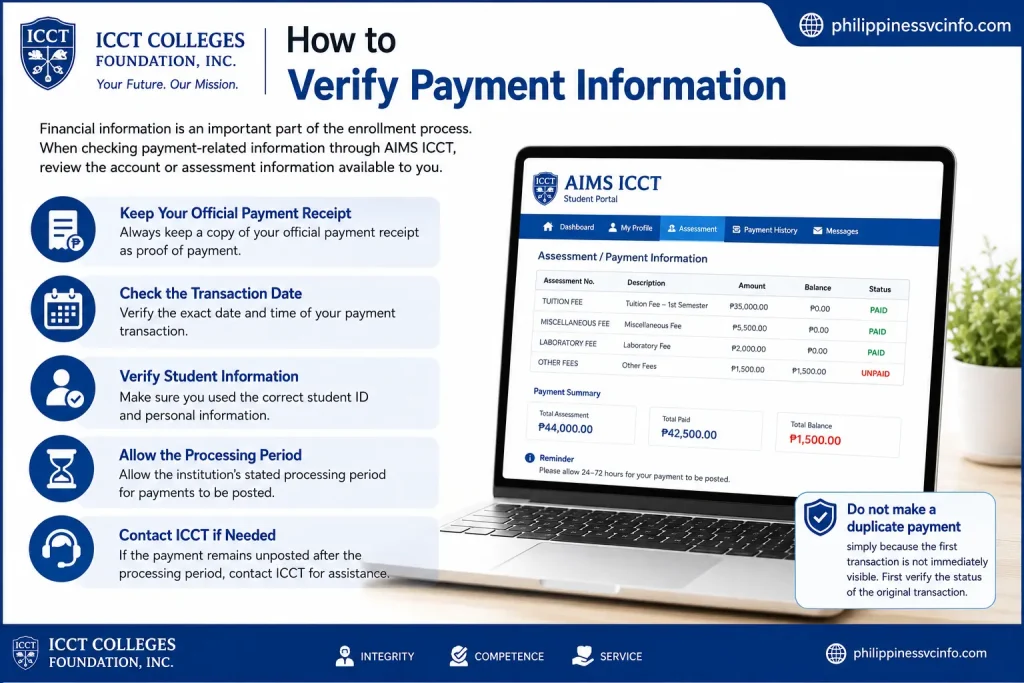
If a payment does not immediately appear:
- Keep your official payment receipt.
- Check the transaction date.
- Verify that you used the correct student information.
- Allow the institution’s stated processing period.
- Contact ICCT if the payment remains unposted.
Do not make a duplicate payment simply because the first transaction is not immediately visible. First verify the status of the original transaction.
AIMS ICCT Security Tips
Students should treat their AIMS ICCT credentials as private account information.
Follow these basic security practices:
Never Share Your Password
Do not give your password to classmates, friends, or strangers claiming that they need it to fix your account.
Avoid Shared Devices
If you access the portal from a public computer, always log out when finished. Avoid saving your username or password in a shared browser.
Use the Official Website
When looking for AIMS ICCT login information, use the official ICCT domain rather than an unfamiliar website.
Be Careful With Login Links
Do not enter your student credentials into a website simply because it uses the words “ICCT” or “AIMS.” Check the domain carefully before signing in.
Final Tips for Using AIMS ICCT
The AIMS ICCT portal can make everyday student tasks more convenient, but successful use depends on keeping your account information accurate and following the current ICCT procedures.
Before completing an important transaction, always:
- Use the official ICCT website or Student Portal.
- Check your Student ID and account credentials.
- Review enrollment information carefully.
- Verify subjects and schedules.
- Keep copies of important registration documents.
- Keep payment receipts until transactions are confirmed.
- Protect your password and account information.
- Check official ICCT announcements for changes.
- Contact ICCT when a portal problem cannot be resolved through basic troubleshooting.
For official information, start with the ICCT Colleges website and use its current student and enrollment guidance.
Frequently Asked Questions About AIMS ICCT
Conclusion
AIMS ICCT provides an important online route for ICCT students to manage academic and enrollment-related activities. From initial Student Portal activation to checking academic information, reviewing enrollment details, accessing schedules, and managing other student transactions, understanding the portal can save time and reduce unnecessary confusion.
The most important point is to use the official ICCT website and Student Portal whenever you need to complete an academic transaction. Portal procedures, available options, and enrollment requirements can change, so current institutional instructions should always take priority over older guides.
Discover What You Need to Know:
- DepEd Monday Uniform 2026 Philippines: Complete Uniform Schedule, Designs, Rules & Official Guidelines
- Studocu Guide 2026: Login, Study Materials, Downloads, Premium & Account Help
- Transcript of Records 2026: Form 137/SF10 Requirements, Request Process & CAV Guide
- Wordwall: Complete Guide to Activities, Templates, Login, Assignments & Learning Games 2026
- JSTOR Philippines 2026: Complete Guide to Login, Search, Free Articles & Research
- School Supplies Guide 2026 : How to Find, Choose & Buy Supplies Online