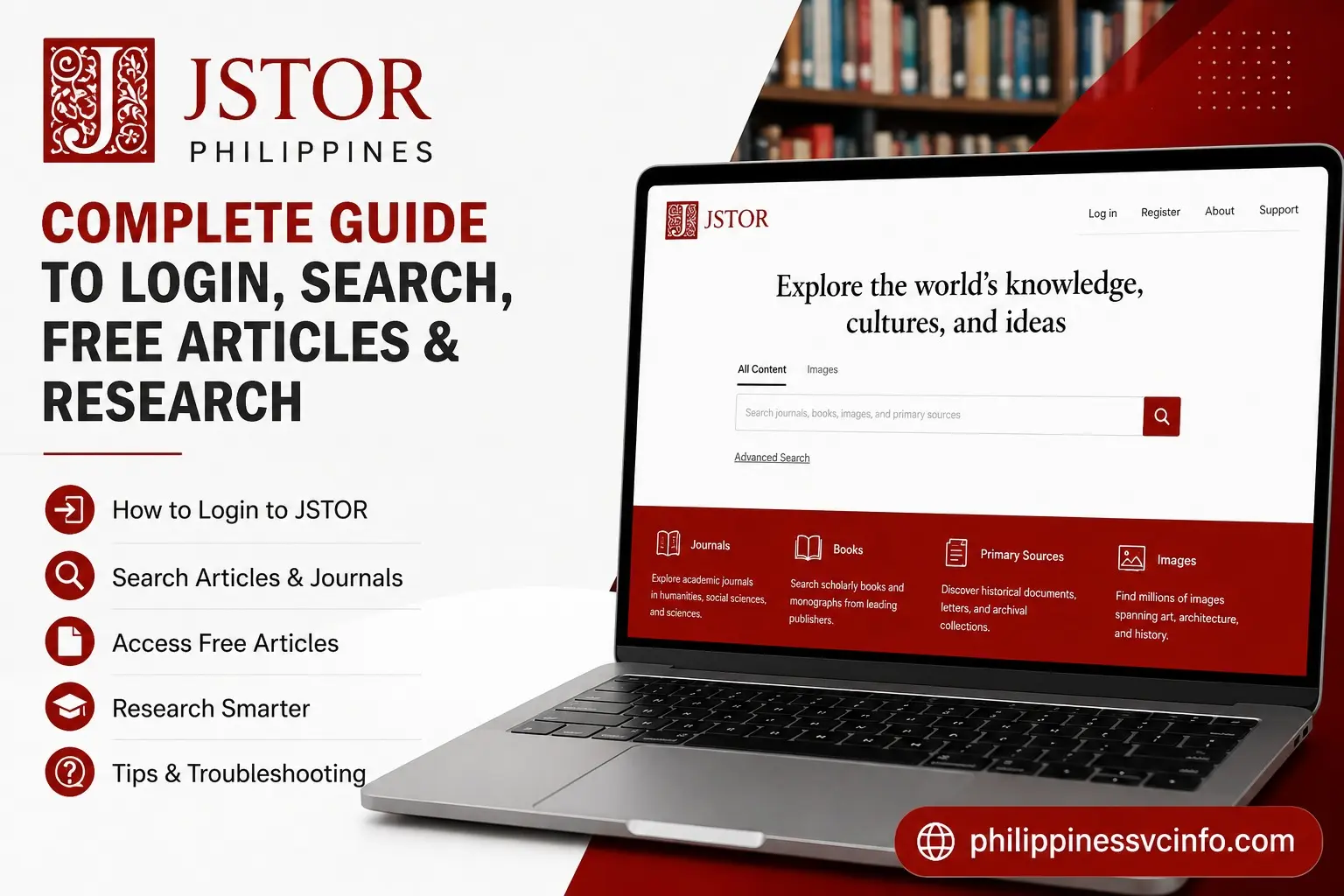
JSTOR is a digital academic research platform that helps students, researchers, teachers, and learners find scholarly journals, books, primary sources, images, and other academic materials. Users can search, read, save, cite, and download available resources, depending on their access through a personal account, institution, library, or open-access collection.
What Is JSTOR?
JSTOR is an online research platform built around scholarly and academic content. Its collection includes research articles, journals, books, primary sources, images, and other materials that can support academic study and research.
The platform is useful because it brings research discovery and organisation tools together. Depending on your access, you may be able to search for academic material, read eligible articles online, download authorised content, save useful sources to Workspace, and organise research for later use.
One point is particularly important: creating a JSTOR account does not automatically give you unlimited access to every item. Some content is available through participating institutions, while other material may be openly available or accessible through JSTOR’s personal-account options.
Who Can Use JSTOR?
You don’t necessarily need to be enrolled at a university to create a personal account. JSTOR’s current support information says that anyone with an email address can register for a personal account. Students and faculty members at participating institutions can also connect their personal accounts with institutional access where available.
This makes JSTOR useful for several types of researchers:
- University and college students
- Teachers and faculty members
- Independent researchers
- Academic writers
- Historians and other subject researchers
- Readers looking for scholarly sources
The important difference is not simply whether you have an account, but what type of content your current access permits you to use.
JSTOR Access Options Explained
Before searching for articles, it helps to understand the main access routes. A personal account, institutional subscription, and openly available material are not the same thing.
|
Access option |
What it generally provides |
|---|---|
|
Personal account |
Research tools, Workspace, saved material and eligible free online reading |
|
University or library access |
Access to content covered by the institution’s subscription |
|
Open/free content |
Material available without institutional subscription |
|
JPASS |
A separate paid access option for eligible individual users |
Your university or library may provide broader access than a standard personal account. If you are studying at a participating institution, checking your library’s JSTOR access can therefore be worthwhile before assuming that an article is unavailable.
How to Open the Official JSTOR Website
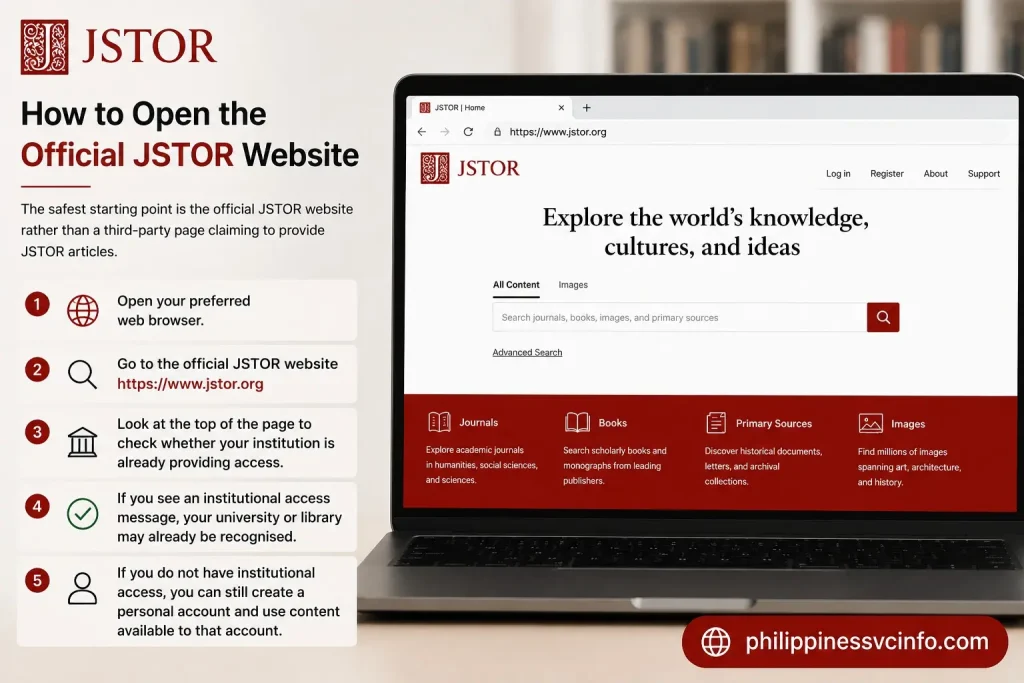
The safest starting point is the official JSTOR website rather than a third-party page claiming to provide JSTOR articles.
Step 1: Visit JSTOR
- Open your preferred web browser.
- Go to the official JSTOR website.
- Look at the top of the page to check whether your institution is already providing access.
- If you see an institutional access message, your university or library may already be recognised.
- If you do not have institutional access, you can still create a personal account and use content available to that account.
JSTOR’s support documentation explains that an “Access provided by [Institution Name]” message indicates institutional access.
This small check can save time. You may already have access to more material through your university than you would receive from a standalone personal account.
How to Create a Free JSTOR Account
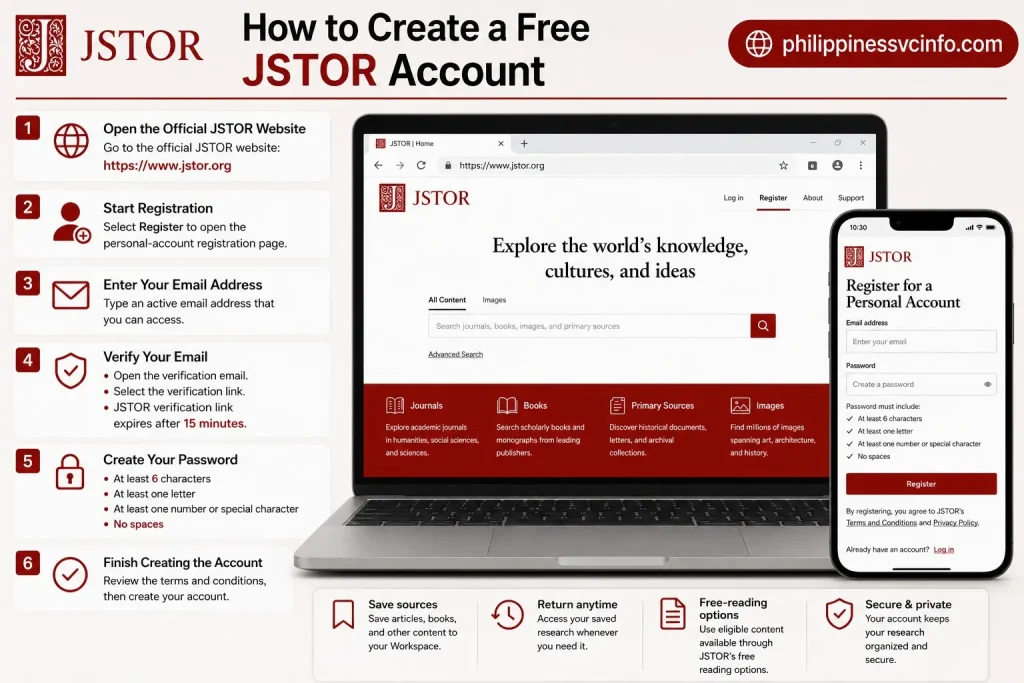
Creating a personal JSTOR account is a useful first step if you want to keep your academic research organised. You can save sources to Workspace, return to them later, and use eligible content available through JSTOR’s free-reading options.
Step 1: Open the Official JSTOR Website
Go to the official JSTOR website:
Once the homepage loads, look for the Register option, usually located in the account area.
Step 2: Start Registration
Select Register to open the personal-account registration page. JSTOR will ask for information needed to set up your account.
Step 3: Enter Your Email Address
Type an active email address that you can access. Make sure it is entered correctly because JSTOR uses email verification to confirm the account.
Step 4: Verify Your Email
After submitting your registration details, check your inbox for the JSTOR verification message.
- Open the verification email.
- Select the verification link.
- Complete the verification process.
JSTOR states that its verification link expires after 15 minutes. If the link has expired, you can use the process provided by JSTOR to request another verification email.
Step 5: Create Your Password
Choose a password that meets JSTOR’s requirements. The current requirements include:
- At least 6 characters
- At least one letter
- At least one number or special character
- No spaces
Use a password that you do not share with other people.
Step 6: Finish Creating the Account
Review the required terms and conditions, then select the option to create your account. Once registration is successful, sign in using your new JSTOR credentials.
What You Can Do With a Personal Account
A personal account gives you useful tools for managing research. You can:
- Save useful sources for later
- Organise research in Workspace
- Return to saved material when working on assignments
- Use eligible free online reading
- Connect your account with participating institutional access
- Keep research materials organised for future projects
A personal account is separate from university access. If your university or library subscribes to JSTOR, you may need to connect your personal account with that institutional access to use subscription content.
Tip: If you’re a student, create your personal account before beginning a major research project. This makes it easier to save useful sources as you discover them instead of trying to find the same articles again later.browser history alone.
How to Log In to JSTOR
After creating your account, you can sign in to JSTOR whenever you want to access your saved research or account features. Your login process may be slightly different if you are using JSTOR through a university, college, or library.

Step 1: Open JSTOR
Visit the official website:
Step 2: Select “Log in”
On the JSTOR homepage, select Log in in the account section.
Step 3: Enter Your Account Details
Enter the credentials associated with your personal JSTOR account and submit the login form.
If your details are correct, JSTOR will take you back to the platform with your account signed in.
Step 4: Confirm Your Personal Account
To check whether your personal account is active, look at the upper-right area of the JSTOR website. Your name should appear there when you are signed in.
Tip: If your name is not displayed, check whether you accidentally signed out or opened JSTOR in a different browser session.
How to Access JSTOR Through a University or Library
If your university or library subscribes to JSTOR, you may have access to additional academic content through that organisation. Institutional access is separate from simply creating a personal JSTOR account.

When You Are on Campus
- Connect to your university or library network.
- Open the official JSTOR website.
- Check the access information near the top of the page.
- Look for a message such as “Access provided by [Institution Name]”.
- Once your institution is recognised, search for the academic material you need.
In some cases, JSTOR can recognise a subscribing institution automatically when you are connected to its network.
When You Are Studying From Home
Off-campus access generally requires you to identify your institution first.
- Open JSTOR.
- Select the institutional access option when available.
- Open the Institution Finder.
- Search for your university, college, or library.
- Select the correct institution.
- Follow the institution’s sign-in process.
- Return to JSTOR and check that your institutional access is recognised.
Some institutions may support Google or Microsoft single sign-on using an account issued by the school or university.
Important: Your personal JSTOR account and institutional access are not the same thing. A personal account helps you manage your research, but it does not automatically provide access to every article covered by a university subscription.
How to Search JSTOR for Research Articles
After opening the official JSTOR website, enter your research topic in the main search box.
For example, if your assignment is about the relationship between climate change and farming, you could begin with:
climate change agriculture
You can then make the search more specific by adding another concept, phrase or research term.
JSTOR supports operators such as AND, OR and NOT, while quotation marks can be used to search for an exact phrase. If you enter several terms without an operator, JSTOR treats them as an AND search by default.
Useful JSTOR Search Examples
|
Search technique |
Example |
|---|---|
|
Basic keywords |
climate change agriculture |
|
Exact phrase |
“climate change” |
|
AND |
climate AND agriculture |
|
OR |
agriculture OR farming |
|
NOT |
agriculture NOT livestock |
|
Author field |
au:”Jane Austen” |
|
Title field |
ti:”specific title” |
|
Journal field |
jo:”Journal Name” |
JSTOR’s advanced search also supports field-specific searching for authors, item titles, abstracts and captions, along with additional filters for content type, date, language and publication.
How to Use JSTOR Advanced Search
If a normal search produces hundreds or thousands of results, Advanced Search can make the process much more manageable.

Instead of putting every requirement into one long search phrase, you can separate your search into different fields. For example, you might enter a topic in the keyword field and specify a particular author in the author field.
A practical advanced-search method
- Open Advanced Search on JSTOR.
- Enter your main research terms.
- Choose the relevant field, such as Author, Item Title or Abstract.
- Select the content types you need.
- Add a publication or journal if your research requires one.
- Narrow the date range where appropriate.
- Select a subject or discipline if useful.
- Choose the appropriate access type.
- Submit the search.
This is particularly useful when your topic has a common word that produces many unrelated results. JSTOR explains that fielded searching is designed to make results more relevant by limiting where your search terms are applied.
How to Filter JSTOR Search Results
You don’t have to start over every time your search returns too many results. The Refine Results sidebar lets you narrow the results you already have.
Depending on the content being searched, JSTOR provides filters such as:
- Access type
- Academic content
- Book chapters
- Journals
- Research reports
- Books
- Documents
- Images
- Videos
- Date
- Subject
- Geography
- Collection
- Language
The available filters can change according to the type of material in your results.
Example
Suppose you search for industrial revolution and receive a very large result set.
You could narrow it by:
Subject → History
then:
Content Type → Journals
and finally:
Date → your required period
This approach is usually more effective than repeatedly changing the original keyword.
How to Find Articles You Can Actually Access
One of the most useful JSTOR features is the ability to focus your search on content available to you.
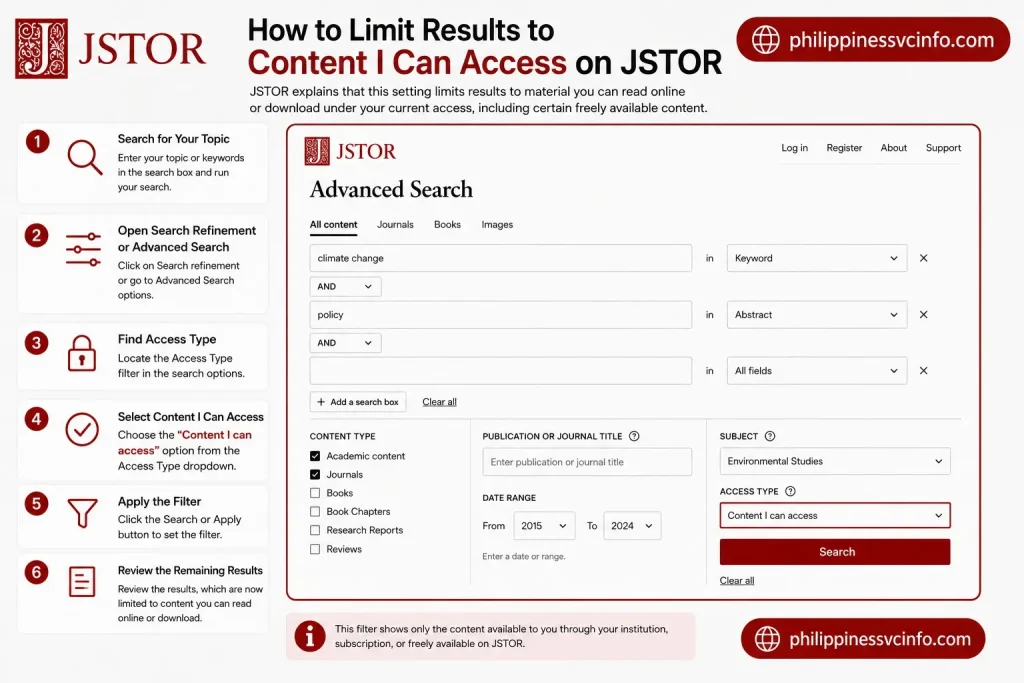
If you are not connected to a subscribing university or library, you may see results that you cannot fully access. Instead of opening each one individually, use the Content I can access option.
JSTOR explains that this setting limits results to material you can read online or download under your current access, including certain freely available content.
Steps
- Search for your topic.
- Open the search refinement or Advanced Search options.
- Find Access Type.
- Select Content I can access.
- Apply the filter.
- Review the remaining results.
This is a useful time-saving step for independent researchers and students who are not currently connected to an institutional subscription.
How to Choose a Useful JSTOR Article
A large result list does not mean every result is suitable for your assignment.
Before choosing an article, check:
- Title: Does it directly relate to your research question?
- Author: Is the author relevant to the subject?
- Publication: What journal or publication contains the work?
- Date: Does your assignment require recent or historical research?
- Abstract: Does the article actually discuss your topic?
- Subject: Does it belong to the right academic field?
- Access: Can you read or download it through your current permissions?
JSTOR’s search system gives greater relevance weight to matches found in metadata such as titles and author information than matches elsewhere in an item’s full text. You can also sort text results by Relevance, Newest or Oldest.
A good search result is therefore not automatically a good source. Read the description and bibliographic information before deciding to use it.
How to Open and Read a JSTOR Article
Once you identify a promising result, select its title to open the item page.
From there:
- Review the title and author.
- Check the publication details.
- Read the abstract or available description.
- Check your access status.
- Choose the available reading option.
- If downloading is permitted, select the PDF option.
JSTOR does not provide identical access to every user for every item. An article may be searchable but unavailable for full reading, available for online reading, or available for PDF download depending on your permissions.
That distinction is important when researching through a personal account.
How to Read Free Articles on JSTOR
You can use JSTOR without a university subscription for certain content.
According to JSTOR’s current support information, a registered personal account can provide access to up to 100 eligible articles online every 30 days. However, not every article participates in the free-reading programme because availability can depend on publisher policies.
How JSTOR Free Reads Work
- Sign in to your personal JSTOR account.
- Search for your topic.
- Open an eligible article.
- Select Alternate access options when available.
- Choose Read Online.
- Start reading the article.
JSTOR displays information about your remaining free article reads during the process. Previously read articles can also be found through the Free Article Views area of your account.
Important Difference: Free Reading vs Free Downloading
|
Feature |
Read Online |
|---|---|
|
What it means |
You can view the article directly on JSTOR. |
|
Is it always available? |
No. It depends on the article and your access. |
|
Does reading guarantee downloading? |
No. Online reading does not automatically provide a download option. |
|
If the option is unavailable |
Use the permitted online-reading option. |
|
Can restrictions be bypassed? |
No. |
How to Find Open-Access Content on JSTOR
Another option is to search for material that is openly available.
JSTOR hosts open-access books and journals, as well as historical Early Journal Content. JSTOR’s support information says that Early Journal Content includes hundreds of journals made freely available to the public, including older material that falls within its stated public-access criteria.
If you are researching history or another field where older sources are valuable, this can be particularly useful.
You can also use the access filters to focus your search on material that you can legally read or download under your current access.
How to Download a JSTOR PDF
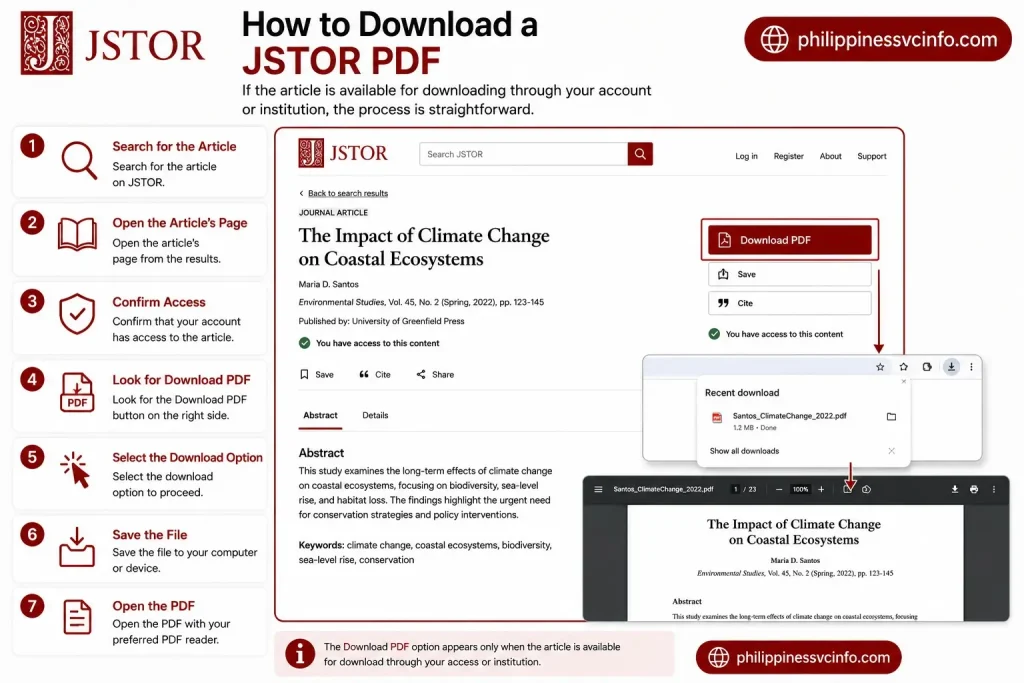
If the article is available for downloading through your account or institution, the process is straightforward.
Step-by-step PDF download
- Search for the article on JSTOR.
- Open the article’s page.
- Confirm that your account has access.
- Look for Download PDF.
- Select the download option.
- Save the file to your computer or device.
- Open the PDF with your preferred PDF reader.
If Download PDF does not appear, it usually means that downloadable access is not available under your current permissions.
In that situation, check your university or library access before assuming that the article cannot be obtained legitimately.
How to Search Within a Specific Journal
Sometimes you don’t want the entire JSTOR database. You may already know the journal that contains the research you need.
JSTOR supports journal-specific searching through Advanced Search and search field codes. For example, the jo: field can be used with a journal name, while a journal’s JCODE can also be used for more targeted searches.
A search can therefore be structured around:
jo:”Journal Name” AND “research term”
This is useful when your professor recommends a particular journal or when you already know which publication is authoritative for your subject.
A Better JSTOR Research Workflow
For most assignments, the following sequence works well:
Define your question → Search broadly → Add specific phrases → Filter by subject/content → Select “Content I can access” → Review titles and abstracts → Save useful sources → Read the strongest articles → Download authorised PDFs
This prevents a common mistake: spending too much time browsing irrelevant results.
JSTOR itself recommends refining searches by identifying additional keywords from your research project and using tools such as Boolean searching and exact-phrase searching when a broad query produces too many results.
Research Tip
Don’t begin with the longest possible search query. Start with two or three strong concepts, inspect the results, and then borrow useful terminology from relevant titles and abstracts to improve your next search.
That process often produces better results than guessing every possible keyword before you begin.
How to Save Articles in JSTOR Workspace
If you are working on a long assignment, dissertation, presentation or research project, saving useful sources as you discover them is much more reliable than trying to remember every article later.
Step-by-step
- Sign in to your personal JSTOR account.
- Search for your subject.
- Open a useful article or other research item.
- Select Save.
- Choose an existing Workspace folder or create one.
- Add your own notes where useful.
- Return to Workspace whenever you need to review your research.
Workspace can organise articles, book chapters, images and primary-source materials into folders. You can also search and manage those saved materials later.
A practical folder system
Instead of putting every source into one large folder, create folders around your research project.
For example:
- Assignment – Climate Change
- Background Sources
- Main Arguments
- Statistics and Evidence
- Primary Sources
- Sources for Final Bibliography
This simple structure makes it easier to distinguish sources you are merely investigating from those you actually intend to cite.
How to Add Notes to Your JSTOR Research
Saving an article tells you where the source is, but a short research note can help you remember why you saved it.
For each important source, consider recording:
Main idea: What does the author argue?
Useful evidence: Which finding, example or quotation may support your work?
Relevance: Which part of your research question does it answer?
Citation details: What information will you need for your bibliography?
Workspace supports adding your own notes to saved items, making it more useful than simply bookmarking article pages.
How to Cite a JSTOR Article
Academic work normally requires you to acknowledge the sources you use. JSTOR provides citation tools that can make this process easier.
On an item page, select Cite to view available citation formats. JSTOR currently provides automatically generated citations in MLA 9, APA 7 and Chicago 17. Citations can also be exported in formats such as RIS or text and sent to supported citation-management services.
Basic citation workflow
- Find the article you want to cite.
- Open its item page.
- Select Cite.
- Choose the required citation style.
- Copy or export the citation.
- Compare it with your institution’s requirements.
- Correct any details that need attention.
- Add the final citation to your bibliography or reference list.
Don’t blindly copy an automatically generated citation
JSTOR recommends reviewing automatically generated citations before using them. Names, capitalisation, dates and other bibliographic information should be checked, particularly when your university requires strict formatting.
Your lecturer may also require a specific version of a style. For example, being told to use APA means you should follow the citation rules required by your institution rather than mixing APA and MLA formatting.
How to Get a Permanent JSTOR Link
If you want to share a source with a lecturer, classmate or research partner, don’t simply copy a temporary browser address.
JSTOR provides stable URLs, also called permanent links, for its items. JSTOR states that these stable URLs are the preferred option for citations and for sharing content with a broad audience.
Steps
- Open the JSTOR item.
- Locate the item’s stable URL.
- Copy the permanent link.
- Add it to your research notes or citation where appropriate.
If you are accessing JSTOR through an institution, you may also see a remote-access URL. That type of link can be useful when sharing material specifically with people at the same institution.
Can You Use JSTOR Without a University?
Yes. You can create a free personal JSTOR account without being enrolled at a university.
A personal account can provide access to eligible free online reading and lets you use Workspace to save and organise research. Students, faculty and staff at participating institutions may also connect their personal account to institutional access.
However, a personal account does not mean that every JSTOR article becomes freely downloadable.
Access depends on the item and the permissions associated with your account, institution or other legitimate access route.
Is JSTOR Free?
JSTOR is partly free and partly subscription-based.
There are several legitimate ways to access content without personally paying for every article. These include:
- Free personal-account reading
- Open-access books and journals
- Publicly available historical content
- University or library subscriptions
- Other authorised access options
JSTOR currently states that registered personal accounts can read up to 100 eligible articles online every 30 days. Not every article is included because publisher policies determine whether particular items participate in the programme.
What about Open Access?
JSTOR also hosts openly accessible material. Its Open Content collection includes open-access books and journals, along with older public-domain material. JSTOR says its Early Journal Content includes more than 500,000 public-domain articles from more than 200 journals.
This can be particularly valuable for researchers working in history, literature, political science and other subjects where older publications and primary materials remain relevant.
JSTOR Free Reads vs Open Access
These terms are sometimes confused, but they are not identical.
|
Option |
What it means |
|---|---|
|
Free Reads |
Eligible content that a registered personal account can read online within JSTOR’s free-reading allowance |
|
Open Access |
Content made freely available without the same subscription restrictions |
|
Institutional access |
Content available because your university, college or library subscribes |
|
Paid access |
Access obtained through an applicable paid service or subscription |
The distinction matters because an article that you can read online under a free-reading allowance may not be downloadable as a PDF.
What If JSTOR Says “Access Restricted”?
Don’t assume something is wrong with your account.
An access restriction can simply mean that your current account does not include the required rights for that item.
Try these legitimate options:
- Check whether you are connected to your university.
- Use your institution’s library website.
- Search for your institution through JSTOR’s access options.
- Check whether another edition or openly available version exists on JSTOR.
- Look for Open Access material.
- Ask your university library for assistance.
Avoid websites or browser methods that claim to bypass JSTOR’s access controls. If access is restricted, use an authorised route instead.
How to Improve Your JSTOR Research
A strong research process is more than finding as many articles as possible. The goal is to identify sources that are relevant, credible and genuinely useful to your research question.

1. Start with a research question
Instead of searching for a single broad word, define what you want to discover.
For example:
Weak:education
Better:impact of online learning on university students
More focused:"online learning" AND university students AND academic performance
The more clearly you understand your question, the easier it becomes to select useful search terms.
2. Use terminology from strong results
When you find a promising article, examine its title, abstract and subject terms. Academic authors often use terminology that you may not have considered.
Use those terms in a second JSTOR search.
This creates a useful research cycle:
Search → Review → Learn terminology → Refine → Search again
It is often more effective than repeatedly entering unrelated keywords.
3. Save sources while researching
Don’t wait until the end of your research to organise your sources.
Save strong articles to Workspace as you find them. You can then group them according to topic, argument or chapter. JSTOR’s Workspace also supports citation export and research-material exports.
4. Keep your own research notes
A source list alone is not enough.
For each major article, record a brief note explaining:
- What the source contributes
- Which argument it supports
- Whether it provides primary or secondary evidence
- Which section of your assignment may use it
This makes writing much easier later.
Common JSTOR Mistakes to Avoid
Searching only one broad keyword
A single word can produce an enormous and mixed result set. Combine related concepts and refine your search.
Assuming every JSTOR result is freely available
Being able to find an article does not necessarily mean you can read or download the complete text under your current access.
Downloading without checking the source
A PDF may contain useful information, but you should still record its author, title, publication and date so you can cite it correctly.
Relying completely on automatic citations
Citation tools save time, but generated references should still be checked before submission.
Saving everything
More sources do not automatically mean better research. Save the material that is genuinely relevant to your question.
Forgetting your access route
If an article is available through your university, remember which institution provides the access. This can save considerable time when you return to the source later.
JSTOR for Students: A Simple Research Routine
For students, the following workflow is practical:
1. Define the assignment question
Know exactly what you are trying to prove, explain or investigate.
2. Search JSTOR
Begin with two or three strong keywords.
3. Refine the results
Use subject, content type, date and access filters.
4. Evaluate the source
Check the author, publication, abstract and relevance.
5. Save strong sources
Place useful items into an appropriate Workspace folder.
6. Read strategically
Focus on the abstract, introduction, methodology, findings and conclusion when appropriate.
7. Record useful evidence
Write your own notes while reading.
8. Create citations
Use JSTOR’s citation tools, then verify the result.
9. Build your bibliography
Keep the citation style consistent with your assignment requirements.
10. Return to the original source
When writing, check the actual article rather than relying entirely on your notes.
Frequently Asked Questions About JSTOR
Final Takeaway
JSTOR is most useful when you treat it as a research workspace rather than simply a place to download papers. Start with a clear question, build focused searches, refine results, check access, evaluate sources carefully and save the strongest material in Workspace. A free personal account can provide useful research features and eligible online reading, while university or library access may open additional subscription content. For academic writing, the final step is just as important as the first search: cite what you use, verify automatically generated references, and keep permanent JSTOR links for important sources. JSTOR’s current citation and Workspace tools make that process easier, while its Open Access and free-reading options provide legitimate ways to access selected material without a personal subscription.
Discover What You Need to Know:
- School Supplies Guide 2026 : How to Find, Choose & Buy Supplies Online
- UM Student Portal 2026: Login, Registration, Grades, Payment & Account Guide
- UM Portal Philippines 2026: Login, Registration, Grades, Fees & Student Services
- NUIS Portal Philippines 2026: National University Login, Online Application, Student Services & Guide
- Abakada Chart: Complete Guide to the Filipino Alphabet and Abakada.ph 2026
- CHED Philippine (2026): Complete Guide to Scholarships, Requirements, Application Steps, and Official Resources