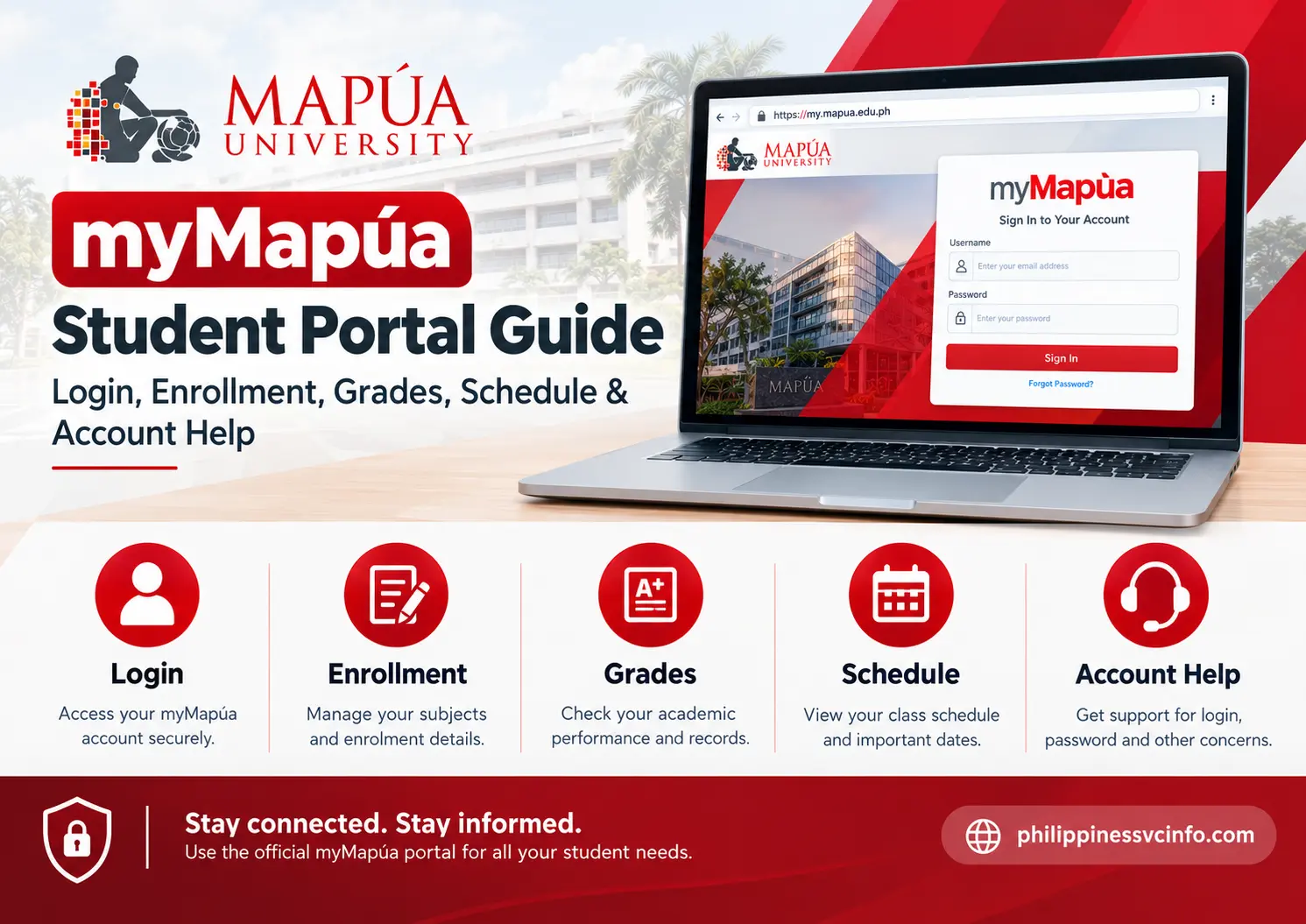
myMapua is the official online student portal of Mapúa University that gives enrolled students access to important academic and student-related services in one digital platform. Through myMapua, students can view their grades and curriculum information, manage enrolment-related activities, review matriculation or assessment details, and make applicable online payments. The portal is designed to make routine university transactions more convenient by allowing students to access essential information and services online using their authorised Mapúa account.
What Is myMapua?
myMapua is Mapúa University’s student-facing online portal for accessing selected academic, financial and administrative services. Instead of handling every task through a physical office, students can use the portal for information such as their academic records, curriculum details and applicable charges.
One useful distinction is that myMapua is intended for existing students, while applicants may use Mapúa’s separate Applicant Portal during the admissions process. Once an applicant becomes officially enrolled, Mapúa provides access credentials for student systems including myMapua.
The exact options visible inside an account can depend on the student’s status, programme and current university processes. For that reason, students should rely on the menus and instructions displayed in their own account rather than assuming every account will contain identical options.
What Can You Do Through myMapua?
Depending on the service currently available to your account, myMapua can be used for tasks such as:
- Checking academic grades
- Viewing curriculum information
- Accessing student-related records
- Managing enrolment activities
- Reviewing charges and assessment information
- Paying matriculation and other applicable charges online
- Checking payment-related information
- Accessing information needed for certain university processes
Mapúa’s official materials specifically confirm that students can view their grades and curriculum and pay matriculation charges online through myMapua.
How to Register for a myMapua Account
Getting access to myMapua starts with having an authorised Mapúa student account. Students should use the credentials and account activation process provided by the university rather than creating unsupported login details themselves.

Step 1: Confirm Your Mapúa Student Status
myMapua is intended for enrolled or otherwise authorised Mapúa students. Before trying to access the portal, make sure you have completed the relevant student admission or enrolment process and are eligible for a Mapúa account.
Step 2: Receive Your Mapúa Account Credentials
Mapúa provides eligible students with the institutional account credentials needed to access its online services. Keep these details secure, as they are associated with your university account.
Step 3: Activate or Set Up Your Account
If Mapúa requires you to activate your account or establish a password before your first login, follow the official instructions supplied by the university. Avoid relying on unofficial guides that add steps or requirements that Mapúa has not documented.
Step 4: Access the myMapua Portal
Once your account is ready, open the official myMapua portal and enter the credentials provided by Mapúa. Use the university’s official access channel rather than third-party websites claiming to offer myMapua login services.
Step 5: Sign In and Verify Your Information
After signing in successfully, review the student information displayed in your account. Check that your details appear correctly and that you can access the services available to your Mapúa account.
How to Access the myMapua Student Portal
The safest approach is to start from Mapúa’s official website or use the official myMapua address rather than relying on search-engine advertisements or unfamiliar third-party login pages.

Step 1: Open the Official myMapua Portal
Go to:
Mapúa’s own documentation identifies https://my.mapua.edu.ph as the myMapua portal.
Before entering your credentials, check that you are on the correct Mapúa domain. This is particularly important when accessing a student account from a shared or public computer.
Step 2: Enter Your Mapúa Credentials
Use the credentials provided for your student account. Current Mapúa IT guidance says that, for enrolled students, the default username is typically the institutional @mymail.mapua.edu.ph email address, while the initial password may be the student number.
Do not share your password with classmates, friends or anyone claiming to provide unofficial portal assistance.
Step 3: Sign In and Check Your Dashboard
After authentication, review the available navigation options. The older official myMapua primer describes the interface as having a navigation area and an information area, while the portal’s current appearance and available functions may change as Mapúa updates its systems.
If you have just received your account, it is a good idea to verify that your name, student information and programme details appear correctly.
Security tip: Always access myMapua through an official Mapúa domain and avoid saving your password on computers used by other people.
myMapua Login Problems: What to Do
A failed login does not necessarily mean that your student account has been permanently disabled. Start with the basic checks before contacting support.
First, make sure you are using the correct Mapúa account and that your password has been entered accurately. If the password has been forgotten, Mapúa’s current support documentation says students can use the “Can’t access your account?” or password-reset option on the relevant login screen.
If self-service recovery does not solve the problem, Mapúa’s DO-IT Helpdesk can assist with account concerns. The university lists [email protected] for these issues and asks users to provide identifying information for verification.
Common myMapua Access Issues
| Problem | What to try |
|---|---|
| Forgotten password | Use the password-recovery option on the login page |
| Account appears locked | Contact the DO-IT Helpdesk if self-service recovery does not work |
| Wrong credentials | Confirm that you are using the correct institutional account |
| Portal session problem | Sign in again using the official myMapua portal |
| Still cannot access the account | Contact Mapúa IT support for verification |
Mapúa also documents account lockout as a security measure that can occur after multiple incorrect login attempts or unusual activity.
myMapua Enrollment and Course Selection
Enrolment is one of the areas where students should pay close attention to university announcements and their individual portal instructions. Mapúa uses online processes for different enrolment activities, and the exact workflow can vary by student group and academic period.
For example, Mapúa’s published summer-enrolment instructions state that active students complete summer enrolment online through their myMapua account, with the process following the university’s regular online enrolment flow.
Before beginning an enrolment transaction, check:
- Your scheduled enrolment period
- Your curriculum or programme requirements
- Available courses and sections
- Any outstanding requirements or restrictions
- Your assessment and payment information
- Official Mapúa announcements for the relevant academic period
Avoid selecting subjects simply because they appear available. Check prerequisites and your programme’s curriculum requirements first.
A Practical myMapua Enrolment Flow
Review → Select → Check → Finalise → Assess → Pay
The exact buttons may differ depending on the current portal interface, but the principle is straightforward: review your academic requirements, make your selections, confirm the resulting schedule or assessment, and complete the required financial step.
Mapúa’s current enrolment guidance for some student categories similarly shows a sequence in which students select courses, finalise their load, pay applicable charges and receive confirmation after payment has been processed.
Checking Your myMapua Class Schedule
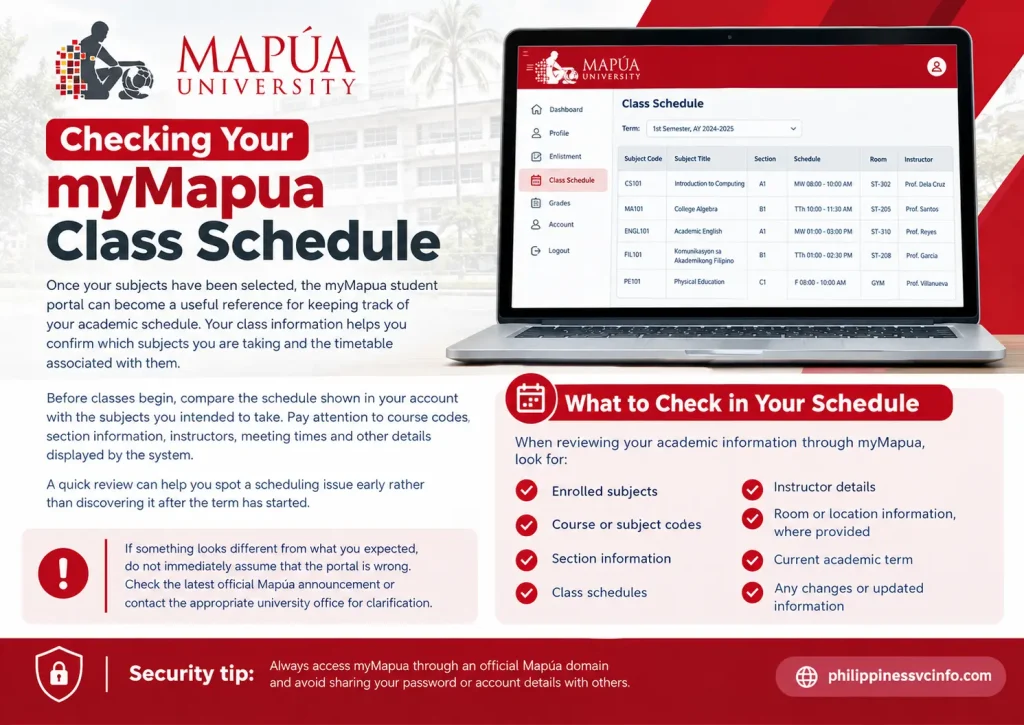
Once your subjects have been selected, the myMapua student portal can become a useful reference for keeping track of your academic schedule. Your class information helps you confirm which subjects you are taking and the timetable associated with them.
Before classes begin, compare the schedule shown in your account with the subjects you intended to take. Pay attention to course codes, section information, instructors, meeting times and other details displayed by the system.
A quick review can help you spot a scheduling issue early rather than discovering it after the term has started.
What to Check in Your Schedule
When reviewing your academic information through myMapua, look for:
- Enrolled subjects
- Course or subject codes
- Section information
- Class schedules
- Instructor details
- Room or location information, where provided
- Current academic term
- Any changes or updated information
If something looks different from what you expected, do not immediately assume that the portal is wrong. Check the latest official Mapúa announcement or contact the appropriate university office for clarification.
How to Check Grades on myMapua
One of the most useful reasons to access myMapua is checking your academic results. Mapúa’s official academic materials state that students can view their grades through the system.
The exact menu names can change as university systems are updated, so use the academic or grade-related option available inside your current account.
A sensible way to review your results is to check each course individually rather than looking only at your overall standing. This makes it easier to identify a missing result or a subject that needs clarification.
Reviewing Your Academic Performance
After opening the relevant grade section, check:
- The academic term or quarter.
- The subjects listed for that period.
- The grade recorded for each subject.
- Whether all expected subjects have results.
- Any academic information associated with your programme.
If a grade appears to be missing or does not match information supplied by your instructor, contact the relevant Mapúa academic office rather than attempting to change the record yourself.
Checking Your Curriculum and Degree Progress
Your curriculum is another important part of your student information. It gives you a broader picture of the subjects associated with your programme and can help you understand what remains before completing your degree.
Mapúa’s official academic handbook specifically identifies curriculum viewing as one of the functions available through myMapua.
Students should use curriculum information alongside their programme requirements and academic advice. A portal display is useful for reference, but it should not replace guidance from the university when you are unsure about prerequisites, subject sequencing or graduation requirements.
Why Curriculum Checking Matters
Regularly checking your curriculum can help you:
- Identify completed subjects.
- See courses that may still be required.
- Plan future enrolment.
- Check whether prerequisites have been satisfied.
- Avoid overlooking programme requirements.
- Prepare questions for academic advising.
Best practice: Review your curriculum before enrolment opens. It is much easier to correct an incorrect subject choice before finalising your academic load.
Understanding Assessment and Tuition Charges
After selecting your courses, the next issue is usually the financial side of enrolment. myMapua provides access to information connected with matriculation and applicable charges, and Mapúa’s official materials confirm that students can pay matriculation charges online.
Your assessment may contain several components rather than a single tuition figure. The amount can depend on the courses or units enrolled, programme requirements and other charges applicable to your student account.
Because fees and payment arrangements can change, students should rely on the current assessment displayed in their account and official Mapúa announcements instead of using an old fee figure found online.
What Your Assessment May Show
Depending on your account and current academic transaction, you may see information relating to:
| Assessment information | Purpose |
|---|---|
| Tuition charges | Cost associated with your enrolled academic load |
| Course or unit-related charges | Charges associated with particular academic requirements |
| Other applicable fees | Additional university charges shown in the assessment |
| Total amount due | Amount required according to the current assessment |
| Payment information | Details relevant to settling the assessed charges |
Always review the complete assessment before making a payment.
Paying Through the myMapua System
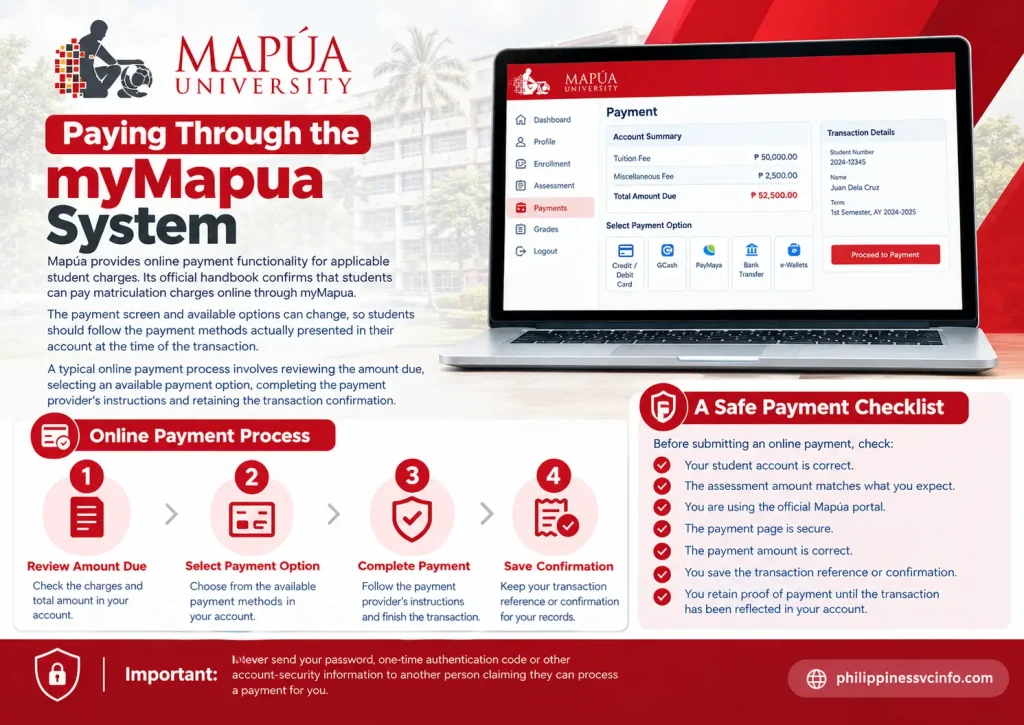
Mapúa provides online payment functionality for applicable student charges. Its official handbook confirms that students can pay matriculation charges online through myMapua.
The payment screen and available options can change, so students should follow the payment methods actually presented in their account at the time of the transaction.
A typical online payment process involves reviewing the amount due, selecting an available payment option, completing the payment provider’s instructions and retaining the transaction confirmation.
A Safe Payment Checklist
Before submitting an online payment, check:
- Your student account is correct.
- The assessment amount matches what you expect.
- You are using the official Mapúa portal.
- The payment page is secure.
- The payment amount is correct.
- You save the transaction reference or confirmation.
- You retain proof of payment until the transaction has been reflected in your account.
Important: Never send your password, one-time authentication code or other account-security information to another person claiming they can process a payment for you.
What to Do If Your Payment Is Not Reflected
Occasionally, a payment and the student account may not update at exactly the same time. If this happens, avoid immediately submitting a second payment.
First, retain the payment confirmation and check your account again after an appropriate processing period. If the transaction still does not appear correctly, contact the relevant Mapúa office and provide the transaction details they need to investigate the payment.
The DO-IT Helpdesk is appropriate for technical or account-access concerns, while financial questions should be directed to the university office responsible for the transaction.
myMapua Account and Password Support
Account access problems can interrupt enrolment, academic checking and other online tasks, so resolving them early is worthwhile.
Mapúa’s IT support documentation provides password-reset guidance and explains account-related security procedures. If you cannot recover access using the available self-service process, contacting the official support team is the safer option than relying on unofficial account-recovery services.
Forgot Your myMapua Password?
If you cannot remember your password:
- Open the official Mapúa login service.
- Select the available account-recovery or password-reset option.
- Follow the verification instructions.
- Create a new password when prompted.
- Return to the official portal and try signing in again.
Use only official Mapúa recovery pages. Do not give your existing password to anyone offering to “unlock” your account.
When Your myMapua Account Is Locked
Repeated unsuccessful login attempts can trigger account-security protections. Mapúa’s support documentation includes account-lockout guidance for students experiencing this type of problem.
If your account remains inaccessible after following the official recovery process, contact the DO-IT Helpdesk rather than repeatedly trying different passwords.
When contacting support, explain the problem clearly and provide the student information requested for verification. Never include your password in an email or support request.
Which Mapúa Office Should You Contact?
Knowing which office handles a problem can save time. A technical login issue is different from a grade concern or a payment dispute, so sending every question to the same department may delay assistance.
| Concern | Appropriate first contact |
|---|---|
| myMapua access problem | DO-IT / IT Helpdesk |
| Password or account issue | DO-IT / IT Helpdesk |
| Portal technical error | DO-IT / IT Helpdesk |
| Grade concern | Relevant academic office / Registrar |
| Curriculum concern | Academic adviser or relevant university office |
| Enrolment concern | Relevant enrolment or academic office |
| Payment or account balance | Treasury / appropriate finance office |
Mapúa’s official support resources should be your first reference for current contact details and procedures.
Smart Ways to Use myMapua Throughout the Term
You do not need to wait for enrolment season to check your student portal. Regular use can make it easier to notice changes in your academic or financial information.
A practical routine is to check your myMapua account when:
- A new academic term begins.
- Enrolment opens.
- You change your course load.
- Grades are released.
- You make a university payment.
- You receive instructions from Mapúa requiring an online transaction.
- You are preparing for the next term.
Keeping screenshots or downloadable confirmations for important transactions can also make later follow-up easier.
myMapua Best Practices for Students
A few habits make portal use safer and less stressful.
Use official sources. Start with Mapúa University and its official support resources when looking for login or account instructions.
Check information before finalising. Whether you are selecting a subject or paying an assessment, review the details before clicking the final confirmation.
Protect your account. Your institutional credentials are personal. Do not share them with friends or third-party “helpers”.
Keep payment evidence. Save transaction references and official receipts where applicable.
Check announcements. University procedures can change between academic periods. A process that worked during one enrolment period may not be identical later.
myMapua Troubleshooting Guide
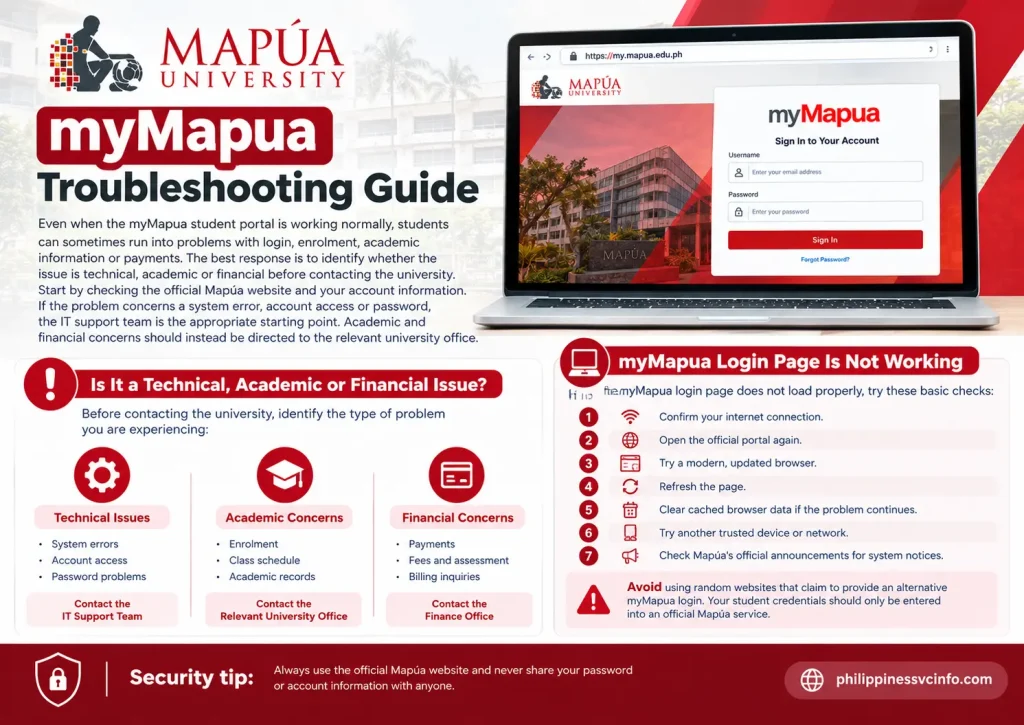
Even when the myMapua student portal is working normally, students can sometimes run into problems with login, enrolment, academic information or payments. The best response is to identify whether the issue is technical, academic or financial before contacting the university.
Start by checking the official Mapúa website and your account information. If the problem concerns a system error, account access or password, the IT support team is the appropriate starting point. Academic and financial concerns should instead be directed to the relevant university office.
myMapua Login Page Is Not Working
If the myMapua login page does not load properly, try these basic checks:
- Confirm your internet connection.
- Open the official portal again.
- Try a modern, updated browser.
- Refresh the page.
- Clear cached browser data if the problem continues.
- Try another trusted device or network.
- Check Mapúa’s official announcements for system notices.
Avoid using random websites that claim to provide an alternative myMapua login. Your student credentials should only be entered into an official Mapúa service.
What If You Cannot Access Your Account?
If you have forgotten your password, use the official account-recovery process rather than creating another student account or repeatedly guessing credentials.
Mapúa’s support documentation provides account and password assistance, including password-reset and account-lockout guidance.
If self-service recovery does not resolve the issue, contact the DO-IT Helpdesk and follow its verification instructions.
When requesting assistance, describe the problem clearly. For example, explain whether:
- You cannot open the portal.
- Your credentials are rejected.
- Your password has been forgotten.
- Your account appears locked.
- A particular myMapua function produces an error.
- Your account information does not appear as expected.
This gives the support team a clearer starting point.
Enrolment Problems on myMapua
An enrolment issue can have several possible causes. Before assuming that the portal itself is responsible, check your academic requirements and the current instructions issued by Mapúa.
For example, a course may not be suitable for your programme or may have a prerequisite that needs to be completed first. Your enrolment period may also be controlled by university schedules and procedures.
Before Reporting an Enrolment Issue
Check these items first:
Programme: Make sure the subject belongs to your curriculum or is otherwise approved for your programme.
Prerequisites: Confirm that required earlier subjects have been completed.
Schedule: Check whether your selected subjects create a timetable conflict.
Account status: Look for any restriction or instruction shown in your student account.
University announcements: Read the latest enrolment instructions for your academic period.
If everything appears correct but the transaction still cannot be completed, contact the appropriate Mapúa academic or enrolment office.
Grade or Curriculum Information Looks Incorrect
Academic information deserves a different type of support request from a technical login problem.
If a grade is missing, incorrect or different from information you have been given, record the relevant course and academic period and contact the appropriate academic office. Do not attempt to alter academic records through unofficial means.
The same principle applies to curriculum information. If you believe a completed requirement has not been reflected correctly, ask the relevant academic authority to review your record.
A screenshot can sometimes help explain what you are seeing, but avoid sending passwords or other confidential login information.
Payment Issue on myMapua
If you have completed a payment but your account does not immediately reflect the transaction, do not automatically pay again.
Instead, retain your payment confirmation, reference number and other transaction details. Check your account again according to the applicable processing instructions. If the issue remains, contact the appropriate Mapúa finance or treasury office.
For technical payment-page errors, the IT Helpdesk may also be relevant. The key is to distinguish between a payment-processing problem and a portal technical problem.
Keep These Payment Details
For important transactions, retain:
- Student information associated with the payment
- Amount paid
- Date of transaction
- Payment method
- Transaction or reference number
- Official confirmation or receipt
These details can make a payment investigation much easier.
Keeping Your myMapua Account Secure
Your student portal contains information that should be treated as private. Account security is therefore just as important as knowing how to use the portal.
Use a strong password and avoid sharing it with other people. If you access myMapua from a shared computer, sign out when you finish and avoid allowing the browser to save your credentials.
Be particularly careful with messages that ask you to provide your Mapúa password, authentication code or other security information. When in doubt, open the official Mapúa website yourself rather than following an unfamiliar login link.
Official Mapúa Resources
For current information, students should prioritise Mapúa’s own websites and support resources.
These official resources are preferable to third-party pages when checking account, enrolment, academic or technical instructions.
Final Checklist for myMapua Users
Before finishing an important student transaction, run through this short checklist:
- I am using the official Mapúa website or portal.
- My institutional credentials are correct.
- I have checked the relevant academic term.
- I reviewed my subjects before finalising enrolment.
- I checked my academic information and curriculum.
- I reviewed my assessment before paying.
- I saved important payment confirmations.
- I have not shared my password or authentication details.
- I know which Mapúa office to contact if something goes wrong.
myMapua Frequently Asked Questions
Conclusion
myMapúa gives Mapúa students a central online portal for handling important university-related tasks. From accessing the myMapúa Student Portal and checking academic information to managing enrollment, schedules, assessments, payments, and account details, knowing how to use the system can make routine student transactions more convenient.
Before accessing myMapúa, make sure you use the correct Mapúa credentials and follow the university’s current instructions for account access or password concerns. If a particular feature is unavailable or your information does not appear correctly, checking Mapúa’s official student support resources is the safest next step.
For students, the key takeaway is simple: myMapúa is an important online gateway for managing many aspects of your Mapúa University student experience. Keep your account information secure, check your records regularly, and rely on official Mapúa channels for the latest portal instructions and updates.cted H2/H3 headings, body copy, image ALT text and FAQ answers where it genuinely fits. Don’t force the keyword into every sentence. Your own dynamic prompt explicitly says to use natural keyword placement and never keyword stuff, which is the better approach for readability and search quality.
Discover What You Need to Know:
- CEU Portal Philippines 2026 : Complete Guide of Login, Student Portal and Registration Guide
- CEU Cares Philippines 2026: Guide of Requirements, Application, Registration, Login & Enrollment
- Quipper Guide 2026: Official Website, Student Portal, and Account Help, Login & Registration
- AIMS ICCT Student Portal Guide 2026: Login, Enrollment, Grades & Registration