Autodesk is a global software company that develops digital design and engineering solutions for architecture, construction, manufacturing, engineering, media, and entertainment. Its widely used products, including AutoCAD, Revit, Maya, Fusion, and 3ds Max, help professionals, businesses, students, and educators create, design, model, visualise, and manage projects digitally.
What Is Autodesk?
Autodesk is a software company whose products support professional and educational workflows in areas such as computer-aided design, building information modelling, manufacturing, engineering, animation and visualisation.
The Autodesk ecosystem includes different products for different types of work. For example, AutoCAD supports 2D and 3D CAD, Revit focuses on building information modelling, Inventor provides mechanical design and engineering tools, while Maya and 3ds Max are used for 3D animation and visualisation.
Because Autodesk offers many products, the right application depends on what you want to create. A student learning architectural design may need a different product from a mechanical engineer, construction professional or 3D artist.
Autodesk at a glance
| Area | What Autodesk provides |
|---|---|
| Account | Central account for Autodesk services |
| Education | Educational access for eligible students and educators |
| Design | CAD, 3D design and engineering tools |
| Architecture | Building design and BIM solutions |
| Manufacturing | Product design, manufacturing and simulation tools |
| Media | Animation, visual effects and 3D visualisation |
| Downloads | Product downloads through Autodesk Account |
| Support | Help resources, assistance and technical support |
How to Create an Autodesk Account
An Autodesk Account is useful even if you are only starting to explore Autodesk products. The account gives you a central sign-in for Autodesk services and helps connect your products and subscriptions to one profile.
Autodesk uses a single sign-on system across many of its websites and services. If you have already created an Autodesk Account through certain Autodesk services, you may already have an account rather than needing to register again.
Step-by-step Autodesk account registration

- Open the official Autodesk website.
- Select Sign In from the top-right area.
- Choose the option to create a new account.
- Enter your requested personal information, including your name and email address.
- Create a secure password that satisfies the displayed security requirements.
- Review and accept the applicable Autodesk terms and privacy information.
- Submit the registration form.
- Check your email for the verification message.
- Follow the verification link to activate your account.
Once your email has been confirmed, you can use your Autodesk credentials to sign in and access the services available to your account.
Should students use a school email?
A school-provided email can be useful during an education-related process, but Autodesk states that an educational email address by itself is not sufficient or required to confirm eligibility. Students and educators may need to provide documentation demonstrating their relationship with a qualified educational institution.
That distinction matters. Creating an Autodesk Account and proving eligibility for Autodesk Education are related processes, but they are not exactly the same thing.
Autodesk Login: How to Sign In
After creating your account, Autodesk login is straightforward.
Open the official Autodesk website and select Sign In. Enter the email address associated with your Autodesk Account, followed by your password. If additional security verification is requested, follow the instructions displayed on screen.
If you already use Autodesk services, avoid creating multiple accounts unless you have a specific reason. Keeping your products and subscriptions connected to the correct Autodesk Account can make future downloads and account management easier.
Common Autodesk login problems
If Autodesk login does not work, check these basics first:
- Confirm that you are using the correct email address.
- Re-enter your password carefully.
- Check whether your browser has stored an outdated password.
- Complete any requested verification step.
- Try signing in through the official Autodesk website.
- Use Autodesk’s support resources if the issue continues.
For account-specific problems, the official Autodesk support system is preferable to relying on unofficial download or account-help websites.
Autodesk Student Access and Education Plan
One of the most searched Autodesk-related topics is educational access.
Eligible students and educators can receive free one-year, single-user access to Autodesk software for educational purposes. Autodesk states that this access can be renewed annually as long as the user remains eligible. Educational software and services are intended for educational purposes and must not be used for commercial, professional or other for-profit activities under the educational terms.
Who can use Autodesk Education?
Eligibility depends on Autodesk’s requirements and the user’s relationship with a qualified educational institution. Autodesk verifies student and faculty status rather than simply granting educational access based on an email address.
A student or educator may therefore be asked to demonstrate current enrolment or employment through appropriate documentation.
Autodesk student verification process
The general Autodesk Education process works like this:
Choose a product → select the appropriate education option → sign in or create an account → provide educational information → confirm eligibility → access eligible products.
Autodesk’s current Education pages explain that users may need to provide information about their institution and supporting documentation during verification.
Possible supporting evidence can include documentation showing current enrolment, employment or another qualifying relationship with the educational institution. The exact documentation requested can vary, so users should follow the requirements displayed during the Autodesk verification process rather than relying on an old document list.
How long does Autodesk student access last?
Autodesk currently describes its Education plan as providing one year of access, with annual renewal available for users who remain eligible. Autodesk recommends starting renewal before access expires.
This means students do not normally need to create a completely new Autodesk Account each year. Instead, eligible users can follow the renewal process associated with their existing education access.
How to Download Autodesk Software
Once your product access is active, Autodesk software can be downloaded through your account.
The exact download screen can vary according to the product, subscription and operating system, so always use the options shown inside your Autodesk Account.
Download Autodesk products from your account
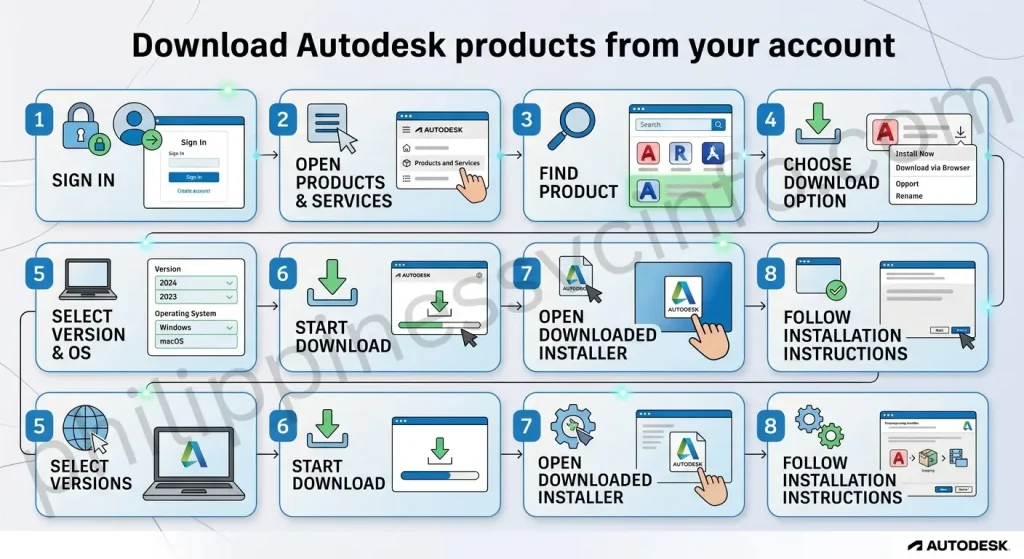
- Sign in to your Autodesk Account.
- Open Products and Services.
- Find the Autodesk product associated with your account.
- Select the available download option.
- Choose the appropriate version and operating system where those choices are provided.
- Start the download.
- Open the downloaded installer.
- Follow the on-screen installation instructions.
Autodesk’s support documentation confirms that users can locate their products under Products and Services and select Download Now or View Downloads, depending on the account and product.
Windows and Mac downloads
Autodesk products may provide different installation packages depending on the operating system. Autodesk’s installation guidance specifically describes downloading Windows .exe or Mac .dmg files for applicable products.
Before downloading, check the product’s system requirements and make sure your computer has enough storage and meets the required specifications.
Choosing the right Autodesk version
Some Autodesk products may offer version choices. If you see multiple versions, consider whether you need the current release or a particular previous version for compatibility with an existing project or workflow.
Don’t select an older release simply because it appears first. Check your project requirements, operating system and any compatibility requirements before installing.
Autodesk Products: Available Software
The Autodesk catalogue covers a broad range of professional and educational applications. Current Autodesk product listings include AutoCAD, Revit, Inventor, Fusion, 3ds Max, Maya, Civil 3D and many other specialised tools.
For example:
- AutoCAD — 2D and 3D CAD design
- Revit — building information modelling
- Inventor — mechanical design and engineering
- Fusion — product design, manufacturing, 3D modelling and related workflows
- Civil 3D — civil engineering design and construction documentation
- 3ds Max — professional 3D modelling and visualisation
- Maya — 3D animation and visual effects
The product you should choose depends on your work, course or learning objective rather than simply choosing the most popular Autodesk application.
Autodesk Education software
The Education Community currently lists a wide selection of Autodesk products, including AutoCAD, Revit, Inventor, Fusion, 3ds Max and Maya. Availability and eligibility are governed by the applicable Autodesk Education terms.
Important: Educational access is not the same as a commercial subscription. Autodesk states that Education plan software and cloud services are for educational purposes and cannot be used for commercial or other for-profit work.
Autodesk Subscription Options
The right Autodesk subscription depends on how frequently you use the software and why you need it.
Your provided information identifies several broad access models:
| Option | Best suited to | General purpose |
|---|---|---|
| Free trial | People evaluating software | Short-term testing |
| Education | Eligible students and educators | Non-commercial learning |
| Monthly/annual subscription | Professionals and businesses | Commercial use |
| Flex | Occasional users | Pay based on usage |
Specific pricing, availability, product inclusions and trial terms can change, so users should check the relevant Autodesk product page before purchasing.
Autodesk Flex
Flex is designed for users who do not need continuous access to a product. Instead of maintaining a traditional subscription for every application, users can use tokens for eligible Autodesk products according to the applicable Flex terms.
This can make sense for occasional users, while regular users may find a conventional subscription more appropriate.
Autodesk Account: Manage Products & Services
After signing in, your Autodesk Account becomes the main control centre for many account-related tasks. Depending on your plan and permissions, you can view products, download software and manage subscription information.
A useful habit is to check your account before downloading software from anywhere else. This reduces the risk of using unofficial installers or outdated files.
What you can manage
Depending on your account type, Autodesk Account may allow you to:
- View products and services
- Download available software
- Review subscriptions
- Manage account details
- Review billing information
- Access support resources
- Handle product access and related settings
For education users, Autodesk also provides account tools for accessing products after eligibility has been confirmed.
Managing Autodesk Billing and Subscriptions
Commercial Autodesk subscribers can manage subscription-related settings through their Autodesk Account.
A typical account-management route is to open the billing or subscription area, select the relevant subscription and review the available options.
Changing payment information
If your subscription supports online payment management, you may be able to update payment details through your Autodesk Account.
A typical process is:
- Sign in to Autodesk Account.
- Open the billing or order-management area.
- Select the relevant subscription.
- Review the payment method currently associated with the subscription.
- Choose the available option to edit payment details.
- Enter the updated information.
- Save the changes.
The exact interface can vary by subscription, purchase channel and account type. If an option isn’t visible, use Autodesk’s official account or billing support rather than assuming the subscription supports that change.
Turning off auto-renewal
If your Autodesk subscription includes automatic renewal, check your subscription management settings before the next billing date if you do not want it to renew.
Do not wait until the last moment. Review the subscription status, renewal information and applicable cancellation terms shown in your Autodesk Account.
Autodesk Support and Troubleshooting
Even when account registration and installation are straightforward, problems can occur. Autodesk provides official help resources for account management, installation, product access and other technical issues.
Where to get Autodesk help
Start with Autodesk’s official support resources when you encounter:
- Login problems
- Account access issues
- Download failures
- Installation errors
- Product activation problems
- Subscription questions
- Billing concerns
- Education verification issues
Autodesk also provides an Autodesk Assistant and support options that vary according to the subscription or service involved.
If an Autodesk download fails
Before trying random third-party download websites, check the official Autodesk account and installation guidance.
Try the following:
- Confirm that the product is actually assigned to your account.
- Check Products and Services.
- Verify that your operating system is supported.
- Restart the download.
- Check your internet connection.
- Review Autodesk’s installation guidance.
- Contact Autodesk Support if the problem remains.
Autodesk specifically directs users with assigned products to their account’s Products and Services area for downloading available software.
Autodesk Education Renewal
Educational access does not simply continue forever without verification. Eligible users need to renew their Autodesk Education access periodically.
Autodesk states that users can begin the renewal process 30 days before expiration. Once eligibility is confirmed, educational access and listed products are extended for another year.
Renewal process
The general renewal flow is:
- Sign in to the Autodesk Education product page.
- Check your eligibility.
- Select Renew when the renewal notification appears.
- Complete the requested school and personal information.
- Confirm eligibility.
- Wait for the renewal confirmation.
- Continue using the eligible Autodesk products.
If your educational access has already expired but you remain eligible, Autodesk also provides a process for restarting access.
Common Autodesk Mistakes to Avoid
A few avoidable mistakes can create unnecessary account or software problems.
- Using unofficial download websites: Always begin with Autodesk’s official website or Autodesk Account when obtaining Autodesk software.
- Creating duplicate accounts: If you already have an Autodesk Account, sign in rather than creating another account without a reason.
- Assuming a school email proves eligibility: Autodesk says eligibility requires verification and a school email alone isn’t sufficient or required.
- Using educational software commercially: Autodesk’s Education terms restrict educational software and cloud services to educational purposes.
- Waiting until access expires: Education users should review renewal information before the expiration date.
Autodesk Quick Checklist
Before using Autodesk, make sure you have:
- An active Autodesk Account
- A verified email address
- The correct Autodesk product
- A supported operating system
- The appropriate subscription or education access
- Required eligibility documents if applying for Education
- A secure record of your Autodesk login details
- Access to Autodesk’s official support resources
Keeping these details organised makes future Autodesk login, download, renewal and account-management tasks much easier.
Advantages and Disadvantages of Autodesk
Advantages of Autodesk
- Wide range of software: Autodesk offers products for CAD, architecture, engineering, manufacturing, animation and visualisation.
- Centralised account management: An Autodesk Account lets users manage products, downloads, subscriptions and support resources.
- Free educational access: Eligible students and educators can receive one-year educational access, with renewal available while they remain eligible.
- Multiple subscription options: Users can choose between education access, monthly/annual subscriptions, trials and Flex, depending on their needs.
- Official support resources: Autodesk provides support for login, downloads, installation, activation, billing and education verification issues.
Disadvantages of Autodesk
- Education access has restrictions: Educational software is intended for educational purposes and cannot be used for commercial or for-profit work.
- Student verification is required: Students and educators may need to provide information or supporting documentation to prove eligibility.
- Education access requires renewal: Eligible users need to renew their access periodically rather than receiving permanent free access.
- Commercial access may require payment: Professional and business users generally need an applicable subscription or purchase arrangement.
- Product selection can be complicated: Because Autodesk has many specialised products, users need to choose software according to their specific work, course or project requirements.
Autodesk FAQs
Autodesk Conclusion
Autodesk provides a broad digital platform for design, engineering, construction, manufacturing, animation, and visualisation. Through an Autodesk Account, users can manage products, download available software, review subscriptions, and access support resources. Students and educators can also apply for eligible Autodesk Education access and use supported products for non-commercial educational purposes. Whether you are creating your first Autodesk Account, downloading software, renewing educational access, managing billing, or resolving a login or installation issue, using Autodesk’s official website is the best starting point. Keeping your account information accurate and checking current Autodesk requirements can also help prevent unnecessary delays. For the latest product, education, subscription, installation, and support information, always refer to Autodesk’s official resources.
Discover What You Need to Know:
- UC Portal: Login, Registration, Enrollment & Student Guide 2026
- SAP: Complete Guide to Login, Registration, Modules, Features & Services 2026
- MATATAG Curriculum Guide: Grades, Subjects & Official PDF 2026
- PRC Renewal Complete Guide to Online License Renewal, Requirements, Fees & Appointment 2026
- PRC Online Appointment 2026: Registration, Booking and Requirements