Quipper is an educational technology platform that provides digital learning tools for students, teachers, schools, and parents. Depending on the service and country, users can access learning materials, assignments, assessments, and other educational features through Quipper’s online platforms. Quipper’s official Philippines website describes the service as a complete digital learning solution covering education from Kinder through tertiary level.
If you are searching for Quipper login, Quipper registration, Quipper student portal, Quipper classes, assignments, or account access, this guide explains the main steps in a simple way.
What Is Quipper?
Quipper is an EdTech platform designed to support online and blended learning. Its services can connect students and teachers through digital lessons, assignments, assessments, and learning management tools.
For example, Quipper’s current Philippines platform provides an LMS with portals for students, teachers and school administrators, as well as parents. Its content library includes instructional materials, lesson slides, study guides, video lessons, online assessments, and interactive quizzes.
The exact features available to you may depend on your school, country, account type, and Quipper service.
What Can Students Do on Quipper?
Students may use Quipper to:
- Access assigned lessons
- View learning materials
- Complete online assignments
- Take quizzes and assessments
- Review learning content
- Receive tasks from teachers
- Check available activities
- Communicate with teachers or tutors where supported
Quipper’s official terms describe Q-Learn as its student portal, where students can receive assignments, work on to-do tasks, message teachers and tutors, and use other student functions.
What Is the Official Quipper Website?
The main official website for Quipper is:
This website provides information about Quipper and its educational services.
If you are specifically trying to access the student learning platform, the official Quipper Learn portal is:
The current Quipper Learn site is an active web application and requires JavaScript to function properly.
For teachers using Quipper School Link, the official login page is:
The current Quipper Link page provides a dedicated login interface for teachers.
Important: Always check that you are using an official Quipper domain before entering your username, email address, or password.
Quipper Login Guide
The Quipper login process depends on which Quipper service your school or account uses. Students generally access the learning platform through Quipper Learn, while teachers may use Quipper Link.
Follow these general steps to access your account.
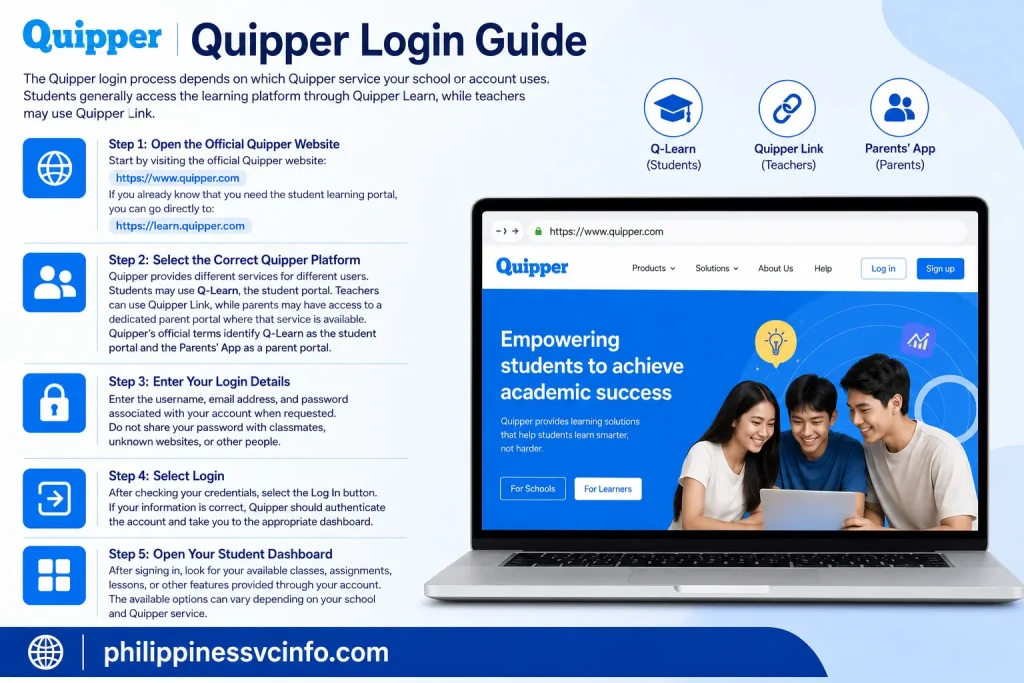
Step 1: Open the Official Quipper Website
Start by visiting the official Quipper website:
If you already know that you need the student learning portal, you can go directly to:
Using the official website or the portal supplied by your school helps you avoid unofficial login pages.
Step 2: Select the Correct Quipper Platform
Quipper provides different services for different users.
Students may use Q-Learn, the student portal. Teachers can use Quipper Link, while parents may have access to a dedicated parent portal where that service is available. Quipper’s official terms identify Q-Learn as the student portal and the Parents’ App as a parent portal.
Step 3: Enter Your Login Details
Enter the username, email address, and password associated with your account when requested.
Do not share your password with classmates, unknown websites, or other people.
Step 4: Select Login
After checking your credentials, select the Log In button.
If your information is correct, Quipper should authenticate the account and take you to the appropriate dashboard.
Step 5: Open Your Student Dashboard
After signing in, look for your available classes, assignments, lessons, or other features provided through your account.
The available options can vary depending on your school and Quipper service.
How to Register for a Quipper Account
Another common search is Quipper registration. Account creation procedures can vary according to the Quipper product and country.
For student accounts, registration may be completed independently or through instructions provided by a school or teacher.
Quipper’s own student registration tutorial previously described a process in which students visited the Quipper School website, opened the student portal, selected the account-creation option, and completed the registration form. The same official tutorial explained that students could subsequently join a teacher’s class using a class code.
Because Quipper’s interface can change over time, follow the current instructions displayed on the official platform rather than relying on an old screenshot or third-party guide.
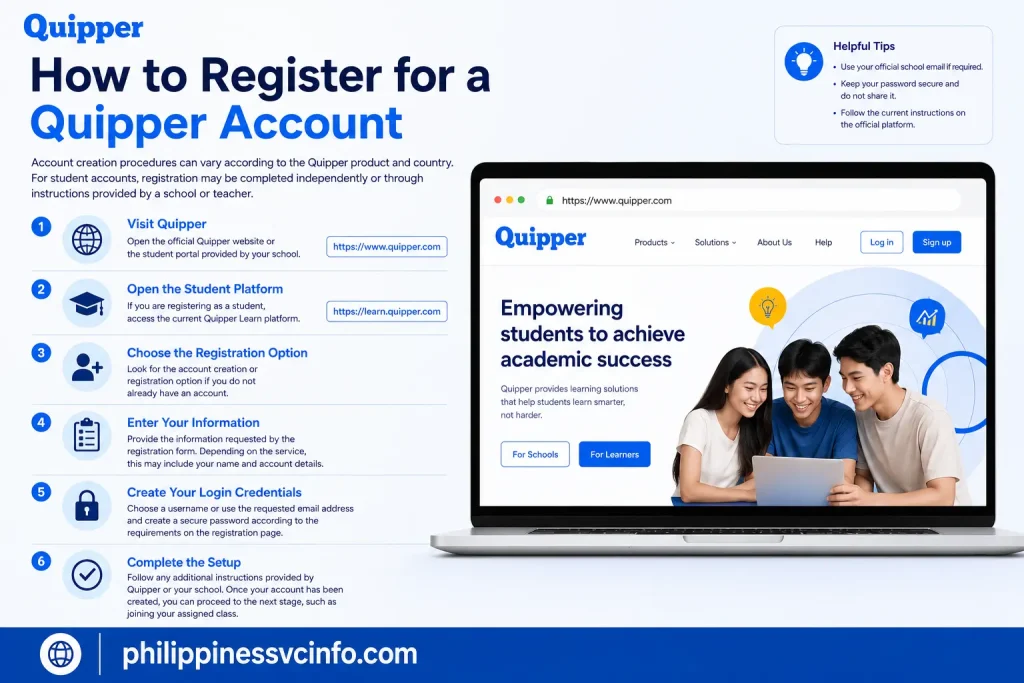
1. Visit Quipper
Open the official Quipper website or the student portal provided by your school.
2. Open the Student Platform
If you are registering as a student, access the current Quipper Learn platform.
3. Choose the Registration Option
Look for the account creation or registration option if you do not already have an account.
4. Enter Your Information
Provide the information requested by the registration form. Depending on the service, this may include your name and account credentials.
5. Create Your Login Credentials
Choose a username or use the requested email address and create a secure password according to the requirements shown on the registration page.
6. Complete the Setup
Follow any additional instructions provided by Quipper or your school.
Once your account has been created, you can proceed to the next stage, such as joining your assigned class.
What Do You Need for Quipper Registration?
The exact requirements depend on your account and school setup. Generally, students should have:
- A valid account or registration invitation, where required
- The personal information requested by the registration form
- A username or email address, depending on the platform
- A secure password
- A class code if the teacher requires students to join an existing class
Do not assume that every Quipper user will see exactly the same registration screen. School-managed accounts may follow a different onboarding process.
Quipper Student Portal
The Quipper student portal is the area where students access their digital learning activities.
Quipper officially identifies Q-Learn as the student portal at learn.quipper.com. According to Quipper’s terms, students can receive assignments, work on their to-do tasks, message teachers and tutors, and access other student functionality through Q-Learn.
Once you have logged in, the options available to you depend on the account and services provided by your school.
What You May Find in the Student Portal
A Quipper student account may provide access to:
- Classes
- Assignments
- Learning materials
- Quizzes
- Assessments
- To-do activities
- Teacher communications
- Progress or performance information
Quipper’s Philippines content platform also lists student resources such as lesson slides, study guides, video lessons, online assessments, and interactive quizzes.
What to Do After Quipper Registration
Creating your Quipper account is only the beginning. If your school uses class-based learning, your teacher may provide a class code or another method for connecting your account with the appropriate class.
After joining the correct class, check your dashboard regularly for newly assigned work.
How to Join a Quipper Class
After completing Quipper registration, students may need to join the class created by their teacher. A class connects your student account with the learning activities, assignments, and materials provided by the school or teacher.
The exact interface can vary depending on the Quipper service and school setup, but the general process is straightforward.
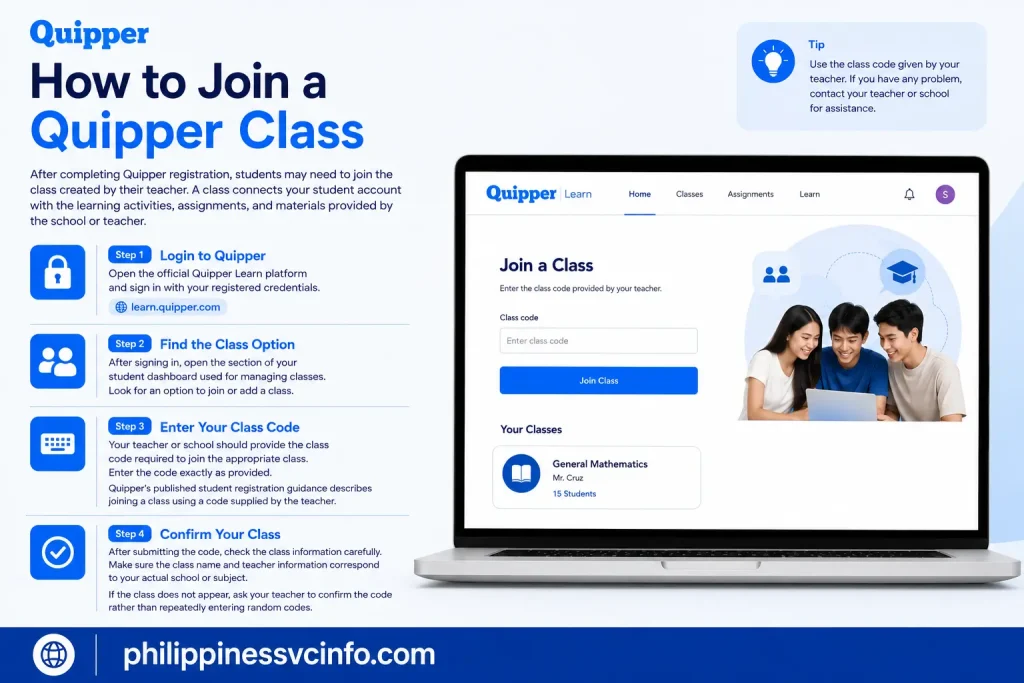
Step 1: Login to Quipper
Open the official Quipper Learn platform and sign in with your registered credentials.
Step 2: Find the Class Option
After signing in, open the section of your student dashboard used for managing classes. Look for an option to join or add a class.
Step 3: Enter Your Class Code
Your teacher or school should provide the class code required to join the appropriate class. Enter the code exactly as provided.
Quipper’s published student registration guidance describes joining a class using a code supplied by the teacher. Because platform procedures can change, use the instructions currently displayed in your account if they differ. (quipper.com)
Step 4: Confirm Your Class
After submitting the code, check the class information carefully. Make sure the class name and teacher information correspond to your actual school or subject.
If the class does not appear, ask your teacher to confirm the code rather than repeatedly entering random codes.
Quipper Student Dashboard
Once you have joined the appropriate class, your Quipper student dashboard becomes the main place to check your learning activities.
Quipper identifies Q-Learn as its student portal. Students can receive assignments, work on their to-do tasks, and communicate with teachers or tutors through the platform. (ph.quipper.com)
Depending on your school’s setup, you may see areas for:
- Classes
- Assignments
- To-do tasks
- Learning materials
- Quizzes
- Assessments
- Teacher communication
- Progress information
The exact features available to an individual student can depend on the Quipper service being used.
How to Access Quipper Assignments
Assignments are an important part of the Quipper learning experience. Teachers can distribute learning activities to students, who can then access and complete them through their accounts.
Quipper’s official platform information states that students can receive assignments and work on to-do tasks through Q-Learn. (ph.quipper.com)

Steps to Check Quipper Assignments
1. Login to your student account.
Open Quipper Learn and enter your account credentials.
2. Open your dashboard.
Look for the area showing current learning activities or tasks.
3. Check your assignments.
Review the assignments provided by your teacher.
4. Select the required activity.
Open the assignment you need to complete and read the instructions carefully.
5. Study the available material.
If the assignment includes lessons, slides, videos, or study resources, review them before answering the questions.
6. Complete the activity.
Answer the questions or complete the learning activity according to your teacher’s instructions.
7. Submit your work.
Follow the submission instructions displayed in the Quipper platform.
Students should pay attention to deadlines because assignments may be associated with specific completion periods established by the teacher or school.
Quipper Lessons and Learning Materials
Quipper can provide students with different types of digital learning resources. The official Quipper Philippines platform lists resources including lesson slides, study guides, video lessons, online assessments, and interactive quizzes. (ph.quipper.com)
This means students may encounter different learning formats rather than relying only on traditional written assignments.
Common Quipper Learning Activities
A student may be asked to:
- Read lesson material
- Watch an educational video
- Review study guides
- Answer quiz questions
- Complete an assessment
- Submit an assigned activity
- Review performance information
The resources available to you depend on the courses and content selected by your school.
Quipper for Teachers
Quipper also provides tools designed specifically for teachers. Educators can use the teacher platform to manage digital learning activities and interact with students.
The teacher portal is commonly known as Quipper Link or Q-Link. Quipper’s official terms describe Q-Link as the teacher portal and state that teachers can create assignments, review student performance, communicate with students, and use other teacher functions. (ph.quipper.com)
How Teachers Use Quipper
Depending on the account and school environment, teachers may use Quipper to:
Create Assignments
Teachers can prepare assignments and distribute them to students through the digital learning environment.
Monitor Student Performance
Quipper provides tools that can help educators review student performance and completed activities.
Communicate With Students
The platform can support communication between teachers and students where the relevant features are enabled.
Manage Classes
Teachers can organize learning activities for the classes they manage.
Use Digital Learning Content
Teachers may also have access to Quipper’s educational content and resources for creating or supporting lessons.
The exact tools available depend on the Quipper service and the educational institution using it.
Quipper for Parents
Quipper can also provide tools for parents who want to follow a student’s progress.
Quipper’s official terms identify a Parents’ App that can allow parents to monitor a student’s progress and performance on applicable assignments and self-study courses distributed through Quipper classes. (ph.quipper.com)
Parents should use the login details or access instructions supplied by their school or Quipper service.
What Parents Can Monitor?
Where the parent service is available, parents may be able to review information connected with their child’s learning activities, including progress and performance.
This can help parents understand whether students are keeping up with assigned digital learning work.
Tips for Using Quipper Effectively
Whether you are a student, teacher, or parent, a few basic practices can make the Quipper experience easier.
Keep Your Login Details Secure
Never share your password with strangers or enter your credentials on suspicious websites.
Check Assignments Regularly
Students should make it a habit to check their dashboard for new tasks and deadlines.
Use the Official Portal
Always start from the official Quipper website or the portal supplied by your school.
Confirm Class Information
If you are joining a class with a code, verify that you have selected the correct class before starting assignments.
Keep Your Browser Updated
Using a modern, updated browser can help reduce compatibility problems when accessing web-based learning platforms.
Contact Your Teacher When Necessary
If an assignment, class code, or account instruction is unclear, your teacher or school administrator is usually the best person to contact.
Quipper Mobile and Online Learning
Digital learning platforms are designed to make educational resources accessible beyond the traditional classroom. Quipper can support online and blended learning through its different digital services.
Students can use their available Quipper account to access assigned learning activities, while teachers can manage coursework and review student performance.
However, available functions may vary according to the country, school, subscription, and specific Quipper product being used. For this reason, students should follow the instructions associated with their own school account.
Quipper Password Reset
Forgetting your password can prevent you from completing a Quipper login, but the platform provides an official password-recovery option for Quipper Learn users.
How to Reset Your Quipper Password
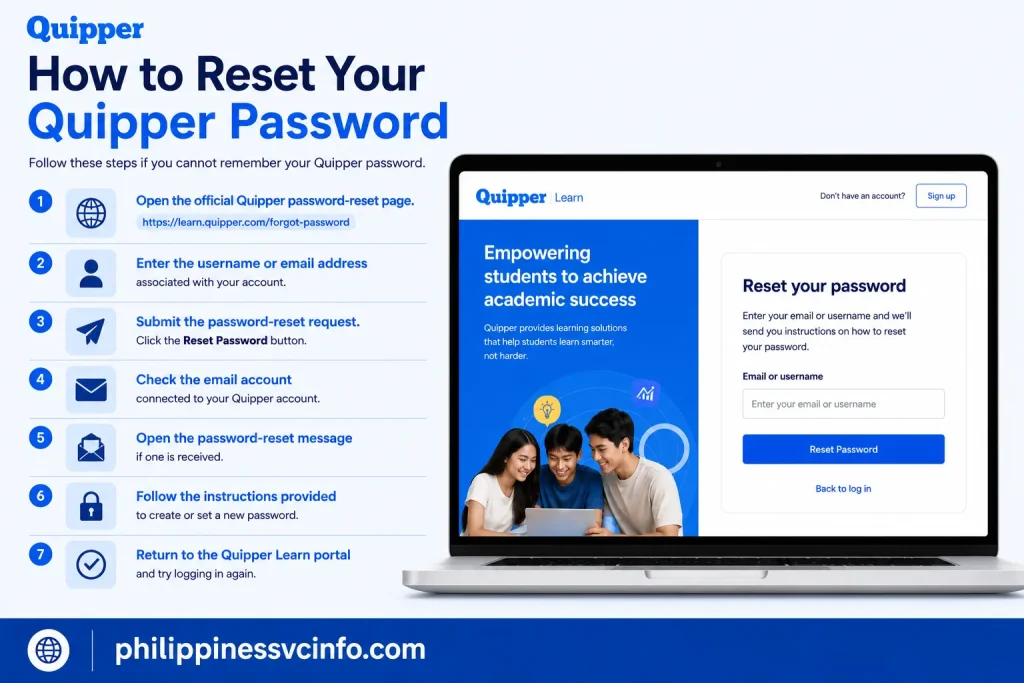
Follow these steps if you cannot remember your Quipper password:
- Open the official Quipper password-reset page.
- Enter the username or email address associated with your account.
- Submit the password-reset request.
- Check the email account connected to your Quipper account.
- Open the password-reset message if one is received.
- Follow the instructions provided to create or set a new password.
- Return to the Quipper Learn portal and try logging in again.
The official Quipper Learn recovery page provides a field for a username or email address and allows users to request a password-reset link. (learn.quipper.com)
If you do not receive the email, check your spam or junk folder and make sure you entered the correct account information.
Common Quipper Login Problems
Sometimes a Quipper login may fail even when the platform itself is working normally. Most access problems are related to credentials, account setup, browser issues, or incorrect class information.
Incorrect Username or Email
Check that you are using the username or email address associated with your Quipper account. Avoid adding unnecessary spaces when entering your credentials.
Forgotten Password
If you cannot remember your password, use the official password-recovery page instead of repeatedly trying different passwords.
Wrong Quipper Portal
Make sure you are using the correct platform for your account. Students and teachers may use different Quipper services.
Students should follow their school’s instructions for accessing Quipper Learn, while teachers may use Quipper Link.
Class Code Not Working
If a class code does not work, first check that you entered it exactly as provided by your teacher. If the problem continues, ask your teacher or school administrator to confirm the code.
Quipper Page Not Loading
If the Quipper website does not load properly, check your internet connection and refresh the page. You can also try opening Quipper in another updated browser.
The current Quipper Learn web application indicates that JavaScript is required for the platform to function. (learn.quipper.com.
How to Fix Quipper Loading Problems
If Quipper is not loading correctly, try the following basic troubleshooting steps.
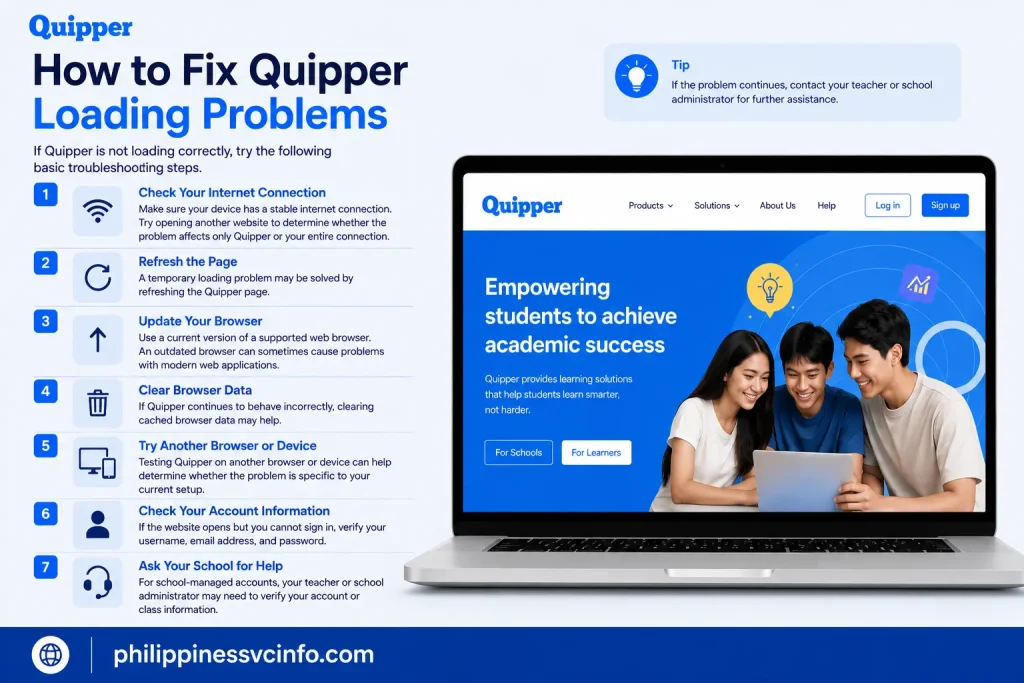
1. Check Your Internet Connection
Make sure your device has a stable internet connection. Try opening another website to determine whether the problem affects only Quipper or your entire connection.
2. Refresh the Page
A temporary loading problem may be solved by refreshing the Quipper page.
3. Update Your Browser
Use a current version of a supported web browser. An outdated browser can sometimes cause problems with modern web applications.
4. Clear Browser Data
If Quipper continues to behave incorrectly, clearing cached browser data may help.
5. Try Another Browser or Device
Testing Quipper on another browser or device can help determine whether the problem is specific to your current setup.
6. Check Your Account Information
If the website opens but you cannot sign in, verify your username, email address, and password.
7. Ask Your School for Help
For school-managed accounts, your teacher or school administrator may need to verify your account or class information.
Quipper Security Tips
Account security is important when using any online learning platform. Students, teachers, and parents should protect their Quipper credentials.
Use a Strong Password
Create a password that is difficult for other people to guess. Avoid using simple information such as your name or an easily recognizable date.
Do Not Share Your Password
Never give your Quipper password to classmates, strangers, or websites claiming to provide account assistance.
Use Official Quipper Pages
Before entering login details, verify that you are using an official Quipper domain.
Log Out on Shared Devices
If you use Quipper on a computer or mobile device shared with other people, log out when you finish your session.
Is Quipper Free?
Whether Quipper is free depends on the particular service, subscription, school arrangement, and country.
Some Quipper services may be provided through schools or educational programs, while other services can involve subscriptions or fees. Quipper’s terms explain that applicable subscription fees are presented during the relevant registration process. (ph.quipper.com)
Therefore, students should not assume that every Quipper feature is free. If your school provides Quipper access, check the instructions supplied by your school to understand which features are included with your account.
Quipper FAQs
Final Thoughts
Quipper brings several digital learning activities into one online environment, allowing students to access classes, assignments, lessons, quizzes, and other educational activities while teachers manage digital coursework and monitor student performance. For the best experience, always use the official Quipper website or the specific portal provided by your school, keep your account credentials secure, check assignments regularly, and use the official password-recovery process if you lose access. Whether you are looking for Quipper login, Quipper registration, Quipper student portal, class enrollment, assignments, password recovery, or troubleshooting, starting with official Quipper resources is the safest way to find current instructions.
Discover What You Need to Know:
- AIMS ICCT Student Portal Guide 2026: Login, Enrollment, Grades & Registration
- Globe Plan Renewal 2026: Requirements, Eligibility, Online Steps & Guide
- BFP Payslip Online 2026: Login, Download, Salary, Deductions & Payroll Guide
- DITO Unli Data 2026: Complete Guide to 5G Promos, Prices, Registration
- DepEd Monday Uniform 2026 Philippines: Complete Uniform Schedule, Designs, Rules & Official Guidelines