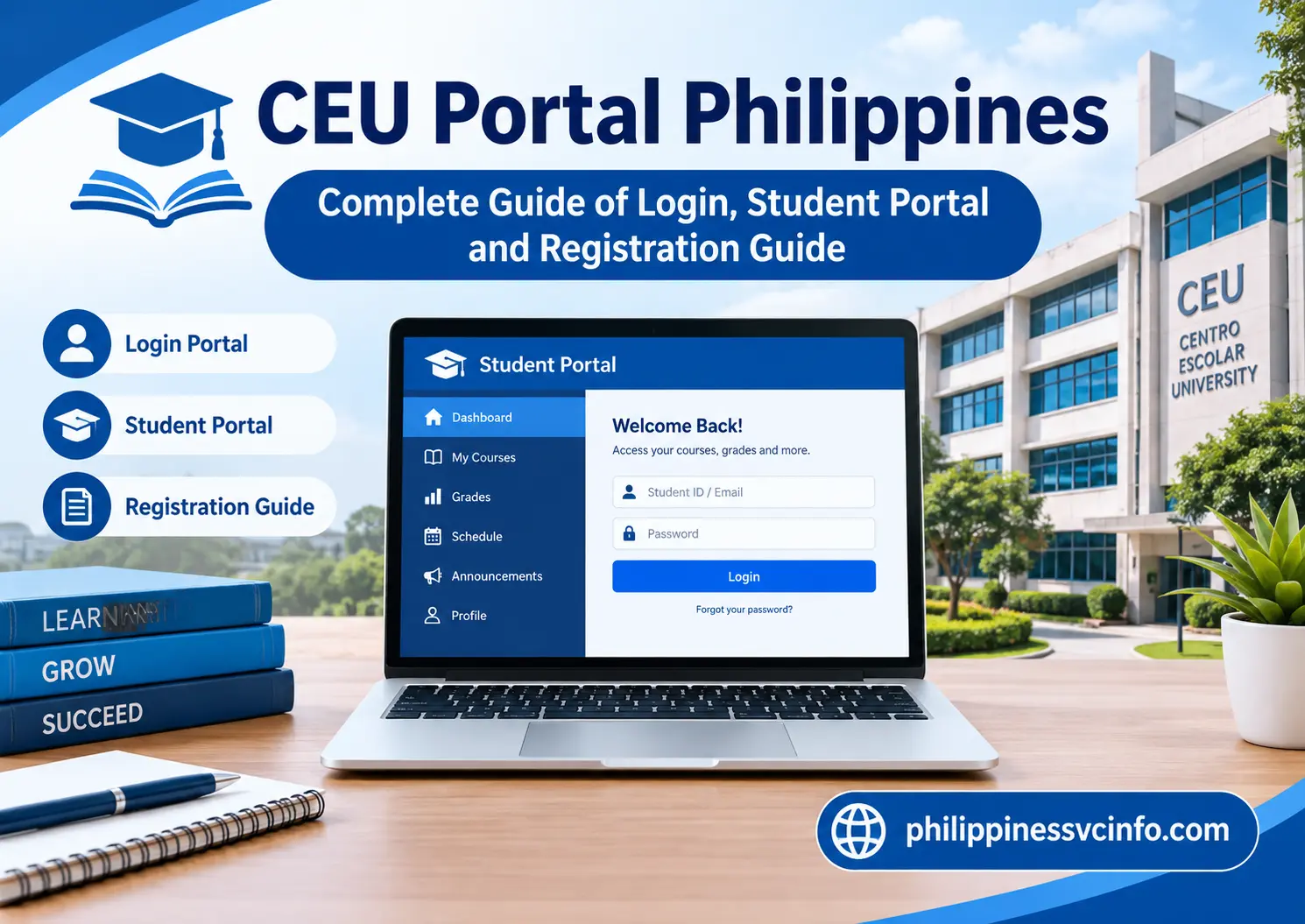
CEU Portal is the online student platform of Centro Escolar University (CEU) in the Philippines. It gives students a central place to access selected academic and university services online. Students can sign in using their CEU Gmail account and use the portal for relevant student-related activities.
What Is the CEU Portal?
The CEU Portal is an online university system associated with Centro Escolar University. It is intended to give students access to digital academic and university-related services without requiring every transaction to be completed physically at a campus office.
For students, the CEU Portal can be particularly useful when checking information connected with their university account. However, the exact services visible after login can depend on the student’s account, programme, campus, and the services currently enabled by CEU.
CEU’s official website also lists several separate online services, including online payment and online requests for documents. This means students should not assume that every CEU service is necessarily handled inside one portal.
CEU Portal at a Glance
| Item | Official information |
|---|---|
| University | Centro Escolar University |
| Main website | ceu.edu.ph |
| Student portal | portal.ceu.edu.ph |
| Portal login | portal.ceu.edu.ph/app.php/login |
| Campuses | Manila, Makati and Malolos |
| Current login option | CEU GMail |
| Main purpose | Accessing CEU online student-related services |
How to Open the CEU Portal Login Page
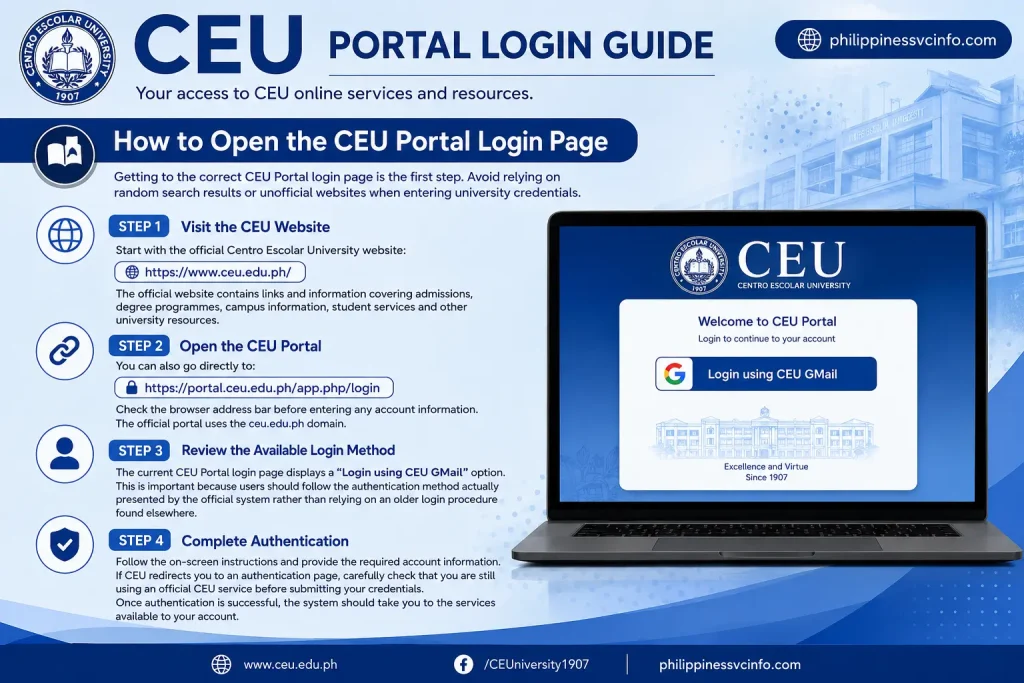
Getting to the correct CEU Portal login page is the first step. Avoid relying on random search results or unofficial websites when entering university credentials.
Step 1: Visit the CEU Website
Start with the official Centro Escolar University website:
The official website contains links and information covering admissions, degree programmes, campus information, student services and other university resources.
Step 2: Open the CEU Portal
You can also go directly to:
Check the browser address bar before entering any account information. The official portal uses the ceu.edu.ph domain.
Step 3: Review the Available Login Method
The current CEU Portal login page displays a “Login using CEU GMail” option. This is important because users should follow the authentication method actually presented by the official system rather than relying on an older login procedure found elsewhere.
Step 4: Complete Authentication
Follow the on-screen instructions and provide the required account information. If CEU redirects you to an authentication page, carefully check that you are still using an official CEU service before submitting your credentials.
Once authentication is successful, the system should take you to the services available to your account.
CEU Portal Login Problems
A failed login does not necessarily mean that your account has been permanently disabled. Several ordinary issues can prevent successful access.
Before contacting support, check the following:
- Confirm that you opened the official CEU Portal.
- Check whether you are using the correct CEU account.
- Make sure your internet connection is stable.
- Refresh the page if the login screen does not load correctly.
- Try an updated browser.
- Check whether the official system is displaying a different authentication method.
- Avoid repeatedly entering incorrect credentials.
If the portal continues to reject your account, use the university’s official support or administrative contacts rather than giving your password to another person.
Important Portal Login Note
The current CEU Portal page contains a notice stating that it is a beta test and that grades displayed on the site are not official or in real time. Students should therefore avoid treating portal grade displays as the final authority when an official academic record is required.
What You May Find After CEU Portal Login
The exact dashboard can vary, so it is better to treat the CEU Portal as the entry point to available student services rather than assuming every student sees an identical menu.
Depending on your account and current university processes, you may encounter areas associated with academic or student information.
Common areas students may need include:
- Student or account information
- Academic information
- Class-related information
- Registration or enrolment-related functions
- University announcements
- Student records
- Other CEU online services
CEU also maintains separate systems and pages for specific purposes. For example, the university has an online admissions platform for applicants, while My CEU provides CEU student email access.
CEU Portal vs CEU Admissions Portal
One common source of confusion is using the wrong CEU online system.
The CEU Portal should not automatically be treated as the same system as the CEU Online Admissions platform.
The official CEU admissions portal is designed for applicants and includes functions such as creating an admissions account, submitting applications, scheduling entrance examinations, uploading requirements, paying applicable fees and monitoring application or enrolment progress.
For applicants, use:
For the student portal, use:
Keeping these systems separate can prevent students from trying to use an admissions account on the wrong login page.
Is the CEU Portal the Same as My CEU?
Not necessarily.
CEU operates more than one online service. The My CEU page is specifically presented as a CEU Email Login service and asks users to use their CEU Student Email.
Meanwhile, the CEU Portal has its own login page.
Therefore, if you need to access your university email, you should use the appropriate My CEU service. If you are trying to access the student portal, use the official CEU Portal address instead.
What If You Cannot Access Your CEU Account?
Start by identifying which CEU service is causing the problem.
If the problem occurs on the CEU Portal, remain on the official portal and follow the available login or authentication instructions.
If the problem concerns CEU admissions, use the official admissions platform instead. The admissions system provides its own sign-in and password-recovery functions.
If the issue concerns your CEU student email, use the appropriate My CEU service.
This distinction matters because a problem with one CEU online service does not necessarily mean that your entire university account is unavailable.
CEU Portal Services, Enrolment, Records & Payments
Once you have successfully accessed the CEU Portal, the next step is understanding where to look for the information or service you need. The portal is more useful when you know the difference between academic information, enrolment functions, financial records, and the separate online services maintained by Centro Escolar University.
Because online systems can change, always follow the options currently displayed inside your authenticated CEU Portal account rather than relying on screenshots or instructions from older posts.
Using the CEU Portal for Student Information
Your student account is the starting point for accessing services associated with your university records. After logging in, look through the dashboard and navigation areas for the relevant student functions available to your account.
The information presented can depend on your status and the services enabled by CEU. A new student, continuing student, applicant, and graduate may not have identical options.
If you cannot find a particular service, don’t assume that it has been removed. CEU may provide that function through another official system or require students to complete the transaction through a campus office.
Checking Academic Information Through the CEU Portal
Students commonly access the CEU Portal when they need to review academic information.
Depending on what your account currently provides, look for sections related to:
- Academic records
- Grades
- Subjects or courses
- Class information
- Registration
- Curriculum-related information
- Student status
When reviewing grades, pay attention to the academic period selected. A previous semester and the current semester may display different information.
A Note About Portal Grades
The current CEU Portal login page specifically warns users that the grades displayed through the portal are not official or real-time. This means students should not automatically use a portal display as a substitute for an official academic document when an institution, employer, government agency, or another organisation requires certified records.
If you need an official academic record, follow CEU’s current procedure for requesting the appropriate document.
This distinction is particularly important when checking information close to enrolment periods, examinations, grade releases, or graduation processing.
How to Check Your Class or Academic Information
If your account provides class-related information, the general process is straightforward:
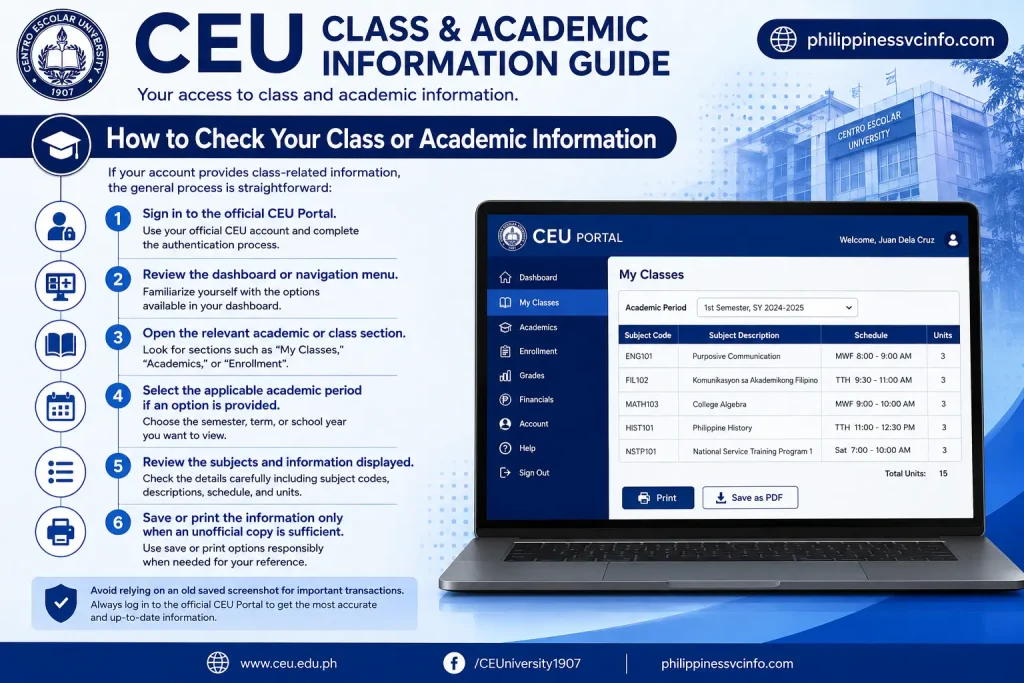
- Sign in to the official CEU Portal.
- Review the dashboard or navigation menu.
- Open the relevant academic or class section.
- Select the applicable academic period if an option is provided.
- Review the subjects and information displayed.
- Save or print the information only when an unofficial copy is sufficient.
Avoid relying on an old saved screenshot for important academic decisions. Class schedules and university instructions can change.
CEU Portal and Enrolment
Enrolment is one of the areas students are most likely to search for when looking for the CEU Portal.
However, the exact online enrolment procedure can vary according to the programme, academic period, campus, and current university instructions. Therefore, students should use the enrolment options available in their account and follow any instructions issued by CEU.
Before attempting registration, it is sensible to have the following information ready:
- Student account details
- Current programme or course information
- Recommended subjects, where applicable
- Registration schedule
- Any required clearance
- Payment information if applicable
Before Selecting Subjects
Take a moment to verify the academic period and programme shown in your account. Choosing the wrong term or relying on an outdated curriculum can create confusion when selecting subjects.
If a subject is unavailable, appears restricted, or does not appear in your expected list, contact the appropriate CEU academic or administrative office rather than repeatedly attempting to submit the same registration.
What to Do If a Subject Is Full
A full class does not necessarily mean that you should select an unrelated subject simply to complete registration.
First, check the current instructions provided by your department or college. If academic advising is required, ask the appropriate office whether another section is available or whether a formal request is necessary.
The correct solution depends on CEU’s current enrolment rules and the particular programme.
Reviewing Financial Information
Students may also need the CEU Portal when checking information connected with fees or student accounts. If a financial section is available in your account, review the information carefully before making a payment.
Look for details such as:
- Current balance
- Previous payments
- Applicable charges
- Payment status
- Available payment instructions
Do not assume that an amount shown online is the final amount for every situation. If your account appears inconsistent with an official assessment or payment receipt, ask CEU’s appropriate finance or accounting office to verify the record.
CEU Online Payment Services
CEU also maintains online payment facilities separately from the main portal. The university’s official website provides access to online payment-related services.
For payment transactions, use only the payment route provided through CEU’s official website or official university instructions.
Before submitting a payment, verify:
- Student information
- Amount
- Payment purpose
- Payment channel
- Transaction details
After completing a transaction, retain the electronic confirmation or receipt until the payment has been properly reflected in your account.
Payment Not Yet Reflected?
There can be a delay between making a payment and seeing an updated account status.
If the payment does not appear immediately:
- Keep the payment confirmation.
- Check the transaction details for errors.
- Allow the processing period specified by CEU or the payment provider.
- Check the account again later.
- If the issue remains unresolved, contact the appropriate CEU office and provide the transaction reference or receipt.
Never send your password or other account credentials to someone claiming they can manually update a payment.
CEU Portal for Applicants and New Students
Applicants should distinguish between the CEU Portal and the university’s admissions platform.
The official CEU Online Admissions system provides applicant-oriented functions, including account creation, application-related processes, scheduling, document submission and other admissions activities.
If you are applying to CEU for the first time, start with the official admissions system rather than assuming that the student CEU Portal is the correct place to begin an application.
Once you become a student, use the university’s instructions for accessing the appropriate student systems.
CEU Student Email and My CEU
Another important distinction is the university email service.
CEU provides a My CEU service for CEU email access. The official page identifies this as a CEU Email Login and instructs users to use their CEU Student Email.
This can matter when you are trying to authenticate into university systems because some CEU services may depend on your institutional account.
If you are unsure whether you should be using your student email, the CEU Portal, or the admissions system, begin at the official CEU website and follow the relevant service link.
Using the CEU Portal on a Phone
A smartphone can be useful for checking online university information when you are away from a computer.
For routine viewing, open the official CEU Portal in an up-to-date mobile browser and sign in through the method presented by the university.
For more complicated tasks, such as reviewing multiple academic details, completing forms, or handling payment information, a desktop or laptop may provide a more convenient experience.
Mobile Access Tips
- Use a secure internet connection.
- Keep your browser updated.
- Avoid saving university credentials on shared devices.
- Don’t use public computers for sensitive account activity when a safer option is available.
- Log out after finishing.
- Check the address bar before entering account information.
Common CEU Portal Problems and Practical Fixes
Invalid Login
If your login does not work, first confirm that you are using the official CEU Portal and the authentication method currently shown on its login page.
The current portal specifically presents CEU GMail login, so older instructions asking users to follow a different authentication process may no longer match the live system.
Portal Page Will Not Load
A temporary browser or connection problem can sometimes prevent a page from loading correctly.
Try:
- Refreshing the page
- Checking your internet connection
- Opening the portal in another supported browser
- Clearing browser cache when appropriate
- Trying again later if the service appears temporarily unavailable
If the problem affects multiple devices or persists for an extended period, contact CEU through an official support channel.
A Feature Is Missing
If an expected menu or function isn’t visible, check whether:
- You are signed into the correct account.
- You selected the correct academic period.
- Your account has the necessary student status.
- CEU has moved that service to another official platform.
- The university has issued new instructions.
Avoid assuming that every student has the same dashboard.
Protecting Your CEU Portal Account
Your CEU Portal account may provide access to information that should not be shared publicly. Good account security is therefore part of using the portal correctly.
Follow These Security Practices
Use the official website.
Start from the CEU domain or a university-provided official link.
Protect your password.
Never share your password with classmates, strangers, or people claiming to be technical support.
Be careful with links.
Before signing in, verify that the website address belongs to an official CEU domain.
Log out on shared devices.
This is particularly important when using a library, laboratory, computer shop, or another shared computer.
Keep your recovery information current.
If CEU provides account-recovery options, make sure you can access the associated institutional account.
Watch for suspicious messages.
Don’t enter your university credentials into a page simply because a message claims that your account needs immediate verification.
A Simple CEU Portal Checklist
Before starting an important online transaction, run through this short checklist:
- I am using the official CEU website or portal.
- I am using the correct CEU account.
- I have checked the academic term.
- I have reviewed any relevant university instructions.
- I have confirmed the information before submitting it.
- I have saved important payment or transaction confirmations.
- I have logged out after using a shared device.
This small routine can prevent avoidable mistakes.
Official CEU Links You Should Bookmark
Keeping the correct pages saved can make future access much easier.
| CEU Service | Official Link |
|---|---|
| CEU Main Website | ceu.edu.ph |
| CEU Portal Login | portal.ceu.edu.ph/app.php/login |
| CEU Online Admissions | registrar.ceu.edu.ph |
| My CEU Email | myceu.ceu.edu.ph |
These links should be preferred over unofficial pages that reproduce CEU login forms or claim to provide account assistance.
How to Avoid Fake CEU Portal Login Pages
University accounts are valuable targets for phishing, so checking the website address should become a normal habit.
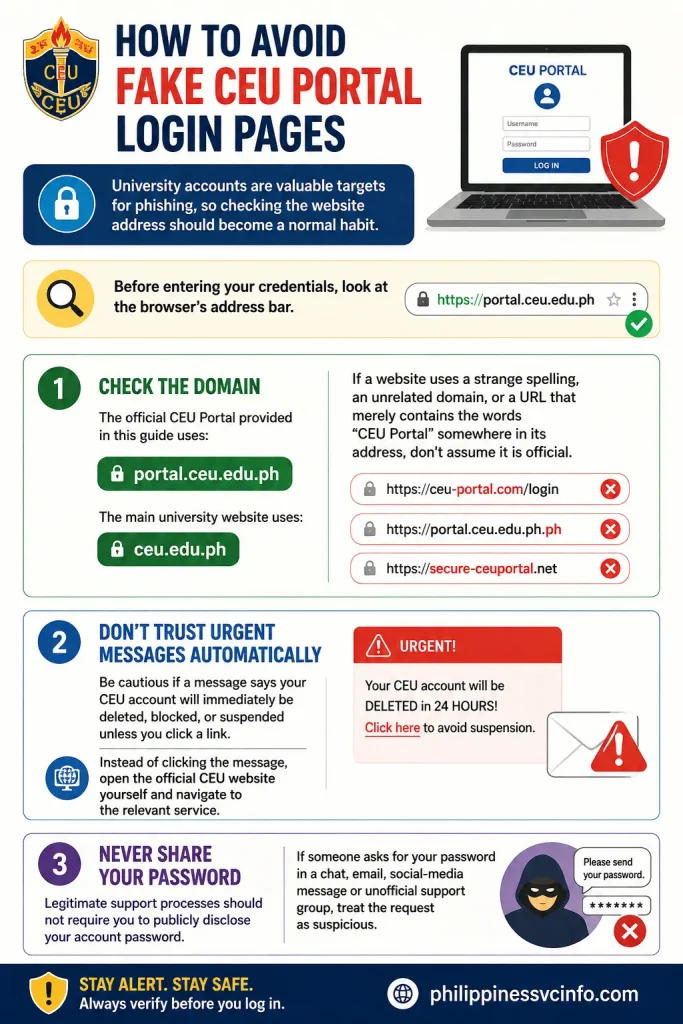
Before entering your credentials, look at the browser’s address bar.
Check the Domain
The official CEU Portal provided in this guide uses:
portal.ceu.edu.ph
The main university website uses:
ceu.edu.ph
If a website uses a strange spelling, an unrelated domain, or a URL that merely contains the words “CEU Portal” somewhere in its address, don’t assume it is official.
Don’t Trust Urgent Messages Automatically
Be cautious if a message says your CEU account will immediately be deleted, blocked, or suspended unless you click a link.
Instead of clicking the message, open the official CEU website yourself and navigate to the relevant service.
Never Share Your Password
Legitimate support processes should not require you to publicly disclose your account password.
If someone asks for your password in a chat, email, social-media message or unofficial support group, treat the request as suspicious.
What Students Should Check Before Important Transactions
Before completing an important task through the CEU Portal, take a few seconds to verify the details.
Before Enrolment
Check:
- Academic term
- Programme
- Available subjects
- Registration instructions
- Any required clearance
- Deadlines communicated by CEU
Before Payment
Check:
- Amount
- Student information
- Purpose of payment
- Payment channel
- Transaction details
Save the official confirmation after completing the transaction.
Before Using Academic Information
Check:
- Correct semester or academic period
- Subject information
- Whether the displayed information is official
- Whether you need a certified document instead
This is especially relevant because the current CEU Portal page warns that displayed grades are not official or real-time.
A Better Way to Use the CEU Portal
The CEU Portal works best when students treat it as one part of CEU’s wider digital environment.
Instead of searching the internet for every service separately, begin with the official CEU website and identify the service you actually need.
For example:
Need student portal access?
→ Use the CEU Portal.
Need admission services?
→ Use CEU Online Admissions.
Need CEU email?
→ Use My CEU.
Need general university information?
→ Use the official CEU website.
This approach reduces the chance of using the wrong platform or entering credentials on an unofficial website.
Final CEU Portal Checklist
Before leaving the portal, make sure you’ve completed the task you intended to perform.
- Opened the official CEU Portal
- Used the correct CEU account
- Verified the academic period
- Checked the information before submitting
- Saved relevant transaction confirmations
- Avoided sharing account credentials
- Used official CEU links
- Logged out when using a shared device
Frequently Asked Questions. for “CEU Portal”
1. What is the CEU Portal?
The CEU Portal is an online platform used by Centro Escolar University students to access selected academic and university-related services.
2. How do I log in to the CEU Portal?
Open the official CEU Portal login page and select the available CEU Gmail login option. You should use your authorised CEU student account to access the portal.
3. What email do I use to log in to the CEU Portal?
Students should use their CEU Gmail or CEU Student Email account when the portal asks for Google-based authentication.
4. Where can I find the official CEU Portal login?
The official CEU student portal login is available through the portal.ceu.edu.ph domain. The current login page specifically provides a CEU Gmail sign-in option.
5. Can I check my grades through the CEU Portal?
The CEU Portal is used for accessing student academic information, including grades where the relevant service is available. CEU’s portal itself notes that grades displayed there are not necessarily official or real-time.
6. Can I use the CEU Portal for enrollment?
CEU operates several online systems for different student processes. The appropriate portal or service can depend on whether you are applying, enrolling, or managing an existing student account. CEU’s official admissions portal, for example, handles applications and enrollment-related processes.
7. What can students do on the CEU Portal?
Depending on the service available to the student’s account, the CEU Portal can provide access to academic information and selected university services. Students may also encounter separate CEU systems for admissions, learning, and other administrative processes.
8. Is the CEU Portal the same as My CEU?
Not necessarily. CEU Portal and My CEU are separate CEU online services. The My CEU login page specifically asks users to sign in with their CEU Student Email.
9. What should I do if I cannot log in to the CEU Portal?
First, make sure you are using the correct CEU account and that you are accessing the official portal. If the problem continues, check CEU’s official support channels rather than entering your credentials into an unofficial website.
10. Can new students access the CEU Portal?
Access depends on the student’s CEU account and the particular service being used. New students may need to wait until their university account or relevant system access has been activated.
11. Can I access the CEU Portal on my phone?
If the portal works with your mobile browser, you can generally access it from a smartphone. For the best experience, use an up-to-date browser and make sure you are signing in through the official CEU domain.
12. Why is my CEU Portal account not working?
Login problems can result from incorrect account details, account activation issues, browser problems, or temporary service availability. Confirm your CEU account information first and contact CEU support if the issue remains unresolved.
13. Is the CEU Portal the same as CEU Cares?
No. CEU has multiple online systems serving different purposes. The CEU Cares login is hosted separately from the main CEU Portal, so students should use the system specifically required for the service they need.
14. What is the difference between the CEU Portal and CEU Canvas?
They serve different purposes. CEU Canvas is used for learning and course-related activities, while the CEU Portal provides access to selected student academic information and university services. CEU also maintains a separate Canvas-based learning login.
15. Where can I get help with CEU Portal login problems?
For account or access problems, use the official CEU website and its published support channels. Avoid relying on unofficial login pages or sharing your CEU password with anyone. The official CEU website is ceu.edu.ph.
Conclusion
The CEU Portal provides Centro Escolar University students with convenient online access to selected academic and university services. By using their authorised CEU account, students can manage relevant activities and access information without always needing to visit the university in person.
For a smooth experience, always use the official CEU website or portal, keep your account details secure, and follow the instructions provided by the university whenever login or account issues occur.
Discover What You Need to Know:
- CEU Cares Philippines 2026: Guide of Requirements, Application, Registration, Login & Enrollment
- Quipper Guide 2026: Official Website, Student Portal, and Account Help, Login & Registration
- AIMS ICCT Student Portal Guide 2026: Login, Enrollment, Grades & Registration
- DepEd Monday Uniform 2026 Philippines: Complete Uniform Schedule, Designs, Rules & Official Guidelines
- Studocu Guide 2026: Login, Study Materials, Downloads, Premium & Account Help
- Transcript of Records 2026: Form 137/SF10 Requirements, Request Process & CAV Guide