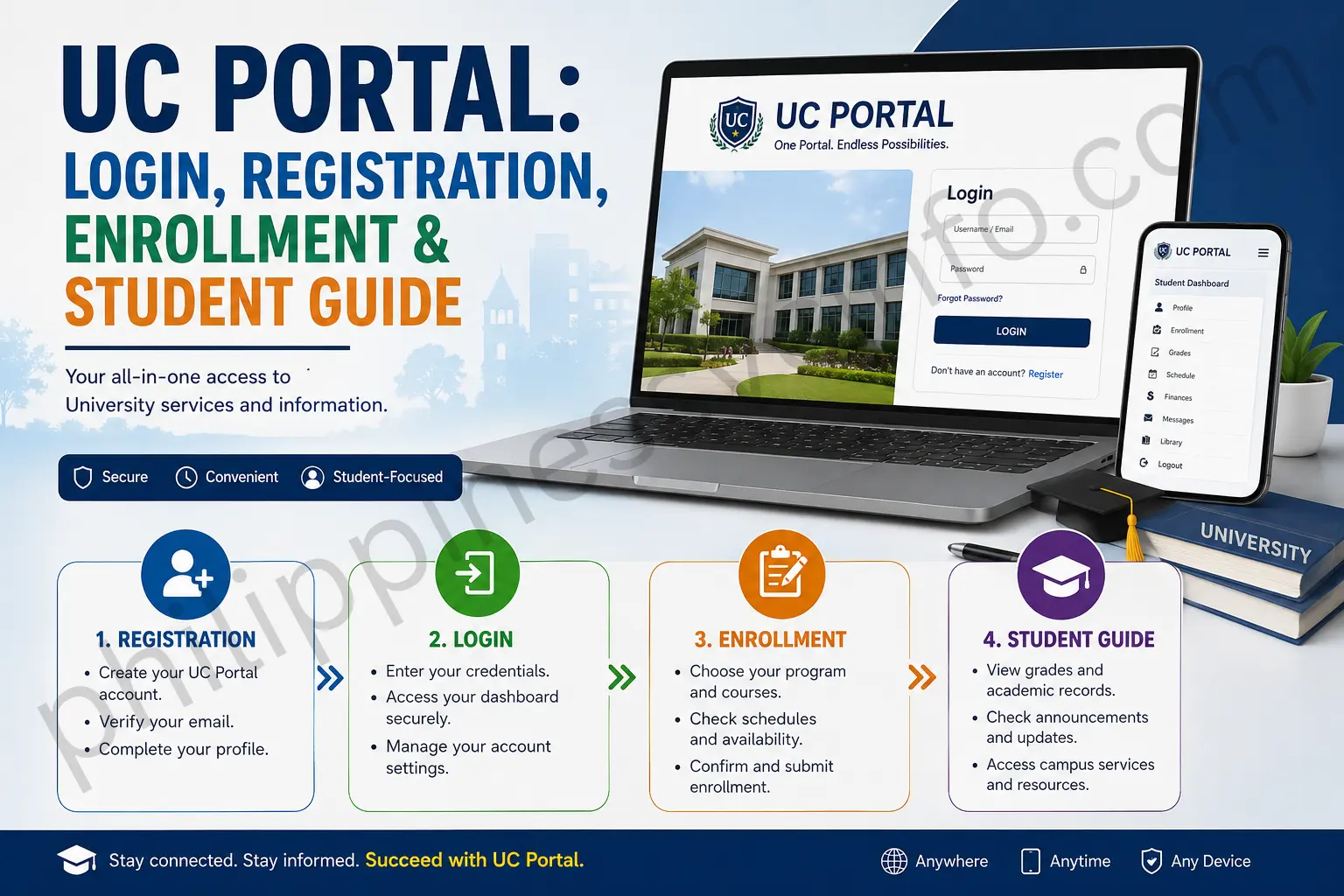
The UC Portal is the official online portal of the University of Cebu (UC) that provides students and applicants with digital access to selected academic, enrolment, admission and administrative services. Through the portal, eligible users can sign in to their accounts, manage enrolment-related activities, access available student information, check applicable records and use other online services provided by the university.
The main UC Portal for college users is available at below button. Depending on the user’s campus, academic level and purpose, UC may also provide separate online systems for admission and enrolment.
What Can You Do Through the UC Portal?
The exact services available can depend on your campus, student category and the portal you are using. In general, the UC online systems are designed to support student and applicant processes such as:
- Student or applicant account access
- Online admission and registration
- Enrollment-related activities
- Academic information and records
- Assessment and payment-related information
- Document and form access
- Campus-specific student services
It is worth checking the correct UC system before attempting to complete a transaction. UC maintains separate portal environments for campuses and educational levels. For example, the Banilad portal has its own login and registration interface, while Lapu-Lapu and Mandaue has a separate UC Web Portal.
UC Portal Login: How to Sign In
For students using the main college portal, start with the official UC Portal rather than a third-party website.

Step 1: Open the official portal
Go directly to:
The current Main Campus portal displays fields for Username and Password, followed by a Sign In button which is given above.
Step 2: Enter your username
Type the username associated with your UC account. Check the characters carefully before submitting because a single incorrect character can prevent authentication.
Step 3: Enter your password
Use the password associated with your account. If you are unsure of the credentials, avoid repeatedly entering random passwords. Use the available account-recovery or campus support route instead.
Step 4: Select Sign In
After checking both fields, click Sign In. If your credentials are accepted, the portal should take you to the appropriate account area.
A useful login tip
Always check the address bar before entering your student credentials. Using the official uc.edu.ph domain helps reduce the risk of entering your details into an unofficial or misleading website.
UC Portal Registration for New Applicants
Registration is different from simply signing in. New applicants may need to create an account before they can continue with the online admission process.
UC’s Lapu-Lapu and Mandaue registration system, for example, provides an admission account-creation page requesting the applicant’s name, email address and password.
What to prepare first
Before starting registration, have your basic personal and contact information available. Depending on your applicant category and programme, you may also need supporting academic documents.
The UC registration process can vary by campus and intake period, so use the relevant official UC registration or enrollment system shown for your application.
Typical registration flow
- Open the appropriate official UC registration or enrollment page.
- Choose the relevant admission or registration option.
- Read the applicable consent and data privacy information.
- Enter your personal details accurately.
- Provide a valid email address.
- Create a secure password.
- Review the information you entered.
- Submit the registration.
- Follow any verification or next-step instructions displayed by UC.
For Banilad, the published registration page specifically identifies categories including Freshmen, Transferees, Cross Enrollees, Old Students, Returnees and Shiftees.
Important: Don’t create multiple accounts simply because you have difficulty accessing an existing one. If you are a returnee or an existing UC student, the appropriate route may involve your previous account rather than a new registration.
UC Portal Admission: Applicant Category
One of the easiest ways to create delays is to select the wrong admission pathway. Before submitting an online application, identify which category best describes your situation.
Common categories shown in UC’s registration systems include:
| Applicant type | General purpose |
|---|---|
| Freshman / New Student | Applying to UC for the first time after completing the relevant previous level |
| Transferee | Moving from another educational institution |
| Cross-Enrollee | Taking authorised subjects while enrolled at another institution |
| Returnee | A previous UC student returning after stopping studies |
| Shiftee | An existing student changing programme or academic pathway |
The available choices can differ between campuses and enrolment periods, so treat the portal’s current options as the controlling source.
For example, the Banilad registration page explicitly tells returnees who stopped schooling and want to continue to use their old ID number and contact the EDP office when account reactivation or password assistance is required.
UC Portal Requirements: Documents to Prepare
Your requirements depend on your applicant category and programme. The information you supplied identifies several documents commonly associated with different UC admission pathways.
Freshmen
The supplied UC information lists documents such as:
- High School Report Card/Form 138
- Certificate of Good Moral Character
- NSO/PSA Live Birth Certificate
- Required ID photographs
Transferees
A transferee may need documents such as:
- Informative copy of Transcript of Records
- Honorable Dismissal, where applicable
- Certificate of Good Moral Conduct
- NSO/PSA Birth Certificate
- Entrance examination results, if applicable
ALS or PEPT Passers
The supplied material identifies:
- ALS/PEPT Certificate
- NSO/PSA Birth Certificate
Cross-Enrollees
A cross-enrollee may need an official permit to cross-enrol from the home institution.
Programme-specific requirements
Some programmes can have additional conditions. Your supplied information, for example, identifies an entrance examination result as mandatory for the BS Accountancy (BSA) application.
Best practice: don’t assume that an old requirements list remains valid for every academic year. Check the current UC admission instructions before uploading documents.
UC Online Enrollment: Application Process
UC’s official online enrollment platform currently provides separate pathways for different educational levels, including College/Graduate School, ETEEAP, Senior High School, Junior High School and Elementary.
Once you reach the appropriate section, follow the instructions displayed for your applicant category.
Before submitting an application
Have these details ready:
- Complete personal information
- Valid email address
- Contact number
- Previous school information
- Applicant category
- Preferred campus
- Intended programme, where applicable
- Required supporting documents
Make sure names and dates match your official records. Small inconsistencies can create problems later when documents are checked against your application.
UC Portal for Returnees and Existing Students
Returning students should not automatically create a new applicant account.
The UC Banilad registration information specifically states that UCnians who stopped schooling and wish to continue can log in using their old ID number and contact the EDP office if the account needs reactivation or a password reset.
This distinction matters because a returnee’s situation is different from that of a first-time applicant. If you already have a UC student record, the correct process may be to restore access to that existing account.
What if the old account doesn’t work?
Try the following:
- Confirm that you are using your previous UC ID number.
- Check that the password is entered correctly.
- Use the available password-recovery option.
- If the account remains inactive, contact the appropriate UC EDP or campus office.
- Keep your student ID or other identifying information available when requesting assistance.
Avoid opening another account unless UC specifically instructs you to do so.
UC Portal Login Problems
A failed login does not necessarily mean your account has been deleted. Several ordinary issues can prevent access.
Invalid username or password
Check:
- Student ID or username
- Password spelling
- Caps Lock
- Keyboard layout
- Extra spaces
- Correct UC portal
If the details are correct but access still fails, use the portal’s recovery process or contact the relevant UC support office.
Wrong portal
UC operates more than one online system. The Main Campus portal is separate from campus-specific environments such as Banilad and Lapu-Lapu and Mandaue.
If you are entering valid credentials into the wrong portal, they may not work as expected.
Portal maintenance or technical issue
If the portal suddenly stops responding, don’t immediately assume there is a problem with your account. Check whether the site loads normally later, try another browser, or contact UC support if the issue continues.
UC Portal: Main Campus vs Other Portals
| Portal | Main purpose |
|---|---|
| Main UC Portal | Main Campus college portal login |
| UC Online Enrollment | Online enrolment/application pathways |
| Banilad Web Portal | Banilad campus portal services |
| Lapu-Lapu & Mandaue Web Portal | LM campus portal services |
The official Main Campus portal currently identifies itself as “UC MAIN PORTAL – COLLEGE.” Meanwhile, the Banilad portal identifies itself as the Banilad Web Portal, and the Lapu-Lapu and Mandaue system provides its own UC Web Portal login.
This is why searching only for “UC Portal” can sometimes lead to confusion. Use the portal associated with your campus and educational level.
Official UC Links
How to Check UC Portal Assessment and Fees
Students who need to review their financial obligations should first sign in through the appropriate official UC system.
After signing in, look for the section associated with your assessment, enrolment or account information. Your available assessment should show the amount associated with your current academic transaction.
Before making a payment
Check the following details carefully:
- Student name and ID number
- Academic term
- Campus
- Programme or course
- Assessment amount
- Payment instructions
- Reference or transaction information
Don’t rely on an old screenshot or payment instruction found on social media. Payment channels and procedures can change, so the current instructions provided by UC should take priority.
UC Portal Payment Guide
Payment is an important part of the enrolment process because an application or registration may not be considered final until the applicable financial requirements have been processed.
Based on the information supplied for this guide, possible payment routes include:
- UC Campus Cashier
- Partner banks or supported banking channels
- GCash
- Maya
- LandBank
- DBP
- Metrobank
The availability of a particular payment method can depend on the current UC payment instructions and campus.
Step-by-step payment process
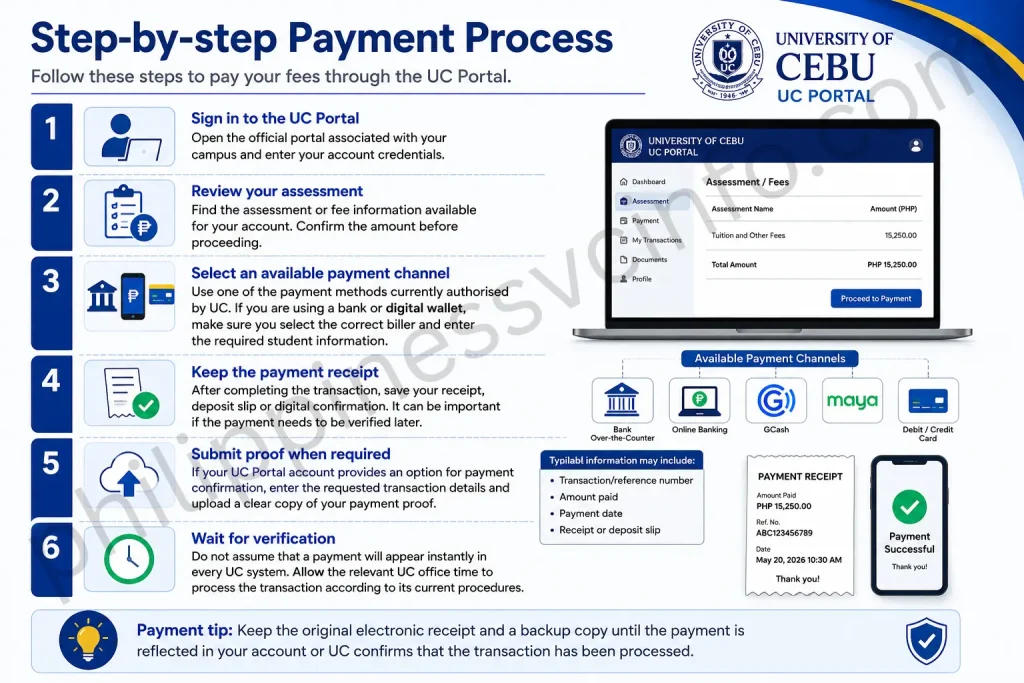
1. Sign in to the UC Portal
Open the official portal associated with your campus and enter your account credentials.
2. Review your assessment
Find the assessment or fee information available for your account. Confirm the amount before proceeding.
3. Select an available payment channel
Use one of the payment methods currently authorised by UC. If you are using a bank or digital wallet, make sure you select the correct biller and enter the required student information.
4. Keep the payment receipt
After completing the transaction, save your receipt, deposit slip or digital confirmation. It can be important if the payment needs to be verified later.
5. Submit proof when required
If your UC Portal account provides an option for payment confirmation, enter the requested transaction details and upload a clear copy of your payment proof.
Typical information may include:
- Transaction/reference number
- Amount paid
- Payment date
- Receipt or deposit slip
6. Wait for verification
Do not assume that a payment will appear instantly in every UC system. Allow the relevant UC office time to process the transaction according to its current procedures.
Payment tip: Keep the original electronic receipt and a backup copy until the payment is reflected in your account or UC confirms that the transaction has been processed.
UC Portal Enrollment Status: Check Status
One of the most useful reasons to access the UC Portal is to monitor the progress of an application or enrolment.
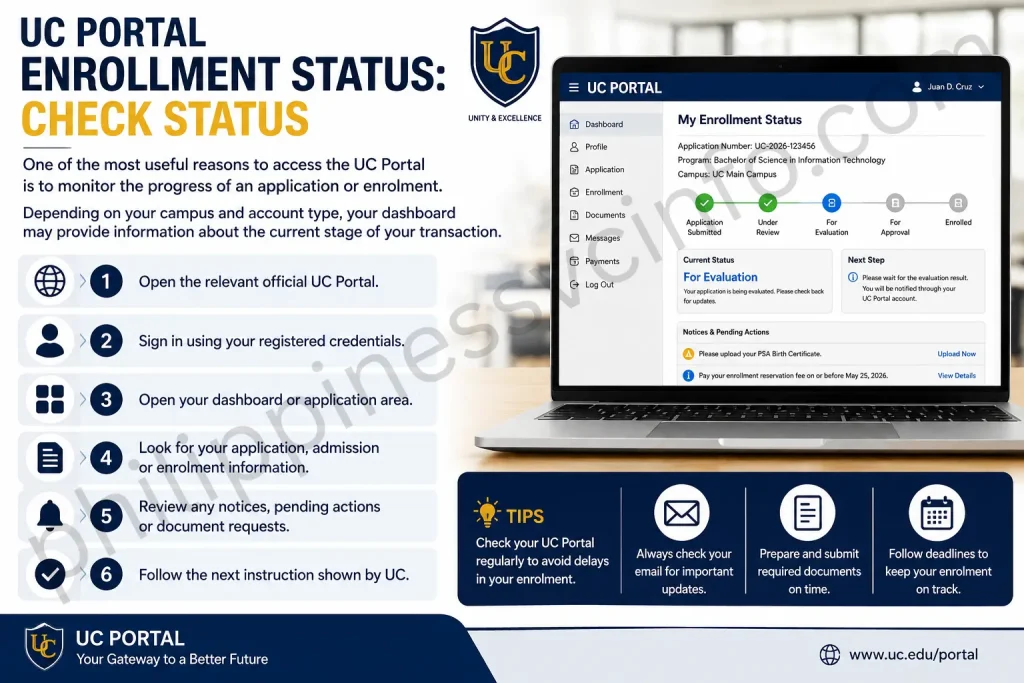
Depending on your campus and account type, your dashboard may provide information about the current stage of your transaction.
To check:
- Open the relevant official UC Portal.
- Sign in using your registered credentials.
- Open your dashboard or application area.
- Look for your application, admission or enrolment information.
- Review any notices, pending actions or document requests.
- Follow the next instruction shown by UC.
Understanding status messages
Your supplied UC information identifies examples such as:
Pending Document Verification
Your submitted documents are still being checked.
Pending Payment Verification
Payment information or uploaded proof is awaiting validation.
Officially Enrolled
The enrolment process has reached the stage identified by the system as official enrolment.
These labels should be treated as status indicators rather than guarantees of a specific processing time. If your account remains unchanged for longer than expected, contact the relevant UC office.
UC Portal Status: What If It Doesn’t Change?
A status that remains pending does not necessarily mean your application has been rejected. It may simply mean that a document, payment or administrative review has not yet been completed.
Before contacting support, check:
- Whether all required documents were uploaded
- Whether the uploaded files are readable
- Whether payment information was entered correctly
- Whether your reference number is correct
- Whether UC has requested additional information
- Whether there is a message or notification inside your account
If everything appears complete and the status still does not change, contact the appropriate campus office rather than submitting duplicate applications.
UC Portal Appointment Booking
Some UC processes may require an applicant or student to visit a campus in person. Examples in the supplied information include physical document submission, medical requirements for certain maritime students and identity validation.
If an appointment feature is available for your account, the process may generally involve selecting the relevant campus service and an available schedule.

How to book a UC Portal appointment
- Sign in to your UC Portal account.
- Open the Appointment or On-Campus Services area if it is available.
- Select the appropriate department or service.
- Review the available dates and times.
- Choose a suitable appointment.
- Confirm the booking.
- Save the appointment details.
Possible departments can include:
- Registrar
- Cashier
- Medical Clinic
- EDP Office
The exact appointment options depend on the services enabled for your campus and the current academic period.
Before visiting the campus
Take your appointment confirmation with you. A printed copy may be useful, although a digital copy can also be kept on your phone if accepted by the relevant office.
Bring a valid photo ID and any original documents specifically requested by UC.
UC Portal Appointment: Reschedule or Cancel
If your circumstances change, check whether the portal provides a My Appointments, Reschedule or Cancel option.
A typical process is:
Dashboard → My Appointments → Select Appointment → Reschedule/Cancel
Your supplied information recommends making changes at least 24 hours before the appointment. However, users should follow the current appointment rules displayed by UC because campus procedures can vary.
If there is no cancellation or rescheduling option, contact the department responsible for the appointment instead of simply missing the scheduled visit.
UC Portal Document Download
After completing the relevant enrolment or academic process, students may be able to access documents through their portal.
The supplied information identifies examples such as:
- Official Study Load
- Certificate of Matriculation (COM)
- Assessment or tuition fee breakdown
- Grade slips
- Evaluation records
- Clearance forms
- Request forms
The documents available to you depend on your student status, campus and the services enabled for your account.
How to download a UC Portal document
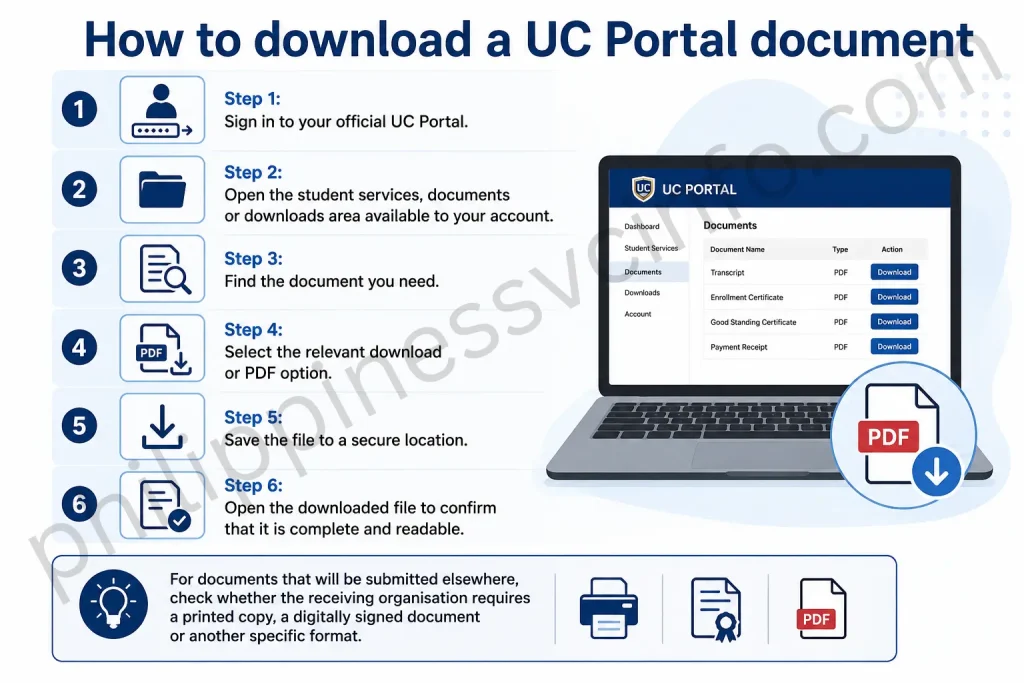
Step 1: Sign in to your official UC Portal.
Step 2: Open the student services, documents or downloads area available to your account.
Step 3: Find the document you need.
Step 4: Select the relevant download or PDF option.
Step 5: Save the file to a secure location.
Step 6: Open the downloaded file to confirm that it is complete and readable.
For documents that will be submitted elsewhere, check whether the receiving organisation requires a printed copy, a digitally signed document or another specific format.
UC Portal Grades and Academic Records
Students may also use UC online systems to access academic information where the relevant service is enabled for their account.
Possible records listed in the supplied information include grade slips and evaluation records. These can be useful when reviewing academic progress, preparing for enrolment or checking programme requirements.
If a grade or academic record appears to be missing or incorrect, avoid repeatedly refreshing the portal. Instead, contact the appropriate academic or registrar office and provide the details needed to identify your record.
UC Portal Forgot Password: Account Recovery
Losing a password can prevent access to important enrolment and academic information. If the official UC sign-in page provides a Forgot Password option, use that recovery process rather than creating a second account.
Password reset steps
- Open the official UC sign-in page.
- Select Forgot Password, if the option is available.
- Enter the requested username, ID number or registered email.
- Submit the password-reset request.
- Check your inbox for the reset message.
- Check the Spam or Junk folder if you cannot find it.
- Follow the instructions in the official email.
- Create a new secure password.
- Return to the UC Portal and sign in again.
Can’t access your registered email?
This situation can be more difficult because the password-reset message may be sent to the email address attached to the account.
In that case, use the appropriate UC support channel. Your supplied information identifies the EDP Office or Campus Registrar as possible points of assistance for account or credential problems.
When contacting an office, explain the problem clearly and provide the identifying information they request. Do not send your password.
UC Portal Security Tips for Students
Your portal account may contain academic and personal information, so basic account security matters.
Use a unique password
Avoid using the same password for your UC account and unrelated websites. A compromised password from another service could otherwise put your student account at risk.
Don’t share your password
UC staff should not need your password to explain a general portal problem. Never post your login credentials in a public Facebook group, messaging thread or online forum.
Check the website address
Before entering your credentials, verify that you are using an official UC domain. The main portal supplied for this guide is:
Protect downloaded documents
Academic documents can contain personal information. Store downloaded PDFs securely and avoid uploading them to unknown websites merely to convert or edit them.
Common UC Portal Problems and Practical Fixes
| Problem | What to check first |
|---|---|
| Cannot sign in | Username, password and correct campus portal |
| Password forgotten | Use the official recovery option |
| Account appears inactive | Contact the appropriate UC office |
| Application remains pending | Check documents, payment and portal notices |
| Payment isn’t reflected | Keep the receipt and contact the responsible office if needed |
| Document won’t download | Try another browser or check your connection |
| Wrong account type | Confirm whether you are a freshman, transferee, returnee or another category |
| Unsure which portal to use | Check your campus and educational level |
A useful troubleshooting habit is to change one variable at a time. For example, if the page fails to load, try another browser before changing your account details. This makes it easier to determine whether the issue is technical or account-related.
Before You Finish Your UC Portal Transaction
Use this quick review before leaving the portal:
- Your personal details are correct.
- Your student or applicant category is correct.
- Required documents have been submitted where applicable.
- Uploaded files are readable.
- Your payment details are accurate.
- Your receipt or reference number has been saved.
- Your application or enrolment status has been checked.
- Important documents have been downloaded.
- Appointment information has been saved, if applicable.
- You know which UC office to contact if something remains unresolved.
A few minutes of checking can prevent avoidable delays later.
UC Portal: Official Website Links
The safest approach is to start from the service you actually need rather than searching for random portal links.
For Main Campus college access:
For online admission and enrolment:
For Banilad:
For Lapu-Lapu and Mandaue:
Use the system that matches your campus and student category. This is particularly important when a username works on one UC system but not another.
What to remember
The UC Portal is not necessarily one identical interface for every UC user. Campus, programme, student category and the service you need can determine which online system you should use.
For that reason, always confirm the official UC web address, use your existing account where applicable, keep copies of submitted documents and payment records, and contact the responsible UC office when an account or transaction cannot be resolved online.
UC Portal Troubleshooting Checklist
When a portal problem occurs, identify the type of issue before taking action.
If you cannot access the website
Check your internet connection and try opening the official UC address again. You can also test another browser or device.
If the login page opens but credentials fail
Verify the username and password and make sure you are on the correct campus portal. If you have forgotten your password, use the official recovery route.
If your account appears inactive
Existing students and returnees may need assistance from the appropriate EDP office or registrar. Don’t automatically create a second account.
If an uploaded document is rejected
Review the file before uploading it again. Make sure the document is clear, complete and in the format requested by the current UC system.
If payment is not showing
Keep your receipt and transaction reference. Check whether payment verification is still pending before attempting another payment.
If your application is pending
Look carefully for outstanding requirements, document requests or payment verification notices.
UC Portal Best Practices for Applicants
A smooth online application is not only about completing the form. Organisation matters.
Keep your personal details consistent
Use your name and other information consistently with your official documents. Differences in spelling can create unnecessary verification questions.
Use a working email address
Your email may be needed for account verification, password recovery or other application communication. Make sure you can access it throughout the admission process.
Save important references
After submitting an application or completing a payment, keep the relevant reference number, receipt or confirmation.
A simple folder on your computer or phone can contain:
- Application confirmations
- Payment receipts
- Uploaded documents
- Appointment confirmations
- Portal-generated PDFs
- Important UC email messages
Don’t depend on screenshots alone
If the portal provides an official PDF or downloadable document, save the original file where possible. It is easier to print, share or retrieve later.
Choosing the Right UC Portal
The term UC Portal can refer broadly to UC’s online services, but the actual website you need may depend on your situation.
| Your situation | Where to start |
|---|---|
| Main Campus college portal | UC Main Portal |
| New online applicant | UC Online Enrollment |
| Banilad student/applicant | UC Banilad Web Portal |
| Lapu-Lapu & Mandaue student/applicant | UC Lapu-Lapu & Mandaue Portal |
When in doubt, begin with the official UC domain and follow the current instructions rather than using a third-party portal directory.
Final UC Portal Checklist
Before considering your online UC transaction finished, make sure you have:
- Used the correct official UC Portal.
- Created or accessed the correct account.
- Selected the appropriate applicant category.
- Entered your personal information accurately.
- Submitted the required documents.
- Checked your application or enrolment status.
- Reviewed your assessment before payment.
- Saved payment receipts and transaction numbers.
- Completed any required payment verification.
- Downloaded available academic or enrolment documents.
- Saved appointment details where applicable.
- Kept your account credentials private.
UC Portal FAQs for Students and Applicants
UC Portal Conclusion
The UC Portal gives University of Cebu students and applicants a convenient way to manage important academic and administrative tasks online. From accessing an account and completing registration to checking enrolment information, reviewing fees, monitoring application status and downloading available documents, the portal can reduce the need for unnecessary in-person transactions.Because UC uses different online systems for different campuses, programmes and student categories, always make sure you are using the correct official portal before entering personal or account information. For Main Campus users, start with the official UC Portal, while applicants should check the UC Online Enrollment Portal for the appropriate admission pathway.Keep your login details private, save application and payment references, submit clear documents and regularly check your portal notifications for pending actions. If you encounter an account, payment or technical issue that cannot be resolved through the portal, contact the appropriate UC campus or support office for assistance.
Discover What You Need to Know:
- SAP: Complete Guide to Login, Registration, Modules, Features & Services 2026
- MATATAG Curriculum Guide: Grades, Subjects & Official PDF 2026
- PRC Renewal Complete Guide to Online License Renewal, Requirements, Fees & Appointment 2026
- PRC Online Appointment 2026: Registration, Booking and Requirements
- GSIS Website 2026: Complete Guide to Registration, Login, Loans, Benefits & Pension