CodeChum is a modern online programming education platform designed for students, teachers, and educational institutions to manage coding courses efficiently in one place. It enables instructors to create programming activities, organize classes, automatically evaluate code, and monitor student progress, while students can practice programming, complete coding exercises, submit assignments, receive instant feedback, and track their academic performance through a browser-based coding environment. Accessible from anywhere with a stable internet connection, CodeChum simplifies the programming learning experience by combining classroom management, assignment submission, and automated assessment into a single platform. This comprehensive guide covers everything you need to know about CodeChum, including account registration, login, dashboard navigation, class enrollment, programming activities, assignment submission, password recovery, troubleshooting, and best practices for using the platform effectively.
What Is CodeChum?
CodeChum is an educational programming platform designed for coding courses in colleges, universities, and other educational institutions. Instead of installing multiple programming tools, students complete programming exercises directly within CodeChum using its integrated coding environment.
The platform allows teachers to create coding exercises, set deadlines, organize classes, review student progress, and evaluate programming assignments efficiently. Students benefit from automated feedback, organized coursework, and an easy-to-use interface that keeps all programming activities in one location.
Some institutions provide CodeChum access as part of their programming curriculum, making it a valuable resource for learning languages such as C, C++, Java, Python, and other technologies depending on the course.
Why Use CodeChum?
There are many reasons educational institutions choose CodeChum for programming education.
Benefits for Students
- Complete coding activities online
- Submit assignments securely
- Receive automated feedback
- Practice programming skills regularly
- Track assignment progress
- Review instructor comments
- Access coursework from anywhere
Benefits for Teachers
- Create programming activities
- Manage multiple classes
- Organize assignments
- Monitor student performance
- Automatically evaluate code
- Save grading time
- Generate classroom insights
Because CodeChum combines classroom management with automated coding assessment, it reduces manual work while improving the learning experience.
Main Features of CodeChum
| Feature | Description |
|---|---|
| Online Code Editor | Write and edit programs directly in your browser. |
| Automated Code Evaluation | Programming submissions can be checked automatically based on instructor settings. |
| Assignment Management | Complete and submit coding exercises online. |
| Classroom Organization | Join and manage multiple programming classes. |
| Progress Tracking | View completed, pending, and upcoming activities. |
| Instructor Dashboard | Teachers can organize courses and monitor student performance. |
| Browser-Based Learning | No complex installation is required for many activities. |
System Requirements for CodeChum
Before using CodeChum, ensure you have:
- A stable internet connection
- A modern web browser (such as Chrome, Edge, Firefox, or Safari)
- A computer or laptop (recommended for programming tasks)
- Your registered CodeChum account
- A class invitation or enrollment information if provided by your institution
How to Create a CodeChum Account
Depending on your institution, your instructor may create your account or ask you to register yourself. If self-registration is available, follow these steps.

Step 1: Visit the Official CodeChum Website
Open your preferred browser and visit the official website:
Always use the official website to protect your account and ensure you’re accessing the latest version of CodeChum.
Step 2: Select the Registration Option
Look for the Sign Up or Register option if your institution allows self-registration.
Choose the appropriate account type, such as:
- Student
- Teacher
Step 3: Enter Your Personal Information
Complete the registration form by entering the requested information, which may include:
- Full name
- Email address
- School or institution
- Password
- Other required details
Ensure all information is accurate before continuing.
Step 4: Verify Your Email
Some institutions may require email verification.
If prompted:
- Check your inbox.
- Open the verification email.
- Click the verification link.
- Return to CodeChum.
Step 5: Complete Registration
Once verification is complete, your CodeChum account will be ready for use.
How to Log In to CodeChum
After creating your account, logging in is straightforward.

Step 1: Open the Official Website
Visit:
Step 2: Click Login
Select the Login button from the homepage.
Step 3: Enter Your Credentials
Provide your:
- Registered email address
- Password
Double-check your credentials to avoid login errors.
Step 4: Complete Additional Verification
If your institution has enabled additional security measures, complete the required verification process.
Step 5: Access Your Dashboard
After successful authentication, you will be redirected to your CodeChum dashboard, where you can access classes, assignments, announcements, and account settings.
Understanding the CodeChum Dashboard
The CodeChum dashboard serves as your central workspace. Depending on your role, you may see:
- Active classes
- Programming assignments
- Coding exercises
- Deadlines
- Grades
- Notifications
- Announcements
- Account settings
- Profile management
Students should regularly review the dashboard to stay updated on new assignments and course announcements, while instructors can use it to manage classes and monitor student activity.
How to Join a Class in CodeChum
Before you can access assignments and programming activities, you must first join a class. Your instructor or educational institution will typically provide a class invitation or enrollment instructions.
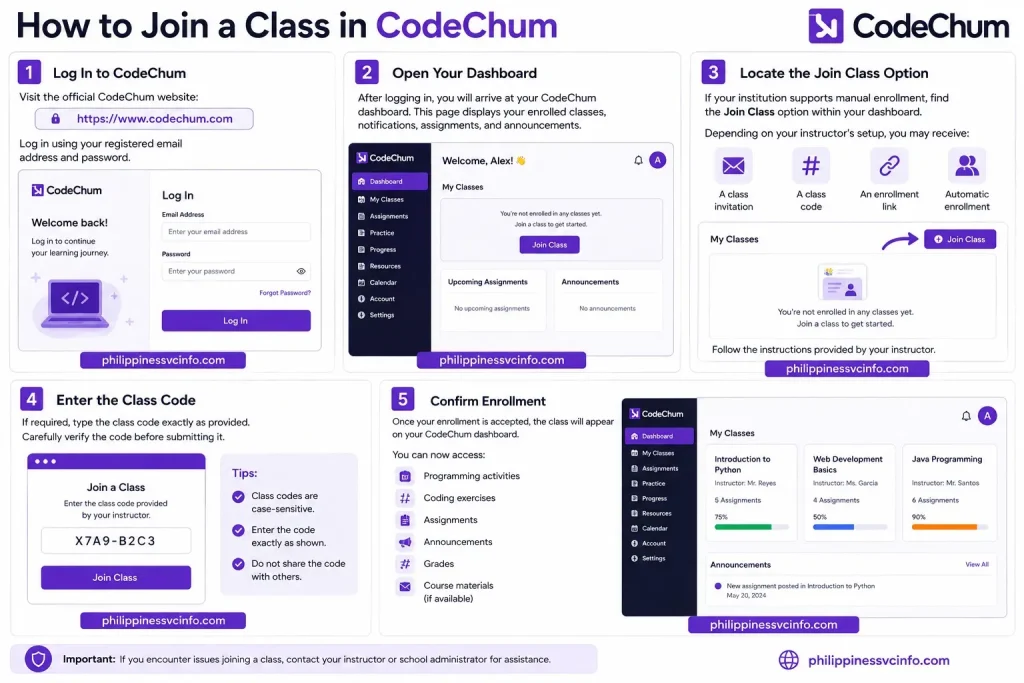
Step 1: Log In to CodeChum
Visit the official CodeChum website:
Log in using your registered email address and password.
Step 2: Open Your Dashboard
After logging in, you will arrive at your CodeChum dashboard. This page displays your enrolled classes, notifications, assignments, and announcements.
If you are a new student, your dashboard may not show any classes until you successfully enroll.
Step 3: Locate the Join Class Option
If your institution supports manual enrollment, find the Join Class option within your dashboard.
Depending on your instructor’s setup, you may receive:
- A class invitation
- A class code
- An enrollment link
- Automatic enrollment
Follow the instructions provided by your instructor.
Step 4: Enter the Class Code
If required, type the class code exactly as provided.
Carefully verify the code before submitting it.
Step 5: Confirm Enrollment
Once your enrollment is accepted, the class will appear on your CodeChum dashboard.
You can now access:
- Programming activities
- Coding exercises
- Assignments
- Announcements
- Grades
- Course materials (if available)
Understanding Your CodeChum Class Page
Each class inside CodeChum is organized to help students easily manage coursework.
Your class page may include:
- Programming assignments
- Coding exercises
- Submission deadlines
- Instructor announcements
- Course information
- Performance reports
- Grade summaries
Review your class page regularly to stay informed about new activities and deadlines.
How to Complete Programming Activities in CodeChum
Programming activities are one of the core features of CodeChum. These exercises help students practice coding while allowing instructors to evaluate programming skills.

Step 1: Open Your Class
From your dashboard, select the class where your activity has been assigned.
Step 2: Select the Programming Exercise
Click the programming activity you want to complete.
Before writing any code, carefully read:
- Instructions
- Objectives
- Programming language requirements
- Submission rules
- Deadline
Understanding the requirements first can help you avoid unnecessary mistakes.
Step 3: Write Your Code
Use the built-in CodeChum editor to write your solution.
Depending on your course, you may work with programming languages supported by your instructor.
Write clean, organized, and readable code whenever possible.
Step 4: Test Your Program
Many activities allow you to test your solution before submitting.
Check:
- Program output
- Logic
- Input handling
- Syntax errors
- Runtime errors
Correct any issues before moving to the next step.
Step 5: Review Your Solution
Before submitting, review your work carefully.
Ask yourself:
- Did I follow all instructions?
- Does the output match the expected result?
- Have I handled all required inputs?
- Is my code complete?
Taking a few extra minutes to review your code can improve your final score.
How to Submit Programming Assignments in CodeChum
Submitting assignments correctly ensures your instructor receives your latest work.

Step 1: Open the Assignment
Select the assignment from your class dashboard.
Step 2: Complete Your Solution
Finish writing your program inside the editor.
Step 3: Run Available Tests
If testing tools are available, execute them before submitting.
Resolve any compilation or syntax errors shown by the system.
Step 4: Review Your Code
Read through your solution one final time.
Check for:
- Missing code
- Incorrect output
- Formatting issues
- Logic errors
Step 5: Click Submit
When you are satisfied with your work, click the Submit button.
Depending on instructor settings, CodeChum may immediately evaluate your submission.
Step 6: Wait for Confirmation
After submission, wait until CodeChum confirms that your assignment has been successfully received.
Avoid closing your browser until the confirmation message appears.
How to Check Assignment Results
After submitting your work, you can review your performance directly within CodeChum.
Step 1
Log in to your account.
Step 2
Open your enrolled class.
Step 3
Select the completed assignment.
Step 4
Review available information, which may include:
- Assignment score
- Automated evaluation
- Test case results
- Instructor feedback
- Submission history
- Submission status
Some instructors may publish grades immediately, while others review submissions manually before releasing results.
Tracking Your Progress in CodeChum
One of the biggest advantages of CodeChum is the ability to monitor your learning progress throughout the semester.
Students should regularly review:
- Completed assignments
- Pending activities
- Upcoming deadlines
- Scores
- Instructor comments
- Overall class performance
Checking your dashboard frequently helps ensure that you never miss an important assignment or announcement.
Tips for Completing CodeChum Activities Successfully
To get the best experience while using CodeChum, follow these practical tips:
- Read assignment instructions before writing code.
- Start programming early instead of waiting until the deadline.
- Test your solution multiple times.
- Save your work regularly.
- Review compiler or runtime errors carefully.
- Double-check your output before submitting.
- Use a stable internet connection during submissions.
- Keep your browser updated for the best compatibility.
- Monitor announcements from your instructor for updates or deadline changes.
How to Reset Your CodeChum Password
If you forget your CodeChum password or cannot access your account, you can usually recover it through the password reset process.

Step 1: Visit the Official CodeChum Website
Open your web browser and go to the official website:
Always use the official CodeChum website when resetting your password to protect your account.
Step 2: Open the Login Page
Click the Login button from the homepage.
Step 3: Select “Forgot Password”
On the login screen, click Forgot Password if the option is available.
Step 4: Enter Your Registered Email Address
Provide the email address associated with your CodeChum account.
Double-check your email before continuing.
Step 5: Check Your Email
Open your email inbox and look for the password reset message from CodeChum.
If you cannot find it:
- Check your Spam folder.
- Check your Junk folder.
- Wait a few minutes and refresh your inbox.
Step 6: Create a New Password
Open the password reset link and create a strong password that includes:
- Uppercase letters
- Lowercase letters
- Numbers
- Special characters
Avoid reusing passwords from other online accounts.
Step 7: Log In Again
Return to the CodeChum login page and sign in using your new password.
Common CodeChum Login Problems
Although CodeChum is designed for easy access, users may occasionally experience login issues.
| Problem | Possible Solution |
|---|---|
| Incorrect password | Reset your password using the password recovery option. |
| Wrong email address | Verify that you’re using the correct registered email. |
| Account not activated | Complete any required email verification. |
| Browser problems | Update or change your web browser. |
| Slow website loading | Check your internet connection and refresh the page. |
| Access denied | Contact your instructor or institution if your account permissions need updating. |
If the issue persists, your institution’s IT department or instructor may be able to provide additional assistance.
Troubleshooting Assignment Submission Issues
Sometimes students encounter problems while submitting programming assignments in CodeChum.
If this happens, try the following:
Verify Your Internet Connection
A weak or unstable connection may interrupt submissions.
Check Assignment Availability
Ensure the assignment:
- Has been published.
- Is still accepting submissions.
- Has not passed its deadline.
Review Your Code
Before submitting:
- Fix syntax errors.
- Resolve compilation issues.
- Review the required output.
- Ensure all instructions have been followed.
Refresh the Browser
If the page becomes unresponsive:
- Refresh the browser.
- Sign out and log in again.
- Reopen the assignment.
Try Another Browser
If problems continue, test CodeChum using another supported browser.
Contact Your Instructor
If the assignment still cannot be submitted, notify your instructor before the deadline and explain the issue.
Best Practices for Using CodeChum
Following good study habits can improve your overall experience with CodeChum.
Start Assignments Early
Avoid waiting until the final hours before a deadline.
Early submissions provide time to identify and correct coding mistakes.
Read Every Instruction Carefully
Programming assignments often contain important requirements.
Missing even a small instruction may affect your score.
Test Before Submitting
Whenever possible:
- Run your code.
- Verify expected output.
- Check different test cases.
- Review edge cases.
Save Your Work Frequently
Although CodeChum helps manage programming activities, regularly saving your progress is always recommended.
Keep Your Browser Updated
Updated browsers generally provide better security and compatibility with modern web applications.
Monitor Announcements
Teachers frequently post:
- Assignment reminders
- Schedule changes
- Additional instructions
- Classroom announcements
Checking your dashboard regularly helps you stay informed.
CodeChum Security Tips
Protecting your account is essential.
Follow these recommendations:
- Use a strong password.
- Never share your login credentials.
- Log out after using public computers.
- Avoid saving passwords on shared devices.
- Keep your email account secure.
- Report suspicious activity to your instructor if necessary.
Advantages of Using CodeChum
Many educational institutions use CodeChum because it improves programming education for both students and instructors.
Advantages for Students
- Convenient online programming environment
- Easy assignment submission
- Organized coursework
- Faster feedback on coding exercises
- Progress monitoring throughout the course
Advantages for Teachers
- Simplified classroom management
- Automated assessment features
- Efficient assignment organization
- Better visibility into student performance
- Reduced grading workload for supported activities
Frequently Asked Questions (FAQs)
Final Thoughts
CodeChum has become an important platform for programming education by bringing coding exercises, automated assessment, and classroom management together in one online environment. Students can conveniently write code, complete assignments, monitor their progress, and receive timely feedback, while teachers can organize courses, evaluate programming work more efficiently, and track class performance. Whether you are using CodeChum for the first time or looking to improve your workflow, understanding its registration process, login system, class management features, assignment submission process, and troubleshooting methods will help you make the most of the platform. Always access CodeChum through the official website, keep your account credentials secure, and follow your instructor’s guidance to ensure a smooth learning experience throughout your programming course.
Discover What You Need to Know:
- Autodesk Philippines 2026: Account, Student Access, Software & Support Guide
- UC Portal: Login, Registration, Enrollment & Student Guide 2026
- SAP: Complete Guide to Login, Registration, Modules, Features & Services 2026
- MATATAG Curriculum Guide: Grades, Subjects & Official PDF 2026
- PRC Renewal Complete Guide to Online License Renewal, Requirements, Fees & Appointment 2026