Microsoft Forms is an online form and survey creation tool developed by Microsoft that allows users to easily create surveys, quizzes, polls, questionnaires, and feedback forms. It helps individuals, educators, and businesses collect responses, analyze data, and share results efficiently through Microsoft 365 integration with tools like Excel, Teams, and Outlook.
What Is Microsoft Forms?
Microsoft Forms is Microsoft’s cloud-based online form builder that allows individuals, teachers, businesses and organisations to create surveys, quizzes, questionnaires, feedback forms, registration forms and polls without requiring any coding knowledge.
Because it is part of the Microsoft 365 ecosystem, Microsoft Forms works seamlessly with applications such as Excel, Teams, Outlook, OneDrive and SharePoint. Responses are collected automatically, making it easier to analyse data, collaborate with others and automate everyday tasks.
Whether you need customer feedback, employee surveys, classroom quizzes or event registrations, Microsoft Forms provides a fast and secure way to gather information online.
Quick Facts About Microsoft Forms
| Feature | Details |
|---|---|
| Product Name | Microsoft Forms |
| Developer | Microsoft |
| Platform | Web |
| Available With | Microsoft 365 |
| Main Purpose | Online forms and surveys |
| Supports Quizzes | Yes |
| Real-Time Responses | Yes |
| Excel Integration | Yes |
| Microsoft Teams Integration | Yes |
| Mobile Friendly | Yes |
| Sharing Options | Link, QR Code, Email, Embed |
| Cost | Free with Microsoft Account (additional features with Microsoft 365 plans) |
Why Microsoft Forms Is So Popular
Many organisations previously relied on paper forms or complicated software for collecting information. Microsoft Forms simplifies this process by allowing users to create professional forms within minutes.
Some of the biggest reasons behind its popularity include:
- No programming knowledge required
- Modern and clean interface
- Automatic response collection
- Easy sharing
- Excellent Microsoft 365 integration
- Secure cloud storage
- Fast reporting and analytics
- Accessible from almost any device
Because of these advantages, Microsoft Forms is widely used in schools, universities, businesses, healthcare organisations and government departments.
Main Uses of Microsoft Forms
Microsoft Forms can be used for many everyday tasks.
Common examples include:
Customer Feedback Forms
Businesses use Microsoft Forms to understand customer satisfaction, collect reviews and improve their services.
Employee Surveys
Companies gather staff opinions, workplace suggestions and internal feedback through secure surveys.
Event Registration
Organisers collect attendee information before conferences, webinars, meetings or workshops.
Online Quizzes
Teachers create quizzes with automatic marking, reducing manual grading.
School Assignments
Educational institutions use Microsoft Forms for homework submissions, classroom assessments and student evaluations.
Polls
Quick polls help teams make decisions during meetings or presentations.
Application Forms
Businesses and organisations collect applications for jobs, memberships or volunteer programmes.
Key Features of Microsoft Forms
Microsoft Forms includes a wide range of practical tools designed to simplify data collection.
1. Easy Form Builder
The drag-and-click interface enables users to build forms quickly without technical expertise.
Supported question types include:
- Choice
- Text
- Rating
- Date
- Ranking
- Likert Scale
- File Upload (eligible Microsoft 365 accounts)
- Net Promoter Score (NPS)
2. Automatic Response Collection
Responses appear instantly after someone submits the form.
There is no need to manually compile results because Microsoft Forms stores submissions automatically.
3. Real-Time Analytics
As responses are submitted, Microsoft Forms generates visual summaries such as:
- Charts
- Graphs
- Percentages
- Average scores
- Individual responses
This allows users to monitor results as they arrive.
4. Excel Export
One of the most valuable features is exporting responses to Microsoft Excel.
This makes it easy to:
- Sort responses
- Filter data
- Create charts
- Perform calculations
- Produce reports
5. Microsoft Teams Integration
Microsoft Forms integrates directly with Microsoft Teams.
Users can:
- Share surveys during meetings
- Create instant polls
- Collect feedback after presentations
- Conduct classroom quizzes
This integration improves collaboration without leaving Teams.
6. Branching Logic
Branching allows different users to see different questions depending on their previous answers.
For example:
If someone selects Student, they receive education-related questions.
If someone selects Teacher, they receive educator-specific questions.
This creates a more personalised and efficient form experience.
7. Custom Themes
Users can customise forms by changing:
- Colours
- Background images
- Themes
- Branding
This helps organisations maintain a consistent visual identity.
8. Multiple Sharing Options
Microsoft Forms offers several convenient ways to distribute forms:
- Shareable links
- QR codes
- Email invitations
- Microsoft Teams
- Embed code for websites
- Social sharing
These options make it simple to reach participants on different platforms.
Microsoft Forms System Requirements
Since Microsoft Forms is web-based, there is no software installation required.
To use it, you generally need:
- A Microsoft account (or a Microsoft 365 work/school account for organisational features)
- A modern web browser (such as Microsoft Edge, Google Chrome, Mozilla Firefox or Safari)
- An internet connection
How to Access Microsoft Forms
Accessing Microsoft Forms only requires a Microsoft account or an eligible Microsoft 365 account. Since Microsoft Forms is a cloud-based service, users can open it directly from a web browser without installing any software.
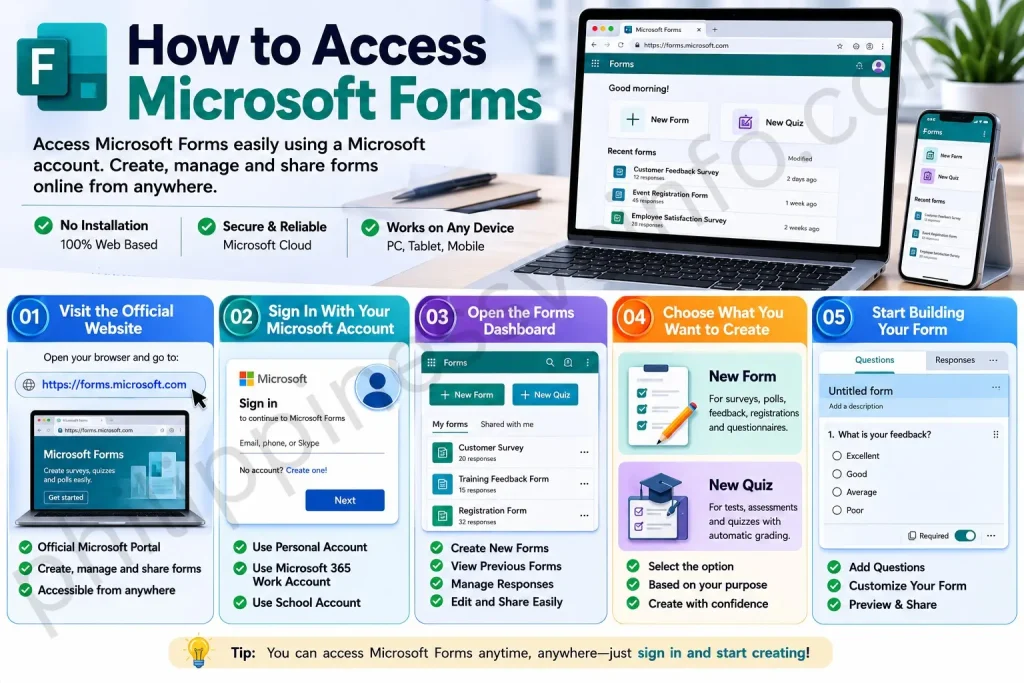
Follow these steps to start using Microsoft Forms:
Step 1: Visit the Official Microsoft Forms Website
Open your preferred web browser and go to the official Microsoft Forms page
This is the official Microsoft portal where you can create, manage and share online forms and quizzes.
Step 2: Sign In With Your Microsoft Account
Click the Sign In button and enter your Microsoft account details.
You can use:
- Personal Microsoft account
- Microsoft 365 work account
- Microsoft 365 school account
If you do not have an account, you can create one before accessing Microsoft Forms.
Step 3: Open the Microsoft Forms Dashboard
After signing in, you will be redirected to the Microsoft Forms homepage.
From the dashboard, you can:
- Create a new form
- Create a new quiz
- View previous forms
- Edit existing surveys
- Manage collected responses
- Share forms with others
Step 4: Choose What You Want to Create
Microsoft Forms provides two main creation options:
New Form
Used for surveys, feedback forms, registrations, polls and questionnaires.
New Quiz
Used for tests, assessments and educational quizzes with automatic grading.
Choose the option that matches your purpose.
Step 5: Start Building Your Form
Once you select a form type, you can add:
- Questions
- Titles
- Descriptions
- Images
- Answer options
- Themes
- Settings
After creating your form, you can preview it and share it with participants.
Alternative Ways to Access Microsoft Forms
Microsoft Forms can also be accessed through other Microsoft services, including:
- Microsoft 365 homepage
- Microsoft Teams
- OneDrive
- Office apps launcher
Users signed into Microsoft 365 can usually find Forms from the application menu.
Quick Tip
For the best experience, use an updated browser such as Microsoft Edge, Google Chrome, Mozilla Firefox or Safari. A stable internet connection is recommended because Microsoft Forms saves your work online.
How to Create a Microsoft Form
Creating a Microsoft Form is straightforward, even if you have never used an online form builder before.

Step 1: Open Microsoft Forms
Visit the official Microsoft Forms website:
Sign in with your Microsoft account or Microsoft 365 work or school account.
Step 2: Create a New Form
From your dashboard, select New Form if you want to build a survey or registration form.
Choose New Quiz if you want to create an online assessment with automatic grading.
Step 3: Add a Title and Description
Enter a clear title that tells users the purpose of the form.
For example:
- Customer Satisfaction Survey
- Employee Feedback Form
- Event Registration Form
- Student Admission Form
You can also include a short description explaining why the information is being collected.
Step 4: Add Questions
Click Add New and select the appropriate question type.
Microsoft Forms supports several question formats:
| Question Type | Best Used For |
|---|---|
| Choice | Multiple-choice questions |
| Text | Short or long answers |
| Rating | Customer satisfaction ratings |
| Date | Booking or appointment dates |
| Ranking | Prioritising options |
| Likert | Opinion surveys |
| Net Promoter Score | Customer loyalty surveys |
| File Upload | Collecting documents (supported accounts) |
Step 5: Customise Your Form
To make your Microsoft Form more engaging:
- Apply a theme
- Add a background image
- Choose brand colours
- Organise questions logically
A clean layout improves completion rates and enhances the user experience.
Step 6: Preview the Form
Use the Preview option to see how your form appears on both desktop and mobile devices.
Check that:
- Questions are clear
- Required fields work correctly
- Branching behaves as expected
- Images display properly
Step 7: Share Your Form
When your Microsoft Form is ready, click Collect Responses and choose how to distribute it.
Sharing options include:
- Copy a direct link
- Send by email
- Generate a QR code
- Embed on a website
- Share through Microsoft Teams
Microsoft Forms vs Google Forms
Many users compare Microsoft Forms with Google Forms before deciding which platform to use.
| Feature | Microsoft Forms | Google Forms |
|---|---|---|
| Microsoft 365 Integration | ✔ Excellent | Limited |
| Google Workspace Integration | Limited | ✔ Excellent |
| Microsoft Teams Support | ✔ Yes | No |
| Excel Export | ✔ Native | Requires Google Sheets |
| Automatic Quiz Grading | ✔ Yes | ✔ Yes |
| Branching Logic | ✔ Yes | ✔ Yes |
| QR Code Sharing | ✔ Yes | Via add-ons/manual |
| Business Collaboration | ✔ Strong | ✔ Strong |
| Real-Time Responses | ✔ Yes | ✔ Yes |
If your organisation already uses Microsoft 365, Microsoft Forms is usually the more seamless choice because it integrates directly with other Microsoft services.
Benefits of Using Microsoft Forms
Microsoft Forms offers several advantages for both individuals and organisations.
Saves Time
Manual data entry is eliminated because responses are collected automatically.
Easy to Use
The intuitive interface enables beginners to create professional forms without technical knowledge.
Accessible Anywhere
As a cloud-based service, Microsoft Forms works on desktops, laptops, tablets and smartphones.
Instant Reporting
Results are displayed in real time through charts, percentages and response summaries.
Secure Data Collection
Microsoft Forms benefits from Microsoft’s security infrastructure, helping protect collected information.
Team Collaboration
Multiple users can collaborate on forms when appropriate permissions are granted.
Microsoft Forms for Education
Educational institutions are among the biggest users of Microsoft Forms.
Teachers commonly use it to:
- Create classroom quizzes
- Conduct online tests
- Collect homework
- Record attendance
- Gather student feedback
- Run classroom polls
Students benefit from:
- Immediate quiz results (when enabled)
- Easy online submissions
- Mobile-friendly access
- Faster feedback
Microsoft Forms also integrates well with Microsoft Teams for classroom management.
Microsoft Forms for Business
Businesses use Microsoft Forms in many departments.
Common business applications include:
Human Resources
- Employee onboarding forms
- Exit interviews
- Staff surveys
- Leave requests
Sales Teams
- Lead generation forms
- Customer enquiries
- Product feedback
- Event registrations
Customer Support
- Service satisfaction surveys
- Complaint forms
- Support request forms
Marketing
- Campaign feedback
- Contest entries
- Market research
- Customer questionnaires
Microsoft Forms Integrations
One of the platform’s greatest strengths is its integration with other Microsoft services.
Microsoft Excel
Responses can be exported directly to Excel for advanced analysis and reporting.
Microsoft Teams
Share forms in chats, channels and meetings, or use quick polls during discussions.
Outlook
Send forms through email for surveys, invitations or feedback requests.
OneDrive
Files uploaded through supported forms can be stored in OneDrive or SharePoint, depending on your account.
SharePoint
Embed forms into SharePoint sites to collect information from employees or visitors.
Tips for Creating Better Microsoft Forms
Following a few best practices can improve response quality and completion rates.
- Keep questions short and clear.
- Avoid asking for unnecessary personal information.
- Use branching to reduce irrelevant questions.
- Mark only essential fields as required.
- Test the form before sharing it.
- Group similar questions together.
- Use simple language for a wider audience.
- Include a thank-you message after submission.
Common Mistakes to Avoid
Even experienced users can overlook small details. Try to avoid these common issues:
- Using vague or confusing questions.
- Creating forms that are too long.
- Forgetting to preview before publishing.
- Not checking sharing permissions.
- Collecting more information than necessary.
- Ignoring mobile usability.
- Failing to review response settings.
A well-designed Microsoft Form is easier for respondents to complete and provides more reliable data.
Microsoft Forms Privacy and Security
Microsoft Forms includes several features to help protect collected data.
Depending on your account type and settings, you can:
- Restrict responses to people within your organisation.
- Allow or prevent anonymous submissions.
- Limit each person to one response.
- Set opening and closing dates for forms.
- Enable notifications for new responses.
Always review your organisation’s privacy policies and Microsoft’s documentation before collecting sensitive information.
How to Analyse Responses in Microsoft Forms
Collecting responses is only the first step. The real value of Microsoft Forms comes from understanding the information you receive.
Microsoft Forms provides built-in analytics tools that help users review collected data without needing advanced technical skills.
After people submit responses, you can view:
- Total number of responses
- Individual answers
- Response summaries
- Charts and graphs
- Average ratings
- Quiz scores
For deeper analysis, responses can be exported to Microsoft Excel.
How to Export Microsoft Forms Responses to Excel
Microsoft Excel integration makes Microsoft Forms useful for professional reporting and data management.
Follow these steps:
Step 1: Open Your Form
Sign in to Microsoft Forms and open the form you want to analyse.
Step 2: Select Responses
Click the Responses tab at the top of the form.
Step 3: Choose “Open in Excel”
Select the Excel option to download or open your response data.
Step 4: Analyse Your Data
Inside Excel, you can:
- Create charts
- Filter information
- Sort responses
- Calculate statistics
- Prepare reports
This feature is especially useful for businesses, teachers and researchers who need organised data.
Microsoft Forms Quiz Feature
Microsoft Forms is not only a survey tool. It also works as an online quiz platform.
The quiz feature allows users to create assessments with automatic scoring.
Teachers and trainers can use quizzes for:
- Exams
- Knowledge tests
- Training assessments
- Employee evaluations
- Practice exercises
Features of Microsoft Forms Quizzes
A Microsoft Forms quiz can include:
- Correct answers
- Point values
- Automatic grading
- Feedback messages
- Explanations for answers
- Randomised questions
This reduces manual marking and helps users receive results faster.
How to Create a Quiz in Microsoft Forms
Creating a quiz follows a similar process to creating a regular form.
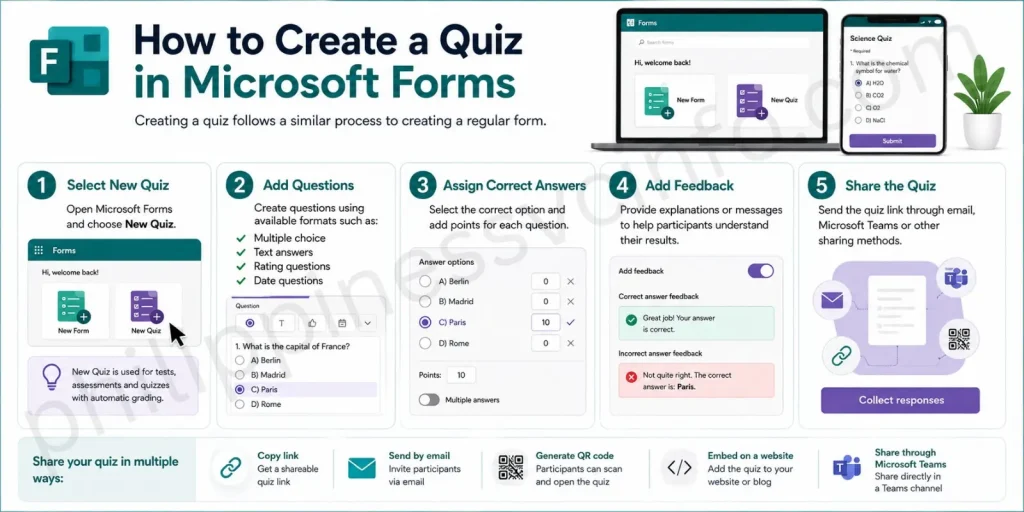
Step 1: Select New Quiz
Open Microsoft Forms and choose New Quiz.
Step 2: Add Questions
Create questions using available formats such as:
- Multiple choice
- Text answers
- Rating questions
- Date questions
Step 3: Assign Correct Answers
Select the correct option and add points for each question.
Step 4: Add Feedback
Provide explanations or messages to help participants understand their results.
Step 5: Share the Quiz
Send the quiz link through email, Microsoft Teams or other sharing methods.
Microsoft Forms File Upload Feature
The file upload option allows respondents to attach documents directly to a form.
This feature is useful for:
- Job applications
- Student assignments
- Registration documents
- Internal company requests
Examples of uploaded files include:
- PDFs
- Word documents
- Images
- Spreadsheets
Important Note:
File upload availability depends on account type and organisation settings. Some personal Microsoft accounts may not have access to this feature.
Microsoft Forms Templates
Microsoft Forms provides templates that help users create forms faster.
Templates can be useful for:
- Surveys
- Event registrations
- Feedback collection
- Quizzes
- Invitations
- Employee questionnaires
Using templates saves time because users do not need to design every form from the beginning.
Microsoft Forms Accessibility Features
Microsoft Forms supports accessibility features to help more people complete forms comfortably.
Useful accessibility options include:
- Keyboard navigation
- Screen reader compatibility
- Clear question layouts
- Mobile-friendly design
When creating forms, use readable language and avoid unnecessary complexity to improve accessibility.
Troubleshooting Common Microsoft Forms Problems
Sometimes users may experience issues while creating or sharing forms.
Form Link Is Not Working
Possible solutions:
- Check sharing permissions
- Confirm the form is still active
- Generate a new sharing link
Cannot Access Microsoft Forms
Try:
- Checking your Microsoft account login
- Confirming your organisation allows Forms access
- Using an updated browser
Responses Are Not Appearing
Check:
- Whether the form is accepting responses
- Internet connection
- Response settings
File Upload Option Missing
The file upload feature may not appear because:
- Your account type does not support it
- Organisation settings restrict uploads
- The form is not configured correctly
Microsoft Forms Official Resources
For the latest features, updates and support information, visit Microsoft’s official resources:
Microsoft Forms FAQs (Frequently Asked Questions)
Conclusion
Microsoft Forms is a practical solution for anyone who needs to collect information quickly and efficiently. From simple surveys to advanced quizzes and business data collection, it provides useful features without requiring technical skills.Its strongest advantage is the connection with the Microsoft 365 ecosystem. Integration with Excel, Teams, Outlook and other Microsoft services makes it a valuable tool for schools, businesses and individuals.For beginners, Microsoft Forms offers an easy starting point. For organisations, it provides a reliable way to collect, manage and understand information at scale.
Discover What You Need to Know:
- STI ELMS Login Guide 2026: Official Website, Login, Account Activation & Complete Student Portal Guide
- Wayground: Complete Guide to Login, Features, Pricing & How to Use (2026)
- Form 137 (SF10): Complete Guide to Requirements, Request Process, Fees & FAQs (2026)
- Quizizz: Complete Guide to Online Quizzes, Login, Features & How It Works (2026)
- OLFU AIMS Login Guide 2026: Enrollment, Grades, Student Portal & Account Access
- 51Talk: Complete Guide to Online English Learning Platform, Courses, Login, App & Registration (2026)