OLFU AIMS (Academic Information Management System) is the official online portal used by Our Lady of Fatima University (OLFU) to provide students with easy access to important academic services. Through the portal, students can log in to their accounts, enroll in classes, register subjects, check grades, view class schedules, and access other essential university information. This guide explains everything you need to know about OLFU AIMS, including how to log in, use its features, and solve common issues while accessing the portal.
What Is OLFU AIMS?
OLFU AIMS (Academic Information Management System) is the official online student portal developed by Our Lady of Fatima University (OLFU). It serves as a centralized platform where students can manage their academic records, enrollment, financial information, and university services from anywhere with an internet connection.
Instead of visiting different campus offices, students can use OLFU AIMS to complete many important academic tasks online. Whether you need to enroll in a new semester, check your grades, register subjects, view your class schedule, or monitor tuition balances, the portal provides quick and secure access.
The university continues improving OLFU AIMS to simplify administrative processes and give students convenient digital access to essential academic information.
About Our Lady of Fatima University
Our Lady of Fatima University (OLFU) is one of the Philippines’ well-known private universities offering programs in medicine, nursing, dentistry, pharmacy, business, engineering, information technology, education, and many other disciplines.
With multiple campuses across the country, OLFU serves thousands of students every academic year. To support its growing academic community, the university uses OLFU AIMS as its official Academic Information Management System.
The portal helps reduce paperwork while allowing students to complete many academic activities online in a secure environment.
Why Students Use OLFU AIMS?
The OLFU AIMS portal has become an essential tool for students because it brings multiple academic services together in one convenient location.
Students commonly use the portal to:
- Complete online enrollment
- Register subjects
- View grades
- Check class schedules
- Download assessment forms
- Monitor tuition balances
- Review payment history
- Update personal information
- Receive university announcements
- Access academic records
This centralized system saves time and reduces the need for in-person visits for routine transactions.
Who Can Use OLFU AIMS?
The portal is primarily designed for members of the OLFU academic community.
Eligible users typically include:
- New applicants
- Newly admitted students
- Current undergraduate students
- Graduate students
- Returning students
- Faculty members (where applicable)
- Academic advisers
- Authorized university personnel
Some services available within the portal may vary depending on your role and campus.
Main Features of OLFU AIMS
OLFU AIMS provides a variety of academic and administrative tools in one secure dashboard.
Student Services
- Student login
- Enrollment management
- Subject registration
- Academic records
- Grade viewing
- Student profile
Financial Services
- Tuition assessment
- Payment information
- Outstanding balances
- Assessment forms
- Financial records
Academic Services
- Class schedules
- Academic calendar
- University announcements
- Course information
- Semester updates
Account Management
- Password management
- Profile updates
- Contact information
- Account security
System Requirements
For the best experience while using OLFU AIMS, ensure your device meets the following recommendations.
| Requirement | Recommendation |
|---|---|
| Device | Desktop, laptop, tablet, or smartphone |
| Operating System | Windows, macOS, Android, or iOS |
| Browser | Google Chrome, Microsoft Edge, Firefox, Safari |
| Internet Connection | Stable broadband or mobile data |
| JavaScript | Enabled |
| Cookies | Enabled |
Using the latest version of your web browser can improve compatibility and security.
Requirements Before Logging In
Before accessing OLFU AIMS, prepare the following information:
- Student Number
- Registered email address
- Password
- Stable internet connection
- Updated web browser
For first-time users, additional verification may be required during account activation.
How to Access OLFU AIMS?
Accessing the student portal is straightforward if you follow these steps.
Step 1: Open Your Browser
Launch your preferred web browser on your computer or mobile device.
Supported browsers include:
- Google Chrome
- Microsoft Edge
- Mozilla Firefox
- Safari
Step 2: Visit the Official Portal
Go to the official OLFU AIMS website:
Always bookmark the official website to avoid fake or unofficial login pages.
Step 3: Wait for the Login Page
Allow the page to load completely before entering your credentials.
If the website loads slowly, refresh the page or verify your internet connection.
Step 4: Enter Your Login Information
Type your:
- Student Number
- Password
Ensure there are no typing errors or accidental spaces.
Step 5: Click Login
After confirming your credentials, click the Login button.
If your information is correct, you will be redirected to your OLFU AIMS Dashboard.
First-Time Account Activation
Students who are logging in for the first time may need to activate their account.
The activation process generally includes:
- Visit the official OLFU AIMS portal.
- Select the account activation option if available.
- Enter your student details.
- Verify your registered email address.
- Create a secure password.
- Confirm your information.
- Log in using your newly created credentials.
Depending on your campus or enrollment period, activation procedures may vary slightly. If you do not receive activation instructions, contact your campus registrar or IT support.
How to Reset Your Password?
Forgetting your password is common, and OLFU provides account recovery options when available.
Step 1
Open the official login page.
Step 2
Select Forgot Password if the option is available.
Step 3
Enter your Student Number or registered email address.
Step 4
Follow the password reset instructions sent to your registered email.
Step 5
Create a new password that is secure and easy for you to remember.
Step 6
Return to the login page and sign in with your new credentials.
If online recovery is unavailable or unsuccessful, contact your campus IT department or registrar for assistance.
Student Dashboard Overview
After successfully logging in to OLFU AIMS, you will be redirected to your personal dashboard. The dashboard serves as the central control panel for managing your academic records, enrollment, financial transactions, and student information. Instead of visiting multiple university offices, students can complete many essential tasks directly through the portal.
Depending on your academic status and campus, the dashboard may display different options and announcements.
Student Profile
The profile section stores important personal information.
Students should regularly verify that their information is accurate.
Personal Information
Examples include:
- Full name
- Student Number
- Program
- Year Level
- Campus
Contact Information
Students can review:
- Email address
- Mobile number
- Home address
Updating Student Information
Keeping your student profile up to date ensures that the university can contact you when necessary.
Students should review their personal information every semester.
Personal Information
You may be able to verify:
- Full name
- Student Number
- Degree program
- Campus
- Year level
Some personal details can only be changed through the registrar.
Contact Information
Students should regularly update:
- Email address
- Mobile number
- Home address
- Emergency contact details
Providing accurate contact information helps ensure that you receive important university announcements.
Profile Verification
Before saving any changes:
- Review all entered information.
- Correct spelling errors.
- Verify phone numbers and email addresses.
- Save your updates.
If editing is restricted, contact you
Academic Services
The academic section allows students to manage their studies throughout the semester.
Enrollment
Use this section to:
- Start online enrollment
- Confirm enrollment status
- View enrolled subjects
- Monitor enrollment progress
Subject Registration
Students can:
- Add available subjects
- View prerequisite requirements
- Review registered courses
- Submit subject selections
Grades
The Grades section enables students to:
- Check current semester grades
- Review previous academic records
- Monitor academic performance
- Download grade reports if available
Class Schedule
Students can quickly access:
- Weekly timetable
- Classroom assignments
- Course schedules
- Faculty assignments
How to Enroll Through OLFU AIMS?
Online enrollment is one of the most important services available in OLFU AIMS. During every enrollment period, students can submit their enrollment requests through the official student portal.
Always follow the enrollment schedule announced by Our Lady of Fatima University on the official website:
Step 1: Log In
Visit the official OLFU AIMS portal:
Enter your Student Number and password.
Step 2: Open the Enrollment Module
After signing in, locate the Enrollment section from your dashboard.
Click it to begin the enrollment process.
Step 3: Select the Academic Term
Choose the semester or academic term for which you want to enroll.
Verify that you have selected the correct school year before continuing.
Step 4: Review Your Student Information
Confirm that your:
- Personal information
- Degree program
- Campus
- Year level
are accurate.
If any information is incorrect, contact your campus registrar before proceeding.
Step 5: Review Available Subjects
The portal may display your recommended or available courses for the selected semester.
Carefully review:
- Course codes
- Subject titles
- Credit units
- Schedule availability
Step 6: Confirm Your Enrollment
Once everything has been reviewed:
- Confirm your selected courses.
- Submit your enrollment request.
- Wait for confirmation from the university.
Some enrollments may require approval before becoming final.
How to Register Subjects?
Subject registration allows students to select the courses they will take during the semester.
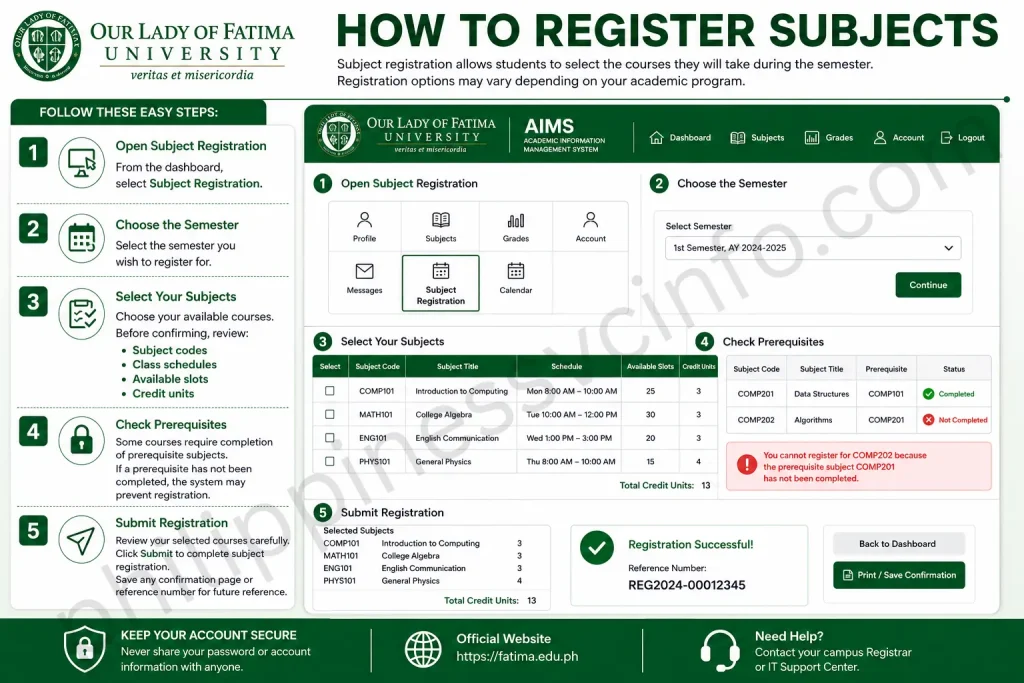
Registration options may vary depending on your academic program.
Step 1: Open Subject Registration
From the dashboard, select Subject Registration.
Step 2: Choose the Semester
Select the semester you wish to register for.
Step 3: Select Your Subjects
Choose your available courses.
Before confirming, review:
- Subject codes
- Class schedules
- Available slots
- Credit units
Step 4: Check Prerequisites
Some courses require completion of prerequisite subjects.
If a prerequisite has not been completed, the system may prevent registration.
Step 5: Submit Registration
Review your selected courses carefully.
Click Submit to complete subject registration.
Save any confirmation page or reference number for future reference.
How to View Your Class Schedule?
Students can easily check their class timetable using OLFU AIMS.
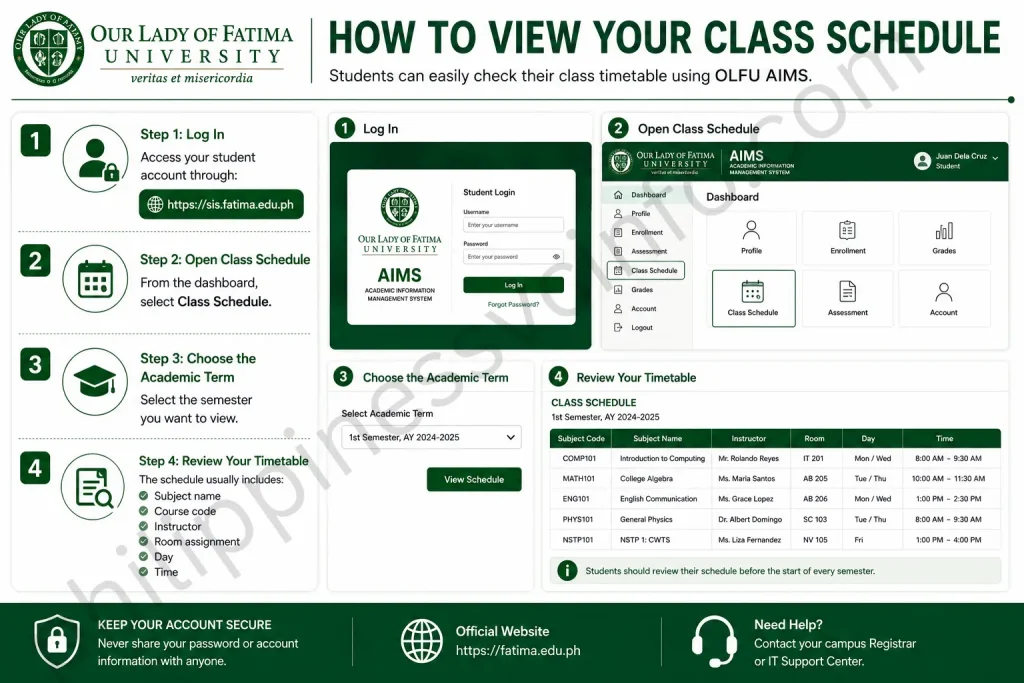
Step 1: Log In
Access your student account through:
Step 2: Open Class Schedule
From the dashboard, select Class Schedule.
Step 3: Choose the Academic Term
Select the semester you want to view.
Step 4: Review Your Timetable
The schedule usually includes:
- Subject name
- Course code
- Instructor
- Room assignment
- Day
- Time
Students should review their schedule before the start of every semester.
How to Check Grades?
One of the most frequently used features of OLFU AIMS is online grade viewing.

Students can access their academic performance anytime after grades are released.
Step 1: Log In
Visit:
Step 2: Open the Grades Section
Select Grades from your dashboard.
Step 3: Select the Semester
Choose the academic term you wish to review.
Step 4: View Your Grades
The system may display:
- Subject codes
- Subject titles
- Units
- Final grades
- Academic standing
Students should verify all information and contact the registrar if they notice discrepancies.
How to Pay Tuition Online?
Depending on the services available for your campus, OLFU AIMS may provide access to tuition assessment and payment information.
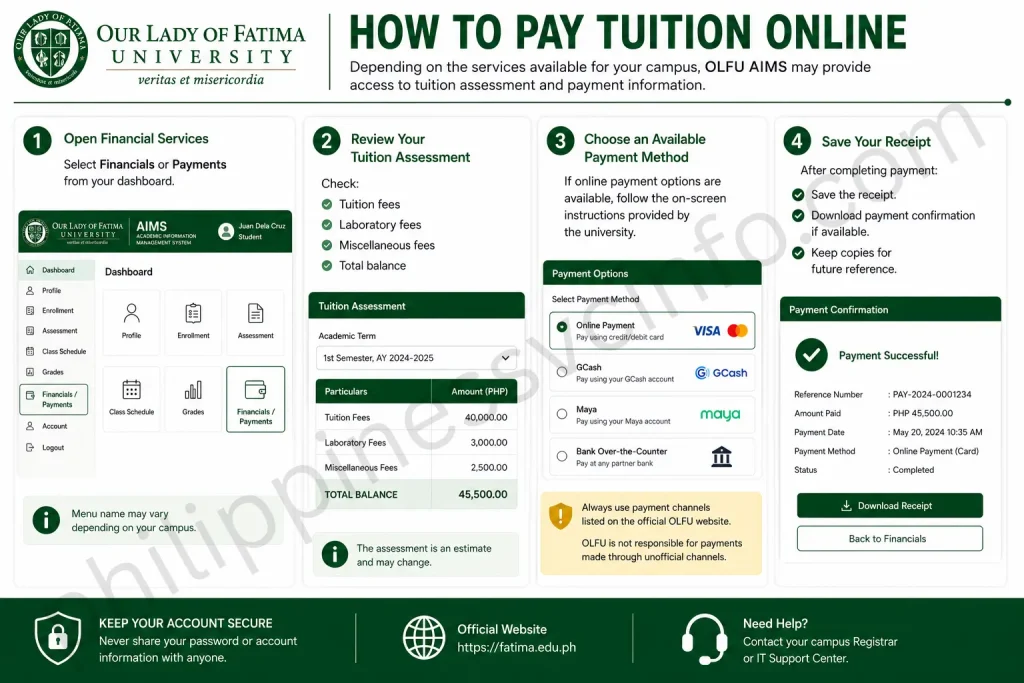
Step 1: Open Financial Services
Select Financials or Payments from your dashboard.
Step 2: Review Your Tuition Assessment
Check:
- Tuition fees
- Laboratory fees
- Miscellaneous fees
- Total balance
Step 3: Choose an Available Payment Method
If online payment options are available, follow the on-screen instructions provided by the university.
Always use payment channels listed on the official OLFU website.
Step 4: Save Your Receipt
After completing payment:
- Save the receipt.
- Download payment confirmation if available.
- Keep copies for future reference.
Viewing Financial Records
Managing your finances is an important part of student life, and OLFU AIMS makes it easier by providing access to your tuition assessment and payment information in one place. Instead of visiting the accounting office for every inquiry, students can monitor their financial records online whenever they log in to the portal.
Depending on your campus and account permissions, the information displayed may vary.
View Tuition Assessment
The tuition assessment page provides an overview of the fees charged for your current semester.
It may include:
- Tuition fees
- Miscellaneous fees
- Laboratory fees
- Other school charges
- Total amount due
Always review your assessment before making a payment to ensure that all charges are accurate.
Check Outstanding Balances
Students can use OLFU AIMS to monitor unpaid balances.
Reviewing your balance regularly helps you:
- Avoid late payments
- Meet enrollment requirements
- Stay informed about your financial obligations
If you notice an unexpected balance, contact your campus accounting office for clarification.
Review Payment History
The payment history section records your previous tuition payments.
You may be able to view:
- Payment dates
- Payment amounts
- Official receipt references
- Payment status
Keeping copies of payment confirmations is recommended for future reference.
Downloading Assessment Forms
Assessment forms are important documents used during enrollment and payment processing.

Students can usually download or print these documents directly from OLFU AIMS.
Step 1: Log In
Visit the official student portal:
Enter your Student Number and password.
Step 2: Open the Assessment Module
From the dashboard, locate the Assessment or Financial Assessment section.
Step 3: Select the Current Semester
Choose the semester for which you need the assessment form.
Step 4: Download or Print
If available, click:
- Download PDF
- Print Assessment
- Save Copy
Always keep a digital copy for your personal records.
Accessing Academic Announcements
OLFU AIMS serves as an important communication platform between the university and students.
Students should check the portal regularly for official announcements.
Common Announcements
You may find updates regarding:
- Enrollment schedules
- Examination dates
- Registration deadlines
- Tuition payment reminders
- Academic calendars
- Graduation announcements
- Campus events
- Student advisories
Checking announcements frequently helps you avoid missing important deadlines.
Common OLFU AIMS Login Problems and Solutions
Although OLFU AIMS is designed for reliable access, students may occasionally encounter login or system issues.
The following solutions can help resolve common problems.
| Problem | Possible Solution |
|---|---|
| Incorrect password | Re-enter your password carefully or use the password recovery option if available. |
| Invalid Student Number | Verify that you entered the correct Student Number. |
| Website not loading | Check your internet connection or refresh the page. |
| Browser compatibility issues | Update your browser or try Google Chrome, Microsoft Edge, Firefox, or Safari. |
| Slow portal performance | Access the portal during non-peak hours or try again later. |
| Account access issues | Contact your campus registrar or IT support for assistance. |
If problems continue, avoid repeatedly attempting to log in, as this may temporarily restrict access to your account.
Security Tips
Protecting your student account is essential because it contains personal and academic information.
Use Strong Passwords
Create a password that includes:
- Uppercase letters
- Lowercase letters
- Numbers
- Special characters
Avoid using easily guessed information such as birthdays or names.
Never Share Your Credentials
Your Student Number and password should remain private.
Do not share them with friends or post them online.
Log Out After Every Session
Always sign out after using OLFU AIMS, especially when accessing the portal from:
- School laboratories
- Internet cafés
- Shared computers
- Public devices
Use Only Official Websites
To protect your personal information, always access the portal through the official websites:
Our Lady of Fatima University:
OLFU AIMS Student Portal:
Avoid unofficial websites that request your login credentials.
Keep Your Browser Updated
Using the latest browser version improves:
- Security
- Compatibility
- Performance
- Overall browsing experience
Frequently Asked Questions (FAQs)
Conclusion
OLFU AIMS is an essential online platform that simplifies academic and administrative processes for students at Our Lady of Fatima University. From online enrollment and subject registration to viewing grades, downloading assessment forms, checking tuition balances, and accessing university announcements, the portal brings important student services together in one secure location. By using the official OLFU AIMS portal and referring to the university’s official website, students can safely manage their academic journey with confidence. Regularly checking your dashboard, keeping your account information updated, and following university announcements will help ensure a smooth and successful academic experience throughout each semester.
Discover What You Need to Know:
- Metrobank Philippines 2026: Online Banking, Login, Accounts & Loans
- ARCarrierPoint.net 2026 Complete Guide With Features, Services, Benefits & How to Use
- Tinkercad 2026: Complete Guide to 3D Design, CAD, Circuits, Codeblocks & 3D Printing
- eGovPH Philippines 2026: Registration, Login & Services Guide