Digital learning has become an essential part of education, and STI ELMS plays a major role in helping STI College students manage their studies online. Whether you are attending hybrid classes, completing online coursework, or checking your grades, STI ELMS provides a central platform where everything is organised in one place. If you are a new or returning student, learning how to use STI ELMS properly can make your academic experience much smoother. From logging into your account to submitting assignments and joining online classes, every important learning activity is available through the platform. This complete guide explains everything you need to know about STI ELMS, including its official website, login process, account activation, password recovery, features, and system requirements.
What Is STI ELMS?
STI ELMS (eLearning Management System) is the official online learning platform used by STI College. It serves as a digital classroom where students and instructors interact throughout the academic term.Instead of relying only on traditional classroom instruction, STI ELMS allows students to access learning materials anytime with an internet connection. Professors can upload lectures, announce activities, assign coursework, conduct quizzes, and monitor student progress using one secure platform.Because every enrolled student receives access to STI ELMS, it has become one of the most important academic tools within the STI educational system.
Official STI Website
Students should always use the official STI websites to avoid phishing pages or unofficial portals.
If you are unsure which portal to use, visit the official STI website first and navigate to the student services or eLearning section.
Important: Never enter your Microsoft Office 365 credentials on unofficial websites.
What Can You Do Using STI ELMS?
The STI ELMS platform supports nearly every aspect of a student’s academic journey. Instead of visiting multiple websites, students can complete most school-related tasks from a single dashboard.
Some of the primary functions include:
- Access enrolled courses
- Download lecture notes
- View learning modules
- Watch instructional videos
- Join online classes
- Submit assignments
- Upload projects
- Complete quizzes
- Take online examinations
- Check grades
- Read instructor feedback
- Receive announcements
- Monitor academic progress
- View deadlines
- Access course calendars
Because of these features, STI ELMS helps students stay organised throughout each semester.
Why Students Use STI ELMS
Thousands of students rely on STI ELMS because it provides a flexible learning environment that supports both classroom and remote education.
Some of the biggest advantages include:
Learn Anywhere
Students can study from home, campus, or any location with internet access.
Centralised Learning
All subjects are organised inside one dashboard, making course management much easier.
Faster Communication
Teachers can immediately post announcements, reminders, and updated schedules.
Digital Assignment Submission
Instead of printing documents, assignments can be uploaded directly through STI ELMS.
Immediate Grade Monitoring
Students can review quiz results, assignment scores, instructor comments, and overall academic performance without waiting for printed reports.
Secure Student Accounts
Each student logs in using an official Microsoft Office 365 account issued by STI.
Main Features of STI ELMS
The table below highlights the core features available on the platform.
| Feature | Description |
|---|---|
| Course Dashboard | Displays all enrolled subjects for the current term |
| Learning Modules | Provides lecture notes, PDFs, PowerPoint presentations, videos, and digital resources |
| Assignments | Allows students to upload homework, projects, and other coursework |
| Online Quizzes | Enables instructors to conduct quizzes and examinations online |
| Gradebook | Shows grades, teacher feedback, and overall academic progress |
| Calendar | Displays assignment deadlines, examinations, and school events |
| Announcements | Keeps students informed about important academic updates |
| Microsoft Teams Integration | Supports live online classes and virtual meetings |
System Requirements for STI ELMS
Before using STI ELMS, ensure your device meets the recommended requirements for a smooth experience.
Recommended Browsers
For the best compatibility, use:
- Google Chrome
- Microsoft Edge
Although other browsers may work, these two generally provide the most reliable performance.
Internet Connection
A stable internet connection is recommended, especially when:
- Joining live classes
- Uploading assignments
- Taking online examinations
- Downloading learning materials
Slow internet may interrupt quizzes or prevent files from uploading successfully.
Supported Devices
Students can access STI ELMS using:
- Windows computers
- Mac computers
- Android phones
- Android tablets
- iPhones
- iPads
The platform is designed to work across multiple screen sizes.
How STI ELMS Accounts Are Created
Unlike many online learning platforms, STI ELMS does not require students to register manually.

Once your enrolment at an STI campus is officially processed, your student account is generated automatically.
During enrolment or orientation, you will receive:
- Official Student Number
- Microsoft Office 365 email account
- Temporary password
- Login instructions
These credentials are required to access STI ELMS.
How to Activate Your STI ELMS Account
Before using STI ELMS for the first time, you must activate your assigned Microsoft account.

Step 1: Obtain Your Student Credentials
Collect your official login details from your campus Registrar or IT Administrator after completing your enrolment.
These usually include:
- Student Number
- STI Microsoft Office 365 email
- Temporary password
Step 2: Visit the Official Portal
Open your preferred web browser and go to:
Step 3: Sign In
Enter your official STI Microsoft Office 365 email address together with the temporary password provided by the school.
Double-check the spelling of your email before continuing.
Step 4: Create a New Password
For security purposes, the system will request a password change during your first login.
A strong password should generally include:
- At least eight characters
- Uppercase letters
- Lowercase letters
- Numbers
- Special characters
Avoid using birthdays, student numbers, or easily guessed words.
Step 5: Configure Recovery Information
To help recover your account in the future, add:
- A personal email address
- A verified mobile phone number
This information enables self-service password recovery if you forget your login details.
How to Log In to STI ELMS
After activating your account, signing in is straightforward.
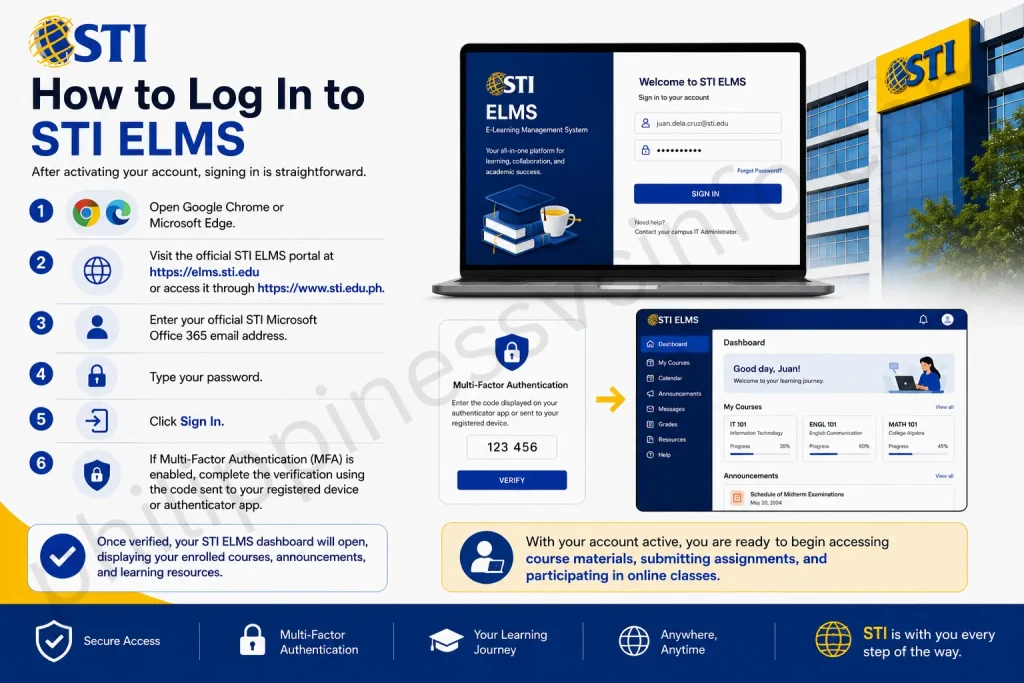
Follow these steps:
- Open Google Chrome or Microsoft Edge.
- Visit the official STI ELMS Which is given below.
- Enter your official STI Microsoft Office 365 email address.
- Type your password.
- Click Sign In.
- If Multi-Factor Authentication (MFA) is enabled, complete the verification using the code sent to your registered device or authenticator app.
- Once verified, your STI ELMS dashboard will open, displaying your enrolled courses, announcements, and learning resources.
With your account active, you are ready to begin accessing course materials, submitting assignments, and participating in online classes.
How to Reset Your STI ELMS Password
Forgetting your password can prevent you from accessing your courses, assignments, and announcements on STI ELMS. Fortunately, students can recover their accounts through Microsoft’s self-service password recovery if their recovery information has been configured.

Step 1: Open the Official STI ELMS Login Page
Step 2: Select “Can’t Access Your Account?”
On the login screen, click “Can’t access your account?” or “Forgot Password?”
This opens Microsoft’s password recovery page for your STI Microsoft Office 365 account.
Step 3: Choose Work or School Account
Since STI ELMS uses Microsoft Office 365 credentials, select:
Work or School Account
Step 4: Verify Your Identity
Enter your official STI email address.
Complete the CAPTCHA if prompted.
Step 5: Receive the Verification Code
Choose one of the available verification methods:
- Registered mobile number
- Secondary recovery email
- Microsoft Authenticator (if previously configured)
Enter the verification code sent to you.
Step 6: Create a New Password
Choose a strong password that includes:
- Uppercase letters
- Lowercase letters
- Numbers
- Special characters
- At least eight characters
Avoid using passwords you’ve previously used.
Step 7: Sign Back into STI ELMS
Return to:
Log in using your new password.
Understanding the STI ELMS Dashboard
After logging into STI ELMS, the dashboard becomes your personal academic workspace. Every important learning activity is organised here, allowing students to quickly navigate between subjects and academic tasks.
A typical dashboard includes:
- Current enrolled subjects
- Instructor announcements
- Upcoming assignment deadlines
- Calendar events
- Learning modules
- Recent activities
- Grade updates
- Notifications
Checking your dashboard regularly helps you stay informed about new coursework and announcements.
How to Access Learning Modules
One of the most frequently used features of STI ELMS is the Learning Modules section. This is where instructors upload educational resources for every subject.
These materials may include:
- PDF lecture notes
- PowerPoint presentations
- Reading materials
- Video lectures
- Worksheets
- Reference documents
- Downloadable files
Steps to Access Learning Modules
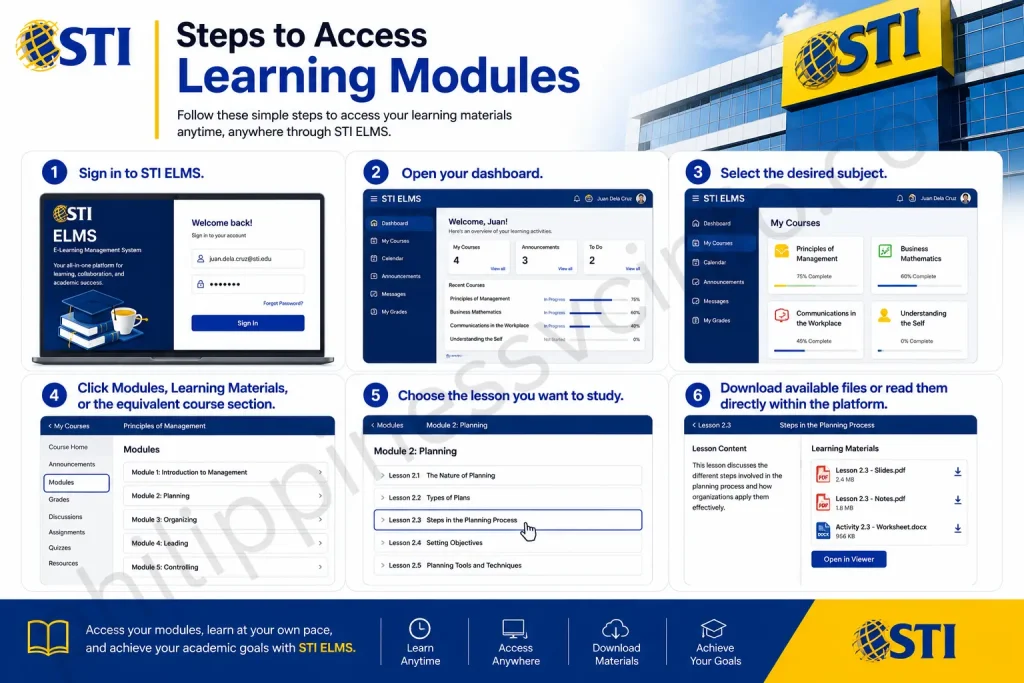
- Sign in to STI ELMS.
- Open your dashboard.
- Select the desired subject.
- Click Modules, Learning Materials, or the equivalent course section.
- Choose the lesson you want to study.
- Download available files or read them directly within the platform.
Many resources can be saved to your device for offline review after downloading.
Joining Online Classes Through STI ELMS
Many STI instructors conduct virtual classes using Microsoft Teams integrated with STI ELMS.
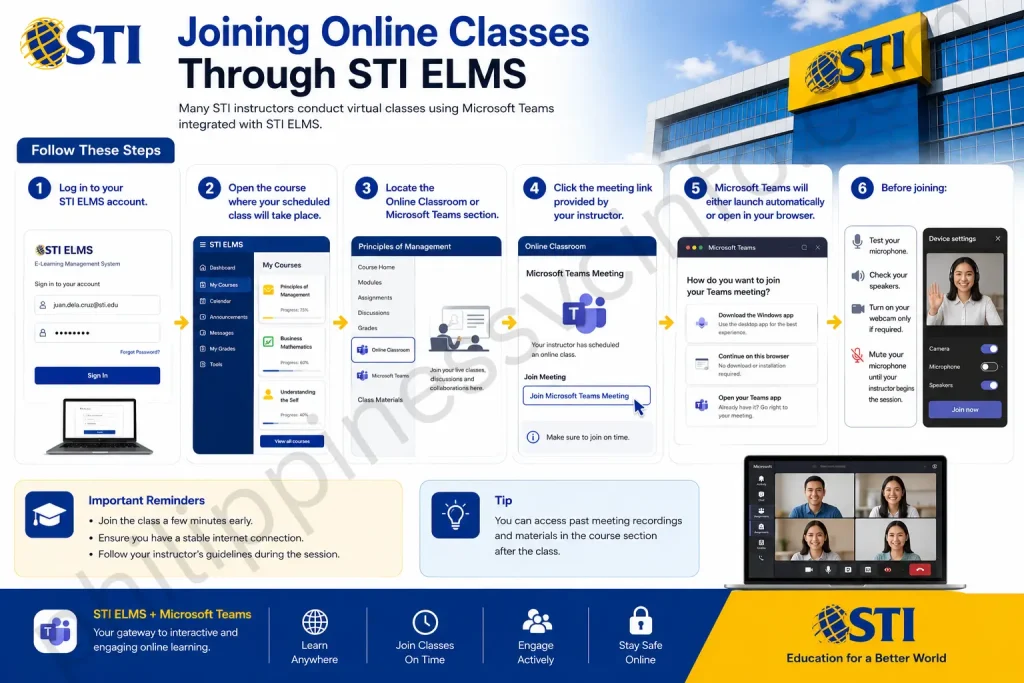
Follow These Steps:
Step 1
Log in to your STI ELMS account.
Step 2
Open the course where your scheduled class will take place.
Step 3
Locate the Online Classroom or Microsoft Teams section.
Step 4
Click the meeting link provided by your instructor.
Step 5
Microsoft Teams will either launch automatically or open in your browser.
Step 6
Before joining:
- Test your microphone.
- Check your speakers.
- Turn on your webcam only if required.
- Mute your microphone until your instructor begins the session.
How to Submit Assignments on STI ELMS
Assignment submission is one of the most important tasks students complete through STI ELMS. Always review the instructions carefully before uploading your work.

Step 1
Sign in to STI ELMS.
Step 2
Open the relevant subject from your dashboard.
Step 3
Go to the Assignments or Tasks section.
Step 4
Select the assignment you need to submit.
Read the instructions carefully, paying attention to:
- Due date
- File format
- Maximum file size
- Submission requirements
Step 5
Click Upload File or Add Submission.
Browse your computer or mobile device and choose the correct file.
Commonly accepted formats include:
- DOCX
- PPTX
- XLSX
- ZIP
The accepted file types may vary depending on your instructor’s requirements.
Step 6
After uploading, select Submit Assignment or Save Changes.
Wait until the upload finishes completely.
Step 7
Verify your submission status.
A successful upload typically changes the assignment status to:
Submitted for Grading
Always confirm this status before leaving the page.
Best Practices Before Submitting Assignments
Following a few simple habits can help avoid submission issues on STI ELMS.
Check the Deadline
Submit your work early whenever possible instead of waiting until the final minutes.
Use the Correct File Format
Only upload the file types requested by your instructor.
Review Your Document
Open your file before uploading to ensure it is complete and readable.
Maintain a Backup Copy
Save another copy of your assignment on your computer or cloud storage.
Confirm Submission
Always check that the assignment status indicates successful submission.
Viewing Grades on STI ELMS
The Gradebook allows students to monitor their academic performance throughout the semester.
Instead of waiting for printed reports, students can review their scores as instructors publish results.
Steps to Check Grades
- Log in to STI ELMS.
- Open the subject you want to review.
- Click the Grades tab.
- Review your academic records.
The Gradebook may display:
- Quiz scores
- Assignment grades
- Examination results
- Project evaluations
- Teacher comments
- Overall course standing
- Prelim, Midterm, and Final grades (where available)
Regularly checking your grades allows you to identify areas where you may need additional improvement before major assessments.
Why Students Should Check STI ELMS Frequently
Many students only log in when they have an assignment due. However, using STI ELMS regularly offers several advantages:
- Stay updated with instructor announcements.
- Avoid missing submission deadlines.
- Access newly uploaded learning materials.
- Track your academic progress.
- Respond quickly to instructor feedback.
- Prepare for quizzes and examinations.
Making STI ELMS part of your daily study routine can help you stay organised throughout the academic term.
STI ELMS Mobile Access Guide
Modern students often use smartphones and tablets for studying, checking announcements, and completing coursework. STI ELMS supports mobile learning by allowing students to access their academic resources through mobile browsers and compatible learning applications.
Whether you are using Android or iOS, you can continue managing your classes even when you are away from your computer.
Access STI ELMS Using a Mobile Browser
The easiest way to use STI ELMS on a smartphone is through a mobile web browser.
Steps to Access STI ELMS on Mobile
- Open your mobile browser.
Recommended browsers:
- Google Chrome
- Safari
- Microsoft Edge
- Visit the official portal:
- Enter your STI Microsoft Office 365 email address.
- Type your password.
- Complete Multi-Factor Authentication (MFA) verification if required.
- Your STI ELMS dashboard will automatically adjust for mobile viewing.
From your mobile dashboard, you can:
- Read announcements
- Open learning modules
- Check assignments
- Review grades
- Download study materials
STI ELMS Mobile Application Access
Depending on campus availability and current system rollout, students may access learning services through supported LMS mobile applications.
Mobile App Installation Steps
For Android Users:
- Open Google Play Store.
- Search for the official supported LMS application.
- Install the application.
- Select STI College if required.
- Sign in using your STI Microsoft Office 365 account.
For iPhone or iPad Users:
- Open Apple App Store.
- Search for the supported LMS application.
- Install the application.
- Choose STI College as your institution.
- Enter your STI account credentials.
Mobile Learning Tips for STI ELMS Users
To get better performance from STI ELMS on mobile devices:
- Keep your browser updated.
- Enable notifications for important updates.
- Use a stable Wi-Fi connection when uploading files.
- Download learning materials while connected to the internet.
- Keep enough storage space for downloaded documents.
- Avoid submitting assignments using unstable mobile data.
Common STI ELMS Login Problems and Solutions
Although STI ELMS is designed for reliable access, students may sometimes experience login errors or technical difficulties.
The following solutions can help resolve common problems.
| Problem | Possible Reason | Solution |
|---|---|---|
| Invalid username or password | Incorrect credentials or typing error | Check your STI email address and password carefully. Use password recovery if needed |
| Account locked | Too many unsuccessful login attempts | Wait for automatic unlocking or contact your campus IT support |
| Blank page or loading issue | Browser cache or connection problem | Clear cache, refresh the page, or try another browser |
| Access denied | Subject registration not updated | Confirm enrolment status with your campus office |
| MFA code not received | Mobile network or authentication issue | Check your phone connection and try another verification option |
| Missing course | Course information not synchronised | Contact your instructor, Registrar, or IT administrator |
Troubleshooting STI ELMS Access Issues
Browser Problems
If STI ELMS does not load correctly:
Try these solutions:
- Clear browser cookies and cache.
- Update your browser.
- Disable unnecessary browser extensions.
- Open the website using private/incognito mode.
- Restart your device.
Intern3et Connection Problems
A weak connection can affect:
- Login process
- Video lectures
- Online quizzes
- File uploads
For important academic activities, use a reliable internet connection whenever possible.
Account and Credential Problems
If your login details are not working:
- Confirm that you are using your official STI email.
- Check whether your password was recently changed.
- Use the password recovery option.
- Contact your campus ICT or IT Department if the issue continues.
STI ELMS Support and Assistance
If technical problems cannot be solved online, students should contact their respective STI campus support team.
When requesting assistance, provide:
- Full name
- Student number
- STI email address
- Description of the problem
- Screenshot of the error message
Providing complete information helps the support team identify the issue faster.
Best Practices for Using STI ELMS Successfully
Students can improve their online learning experience by following these habits:
Check the Dashboard Regularly
Important updates, deadlines, and announcements are often posted inside STI ELMS.
Keep Your Account Secure
Never share your STI login details with other people.
Submit Work Before Deadlines
Uploading early reduces the risk of technical problems.
Organise Downloaded Materials
Create folders for each subject to keep modules, assignments, and notes organised.
Update Recovery Information
Maintain updated recovery email and mobile information to make account recovery easier.
Frequently Asked Questions About STI ELMS
Final Thoughts
STI ELMS offers STI College students a reliable digital learning space where they can manage their academic activities from one central platform. It allows students to access enrolled subjects, download learning resources, submit assignments, complete online assessments, check grades, and receive important announcements from instructors. With its organised dashboard and online tools, STI ELMS supports both traditional classroom learning and flexible digital education. Using STI ELMS effectively requires students to understand essential functions such as account activation, login procedures, password recovery, course navigation, and assignment submission. By regularly checking the platform, keeping account details secure, and staying updated with course activities, students can improve their learning experience and stay prepared throughout their academic journey.
Discover What You Need to Know:
- PNP Payslip Portal 2026: Login, Registration, Download, and Online Salary Access Guide
- Wayground: Complete Guide to Login, Features, Pricing & How to Use (2026)
- Form 137 (SF10): Complete Guide to Requirements, Request Process, Fees & FAQs (2026)
- DTI Registration Philippines 2026: Complete Guide to Requirements, Fees, Online Application & Certificate