ML Recharge TNT Philippines 2026: How to Top Up Mobile Legends via Codashop
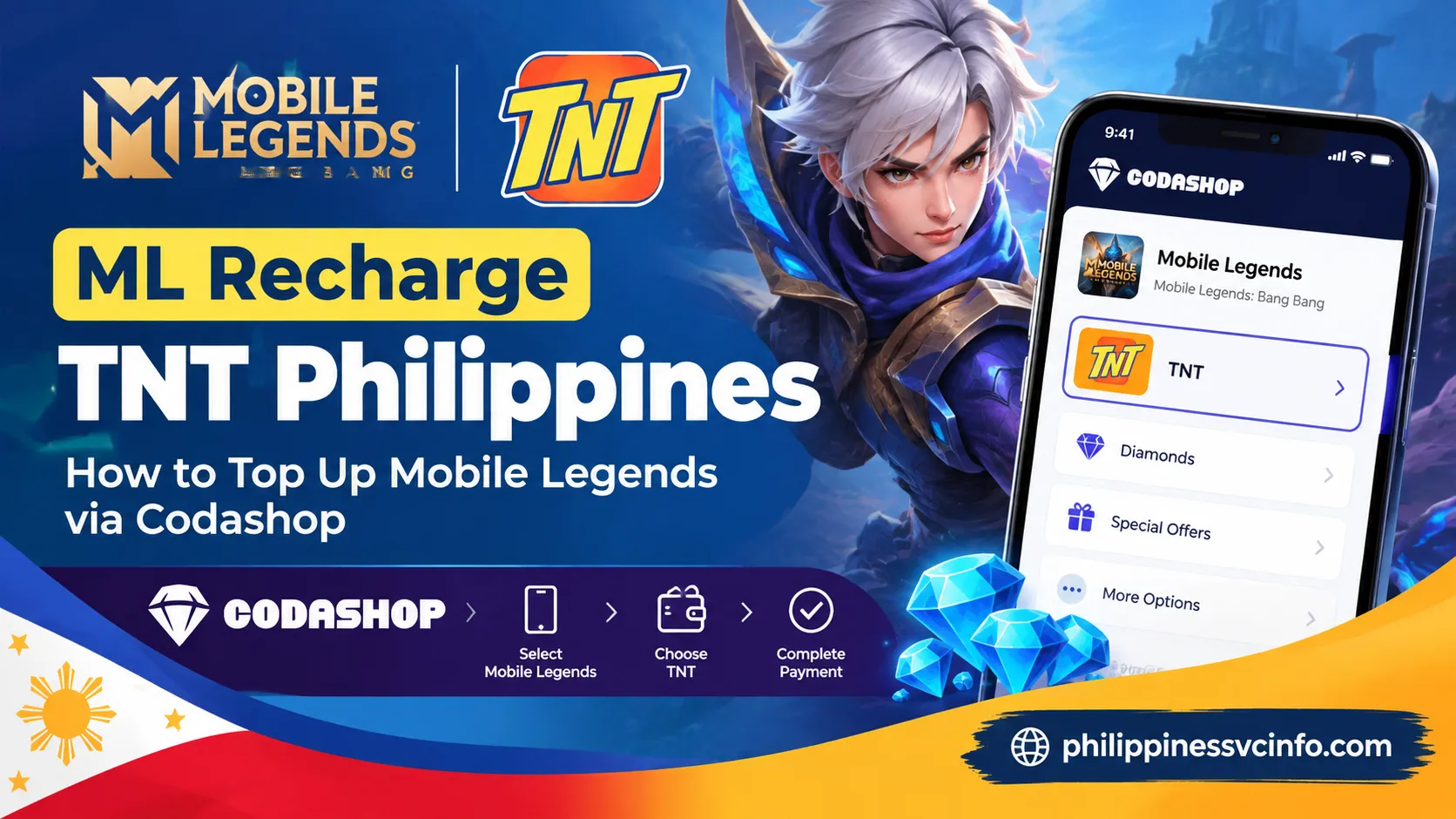
ML recharge TNT is the process of buying Mobile Legends: Bang Bang Diamonds or eligible in-game items using TNT regular load through Codashop Philippines. Players enter their MLBB User ID and Server ID, select a product, choose the Smart/SUN/TNT payment option, verify their mobile number with an OTP, and complete the purchase securely.
What Does ML Recharge TNT Mean?
ML recharge TNT refers to buying Mobile Legends: Bang Bang Diamonds or eligible in-game products using your TNT prepaid regular load as the payment method.
Instead of entering a debit or credit card, you use the load balance on your TNT number. Codashop’s current payment instructions identify Smart/SUN/TNT as a payment channel and require sufficient regular load before the transaction can proceed.
This method can be useful for:
- TNT prepaid subscribers
- Students who don’t use bank cards
- Tourists or foreign residents with an eligible Philippine mobile number
- MLBB players who prefer mobile load payments
- Gamers who want to avoid entering their game password on a third-party top-up page
A key point is that Codashop’s MLBB process asks for your User ID and Server ID, rather than requiring your Mobile Legends account password. The official Codashop support guide confirms that these details are entered before selecting the recharge product and payment method.
Is TNT Supported for ML Recharge?
Yes. Codashop’s Philippines support documentation currently provides a dedicated Smart/SUN/TNT payment procedure. For TNT users, the payment channel may appear under the Smart/SUN/TNT option rather than as a separate TNT-only button. Codashop also specifically notes that TNT users should select Smart as the payment channel in its MLBB load-top-up guidance.
That distinction matters when you reach the payment section. If you are looking for a button labelled only “TNT”, you may not see one.
Why Use Codashop for Mobile Legends Top-Ups?
The biggest advantage is convenience. You don’t need to navigate through the game’s payment settings if you are using Codashop’s direct top-up process.
Codashop’s Philippines platform says users can purchase game credits without registering or logging in to Codashop, while completed purchases are delivered directly to the game account.
For MLBB players, this means you can generally complete the transaction with just the required game identification details and your selected payment method.
Main Benefits of an ML Recharge TNT
| Feature | What it means for players |
|---|---|
| TNT payment | Use eligible TNT regular load |
| No game password | The top-up process uses your MLBB account IDs |
| Direct delivery | Purchased items are credited to the game account after successful payment |
| SMS verification | TNT payment requires mobile verification and OTP |
| Email receipt | Your transaction confirmation can be sent to your email |
| Alternative payments | Other Codashop payment channels may be available if TNT isn’t suitable |
The exact products, prices and payment options displayed at checkout can change, so always check the live Codashop page before paying rather than relying on an old price list.
What You Need Before Starting an ML Recharge TNT
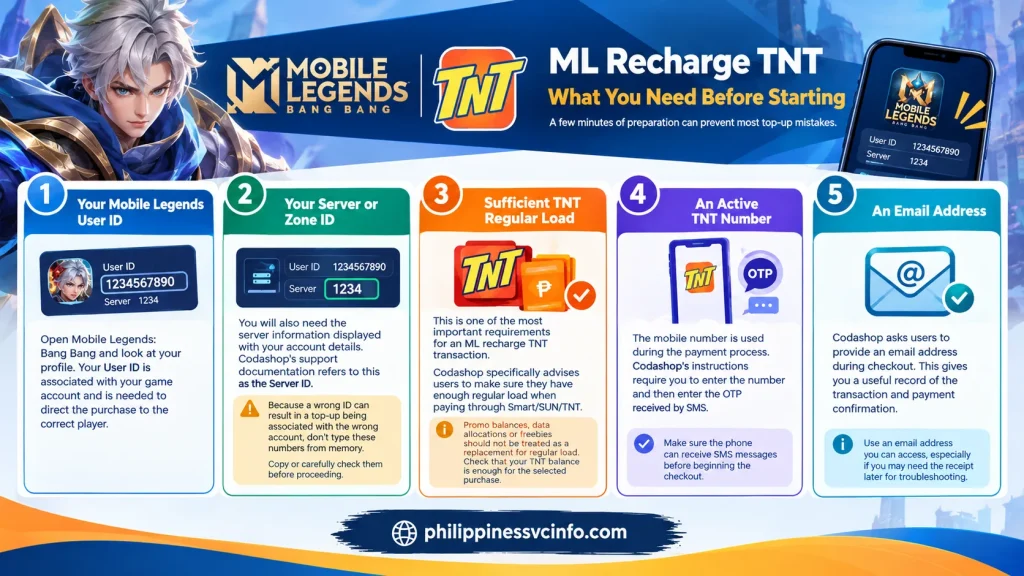
A few minutes of preparation can prevent most top-up mistakes.
1. Your Mobile Legends User ID
Open Mobile Legends: Bang Bang and look at your profile. Your User ID is associated with your game account and is needed to direct the purchase to the correct player.
2. Your Server or Zone ID
You will also need the server information displayed with your account details. Codashop’s support documentation refers to this as the Server ID.
Because a wrong ID can result in a top-up being associated with the wrong account, don’t type these numbers from memory. Copy or carefully check them before proceeding.
3. Sufficient TNT Regular Load
This is one of the most important requirements for an ML recharge TNT transaction.
Codashop specifically advises users to make sure they have enough regular load when paying through Smart/SUN/TNT.
Promo-specific balances, data allocations or freebies should not be treated as a replacement for the regular load required for the payment. Before starting, check that your TNT balance is enough for the selected purchase.
4. An Active TNT Number
The mobile number is used during the payment process. Codashop’s instructions require you to enter the number and then enter the OTP received by SMS.
Make sure the phone can receive SMS messages before beginning the checkout.
5. An Email Address
Codashop asks users to provide an email address during checkout. This gives you a useful record of the transaction and payment confirmation.
Use an email address you can access, especially if you may need the receipt later for troubleshooting.
ML Recharge TNT: Before-Checkout Checklist
Before clicking the payment button, check these five things:
- Mobile Legends is installed and you can access your account.
- Your User ID is correct.
- Your Server/Zone ID is correct.
- Your TNT SIM has enough regular load.
- Your TNT number can receive SMS OTP messages.
This small check is worth doing because most avoidable problems happen before payment is actually submitted.
How to Do an ML Recharge TNT on Codashop
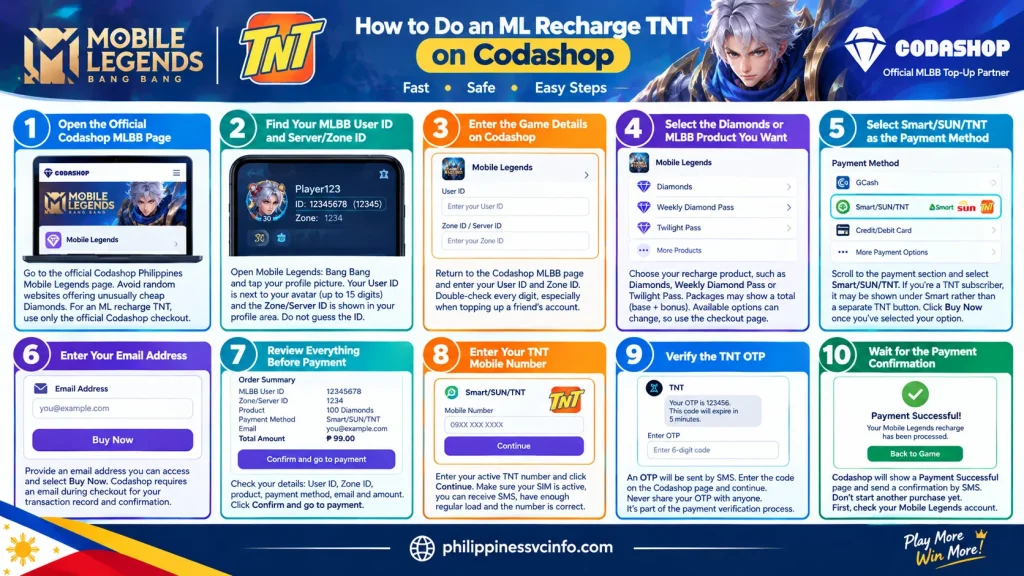
Step 1: Open the Official Codashop MLBB Page
Start by opening the official Codashop Philippines Mobile Legends page. Codashop identifies Mobile Legends: Bang Bang as an official-distributor top-up option and allows users to enter their MLBB User ID and Zone ID directly on the page.
Avoid random websites offering unusually cheap Diamonds. A genuine-looking page can still be designed to collect account information or payments.
For an ML recharge TNT, you only need the official Codashop checkout and the information required for the transaction.
Step 2: Find Your MLBB User ID and Server/Zone ID
Open Mobile Legends: Bang Bang on your phone and tap your profile picture/avatar on the left side of the home screen.
Your account identification information will be displayed in the profile area. Codashop’s support page says the User ID appears next to the profile picture and may contain up to 15 digits, with some numbers shown in parentheses.
You may see information in a format similar to:
User ID: 12345678
Zone/Server ID: 1234
The numbers above are only an example. Always use the IDs displayed on your own MLBB account.
Important: Do not guess the ID. Before paying for an ML recharge TNT, compare the information on Codashop with your Mobile Legends profile.
Step 3: Enter the Game Details on Codashop
Return to the Codashop Mobile Legends page and enter:
- User ID
- Zone ID / Server ID
Codashop’s current MLBB purchase instructions specifically begin with these two account details.
Once entered, take a moment to verify every digit. This is especially important if you’re topping up a friend’s account, because the purchase is directed according to the account information you provide.
Step 4: Select the Diamonds or MLBB Product You Want
After entering the account details, choose the recharge product.
Depending on what Codashop currently offers, you may see options such as:
- Mobile Legends Diamonds
- Weekly Diamond Pass
- Twilight Pass
- Other available MLBB bundles or promotional products
The live Codashop page currently lists Diamonds, Weekly Diamond Pass and Twilight Pass among its MLBB products. Available packages and promotions can change, so use the checkout page as the current reference.
Codashop may also display Diamonds in a total (base + bonus) format. For example, a package can show a total number that includes both the standard Diamonds and a promotional bonus.
Step 5: Select Smart/SUN/TNT as the Payment Method
This is the key stage for an ML recharge TNT.
Scroll to the payment section and look for Smart/SUN/TNT. Codashop’s Philippines support instructions specifically state that users should select Smart/SUN/TNT as the payment method before clicking Buy Now.
If you’re a TNT subscriber, don’t be confused if the option is shown as Smart/SUN/TNT or under the Smart payment channel rather than as a separate “TNT” button.
Codashop’s own MLBB load guide says TNT or Sun users should select Smart as their payment channel.
Step 6: Enter Your Email Address
Enter an email address that you can access, then select Buy Now.
Codashop’s general top-up instructions require an email address during checkout, which can be used for proof of payment or other transaction information.
This is worth doing carefully. Keep the receipt because it can become useful if your Diamonds do not appear or you need to contact support later.
Step 7: Review Everything Before Payment
A confirmation screen should appear before you move to the payment stage.
Check:
- MLBB User ID
- Zone/Server ID
- Selected Diamonds or pass
- Payment method
- Email address
- Purchase amount
If everything is correct, select Confirm and go to payment.
Codashop’s Smart/SUN/TNT instructions specifically use this confirmation stage before asking for the mobile number.
Step 8: Enter Your TNT Mobile Number
You will then be asked to provide the mobile number associated with the payment.
Enter your active TNT number and select Continue.
Before doing this, make sure:
- The SIM is active.
- Your phone can receive SMS.
- You have enough regular load.
- The number is entered correctly.
Codashop specifically advises customers to ensure they have enough regular load before completing a Smart/SUN/TNT transaction.
Step 9: Verify the TNT OTP
An OTP will be sent to the mobile number by SMS.
Enter the OTP on the Codashop payment page and continue. Codashop’s current payment instructions confirm that the OTP is required to complete the Smart/SUN/TNT payment process.
Never share your OTP with another person. If somebody claiming to be a seller or support representative asks you to send your OTP through chat, don’t provide it.
The OTP is part of the payment verification process.
Step 10: Wait for the Payment Confirmation
After successful verification, Codashop should display a Payment Successful page. Codashop also states that a payment confirmation is sent by SMS for Smart/SUN/TNT payments.
At this stage, don’t immediately start another purchase just because the game screen has not refreshed yet.
First, check Mobile Legends.
When Will the Diamonds Appear?
Codashop says successful MLBB purchases are automatically credited to the relevant Mobile Legends account.
In many cases, the purchase appears quickly. However, a short processing delay can occasionally occur.
If the Diamonds aren’t visible straight away:
Refresh the game
Close Mobile Legends completely and open it again. Codashop’s troubleshooting guidance recommends restarting the game when purchased Diamonds have not appeared.
Check your Diamond balance
Look at your MLBB account after restarting and confirm whether the balance has changed.
Keep your receipt
Don’t delete the confirmation email or payment evidence. Your Order ID and transaction information may be needed if you contact Codashop support.
What If ML Recharge TNT Fails?
A failed transaction doesn’t always mean your money or load has disappeared. The cause can be something as simple as insufficient regular load, an expired payment session, a network limitation or a payment-channel problem.
Here are some common situations.
Not Enough Regular Load
This is one of the first things to check.
Codashop specifically tells Smart/SUN/TNT customers to make sure there is sufficient regular load for the purchase.
If your available balance isn’t enough, the payment may not go through.
What to do: Check your TNT balance and make sure the regular load available is sufficient for the selected MLBB product.
OTP Does Not Arrive
An OTP can sometimes be delayed because of mobile-network conditions.
Try waiting briefly before requesting or restarting the payment process. Don’t repeatedly start new transactions while an earlier payment is still processing.
If the payment session expires, Codashop identifies Error 213 as an expired transaction, including situations where the OTP was not entered within the allowed time.
The Payment Session Expires
If you don’t complete the payment within the permitted session, you may need to start the transaction again.
Codashop advises restarting the purchase when an expired transaction has not resulted in a charge. If you were already charged, contact Codashop support and provide proof of payment.
Your Mobile Network Has Reached a Limit
Codashop’s error documentation says Error 312 can indicate that the mobile network’s daily or monthly transaction limit has been exceeded.
In that situation, the suggested options include waiting for the relevant limit to reset or using another phone number/payment method.
What to Do If You Were Charged but Didn’t Receive Diamonds
This situation deserves a little more care. Don’t immediately purchase the same package again.
First:
- Keep the payment confirmation.
- Restart Mobile Legends.
- Wait a few minutes.
- Check your Diamonds again.
- Confirm that the User ID and Server ID were correct.
- Contact Codashop support if the purchase still hasn’t appeared.
Codashop’s official troubleshooting page recommends restarting the game and waiting a few minutes. If the Diamonds remain missing, it asks customers to provide proof of payment, the Game User ID and Server ID, and the mobile number or email used for the purchase.
This information gives support a much better chance of tracing the transaction.
How to Keep Your ML Recharge TNT Safe
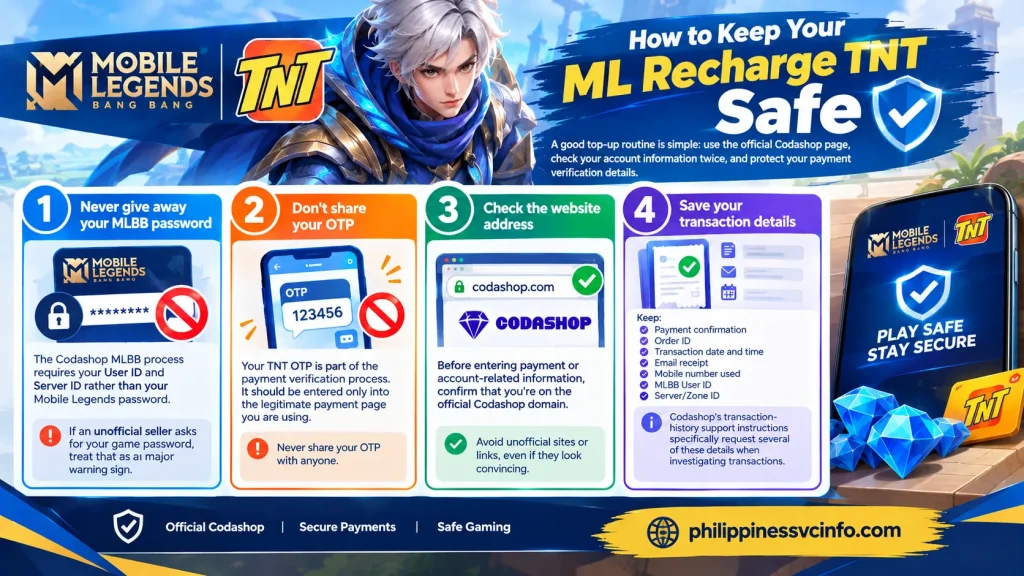
A good top-up routine is simple: use the official Codashop page, check your account information twice, and protect your payment verification details.
Never give away your MLBB password
The Codashop MLBB process requires your User ID and Server ID rather than your Mobile Legends password.
If an unofficial seller asks for your game password, treat that as a major warning sign.
Don’t share your OTP
Your TNT OTP is part of the payment verification process. It should be entered only into the legitimate payment page you are using.
Check the website address
Before entering payment or account-related information, confirm that you’re on the official Codashop domain.
Save your transaction details
Keep:
- Payment confirmation
- Order ID
- Transaction date and time
- Email receipt
- Mobile number used
- MLBB User ID
- Server/Zone ID
Codashop’s transaction-history support instructions specifically request several of these details when investigating transactions.
How to Check Your ML Recharge TNT Transaction
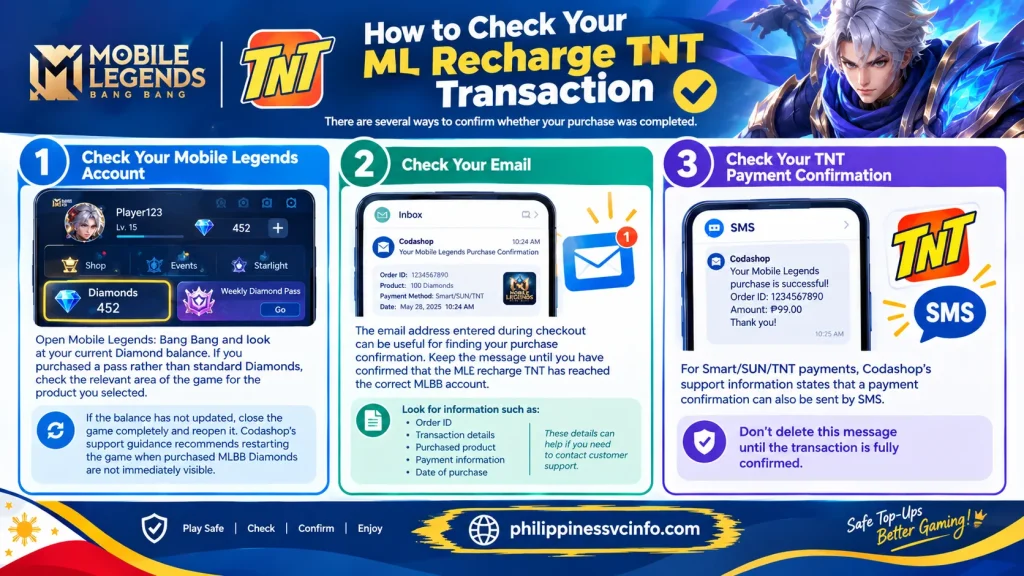
There are several ways to confirm whether your purchase was completed.
Check Your Mobile Legends Account
Open Mobile Legends: Bang Bang and look at your current Diamond balance. If you purchased a pass rather than standard Diamonds, check the relevant area of the game for the product you selected.
If the balance has not updated, close the game completely and reopen it. Codashop’s support guidance recommends restarting the game when purchased MLBB Diamonds are not immediately visible.
Check Your Email
The email address entered during checkout can be useful for finding your purchase confirmation. Keep the message until you have confirmed that the ML recharge TNT has reached the correct MLBB account.
Look for information such as:
- Order ID
- Transaction details
- Purchased product
- Payment information
- Date of purchase
These details can help if you need to contact customer support.
Check Your TNT Payment Confirmation
For Smart/SUN/TNT payments, Codashop’s support information states that a payment confirmation can also be sent by SMS.
Don’t delete this message until the transaction is fully confirmed.
What If Your ML Recharge TNT Is Still Missing?
If the Diamonds haven’t appeared after restarting Mobile Legends and checking your payment confirmation, don’t immediately purchase another package.
Instead, gather the transaction information and contact Codashop support.
Codashop’s troubleshooting guidance indicates that customers may need to provide details such as the payment proof, Game User ID, Server ID and the mobile number or email associated with the purchase.
Information to Prepare for Support
| Information | Why it helps |
|---|---|
| Order ID | Identifies the transaction |
| Payment receipt | Shows payment evidence |
| MLBB User ID | Identifies the game account |
| Server/Zone ID | Helps identify the correct MLBB account |
| TNT mobile number | Identifies the payment channel |
| Email address | Helps locate transaction information |
| Purchase date and time | Helps support trace the transaction |
Use the information from the actual transaction rather than estimates.
Common ML Recharge TNT Problems and Solutions
Why Did My TNT Top-Up Fail?
One possible reason is insufficient regular load. Codashop’s Smart/SUN/TNT payment guidance tells customers to make sure they have enough regular load before attempting the transaction.
Check your available balance and make sure it is sufficient for the selected product.
If the balance is adequate but the payment still fails, restart the purchase from the official Codashop page rather than repeatedly submitting an unsuccessful payment session.
Why Didn’t I Receive the TNT OTP?
An OTP depends on your mobile network and the payment session. If the SMS doesn’t arrive promptly, check that your TNT SIM is active and able to receive messages.
Avoid sharing an OTP with anyone.
If the payment session expires, you may need to begin the transaction again. Codashop’s error guidance notes that an expired transaction can occur when the OTP is not entered within the permitted period.
What If I Entered the Wrong MLBB ID?
This is one of the most important mistakes to avoid.
Before confirming an ML recharge TNT, compare the User ID and Server/Zone ID shown in Codashop with the information displayed on your Mobile Legends profile.
If you realise that the wrong details were submitted, don’t make another purchase immediately. Keep the transaction information and contact Codashop support for guidance.
What If Codashop Shows an Error?
Codashop’s support documentation lists different error codes for payment problems. For example, its documentation identifies an expired transaction as one possible error and describes situations involving mobile-network transaction limits as another.
The exact solution depends on the error displayed. Record the error message or code before closing the page.
Can You Use Another Payment Method?
Yes. TNT is only one payment option available on the Philippine Codashop platform.
Depending on the current product and checkout availability, Codashop may provide several payment channels, including mobile payments, e-wallets and other local options. The available methods can change, so check the live checkout page rather than relying on an old list.
This is useful if your TNT regular load is insufficient or the TNT payment channel is temporarily unavailable.
Common Alternative Categories
- GCash
- Maya
- Other supported e-wallets
- Other mobile prepaid channels
- Selected convenience-store payment channels
- Card or online payment options where available
The important point is to select the payment method shown on the current Codashop checkout page.
ML Recharge TNT Safety Checklist
Before making another purchase, run through this short checklist:
Account
- Confirm the MLBB User ID.
- Confirm the Server/Zone ID.
- Make sure you are topping up the intended account.
TNT
- Check your regular load.
- Make sure the TNT number is active.
- Confirm that the phone can receive SMS.
Payment
- Use the official Codashop domain.
- Check the selected product.
- Review the final amount.
- Enter an accessible email address.
- Never share your OTP.
After Payment
- Save the receipt.
- Check your MLBB Diamond balance.
- Restart the game if necessary.
- Keep your Order ID if support is required.
This approach reduces the risk of paying twice or losing the information needed to investigate a delayed transaction.
Frequently Asked Questions About ML Recharge TNT
Final ML Recharge TNT Checklist
If you want the process in its shortest form, remember this sequence:
Mobile Legends profile → User ID + Server/Zone ID → Codashop → Select Diamonds/pass → Smart/SUN/TNT → Email → Buy Now → TNT number → SMS OTP → Payment confirmation → Check MLBB.
The most important precaution is accuracy. A few seconds spent checking your MLBB ID, Server/Zone ID and selected product can prevent a much bigger support problem later.
Key Takeaway
An ML recharge TNT is mainly about using eligible TNT regular load through the Smart/SUN/TNT payment channel on Codashop. Keep your MLBB User ID and Server/Zone ID accurate, protect your OTP, save the transaction receipt, and avoid making a duplicate purchase when a payment is still being processed. That simple routine makes the top-up process much safer and easier to troubleshoot.
Discover What You Need to Know:
- Unli Data TNT Phillipines 2026: 7 Easy Ways to Register, Check Promos & Data Balance
- TNT Load Philippines 2026 : Complete Guide to Load, Promos, Balance & Registration
- TNT eSIM Philippines: Complete Guide to Purchase, Registration & Activation
- TNT SIM Registration 2026: Complete Guide to Online Registration, Requirements & Activation