Edusuite is an education management platform that institutions can use to provide online services for students, applicants, parents and guardians. Depending on school configuration, users may access enrolment, admissions, grades, payments, attendance, notifications and account information through dedicated institutional portals. Available features and login addresses vary between educational institutions.
Edusuite Portal Guide: What You Can Do
For students and families, an online school portal can bring several routine academic tasks into one place. Edusuite is used by educational institutions to provide portal-based access to services such as enrolment, academic information, payments, applications, and guardian monitoring.
The exact options available after signing in depend on the school or institution using the platform. This means students should always use the Edusuite address provided by their school, rather than assuming that one universal login page works for every institution.
A typical school-specific portal may use a dedicated address under the Edusuite domain. Once the account has been activated, students can sign in with their registered email address and password and access the features enabled for their account.
This distinction is particularly important for first-time users. If you are looking for the Edusuite portal, your school’s official instructions should take priority over third-party login pages or links shared through unofficial websites.
Quick answer: Edusuite is an education portal platform used by institutions to manage online student, parent, guardian, admissions, academic, enrolment, and financial services. The exact functions and portal address can vary between schools.
Before You Log In to Edusuite
Before attempting to access your school portal, prepare the details supplied by your institution.
You may need:
- Your school’s dedicated Edusuite portal address
- Registered email address
- Initial or temporary login credentials
- Activated account
- Reliable internet connection
- A supported web browser
- CAPTCHA verification, if displayed
- Any school-specific enrolment or clearance information
For the smoothest experience, the supplied information recommends using Google Chrome on a desktop or laptop.
The most important point is the portal address. Rather than entering a general search result and selecting the first login page you see, confirm the address with your school. Edusuite portals are typically institution-specific.
Your school may provide an address following a format similar to:
schoolname.edusuite.asia
The exact subdomain will depend on the institution.
How to Access Edusuite Student or Parent Portal
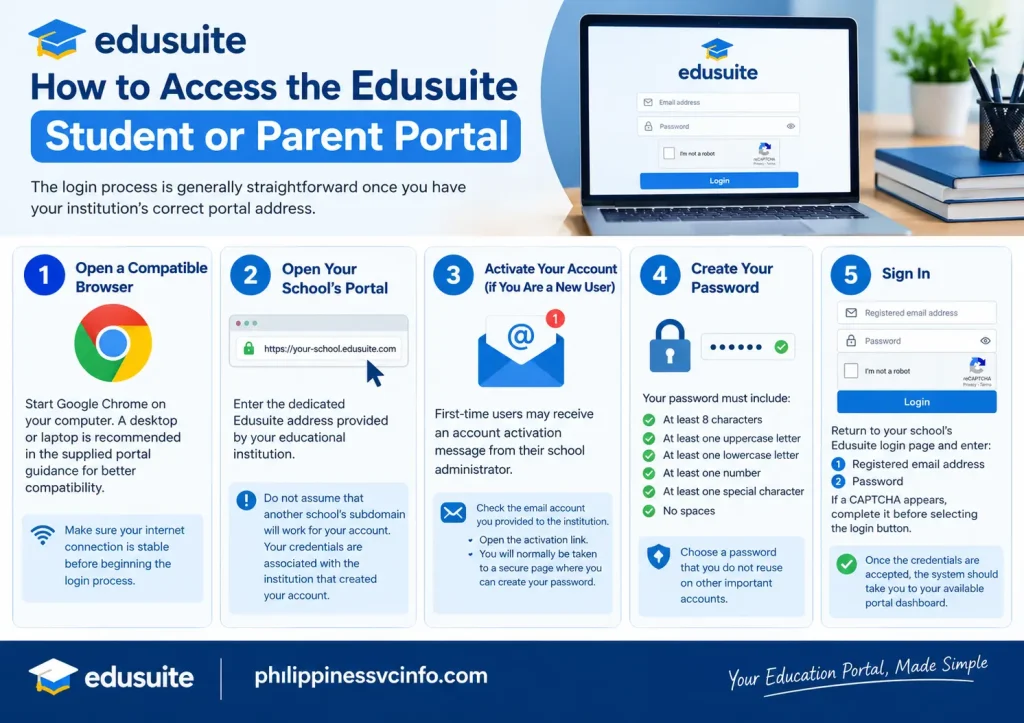
The login process is generally straightforward once you have your institution’s correct portal address.
Step 1: Open a Compatible Browser
Start Google Chrome on your computer. A desktop or laptop is recommended in the supplied portal guidance for better compatibility.
Make sure your internet connection is stable before beginning the login process.
Step 2: Open Your School’s Portal
Enter the dedicated Edusuite address provided by your educational institution.
Do not assume that another school’s subdomain will work for your account. Your credentials are associated with the institution that created your account.
Step 3: Activate Your Account if You Are a New User
First-time users may receive an account activation message from their school administrator.
Check the email account you provided to the institution. If you received an activation message, open it and follow the activation link.
You will normally be taken to a secure page where you can create your password.
Step 4: Create Your Password
The supplied information specifies a password with:
- At least 8 characters
- At least one uppercase letter
- At least one lowercase letter
- At least one number
- At least one special character
- No spaces
Choose a password that you do not reuse on other important accounts.
Step 5: Sign In
Return to your school’s Edusuite login page and enter:
- Registered email address
- Password
If a CAPTCHA appears, complete it before selecting the login button.
Once the credentials are accepted, the system should take you to your available portal dashboard.
What If You Forget Your Edusuite Password?
Forgetting a password does not necessarily mean that you need to contact your school immediately.
Look for the “Forgot Password?” option on your institution’s login page.
The typical recovery process is:
- Select Forgot Password?
- Enter your registered email address.
- Submit the password-reset request.
- Check your email inbox.
- Open the password-reset message.
- Follow the supplied reset link.
- Create a new password according to the portal’s requirements.
- Return to the login page and sign in again.
If the reset email does not appear, check your spam or junk folder.
If your registered email address is no longer accessible, or the recovery process does not work, contact your school’s authorised administrator or support office. Avoid sharing your password with another person to solve the problem.
Edusuite Enrolment and Registration
One of the important uses of an Edusuite portal can be online enrolment and class registration. Instead of completing every part of the process through separate offices, students may be able to review term information, select classes, check requirements, and monitor clearance tasks through the online system.
However, enrolment functions can differ according to the institution.
Prepare for the Enrolment Period
Start by signing in to your student dashboard during the school’s announced enrolment period.
Look for areas such as:
- Announcements
- Term Selection
- Enrolment
- Tasks
- Registration
- Academic information
An active enrolment banner or button may appear when registration is open.
If you cannot see the enrolment option, do not automatically assume that your account is defective. The institution may not have opened registration yet, or your account may have an unresolved clearance requirement.
Check Your Clearance Requirements
Administrative holds can affect what you are able to do inside an Edusuite portal.
Check your Tasks widget or another area designated by your school for outstanding requirements.
These may relate to administrative clearances, documents, or other institutional requirements.
A useful approach is to resolve outstanding tasks before attempting to register for classes. If a required clearance has not been completed, an enrolment control may remain unavailable.
Tip: Take note of any instructions attached to a pending task. The department responsible for the requirement may need to clear it before the portal updates your account.
Select Your Academic Term and Subjects
Once enrolment is available, choose the academic term specified by your school.
You may then be able to review available classes and subjects that correspond with your academic standing and curriculum.
Depending on your institution’s configuration, the system can automatically:
- Calculate enrolled units
- Check prerequisites
- Match subjects against the curriculum
- Display available class schedules
- Help identify registration conflicts
Review your proposed schedule carefully before confirming it.
Pay particular attention to course codes, subject titles, schedules, units, and prerequisite requirements. A registration screen may show several classes that look similar, so checking the details before submission can prevent avoidable mistakes.
Edusuite Admissions and Application Status
Edusuite may also be used by institutions for admissions-related processes.
For applicants, the relevant admissions portal may be separate from the main student dashboard, even though it operates through the same platform.
If you are a prospective student or foreign applicant, follow the admissions instructions supplied by the institution.
How to Track an Application
The general process involves:
Open the institution’s admissions portal → Sign in with your temporary credentials → Review your application status → Check outstanding requirements or notices
Applicants may be able to monitor milestones such as:
- Document verification
- Entrance examination schedules
- Interview notices
- Final application decisions
Depending on the institution, an application may eventually display a status such as accepted, waitlisted, or rejected.
The exact terminology and application workflow can differ by school, so applicants should rely on the institution’s admissions instructions when interpreting a status.
Keep Your Applicant Credentials Secure
Temporary credentials are especially important during an admissions process. Do not post them publicly or send screenshots containing passwords to unofficial support accounts.
If you cannot access an admissions account, use the institution’s official recovery or admissions support channel.
Checking Grades Through Edusuite
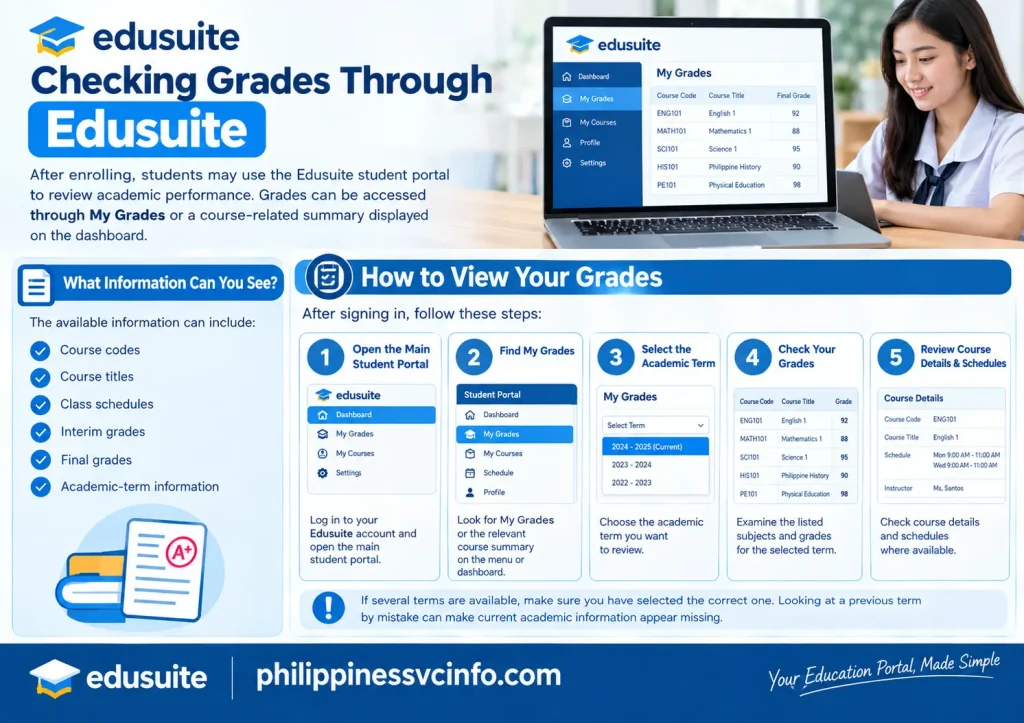
After enrolling, students may use the Edusuite student portal to review academic performance.
The supplied information indicates that grades can be accessed through My Grades or a course-related summary displayed on the dashboard.
The available information can include:
- Course codes
- Course titles
- Class schedules
- Interim grades
- Final grades
- Academic-term information
How to View Your Grades
After signing in:
- Open the main student portal.
- Find My Grades or the relevant course summary.
- Select the academic term you want to review.
- Examine the listed subjects and grades.
- Check course details and schedules where available.
If several terms are available, make sure you have selected the correct one. Looking at a previous term by mistake can make current academic information appear missing.
Why Could My Grades Be Restricted?
A grade section may sometimes appear unavailable or restricted.
The supplied material identifies financial or document-related holds as possible reasons, such as unpaid tuition balances or missing credentials.
If your My Grades section is greyed out or inaccessible, check your dashboard for outstanding tasks, payment issues, or document requirements.
Resolve the relevant requirement through the appropriate school department rather than attempting to bypass the restriction.
Manage Tuition, Payment & Financial Info
The financial side of student administration is another area where an institution may configure its Edusuite portal to provide online access. Students can use the available payment and account modules to review what they owe, check payment arrangements, and monitor transaction records.
Because payment options are configured by each institution, the exact gateways or bank integrations shown in your account may differ.
How to Check Your Edusuite Payment Account
After signing in, look for My Payments or the financial section of your student dashboard.
From there, you may be able to review:
- Current assessment
- Outstanding balances
- Other school fees
- Installment schedules
- Previous payment records
- Available payment methods
- Electronic receipts
Before making a payment, compare the amount shown in the portal with the payment instructions issued by your school.
Paying School Fees Online
If online payment is enabled for your institution, the general process is:
- Sign in to your Edusuite account.
- Open My Payments.
- Review your current assessment and outstanding amount.
- Select an available payment method.
- Follow the instructions provided by the payment gateway or bank integration.
- Confirm the transaction details.
- Complete the payment.
- Save the transaction confirmation or electronic receipt.
After a successful transaction, the payment record may appear in your portal history.
Some account holds may also update after the institution’s payment system processes the transaction. If a restriction remains after payment, allow for processing time and check the transaction record before paying again.
Payment safety tip: Never send your password, card PIN, one-time authentication code, or other sensitive payment credentials to another person claiming to provide portal support.
Understanding Edusuite Guardian Accounts
Parents and guardians may have a separate account when an educational institution provides guardian access.
A guardian account is designed to provide visibility into a student’s school information without giving the guardian the same account permissions as the student.
The features available depend on the institution’s configuration.
What Can Parents and Guardians See?
The supplied portal information identifies several possible areas of guardian access.
These can include:
- Attendance information
- Academic progress
- Behaviour reports
- Tuition and fee information
- Payment receipts
- Due dates
- School announcements
- Institutional messages
- Emergency communications
This can make it easier for parents to follow important school information without needing to use the student’s personal login.
Guardian Dashboard
Once signed in, a guardian may see a dashboard connected to the relevant student’s records.
Academic and attendance information can provide a convenient way to monitor day-to-day progress. Financial sections may also allow parents to review billing details and payment history.
Keep in mind that a guardian should use only the credentials issued by the institution. If several dependants are associated with the same guardian account, the available student-selection options will depend on how the school has configured the account.
How Parents Can Use the Portal Responsibly
An Edusuite guardian account can contain sensitive educational and financial information, so account security matters.
Parents and guardians should:
- Keep login credentials private.
- Use a strong password.
- Sign out on shared computers.
- Avoid saving passwords on public devices.
- Check that the website address is correct before signing in.
- Contact the school through its official channels if account information looks incorrect.
- Avoid giving student credentials to third parties.
A guardian should also avoid making changes to a student’s academic information unless the institution specifically grants that permission.
The purpose of guardian access is generally to provide visibility and communication, while academic records remain managed according to the school’s own policies.
Edusuite Notification & School Communications
Online school portals are not only used for grades and payments. They can also act as a communication point between an institution and its students or families.
Depending on the school’s setup, users may receive information about:
- Registration periods
- School events
- Administrative requirements
- Payment reminders
- Academic notices
- Attendance-related information
- Emergency announcements
- Institutional broadcasts
Check the dashboard and notification areas regularly, particularly during enrolment and examination periods.
If your institution publishes an important notice through the portal, read the complete message rather than relying only on a notification preview.
What Do When the Edusuite Portal Do Not Work
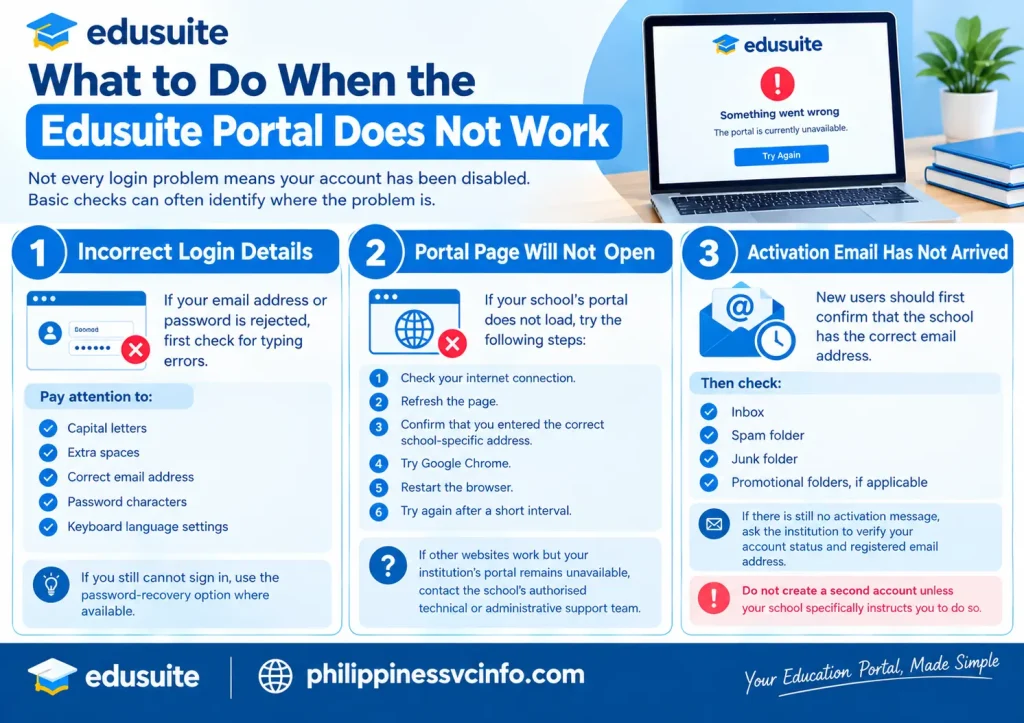
Not every login problem means your account has been disabled. Basic checks can often identify where the problem is.
Incorrect Login Details
If your email address or password is rejected, first check for typing errors.
Pay attention to:
- Capital letters
- Extra spaces
- Correct email address
- Password characters
- Keyboard language settings
If you still cannot sign in, use the password-recovery option where available.
Portal Page Will Not Open
If your school’s portal does not load:
- Check your internet connection.
- Refresh the page.
- Confirm that you entered the correct school-specific address.
- Try Google Chrome.
- Restart the browser.
- Try again after a short interval.
If other websites work but your institution’s portal remains unavailable, contact the school’s authorised technical or administrative support team.
Activation Email Has Not Arrived
New users should first confirm that the school has the correct email address.
Then check:
- Inbox
- Spam folder
- Junk folder
- Promotional folders, if applicable
If there is still no activation message, ask the institution to verify your account status and registered email address.
Do not create a second account unless your school specifically instructs you to do so.
Why You May Not See a Feature
One of the most important things to understand about Edusuite is that not every user necessarily sees the same dashboard.
An institution determines which services are enabled for its students, applicants, parents, or guardians.
For example, one school may provide online payment features while another may direct students to a separate payment service. Similarly, admissions, grades, enrolment, and guardian functions can depend on the school’s configuration.
Therefore, the absence of a particular menu does not automatically mean that your account is defective.
Before contacting support, check your institution’s announcements and instructions.
Edusuite Portal Checklist for Students
Use this checklist when preparing for an important portal task:
| Task | What to Check |
|---|---|
| Login | Correct school-specific portal address |
| Account activation | Activation email received |
| Password | Meets the required password rules |
| Enrolment | Correct academic term selected |
| Clearance | No unresolved tasks or holds |
| Subjects | Course, unit and schedule details |
| Grades | Correct academic term |
| Payments | Current assessment and outstanding balance |
| Receipt | Transaction recorded after payment |
| Notices | Recent school announcements reviewed |
Keeping these checks together can save time, particularly during busy enrolment or payment periods.
Common Edusuite Mistakes to Avoid
Using the Wrong Portal Address
Edusuite is institution-specific. Always confirm the portal address provided by your school.
Repeatedly Entering the Wrong Password
Several failed attempts can create unnecessary account problems. If you are unsure of your password, use the available recovery process instead of repeatedly guessing.
Ignoring Dashboard Tasks
Outstanding clearance or administrative tasks can affect access to certain functions.
Selecting the Wrong Academic Term
When checking grades or registration information, confirm the selected term before assuming that information is missing.
Paying Without Checking the Assessment
Review the amount due and payment details before submitting a transaction.
Sharing Your Login Credentials
Your Edusuite password should remain private. School staff should not need you to post your password publicly.
Relying on Unofficial Login Links
Search engines, social media posts and messages can sometimes lead users to pages that are not the correct institutional portal. Verify the address with your school before entering credentials.
Using Edusuite as a Foreign Student or Resident
International students and foreign residents may encounter the same basic portal functions as other students, but their academic and administrative requirements can involve additional institutional processes.
If your school has given you an Edusuite account, use the credentials and portal address supplied during your admission or registration process.
For admissions-related questions, follow the institution’s international-student or admissions office instructions. The Edusuite portal should not be treated as a replacement for immigration, visa, document-verification, or other official requirements unless your institution specifically directs you to use it for those purposes.
This is especially important when an application involves documents with deadlines. A portal status should be interpreted according to the school’s official instructions.
Keeping Your Edusuite Account Secure
A school portal can contain personal, academic and financial information. Basic security habits therefore matter.
Use a unique password and avoid sharing it with friends or other students. When using a shared computer, sign out after finishing your session.
Before entering your credentials, verify that you are on the correct institution-provided portal address. If you receive an unexpected email asking for login details, verify the request with the school through an official communication channel.
If you believe someone else has accessed your account, change the password if possible and contact your institution’s authorised support team.
Quick Edusuite Troubleshooting Guide
| Problem | What to Check First |
|---|---|
| Cannot log in | Verify the institution’s portal address and credentials |
| Forgot password | Use the Forgot Password? option |
| No activation email | Check spam/junk and confirm your registered email |
| Enrolment unavailable | Check the enrolment period and outstanding tasks |
| Grades unavailable | Check the selected term and possible holds |
| Payment not showing | Review the transaction record and allow processing time |
| Missing feature | Check whether your school has enabled it |
| Guardian access issue | Confirm the guardian account with the school |
| Portal will not load | Check internet, browser and portal address |
| Application status missing | Use the admissions portal supplied by the institution |
What Do After Completing a Portal Task?
Do not immediately close the browser after submitting an important request.
Take a moment to confirm that the action was recorded.
For example, after making a payment, look for the transaction or receipt in the relevant financial section. After enrolment, review your selected subjects and schedule. After checking grades, make sure you have selected the intended academic term.
If the portal provides a confirmation page, notification or reference number, keep a record of it.
This simple habit can make it easier to resolve a problem later if the institution’s support team needs evidence of what happened.
FAQs About Edusuite
Edusuite Best-Practice Checklist
Before finishing an important portal task, check these points:
- ✓ Use the correct institution-specific portal.
- ✓ Keep your password private.
- ✓ Use a reliable internet connection.
- ✓ Check your school announcements.
- ✓ Review outstanding Tasks or clearances.
- ✓ Select the correct academic term.
- ✓ Verify subjects before confirming enrolment.
- ✓ Check financial amounts before paying.
- ✓ Keep electronic receipts and confirmations.
- ✓ Contact the school when a portal issue cannot be resolved through normal recovery options.
These steps are particularly useful during busy periods such as admissions, enrolment, examinations and fee-payment deadlines.
Official Edusuite Website
The main platform website supplied for this guide is:
For actual student, applicant or guardian account access, however, use the dedicated portal address supplied by your educational institution. The platform website and your school’s portal are not necessarily the same destination.
If you are unsure whether a login page is genuine, stop before entering your password and confirm the address through your school’s official website or authorised administration office.
Conclusion
Using Edusuite effectively starts with one simple rule: always access the portal through the address supplied by your educational institution. Once inside, take time to understand the dashboard, review announcements and complete outstanding tasks before attempting enrolment, payments or other restricted functions.Students can use available portal features to manage academic information, registration and financial records, while applicants may be able to monitor admissions milestones. Parents and guardians can also benefit from dedicated access where their institution provides it.Because each school can configure its Edusuite environment differently, menus and services will not necessarily look identical for every user. If a feature is missing, a payment has not appeared, or an account remains restricted, check the school’s instructions before assuming there is a technical fault.For account recovery or unresolved problems, use the institution’s authorised support channels and keep your login credentials private.
Discover What You Need to Know:
- Police Open Academy Philippines 2026 : Login, Registration, Courses, TLL & Training Guide
Form 138 Philippines 2026 : How to Request Your DepEd Report Card Online - NU Manila Philippines 2026 : Admission Requirements, Courses, Fees, Scholarships & Login Guide
- DepEd Logo PNG: Official Download, Transparent File & Usage Guide 2026
- SIAS CSPC Login Philippines 2026 : Student Portal, Enrollment, Registration & Account Guide