eGov PH and BancNet Online Philippines 2026: Registration, Login, Services & Payment Guide
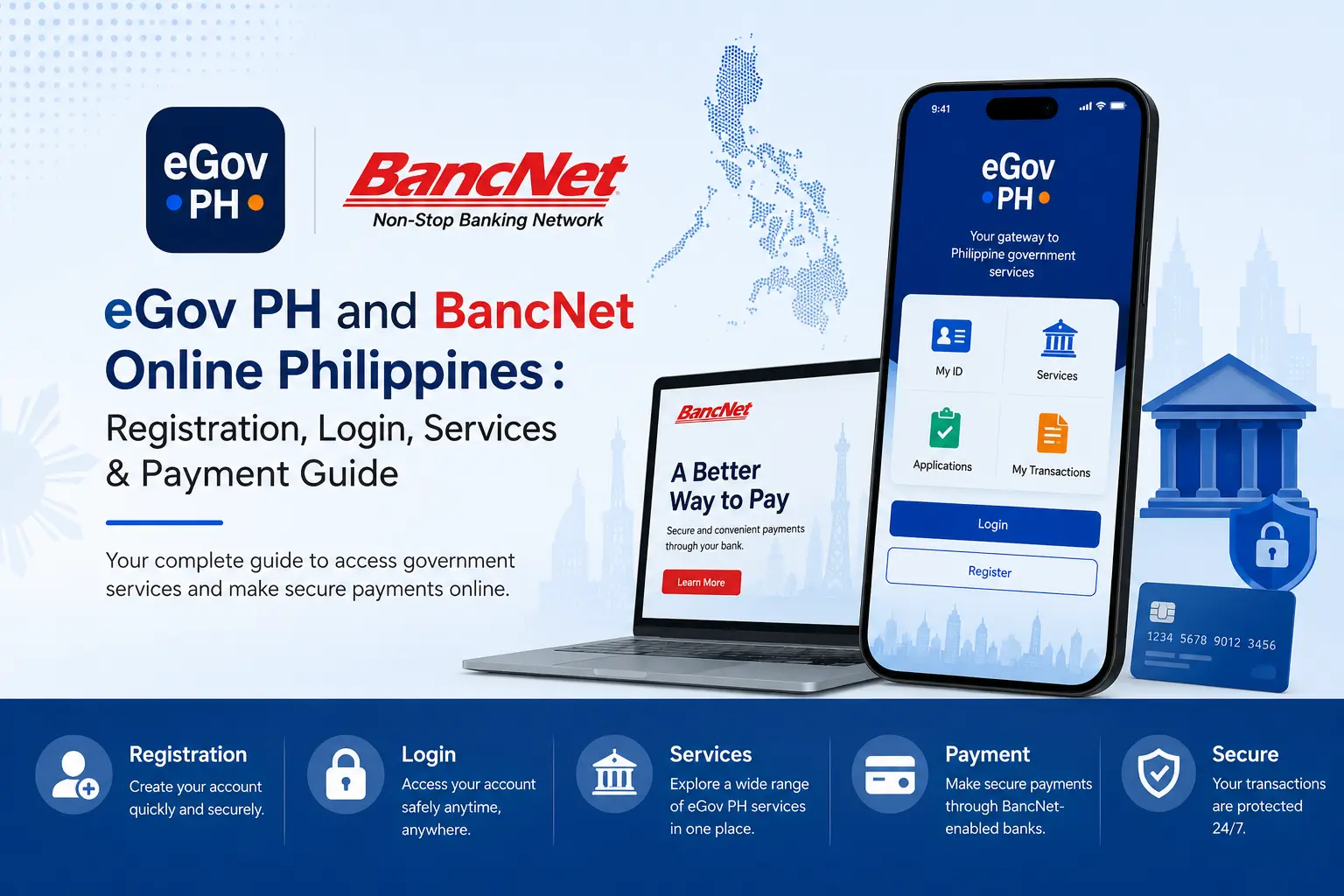
eGov BancNet is an online government payment facility in the Philippines that enables registered employers and businesses to submit government contribution payments and loan repayments electronically through participating banks. It helps simplify transactions with agencies such as the Social Security System (SSS), Pag-IBIG Fund, and PhilHealth, reducing the need for manual payment processing. Users should access the service through BancNet’s official website and follow the applicable registration and payment procedures.
Introduction
Accessing government services and making online payments in the Philippines can involve different websites, mobile applications and banking platforms. The eGov PH app and BancNet Online serve different purposes, but both are relevant to people who want to manage digital transactions more conveniently.
The eGov PH Super App is a government digital platform developed under the Department of Information and Communications Technology (DICT). It brings selected government services together in one place. BancNet, on the other hand, operates an interbank payment network that supports electronic banking transactions and services offered through participating financial institutions.
Understanding the difference between eGov PH and BancNet helps users choose the right platform for their needs. Students, foreign residents, Filipino citizens and other members of the public may need eGov PH for available digital government services, while bank customers may use BancNet-supported channels for ATM transactions, fund transfers or payments.
This article explains how to find the official websites, register and log in to eGov PH, understand identity verification, locate BancNet ATMs and handle common payment problems. Service availability, eligibility, fees and account requirements can vary, so users should confirm the latest instructions with the relevant government agency or bank.
What Are eGov PH and BancNet Online?
Although people may search for eGov BancNet as a combined term, these names refer to separate digital services. Knowing which organisation manages a transaction can prevent confusion and help you avoid unofficial websites.
Understanding the eGov PH Super App
eGov PH is designed to make selected government services accessible through a central digital platform. It is associated with DICT and may provide access to features such as digital identity services and participating government agency services.
Before downloading the application, check the publisher and the information provided by the official government website. App features, verification methods and available services may change as government agencies update their systems.
What Does BancNet Do?
BancNet is a Philippine interbank network that supports electronic payments and banking transactions through participating institutions. Depending on the bank and service, its network may support ATM access, electronic fund transfers and other payment channels.
BancNet should not be confused with your personal bank’s mobile application. Your bank generally manages your account balance, login credentials, card security, transaction limits and customer complaints.
eGov PH vs BancNet Online
| Feature | eGov PH | BancNet-supported services |
|---|---|---|
| Main purpose | Access selected government digital services | Support electronic banking and payment transactions |
| Main users | Citizens and other eligible users of government services | Customers of participating banks and financial institutions |
| Access method | Government mobile app and official web resources | Participating bank channels, ATMs and supported payment services |
| Identity or security checks | App registration and applicable identity verification | Bank authentication, card PINs, OTPs or other bank-approved security checks |
| Official resource | eGov PH FAQs | BancNet website |
Key point: eGov PH is primarily a government-services platform, whereas BancNet supports banking transactions. A payment or service displayed in one platform does not automatically mean the other platform manages it.
How to Download & Register for the eGov PH App
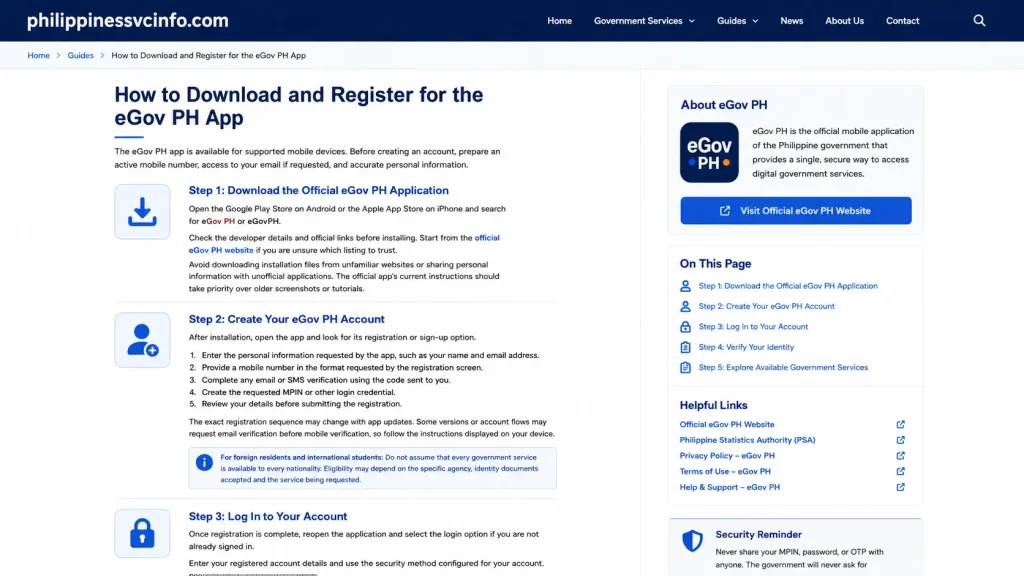
The eGov PH app is available for supported mobile devices. Before creating an account, prepare an active mobile number, access to your email if requested, and accurate personal information.
Step 1: Download the Official eGov PH Application
Open the Google Play Store on Android or the Apple App Store on iPhone and search for eGov PH or eGovPH.
Check the developer details and official links before installing. Start from the official eGov PH website if you are unsure which listing to trust.
Avoid downloading installation files from unfamiliar websites or sharing personal information with unofficial applications. The official app’s current instructions should take priority over older screenshots or tutorials.
Step 2: Create Your eGov PH Account
After installation, open the app and look for its registration or sign-up option.
- Enter the personal information requested by the app, such as your name and email address.
- Provide a mobile number in the format requested by the registration screen.
- Complete any email or SMS verification using the code sent to you.
- Create the requested MPIN or other login credential.
- Review your details before submitting the registration.
The exact registration sequence may change with app updates. Some versions or account flows may request email verification before mobile verification, so follow the instructions displayed on your device.
For foreign residents and international students: Do not assume that every government service is available to every nationality. Eligibility may depend on the specific agency, identity documents accepted and the service being requested.
Step 3: Log In to Your Account
Once registration is complete, reopen the application and select the login option if you are not already signed in.
Enter your registered account details and use the security method configured for your account. Depending on the current version, this may involve an MPIN or supported biometric authentication.
If you change phones, reinstall the application or encounter a security check, you may need to complete additional verification. Never give your PIN or OTP to someone claiming they can activate your account for you.
Step 4: Verify Your Identity
Identity verification may be required before you can use certain services, including features associated with the Philippine National ID.
The process can involve entering personal information, presenting an accepted identity document and completing a live selfie or facial verification. The accepted documents and verification process depend on the feature and the instructions shown in the app.
To improve the chances of a successful submission:
- Use accurate details that match your supporting documents.
- Photograph your ID in good lighting, with all required details visible.
- Allow camera access when needed for identity checks.
- Follow any liveness instructions displayed on screen.
- Wait for the application to show the verification result.
For information about the Philippine National ID, consult the Philippine Statistics Authority (PSA).
Step 5: Explore Available Government Services
After signing in, open the app dashboard and review the services currently available to your account. These may include digital identity features, selected local government services, application tracking and integrations with participating agencies.
The availability of a feature does not guarantee that every application can be completed online. Some services require additional documents, separate agency registration, payment or an in-person visit.
For service-specific instructions, begin with the official eGov PH website and follow the links to the responsible government agency.
eGov PH Login Problems and Account Recovery
An unsuccessful login does not always mean your account has been deactivated. A connection problem, incorrect MPIN, outdated application or incomplete verification may prevent access.
| Problem | What to try |
|---|---|
| OTP has not arrived | Check mobile reception, the registered number and your SMS inbox. Request another code only when the app permits it. |
| Forgot your MPIN | Look for the account recovery or reset option on the login screen. |
| Identity verification failed | Review your information and ID images, then follow the available retry or support instructions. |
| Camera is not working | Check camera permissions and close other apps using the camera. |
| App freezes or crashes | Restart your phone and install available updates from the official app store. |
| Account remains inaccessible | Contact official eGov PH support through its published channels. |
If an OTP is delayed, avoid repeated rapid requests, which may trigger temporary restrictions. Clearing the application cache may help with some Android app problems, but it will not resolve every account or identity-verification issue.
Do not share your OTP, MPIN, passwords or photographs of identity documents with unverified support accounts.
BancNet Online ATM Service, Transfer & Payment
The official BancNet website provides information about payment services, ATM access, bills payment and electronic transfers. BancNet and the Philippine Clearing House Corporation were unified under Payments Network of the Philippines, Inc. (PNPI), effective 1 June 2026.
How to Find a BancNet ATM
Use the official BancNet website to explore its ATM services and payment network information. You can also check your bank’s website or mobile application for ATM locations.
Before withdrawing cash, check whether your bank charges a fee for using another institution’s ATM. The amount depends on the bank, card and transaction, so do not assume that all BancNet withdrawals are free.
InstaPay vs PESONet: What Is the Difference?
BancNet’s payment network supports InstaPay and PESONet services through participating institutions.
| Feature | InstaPay | PESONet |
|---|---|---|
| Main purpose | Everyday electronic fund transfers | Electronic transfers suited to payments that can be processed in batches |
| Processing | Near real-time | Batch processing |
| Availability | Available 24/7 through participating providers | Processing depends on applicable banking schedules |
| Transfer limits and fees | Set by the participating provider within applicable rules | Depend on provider rules and applicable arrangements |
| Best use | Sending money for immediate needs | Payments where batch settlement is suitable |
For current transfer limits, fees and participating banks, consult the official BancNet InstaPay information and your financial institution.
How to Make a Payment Through Your Bank
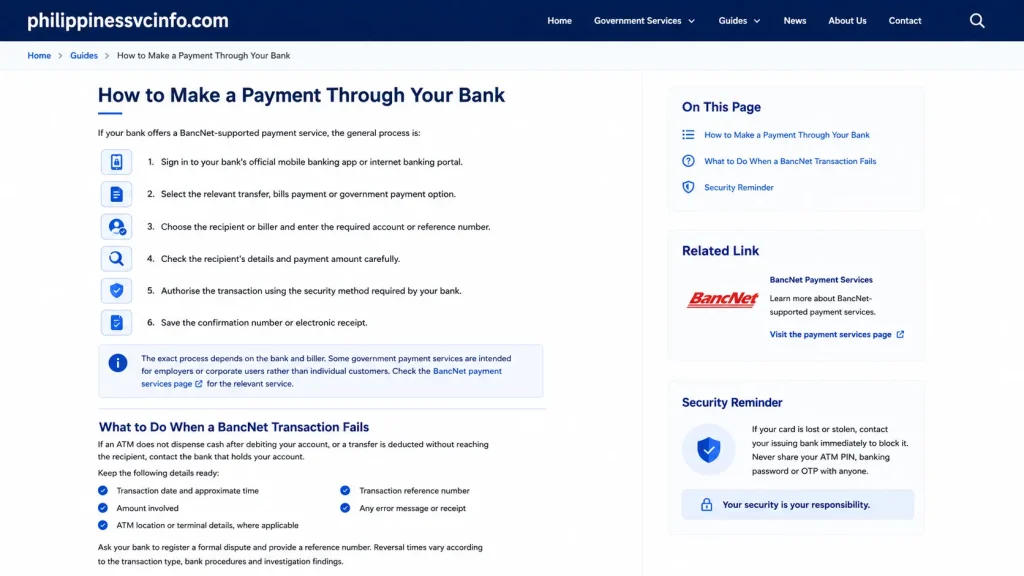
If your bank offers a BancNet-supported payment service, the general process is:
- Sign in to your bank’s official mobile banking app or internet banking portal.
- Select the relevant transfer, bills payment or government payment option.
- Choose the recipient or biller and enter the required account or reference number.
- Check the recipient’s details and payment amount carefully.
- Authorise the transaction using the security method required by your bank.
- Save the confirmation number or electronic receipt.
The exact process depends on the bank and biller. Some government payment services are intended for employers or corporate users rather than individual customers. Check the BancNet payment services page for the relevant service.
What to Do When a BancNet Transaction Fails
If an ATM does not dispense cash after debiting your account, or a transfer is deducted without reaching the recipient, contact the bank that holds your account.
Keep the following details ready:
- Transaction date and approximate time
- Amount involved
- ATM location or terminal details, where applicable
- Transaction reference number
- Any error message or receipt
Ask your bank to register a formal dispute and provide a reference number. Reversal times vary according to the transaction type, bank procedures and investigation findings.
If your card is lost or stolen, contact your issuing bank immediately to block it. Never share your ATM PIN, banking password or OTP with anyone.
FAQs About eGov PH and BancNet Online
Conclusion
The eGov PH app and BancNet-supported payment services help users access different types of digital transactions in the Philippines. eGov PH focuses on government services and digital identity features, while BancNet supports electronic banking and payment transactions through participating institutions.For a safer experience, start with the official websites, verify eligibility before submitting applications, check transfer fees with your bank and keep receipts for important transactions. These precautions help citizens, students and eligible foreign residents use digital services with greater confidence.
Discover What You Need to Know:
- Department of Social Welfare and Development (DSWD) Philippines 2026: AICS Assistance, Programs, Requirements & How to Apply
- POEA e-Registration Philippines 2026: DMW Login, Registration, Requirements & OFW Guide
- PNPA Admission Philippines 2026: Requirements, Application & PNPACAT Guide
- CIRAS Philippines 2026 : Login, Registration, Official Website & User Guide
- FEO System Philippines 2026 : Login, LTOPF Registration, Requirements & Online Services