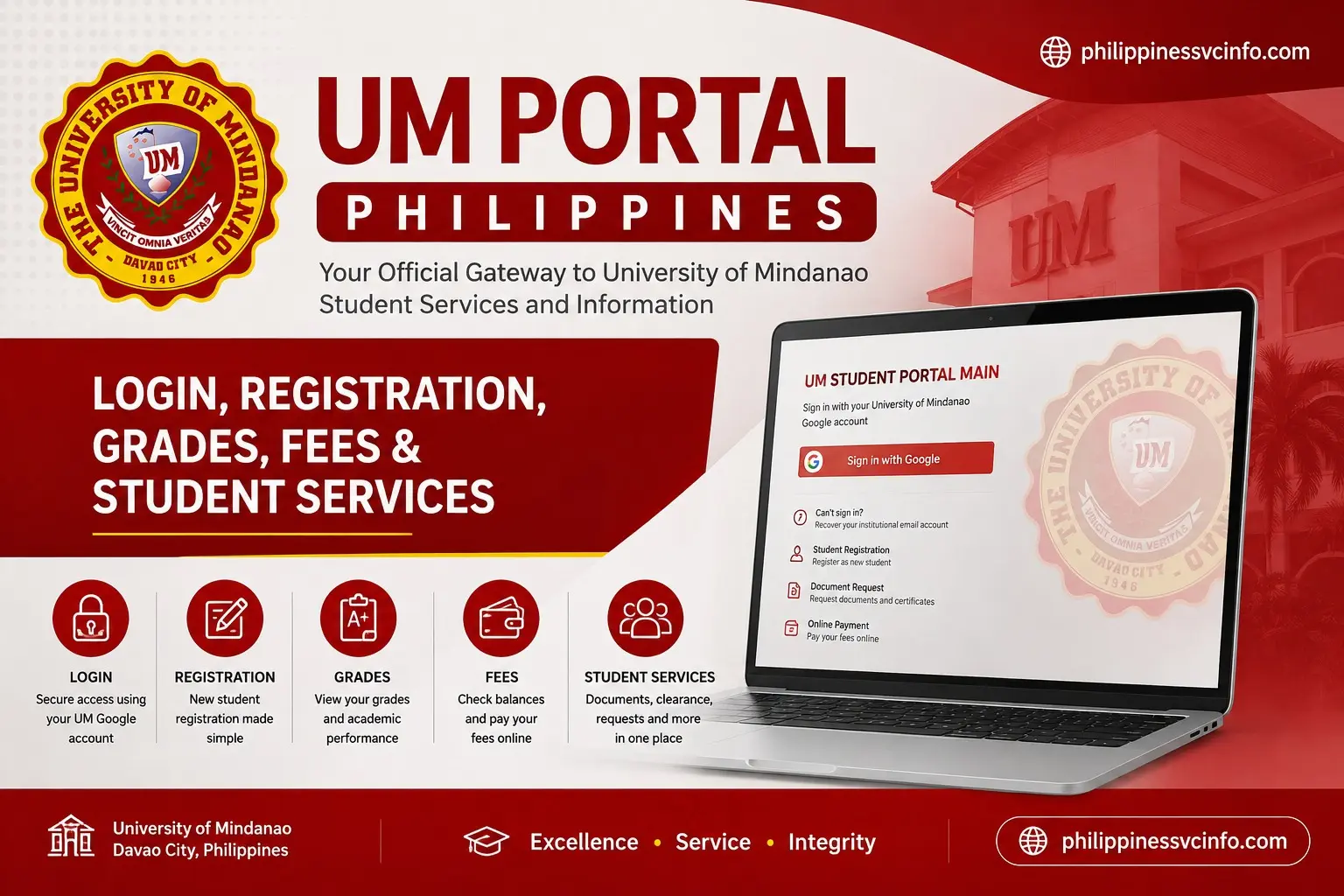
The UM Portal, also known as the University of Mindanao Student Portal, is an online platform that helps UM students manage academic and administrative tasks. Students can use the portal to access registration and enrolment services, academic information, fees, payments, documents, announcements, and other university services through their official UM account.
What Is the UM Portal?
The UM Portal, also called the University of Mindanao Student Portal, is the university’s online student-access platform. It gives students a central place to access relevant academic and administrative services instead of relying entirely on in-person transactions.
The main portal is designed for the University of Mindanao’s Main Campus, while separate portal addresses are also available for some other campuses. For example, UM has dedicated portal pages for Digos and Tagum campuses.
For Main Campus students, the primary address is:
The portal can be useful at different stages of a student’s relationship with UM. Incoming students may use it during registration and enrolment, while continuing students can use the system for student-related activities during their studies.
Quick facts
| Item | Details |
|---|---|
| University | University of Mindanao |
| Portal | UM Student Portal |
| Main login | student.umindanao.edu.ph/login |
| Main campus | Davao City |
| Login method | University of Mindanao Google account |
| Account domain | @umindanao.edu.ph |
| Registration | Available through the official portal |
| Account recovery | Available from the login page |
How to Access the UM Student Portal
Getting to the correct UM Portal login page is the first step. Avoid relying on random third-party websites that claim to provide student login services. The safest approach is to use the official University of Mindanao domain.
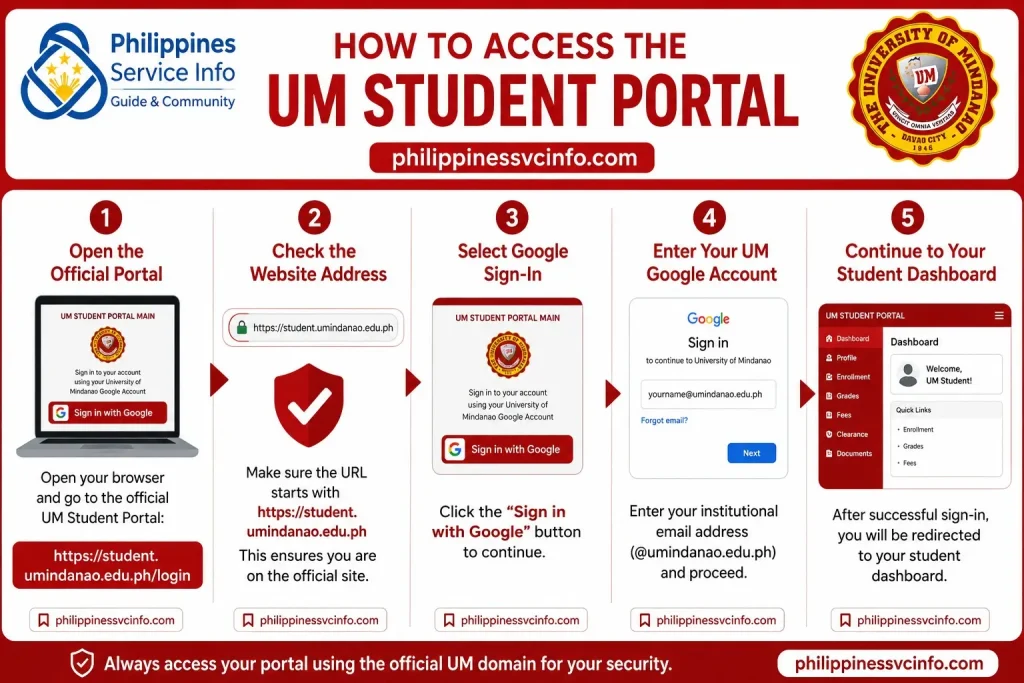
Step 1: Open the official portal
Open your preferred browser and enter:
The official page is currently labelled “UM STUDENT PORTAL MAIN” and displays the Main Campus login.
Step 2: Check the website address
Before entering your password, look at the browser’s address bar.
The Main Campus student portal should begin with:
This is particularly important when using a search engine, because students should avoid entering institutional credentials into an unfamiliar website.
The university’s online payment page also specifically reminds users to check that the address begins with the official student.umindanao.edu.ph domain.
Step 3: Select Google sign-in
On the portal login page, select Sign in with Google.
The official login page states that this option is intended for a University of Mindanao Google account using the @umindanao.edu.ph domain.
Step 4: Enter your UM Google account
Enter the institutional email address supplied to you by the University of Mindanao.
If your account has been activated, Google will continue with the normal authentication process. Follow any additional verification prompts that appear for your account.
Step 5: Continue to your student dashboard
After successful authentication, you should be returned to the appropriate student area of the portal.
If the expected information does not appear, don’t immediately assume that your account is incorrect. One common issue documented by UM is that the dashboard may be displaying an earlier semester.
If You Do Not Have a UM Google Account?
This is one of the most common questions surrounding the University of Mindanao Student Portal.
The official UM FAQ explains that existing UM Gmail account holders can use the Sign in with Google option. It also states that students who provided a valid Gmail address during registration may use the available sign-in options.
For new students, the university’s enrolment information says that the UM email account details are sent to the email address registered in the university’s records after the relevant enrolment steps are completed.
That means a newly admitted student should not assume that a personal Gmail address automatically becomes the institutional UM account.
New students
If you are an incoming student, start from the official portal and follow the registration process presented there.
The current UM portal includes a Student Registration section where an email address can be provided so the system can send a link to the student registration page.
The university’s enrolment procedure also explains that incoming freshmen complete the Student General Information Sheet (SGIS) through the student portal, after which a reference number is issued.
Tip: Keep the email address you use during registration accessible. University instructions may rely on the registered email address for subsequent account information and communications.
UM Portal Login Problems & Account Recovery
A login failure does not necessarily mean that the student portal is unavailable.
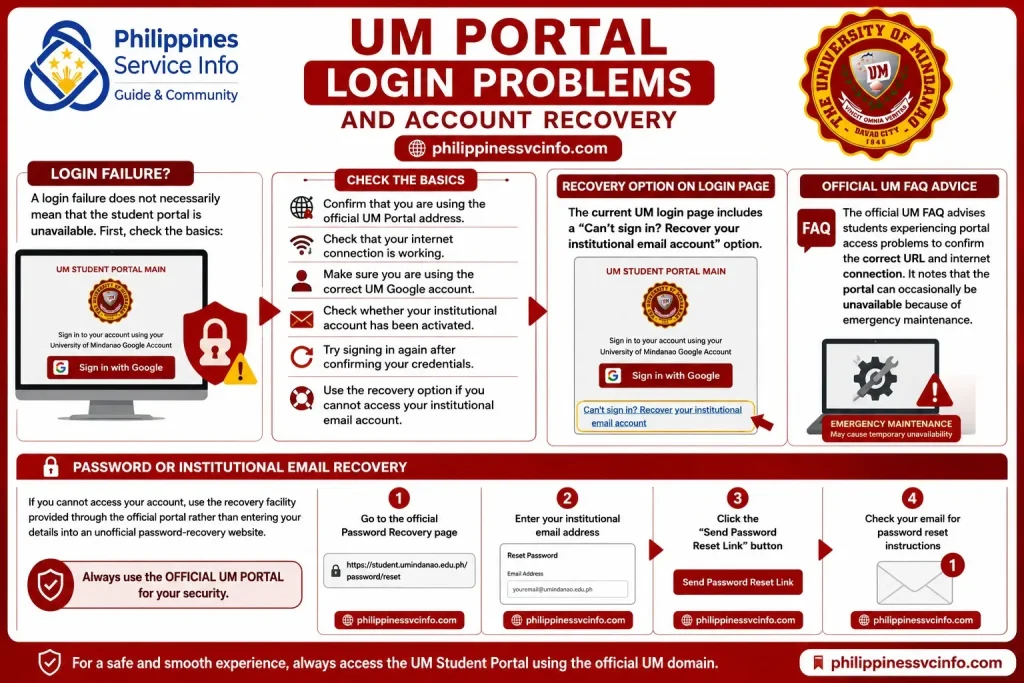
First, check the basics:
- Confirm that you are using the official UM Portal address.
- Check that your internet connection is working.
- Make sure you are using the correct UM Google account.
- Check whether your institutional account has been activated.
- Try signing in again after confirming your credentials.
- Use the recovery option if you cannot access your institutional account.
The current UM login page includes a “Can’t sign in? Recover your institutional email account” option.
The official UM FAQ also advises students experiencing portal access problems to confirm the correct URL and internet connection. It notes that the portal can occasionally be unavailable because of emergency maintenance.
Password or institutional email recovery
If you cannot access your account, use the recovery facility provided through the official portal rather than entering your details into an unofficial password-recovery website.
The official reset page provides an email field and a Send Password Reset Link option.
How to Fix an Old or Incorrect Semester
Suppose you successfully enter the UM Student Portal, but the dashboard shows an earlier semester rather than your current enrolment.
Don’t immediately create another account.
The official UM FAQ gives a specific solution: use the User Icon in the upper-right area of the dashboard and select Switch Semester. From there, choose the latest semester in which you are enrolled.
The process
Log in → User Icon → Switch Semester → Select the current term
This is an important setting because student information can appear incorrect simply because the portal is displaying a previous academic period.
Using the Portal for Enrolment
The UM Portal is also connected with the university’s online enrolment process.
According to UM’s published enrolment procedure for continuing undergraduate students, the process includes logging into the student portal, opening ONLINE ENROLMENT, selecting ENROLL COURSE, choosing available subjects and enlisting in the preferred schedule. Students then use SUBMIT FINAL for the class schedule.
This makes the portal particularly important during enrolment periods.
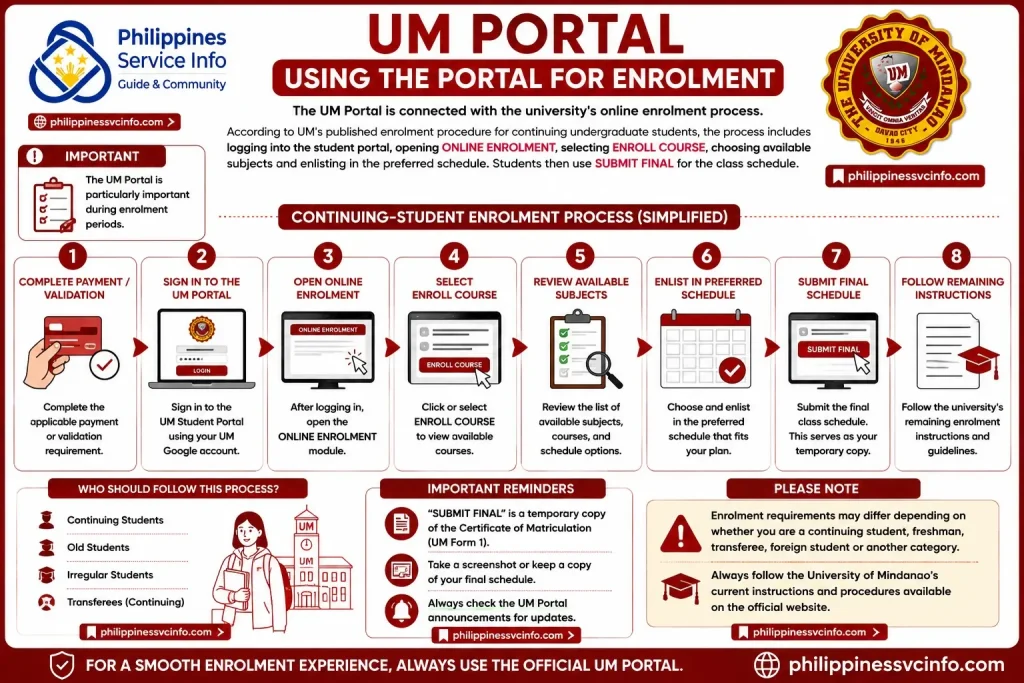
A simplified version of the continuing-student process is:
- Complete the applicable payment or validation requirement.
- Sign in to the UM Student Portal.
- Open ONLINE ENROLMENT.
- Select ENROLL COURSE.
- Review available subjects.
- Enlist in the preferred schedule.
- Submit the final class schedule.
- Follow the university’s remaining enrolment instructions.
The exact enrolment requirements can differ depending on whether you are a continuing student, freshman, transferee, foreign student or another category. For that reason, students should follow the University’s current instructions rather than relying solely on an older checklist.
A Note About Payments
The UM Student Portal also has an online payment facility, but students should check the payment page carefully before making a transaction.
The current official payment page states that the online payment channel accepts tuition fee and downpayment payments and specifically warns that certain special cases, including advance downpayments and students with promissory note applications, are still under development.
This is worth checking before assuming every type of university payment can be made through the portal.
How Continuing Students Enrol via UM Portal
For an existing undergraduate student, the UM Student Portal is an important part of the online enrolment process.
UM’s published enrolment procedure says that an old undergraduate student first completes the applicable payment requirement. After payment validation, the student logs in to the Student Portal and goes to ONLINE ENROLMENT. From there, the student selects ENROLL COURSE, reviews available subjects and enlists in the preferred schedule.
The basic workflow is:
- Complete the required downpayment or payment step.
- Sign in at the official UM Student Portal.
- Open ONLINE ENROLMENT.
- Select ENROLL COURSE.
- Review the available subjects.
- Choose the preferred schedule.
- Select SUBMIT FINAL once the schedule is ready.
- Keep the resulting enrolment information for your records.
- Follow UM’s instructions for claiming the printed Certificate of Matriculation and ID processing.
UM states that SUBMIT FINAL serves as a temporary copy of the Certificate of Matriculation, or UM Form 1, in the published procedure.
Why the final submission matters
Students should not treat subject selection as the end of the process. The final submission is an important part of confirming the selected class schedule.
Before submitting, carefully check the subjects, schedule and other information shown on the portal. A small mistake in a selected course or schedule can create unnecessary problems later.
Practical tip: Take a screenshot or retain any confirmation generated after completing the online enrolment process, especially when UM’s current procedure tells students to keep a temporary copy or screenshot.
UM Portal Registration for New Students
The process is slightly different for incoming freshmen.
UM’s current enrolment information instructs new undergraduate students to complete the Student General Information Sheet (SGIS) through the student portal. Once the SGIS is submitted, the system issues a Reference Number, which is then used for the payment process.
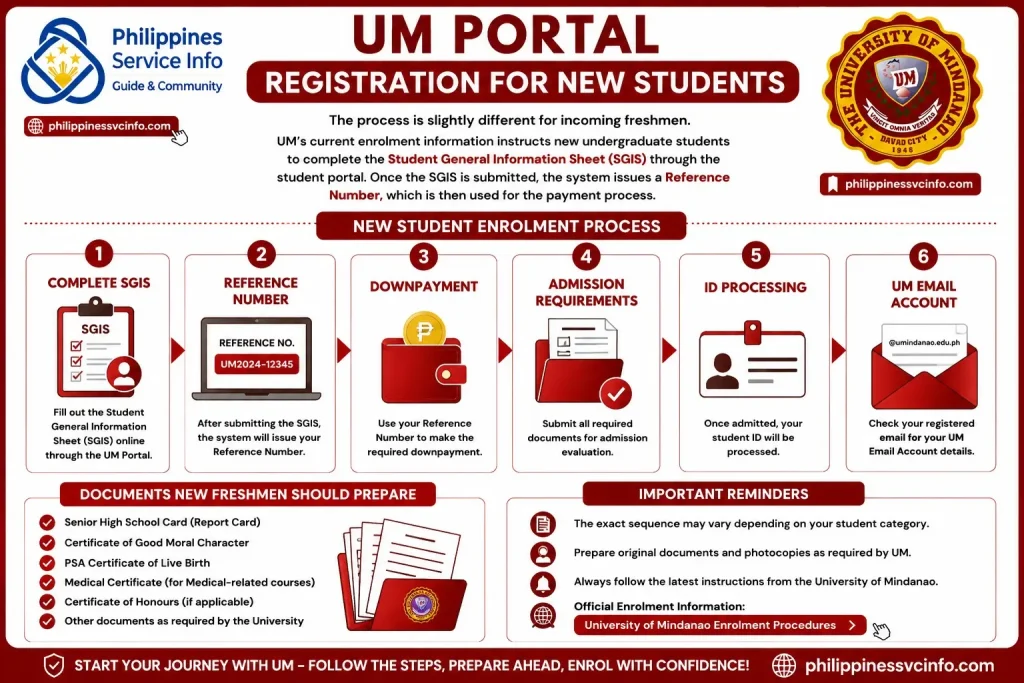
A new student generally moves through several stages:
SGIS → Reference Number → Downpayment → Admission requirements → ID processing → UM email account
The exact sequence can depend on the student’s category and the University’s current instructions.
What freshmen should prepare
UM lists documents such as the Senior High School Card, Certificate of Good Moral Character and PSA Certificate of Live Birth among the requirements for incoming freshmen. Additional documents may apply in specific situations, such as medical certification for medical courses or a certificate of honours where applicable.
Students should therefore prepare original documents and photocopies where UM requests them rather than waiting until the final stage of enrolment.
What Happens After Freshman Registration?
After completing the relevant registration, payment and admission steps, new students receive further account information through the email address registered with the university.
UM’s published procedure says students should check their registered email address for their University of Mindanao email account details.
This is important because your personal email and your institutional UM account are not necessarily the same thing.
Once your institutional account has been issued, it can be used to access the UM Portal through the Google sign-in option shown on the official login page.
How to Pay Through the UM Student Portal
The official UM Portal currently includes an online payment facility. However, students should pay close attention to what the portal currently accepts.
At the time of checking, the official payment page states that the online gateway accepts tuition fee and downpayment payments only. It also specifically says that advance downpayments and students with promissory note applications should not use that channel because those special cases are still under development.
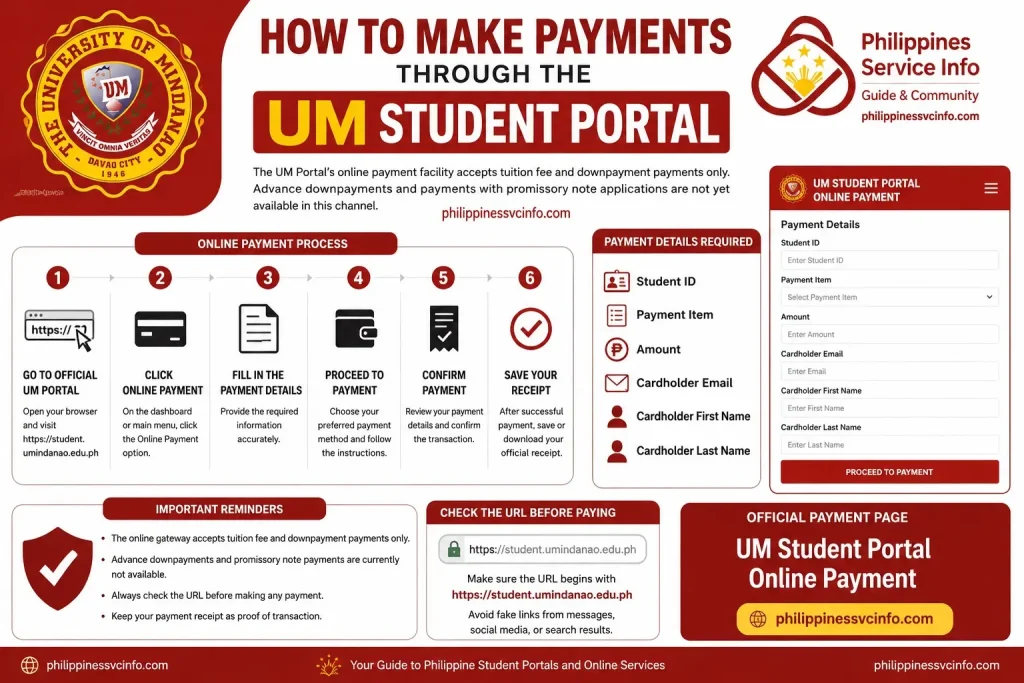
This is an important distinction from older payment information that may still appear on third-party websites or older university pages.
Online payment process
The current payment page asks for details including:
- Student ID
- Payment item
- Amount
- Cardholder email
- Cardholder first name
- Cardholder last name
After entering the requested information, the student can proceed through the available payment process.
Check the URL before paying
Payment transactions require extra care.
The official UM payment page explicitly tells users to check the address bar and confirms that the URL should begin with:
If you reach a payment page through a message, social-media post or search result, check the domain before entering payment information.
Payment May Not Appear Immediately
Not every payment method has the same validation process.
UM’s enrolment instructions distinguish between payments made through the UM Cashier, where the procedure refers to real-time validation, and payments made through payment centres or banks, where the published instructions indicate a validation period of around 2–3 days depending on the procedure.
This means a student should not assume that every payment will immediately change the account balance.
If your payment was made through an external channel, keep the receipt or validated payment record until the transaction has been properly reflected.
For an online transaction made through the official portal, use the portal’s current instructions rather than relying on an older payment guide.
Checking Your Semester in the UM Portal
One of the easiest problems to overlook is an incorrect semester selection.
You may log in successfully and still think something is wrong because your dashboard shows an older term. UM’s official FAQ provides a direct solution: select the User Icon in the upper-right corner, then choose Switch Semester and move to the latest semester in which you are enrolled.
Quick fix
User Icon → Switch Semester → Current enrolled semester
This should be one of the first things to check before reporting that your subjects or academic information are missing.
How to Check UM Email & LMS Information
The UM Portal can also be used to check announcements relating to the creation of a student’s LMS and University of Mindanao Google account.
According to the university FAQ, students can log into the portal and select the megaphone icon in the upper-right portion of the screen to check announcements.
This is useful for students waiting for account-related information.
Rather than repeatedly trying different login credentials, check the portal announcements first. University-issued information may explain whether the relevant account has already been created.
Document Requests Through the UM Portal
The current Main Campus login page also includes a Document Request facility. Students can enter their email address to receive a link to the document request page.
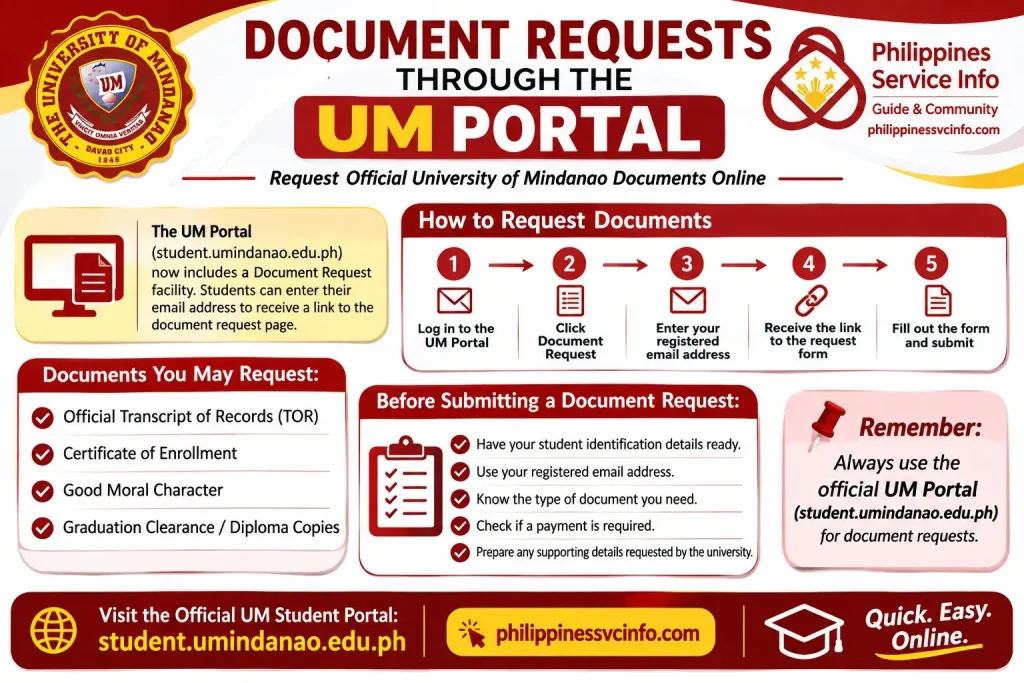
This means the portal is not limited to enrolment and login.
Depending on the service currently made available by UM, students may be directed to an online request process for university documents. However, students should rely on the actual options displayed by the official portal rather than assuming that every possible document can always be requested online.
Before submitting a document request
Have the following information ready where applicable:
- Student identification details
- Registered email address
- Type of document required
- Purpose of the request
- Payment information, if a fee is shown
- Any supporting details requested by the university
The current login page confirms that Document Request is available as an entry point from the Main Campus portal.
What About Grades and Report of Grades?
Students should be careful when interpreting information about grades inside the UM Portal.
The university’s official fee policy states that outstanding accounts can affect the release or issuance of certain academic records, including the Report of Grades, Transcript of Records and Diploma. It also states that students with outstanding accounts may be prevented from registering in the succeeding semester until previous accounts are settled.
Therefore, if an expected academic record is unavailable, a financial or administrative issue may be relevant.
That does not mean every missing grade is caused by an unpaid balance. Students should check the specific status shown in the portal and contact the appropriate UM office when the information does not match their circumstances.
UM Portal Troubleshooting: Common Problems
| Problem | What to check first |
|---|---|
| Cannot open the portal | Confirm the official URL and internet connection |
| Google login fails | Check that you are using the correct UM Google account |
| Older semester appears | Use User Icon → Switch Semester |
| UM account information is missing | Check portal announcements and registered email |
| Payment is not showing | Check the payment method and expected validation period |
| Online payment looks different | Confirm you are on the official student.umindanao.edu.ph domain |
| Portal is temporarily unavailable | Check for official UM announcements or maintenance information |
UM’s FAQ specifically notes that temporary access problems can occur during emergency maintenance and advises students to verify the URL and internet connection first.
Important Security Tips for UM Students
Your student account may connect to academic, financial and personal information, so basic account security matters.
1. Use the official portal
For Main Campus students, start from:
2. Check the domain
Look for:
student.umindanao.edu.ph
Do not assume a page is legitimate simply because it uses the University of Mindanao name or logo.
3. Protect your Google account
Never give your institutional password to another person claiming to be able to “activate” your portal.
4. Be careful with payment links
The official payment page itself advises students to check the URL before making a payment.
5. Keep registration information
Save important reference numbers, payment receipts, enrolment confirmations and university emails until the related process is fully completed.
One More Thing: Campus-Specific Portals
“UM Portal” can sometimes refer to a campus-specific University of Mindanao student portal rather than the Main Campus portal.
The official UM system has separate login pages for some campuses. For example, the Tagum portal identifies itself as UM STUDENT PORTAL TAGUM, while the Peñaplata portal identifies itself separately as UM STUDENT PORTAL PEÑAPLATA. Both use the University of Mindanao Google account sign-in system.
So, if your campus is not the Main Campus, confirm that you are using the correct campus portal before attempting to log in.
What If the UM Portal Is Not Loading?
A portal problem can have several causes. The official UM FAQ recommends checking the portal URL and your internet connection first. It also notes that the student portal may occasionally be unavailable during emergency maintenance and says such maintenance normally takes around 30–60 minutes.
Try this sequence:
- Confirm that you are using the official portal.
- Check your internet connection.
- Refresh the page.
- Open the portal in another browser if necessary.
- Check official UM announcements for maintenance information.
- Try again after the reported maintenance period.
- Contact the appropriate university office if the problem continues.
The correct Main Campus address
Avoid assuming that a search-engine result, social-media link or forwarded message is the official login page.
UM Portal Payment Troubleshooting
Payments deserve additional attention because a student may be dealing with a financial transaction rather than simply a login issue.
The official Main Campus payment page currently says that the online gateway accepts tuition fee and downpayment payments. It also states that advance downpayments and payments for students with promissory note applications should not be processed through that channel because those special cases are still under development.
Before making an online payment
Check three things:
1. Student ID
Make sure the student identification information is correct.
2. Payment type
Confirm that the transaction is one of the payment types currently supported by the online gateway.
3. Website address
The official payment page specifically tells users to verify that the address begins with https://student.umindanao.edu.ph.
Never enter card or payment information on a suspicious page simply because it uses University of Mindanao branding.
What If My Payment Is Not Reflected?
First, determine where the payment was made.
An online transaction through the official portal and an external payment made through another channel may follow different validation procedures. The university’s enrolment instructions should therefore be used to determine the applicable processing period for your particular payment method.
Keep your transaction receipt until the payment has been properly recorded.
If the issue remains unresolved, provide the relevant university office with useful details such as:
- Student ID
- Date of payment
- Amount paid
- Payment method
- Transaction or reference number
- Screenshot or receipt, where appropriate
Avoid making a second payment simply because the first one has not appeared immediately. Confirm the status first.
Is the UM Portal Safe to Use?
Students should use the official University of Mindanao domain when accessing their account.
The current portal also displays information about the University’s commitment to the Data Privacy Act of 2012 and provides access to its privacy information.
The university’s privacy policy explains matters including the personal data it collects, why data is collected, how information is used and shared, retention, data-breach handling and data-subject rights.
For students, the practical lesson is simple: treat your institutional account like any other important online account.
Good account-security habits
- Do not share your password.
- Avoid saving your password on a public computer.
- Check the domain before signing in.
- Do not enter payment details on unfamiliar websites.
- Be cautious with login links sent through unofficial messages.
- Log out when using a shared computer.
- Keep important university emails and transaction records.
UM Portal and Different University Campuses
One detail that can confuse students is that UM Portal does not necessarily mean one identical URL for every University of Mindanao campus.
The Main Campus uses:
The university’s portal system also provides campus-specific login pages. For example, the official Tagum portal identifies itself as the UM Student Portal Tagum, while the Bansalan portal identifies itself as the UM Student Portal Bansalan.
This means students should select the portal corresponding to their campus where applicable.
Why this matters
If you are a student at a branch campus and accidentally use the Main Campus portal, you may think your account is not working correctly.
Before troubleshooting your credentials, verify the campus shown on the login page.
UM Portal Troubleshooting Checklist
Use this quick checklist when something does not work:
- Confirm the correct UM campus portal.
- Check that the URL uses the official
umindanao.edu.phdomain. - Confirm that your internet connection is active.
- Use the correct institutional Google account.
- Check portal announcements.
- Try Switch Semester if academic information looks outdated.
- Use the official recovery page if you cannot access your account.
- Confirm payment details before submitting a transaction.
- Keep receipts and reference numbers.
- Contact UM if the problem continues after basic troubleshooting.
This approach is usually more useful than repeatedly refreshing the same page without identifying the underlying problem.
Common UM Portal Mistakes to Avoid
1: Using an unofficial login page
A page containing the UM logo is not automatically an official university website.
Better approach: start with the official UM domain.
2: Old Semester Doesn’t Mean Account Problem
The dashboard may simply be displaying another academic term.
Fix: use Switch Semester.
3: Repeatedly entering incorrect credentials
If your institutional account is not working, use the official recovery process instead.
4: Paying through the wrong online channel
The current official payment page lists the payment types it accepts. Check those instructions before proceeding.
5: Ignoring portal announcements
Important account and LMS information may be published through the announcement function.
Official UM Links Students Should Bookmark
Keeping the correct pages bookmarked can save time, especially during enrolment.
| Purpose | Official resource |
|---|---|
| Student Portal Login | UM Student Portal Main |
| Password Recovery | UM Portal Password Reset |
| Online Payment | UM Online Payment |
| UM FAQ | University of Mindanao FAQ |
| Enrolment Information | University of Mindanao Enrolment Procedures |
The Main Campus portal currently exposes student registration and document-request options directly from its login page, so students should also check those sections when starting a new transaction.
Key Points at a Glance
Official Main Campus Portal: student.umindanao.edu.ph/login
Login: University of Mindanao Google account
Forgot access: Use the official institutional recovery or password-reset facility
Old semester: Use User Icon → Switch Semester
LMS/Google account information: Check portal announcements
Online payment: Verify the supported payment type and official URL
Different campus: Use the portal assigned to your campus
Security: Never provide your credentials or payment information to an unofficial website
A student portal is most useful when you know where to look and, just as importantly, which information to trust. For University of Mindanao students, using the official UM domain as the starting point is the simplest way to keep enrolment, account access and online transactions organised.
FAQs About the UM Student Portal
Final Takeaway for UM Students
The UM Portal serves as the central online platform for University of Mindanao students, providing convenient access to registration, enrollment, account management, document requests, academic services, and online payments. Students should always use the official portal, verify the website address before entering personal or payment information, and follow UM’s official instructions for account recovery and enrollment-related concerns.
Discover What You Need to Know:
- CHED Philippine (2026): Complete Guide to Scholarships, Requirements, Application Steps, and Official Resources
- PUP Portal Guide 2026: Login, Admission, Enrollment & Student Services
- NEO LMS Login & User Guide: Registration, Password Recovery, Profile Settings & Online Learning
- CodeChum Guide 2026: How to Register, Log In, Join Classes & Submit Programming Assignments
- Autodesk Philippines 2026: Account, Student Access, Software & Support Guide
- UC Portal: Login, Registration, Enrollment & Student Guide 2026