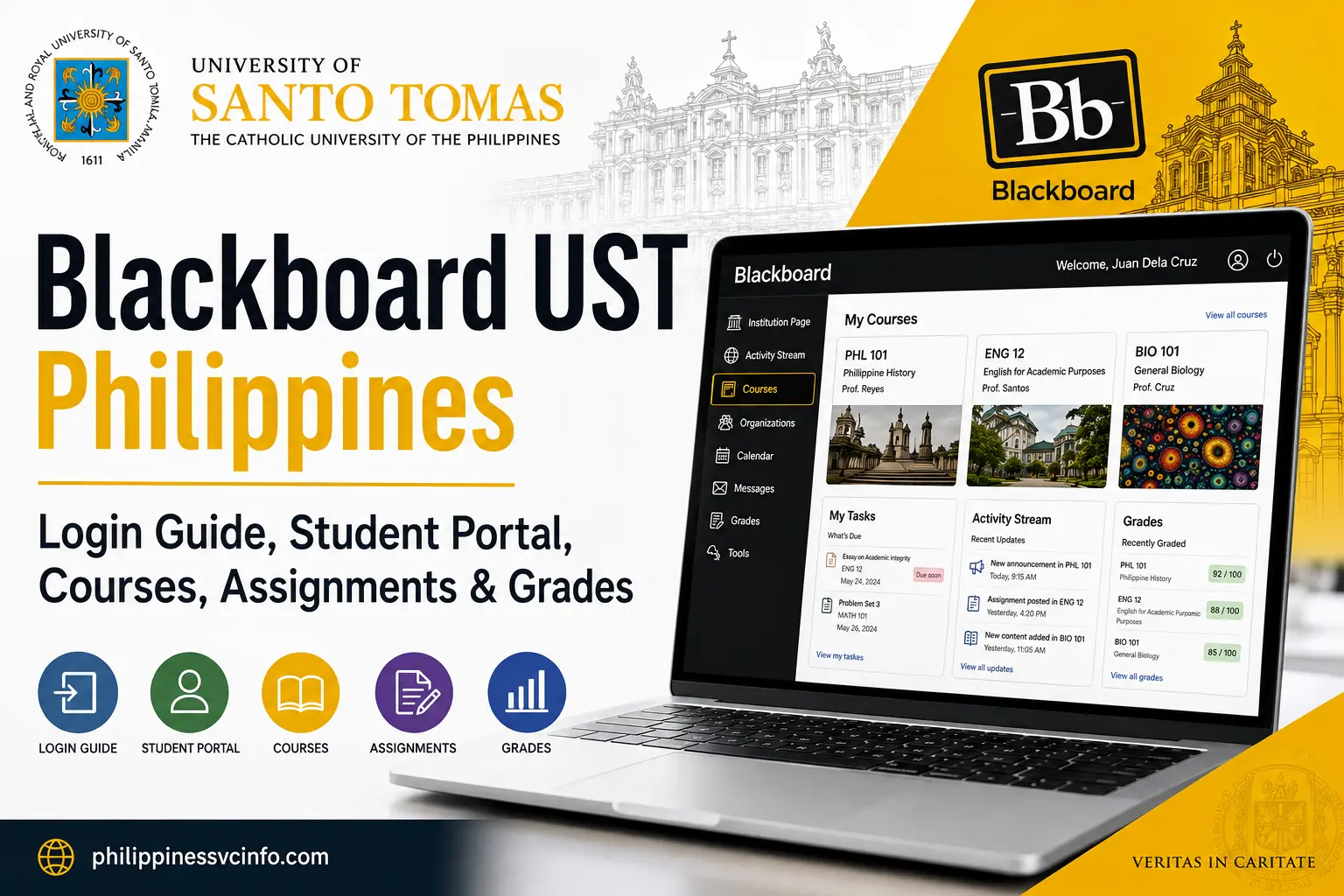
Blackboard UST is the University of Santo Tomas’s digital learning environment, powered by Blackboard through the UST CLOUD Campus. It enables students to access course materials, announcements, assignments, quizzes, grades, feedback, and other online learning activities through a central platform connected to their university accounts.
What Is Blackboard UST?
Blackboard UST refers to the Blackboard-based learning environment used by the University of Santo Tomas as part of its UST CLOUD Campus. It provides an online space where students can interact with course content and learning activities.
UST’s Educational Technology Center states that the UST CLOUD Campus has a cloud-based infrastructure powered by Blackboard and designed to support e-learning activities across the university.
Depending on your course and instructor, the learning environment may contain materials such as:
- Course information and learning modules
- Lecture presentations and documents
- Online activities and assessments
- Announcements and course updates
- Assignment instructions and submission areas
- Grades and instructor feedback
- Links to virtual learning sessions
- Other digital resources used by your academic unit
The exact appearance and content of a course can vary because instructors and academic units organise their online materials differently. UST has also documented the use of Blackboard Collaborate for web-based seminars and virtual learning activities.
Blackboard UST at a Glance
| Item | Information |
|---|---|
| University | University of Santo Tomas |
| Main website | UST official website |
| Learning environment | UST CLOUD Campus |
| LMS technology | Blackboard |
| Main support unit | Educational Technology Center |
| Typical users | UST students and faculty |
| Learning resources | Course materials, activities, assessments and related resources |
UST Website vs Blackboard
A common source of confusion for new students is the difference between the main UST website and Blackboard UST.
The official UST website is the university’s broader public-facing website. It contains information about academics, admissions, university offices, programmes, announcements and other institutional services.
Blackboard, on the other hand, is focused on learning activities and course-related access.
Think of the two systems this way:
UST website → university information and online-service entry points
Blackboard → course learning environment and digital coursework
You may therefore use the main UST website to find university information while using Blackboard to work with your enrolled subjects.
How to Access Blackboard UST
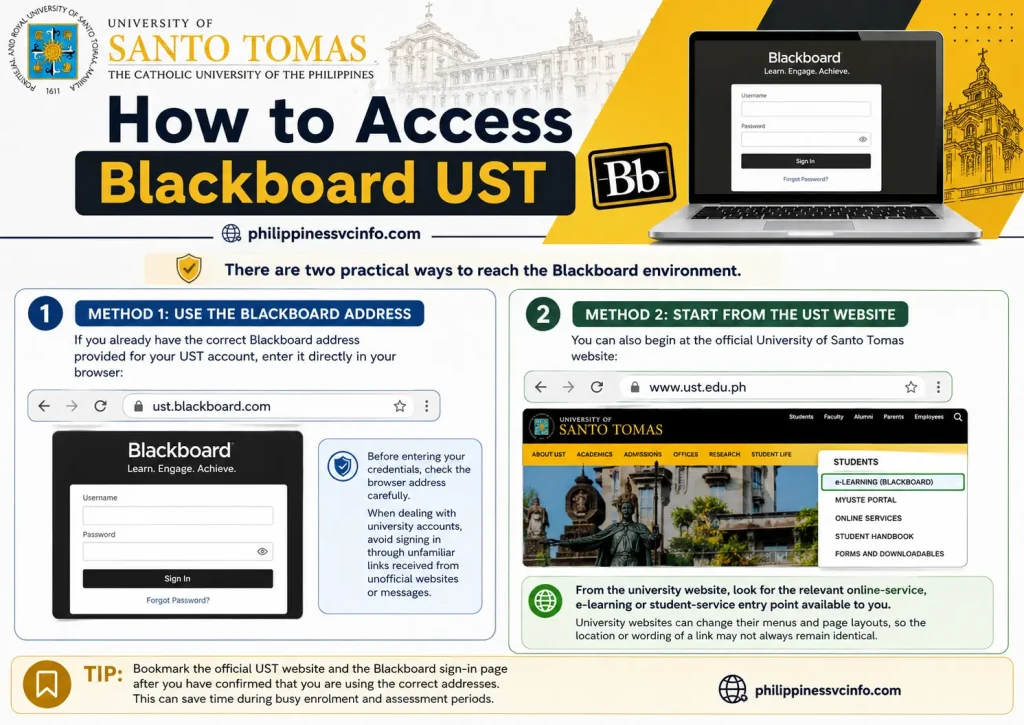
There are two practical ways to reach the Blackboard environment.
Method 1: Use the Blackboard Address
If you already have the correct Blackboard address provided for your UST account, enter it directly in your browser:
Before entering your credentials, check the browser address carefully. When dealing with university accounts, avoid signing in through unfamiliar links received from unofficial websites or messages.
Method 2: Start From the UST Website
You can also begin at the official University of Santo Tomas website:
From the university website, look for the relevant online-service, e-learning or student-service entry point available to you. University websites can change their menus and page layouts, so the location or wording of a link may not always remain identical.
Tip: Bookmark the official UST website and the Blackboard sign-in page after you have confirmed that you are using the correct addresses. This can save time during busy enrolment and assessment periods.
What You Need Before Blackboard UST Login?
Before attempting to sign in, prepare the account information associated with your UST student access.
Your basic checklist should include:
- Your official UST email/account credentials
- Your UST password
- A reliable internet connection
- A supported, updated web browser
- Access to your phone or authentication method if additional account verification is requested
The exact sign-in experience can depend on the university’s current account and authentication setup. If your screen differs from the process described below, follow the current instructions displayed by the official UST service.
New Students: Check Your Account Information First
New enrollees should make sure that their university account has already been activated before assuming that a Blackboard problem is caused by the LMS itself.
If your UST account has not yet been issued or activated, you may need to complete the relevant university onboarding or account-creation process first.
For account-specific problems, use official UST support channels rather than entering your credentials into third-party websites.
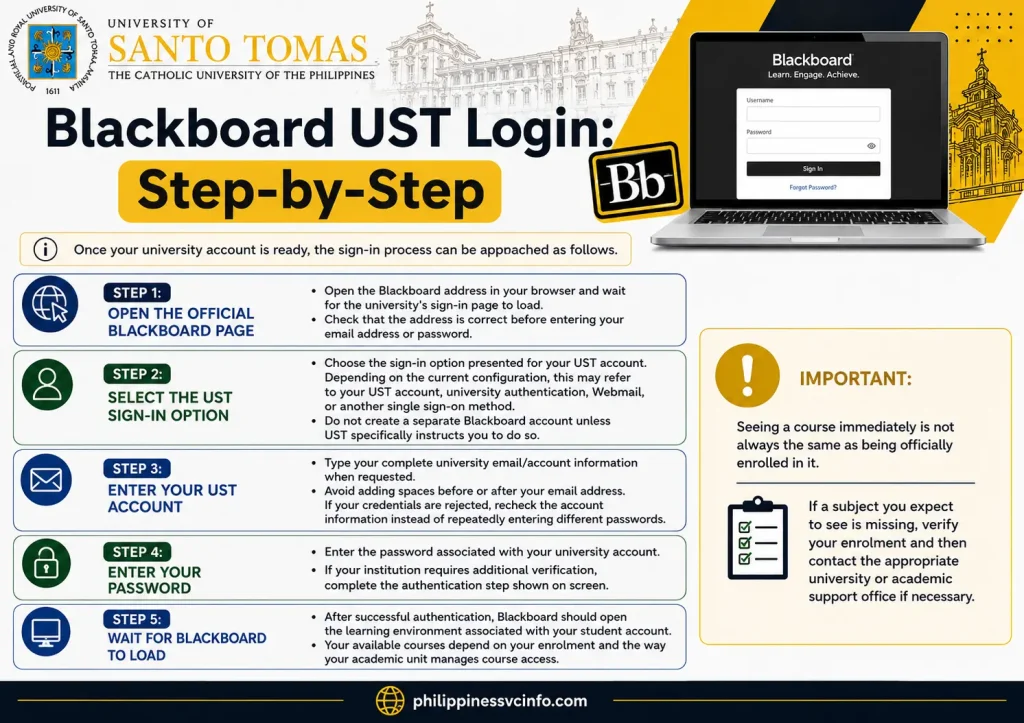
Blackboard UST Login: Step-by-Step
Once your university account is ready, the sign-in process can be approached as follows.
Step 1: Open the Official Blackboard Page
Open the Blackboard address in your browser and wait for the university’s sign-in page to load.
Check that the address is correct before entering your email address or password.
Step 2: Select the UST Sign-In Option
Choose the sign-in option presented for your UST account. Depending on the current configuration, this may refer to your UST account, university authentication, Webmail, or another single sign-on method.
Do not create a separate Blackboard account unless UST specifically instructs you to do so.
Step 3: Enter Your UST Account
Type your complete university email/account information when requested.
Avoid adding spaces before or after your email address. If your credentials are rejected, recheck the account information instead of repeatedly entering different passwords.
Step 4: Enter Your Password
Enter the password associated with your university account.
If your institution requires additional verification, complete the authentication step shown on screen.
Step 5: Wait for Blackboard to Load
After successful authentication, Blackboard should open the learning environment associated with your student account.
Your available courses depend on your enrolment and the way your academic unit manages course access.
Important: Seeing a course immediately is not always the same as being officially enrolled in it. If a subject you expect to see is missing, verify your enrolment and then contact the appropriate university or academic support office if necessary.
What If You Cannot Log In?
A failed Blackboard UST login does not necessarily mean that Blackboard itself is unavailable.
Try these basic checks:
- Confirm that you are using the correct UST account.
- Re-enter your password carefully.
- Check whether your university account is active.
- Try an updated browser.
- If possible, test the login using another supported device.
- Check official UST announcements for service-related information.
- Contact the appropriate UST support office if the problem continues.
The UST Educational Technology Center is the university unit responsible for supporting digital learning activities. Its official contact listing provides telephone numbers and email information for the centre.
UST EdTech Support
The current UST administrative contact information lists the Educational Technology Center at the 16/F Blessed Pier Giorgio Frassati Building. It also lists local telephone extensions and contact numbers for the centre.
When requesting assistance, provide useful details such as:
- Your student status
- The course or system involved
- A brief description of the problem
- The error message, if one appears
- The device and browser you are using
Never send your password in an email or support request.
Understand the Blackboard Student Dashboard
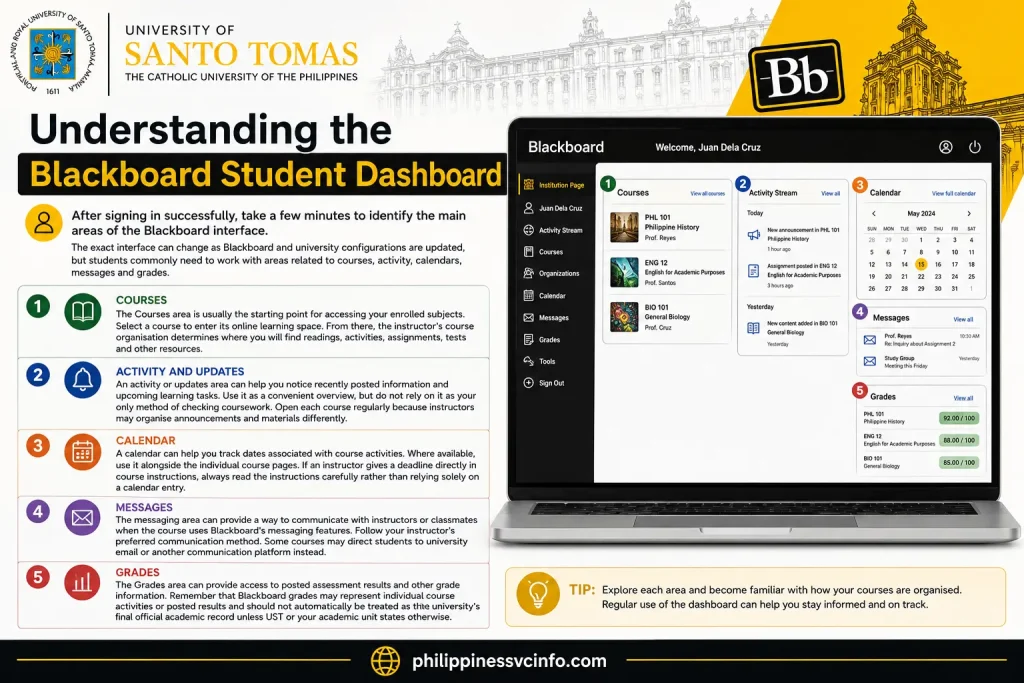
After signing in successfully, take a few minutes to identify the main areas of the Blackboard interface.
The exact interface can change as Blackboard and university configurations are updated, but students commonly need to work with areas related to courses, activity, calendars, messages and grades.
Courses
The Courses area is usually the starting point for accessing your enrolled subjects.
Select a course to enter its online learning space. From there, the instructor’s course organisation determines where you will find readings, activities, assignments, tests and other resources.
Activity and Updates
An activity or updates area can help you notice recently posted information and upcoming learning tasks.
Use it as a convenient overview, but do not rely on it as your only method of checking coursework. Open each course regularly because instructors may organise announcements and materials differently.
Calendar
A calendar can help you track dates associated with course activities.
Where available, use it alongside the individual course pages. If an instructor gives a deadline directly in course instructions, always read the instructions carefully rather than relying solely on a calendar entry.
Messages
The messaging area can provide a way to communicate with instructors or classmates when the course uses Blackboard’s messaging features.
Follow your instructor’s preferred communication method. Some courses may direct students to university email or another communication platform instead.
Grades
The Grades area can provide access to posted assessment results and other grade information.
Remember that Blackboard grades may represent individual course activities or posted results and should not automatically be treated as the university’s final official academic record unless UST or your academic unit states otherwise.
Your First Visit: A Practical Checklist
If you are opening Blackboard UST for the first time, use this short checklist:
- Confirm your UST account works.
- Open the official Blackboard portal.
- Sign in using your university credentials.
- Locate the Courses area.
- Identify your current subjects.
- Open each available course.
- Look for announcements and course instructions.
- Check the syllabus or course outline.
- Review upcoming activities and deadlines.
- Identify where assignments and assessments are located.
- Check how your instructor communicates with students.
Taking a few minutes to organise these basics can make later assignment and assessment work much easier.
What Students Find Inside Blackboard Course?
A Blackboard course is not necessarily identical from one subject to another. Instructors may arrange the content according to their teaching approach and the requirements of the academic unit.
A typical course may include:
- Course overview: Basic information about the subject and how the online space is organised.
- Syllabus or course outline: Information about learning activities, expectations, topics and assessment arrangements.
- Learning modules: Materials may be grouped by week, topic, unit or lesson.
- Documents: These can include readings, presentations, worksheets or other files.
- Video resources: An instructor may provide recorded lectures or external video resources.
- Online activities: These may include discussions, exercises, assignments, quizzes or other assessments.
- Virtual sessions: Depending on the course, students may receive links or instructions for synchronous online meetings.
UST has documented its use of Blackboard as part of the university’s digital learning environment, including Blackboard Collaborate for web conferencing and virtual learning activities.
A Useful Habit for New Students
Don’t wait until an assignment deadline to explore the course page.
When you first enter each subject, spend a few minutes identifying:
- Where announcements appear
- Where learning materials are stored
- Where assignments are submitted
- Where quizzes or tests are located
- Where grades are displayed
- How the instructor communicates important changes
That small amount of preparation can prevent avoidable mistakes later in the term.
How to Find Your Courses in Blackboard UST
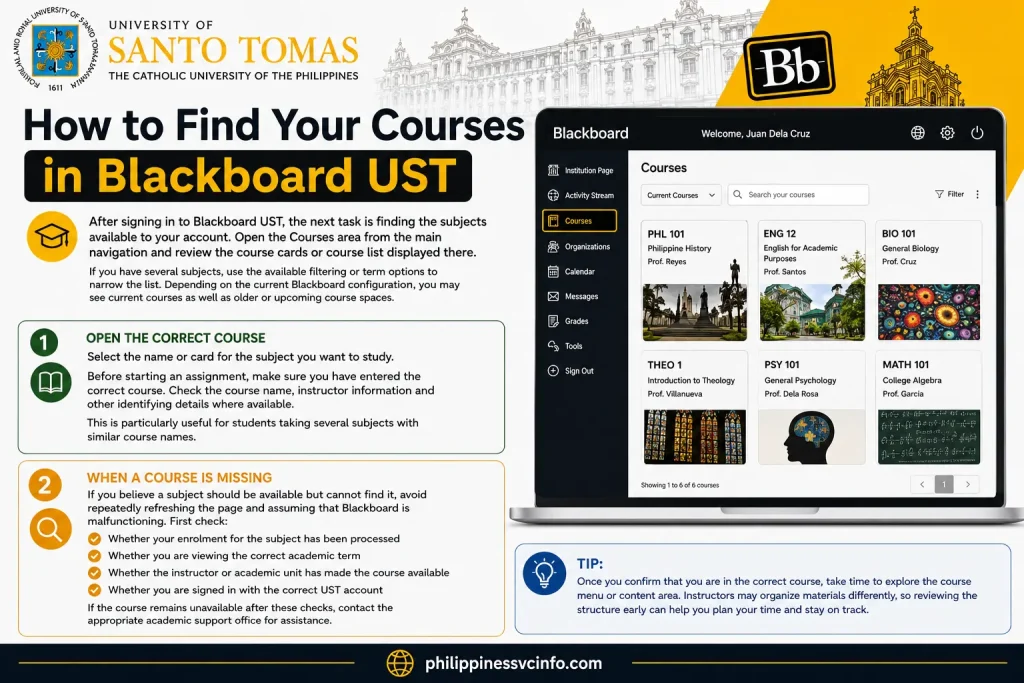
After signing in to Blackboard UST, the next task is finding the subjects available to your account. Open the Courses area from the main navigation and review the course cards or course list displayed there.
If you have several subjects, use the available filtering or term options to narrow the list. Depending on the current Blackboard configuration, you may see current courses as well as older or upcoming course spaces.
Open the Correct Course
Select the name or card for the subject you want to study.
Before starting an assignment, make sure you have entered the correct course. Check the course name, instructor information and other identifying details where available.
This is particularly useful for students taking several subjects with similar course names.
When a Course Is Missing
If you believe a subject should be available but cannot find it, avoid repeatedly refreshing the page and assuming that Blackboard is malfunctioning.
First check:
- Whether your enrolment for the subject has been processed
- Whether you are viewing the correct academic term
- Whether the instructor or academic unit has made the course available
- Whether you are signed in with the correct UST account
If the course remains unavailable after these checks, contact the appropriate UST support or academic office.
Inside a Blackboard UST Course
Once you open a course, the layout will depend on how the instructor has arranged the online classroom. One subject may use weekly folders, while another may organise content by topic, unit or assessment.
Look for the main course content area and read any introductory instructions before opening individual activities.
Course Outline and Syllabus
The syllabus or course outline is often one of the first resources worth locating.
It can provide information about:
- Course topics
- Learning activities
- Assessment requirements
- Class expectations
- Important dates
- Instructor instructions
Do not skip this section simply because you are looking for an assignment. The syllabus can provide the context needed to understand how the subject is organised.
Learning Modules and Folders
Instructors may group learning resources into modules, folders or topic sections.
A module could contain several types of material, such as:
- Lecture slides
- PDF readings
- Study resources
- Video materials
- Learning activities
- Assignments
- Quiz or assessment links
The organisation is controlled by the course instructor, so there is no single layout that every UST student will see.
Moving Through Course Content
Work through course materials in the order recommended by your instructor.
If content is divided into weekly or sequential modules, complete the introductory material before moving to an assessment. This makes it easier to understand the instructions and reduces the chance of submitting incomplete work.
Practical tip: Keep a separate list of deadlines for each subject. Blackboard can help you monitor activities, but a personal checklist can make it easier to manage several courses at once.
How to Find a Blackboard UST Assignment
Assignments may be placed inside a course module or made visible through activity and calendar areas.
To locate an assignment:
- Open Courses.
- Select the relevant subject.
- Review the course content or module structure.
- Look for the assignment title.
- Open it before preparing your final submission.
- Read the instructions, deadline and assessment information carefully.
Do not rely only on the assignment title. The detailed instructions may specify a file type, word count, submission format, rubric or other requirement.
How to Submit an Assignment on Blackboard
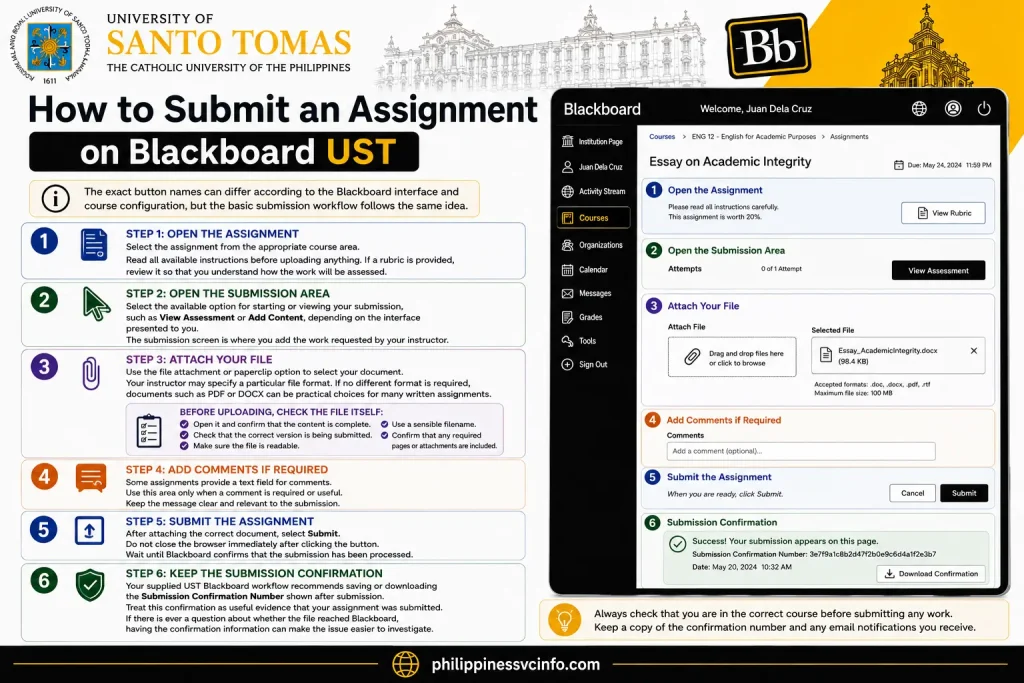
The exact button names can differ according to the Blackboard interface and course configuration, but the basic submission workflow follows the same idea.
Step 1: Open the Assignment
Select the assignment from the appropriate course area.
Read all available instructions before uploading anything. If a rubric is provided, review it so that you understand how the work will be assessed.
Step 2: Open the Submission Area
Select the available option for starting or viewing your submission, such as View Assessment or Add Content, depending on the interface presented to you.
The submission screen is where you add the work requested by your instructor.
Step 3: Attach Your File
Use the file attachment or paperclip option to select your document.
Your instructor may specify a particular file format. If no different format is required, documents such as PDF or DOCX can be practical choices for many written assignments.
Before uploading, check the file itself:
- Open it and confirm that the content is complete.
- Check that the correct version is being submitted.
- Make sure the file is readable.
- Use a sensible filename.
- Confirm that any required pages or attachments are included.
Step 4: Add Comments if Required
Some assignments provide a text field for comments.
Use this area only when a comment is required or useful. Keep the message clear and relevant to the submission.
Step 5: Submit the Assignment
After attaching the correct document, select Submit.
Do not close the browser immediately after clicking the button. Wait until Blackboard confirms that the submission has been processed.
Step 6: Keep the Submission Confirmation
Your supplied UST Blackboard workflow recommends saving or downloading the Submission Confirmation Number shown after submission.
Treat this confirmation as useful evidence that your assignment was submitted. If there is ever a question about whether the file reached Blackboard, having the confirmation information can make the issue easier to investigate.
Before You Submit: Assignment Checklist
A final check can prevent many avoidable submission errors.
| Check | What to confirm |
|---|---|
| Course | You are inside the correct subject |
| Assignment | You opened the intended assessment |
| Instructions | You followed the instructor’s requirements |
| File | The correct version is attached |
| Format | The document uses the requested file type |
| Content | The assignment is complete |
| Comments | Required notes have been added |
| Submission | You clicked the final Submit option |
| Confirmation | You saved the submission confirmation |
Common Assignment Mistakes to Avoid
Students can run into problems when they upload a draft instead of the final document, attach the wrong file, or leave the submission process unfinished.
Another common mistake is assuming that uploading a file automatically means the assignment has been submitted. Follow the complete workflow shown by Blackboard and look for confirmation after finalising the submission.
If your instructor has provided special submission instructions, those instructions take priority over a general workflow.
How to Take a Quiz or Test in Blackboard UST
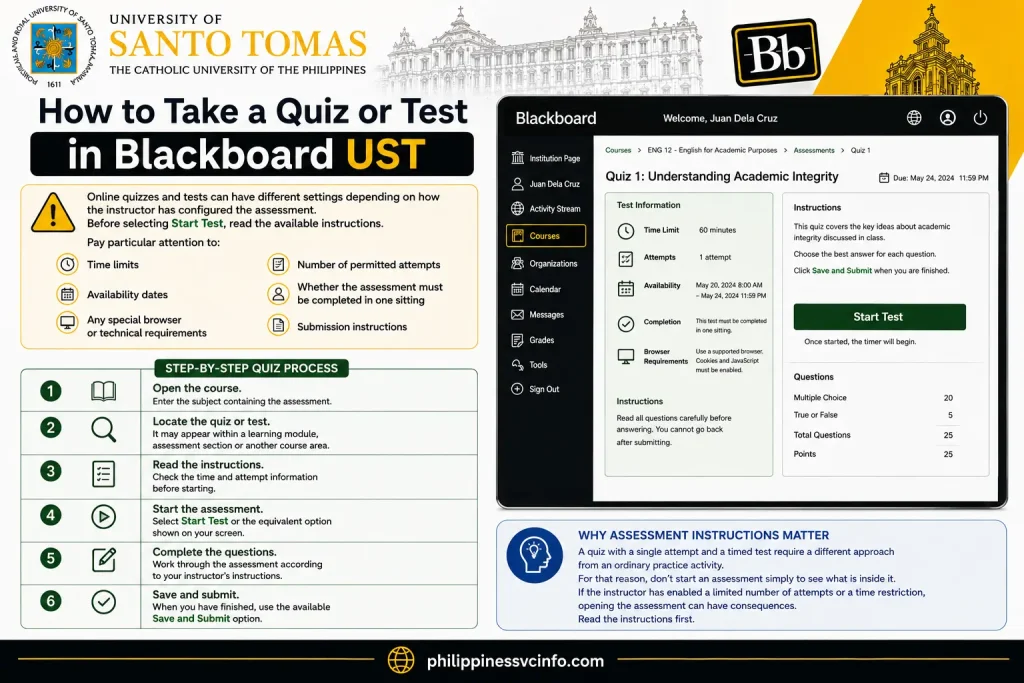
Online quizzes and tests can have different settings depending on how the instructor has configured the assessment.
Before selecting Start Test, read the available instructions.
Pay particular attention to:
- Time limits
- Number of permitted attempts
- Availability dates
- Whether the assessment must be completed in one sitting
- Any special browser or technical requirements
- Submission instructions
Step-by-Step Quiz Process
1. Open the course.
Enter the subject containing the assessment.
2. Locate the quiz or test.
It may appear within a learning module, assessment section or another course area.
3. Read the instructions.
Check the time and attempt information before starting.
4. Start the assessment.
Select Start Test or the equivalent option shown on your screen.
5. Complete the questions.
Work through the assessment according to your instructor’s instructions.
6. Save and submit.
When you have finished, use the available Save and Submit option.
Why Assessment Instructions Matter
A quiz with a single attempt and a timed test require a different approach from an ordinary practice activity.
For that reason, don’t start an assessment simply to see what is inside it. If the instructor has enabled a limited number of attempts or a time restriction, opening the assessment can have consequences.
Read the instructions first.
Using Blackboard UST for Virtual Classes
Some UST courses may include links or instructions for synchronous online sessions.
Depending on the course, you may see labels such as:
- Synchronous Session
- Class Meeting
- Collaborate
- Virtual Classroom
UST’s Educational Technology Center has documented the use of Blackboard Collaborate in connection with web conferencing and virtual learning activities.
The location and wording of a virtual-class link depend on the course setup. If you cannot find an expected session, check the latest course announcement or instructions from your instructor.
Preparing for an Online Class
Before a scheduled session:
- Sign in to Blackboard early.
- Open the correct course.
- Locate the meeting link.
- Check your internet connection.
- Test your microphone or camera if required.
- Keep the relevant course materials available.
- Follow your instructor’s attendance and participation instructions.
Finding Announcement & New Course Information
Announcements can contain changes to coursework, reminders, assessment information or other course updates.
When you sign into Blackboard UST, review the activity or update area and then check individual course announcements.
A notification does not replace reading the full course instructions. If an instructor changes an assessment deadline or provides additional requirements, the complete announcement should be read before you proceed.
Managing Multiple UST Courses
Students with several subjects can quickly accumulate files, activities and deadlines. A consistent routine makes Blackboard easier to manage.
One practical approach is to review your courses at the start of each study session:
- First: Check announcements.
- Second: Review upcoming deadlines.
- Third: Open the relevant course module.
- Fourth: Complete the required learning activity.
- Fifth: Submit assessments and confirm successful submission.
- Finally: Check whether grades or feedback have been posted.
This approach keeps the learning environment focused on actions rather than simply browsing through course pages.
Blackboard UST on Different Devices
Students may access their online learning environment from a computer or mobile device, but the layout can vary by screen size and browser.
For assignments and other important submissions, a computer can be more convenient when you need to review documents, attach files or confirm that a submission has been processed correctly.
On a mobile device, use the official Blackboard access method associated with your university account and keep your browser or relevant Blackboard software updated where applicable.
Mobile Access Tip
If you use a phone for checking announcements or deadlines, still verify important submissions from the course page. Small screens can make it easier to overlook instructions, attachments or confirmation details.
What to Do If an Assignment Will Not Submit
If Blackboard does not appear to accept your assignment, do not immediately submit the same file repeatedly.
Instead:
- Check whether the assignment is still available.
- Confirm that the file has finished uploading.
- Verify the file format and size requirements.
- Check your internet connection.
- Refresh or reopen the course if appropriate.
- Look for an error message.
- Take a screenshot of the problem if needed.
- Contact the relevant UST support channel or instructor if the issue continues.
If a deadline is approaching, record the time and details of the technical problem. This information can be useful when explaining the situation to your instructor or support team.
Protecting Your UST Blackboard Account
Your Blackboard access is connected to your university account, so treat your login credentials as private.
Never share your password with classmates or send it through an unsecured message. Be cautious of websites that imitate university login pages.
When using a shared or public computer, sign out of your university account when you finish and avoid saving your password in the browser.
Security Reminder
UST-related services can contain academic and personal information. Always verify that you are using the official university service before entering credentials.
For official university information, start with the University of Santo Tomas website rather than relying on an unofficial search result.
How to Check Grades in Blackboard UST
Once your instructor has graded an assessment, you may be able to view the result through the course’s Grades area or the main Blackboard grade view.
The information displayed depends on what your instructor has posted and how the course has been configured. A missing grade does not necessarily mean that an assignment was not received; the instructor may simply not have released the result yet.
View Your Course Grades
To check an available result:
- Sign in to Blackboard UST.
- Open the relevant course.
- Select the Grades area available within the course, if provided.
- Review the listed assessments and posted scores.
- Open an individual graded activity when you need more detail.
You may also have access to a general Grades area from Blackboard’s main navigation. This can be useful when you want to review results across multiple subjects.
Understanding Blackboard Grade Information
A grade screen may show more than just a number. Depending on the assessment and instructor settings, you could see information such as:
- Individual assessment scores
- Overall or calculated results
- Instructor comments
- Rubric criteria
- Assignment feedback
- Annotated documents
- Other assessment-specific information
Not every course will display all of these elements.
For example, an instructor may grade an uploaded document and return it with comments or annotations. Another assessment may show only a score.
Blackboard Grades Are Course-Specific
Remember that Blackboard is primarily being used here as a learning and assessment environment. The information shown in a course should be interpreted according to the instructor’s grading setup and UST’s academic procedures.
If you need an official academic record, follow the university’s designated academic-record or student-portal process rather than assuming that a Blackboard grade page is the final institutional record.
How to Read Instructor Feedback
A numerical score does not always tell you why you received that result.
If feedback is available, open the graded assignment and look for comments, annotations or a rubric.
Assignment Comments
Instructor comments may explain strengths, weaknesses or areas that need improvement.
Read the entire feedback before deciding what changes to make. A short comment may refer to a larger requirement explained in the assignment instructions or rubric.
Rubric Feedback
When an instructor uses a rubric, the assessment may be divided into separate criteria.
A rubric can help you identify which parts of your work met the expected requirements and which areas need further attention.
Annotated Documents
Some Blackboard assessment workflows allow instructors to add annotations to submitted documents.
If an annotated version is available, open the returned document and review the marked sections alongside the instructor’s written comments.
Study tip: Don’t treat feedback only as a record of your previous grade. Use it when preparing your next assignment, especially when the same course uses similar assessment criteria.
What If Your Grade Is Missing?
A grade may not appear immediately after submission.
Before contacting support, check:
- Whether the assignment was successfully submitted
- Whether the instructor has announced that grading is complete
- Whether the assessment is still being marked
- Whether the grade has been released to students
- Whether you are viewing the correct course and assessment
If the instructor has confirmed that grades were released but your result is still missing, contact the instructor or the appropriate UST support channel.
Blackboard UST Troubleshooting Guide
Technical problems can happen for several reasons. The most useful approach is to identify whether the issue concerns your account, the course, a particular assessment or the platform itself.
| Problem | First checks |
|---|---|
| Cannot sign in | Verify UST account and password |
| Course missing | Check term, enrolment and course availability |
| Assignment missing | Review course modules and announcements |
| File will not upload | Check file, format, size and connection |
| Submission unclear | Look for submission confirmation |
| Quiz will not open | Check availability dates and instructions |
| Grade unavailable | Confirm whether results have been released |
| Virtual class link missing | Check course announcements and modules |
| Repeated technical error | Record the error and contact support |
When to Contact UST Support
If ordinary browser and account checks do not resolve the issue, contact the relevant UST office rather than repeatedly attempting the same action.
The Educational Technology Center (EdTech) is the UST unit associated with educational technology and digital-learning support. Its official university page provides information about the centre and its services.
When reporting a problem, include enough information for the support team to understand what happened. A useful report can mention the course, activity, approximate time, device, browser and exact error message.
Do not include your password.
Common Mistakes Students Should Avoid
Using an Unofficial Login Page
Search engines can return many pages discussing Blackboard. That does not mean every result is an official UST service.
Use the university’s official website or the recognised Blackboard portal when signing in.
Waiting Until the Deadline to Upload
Large documents, slow connections or unexpected browser problems can make last-minute submissions stressful.
If an assignment is important, prepare the final file before the deadline and allow enough time to upload it and confirm the submission.
Forgetting to Check the Submission Result
Attaching a file is not necessarily the same as completing the submission process.
After submitting, look for the confirmation information provided by Blackboard and retain it when appropriate.
Ignoring Course Announcements
An assignment may be updated after the course has started. Instructors can use announcements or course instructions to communicate changes, so check them regularly.
Assuming Every Course Looks the Same
Your classmates’ Blackboard screens may not exactly match yours.
Instructors can organise course materials differently, so use the instructions provided within your own course as the primary reference.
How to Use Blackboard More Efficiently
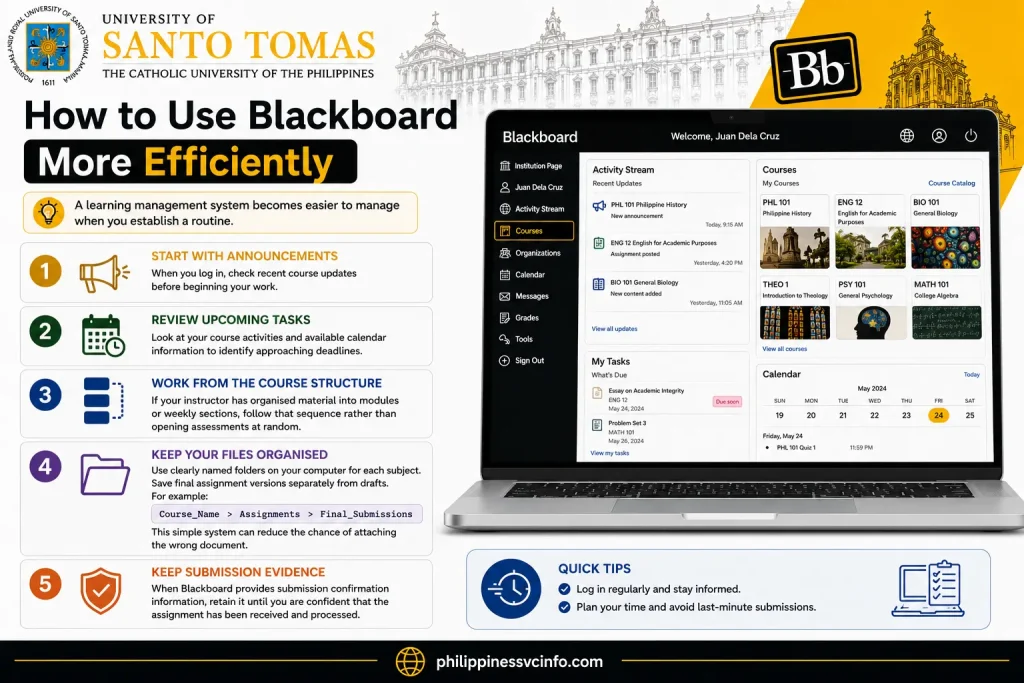
A learning management system becomes easier to manage when you establish a routine.
Start With Announcements
When you log in, check recent course updates before beginning your work.
Review Upcoming Tasks
Look at your course activities and available calendar information to identify approaching deadlines.
Work From the Course Structure
If your instructor has organised material into modules or weekly sections, follow that sequence rather than opening assessments at random.
Keep Your Files Organised
Use clearly named folders on your computer for each subject. Save final assignment versions separately from drafts.
For example:
Course_Name > Assignments > Final_Submissions
This simple system can reduce the chance of attaching the wrong document.
Keep Submission Evidence
When Blackboard provides submission confirmation information, retain it until you are confident that the assignment has been received and processed.
A Simple Blackboard UST Study Routine
For students managing several subjects, the following routine can provide a practical way to stay organised:
Daily or during study sessions
- Sign in to Blackboard.
- Review new announcements.
- Check upcoming activities.
- Open the course you need to work on.
- Complete the relevant learning materials.
- Record important deadlines.
Before an assessment
- Read the instructions.
- Confirm the deadline.
- Check the permitted file format or attempt information.
- Prepare the final material.
- Submit through the correct assessment page.
- Confirm the submission.
After grading
- Review your score.
- Read instructor feedback.
- Check rubric comments when available.
- Use the feedback to improve future coursework.
This routine keeps Blackboard focused on the complete learning cycle: access → study → complete → submit → review.
Blackboard UST Quick Reference
Here is a condensed reference for students who need the main information without reading the entire guide again.
| Task | Where to start |
|---|---|
| University information | UST official website |
| Blackboard access | UST Blackboard portal |
| View subjects | Courses |
| Read course materials | Individual course |
| Find deadlines | Course activities / Calendar where available |
| Submit coursework | Relevant assignment |
| Take online assessment | Quiz/Test activity |
| View results | Grades |
| Read comments | Individual graded assessment |
| Technical support | UST Educational Technology Center |
Official UST Links
For account-specific or technical problems, use the university’s official support information rather than third-party Blackboard guides.
Final Student Checklist
Before finishing your first Blackboard UST session, make sure you can:
- Access the official UST website
- Open the Blackboard portal
- Sign in with your UST account
- Find your enrolled courses
- Open a course module
- Locate course instructions
- Find assignments and assessments
- Upload and submit coursework
- Save submission confirmation information
- Access available grades
- Read instructor feedback
- Find course announcements
- Identify the correct UST support channel
FAQs About Blackboard UST
Final Takeaway
For new and returning students, Blackboard UST works best when it is treated as part of a regular academic routine rather than simply a website for submitting assignments. Start by confirming your university account, learn where your courses and announcements are located, and become familiar with the way each instructor organises course content.
When submitting important coursework, read the assessment instructions carefully, upload the correct file, complete the final submission action and retain the confirmation information. After results are released, check both your score and any available feedback so that the platform becomes useful not only for submitting work but also for improving future coursework.
For university-wide information, start with the official University of Santo Tomas website. For Blackboard access, use the recognised UST Blackboard portal, and for digital-learning technical assistance, consult the UST Educational Technology Center.
Discover What You Need to Know:
- SIAS NCF Philippines 2026 : Login, Admission, Portal & Student Guide
- Blippi Philippines 2026 : Educational Videos, Learning Activities, Games & Complete Parent Guide
- myMapúa Student Portal Guide 2026: Login, Enrollment, Grades, Schedule & Account Help
- CEU Portal Philippines 2026 : Complete Guide of Login, Student Portal and Registration Guide
- CEU Cares Philippines 2026: Guide of Requirements, Application, Registration, Login & Enrollment