Blackboard Mapúa University Philippines 2026: Login, Password Reset, Courses & Student Guide
Blackboard Mapúa is the online learning platform associated with Mapúa University, known as Cardinal EDGE. It helps students access digital course materials, review announcements, submit assignments, take online assessments and follow learning activities. Students use their institutional login credentials to access available subjects and communicate with course instructors online.
Introduction
Finding lecture notes, checking assignment deadlines and preparing for online examinations become easier when students know how to use their university’s learning platform. At Mapúa University, Blackboard Mapúa, also known as Cardinal EDGE, serves as an important digital space for accessing course-related resources and completing online learning activities.
Whether you are a newly enrolled student trying to sign in for the first time or a returning student who cannot remember a password, understanding the Blackboard Mapúa login process can save time and reduce confusion. The platform also supports everyday academic tasks, including opening subject pages, uploading coursework and checking information shared by instructors.
This guide explains how to access Blackboard Mapúa, activate an account, reset a forgotten password, navigate courses and resolve common technical problems. It also includes official support links so students can refer to Mapúa’s own resources when account access does not work as expected.
What Is Cardinal EDGE at Mapúa University?
Cardinal EDGE is the name used for Mapúa University’s Blackboard learning management system. A learning management system, or LMS, is an online platform where educational institutions organise digital course content and academic activities.
Instead of relying only on classroom announcements or printed materials, students can use Blackboard Mapúa to find resources that their instructors make available online. The exact features and materials displayed may vary by subject, instructor and account permissions.
Common learning activities include:
- Course access: Open available subjects and their learning materials.
- Lecture resources: Read notes, course documents and other uploaded materials.
- Announcements: Review updates and instructions from instructors.
- Assignment submission: Upload coursework through designated assignment links.
- Online assessments: Access quizzes, tests and examinations when available.
- Academic planning: Check relevant deadlines and learning activities published within a course.
Students should distinguish Blackboard Mapúa from the university’s other digital services. Blackboard focuses on learning activities, while the student information or enrolment portal may handle separate administrative tasks.
Official Blackboard Mapúa and Student Support Websites
Use the official resources below when signing in, managing account credentials or resolving access problems.
Mapúa University Support Knowledge Base
Official technical support articles, including password recovery guidance.
Open the official password reset article
Mapúa IT Helpdesk
For account recovery or technical problems that cannot be resolved through self-service.
Email: [email protected]
Mapúa University official website
University information and links to institutional services.
Important: Use the Blackboard login link supplied by Mapúa or linked from its official university services. Do not enter your institutional password on an unfamiliar website that merely uses the Blackboard or Mapúa name.
How to Log In to Blackboard Mapúa
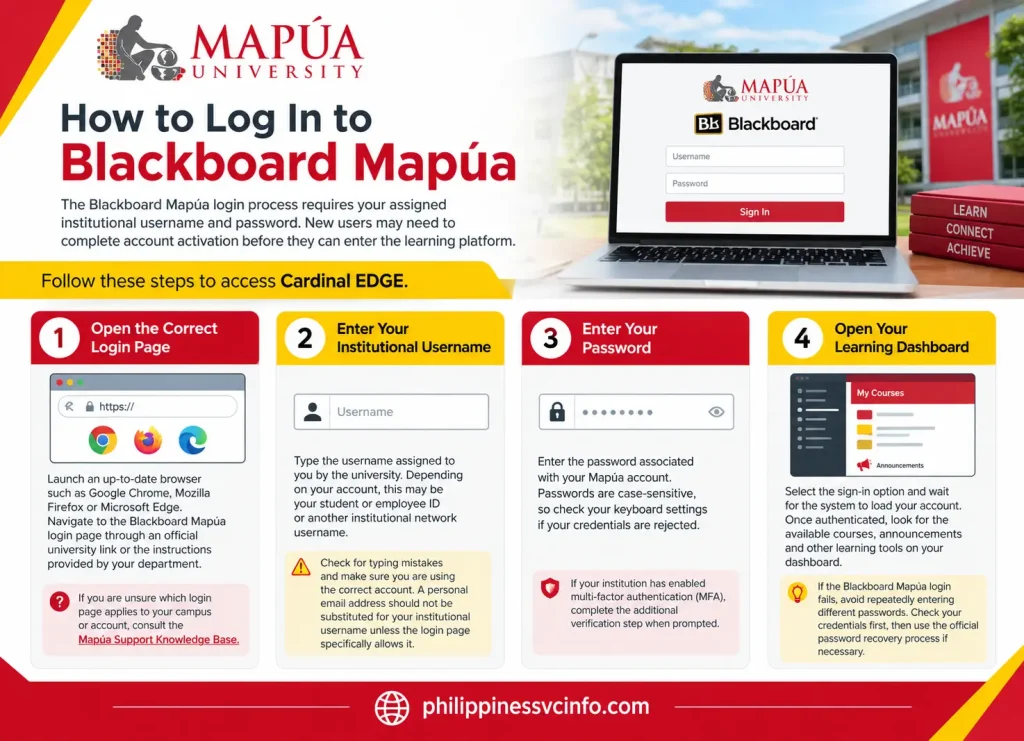
The Blackboard Mapúa login process requires your assigned institutional username and password. New users may need to complete account activation before they can enter the learning platform.
Follow these steps to access Cardinal EDGE.
Step 1: Open the Correct Login Page
Launch an up-to-date browser such as Google Chrome, Mozilla Firefox or Microsoft Edge. Navigate to the Blackboard Mapúa login page through an official university link or the instructions provided by your department.
If you are unsure which login page applies to your campus or account, consult the Mapúa Support Knowledge Base.
Step 2: Enter Your Institutional Username
Type the username assigned to you by the university. Depending on your account, this may be your student or employee ID or another institutional network username.
Check for typing mistakes and make sure you are using the correct account. A personal email address should not be substituted for your institutional username unless the login page specifically allows it.
Step 3: Enter Your Password
Enter the password associated with your Mapúa account. Passwords are case-sensitive, so check your keyboard settings if your credentials are rejected.
If your institution has enabled multi-factor authentication (MFA), complete the additional verification step when prompted.
Step 4: Open Your Learning Dashboard
Select the sign-in option and wait for the system to load your account. Once authenticated, look for the available courses, announcements and other learning tools on your dashboard.
If the Blackboard Mapúa login fails, avoid repeatedly entering different passwords. Check your credentials first, then use the official password recovery process if necessary.
First-Time Blackboard Mapúa Account Activation
Newly enrolled students may not be able to access Blackboard Mapúa until their institutional accounts have been created and activated. The activation procedure depends on the instructions issued by the university and the status of your account.
Start by checking the email address you supplied during enrolment, along with any university-assigned inbox. Look for an official account setup notification containing activation instructions or temporary credentials.
Once you receive the instructions:
- Open the official login page specified in the account notification.
- Enter the temporary credentials provided to you, if applicable.
- Follow any prompt to replace the temporary password.
- Create a strong password that meets the displayed security requirements.
- Complete any additional account verification or MFA setup requested by the system.
- Return to the login page and check that you can access your account.
An authenticator application, such as Microsoft Authenticator or Google Authenticator, may be used when supported by the university’s configured verification process. Follow the actual on-screen instructions rather than assuming every account uses the same MFA method.
If no activation email arrives: Check your spam or junk folder and verify that you are checking the correct email account. If the message is still missing, contact the Mapúa IT Helpdesk or your university’s designated support office. Do not use another student’s credentials to bypass an activation problem.
How to Reset a Blackboard Mapúa Password
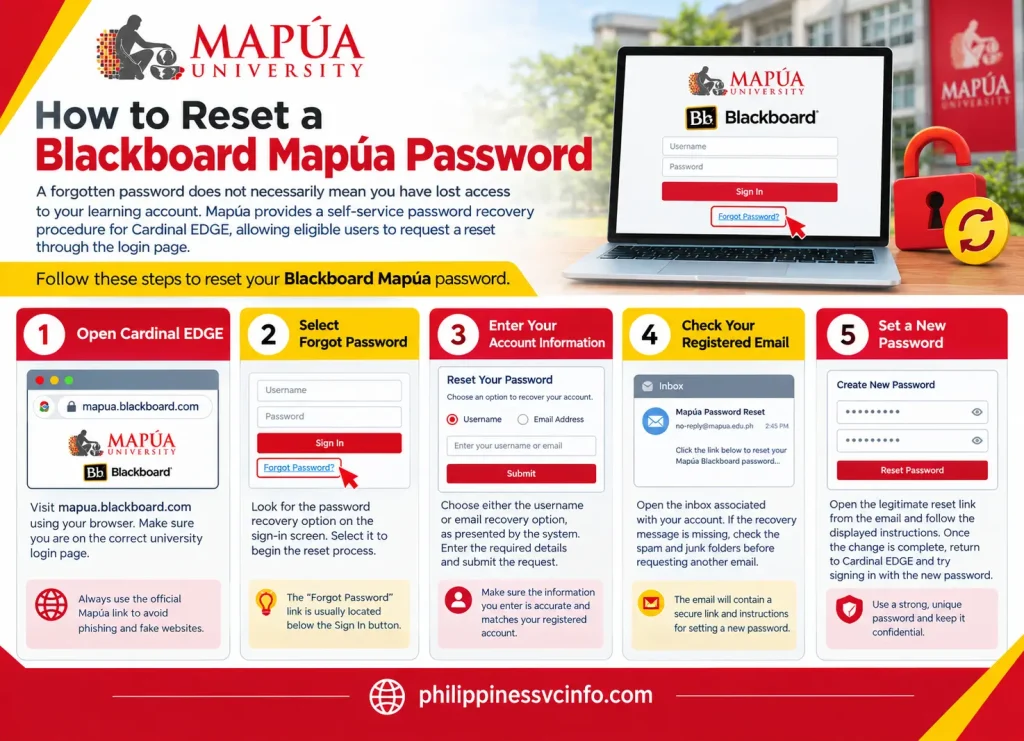
A forgotten password does not necessarily mean you have lost access to your learning account. Mapúa provides a self-service password recovery procedure for Cardinal EDGE, allowing eligible users to request a reset through the login page.
The university’s official Blackboard password reset instructions describe the recovery process.
Step-by-Step Password Recovery
Step 1: Open Cardinal EDGE
Visit mapua.blackboard.com using your browser. Make sure you are on the correct university login page.
Step 2: Select Forgot Password
Look for the password recovery option on the sign-in screen. Select it to begin the reset process.
Step 3: Enter Your Account Information
Choose either the username or email recovery option, as presented by the system. Enter the required details and submit the request.
Step 4: Check Your Registered Email
Open the inbox associated with your account. If the recovery message is missing, check the spam and junk folders before requesting another email.
Step 5: Set a New Password
Open the legitimate reset link from the email and follow the displayed instructions. Once the change is complete, return to Cardinal EDGE and try signing in with the new password.
What If the Password Reset Email Does Not Arrive?
Try these checks before contacting technical support:
- Confirm that you entered the username or registered email address correctly.
- Check all relevant inbox folders, including spam and junk.
- Make sure you are using the account associated with Cardinal EDGE.
- Return to the official reset page if the original recovery link has expired or no longer works.
- Avoid sharing your password or verification codes with anyone claiming to offer unofficial assistance.
If the automated process fails or your account remains locked, contact the Mapúa IT Helpdesk at [email protected]. Include your full name, student number and contact details so the support team can verify your identity. Never send your current password in the email.
Can You Change Your Blackboard Mapúa Password While Logged In?
Yes. Mapúa’s published account registration instructions describe changing the password from within Cardinal EDGE.
After signing in through a browser, open your name or profile area in the left navigation panel. Select Basic Information, then choose Change Password. Enter the existing password and your new password as requested, confirm the new entry, and select Save. The exact interface may vary with platform updates.
Refer to the university’s Account Password Registration instructions for the official procedure. The university’s guidance also notes that this in-platform password-change feature does not apply to the Blackboard mobile app.
Blackboard Mapúa vs myMapúa: What Is the Difference?
Students sometimes confuse Blackboard with the university’s student portal because both are accessed online. However, they serve different purposes.
| Feature | Cardinal EDGE (Blackboard) | myMapúa |
|---|---|---|
| Main purpose | Online learning and coursework | Student administration |
| Course materials | Access available learning resources | Not its primary purpose |
| Assignments | Submit work through course links | Not its primary purpose |
| Online assessments | Access instructor-provided tests | Not its primary purpose |
| Enrolment and payment status | Not its primary purpose | Check relevant student records |
| Final grades | Depends on what instructors make available | University guidance identifies it as a place to view final grades |
For students who need to check enrolment information or payment status, myMapúa is the more appropriate starting point. For lecture materials, assignment instructions and course activities, use Cardinal EDGE.
You can find university services through the official Mapúa student services page.
How to Find Courses on Blackboard Mapúa
After logging in, your Cardinal EDGE dashboard provides access to the subjects assigned to your account. Course visibility depends on your enrolment and whether the instructor has made the course available.
Steps to Open Your Online Classroom
- Sign in to Cardinal EDGE.
- Select Courses from the navigation panel.
- Find the subject you want to study.
- Select the course title to open its learning area.
- Review the available announcements, learning modules, lecture notes, syllabus and other materials.
If you cannot find a particular subject, check your enrolment status first. A course may not appear because enrolment information has not been updated, the instructor has not published the course, or your course assignment requires correction.
For missing or incorrect course enrolments, Mapúa’s learning support guidance recommends contacting the appropriate support team and providing your official electronic certificate of matriculation (ECM) when required.
How to Submit Assignments on Blackboard Mapúa
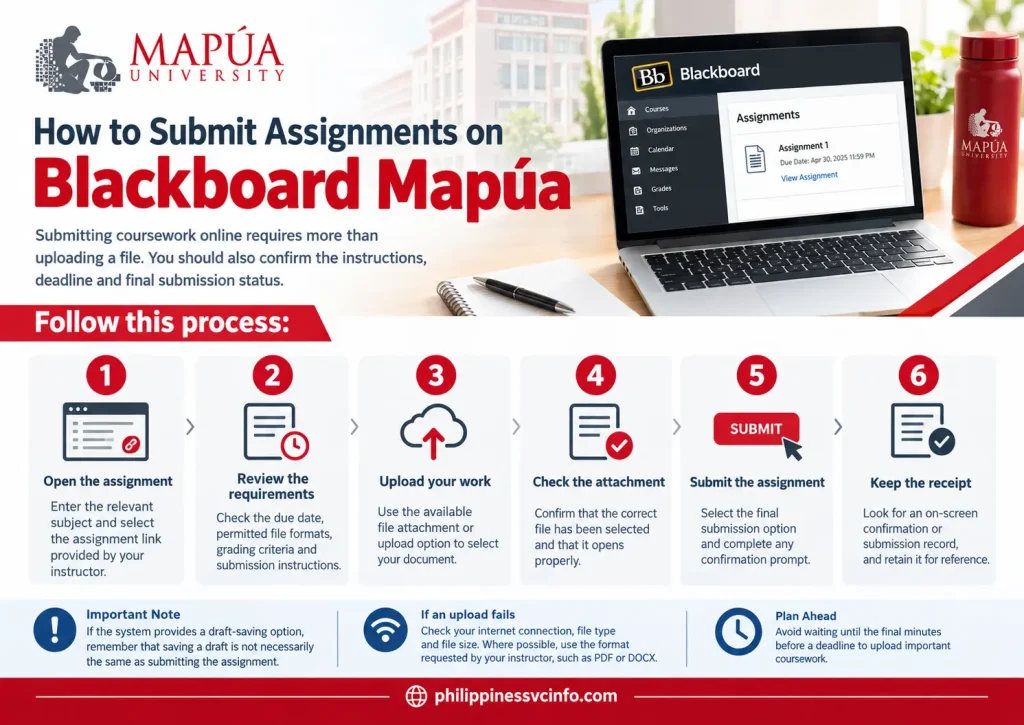
Submitting coursework online requires more than uploading a file. You should also confirm the instructions, deadline and final submission status.
Follow this process:
- Open the assignment: Enter the relevant subject and select the assignment link provided by your instructor.
- Review the requirements: Check the due date, permitted file formats, grading criteria and submission instructions.
- Upload your work: Use the available file attachment or upload option to select your document.
- Check the attachment: Confirm that the correct file has been selected and that it opens properly.
- Submit the assignment: Select the final submission option and complete any confirmation prompt.
- Keep the receipt: Look for an on-screen confirmation or submission record, and retain it for reference.
If the system provides a draft-saving option, remember that saving a draft is not necessarily the same as submitting the assignment.
If an upload fails, check your internet connection, file type and file size. Where possible, use the format requested by your instructor, such as PDF or DOCX. Avoid waiting until the final minutes before a deadline to upload important coursework.
Taking Online Exams Through Blackboard Mapúa
When an instructor publishes a quiz or examination in Cardinal EDGE, students should read the instructions before starting. Tests may have specific time limits, attempt restrictions or rules about whether answers can be revisited.
Before Starting an Exam
- Check the scheduled date and time.
- Read the examination instructions carefully.
- Use a reliable internet connection and an updated browser.
- Close unnecessary applications or browser tabs.
- Keep any permitted reference materials ready.
- Confirm that your device has sufficient battery power.
During and After the Test
Answer each question carefully and use any available save controls as instructed. Although some Blackboard assessments save responses automatically, you should not assume every test uses identical settings.
When you finish, select the appropriate Submit or Save and Submit option. Confirm the submission if prompted and wait for the completion message before leaving the page.
If the connection fails during an examination, follow your instructor’s instructions and contact the appropriate university support team as soon as possible. Do not assume that your answers were submitted successfully without checking.
Can You Use Blackboard Mapúa on a Mobile Phone?
Yes. Students can access Cardinal EDGE through a compatible mobile browser or the Blackboard Learn mobile application, available for supported Android and iOS devices.
To get started with the application:
- Open Google Play or the Apple App Store.
- Search for the official Blackboard Learn app.
- Open the application and search for Mapúa University.
- Select the appropriate institution entry.
- Sign in with your institutional credentials.
- Open your available courses and enable notifications if you wish to receive updates.
The mobile application can be useful for checking announcements, reviewing course content, monitoring deadlines and accessing supported learning activities. However, some tasks may be easier to complete using a desktop or laptop, particularly when uploading documents or taking examinations.
Mapúa confirms that Cardinal EDGE is accessible on mobile devices and provides a mobile application option.
Common Blackboard Mapúa Login Problems and Solutions
| Problem | What to try |
|---|---|
| Invalid username or password | Check your username, password and keyboard settings. Use the official reset process if needed. |
| Account locked | Stop repeated login attempts and contact the IT Helpdesk for assistance. |
| No courses displayed | Check enrolment and course availability, then contact the relevant university support team. |
| Assignment will not upload | Check the file format, size and connection, then try again. |
| Page keeps loading | Try an updated browser, clear the browser cache or use a private browsing window. |
| Password reset email missing | Check your spam folder and confirm that you entered the registered account details correctly. |
| Mobile app sign-in fails | Verify the institution selection and account credentials, or try the official website in a browser. |
For account lockouts and persistent access issues, use Mapúa’s official account lockout support article. The university lists the IT Helpdesk email as [email protected].
FAQs About Blackboard Mapúa
Conclusion
Blackboard Mapúa gives students a central place to access online learning resources, review instructor announcements, submit assignments and participate in available assessments. Knowing how to navigate Cardinal EDGE can make routine academic tasks more manageable throughout the term.
For the best experience, keep your institutional credentials secure, check your courses regularly and confirm that important submissions have been recorded. If you encounter a login or account problem that self-service recovery cannot resolve, use Mapúa’s official support resources rather than relying on unofficial websites.
Discover What You Need to Know:
- Buwan ng Wika Costume for Male Philippines 2026: Traditional Filipino Outfit Ideas, DIY Tips, and Styling Guide
- Native Camp Guide Philippines 2026: Login, Free Trial, Plans, Lessons & Booking
- MMSU Student Portal Phulippines 2026: Login, Enrollment, Grades, Schedule & Form 5 Guide
- PNPA Admission Philippines 2026: Requirements, Application & PNPACAT Guide