A Globe eSIM Philippines offers a convenient way to connect to Globe’s mobile network without using a physical SIM card. With a compatible and unlocked device, users can purchase a Globe eSIM online, receive the required QR code, install the digital SIM, complete the necessary registration, and activate mobile services. This guide covers the key Globe eSIM requirements, supported devices, installation steps, registration process, activation, troubleshooting, and common questions to help new users get started.
What Is Globe eSIM?
A Globe eSIM is a digital SIM built into a compatible smartphone or tablet. Instead of inserting a physical SIM card, you download and activate a Globe mobile profile electronically, usually through the GlobeOne app or a QR code sent to your email.
Globe says its eSIM service can support multiple profiles or mobile numbers on compatible devices, although the number that can be stored or active at once depends on the device. The service also removes the need to handle a removable SIM card, making it useful for people who want a more convenient way to manage mobile connectivity.
The official place to purchase a local Globe eSIM is the Globe Online Shop. Globe’s current eSIM purchase page provides a device compatibility check, asks for an email address for delivery instructions, and offers online payment options.
Why Use a Globe eSIM?
A digital SIM can be useful for several reasons:
- No physical SIM card: There is no plastic card to insert or remove.
- Digital setup: The eSIM can be purchased and installed electronically.
- Dual-SIM flexibility: Compatible phones can use a Globe eSIM alongside another SIM or mobile profile.
- Convenient travel: Visitors can arrange a Globe eSIM without relying on a physical SIM card.
- Easy device management: Globe provides options for transferring or upgrading an eSIM through supported processes.
Globe also highlights convenience, reduced reliance on plastic SIM cards and easier digital activation as key advantages of its eSIM service.
Globe eSIM Requirements
Before buying or installing a Globe eSIM, check your device and prepare the information needed for purchase and registration.
| Requirement | What You Need |
|---|---|
| Compatible device | A smartphone or tablet that supports eSIM |
| Unlocked device | Your phone should not be restricted to another carrier |
| Internet connection | Stable Wi-Fi is recommended during installation |
| Email address | An accessible email for your eSIM QR code and instructions |
| Identification | Valid identification may be required for SIM registration |
| GlobeOne app | Useful for purchasing, managing and checking your eSIM |
| Payment method | An accepted card or GCash, depending on the eSIM purchase |
Globe recommends checking eSIM compatibility before applying. On a compatible device, you may see an option such as Add eSIM, SIM Manager, or a similar mobile-network setting. Globe also provides a compatibility check through the GlobeOne app for its prepaid eSIM.
Tip: Don’t wait until the installation screen to discover that your phone is carrier-locked. Check this before purchasing.
Which Phones Support Globe eSIM?
Globe eSIM works only on devices with built-in eSIM capability. Compatibility can vary by model, region and software configuration, so a model appearing on a general eSIM list does not automatically guarantee compatibility with every handset.
Common device families that may support eSIM include:
- Apple: iPhone XS, XS Max, XR and newer compatible iPhone models
- Samsung: Selected Galaxy S, Note and Galaxy Z series devices
- Google: Selected Pixel models
- Other Android devices: Selected Huawei, Oppo, Honor and other compatible models
The safest approach is to use Globe’s own compatibility check rather than relying only on the phone’s model name. Globe specifically recommends using the GlobeOne app compatibility test for its prepaid eSIM.
How to Check Whether Your iPhone Is Unlocked
On an iPhone:
- Open Settings.
- Tap General.
- Select About.
- Find Carrier Lock.
- Look for No SIM restrictions.
Globe gives the same check for its Traveler eSIM service.
How to Check an Android Phone
Android menus differ between manufacturers. On many devices, you can check:
Settings → Connections → Mobile Networks → Network Operators
Tap Search Now and check whether other carrier networks appear. Globe notes that seeing multiple available carriers can indicate that the phone is not carrier-locked. You can also contact the original carrier to confirm the device’s lock status.
How to Get a Globe eSIM Online
Getting a Globe eSIM can be done digitally without starting with a physical SIM card. The exact process depends on whether you’re buying a local prepaid eSIM, applying for a postpaid plan, or purchasing a Traveler eSIM.
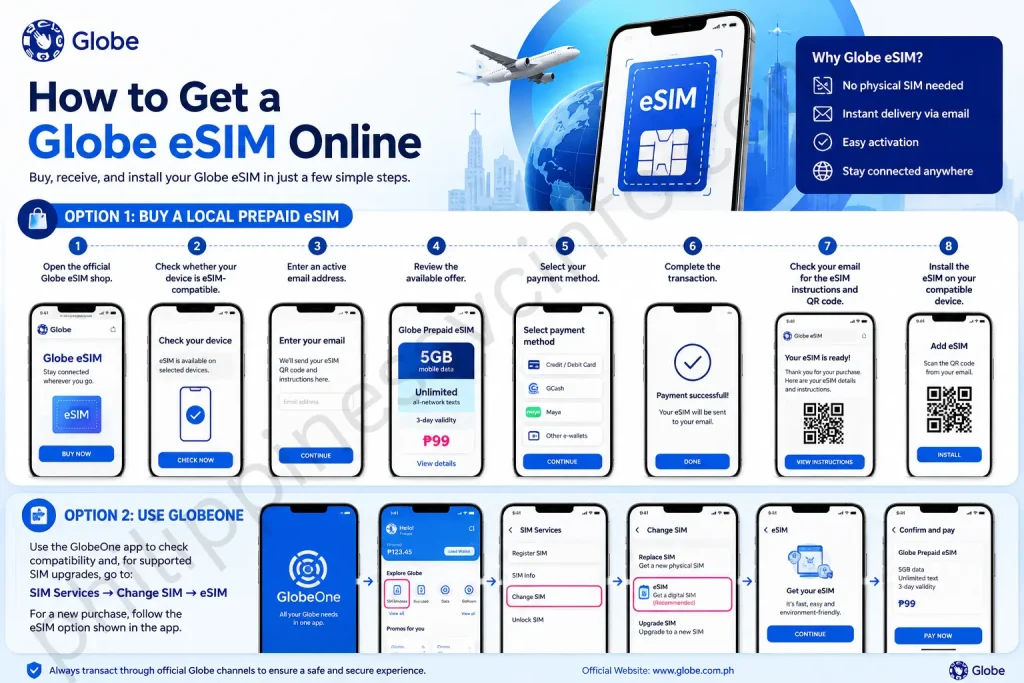
Option 1: Buy a Local Prepaid eSIM
For the current local prepaid offer, start from this
The current Globe purchase page shows a prepaid eSIM offer with 5GB mobile data, unlimited all-network texts and 3-day validity for ₱99. Promotions and pricing can change, so check the official shop before payment.
The basic process is:
- Open the official Globe eSIM shop.
- Check whether your device is eSIM-compatible.
- Enter an active email address.
- Review the available offer.
- Select your payment method.
- Complete the transaction.
- Check your email for the eSIM instructions and QR code.
- Install the eSIM on the compatible device.
Globe’s current local prepaid eSIM information confirms that the QR code, instructions and receipt are delivered electronically after the relevant purchase process.
Option 2: Use GlobeOne
The GlobeOne app is another important route for Globe eSIM customers. Globe’s support documentation says prepaid users can use the app to check compatibility and, for supported SIM upgrades, go through SIM Services → Change SIM → eSIM.
For a new purchase, follow the eSIM option displayed in the current version of the app. App menus can change, so use the labels shown on your screen rather than relying on an older walkthrough.
How to Install Globe eSIM on iPhone
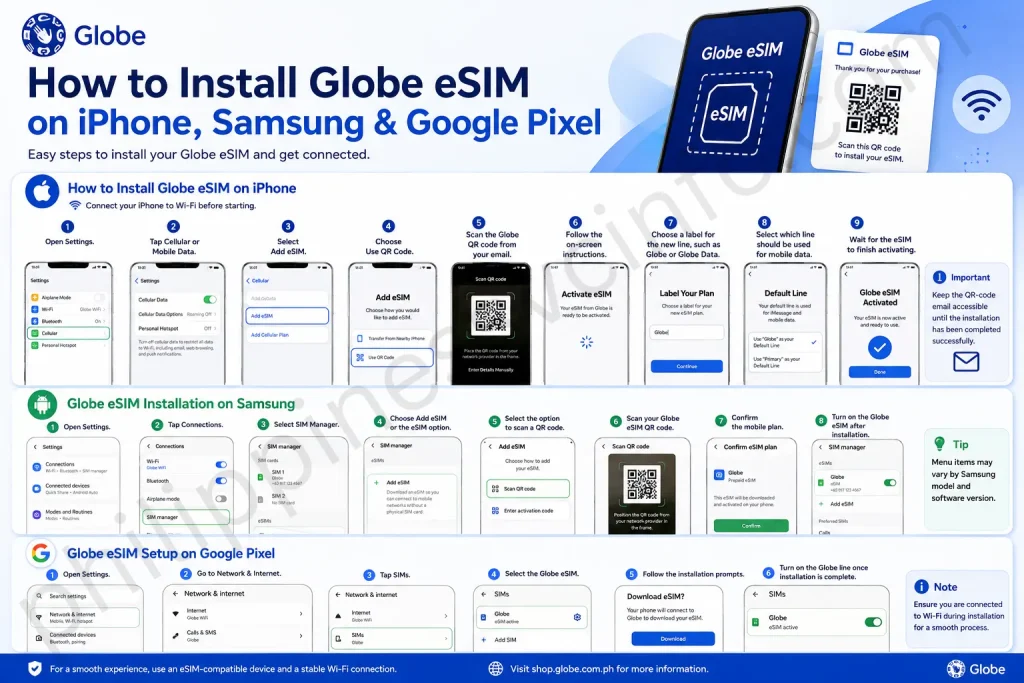
Once you have received your Globe eSIM QR code, connect the iPhone to Wi-Fi before starting.
QR Code Installation
- Open Settings.
- Tap Cellular or Mobile Data.
- Select Add eSIM.
- Choose Use QR Code.
- Scan the Globe QR code from your email.
- Follow the on-screen instructions.
- Choose a label for the new line, such as Globe or Globe Data.
- Select which line should be used for mobile data.
- Wait for the eSIM to finish activating.
Globe’s official eSIM support confirms that if the automatic activation screen does not appear, users can manually add the eSIM through the Add eSIM → Use QR Code process while connected to Wi-Fi.
Important: Keep the QR-code email accessible until the installation has been completed successfully.
Globe eSIM Installation on Samsung
Samsung’s menu can vary by model, but the usual process is:
- Open Settings.
- Tap Connections.
- Select SIM Manager.
- Choose Add eSIM or the corresponding eSIM option.
- Select the option to scan a QR code.
- Scan your Globe eSIM QR code.
- Confirm the mobile plan.
- Turn on the Globe eSIM after installation.
Globe’s own instructions for Samsung devices indicate that the eSIM can be managed through Settings → Connections → SIM Manager.
Globe eSIM Setup on Google Pixel
For compatible Pixel devices:
- Open Settings.
- Go to Network & Internet.
- Tap SIMs.
- Select the Globe eSIM.
- Follow the installation prompts.
- Turn on the Globe line once installation is complete.
Globe lists this menu path in its prepaid eSIM support instructions.
Globe eSIM Registration in the Philippines
Buying a Globe eSIM and registering it are separate parts of the setup process. After installing the eSIM profile, you may still need to complete SIM registration before using the mobile services covered by Philippine SIM registration requirements.
How to Register a Globe eSIM
Use the official Globe SIM Registration Portal or the registration option provided through Globe’s supported channels.

The general process is:
- Enter your Globe eSIM mobile number.
- Request and enter the OTP sent to the number.
- Provide the required personal information.
- Upload the requested identification document.
- Complete the required selfie or verification step.
- Review the information you entered.
- Accept the applicable declarations.
- Submit the registration.
- Save the registration reference number or confirmation for future use.
The information required can differ depending on whether you’re a Philippine resident or a foreign national. Use the details requested by Globe during the registration process rather than submitting unnecessary documents.
What Foreign Visitors May Need
Foreign visitors using a Globe eSIM may need additional information during registration, such as passport details and information relating to their stay in the Philippines. Globe’s requirements for foreign nationals can vary according to the type of SIM or eSIM service being purchased.
Important: SIM registration is a legal requirement in the Philippines. Don’t use unofficial websites or third-party pages to submit your personal information.
How to Activate Globe eSIM
After installing your Globe eSIM, check that the line is enabled on your phone.

Basic Activation Steps
- Open your phone’s Settings.
- Go to Cellular, Mobile Data, SIM Manager, or the equivalent menu.
- Select your Globe eSIM.
- Turn the line ON.
- Set Globe as your mobile-data line if you want to use its data service.
- Wait for the phone to connect to the Globe network.
- Restart the device if the network does not appear immediately.
If you’re using a dual-SIM phone, pay close attention to which line is selected for mobile data. Your phone may continue using your other SIM unless you specifically choose the Globe eSIM.
How to Use Globe eSIM With Another SIM
One of the biggest advantages of a Globe eSIM is the ability to use it alongside another compatible SIM on supported devices.
For example, a traveller could keep a home-country physical SIM for calls or SMS while using the Globe eSIM for local connectivity.
A typical dual-SIM arrangement might look like this:
| Setting | Example |
|---|---|
| Primary SIM | Home-country SIM |
| Secondary SIM | Globe eSIM |
| Mobile data | Globe |
| Calls | Selected line |
| SMS | Selected line |
Your exact options depend on your phone model and operating system.
Before Using Dual SIM
Check these settings carefully:
- Which SIM is selected for mobile data
- Whether data switching is enabled
- Which line handles calls
- Whether roaming is enabled on the other SIM
- Whether your Globe eSIM is active
If your goal is to avoid unexpected roaming charges, review the settings for your original SIM before travelling.
Globe eSIM for Travellers and Tourists
Globe also offers eSIM options designed for international travellers visiting the Philippines. A digital SIM can be particularly convenient because you can arrange connectivity without physically changing your SIM card.
Globe’s official Traveler eSIM information provides details about its traveller offering, supported devices, activation and registration requirements. Check the official Globe Traveler eSIM page for the current offer and requirements.
What Tourists Should Prepare
Before purchasing or activating a traveller Globe eSIM, have these available:
- An eSIM-compatible and unlocked phone
- A valid passport
- An accessible email address
- Reliable Wi-Fi for installation
- Information about your Philippine stay, where required
- A supported payment method
Requirements can change depending on the current Globe offer and applicable SIM registration rules, so verify the latest information before travelling.
Globe eSIM Activation Problems
Sometimes the eSIM installs correctly but the phone still doesn’t connect to the network. Don’t immediately delete the eSIM profile. Several basic checks can resolve the problem.
Globe eSIM Shows No Service
Try these checks in order:
1. Confirm the eSIM is switched on.
Open your mobile-network settings and make sure the Globe line is enabled.
2. Check your network selection.
If the phone is set to manual network selection, switch it back to automatic where appropriate.
3. Refresh the connection.
Turn Airplane Mode on for around 10 seconds and then turn it off.
4. Restart your phone.
A restart can force the device to register with the network again.
5. Check SIM registration.
If the required registration has not been completed, mobile services may remain restricted.
6. Check device compatibility.
Make sure your phone is both eSIM-compatible and unlocked.
If these steps don’t solve the problem, contact Globe through its official support channels rather than deleting the eSIM profile.
What to Do if the Globe eSIM QR Code Doesn’t Work
Your QR code is an important part of the installation process. If your phone doesn’t recognise it, first confirm that you’re scanning the correct QR code and that the device has a stable Wi-Fi connection.
Also check whether the eSIM has already been installed.
Don’t Delete an Installed eSIM Without Checking First
If an eSIM has already been successfully installed, deleting it can create an additional problem. Depending on the service and QR-code status, the original QR code may not simply function as a fresh installation code.
If you’re unsure what happened, contact Globe support before removing the profile.
Globe eSIM Internet Not Working
If your Globe eSIM has signal but mobile data isn’t working, check the following:
- Make sure Mobile Data is switched on.
- Confirm Globe is selected as the mobile-data SIM.
- Check whether your current promo or data allowance is active.
- Turn Airplane Mode on and off.
- Restart the device.
- Check the network settings.
- Confirm that your SIM registration has been completed where required.
Check the APN
Some devices allow you to view the Access Point Name (APN) under mobile-network settings. If your device requires manual APN configuration, use the settings provided by Globe rather than copying values from an unrelated third-party website.
How to Check Globe eSIM Balance and Services
Once your Globe eSIM is active, you can manage your account and check available services through Globe’s official channels.

GlobeOne App
The GlobeOne App is one of the main ways to manage Globe services. Depending on your account and service, it can provide information about:
- Data usage
- Remaining allowances
- Active promos
- Account information
- SIM-related services
Download or access the app through Globe’s official channels rather than unofficial APK websites.
USSD Self-Service
For supported Globe services, dial:
*143#
This opens Globe’s self-service menu on compatible mobile connections.
Available options can change, so follow the menu displayed on your device.
Can You Convert a Physical Globe SIM to eSIM?
Yes, Globe provides a SIM replacement or conversion process for supported users.
According to Globe’s eSIM guidance, eligible users can use the GlobeOne App and navigate to the SIM services area to request a change from a physical SIM to an eSIM.
A typical route is:
GlobeOne App → SIM Services → Change SIM → eSIM
The exact menu may vary with app updates and account eligibility.
Before starting the conversion, make sure your phone supports eSIM and that you have a reliable internet connection.
Can You Transfer a Globe eSIM to Another Phone?
Moving an eSIM isn’t necessarily the same as moving a physical SIM.
If you want to use your Globe eSIM on another device, first check Globe’s current transfer or replacement procedure. Do not assume that an old QR code can always be reused indefinitely.
Your new phone must also support eSIM and meet Globe’s compatibility requirements.
Before Changing Phones
Keep these details available:
- Your Globe mobile number
- Purchase or activation information
- Original eSIM email
- Account information
- Access to Globe support if the transfer fails
Best practice: Don’t erase the old eSIM until you understand the transfer process and know whether your current Globe service requires a replacement eSIM.
Where should I buy a Globe eSIM?
For a local Globe eSIM, use the official Globe Online Shop:
For support and setup information, use:
Globe eSIM: Final Setup Checklist, Safety Tips & FAQs
Globe eSIM Setup Checklist
Before relying on your Globe eSIM, run through this short checklist. It helps catch the small settings issues that often cause unnecessary connection problems.
- Confirm that your phone supports eSIM.
- Make sure the device is carrier-unlocked.
- Connect to reliable Wi-Fi during installation.
- Keep your Globe eSIM QR code and purchase email.
- Complete the required SIM registration.
- Turn on the Globe eSIM in your device settings.
- Select Globe as the mobile-data line if you’re using dual SIM.
- Check your available data or promo.
- Test mobile data, calls and SMS where applicable.
- Keep Globe’s official support page available if you need troubleshooting help.
Once these checks are complete, your Globe eSIM should be ready for normal use, provided the device, account and service meet Globe’s requirements.
Globe eSIM Safety and Security Tips
Because an eSIM is managed digitally, protecting your account information is just as important as protecting a physical SIM.
Use Official Globe Websites
Purchase or manage your Globe eSIM through official Globe channels. The main online shop is:
For help with eSIM installation, activation and account services, use:
Avoid websites that claim to provide discounted Globe QR codes or ask for unnecessary personal information.
Protect Your QR Code
Your eSIM QR code is part of the installation process. Don’t post it publicly or send it to people you don’t trust.
Keep the original email somewhere secure until you are certain that the eSIM has been installed correctly.
Never Share OTPs
If Globe sends an OTP during registration or account verification, don’t give the code to another person. Legitimate support should not require you to publicly disclose your one-time verification code.
Common Globe eSIM Mistakes to Avoid
Several problems can be prevented before installation begins.
Buying Before Checking Compatibility
An eSIM-compatible phone is essential. Even if your phone belongs to a model family that supports eSIM, regional variants can differ.
Use Globe’s compatibility check before purchasing whenever available.
Installing Without Wi-Fi
eSIM installation requires the device to communicate with the carrier’s systems. A reliable Wi-Fi connection makes the process smoother.
Deleting the eSIM Too Quickly
If installation or activation fails, don’t immediately remove the eSIM profile. Doing so can make recovery more complicated, especially if the QR code has already been used.
Forgetting Which SIM Handles Data
On a dual-SIM phone, having the Globe eSIM switched on doesn’t necessarily mean Globe is being used for mobile data.
Check your Mobile Data or Cellular Data setting and select the correct line.
Using Unofficial Instructions
Phone menus change between operating-system versions and manufacturers. When instructions conflict, prioritise the current guidance from Globe and your device manufacturer.
Globe eSIM vs Physical SIM
Both options connect your phone to the Globe network, but their setup and physical characteristics are different.
| Feature | Globe eSIM | Physical Globe SIM |
|---|---|---|
| Physical card | No | Yes |
| Installation | Digital | Insert SIM card |
| QR code | Usually used during setup | Not normally required |
| Device support | Requires eSIM-compatible device | Broad physical-SIM support |
| Dual-SIM use | Supported on compatible devices | Supported on compatible devices |
| Replacement | Digital/service process | Physical SIM replacement |
| Travel convenience | High | Requires carrying the card |
The biggest difference is simple: a Globe eSIM is embedded in the device and downloaded as a digital mobile profile, while a physical SIM is a removable card.
What to Do Before Travelling With Globe eSIM
If you’re travelling to the Philippines, prepare the eSIM before you actually need mobile service.
Before Departure
Check these items:
- Confirm your phone is unlocked.
- Verify eSIM compatibility.
- Purchase the appropriate Globe eSIM.
- Keep the purchase email accessible.
- Make sure you have Wi-Fi available for installation.
- Prepare the identification documents required for registration.
- Install or activate the eSIM according to Globe’s instructions.
- Review your dual-SIM settings if another SIM remains active.
Globe also provides a traveller-specific eSIM option, so visitors should check the current offer and requirements on the official Globe Traveler eSIM page.
When Should You Contact Globe Support?
If basic troubleshooting doesn’t resolve the issue, contacting Globe is the sensible next step.
You should consider support if:
- Your QR code cannot be installed.
- Your eSIM was deleted accidentally.
- The phone reports an activation error.
- Your number cannot connect to the network.
- Your SIM registration cannot be completed.
- Your eSIM transfer fails.
- Your account or mobile service doesn’t appear correctly.
- You need a replacement eSIM profile.
Globe eSIM FAQs
Conclusion
A Globe eSIM is a convenient option for users who want mobile connectivity without carrying or inserting a physical SIM card. If your device supports eSIM technology and is unlocked, you can purchase a Globe eSIM online, receive the QR code digitally, and install it through your phone’s cellular or mobile-network settings. Before using the service, check your device compatibility, prepare a reliable Wi-Fi connection, and complete the required SIM registration. Keeping your purchase confirmation, QR code and registration details safe can also make future activation or troubleshooting easier. If you experience problems such as no service, installation errors or connectivity issues, check the eSIM settings and network connection first. For purchases and the latest service information, use the official Globe Online Shop and Globe’s official support channels.
Discover What You Need to Know:
- GOMO SIM Registration Guide: Register, Verify & Activate Your SIM Online 2026
- Smart eSIM Activation: Complete Philippines Setup & Registration Guide 2026
- GlobeOne App: Complete Guide to Registration, Login, Load & Rewards (2026)
- TM SIM Registration Number: How to Check, Verify & Update (2026 Guide)
- PEOS Certificate: Complete Guide to Online Registration, Download, Requirements & FAQs 2026