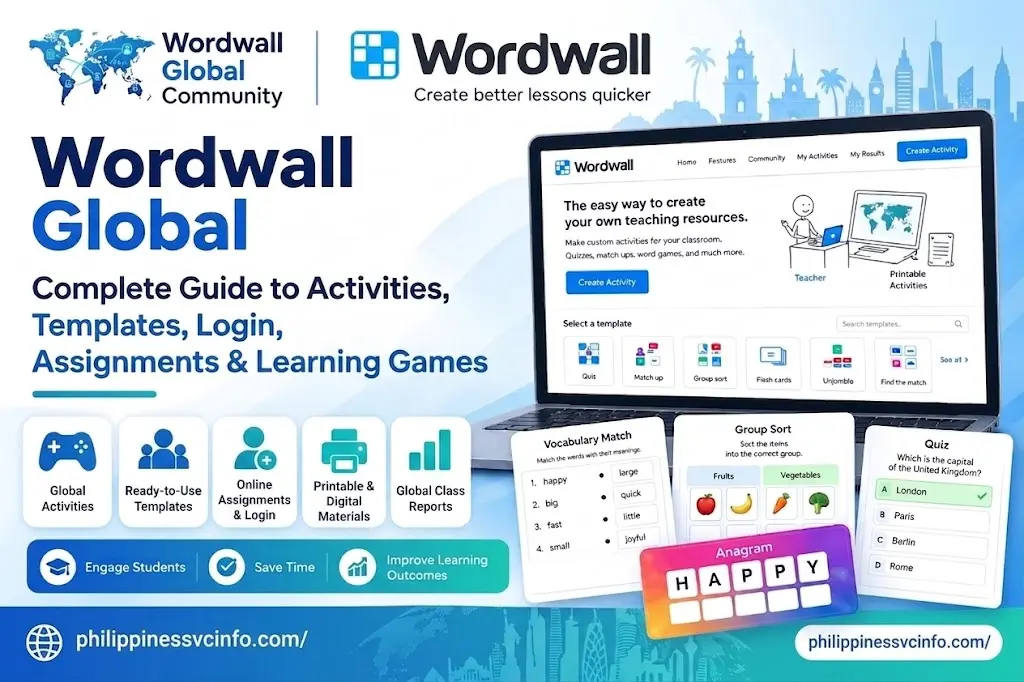
Wordwall is an online learning platform that helps teachers, educators, students, and activity creators turn educational content into interactive games and printable learning resources. Instead of creating every exercise from scratch, users can enter their questions, words, definitions, or other learning material once and then adapt that content into different activity formats.
The platform is especially useful for classroom games, revision exercises, vocabulary practice, quizzes, matching activities, and student assignments. Activities can be accessed through a web browser on computers, tablets, smartphones, and interactive classroom displays.
This Wordwall guide explains how Wordwall works, how to create an account, how to log in, how to create activities, how templates work, how to assign activities to students, and how teachers can use results to monitor learning progress.
What Is Wordwall?
Wordwall is a web-based educational platform for creating interactive activities and printable learning materials. Teachers can create an activity by entering their own educational content and then select an appropriate template to present that content as a game, quiz, matching exercise, sorting task, or printable worksheet.
One of the main advantages of Wordwall is its template-based system. After creating an activity, users can often switch the same content into another compatible template without manually entering all the information again.
For example, a teacher could create vocabulary questions and use them as a Quiz, then transform the same content into another suitable interactive format. This makes Wordwall particularly practical when teachers want several versions of the same lesson activity.
Wordwall can be used for:
- Classroom games
- Vocabulary exercises
- Quizzes
- Matching activities
- Revision tasks
- Categorization exercises
- Random selection activities
- Homework
- Student assignments
- Printable worksheets
- Interactive whiteboard activities
The platform therefore combines the simplicity of traditional worksheets with the engagement of browser-based educational games.
Wordwall Features and Subscription Options
Wordwall uses a subscription model with free and paid options. The exact features available to an account can depend on the current plan and Wordwall’s own pricing structure, so users should check the official platform before subscribing.
A basic overview of the commonly described plans is:
| Feature | Free/Basic | Standard | Pro |
|---|---|---|---|
| Original activities | Limited | Unlimited | Unlimited |
| Interactive templates | Basic selection | Standard selection | Standard + premium options |
| Printable resources | Limited | Expanded/full access | Expanded/full access |
| Community activities | Access available | Access available | Access available |
The free option can be useful for users who want to explore Wordwall activities before committing to a paid plan. Paid plans are designed for users who need more creation capacity, templates, and resource options.
Because subscriptions and available features can change, always check the official Wordwall account or pricing information before making a purchasing decision.
How to Sign Up for Wordwall
Creating a Wordwall account gives users access to tools for creating and managing activities. An account can also make it easier to organize resources and access features associated with assignments and results.
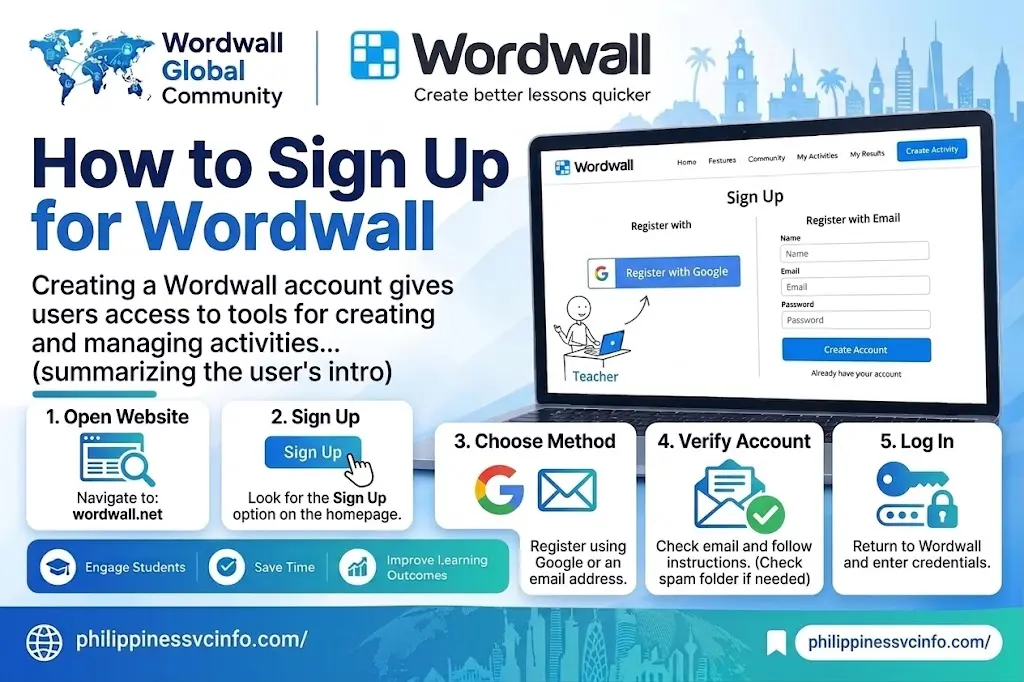
Follow these general steps to create your account.
Step 1: Open the Official Wordwall Website
Open a modern web browser and go to the official website:
On the homepage, look for the Sign Up option.
Step 2: Choose a Registration Method
Wordwall may provide different ways to create an account. Depending on what is currently offered, you may be able to register using Google or an email address.
If you choose email registration, enter the requested information, create a secure password, select your country or region if required, and accept the applicable terms.
Step 3: Verify Your Account
If Wordwall sends a verification message to your email address, open your inbox and follow the verification instructions.
If the message does not appear immediately, check your spam or junk folder.
Step 4: Log In
Once your account has been activated, return to the Wordwall website and choose Log In.
Enter your account credentials or use the available sign-in option.
After logging in, you can access your activity dashboard and begin creating or managing resources.
Wordwall Login Guide
The Wordwall login process is straightforward once you have an account.
Go to the official website and select Log In. Enter the email address and password associated with your account, or use the supported account sign-in method you selected during registration.
After successful authentication, you can access your activities and other account features.
If you cannot log in, check that:
- Your email address is correct.
- Your password is entered correctly.
- You are using the correct sign-in method.
- Your internet connection is working.
- Your browser is updated.
- You have completed any required email verification.
Avoid entering your Wordwall password on unofficial websites. For account access, use the official Wordwall domain.
Understanding Wordwall Templates
Templates are one of the most important parts of Wordwall. Instead of designing an entire game from an empty canvas, users select a ready-made activity format and insert their educational content.
Different Wordwall templates are designed for different teaching purposes.
Match Up
Match Up is useful when students need to connect related items. For example, a teacher could create a list of vocabulary words and definitions and ask students to match each word with its correct meaning.
Quiz
The Quiz template can be used for multiple-choice questions. It is suitable for revision, knowledge checks, and quick classroom assessments.
Teachers can create questions with answer choices and use the resulting activity as an interactive review exercise.
Random Wheel
The Random Wheel template provides a spinning-wheel style activity. It can randomly select names, questions, topics, vocabulary words, or other classroom prompts.
This format can be useful when a teacher wants to introduce an element of randomness into classroom participation.
Group Sort
Group Sort allows learners to place items into appropriate categories. It works well for classification exercises, vocabulary grouping, and subject-specific sorting activities.
For example, students could categorize words according to parts of speech, animals according to habitats, or historical events according to periods.
Open the Box
Open the Box presents numbered boxes that reveal questions or prompts when selected. This format can work particularly well as a classroom review game.
Maze Chase
Maze Chase adds an arcade-style element to learning. Players move through a maze and attempt to reach the correct answers while avoiding obstacles or enemies.
This can make repetitive revision activities feel more game-oriented.
How to Create a Wordwall Activity
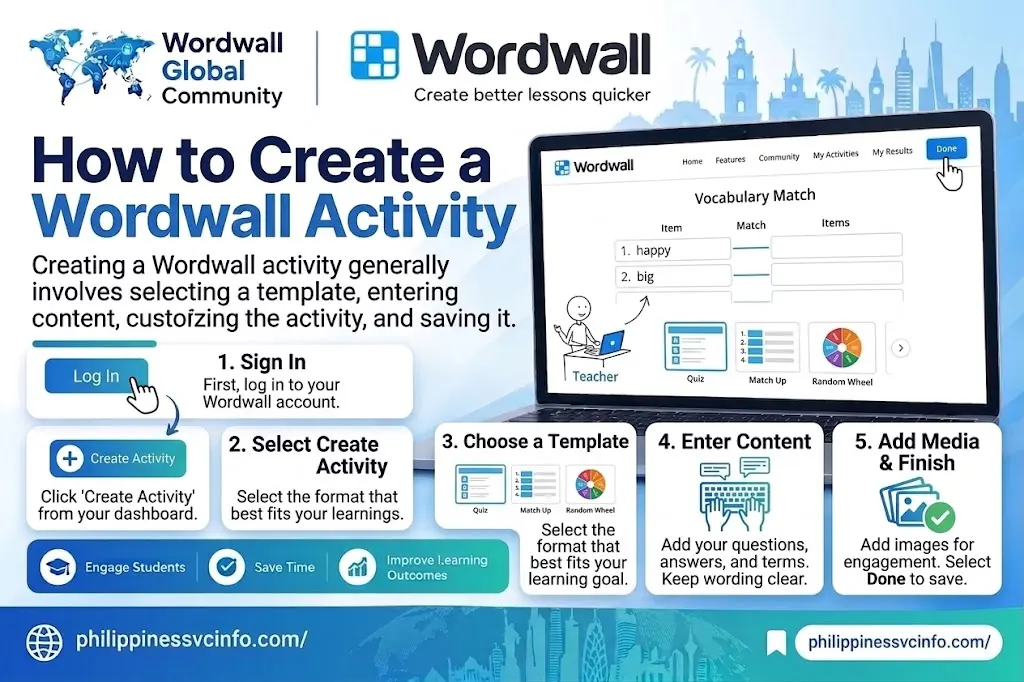
Creating a Wordwall activity generally involves selecting a template, entering content, customizing the activity, and saving it.
Step 1: Sign In
First, log in to your Wordwall account.
Step 2: Select Create Activity
From your account area, choose the option to Create Activity.
You will then be presented with available templates.
Step 3: Choose a Template
Select the format that best matches your learning objective.
For example:
- Use Quiz for multiple-choice questions.
- Use Match Up for pairs.
- Use Group Sort for categories.
- Use Random Wheel for random selection.
- Use Open the Box for question prompts.
- Use Maze Chase for game-style revision.
Step 4: Enter Your Content
Enter your questions, answers, terms, definitions, or other required information.
Try to keep the wording clear and appropriate for the students’ level.
A well-designed Wordwall activity should focus on one clear learning goal rather than putting too many unrelated questions into a single game.
Step 5: Add Images or Other Media
Where supported, you can use media options associated with the activity editor. Images can make vocabulary, recognition, and younger-student activities more engaging.
You may be able to search available media or upload your own image depending on the activity and account features.
Step 6: Add More Items
Use the option to add additional questions or items when your activity needs more content.
Review every question carefully before publishing or assigning the activity.
Step 7: Finish the Activity
When your content is ready, select Done or the corresponding completion option.
Wordwall will generate the playable version of your activity.
How to Switch Wordwall Templates
One of Wordwall’s most useful features is the ability to reuse existing content in different templates.
Suppose you have already created a vocabulary activity. Instead of creating another activity and typing all the vocabulary again, you can check whether another compatible template is available through the Switch Template option.
The general process is:
- Open your existing activity.
- Locate the template-switching options.
- Browse available interactive or printable formats.
- Select a suitable template.
- Review the automatically adapted activity.
- Save or use the new version.
This approach can save considerable preparation time because the underlying educational content can be reused in different formats.
Why Teachers Use Wordwall
Wordwall is popular because it reduces the amount of technical work required to build interactive classroom resources.
A teacher does not necessarily need programming knowledge or graphic-design experience to create an activity. The platform provides pre-designed structures, while the teacher supplies the educational content.
Some practical advantages include:
- Fast activity creation: Templates reduce setup time.
- Multiple formats: The same content may work across different templates.
- Interactive learning: Students can interact directly with browser-based activities.
- Printable resources: Suitable activities can also be used as worksheets.
- Flexible classroom use: Activities can be used individually, in groups, or as teacher-led exercises.
- Easy sharing: Teachers can provide activity links to learners.
- Assignment features: Supported activities can be assigned for individual student participation.
- Reusable content: Existing resources can often be adapted instead of recreated.
The biggest benefit is the combination of content reuse and template flexibility. Teachers can focus more on what students need to learn and less on constructing the technical framework around every exercise.
How to Play Wordwall Activities
One of the biggest advantages of Wordwall activities is that students generally do not need complicated software. Interactive activities can be opened through a web-enabled device.
Students can use:
- Desktop computers
- Laptops
- Tablets
- Smartphones
- Interactive whiteboards
This flexibility allows teachers to use Wordwall in several different classroom situations.
For example, a teacher can display a quiz on a classroom screen and allow students to answer one by one. Alternatively, students can open an activity individually on their own devices.
Wordwall’s official information confirms that interactive activities are designed for web-enabled devices, while printable versions can also be printed or downloaded as PDFs.
Wordwall Game Controls and Options
The controls depend on the selected template. A matching activity may require students to tap or drag items, while arcade-style games can have different controls.
Teachers can also adjust available game settings. Depending on the template, options may include:
- Time limits
- Question order
- Lives
- Difficulty
- Answer display
- Randomization
- Leaderboard settings
- Other template-specific options
Wordwall also provides visual styles that can change the appearance of an activity without requiring the teacher to recreate the underlying questions. Some game-style templates provide additional difficulty controls through the options panel.
This means the same Wordwall game can potentially be adapted for different classes or ability levels.
How to Customize a Wordwall Activity
After creating an activity, you do not necessarily have to use the default appearance or settings.
Open your activity and look for the available visual style and options controls.
Depending on the template, you may be able to change the visual presentation, timing, difficulty, or other gameplay settings.
For example, a teacher might use an easier configuration with younger learners and increase the difficulty for an advanced group.
Wordwall’s current platform also describes activity customization as a way to adjust game rules and visuals or switch the content into another activity type.
Changing Wordwall Themes
Visual presentation can make an activity feel very different even when the educational content remains unchanged.
Depending on the activity, teachers may have access to different visual styles or themes. These can help match the activity to the age group, lesson atmosphere, or subject.
A teacher could therefore keep the same questions but experiment with a different visual style for another classroom session.
This is particularly useful when an activity is being reused for revision. Instead of presenting exactly the same experience every time, the teacher can modify the presentation and, where available, adjust the game options.
How to Assign Wordwall Activities to Students
One of the most useful features for teachers is Wordwall student assignments.
A normal activity can be played directly from its activity page, but an assignment creates a more focused experience for students and allows the teacher to collect results.
Wordwall’s official documentation says that assignments direct students to the selected activity without the distraction of visiting the main activity page. Results from students are recorded and made available to the teacher.
Step-by-Step Wordwall Assignment Guide
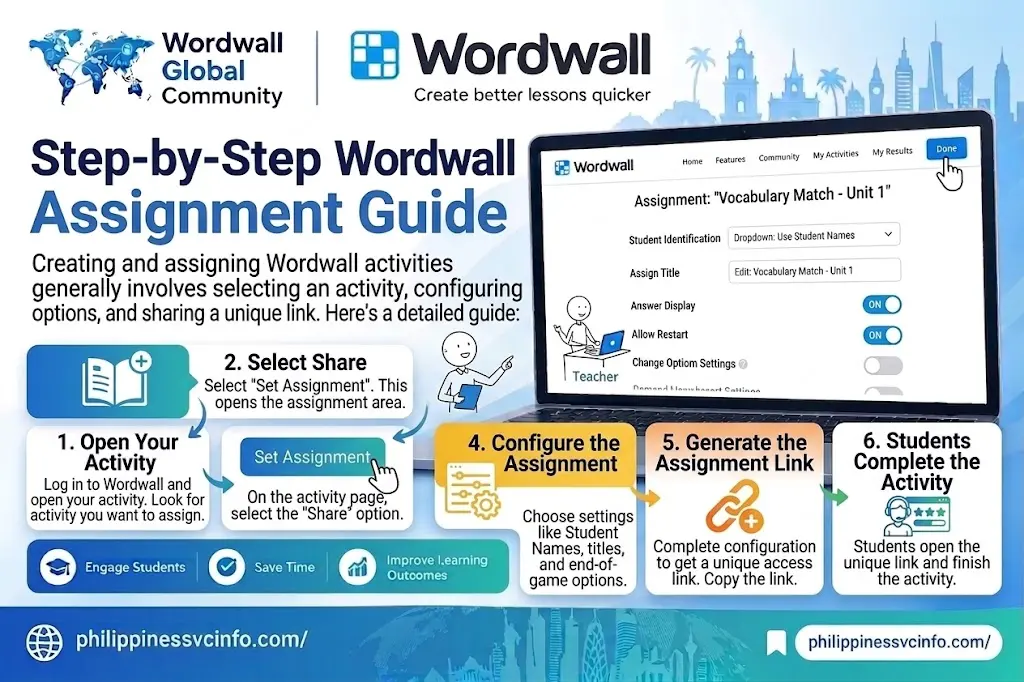
Step 1: Open Your Activity
Log in to Wordwall and open the activity you want students to complete.
You can access the platform through:
Step 2: Select Share
On the activity page, select the Share option.
Wordwall’s official instructions place Set Assignment inside the sharing workflow.
Step 3: Choose Set Assignment
Select Set Assignment.
This opens the assignment configuration area where you can set the student-access and results-tracking options.
Step 4: Configure the Assignment
Choose the settings appropriate for your class.
Depending on the activity and available options, teachers can configure elements such as:
- Student identification
- Assignment title
- Answer display
- Whether students can restart
- Other end-of-game settings
If you need individual student results, use the appropriate student-name option rather than an anonymous configuration.
Step 5: Generate the Assignment Link
After completing the configuration, Wordwall provides a unique access link for the assignment.
Copy this link and give it to your students.
You can send it through your school’s communication system, learning platform, email, messaging service, or another appropriate classroom channel.
Step 6: Students Complete the Activity
Students open the assignment link and complete the activity.
The assignment provides a more direct route to the selected activity rather than sending students through the main Wordwall activity page.
How to Check Wordwall Student Results
Creating an assignment is particularly useful when you want to understand how students performed.
After students complete the activity, their results can be accessed through My Results.
The official Wordwall features page explains that individual student results become available after the student completes the activity.
To Check Results:
- Log in to your Wordwall account.
- Open My Results.
- Select the relevant activity.
- Review the available student performance information.
- Compare individual or class performance where available.
This can help teachers identify questions that students found difficult and determine whether additional revision is necessary.
Why Wordwall Results Matter
A game can make learning more engaging, but the results can make the activity more useful from a teaching perspective.
Suppose a vocabulary activity contains 20 questions and most students repeatedly miss the same five words. The teacher can use that information to identify a potential learning gap.
The next lesson might then focus specifically on those five terms.
In this way, Wordwall assignments can become part of a broader teaching cycle:
Teach → Practice → Assign → Review Results → Identify Gaps → Reinforce
That turns a simple interactive game into a practical assessment and revision tool.
Wordwall Sharing Options
Teachers can share their activities in different ways depending on their goal.
There is an important difference between simply sharing an activity and setting it as an assignment.
Share for Students
If you want students to complete the activity while collecting their results, use the assignment workflow.
Share with Teachers
If you want other educators to access your resource, you can make the activity public and share its activity-page link.
Wordwall states that activities are initially private and can be made public through the Share option. Public activities can then be found by other teachers through Community search, played, and used as a starting point for their own resources.
Keep an Activity Private
If an activity is intended only for your own use, you can leave it private.
This can be useful for:
- Draft activities
- Upcoming tests
- Private revision resources
- Classroom-specific material
- Activities that are still being edited
How to Share a Wordwall Activity With Other Teachers
Sharing with other educators can save preparation time because teachers can discover resources created by the Wordwall community.
The general process is:
- Open the activity.
- Select Share.
- Choose the option to make the activity public.
- Add relevant tags where available.
- Copy the activity link.
- Send or publish the link.
Wordwall notes that adding tags related to age, subject, and topic can make public resources easier for other teachers to discover.
This creates a useful resource-sharing ecosystem where teachers can build upon existing educational ideas instead of starting from a blank page every time.
Wordwall Community Resources
Another major advantage of Wordwall is its community library.
The current official Wordwall homepage describes a searchable library containing millions of teacher-created activities that users can play, share, and edit.
This can be particularly helpful when you need an activity quickly.
Instead of creating a new quiz from zero, you can search for an existing resource related to your topic.
For example, a teacher searching for an English vocabulary activity could look for an existing vocabulary game and then determine whether it fits the lesson.
Where editing or reuse is available, the teacher can adapt the content to better match their own students.
Tips for Searching Wordwall Community Activities
Use specific search terms rather than extremely broad phrases.
For example:
- English irregular verbs
- Grade 5 fractions
- Animal habitats
- Parts of speech
- Human body vocabulary
- Spanish numbers
- Science revision
You can then examine available activities and choose one that matches your learning objective.
Always review community-created material before giving it to students. A resource may contain outdated information, unsuitable wording, spelling mistakes, or questions that do not match your curriculum.
How to Embed Wordwall on a Website
Wordwall also allows activities to be embedded into websites.
This can be useful for:
- School websites
- Teacher blogs
- Learning management systems
- Virtual learning environments
- Educational resource pages
According to Wordwall’s official documentation, an activity can be embedded using HTML code generated from the Share workflow. The platform provides different presentation styles, including a small icon, thumbnail, and iframe option.
Step-by-Step Wordwall Embed Guide
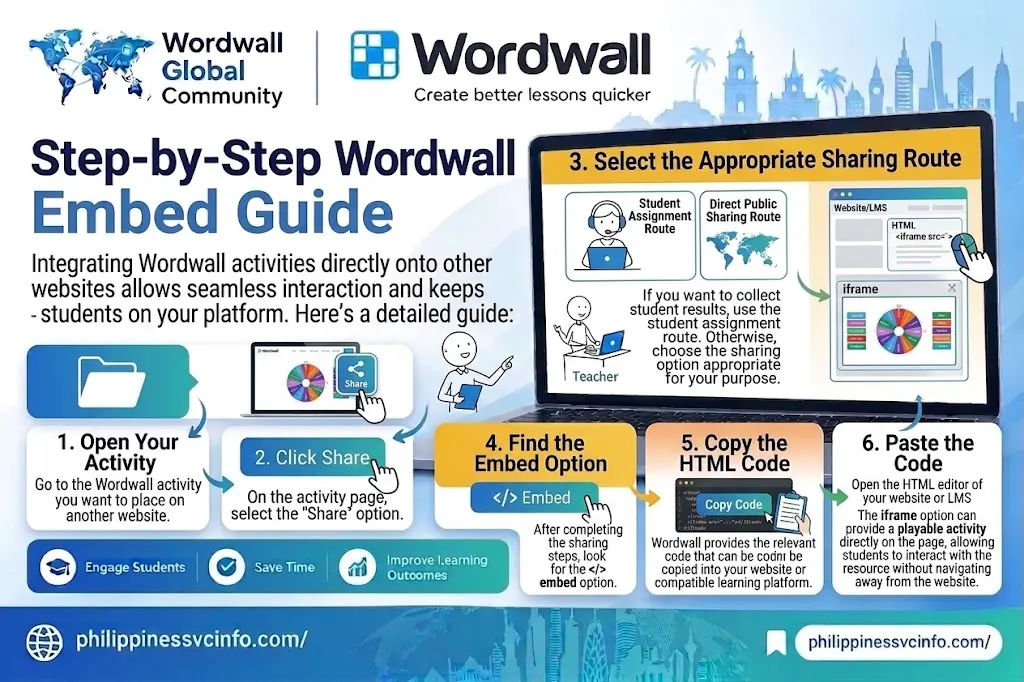
Step 1: Open the Activity
Go to the Wordwall activity you want to place on another website.
Step 2: Click Share
Select the Share button.
Step 3: Select the Appropriate Sharing Route
If you want to collect student results, use the student assignment route. Otherwise, choose the sharing option appropriate for your purpose.
Step 4: Find the Embed Option
After completing the sharing steps, look for the </> embed option.
Step 5: Copy the HTML Code
Wordwall provides the relevant code that can be copied into your website or compatible learning platform.
Step 6: Paste the Code
Open the HTML editor of your website or LMS and paste the provided code where you want the activity to appear.
The iframe option can provide a playable activity directly on the page, allowing students to interact with the resource without navigating away from the website.
Wordwall and Printable Activities
Wordwall is not limited to digital games.
The platform also supports printable resources. Official Wordwall information states that interactive activities can be printed, while printable activities can be printed directly or downloaded as PDF files.
This creates a useful bridge between digital and traditional classroom learning.
For example, a teacher could:
- Create an interactive vocabulary activity.
- Use it with the class on a digital screen.
- Assign it to students for individual practice.
- Print a related version for homework.
- Review student performance afterward.
The same educational content can therefore support several stages of the lesson.
Wordwall for Homework
Wordwall homework can be particularly useful when students have access to their own phones, tablets, or computers.
A teacher can set an activity as an assignment and provide the unique access link.
Students then complete the activity independently, while the teacher can review the resulting data.
This is useful for short revision exercises because students can complete the task without needing a complicated software installation.
Wordwall for Classroom Teaching
Teachers can use Wordwall in both individual and group environments.
A few practical approaches include:
Whole-Class Review
Display a Wordwall quiz on a classroom screen and allow students to answer together.
Individual Practice
Give each student an assignment link and let them complete the activity independently.
Small-Group Competition
Divide students into groups and use an interactive activity as a collaborative revision game.
Lesson Starter
Use a short Random Wheel, quiz, or matching activity to activate students’ prior knowledge.
Lesson Review
Finish a lesson with a short activity that checks whether students understood the main concepts.
Homework
Assign a suitable activity for students to complete outside the classroom.
The platform’s ability to work across devices makes it flexible enough for different classroom environments.
How Teachers Can Use Wordwall Effectively
Wordwall becomes more valuable when activities are connected to a specific learning objective. Simply turning a lesson into a game is not always enough. The questions, instructions, difficulty level, and activity format should support what students are expected to learn.
1. Start With a Clear Learning Goal
Before creating a Wordwall activity, decide what students should know or be able to do after completing it.
For example:
- Identify vocabulary words
- Match terms with definitions
- Solve basic mathematical problems
- Recognize grammar patterns
- Classify scientific concepts
- Review historical facts
Once the goal is clear, choose the template that best supports it.
2. Keep Questions Clear
Avoid unnecessarily long questions. Students should spend their time thinking about the learning task rather than trying to understand confusing instructions.
Use simple wording where appropriate and make sure answer choices are clearly distinguishable.
3. Match Difficulty to the Learner
A Wordwall game should be challenging enough to encourage thinking without becoming frustrating.
For younger learners, short questions and recognizable vocabulary may work better. Older or advanced learners can handle more detailed questions, distractors, and complex concepts.
4. Use Images When They Add Value
Visual content can be especially useful for vocabulary, language learning, younger students, object recognition, and classification exercises.
However, images should support the educational purpose rather than simply decorate the activity.
5. Test the Activity Before Sharing
Always play through your activity yourself before giving it to students.
Check:
- Spelling
- Correct answers
- Question wording
- Images
- Answer choices
- Timing
- Difficulty
- Formatting
A two-minute review can prevent an entire classroom from discovering that question number seven has the wrong answer.
Best Wordwall Templates for Different Activities
Choosing the right Wordwall template can make an activity much more effective.
| Teaching Purpose | Useful Template |
|---|---|
| Multiple-choice revision | Quiz |
| Matching terms and definitions | Match Up |
| Random student selection | Random Wheel |
| Classification | Group Sort |
| Question-based classroom game | Open the Box |
| Game-style revision | Maze Chase |
| Vocabulary practice | Match Up / Quiz |
| Quick knowledge check | Quiz |
| Category practice | Group Sort |
The best template depends on the content, age group, and learning objective.
There is no single best Wordwall game for every lesson. A vocabulary lesson may benefit from Match Up, while a revision session may work better with Quiz.
Wordwall for Language Learning
Wordwall is particularly suitable for language-learning activities because teachers can quickly create exercises around vocabulary, grammar, spelling, and sentence structures.
For example, an English teacher could create activities for:
- Vocabulary definitions
- Synonyms and antonyms
- Irregular verbs
- Parts of speech
- Spelling
- Sentence completion
- Word recognition
Language teachers can also use different templates for the same content.
A vocabulary list could become a matching exercise for initial learning, a quiz for revision, and a random activity for classroom participation.
This allows teachers to revisit the same material without presenting it in exactly the same format every time.
Wordwall for Mathematics
Math teachers can use Wordwall activities for short practice and revision.
Possible activities include:
- Number recognition
- Times tables
- Basic arithmetic
- Fractions
- Geometry vocabulary
- Mathematical terminology
- Equation practice
- Problem-solving review
For example, a teacher could use Quiz to check multiplication facts or Group Sort to classify mathematical shapes.
Wordwall should generally complement mathematical instruction rather than replace detailed problem-solving practice. More complicated problems may still require written working and teacher explanation.
Wordwall for Science
Science teachers can use Wordwall for knowledge checks and terminology practice.
Potential topics include:
- Human body systems
- Animals and habitats
- States of matter
- Plants
- Earth science
- Scientific vocabulary
- Laboratory equipment
- Environmental concepts
A Group Sort activity could ask students to classify organisms, while Match Up could connect scientific terms with definitions.
Wordwall for Students
Although teachers are the primary creators of many Wordwall activities, students can benefit directly from the platform.
Students can use interactive resources for:
- Revision
- Vocabulary practice
- Homework
- Exam preparation
- Self-testing
- Repeated practice
- Reviewing difficult topics
Interactive activities can provide a more engaging alternative to repeatedly reading notes.
However, students should not rely exclusively on games. Wordwall works best as one part of a wider study routine that may include reading, writing, problem-solving, discussion, and formal assessment.
Common Wordwall Mistakes to Avoid
Creating an activity is easy, but creating an effective Wordwall activity requires some planning.
Making Questions Too Long
Long questions can slow down gameplay and make the activity difficult to follow.
Keep questions concise when the learning objective does not require detailed wording.
Adding Too Many Questions
More questions do not automatically mean better learning.
A focused activity with carefully selected questions can be more useful than an extremely long game that students rush through.
Using Distractors That Are Obviously Wrong
In a multiple-choice activity, incorrect answers should be plausible enough to test understanding.
If three options are clearly ridiculous and one looks reasonable, students may guess without understanding the material.
Ignoring Mobile Users
Students may access Wordwall on phones or tablets, so check whether your activity remains comfortable to use on smaller screens.
Avoid unnecessarily complicated instructions or layouts.
Not Checking Community Resources
Public Wordwall activities can save teachers time, but they should still be reviewed before classroom use.
Community-created content may not always match your curriculum, grade level, spelling conventions, or teaching objectives.
Using Games Without Reviewing Results
A high score does not always mean complete understanding.
Teachers should consider the context of the activity and, where available, review results to identify concepts that need additional teaching.
Wordwall vs. Traditional Worksheets
Wordwall and printed worksheets serve different purposes, and neither needs to completely replace the other.
Wordwall Advantages
- Interactive gameplay
- Immediate student interaction
- Easy activity reuse
- Multiple templates
- Browser-based access
- Assignment functionality
- Digital sharing
- Printable alternatives
Traditional Worksheet Advantages
- No device required
- Easy annotation
- Useful for written calculations
- Convenient offline use
- Suitable for extended written responses
The strongest approach may be to combine both.
For example, a teacher could begin with a Wordwall game, follow it with a discussion, and then give students a worksheet requiring written application of the concept.
This creates variety without making technology the entire lesson.
Wordwall Tips for Better Student Engagement
To get more value from Wordwall games, teachers can use a few simple strategies.
Use Short Activities
Short activities can work well as lesson starters, transitions, or end-of-class reviews.
Add Competition Carefully
Leaderboards and timed activities can increase excitement, but competition should not become the only motivation.
Some students perform better in collaborative environments than competitive ones.
Repeat Important Concepts
Use the same content in different formats. Students may remember information better when they encounter it repeatedly through different types of practice.
Discuss Answers
After a game, briefly explain difficult questions rather than moving immediately to the next lesson.
The discussion turns gameplay into deeper learning.
Frequently Asked Questions About Wordwall
Final Thoughts on Wordwall
Wordwall provides a practical way to transform ordinary educational content into interactive games and printable learning resources. Its template-based approach means teachers can create an activity once and, where supported, reuse the content across different formats. From Wordwall quizzes and matching games to sorting exercises, random wheels, assignments, and printable resources, the platform can support many stages of classroom learning. The most effective approach is not simply to create as many Wordwall activities as possible. Instead, teachers should connect every activity to a clear learning objective, use an appropriate template, check the content carefully, and review student performance when assignments are used. Community resources can also save preparation time, but they should be checked before being introduced into a lesson. For teachers looking for a flexible browser-based educational activity platform, Wordwall can serve as a useful addition to classroom instruction, homework, revision, and formative assessment. The official platform remains the best place to access the latest templates, account options, features, and usage information.
Discover What You Need to Know: