Globe At Home App Philippines 2026: Login, Bills, WiFi & Broadband Guide
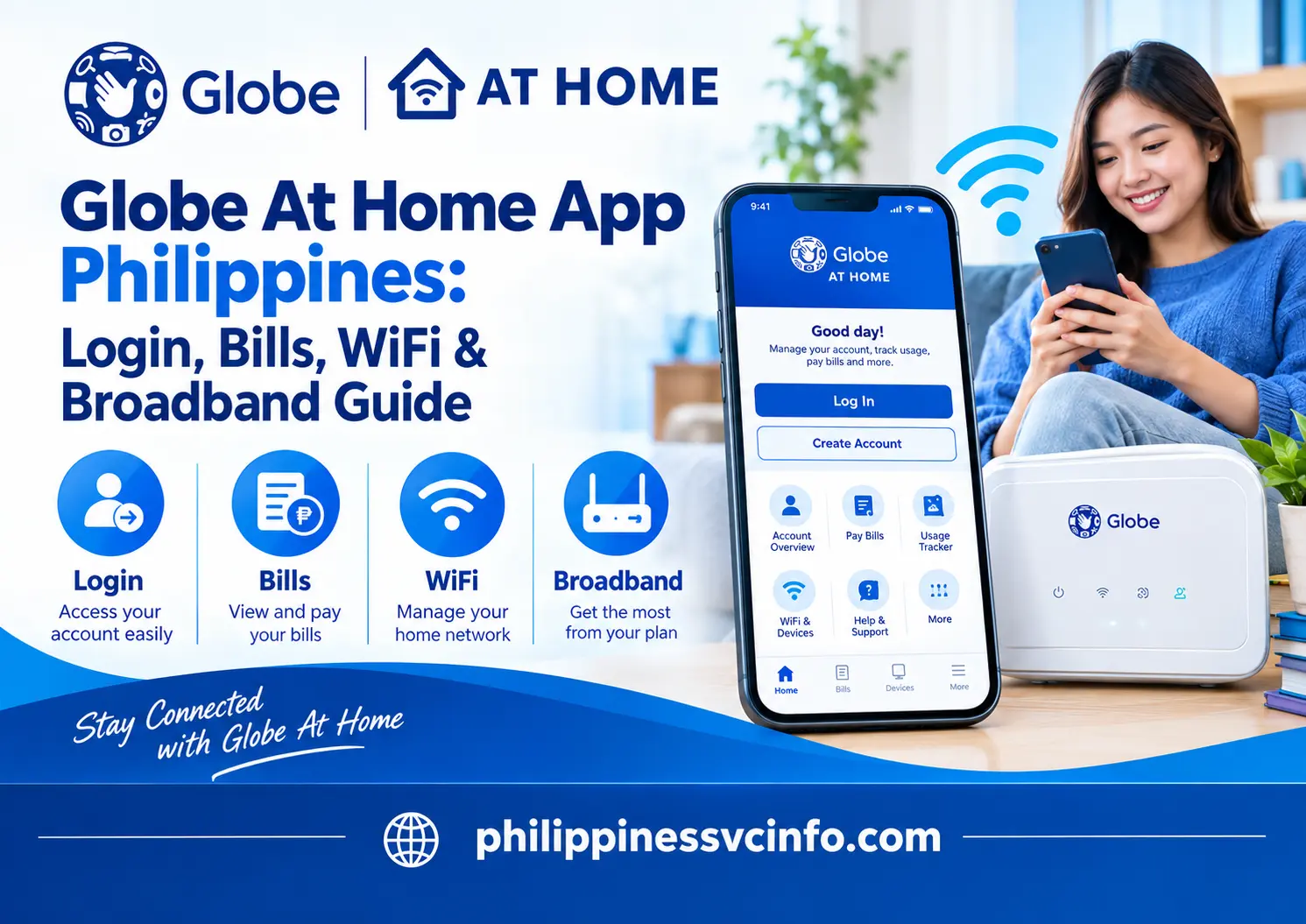
The Globe At Home app is a digital tool for managing Globe broadband services in the Philippines. It helps eligible customers monitor accounts, view bills, make payments, manage subscriptions, troubleshoot connectivity issues, and request support. GlobeOne is currently the main official platform for many of these broadband account-management services.
Quick answer: If you are searching for the Globe At Home app, look for GlobeOne through Globe’s official app channels. Globe currently describes GlobeOne as the main digital platform for managing Globe accounts, including broadband.
What Is the Globe At Home App?
The Globe At Home app is commonly used as a search term by customers looking for a way to manage their Globe home internet subscription from a phone. Today, Globe’s official support documentation directs customers to GlobeOne for many of these functions.
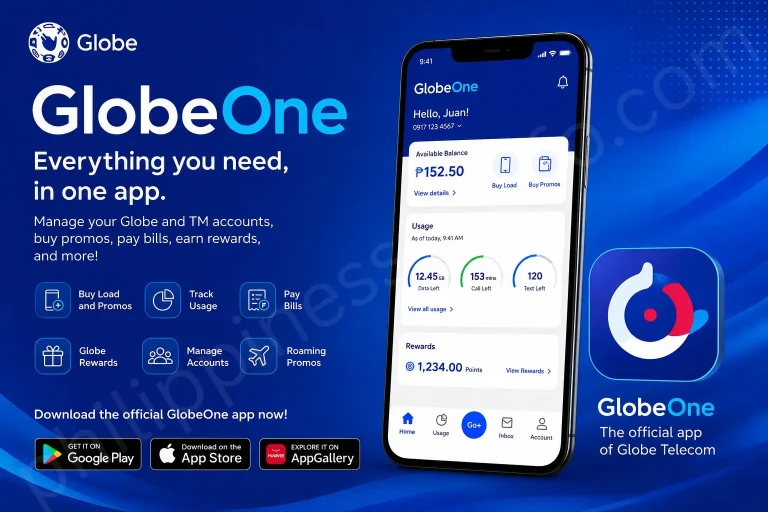
GlobeOne brings multiple services into one dashboard instead of requiring customers to use separate systems for every account. Globe says customers can use it to track usage, pay bills, manage accounts and raise support concerns.
For Globe AT HOME customers, the app can be particularly useful for:
- Checking account and plan information
- Viewing bills and bill statements
- Monitoring available usage where applicable
- Managing linked Globe accounts
- Requesting help with broadband concerns
- Reporting eligible connection problems
- Running basic troubleshooting or diagnostics
- Requesting repair assistance
- Updating certain account contact details
The exact options shown can depend on your Globe service and account type.
Globe At Home App vs GlobeOne
This distinction is worth understanding before you download anything.
| Search term | What it means today |
|---|---|
| Globe At Home app | Common search term for Globe home-broadband account management |
| GlobeOne app | Globe’s current central account-management application |
| Globe AT HOME | Globe’s broadband/home internet service |
| Globe broadband portal | Globe’s official website and online support resources |
| GFiber Prepaid | A separate Globe prepaid fibre service that can also be linked to GlobeOne |
Globe’s official documentation currently identifies GlobeOne as the app for managing Broadband and other Globe services.
Where Should You Download the Globe At Home App?
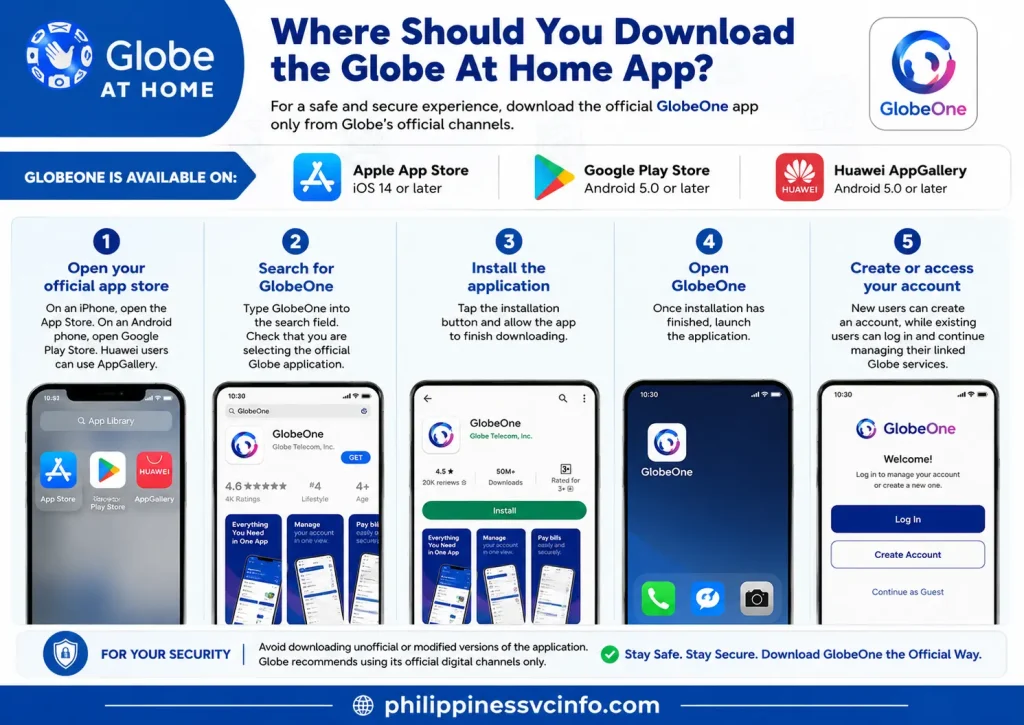
If you are trying to install the Globe At Home app, use Globe’s official GlobeOne download channels rather than downloading an APK from an unfamiliar website.
Globe lists GlobeOne as available through:
- Apple App Store
- Google Play Store
- Huawei AppGallery
Globe currently states that the iOS version requires iOS 14 or later, while Android requires Android 5.0 or later.
Step-by-Step: Download GlobeOne
Step 1: Open your official app store
On an iPhone, open the App Store. On an Android phone, open Google Play Store. Huawei users can use AppGallery.
Step 2: Search for GlobeOne
Type GlobeOne into the search field. Check that you are selecting the official Globe application.
Step 3: Install the application
Tap the installation button and allow the app to finish downloading.
Step 4: Open GlobeOne
Once installation has finished, launch the application.
Step 5: Create or access your account
New users can create an account, while existing users can log in and continue managing their linked Globe services.
For security, avoid downloading unofficial modified versions of the application. Globe itself recommends using its official digital channels.
How to Create a GlobeOne Account for Broadband Management
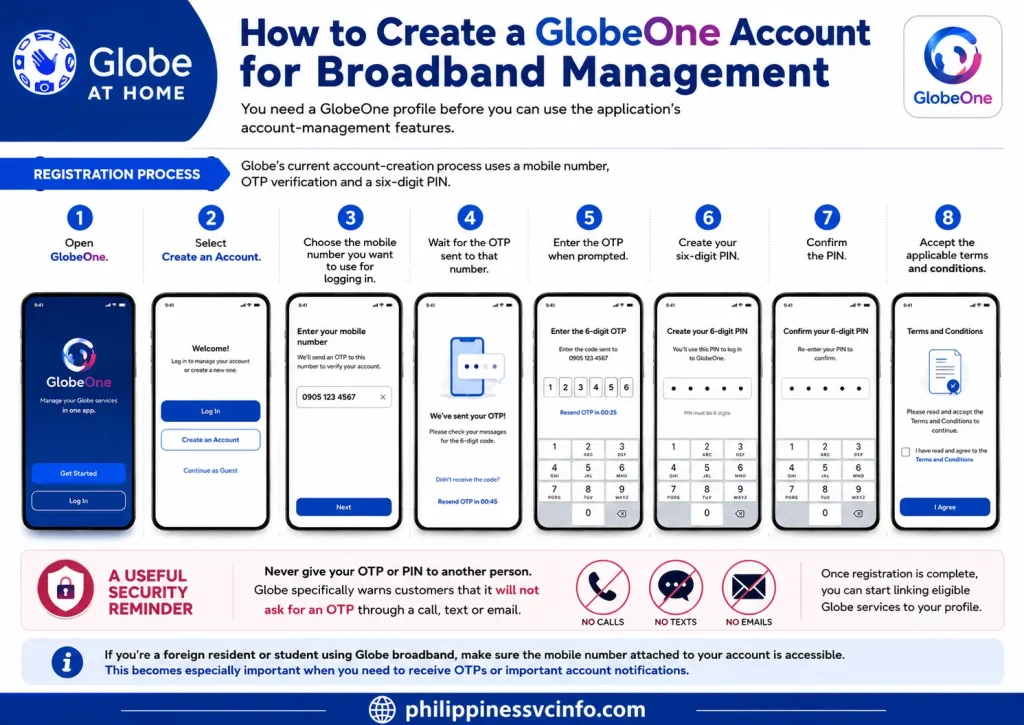
You need a GlobeOne profile before you can use the application’s account-management features.
Globe’s current account-creation process uses a mobile number, OTP verification and a six-digit PIN.
Registration Process
- Open GlobeOne.
- Select Create an Account.
- Choose the mobile number you want to use for logging in.
- Wait for the OTP sent to that number.
- Enter the OTP when prompted.
- Create your six-digit PIN.
- Confirm the PIN.
- Accept the applicable terms and conditions.
Once registration is complete, you can start linking eligible Globe services to your profile.
A useful security remindern
Never give your OTP or PIN to another person. Globe specifically warns customers that it will not ask for an OTP through a call, text or email.
If you’re a foreign resident or student using Globe broadband, make sure the mobile number attached to your account is accessible. This becomes especially important when OTP verification is required.
How to Link Your Globe At Home Broadband Account
Creating a GlobeOne profile does not necessarily mean that your broadband service will automatically appear in the dashboard. Globe explains that customers can add eligible accounts through Account Management.
Add Your Broadband Service
After signing in:
- Open your GlobeOne dashboard.
- Go to Profile.
- Select Account Management.
- Choose Add Account.
- Select the appropriate broadband or home service.
- Enter the requested account information.
- Complete any verification step.
- Confirm the account connection.
Once successfully linked, your broadband service should become available from the GlobeOne account-management area.
Globe says one GlobeOne profile can have up to 10 Globe accounts linked under the current rules.
That can be useful if, for example, a household manages more than one Globe service or a user has separate eligible Globe accounts.
What Can You See After Linking Broadband?
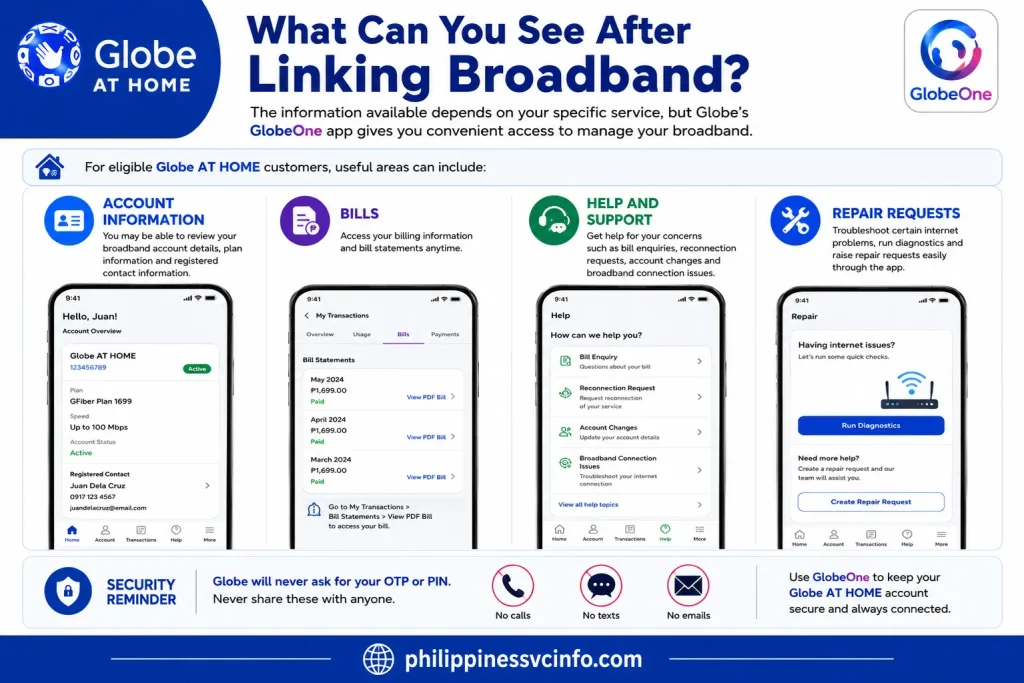
The information available depends on your specific service, but Globe’s current GlobeOne documentation shows that broadband customers can access account-management and support functions through the application.
For eligible Globe AT HOME customers, useful areas can include:
Account Information
You may be able to review your broadband account details, plan information and registered contact information.
Bills
The app provides access to billing information and bill statements for eligible accounts. Globe’s support instructions say customers can open their account card, go to My Transactions, select Bill Statements, and choose View PDF Bill to access the bill.
Help and Support
The HELP area can be used for issues such as bill enquiries, reconnection requests, account changes and broadband connection concerns.
Repair Requests
Eligible Globe AT HOME customers can use the app to troubleshoot certain internet problems, run diagnostics and raise repair requests.
How to Check Your Globe At Home Bill
One of the most practical reasons to use GlobeOne for a broadband account is avoiding the need to search through old emails or paper statements whenever you want to confirm your bill.
Current Bill Checking Process
Open GlobeOne and select your linked account.
From there, look for the account or transaction section and open your billing information. Globe’s current help instructions direct users to:
Account Card → My Transactions → Bill Statements → View PDF Bill.
Your available bill information may include details such as the amount due, billing statement and payment-related information.
Why Check Your Bill Before Troubleshooting?
A broadband connection can sometimes appear unavailable because of an account or billing issue rather than a Wi-Fi fault.
Before assuming your modem is defective, check:
- Whether the account is active
- Whether a bill is overdue
- Whether your service has been disconnected
- Whether there is an announced or detected connection issue
GlobeOne can display postpaid account status information such as overdue bills, due dates and account status for applicable services.
How to Pay a Globe Broadband Bill
Once you have reviewed the amount due, you can use Globe’s available payment channels.
Globe states that GlobeOne supports bill payments and that payment options can include channels such as credit cards and GCash, although the exact payment flow can vary.
A practical payment routine is:
Open GlobeOne → Select your broadband account → Review the bill → Choose the available payment option → Complete the payment → Keep the transaction confirmation.
If you’re paying from a foreign-issued card or another payment method, check the payment screen carefully before confirming the transaction.
Also remember that transactions that leave the GlobeOne application, such as some external payment flows, may use mobile data even though selected basic GlobeOne transactions are zero-rated.
Managing Multiple Globe Accounts
The Globe At Home app search term can sometimes create confusion because people assume there must be a separate app for every Globe service.
GlobeOne is designed to bring multiple eligible accounts into one profile. Globe says up to 10 Globe accounts can currently be linked to one GlobeOne profile.
For example, an eligible user might manage:
- Globe AT HOME Broadband
- Globe Postpaid
- Globe Prepaid
- Home Prepaid WiFi
- GFiber Prepaid
The exact functions available differ by service.
This multi-account setup is particularly convenient for households where one person handles several Globe subscriptions.
Globe Broadband Website: What You Can Do Online
The official Globe broadband website remains useful even if you prefer managing your account through GlobeOne.
Globe’s broadband support area covers topics including:
- Globe AT HOME Postpaid
- Home Prepaid WiFi
- GFiber Prepaid
- Broadband applications
- Account management
- Troubleshooting and support
One important point: Globe currently says there is no web version of GlobeOne for desktop or laptop access. So if you are specifically looking for a browser-based replacement for the app, don’t assume that a third-party “GlobeOne login” page is legitimate.
Official Globe Links
- Globe AT HOME Broadband
- GlobeOne official information
- GlobeOne Help & FAQs
- Globe Broadband Help & Support
- Globe official digital channels
Managing Your Wi-Fi Connection
A broadband problem and a Wi-Fi problem are not always the same thing.
Your Globe connection may be reaching the modem correctly while the wireless signal inside your home is weak. Distance from the router, walls, interference and the number of connected devices can all affect Wi-Fi performance. Globe also distinguishes between internet-signal problems and Wi-Fi issues in its broadband troubleshooting guidance.
Before changing advanced settings, identify which situation you have:
| Situation | What it may indicate |
|---|---|
| Wi-Fi appears connected but websites do not load | Internet connection, account or outage issue |
| Only one device has problems | Device-specific issue |
| All devices lose internet access | Modem, line, outage or account issue |
| Wi-Fi is strong near the modem but weak elsewhere | Wireless coverage issue |
| Modem internet/WAN light is red or off | Possible signal or connection problem |
| Connection becomes slow at busy times | Congestion or network demand |
This distinction can save time. If every device in your home is offline, changing the Wi-Fi password is unlikely to solve the underlying problem.
How to Troubleshoot Globe Broadband Through the App
For eligible Globe AT HOME broadband plans, GlobeOne provides an in-app route for checking connection problems. Globe currently says customers with GFiber Unlimited Plans or GFlex Plan899 can report internet connection issues through the app.
Use the GlobeOne diagnostic process
Start by opening your broadband account in GlobeOne.
Then:
- Open the account dashboard.
- Tap Help.
- Choose Report connection issues.
- Select the concern that best describes your problem.
- Follow the assessment questions.
- Review the result provided by the app.
- If you still need assistance, select the option indicating that you need help.
- Submit the requested information.
Globe’s current repair guidance shows this process as a way to perform basic troubleshooting and raise a repair request when necessary.
The advantage is that you can carry out the initial checks before arranging technical assistance.
What to Do When Your Globe Internet Is Not Working
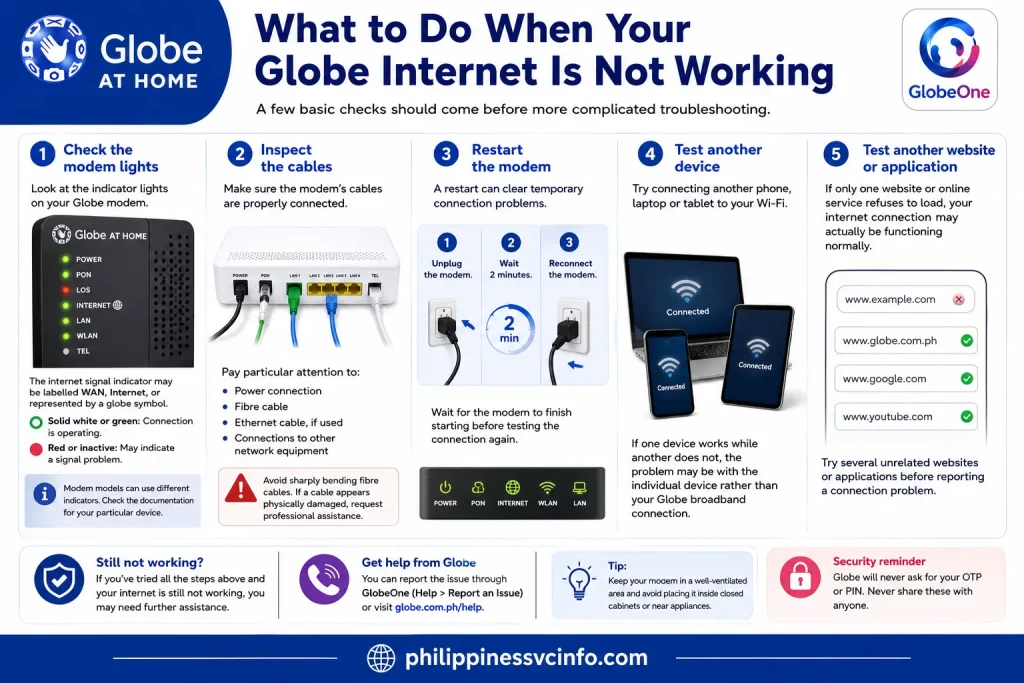
A few basic checks should come before more complicated troubleshooting.
1. Check the modem lights
Look at the indicator lights on your Globe modem.
Globe notes that the internet signal indicator may be labelled WAN, Internet, or represented by a globe symbol. A normal solid white or green indicator can mean the connection is operating, while a red or inactive indicator may indicate a signal problem.
Do not immediately assume that every red light means the same thing, though. Modem models can use different indicators, so check the documentation for your particular device.
2. Inspect the cables
Make sure the modem’s cables are properly connected.
Pay particular attention to:
- Power connection
- Fibre cable
- Ethernet cable, if used
- Connections to other network equipment
Avoid sharply bending fibre cables. If a cable appears physically damaged, it is better to request professional assistance rather than attempting to repair the fibre yourself.
3. Restart the modem
A restart can clear temporary connection problems.
Globe’s current broadband troubleshooting instructions recommend unplugging the modem, waiting two minutes, and then reconnecting it.
Wait for the modem to finish starting before testing the connection again.
4. Test another device
Try connecting another phone, laptop or tablet to your Wi-Fi.
If one device works while another does not, the problem may be with the individual device rather than your Globe broadband connection.
5. Test another website or application
If only one website or online service refuses to load, your internet connection may actually be functioning normally.
Try several unrelated websites or applications before reporting a complete internet outage.
How to Report a Globe At Home Internet Problem
When basic troubleshooting does not solve the issue, GlobeOne can be used to request further assistance for eligible broadband services.
The general route is:
GlobeOne → Broadband Account → Help → Report connection issues
After selecting your concern, the app can guide you through an assessment. If the problem remains, you can proceed with the support or repair process where the feature is available.
Globe’s broadband support pages also state that customers can schedule a repair visit through GlobeOne.
When should you request a technician?
A technician request makes more sense when:
- Your modem indicates a persistent signal problem.
- Restarting the equipment does not restore service.
- Multiple devices remain offline.
- The Globe diagnostic process cannot resolve the problem.
- You suspect a fibre, wiring or equipment issue.
- The problem repeatedly returns after temporary recovery.
Avoid repeatedly changing advanced modem settings when the underlying problem appears to be a line or service issue.
Globe At Home App and Contact Information
Your registered contact details matter when managing a Globe broadband account.
Globe currently allows eligible Globe AT HOME customers to update their account email and mobile contact information through the app. Globe says these details may be used for installation and repair requests, after-sales concerns and GlobeOne OTP access.
There is also an important timing consideration: Globe says each contact detail can be updated once every 30 days, and changes may take several hours to appear in the app.
If your contact information is outdated
An old phone number or email address can make account verification more difficult.
Before you need technical support, check whether your registered information is still current. This is particularly useful for customers who have changed their mobile number or email address since their broadband service was installed.
Forgot Your GlobeOne PIN?
If you cannot remember your GlobeOne PIN, you do not necessarily need to create another account.
Globe’s current instructions are:
- Go to the PIN entry screen.
- Tap Forgot PIN?
- Wait for the OTP.
- Enter the OTP to verify your mobile number.
- Set a new PIN.
Use a PIN that you can remember but that other people are unlikely to guess.
Never share your OTP with someone claiming to be a Globe representative.
What If the GlobeOne App Does Not Work?
Sometimes the broadband service itself is fine, but the application is having trouble.
Globe recommends keeping the application updated because newer versions can include bug fixes and performance improvements.
Try these checks in order:
Check your connection → Update GlobeOne → Close and reopen the app → Restart your phone → Try again later.
If you’re using Android and an account-information update is not appearing, Globe’s support guidance also recommends deleting the app, clearing its cache, reinstalling it and waiting a few minutes before signing in again.
“Something went wrong” or mobile-number error
If GlobeOne displays an error such as “Please sign up using a mobile phone number” or “Something went wrong”, Globe recommends checking for application updates and ensuring that you’re using a valid mobile number capable of receiving the OTP.
Home Prepaid WiFi also has specific registration rules, so do not assume that every Globe broadband product follows exactly the same account-registration process.
What If You Cannot Receive the OTP?
OTP problems can prevent you from adding or accessing an account.
Globe recommends checking your mobile signal, requesting the OTP again and trying later if the message does not arrive. For Globe AT HOME customers, Globe also advises making sure the mobile number or email associated with the account is updated.
If necessary, Globe advises customers to use its available support channels to make account changes.
Do not repeatedly request OTPs without checking whether the correct mobile number is being used. If the account details are outdated, correcting those details may be the real solution.
Paying Through GlobeOne: What to Remember
GlobeOne supports bill payments, but not every payment step necessarily stays inside the application.
Globe says basic transactions within GlobeOne are zero-rated, meaning selected app transactions do not consume mobile data. However, actions that take you outside the app — including some credit/debit-card, GCash or external-site payment processes — may use mobile data.
If you accidentally close a payment screen while a transaction is processing, do not immediately pay again.
Globe’s payment guidance says you should first check your GCash or bank account to determine whether the payment was already deducted. If the money was not deducted, you can attempt the transaction again.
This simple check can help prevent accidental duplicate payments.
Can You Manage Globe Broadband on a Computer?
This is one area where customers searching for a Globe At Home app can become confused.
Globe currently states that GlobeOne does not have a web version for desktop or laptop access.
That does not mean Globe broadband customers have no online resources.
You can still use Globe’s official broadband website for product information, support topics, payment guidance, repairs and other broadband-related services. Globe’s AT HOME support centre specifically covers billing, payments, repairs, account management and connectivity concerns.
Globe At Home App Troubleshooting Checklist
Before contacting Globe, work through this short checklist:
- Check whether the issue affects one device or the whole home.
- Check the modem’s internet/WAN indicator.
- Inspect the modem’s cables.
- Restart the modem and allow it to reconnect.
- Test another website or application.
- Check your GlobeOne account and billing status.
- Look for an outage or service interruption.
- Run the available GlobeOne diagnostic.
- Submit a repair request if the problem remains.
- Keep your repair or transaction reference information for follow-up.
This approach helps separate a Wi-Fi problem from an account, modem, fibre-line or wider network problem.
How to Keep Your Globe Broadband Account Secure
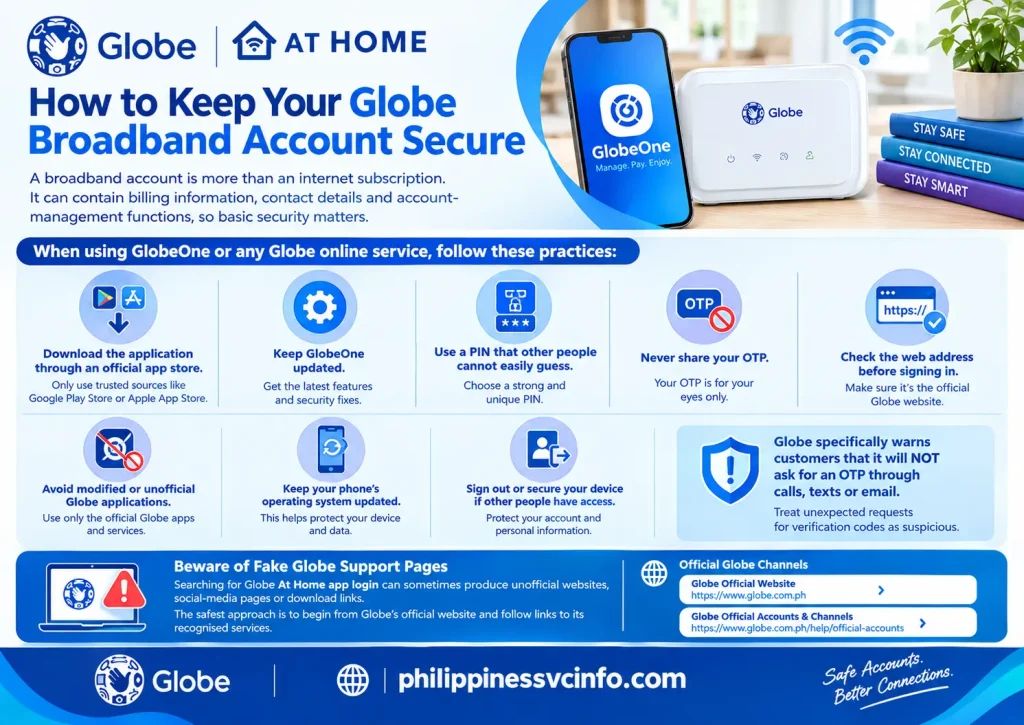
A broadband account is more than an internet subscription. It can contain billing information, contact details and account-management functions, so basic security matters.
When using GlobeOne or any Globe online service, follow these practices:
- Download the application through an official app store.
- Keep GlobeOne updated.
- Use a PIN that other people cannot easily guess.
- Never share your OTP.
- Avoid entering account credentials on unfamiliar websites.
- Check the web address before signing in.
- Do not install modified or unofficial Globe applications.
- Keep your phone’s operating system updated.
- Sign out or secure your device if other people have access to it.
Globe specifically warns customers that it will not ask for an OTP through calls, texts or email. Treat unexpected requests for verification codes as suspicious.
Beware of Fake Globe Support Pages
Searching for Globe At Home app login can sometimes produce unofficial websites, social-media pages or download links.
The safest approach is to begin from Globe’s official website and follow links to its recognised services.
If a website asks for your Globe password, OTP, bank information or other sensitive details without a clear reason, stop and verify that you are using an official Globe channel.
Changing Your Wi-Fi Name and Password
Customers often expect the Globe At Home app to provide every router-management function, but the controls available can vary according to the modem, broadband product and account.
If your specific modem or service provides Wi-Fi management through an app or router interface, follow the instructions applicable to that equipment.
For a router-admin interface, the exact gateway address and login credentials depend on the modem model. Do not assume that every Globe modem uses the same IP address or administrator credentials.
Before Changing Wi-Fi Details
Write down the new network name and password somewhere secure.
Remember that changing Wi-Fi credentials can disconnect devices currently connected to your network. Phones, laptops, smart TVs, cameras and other wireless devices may need to be connected again using the new details.
A strong Wi-Fi password should be:
- Long enough to resist guessing
- Different from your GlobeOne PIN
- Free from easily guessed personal information
- Not reused across important accounts
If your modem’s instructions provide a recommended management procedure, use those instructions rather than guessing at advanced settings.
What to Do About Slow Globe Internet
Slow internet does not always mean your broadband line is defective.
Start by identifying when and where the slowdown occurs.
Test Close to the Router
Stand reasonably close to your modem and test the connection.
If performance improves substantially near the modem but remains poor in another room, the issue may involve Wi-Fi coverage rather than the Globe broadband line itself.
Reduce Unnecessary Connections
Temporarily disconnect devices that are not being used.
A household may have phones, televisions, laptops, tablets, cameras, consoles and smart-home devices connected simultaneously. Heavy activity on one device can affect the experience of others.
Restart Before Escalating
A modem restart is a sensible first step for temporary connection problems. Globe’s broadband troubleshooting instructions recommend disconnecting power, waiting two minutes and reconnecting the modem.
If the same problem continues after restarting, move on to the GlobeOne diagnostic or official support process instead of repeatedly rebooting the equipment.
Red LOS Light on a Globe Fibre Modem
A persistent red LOS or loss-of-signal indicator can point towards a fibre connection problem.
Do not attempt to repair or splice the fibre cable yourself.
Instead:
- Check that the cable has not become loose.
- Make sure it is not sharply bent or visibly damaged.
- Restart the modem.
- Wait for the modem to reconnect.
- If the red indicator remains, use the available GlobeOne troubleshooting process or official Globe support channel.
Globe’s broadband support guidance explains that modem indicators can help identify connection problems and directs customers towards troubleshooting and repair assistance when necessary.
Globe Broadband Repair Requests
When troubleshooting does not restore your service, the next step is a repair request.
For eligible broadband accounts, GlobeOne provides an option to report connection issues and proceed with assistance after the diagnostic process. Globe’s support documentation also describes repair scheduling through GlobeOne.
Before submitting a request, have these details available:
- Broadband account information
- Registered mobile number
- Description of the problem
- Approximate time the issue started
- Modem indicator status
- Any troubleshooting already performed
- Previous repair or reference number, if applicable
Clear information makes it easier to explain the problem if you need to communicate with support.
Globe At Home App for Students and Foreign Residents
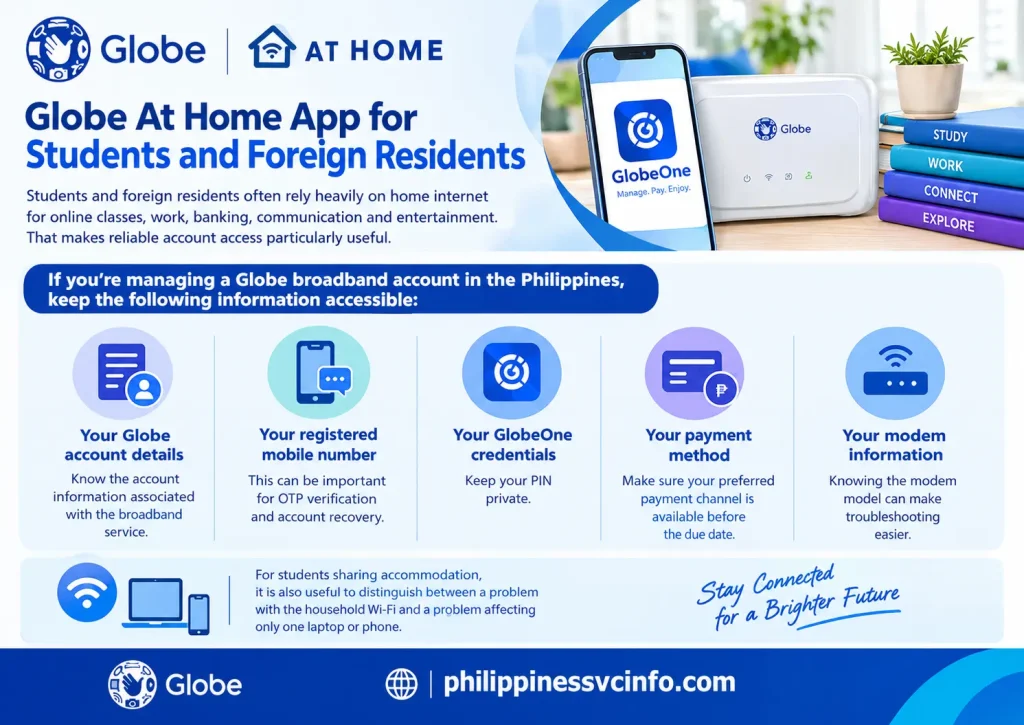
Students and foreign residents often rely heavily on home internet for online classes, work, banking, communication and entertainment. That makes reliable account access particularly useful.
If you’re managing a Globe broadband account in the Philippines, keep the following information accessible:
Your Globe account details:
Know the account information associated with the broadband service.
Your registered mobile number:
This can be important for OTP verification and account recovery.
Your GlobeOne credentials:
Keep your PIN private.
Your payment method:
Make sure your preferred payment channel is available before the due date.
Your modem information:
Knowing the modem model can make troubleshooting easier.
For students sharing accommodation, it is also useful to distinguish between a problem with the household Wi-Fi and a problem affecting only one laptop or phone.
Common Globe At Home App Questions
Globe At Home App: Final Checklist
If your main goal is to manage a Globe broadband subscription, you do not need to memorise every feature of the application. Focus on the functions you are most likely to use.
For everyday account management
Use GlobeOne to:
- Access your linked broadband account
- Review available account information
- Check eligible bills and statements
- Make supported payments
- Manage account details
- Access help and troubleshooting
- Report eligible connection issues
- Request repair assistance
For internet problems
Check these first:
- Modem indicators
- Fibre and power connections
- Account and billing status
- Other connected devices
- Wi-Fi coverage
- GlobeOne diagnostics
- Official Globe support
For account security
Remember:
- Keep your PIN private.
- Never share an OTP.
- Use official Globe channels.
- Avoid unofficial APK downloads.
- Verify websites before entering account information.
Key Takeaway
The phrase Globe At Home app remains widely used when people search for Globe broadband account management, but Globe’s current system centres on GlobeOne. For eligible customers, it provides a convenient way to connect broadband accounts, review billing information, make supported payments, access help and begin troubleshooting without immediately relying on a customer-service call.
The best workflow is straightforward: link your broadband account, keep your registered contact information current, monitor your bill, protect your OTP and PIN, and use Globe’s official diagnostic and repair channels when your connection fails. For detailed service information, always cross-check the latest instructions on the official Globe broadband website because app features and procedures can change over time.
Discover What You Need to Know:
- Globe Pocket WiFi Guide Philippines 2026: Setup, 5G Plans & SIM Registration
- Globe Unli Data Philippines 2026: Unlimited 5G & Prepaid Promos Guide
- Globe Prepaid eSIM Philippines 2026 : Buy, Install & Activate Guide
- Globe Recharge ML: Complete Guide to Mobile Legends Top-Up in the Philippines 2026Globe Load Philippines 2026 : Complete Guide to Buying, Checking Balance, Promos & More