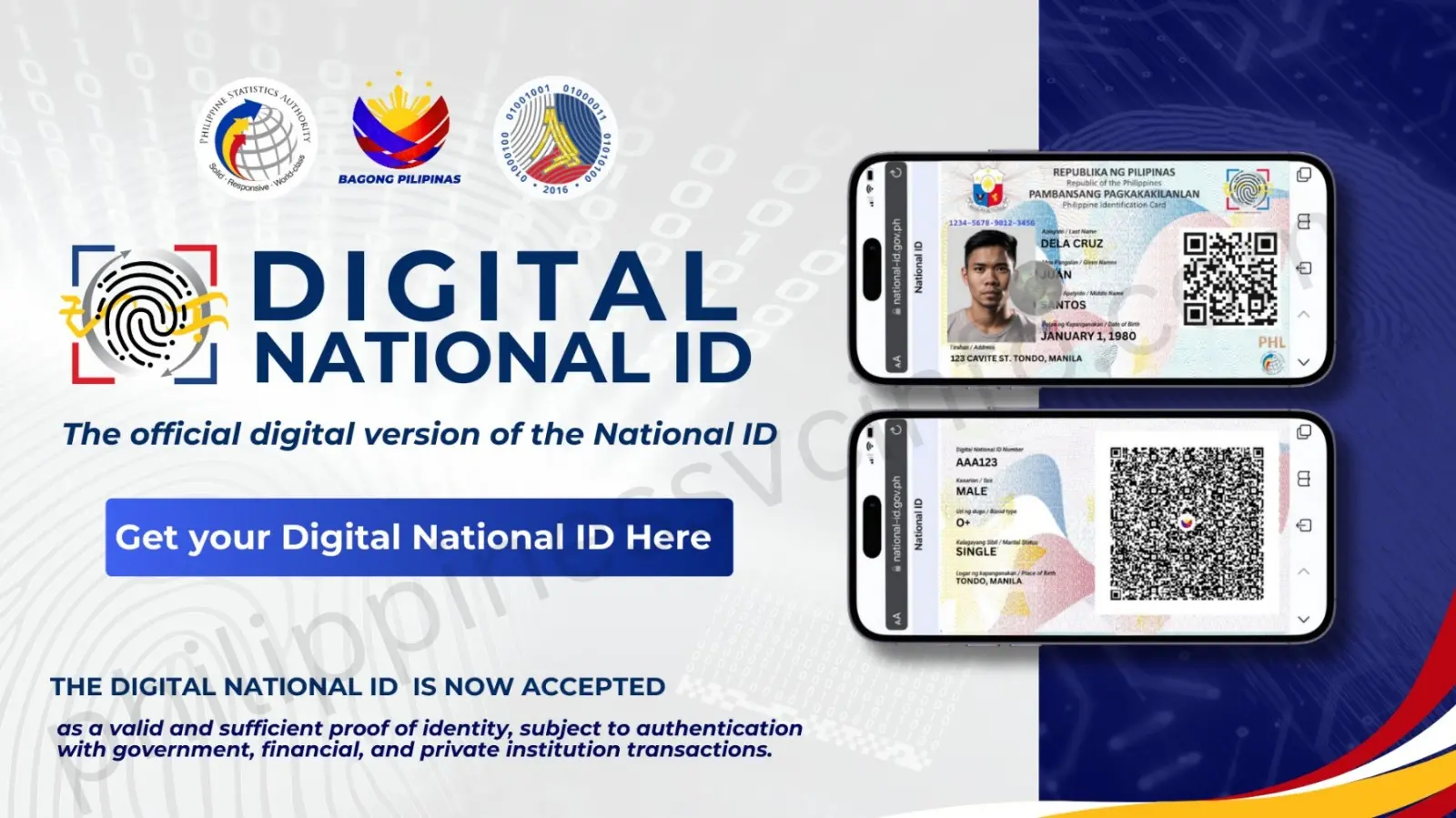
The Digital National ID Philippines is the electronic version of the official PhilID issued by the Philippine Statistics Authority (PSA) under the Philippine Identification System (PhilSys). It allows registered individuals to access their verified identity information digitally through authorised platforms such as the eGovPH app and the National ID website. The digital ID contains important details, including personal information, a unique QR code for authentication, and PhilSys-related identifiers. It has the same legal validity as the physical National ID and printed ePhilID, making it useful for government services, banking, employment, healthcare, and other transactions that require proof of identity.
What Is the Digital National ID Philippines?
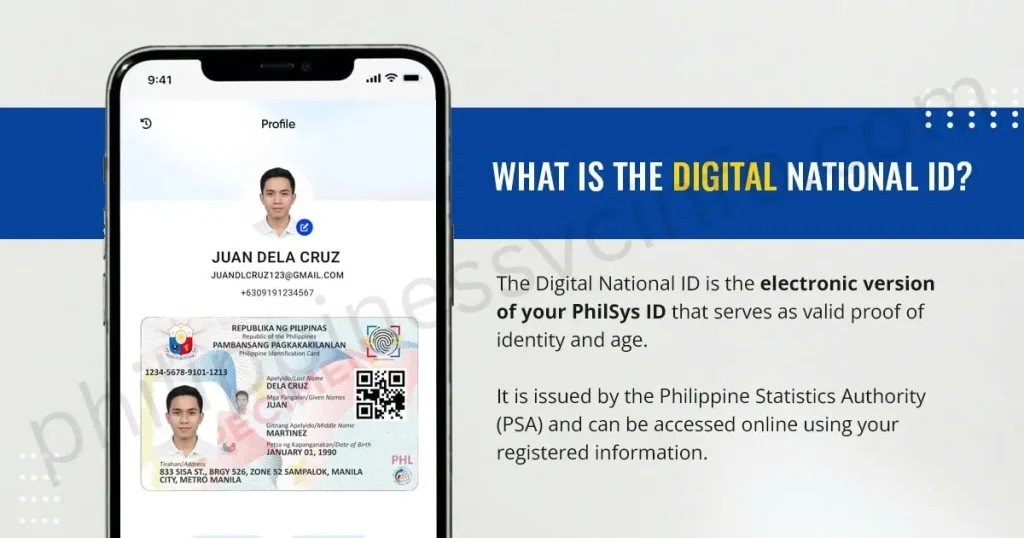
The Digital National ID Philippines is the electronic version of the PhilID issued by the Philippine Statistics Authority (PSA) under the Philippine Identification System (PhilSys). It provides Filipinos with a secure digital identity that can be accessed through authorised online platforms without needing to wait for the delivery of a physical National ID card.
Unlike a photo, screenshot, or scanned copy of an ID, the Digital National ID is generated directly from the official PhilSys database. It contains verified personal information and can be used as a valid proof of identity and age for both government and private transactions.
The digital version has the same legal recognition as the physical PhilID card and printed ePhilID, provided that it passes the required authentication process.
Information Included in the Digital National ID
The Digital National ID contains important identity details linked to your PhilSys registration, including:
- Full legal name
- Date of birth
- Sex
- Registered photograph
- PhilSys Number (PSN)
- PhilID Card Number (PCN)
- Secure QR code for identity verification
The QR code allows organisations and service providers to confirm the authenticity of the Digital National ID through the official verification system.
How Does the Digital National ID Work?
The Digital National ID is connected to the same PhilSys records used to create the physical ID card. Once you complete your PhilSys registration, including biometric capture, your digital ID becomes available when your record is ready.
You do not need to complete a separate registration process for the digital version. If you are already registered in PhilSys, you may access your Digital National ID even if your physical card has not yet been delivered.
This makes the digital format a convenient option for Filipinos who need a recognised identity document while waiting for their physical PhilID.
Digital National ID vs Physical PhilID
FeatureDigital National IDPhysical PhilIDFormatElectronic ID accessed onlinePlastic identity cardIssued byPhilippine Statistics Authority (PSA)Philippine Statistics Authority (PSA)ValidityDoes not expire unless updated by lawDoes not expire unless updated by lawAccessPhone, computer, or online platformPhysical possession requiredPurposeIdentity verification and transactionsIdentity verification and transactions
Key Point to Remember
The Digital National ID Philippines is not a replacement registration system. It is simply another official format of your PhilSys ID that provides faster access to your verified identity information. Whether you use the digital version, printed ePhilID, or physical PhilID card, all formats represent the same registered identity under the Philippine Identification System Act (Republic Act No. 11055).
Why You Need a Digital National ID Philippines
The Digital National ID Philippines provides a faster and more convenient way to prove your identity without depending only on a physical card. It allows registered Filipinos to access their verified identity information digitally whenever they need it.
Here are the main reasons why having a Digital National ID is useful:
Instant Access to Your Identity
Waiting for a physical PhilID card is no longer the only option. Once your PhilSys registration is completed and your digital ID becomes available, you can access it online without waiting for card delivery.
Always Available on Your Device
Your Digital National ID can be stored and accessed through authorised digital platforms using your phone or computer. This reduces the risk of being unable to show identification because you forgot your wallet or misplaced your physical card.
Recognised for Official Transactions
The Digital National ID is designed to be accepted for identity verification in government and private transactions. It can be used when dealing with services such as banking, government agencies, educational institutions, healthcare providers, and other organisations that require proof of identity.
Provides a Reliable Backup
If your physical PhilID card is lost, damaged, or unavailable, your Digital National ID remains accessible as an alternative way to verify your identity.
Makes Transactions More Convenient
Digital verification can help simplify processes that require identity checks, including opening accounts, applying for services, completing government transactions, and confirming personal information.
Protected Under Philippine Law
The Digital National ID is recognised under the Philippine Identification System Act (Republic Act No. 11055). Organisations are expected to recognise valid PhilSys IDs, including the digital format, when properly authenticated.
Businesses or institutions that unlawfully refuse a valid PhilSys ID may face penalties under applicable regulations, including fines that may reach ₱500,000 depending on the violation.
How to Download Your Digital National ID
If you have already completed your PhilSys registration, you can access your Digital National ID online without waiting for the physical card to be delivered. The Digital National ID is an official government-issued digital credential that carries the same legal validity as the physical National ID for identity verification, provided authentication requirements are met. You can access it either through the eGovPH app or the official National ID website, depending on which method is more convenient for you.
Method 1: How to Download Your Digital National ID Using the eGovPH App
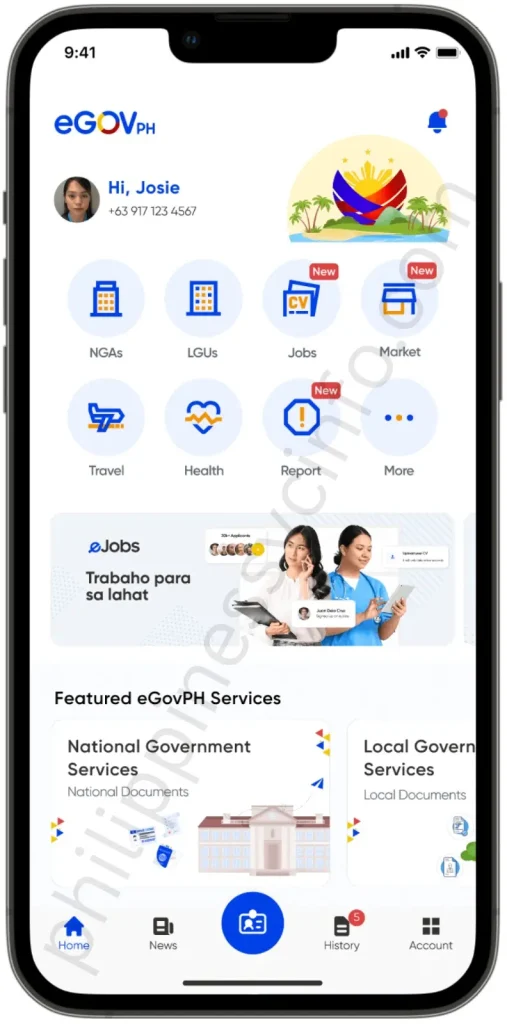
The eGovPH app offers a simple and secure way to access your Digital National ID Philippines directly from your smartphone. Developed by the Department of Information and Communications Technology (DICT), the app integrates various government services, including access to your PhilSys digital identity.
Before you begin, ensure that you have already completed your PhilSys registration and have access to the mobile number associated with your registration.
Step 1: Install the eGovPH App
Download the official eGovPH application from the Google Play Store or Apple App Store.
Before installing, verify that the publisher is the Department of Information and Communications Technology (DICT) to avoid downloading unofficial or fraudulent applications.
Step 2: Sign In or Create an Account
Launch the app and either register for a new account or sign in if you already have one.
Using the same mobile number linked to your PhilSys registration helps the system locate and verify your records more efficiently.
Step 3: Verify Your Mobile Number
An OTP (One-Time Password) will be sent via SMS to your registered mobile number.
Enter the verification code in the app to confirm your identity and continue with the registration process.
Step 4: Create a Secure Password
Set a strong password that you can use for future logins. This allows you to access the app more easily without requesting a new OTP every time you sign in.
Step 5: Open the National ID Section
After logging in successfully, go to the app dashboard and select the National ID section.
This feature connects your eGovPH account with your registered Digital National ID.
Step 6: Complete Facial Verification
The app will ask you to complete a face verification (liveness check) to confirm your identity.
During this process, you may be instructed to move your head in different directions, such as:
- Left
- Right
- Up
- Down
This security measure helps ensure that only the registered owner can access the Digital National ID.
Step 7: View and Save Your Digital National ID
Once the verification process is complete, your Digital National ID will appear within the app.
You can access it anytime through the eGovPH app and save a copy on your device for quick reference whenever needed.
Processing Time: If your PhilSys registration is already complete and your records are available, the entire process typically takes only a few minutes.
Method 2: Download Through the National ID Website
If you prefer not to install the eGovPH app, you can also access your Digital National ID through the official National ID website using any modern web browser.
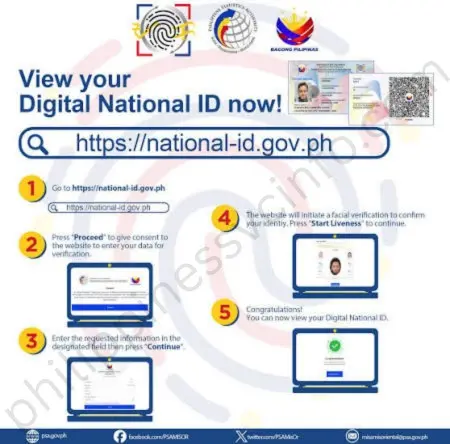
Step 1: Visit the Official National ID Website
Open your preferred web browser and enter the official National ID website address directly into the address bar.
Avoid clicking links shared through social media, emails, or text messages, as these may lead to fraudulent websites designed to steal personal information.
Step 2: Allow Identity Verification
Select the option to access your Digital National ID and grant permission for the Philippine Statistics Authority (PSA) to verify your registered demographic information and facial image.
This authentication process helps protect your identity and ensures secure access to your digital credential.
Step 3: Enter Your Registered Personal Information
Provide the same information you used during your PhilSys registration, including:
- First name
- Middle name (if applicable)
- Last name
- Date of birth
Ensure that all details exactly match your PhilSys records to prevent verification issues.
Step 4: Complete the Verification Process
Follow the on-screen instructions to complete identity verification. Depending on your device, you may also need to allow camera access for facial authentication.
Step 5: View and Download Your Digital National ID
After your identity has been successfully verified, your Digital National ID will be displayed on the screen.
You can then view, download, or save a digital copy for future use. Even if you do not save a copy, you can securely access your Digital National ID anytime by signing in to the official National ID website again.
eGovPH App vs Digital National ID Website: Which Option Is Better?
Both methods connect to the same PSA PhilSys database, so the Digital National ID provided through either method has the same validity. The main difference is how you access and manage it.
FeatureeGovPH AppNational ID WebsiteBest suited forRegular mobile accessOne-time browser accessInstallationRequires app installationNo installation neededLogin convenienceAccount remains available for future useMay require verification againDevice accessDesigned for smartphonesWorks on browsersDigital ID displayAvailable inside the appDisplayed through the websiteRecommended forUsers who frequently show their IDUsers who need a quick download
Which One Should You Choose?
The eGovPH app is more practical if you regularly need your Digital National ID for activities such as banking verification, online services, or identity checks because your access stays connected to your account.
The website method is useful when you only need the ID occasionally and want to avoid installing another application. Both options provide access to the same official Digital National ID issued through PhilSys.
Can You Screenshot Your Digital National ID?
Yes, you can technically take a screenshot of your Digital National ID Philippines, but it is not always the most recommended way to present your identity information during verification.
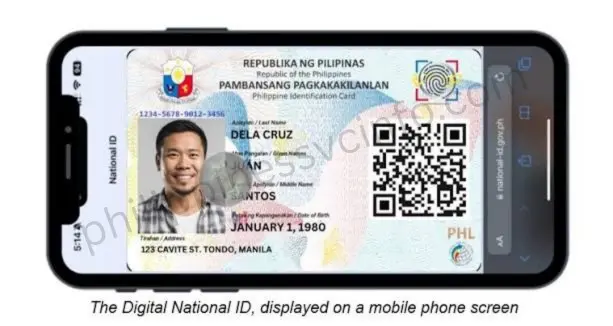
The official digital version displayed through authorised platforms is generally preferred because it provides a more reliable way for organisations to confirm your identity.
Why the Live Digital National ID Version Is Better
Using the live version from the eGovPH app or official website has several advantages:
Updated Information
The live Digital National ID connects directly with your PSA PhilSys record. This means the information shown reflects your registered details, while a screenshot is only a saved image that may not show future updates.
More Reliable QR Code Verification
The QR code displayed on the official Digital National ID is designed for authentication against the PhilSys database. A screenshot may lose quality due to image compression, resizing, or poor display conditions, which can make scanning more difficult.
Preferred by Some Institutions
Banks, government offices, and other organisations may prefer viewing the Digital National ID directly from the official platform because it provides greater confidence that the ID is genuine and has not been altered.
Better Security Against Misuse
A live digital ID is harder to modify compared with a simple image file. Keeping your ID within official platforms adds an extra layer of protection when proving your identity.
If You Need to Save a Screenshot
A screenshot can still be useful as a personal backup, especially when you expect limited internet access. However, handle it carefully, just like a photo of your physical ID.
Follow these safety practices:
- Do not upload your Digital National ID screenshot publicly.
- Avoid sending it through unknown or unsecured channels.
- Do not share your QR code with people you do not trust.
- Store copies only on secure personal devices.
For important transactions, opening your Digital National ID directly through the official app or website remains the safer and more reliable option.
What You Need to Register for PhilSys
Before you can access your Digital National ID Philippines, you must first complete your PhilSys registration. The registration process requires an in-person visit to a PhilSys Registration Center where your personal information and biometric details will be collected.
Registration cannot be completed entirely online because the Philippine Statistics Authority (PSA) needs to verify your identity and capture biometric information.
Required Documents for PhilSys Registration
You only need to bring one acceptable primary document if available. If you do not have a primary document, you may provide approved secondary documents.
Primary Documents (Bring Any One)
Primary DocumentIssuing AuthorityPhilippine PassportDepartment of Foreign Affairs (DFA)PSA Birth Certificate with a government-issued photo IDPhilippine Statistics Authority (PSA)UMID CardGSIS or SSSDriver’s LicenseLand Transportation Office (LTO)
Secondary Documents (For Applicants Without Primary IDs)
If you do not have any of the primary documents listed above, you may use alternative supporting documents, such as:
- School ID with photo and signature
- Company or employee ID
- Barangay Certificate with your photograph
- Voter’s ID issued by COMELEC
- Senior Citizen ID
- Persons with Disability (PWD) ID
The registration staff will check your submitted documents to confirm your identity before collecting your biometric information.
PhilSys Registration Process: Step-by-Step
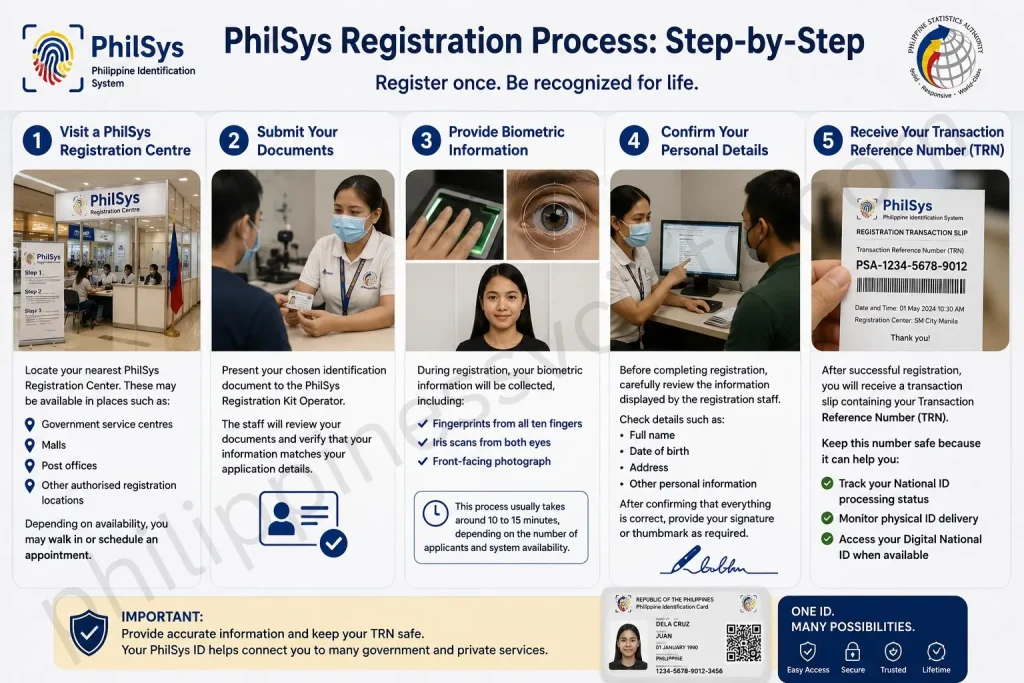
Step 1: Visit a PhilSys Registration Centre
Locate your nearest PhilSys Registration Center. These may be available in places such as:
- Government service centres
- Malls
- Post offices
- Other authorised registration locations
Depending on availability, you may walk in or schedule an appointment.
Step 2: Submit Your Documents
Present your chosen identification document to the PhilSys Registration Kit Operator.
The staff will review your documents and verify that your information matches your application details.
Step 3: Provide Biometric Information
During registration, your biometric information will be collected, including:
- Fingerprints from all ten fingers
- Iris scans from both eyes
- Front-facing photograph
This process usually takes around 10 to 15 minutes, depending on the number of applicants and system availability.
Step 4: Confirm Your Personal Details
Before completing registration, carefully review the information displayed by the registration staff.
Check details such as:
- Full name
- Date of birth
- Address
- Other personal information
After confirming that everything is correct, provide your signature or thumbmark as required.
Step 5: Receive Your Transaction Reference Number (TRN)
After successful registration, you will receive a transaction slip containing your Transaction Reference Number (TRN).
- Keep this number safe because it can help you:
- Track your National ID processing status
- Monitor physical ID delivery
- Access your Digital National ID when available
- PhilSys Registration Is Completely Free
The Philippine government does not charge any registration fee for obtaining a National ID.
Applicants should be careful of individuals or unofficial services asking for payment to complete standard PhilSys registration. The official registration process provided by the PSA is free for all eligible Filipinos.
Special Requirement for Children
Children can also be registered under PhilSys:
- Ages 1–4: Only demographic information and a photograph are collected.
- Age 5 and above: Complete biometric information collection begins, including fingerprint and iris scanning.
Where Can You Use Your Digital National ID Philippines?
The Digital National ID Philippines can be used as a recognised proof of identity for many government, financial, business, and personal transactions. Instead of carrying only a physical ID card, registered users can present their digital ID through authorised platforms for identity verification.
The QR code authentication feature allows organisations to verify the validity of your Digital National ID and confirm your registered information.
Government Services
Your Digital National ID can help you access various government-related services, including:
SSS services such as contribution checking, loan applications, and member transactions
- PhilHealth registration and benefit-related services
- Pag-IBIG Fund applications and member services
- GSIS member transactions
- NBI clearance applications
- LTO services, including driver’s licence-related transactions
- Passport applications through the DFA
- Voter registration and identity verification
Banking and Financial Services
Financial institutions may use the Digital National ID for customer identification and verification, including:
- Opening a bank account
- Applying for credit cards
- Personal loan applications
- Money transfer services
- Digital wallet verification, such as e-wallet account verification
- Insurance applications and policy services
- Using a verified digital identity can make account opening and financial transactions more convenient by reducing the need to provide multiple identification documents.
- Everyday Transactions
- The Digital National ID can also be useful for common activities that require proof of identity, such as:
- SIM card registration
- School admission and enrolment
- Employment applications
- Hotel check-ins
- Domestic airline travel verification
Courier and delivery services
- Utility account applications
Healthcare Services
Healthcare providers may also require valid identification for services such as:
- Hospital admission
- Health insurance processing
- Medical service registration
- Accessing healthcare-related records
- Purchasing prescription medicines where identification is required
How to Verify a Digital National ID Is Authentic
The Digital National ID Philippines includes a secure QR code that helps confirm whether the ID is genuine. This QR code is designed to prevent unauthorised alterations and allows authorised users, businesses, and government agencies to verify the identity information through the official PhilSys verification system.
The verification process helps confirm that the Digital National ID was issued by the Philippine Statistics Authority (PSA) and matches the registered PhilSys record.
Steps to Verify a Digital National ID
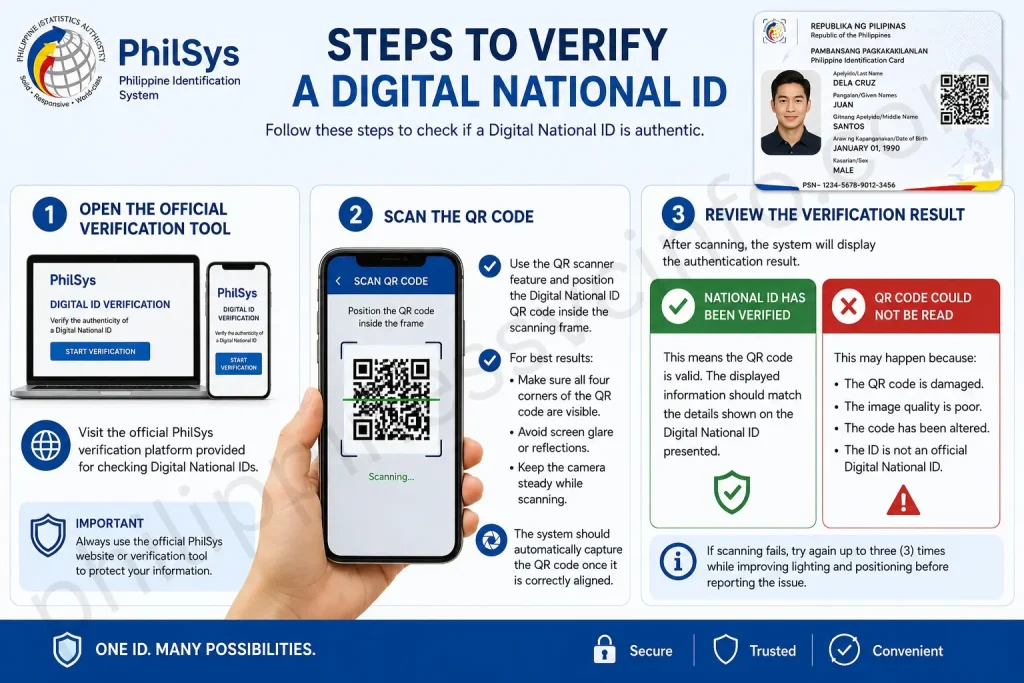
Follow these steps to check if a Digital National ID is authentic:
Step 1: Open the Official Verification Tool
Visit the official PhilSys verification platform provided for checking Digital National IDs.
Step 2: Scan the QR Code
Use the QR scanner feature and position the Digital National ID QR code inside the scanning frame.
For best results:
- Make sure all four corners of the QR code are visible.
- Avoid screen glare or reflections.
- Keep the camera steady while scanning.
- The system should automatically capture the QR code once it is correctly aligned.
Step 3: Review the Verification Result
After scanning, the system will display the authentication result.
There are usually two possible outcomes:
✅ National ID Has Been Verified
This means the QR code is valid. The displayed information should match the details shown on the Digital National ID presented.
❌ QR Code Could Not Be Read
This may happen because:
- The QR code is damaged.
- The image quality is poor.
- The code has been altered.
- The ID is not an official Digital National ID.
If scanning fails, try again up to three times while improving lighting and positioning before reporting the issue.
Is It Legal to Print Your Digital National ID?
Printing your Digital National ID on plastic or PVC card material is not allowed.
Only the Philippine Statistics Authority (PSA) has the authority to produce and issue the official physical PhilID card. A self-made plastic copy is not considered a valid National ID, even if the information printed on it appears correct.
Creating, reproducing, or modifying an official National ID may result in penalties under Republic Act No. 11055 (Philippine Identification System Act).
If you need a physical document format, the proper alternative is the printed ePhilID, which is officially issued through authorised registration channels.
Common Digital National ID Download and Verification Errors
Many Digital National ID problems are caused by simple technical issues. Below are common errors and possible solutions.
“Verification Failure” During Download
If the system cannot verify your information, try these steps:
Check Your Internet Connection
A weak or unstable connection can interrupt the verification process.
Try Again Later
The PSA system may experience heavy traffic during busy periods. Waiting and retrying later can solve temporary issues.
Confirm Your Personal Details
Make sure the information you enter matches your PhilSys registration exactly, including:
- Full name spelling
- Middle name
- Date of birth
If the issue continues, contact official PhilSys support and provide relevant details, such as:
- Full name
- Date of birth
- National ID Card Number (if available)
- Registered mobile number
- Previous demographic updates, if any
- Current ID format you have
Information about possible duplicate registrations
Your information is handled according to applicable data privacy rules and should only be used for resolving your concern.
- Face Verification Keeps Failing
- Facial verification problems can usually be fixed by improving your scanning conditions.
- Try the following:
- Use bright and even lighting.
- Avoid standing with a strong light source behind you.
- Remove glasses, hats, or face coverings if requested.
- Keep your phone steady.
- Follow the head movement instructions carefully.
- Update the eGovPH app if you are using an older version.
QR Code Could Not Be Read
- If the QR code cannot be scanned:
- Make sure the entire QR code is visible.
- Adjust the camera distance.
- Improve lighting conditions.
- Reduce screen glare when scanning a digital copy.
- Try scanning again up to three times.
If the problem continues, the ID holder may need to contact or visit a PSA office for assistance.
What If You Have Not Registered for PhilSys Yet?
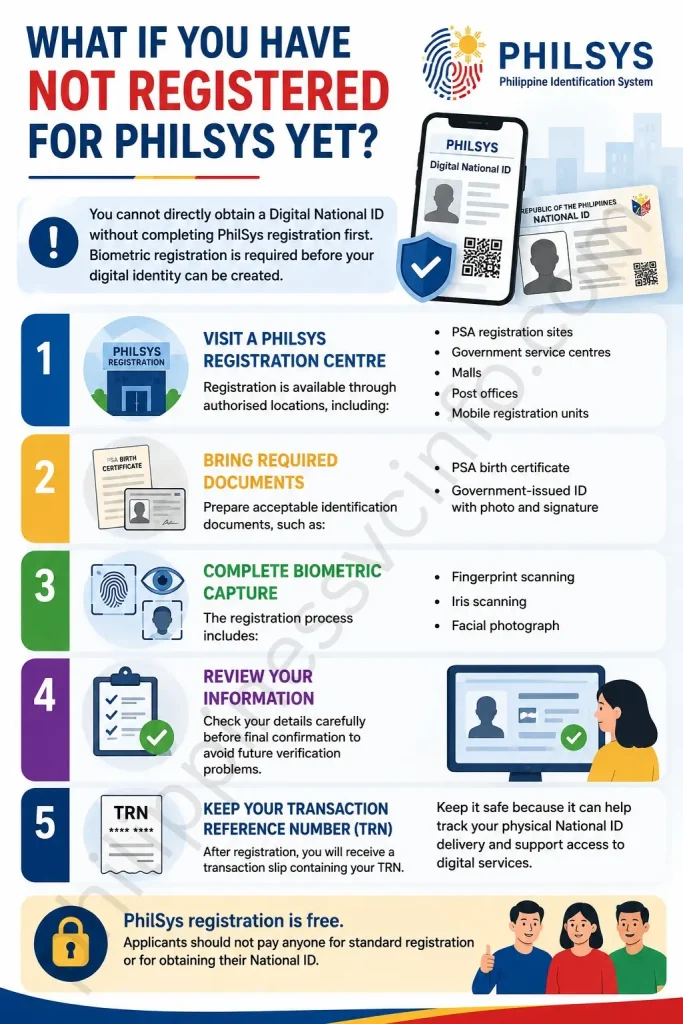
You cannot directly obtain a Digital National ID without completing PhilSys registration first. Biometric registration is required before your digital identity can be created.
Visit a PhilSys Registration Centre
Registration is available through authorised locations, including:
- PSA registration sites
- Government service centres
- Malls
- Post offices
- Mobile registration units
Bring Required Documents
Prepare acceptable identification documents, such as:
- PSA birth certificate
- Government-issued ID with photo and signature
Complete Biometric Capture
The registration process includes:
- Fingerprint scanning
- Iris scanning
- Facial photograph
Review Your Information
Check your details carefully before final confirmation to avoid future verification problems.
Keep Your Transaction Reference Number (TRN)
After registration, you will receive a transaction slip containing your TRN.
Keep it safe because it can help track your physical National ID delivery and support access to digital services.
PhilSys registration is free. Applicants should not pay anyone for standard registration or for obtaining their Digital National ID.
Updating Information on Your Digital National ID
If your personal information changes, you do not need to create a new National ID. Your PhilSys Number remains permanently linked to your identity.
Updates may be needed for changes such as:
- New address
- Corrected birth information
- Name changes after marriage
- How to Update Your PhilSys Information
- Check which PhilSys registration centres provide updating services.
- Prepare your existing National ID record and supporting documents.
- Visit an authorised registration centre in person.
- Submit your request for information correction or updating.
After your information is updated in the PhilSys database, your Digital National ID will reflect the corrected details the next time you access or download it.
Important Rules About Your Digital National ID Philippines
The Digital National ID Philippines provides a convenient way to prove your identity, but users must follow proper security practices when storing, sharing, and using their digital identity information. Understanding these rules helps protect your personal data and ensures your ID remains valid for official transactions.
🚫 Do Not Print Your Digital National ID on Plastic Cards
Creating a homemade plastic or PVC version of your Digital National ID is not permitted.
Only the Philippine Statistics Authority (PSA) is authorised to produce and issue the official physical PhilID card. A self-printed plastic copy is not considered a valid National ID, even if it contains accurate information.
Reproducing or altering the National ID may lead to penalties under Republic Act No. 11055 (Philippine Identification System Act).
If you need a printed format, use the official printed ePhilID provided through authorised PhilSys channels instead of creating your own card.
📸 Screenshots Are Not the Preferred Option
Although taking a screenshot of your Digital National ID is technically possible, using the official digital version is a safer choice.
The original Digital National ID displayed through authorised platforms includes security features connected to the PhilSys verification system. A screenshot is only a static image and may not provide the same verification reliability.
For important transactions, institutions may prefer viewing:
- The live Digital National ID
- The original digital display
- The working QR code verification feature
If you keep a screenshot as a backup, protect it the same way you would protect a photo of your physical ID.
🔒 Protect Your PhilSys Numbers
Your PhilSys identification numbers have different purposes and should not be treated the same way.
PhilSys Number (PSN)
The PhilSys Number (PSN) is your permanent identification number. It is confidential and should only be shared when legally required or with authorised organisations.
PhilSys Card Number (PCN)
- The PhilSys Card Number (PCN) is used for everyday transactions and appears on your National ID card.
- The PCN is the number generally used when organisations need to identify your PhilID record.
Security Tip: Avoid posting any National ID number, QR code, or personal details publicly online.
The Philippine National ID system provides three official formats. All formats represent the same registered identity and have equal legal recognition.
FormatDescriptionMain Advantage💳 Physical National IDThe plastic PhilID card delivered after registrationDurable and convenient for regular use📱 Digital National IDElectronic version accessed through official digital platformsAvailable anytime through your device📄 ePhilIDOfficial printed paper version issued through PhilSys centresUseful while waiting for the physical card
You do not need to register separately for each format. After completing PhilSys registration, you can use the format that best suits your situation.
Security Features of the Digital National ID
The Digital National ID uses several security measures to protect identity information.
- PhilSys Number (PSN)
- Permanent identification number assigned to each registered individual.
- Remains unchanged throughout your lifetime.
- Should be kept confidential.
- PhilSys Card Number (PCN)
- Used for general identification purposes.
- Designed for transactions where an organisation needs to reference your National ID.
- QR Code Authentication
Each Digital National ID contains a unique QR code that allows authorised systems to verify whether the ID is authentic.
Biometric Verification
Facial authentication helps confirm that the person accessing the Digital National ID matches the registered identity.
Encrypted Data Protection
Personal information is protected through security systems designed to prevent unauthorised access.
Is the Digital National ID Legal and Accepted?
Yes. The Digital National ID is legally recognised in the Philippines under Republic Act No. 11055, also known as the Philippine Identification System Act.
The National ID is available in multiple official formats:
- Physical PhilID
- Digital National ID
- Printed ePhilID
Government agencies and private organisations are expected to recognise valid National ID formats for identity verification, unless a specific transaction requires additional verification under applicable rules.
Refusing a valid National ID without a lawful reason may result in penalties under the provisions of the PhilSys Act.
Key Reminder
Your Digital National ID is an official identity document, not just an image stored on your phone. Use official platforms, protect your personal information, and avoid unofficial copies or modified versions to keep your digital identity secure.
Frequently Asked Questions About Digital National ID Philippines
Conclusion
The Digital National ID Philippines makes it possible to use your verified identity without waiting for the physical card to arrive. If you are already registered with PhilSys, you can access your digital ID through official platforms like the eGovPH app or National ID website, and it has the same legal recognition as other National ID formats under Republic Act No. 11055. Remember to use only official channels, keep your personal information secure, and never pay third parties for Digital National ID services. Avoid printing your digital ID on plastic cards, and always verify authenticity through the official verification system when needed. With proper use, the Digital National ID provides a faster and more convenient way to complete identity-based transactions.
Discover What You Need to Know:
- ARCarrierPoint.net 2026 Complete Guide With Features, Services, Benefits & How to Use
- Smart SIM Registration Guide 2026: Register, Verify & Activate Your SIM
- STL Result Today: Official PCSO Winning Numbers (10:30 AM, 3 PM, 7 PM & 8 PM)
- SSS Portal Guide 2026: Registration, Login & Online Services in the Philippines
- Swertres Result History 2026: Complete PCSO 3D Results Archive